ECU TESLA MODEL Y 2020 Owner´s Manual
[x] Cancel search | Manufacturer: TESLA, Model Year: 2020, Model line: MODEL Y, Model: TESLA MODEL Y 2020Pages: 232, PDF Size: 7.68 MB
Page 52 of 232

Power Cycling the Vehicle
If your vehicle demonstrates unusual behavior or a nondescript alert is present, you can try power cycling
the vehicle to potentially resolve the issue.
1.
Shift into Park.
2.
On the touchscreen, touch Controls > Safety &
Security > Power Off.
3.
Wait for at least two minutes without interacting
with the vehicle. Do not open the doors, touch the brake pedal, touch the touchscreen, etc.
4.
After two minutes have passed, press the brake
pedal or open the door to wake the vehicle.
Starting and Powering Off
50MODEL Y OWNER
Page 67 of 232
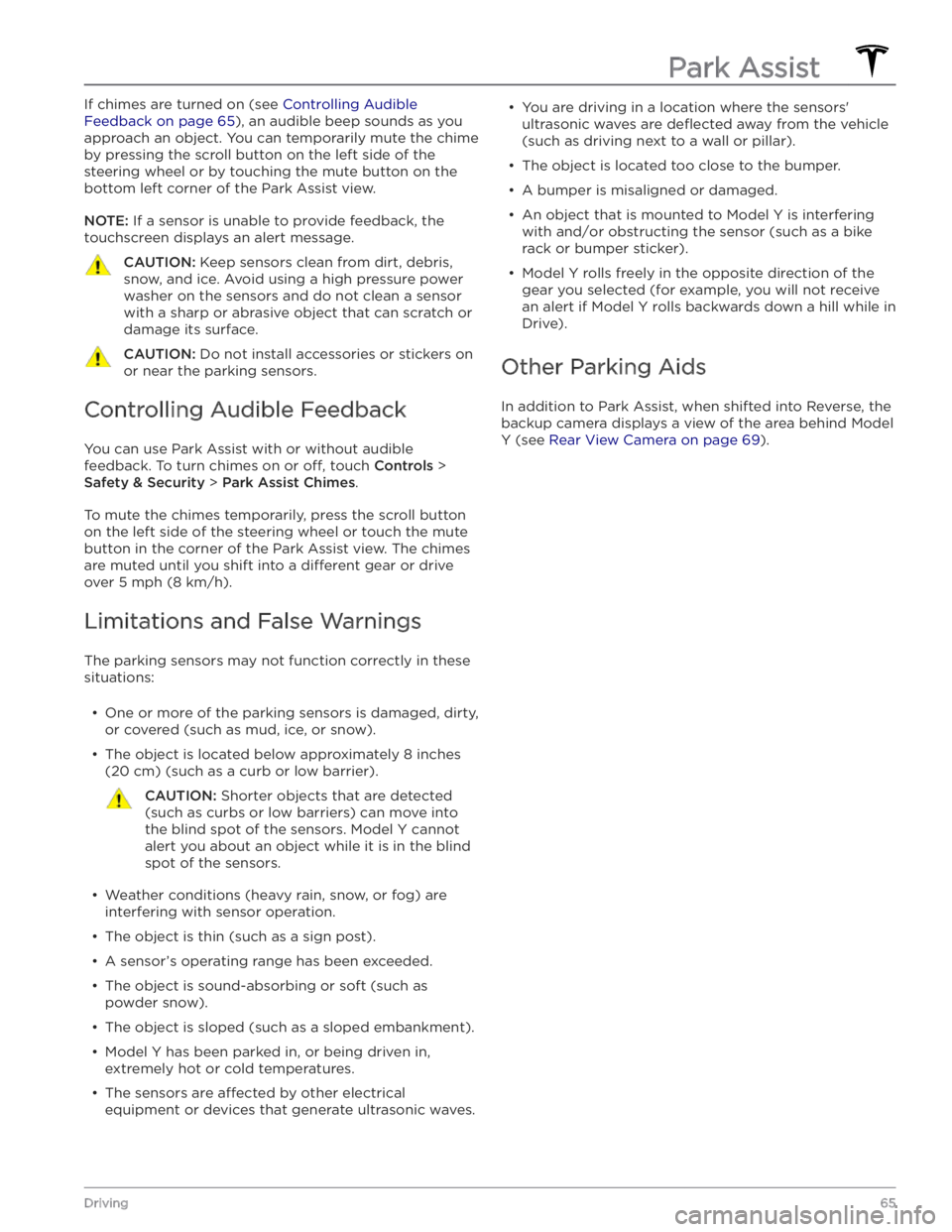
If chimes are turned on (see Controlling Audible
Feedback on page 65), an audible beep sounds as you
approach an object. You can temporarily mute the chime by pressing the scroll button on the left side of the steering wheel or by touching the mute button on the bottom left corner of the Park Assist view.
NOTE: If a sensor is unable to provide feedback, the
touchscreen displays an alert message.
CAUTION: Keep sensors clean from dirt, debris,
snow, and ice. Avoid using a high pressure power
washer on the sensors and do not clean a sensor
with a sharp or abrasive object that can scratch or
damage its surface.
CAUTION: Do not install accessories or stickers on
or near the parking sensors.
Controlling Audible Feedback
You can use Park Assist with or without audible feedback. To turn chimes on or
off, touch Controls >
Safety & Security > Park Assist Chimes.
To mute the chimes temporarily, press the scroll button on the left side of the steering wheel or touch the mute button in the corner of the Park Assist view. The chimes
are muted until you shift into a
different gear or drive
over
5 mph (8 km/h).
Limitations and False Warnings
The parking sensors may not function correctly in these situations:
Page 79 of 232

To attach a ball mount:
1.
Remove the dust cover from the hitch housing by using a small object, such as a
flat screwdriver, to pry
between the dust cover and hitch housing. Store the dust cover in a secure location.
2.
If necessary, remove the cotter pin from the locking
bolt and slide the locking bolt out of the hitch assembly.
3.
Slide the ball holder into the hitch assembly.
4.
Align the hole in the ball holder with the one in the hitch assembly.
5.
Slide the locking bolt through the hitch assembly/ball holder.
6.
Insert the cotter pin in the hole at the end of the
locking bolt.
To remove a ball mount:
1.
Remove the cotter pin from the locking bolt and slide
the locking bolt out of the ball holder/hitch assembly.
2. Pull the ball holder out of the hitch assembly.3.
Re-install the dust cover for the hitch housing and
store the ball mount in a secure location.
Electrical Connections
Regulations require all trailers to be equipped with tail lights, brake lights, side marker lights, and turn signals.
To provide power for trailer lighting, a built-in 7-pin
wiring connector is provided near the hitch support
Page 121 of 232
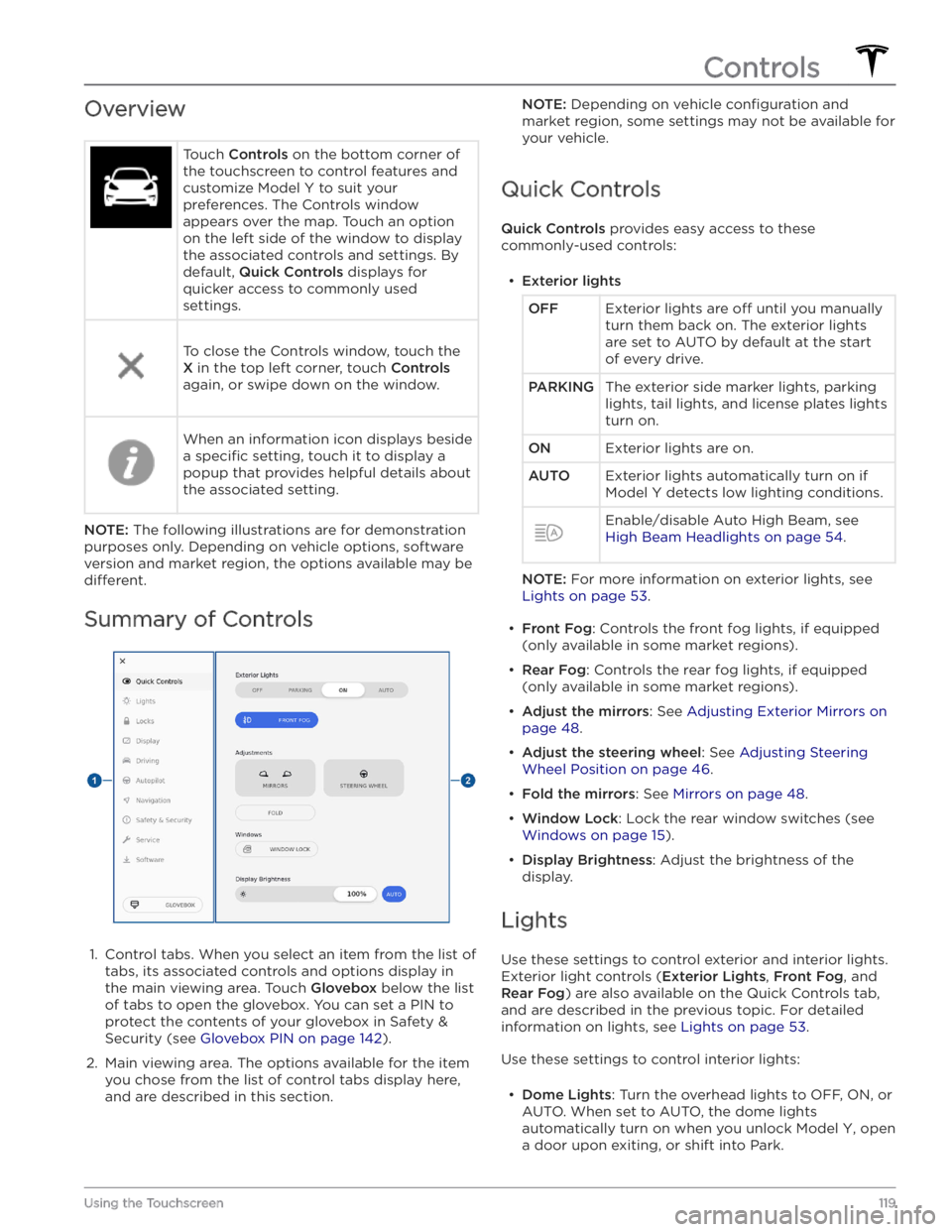
OverviewTouch Controls on the bottom corner of
the touchscreen to control features and
customize
Model Y to suit your
preferences. The Controls window
appears over the map. Touch an option on the left side of the window to display the associated controls and settings. By
default,
Quick Controls displays for
quicker access to commonly used
settings.
To close the Controls window, touch the
X in the top left corner, touch Controls
again, or swipe down on the window.
When an information icon displays beside a
specific setting, touch it to display a
popup that provides helpful details about
the associated setting.
NOTE: The following illustrations are for demonstration
purposes only. Depending on vehicle options, software version and market region, the options available may be
different.
Summary of Controls
1.
Control tabs. When you select an item from the list of tabs, its associated controls and options display in the main viewing area. Touch
Glovebox below the list
of tabs to open the glovebox. You can set a PIN to
protect the contents of your glovebox in Safety & Security (see
Glovebox PIN on page 142).
2.
Main viewing area. The options available for the item you chose from the list of control tabs display here, and are described in this section.
NOTE: Depending on vehicle configuration and
market region, some settings may not be available for your vehicle.
Quick Controls
Quick Controls provides easy access to these
commonly-used controls:
Page 126 of 232

If your Model Y comes within approximately 3 mph (5
km/h) of the selected maximum speed, a chime sounds
and text appears on the touchscreen above the driving
speed. Additionally, your mobile app sends you a
notification.
To enable Speed Limit Mode:
1.
Ensure the vehicle is in Park.
2.
Touch Controls > Safety & Security > Speed Limit
Mode on the touchscreen or CONTROLS in your
mobile app.
3.
Select the maximum driving speed that you would
like to limit the vehicle to.
4.
Drag the slider to the ON position.
5.
Enter the 4-digit PIN that you want to use to disable and enable Speed Limit Mode.
NOTE: If you forget the PIN, you can disable Speed
Limit Mode by entering the login credentials for your Tesla Account.
NOTE: When Speed Limit Mode is enabled, the
acceleration setting (
Controls > Driving > Acceleration)
is automatically set to
Chill.
WARNING: Driving downhill can increase driving
speed, causing the vehicle to exceed your chosen
maximum speed.
WARNING: Speed Limit Mode is not a
replacement for good judgment, driver training,
and the need to closely monitor roadway speed
limits and driving conditions. Accidents can occur
at any speed.
Erasing Personal Data
You can erase all personal data (saved addresses, music favorites,
HomeLink programming, etc.) and restore all
customized settings to their factory defaults. This is useful when transferring ownership of
Model Y. Touch
Controls > Service > FACTORY RESET. Before erasing,
Model Y verifies your credentials by prompting you to
enter the user name and password associated with your Tesla Account.
Controls
124MODEL Y OWNER
Page 144 of 232

About the Security System
If Model Y does not detect an authenticated phone, key
fob, or key card and a locked door or trunk is opened, an
alarm sounds and the headlights and turn signals
flash.
To deactivate the alarm, press any button on the mobile
app or tap your key card or key fob against the card reader located
approximately one third the way up of
the driver
Page 145 of 232
CAUTION: Sentry Mode may not trigger the
security alarm in all situations involving damage to
the vehicle. The security alarm depends upon
multiple factors to be triggered and may not
detect all impacts to the vehicle or may not trigger
the alarm in all cases.
Standby, Alert, and Alarm States
When in Sentry Mode, Model Y may go through three
states depending on its surroundings
Page 169 of 232

1. Place the curved part of the lug nut cover tool (located in the glovebox for some vehicles, or you can use a small allen wrench) into the lowered
perimeter around the middle of the lug nut cover.
NOTE: The lug nut cover tool can also be purchased
at an auto parts store or through online retailers.
2.
Twist the lug nut cover tool so that the end of the curved part is facing away from the Tesla "T".
3.
Firmly pull the lug nut tool away from the wheel until the lug nut cover is released.
To install the lug nut cover:
1.
Align the lug nut cover into position.
2.
Push firmly on the lug nut cover until it fully snaps
into place.
CAUTION: Make sure the lug nut cover is fully
secure before driving to prevent it from falling
off.
Tire Pressure Monitoring
Each tire should be checked monthly when cold and
inflated to the recommended pressures that are printed
on the Tire and Loading Information label located on the
driver’s door pillar (see Maintaining Tire Pressures on
page 164). If your vehicle has tires of a different size
than the size indicated on the vehicle placard or tire
inflation pressure label, determine the proper tire
inflation pressure for those tires.
As an added safety feature, your vehicle has been
equipped with a TPMS that displays a tire pressure telltale (Tire Pressure Warning) on the
touchscreen when
one or more of your tires is
significantly under-inflated.
Accordingly, when the Tire Pressure indicator light
displays on the
touchscreen to alert you about tire
pressure, stop and check your tires as soon as possible, and
inflate them to the proper pressure (see Maintaining
Tire Pressures on page 164). Driving on a significantly
under-inflated tire causes the tire to overheat and can
lead to tire failure.
Under-inflation also reduces range
e
Page 174 of 232
Regularly inspect the exterior paint for damage. Treat minor chips and scratches using a paint touch-up pen (available for purchase from Tesla). Use the touch-up
pen after washing but before polishing or waxing.
Repair rock chips, fractures or scratches. Refer to
https://www.tesla.com/support/body-shop-support for
more information on repair locations and available
services.
CAUTION: Do not use cutting pastes, color
restoration compounds, or polishes containing
harsh abrasives. These can scour the surface and
permanently damage the paint.
CAUTION: Do not use chrome polish or other
abrasive cleaners.
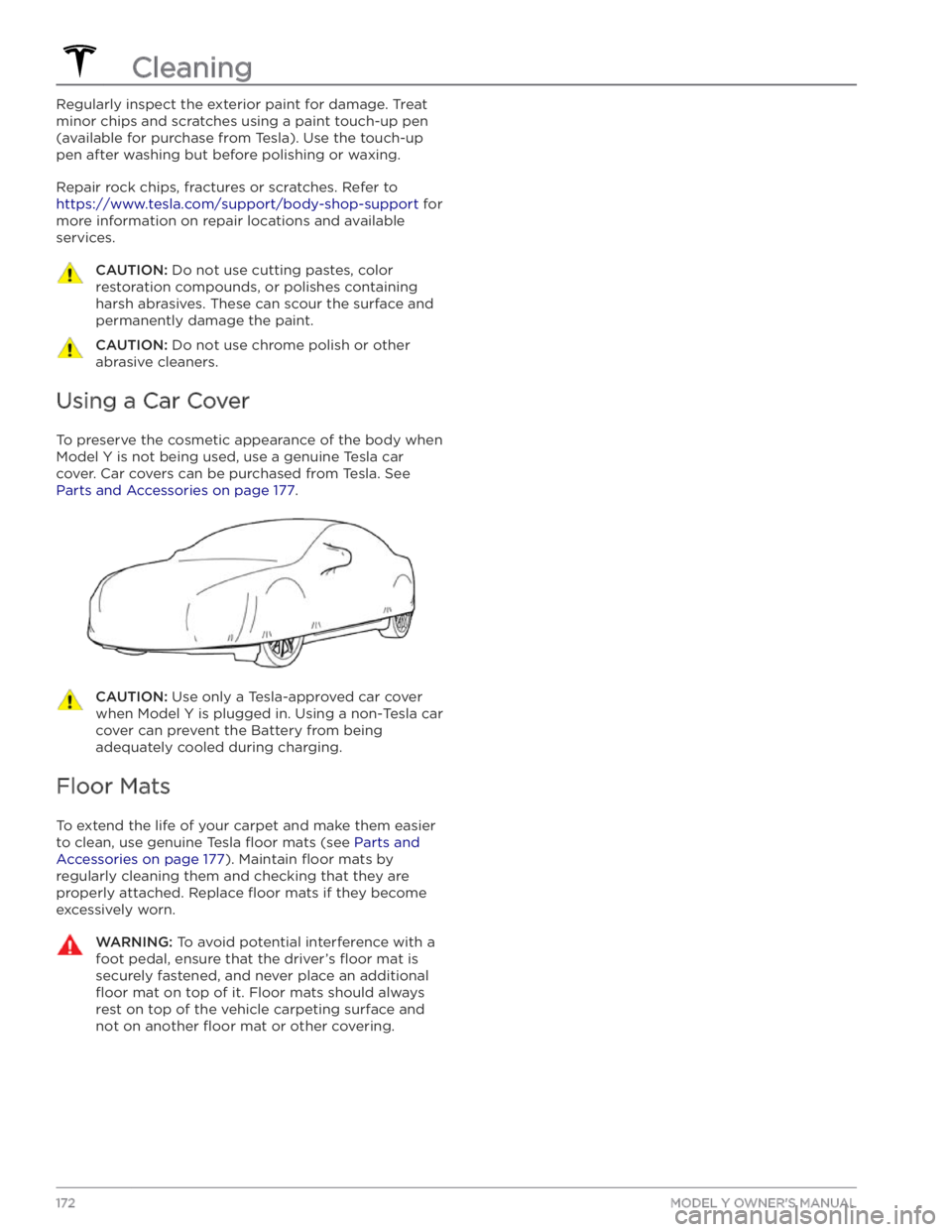
Using a Car Cover
To preserve the cosmetic appearance of the body when
Model Y is not being used, use a genuine Tesla car
cover. Car covers can be purchased from Tesla. See
Parts and Accessories on page 177.
CAUTION: Use only a Tesla-approved car cover
when Model Y is plugged in. Using a non-Tesla car
cover can prevent the Battery from being
adequately cooled during charging.
Floor Mats
To extend the life of your carpet and make them easier
to clean, use genuine Tesla
floor mats (see Parts and
Accessories on page 177). Maintain floor mats by
regularly cleaning them and checking that they are
properly attached. Replace
floor mats if they become
excessively worn.
WARNING: To avoid potential interference with a
foot pedal, ensure that the driver’s floor mat is
securely fastened, and never place an additional
floor mat on top of it. Floor mats should always
rest on top of the vehicle carpeting surface and
not on another floor mat or other covering.
Cleaning
172MODEL Y OWNER
Page 176 of 232

Removing the Maintenance Panel
To check fluid levels, remove the maintenance panel:
1.
Open the hood.
2.
Pull the maintenance panel upward to release the clips that hold it in place.
3.
If checking the Battery coolant, remove the cabin intake trim panel by pulling it upwards to release the clips that hold it in place.
CAUTION: The maintenance panel protects the
front trunk from water. When re-attaching, make
sure it is fully seated.
Checking Battery Coolant
Your Battery coolant should not need to be replaced for the life of your vehicle under most circumstances. However, if the quantity of
fluid in the cooling system
drops below the recommended level, the
touchscreen
displays a warning message. Stop driving Model Y as
soon as safety permits and contact Tesla.
Fluid Level Check
DO NOT REMOVE THE FILLER CAP AND DO NOT ADD
FLUID. Doing so can result in damage not covered by
the warranty.
Do Not Top Up Battery Coolant
WARNING: Battery coolant can be hazardous and
can irritate eyes and skin. Under no circumstances
should you remove the filler cap and/or add
coolant. If the touchscreen warns you that the
fluid level is low, contact Tesla immediately.
To maximize the performance and life of the Battery, the cooling system uses a
specific mixture of G-48
ethylene-glycol coolant (HOAT). Contact Tesla for more
specific information about the coolant.
Checking Brake FluidWARNING: Contact Tesla immediately if you
notice increased movement of the brake pedal or
a significant loss of brake fluid. Driving under
these conditions can result in extended stopping
distances or complete brake failure.
A red brake indicator on the
touchscreen alerts you if the quantity of
fluid in the brake reservoir drops below
the recommended level. If it displays while driving, stop as soon as safety permits by gently applying the brakes.
Do not continue driving. Contact Tesla
immediately.
Topping Up the Brake Fluid
Do not top up your brake fluid. The following
instructions are provided for information purposes and future reference only:
1.
Clean the filler cap before removing it to prevent dirt
from entering the reservoir.
2.
Unscrew the cap and remove it.
3.
Top up the reservoir to the MAX mark using the
appropriate brake
fluid.
4.
Replace the filler cap, ensuring it is fully secured.
WARNING: Only use new fluid from a sealed air-
tight container. Never use previously used fluid or
fluid from a previously opened container