lights TESLA MODEL Y 2022 Owner´s Manual
[x] Cancel search | Manufacturer: TESLA, Model Year: 2022, Model line: MODEL Y, Model: TESLA MODEL Y 2022Pages: 250, PDF Size: 8.4 MB
Page 80 of 250
NOTE: When testing chocks, ensure that Vehicle Hold
(see
Vehicle Hold on page 66) is not engaged. If
Vehicle Hold is braking
Model Y, the Vehicle Hold
indicator light displays on the touchscreen. To
disengage Vehicle Hold, press and release the brake
pedal.
4.
Place the vehicle in Park.
WARNING: If parking on a grade is necessary,
always ensure that all trailer wheels have been
securely chocked. Failure to do so can result in
serious damage or injury.
Trailer Sway Mitigation
When trailer sway is detected, the electronic stability control system attempts to apply the appropriate amount of braking to minimize trailer sway. The touchscreen
briefly displays the traction control system
indicator. Pressing the brake pedal when the system is actively braking to mitigate trailer sway does not cancel this automatic braking.
Attaching and Removing the Ball
Mount
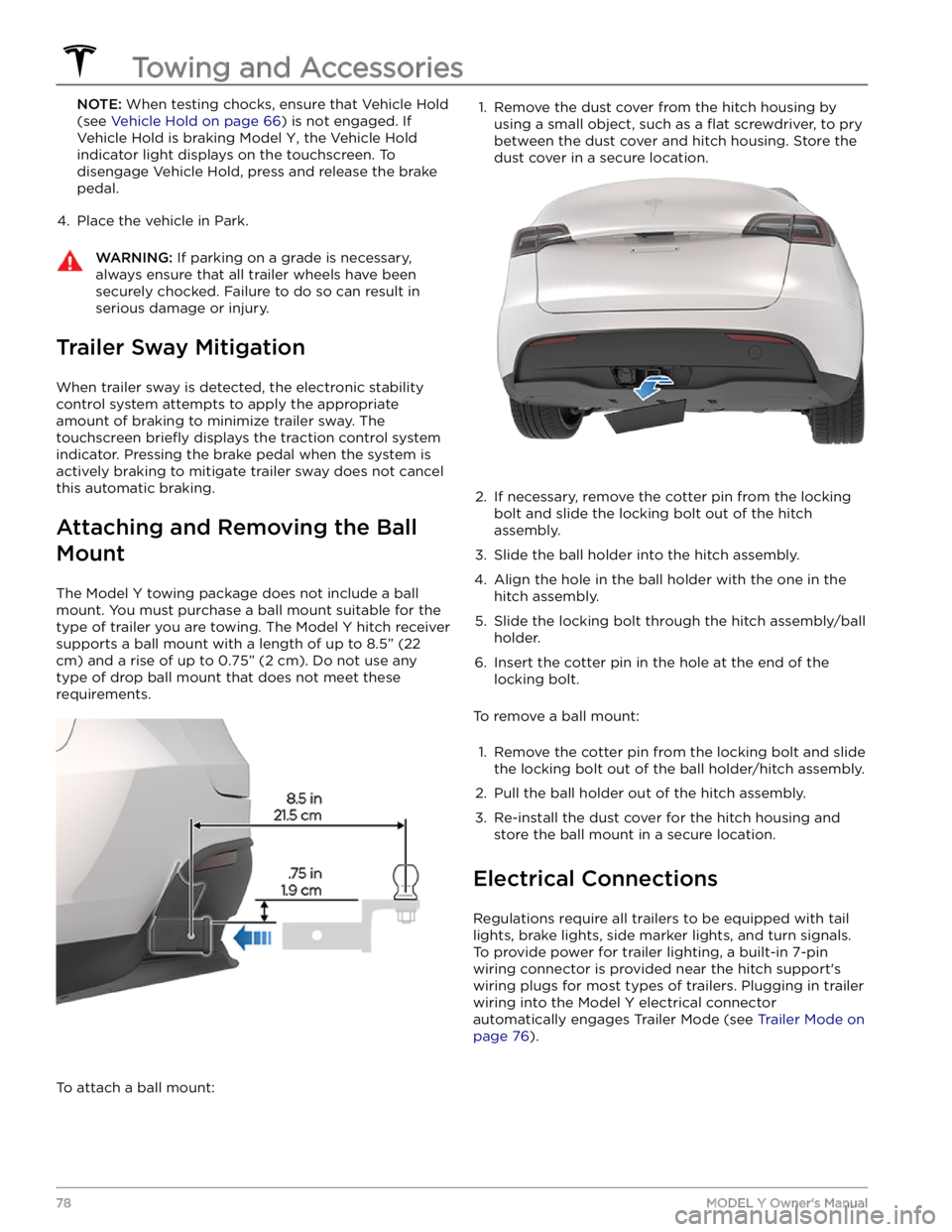
The Model Y towing package does not include a ball
mount. You must purchase a ball mount suitable for the type of trailer you are towing. The
Model Y hitch receiver
supports a ball mount with a length of up to
8.5” (22
cm) and a rise of up to 0.75” (2 cm). Do not use any
type of drop ball mount that does not meet these requirements.
To attach a ball mount:
1. Remove the dust cover from the hitch housing by
using a small object, such as a
flat screwdriver, to pry
between the dust cover and hitch housing. Store the dust cover in a secure location.
2.
If necessary, remove the cotter pin from the locking
bolt and slide the locking bolt out of the hitch assembly.
3.
Slide the ball holder into the hitch assembly.
4.
Align the hole in the ball holder with the one in the hitch assembly.
5.
Slide the locking bolt through the hitch assembly/ball holder.
6.
Insert the cotter pin in the hole at the end of the
locking bolt.
To remove a ball mount:
1.
Remove the cotter pin from the locking bolt and slide
the locking bolt out of the ball holder/hitch assembly.
2.
Pull the ball holder out of the hitch assembly.
3.
Re-install the dust cover for the hitch housing and store the ball mount in a secure location.
Electrical Connections
Regulations require all trailers to be equipped with tail lights, brake lights, side marker lights, and turn signals.
To provide power for trailer lighting, a built-in 7-pin wiring connector is provided near the hitch support
Page 81 of 250
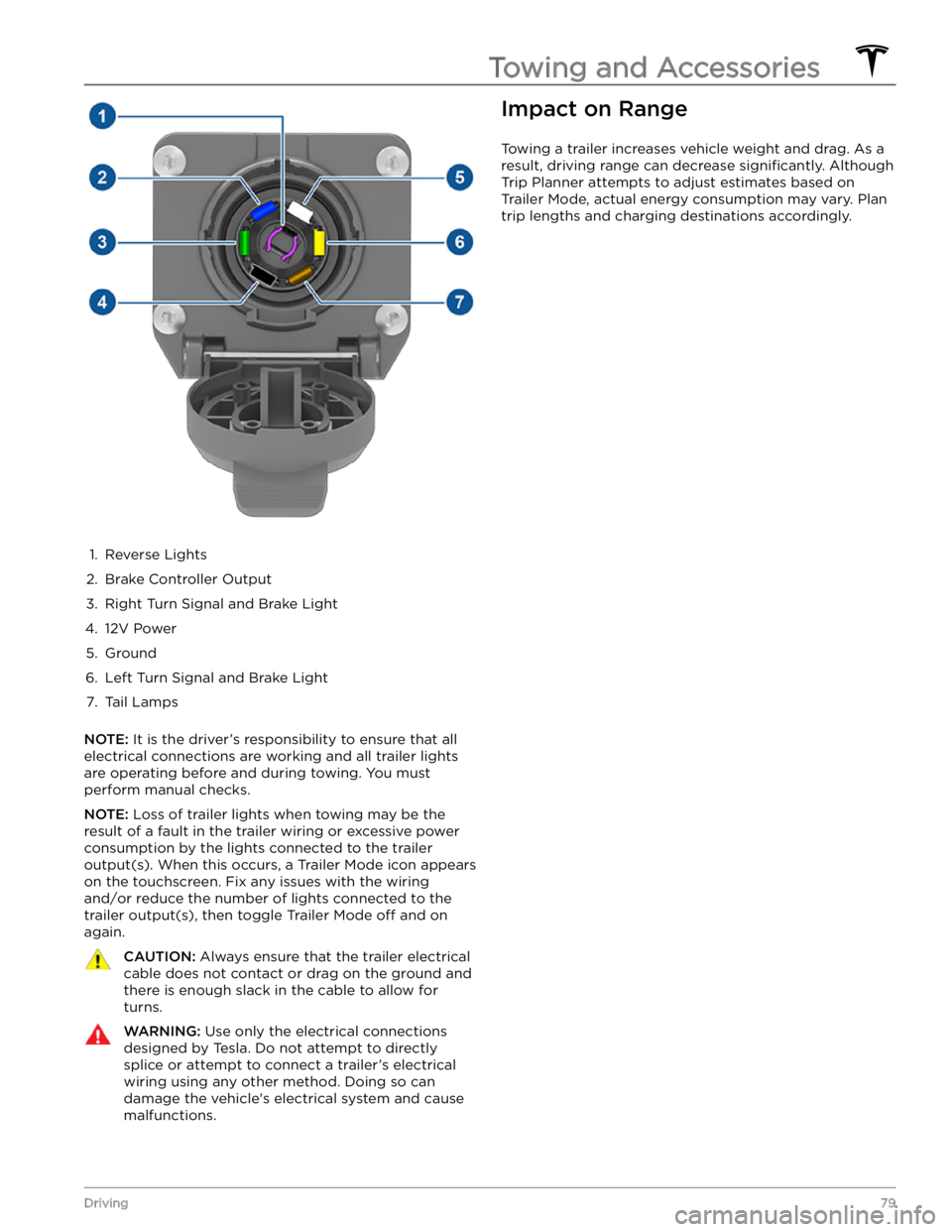
1.
Reverse Lights
2.
Brake Controller Output
3.
Right Turn Signal and Brake Light
4.
12V Power
5.
Ground
6.
Left Turn Signal and Brake Light
7.
Tail Lamps
NOTE: It is the driver
Page 93 of 250
NOTE: Depending on market region, vehicle
configuration, options purchased, and software version,
your vehicle may not be equipped with Autosteer, or the
feature may not operate exactly as described.
NOTE: Autosteer is a BETA feature.
Autosteer builds upon Traffic-Aware Cruise Control (see
Traffic-Aware Cruise Control on page 86), intelligently
keeping
Model Y in its driving lane when cruising at a set
speed.
Autosteer also allows you to use the turn signals
to move Model Y into an adjacent lane (see Auto Lane
Change on page 93). Autosteer detects lane markings
and the presence of vehicles and objects to
steer Model
Y.
NOTE: To display more details about the roadway and its
surroundings, such as road markings, stop lights, objects (such as trash cans and poles), etc., touch
Controls >
Autopilot > Full Self-Driving Visualization Preview (if
equipped).
CAUTION: Ensure all cameras and sensors are
clean. Dirty cameras and sensors, as well as
environmental conditions such as rain and faded
lane markings, affect performance.
WARNING: Autosteer is a hands-on feature. You
must keep your hands on the steering wheel at all
times.
WARNING: Autosteer is intended for use on
highways and limited-access roads with a fully
attentive driver. When using Autosteer, hold the
steering wheel and be mindful of road conditions
and surrounding traffic. Do not use Autosteer on
city streets, in construction zones, or in areas
where bicyclists or pedestrians may be present.
Never depend on Autosteer to determine an
appropriate driving path. Always be prepared to
take immediate action. Failure to follow these
instructions could cause damage, serious injury or
death.
Operating Autosteer
Before you can operate Autosteer, you must enable it by touching
Controls > Autopilot > Autosteer (Beta).
To indicate that Autosteer is available (but
not actively steering
Model Y), the
touchscreen displays a gray Autosteer
icon .
To initiate Autosteer, move the drive stalk fully down
twice in quick succession.
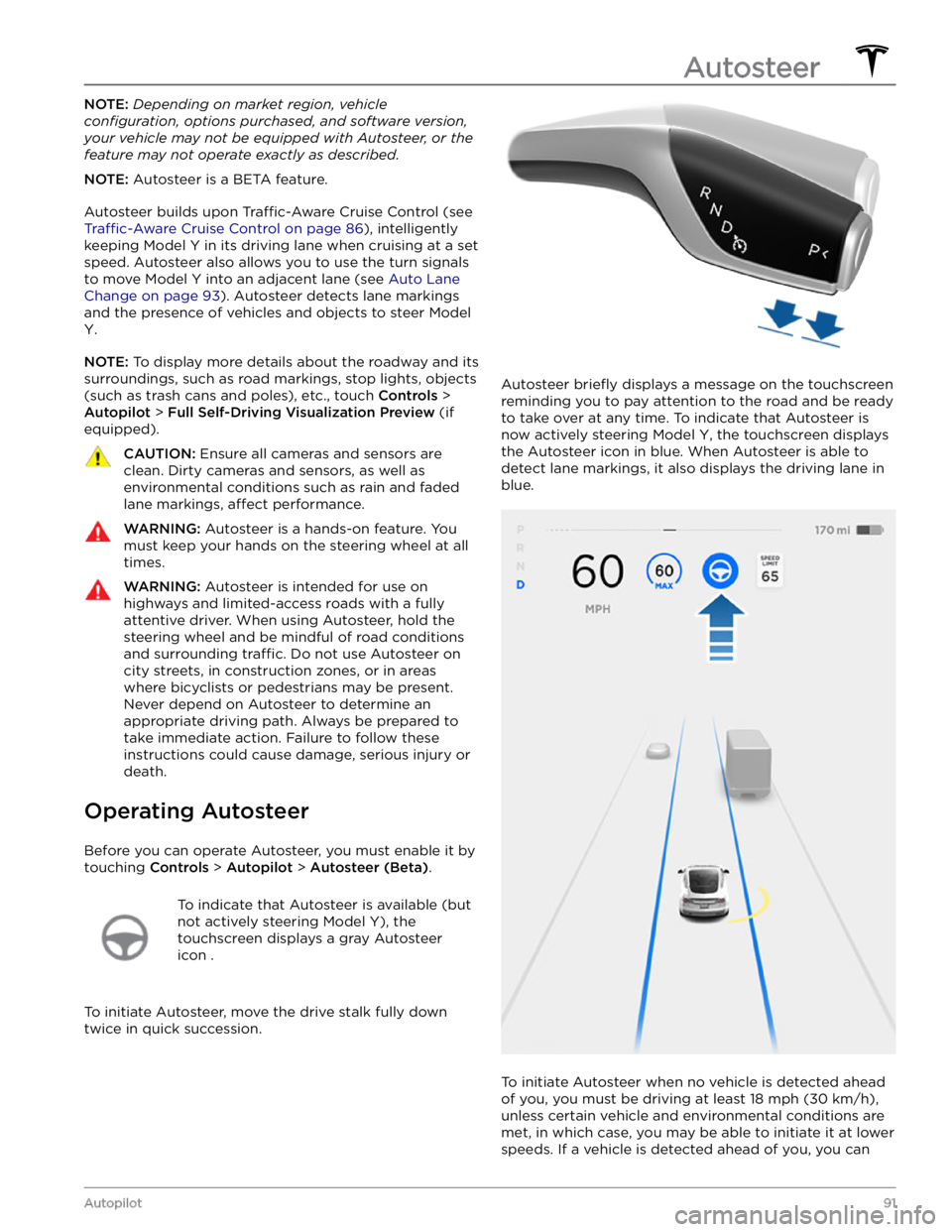
Autosteer briefly displays a message on the touchscreen
reminding you to pay attention to the road and be ready
to take over at any time. To indicate that Autosteer is
now actively steering
Model Y, the touchscreen displays
the Autosteer icon in blue. When Autosteer is able to detect lane markings, it also displays the driving lane in blue.
To initiate Autosteer when no vehicle is detected ahead
of you, you must be driving at least
18 mph (30 km/h),
unless certain vehicle and environmental conditions are met, in which case, you may be able to initiate it at lower speeds. If a vehicle is detected ahead of you, you can
Autosteer
91Autopilot
Page 96 of 250
When using Auto Lane Change, it is important to monitor its performance by watching the driving path in front of you and the surrounding area. Stay prepared to take over steering at any time. As you are crossing over into the adjacent lane, the
touchscreen displays the
location in the lane that
Model Y is moving into.
In situations where Auto Lane Change is unable to operate at optimal performance, or cannot operate due to inadequate data, the
touchscreen displays a series of
warnings. Therefore, when using Auto Lane Change,
always pay attention to the
touchscreen and be
prepared to manually steer
Model Y.
Stop Light and Stop Sign Warning
NOTE: Depending on market region, vehicle
configuration, options purchased, and software version,
your vehicle may not be equipped with Stop Light and
Stop Sign Warning, or the feature may not operate
exactly as described.
While Autosteer is in use, Model Y displays a warning on
the
touchscreen and sounds a chime if it detects that
you are likely to run through a red stop light or stop sign. If this happens,
TAKE IMMEDIATE CORRECTIVE
ACTION!
The visual and audible warnings cancel after a few seconds, or when you press the brake pedal, whichever
comes
first.
Stop Light and Stop Sign Warning provides warnings
only. It makes no attempt to slow down or stop
Model Y
at red traffic lights, stop signs, road markings, etc. If your
vehicle is equipped with Traffic Light and Stop Sign
Control, you can enable this feature to automatically
stop Model Y at traffic lights and stop signs (see Traffic
Light and Stop Sign Control on page 99).
NOTE: Touch Controls > Autopilot > Full Self-Driving
Visualization Preview (if equipped) to display more
details about the roadway and its surroundings, such as road markings, stop lights, objects (such as trash cans
and poles), etc.
CAUTION: Stop Light and Stop Sign Warning
requires the vehicle
Page 101 of 250
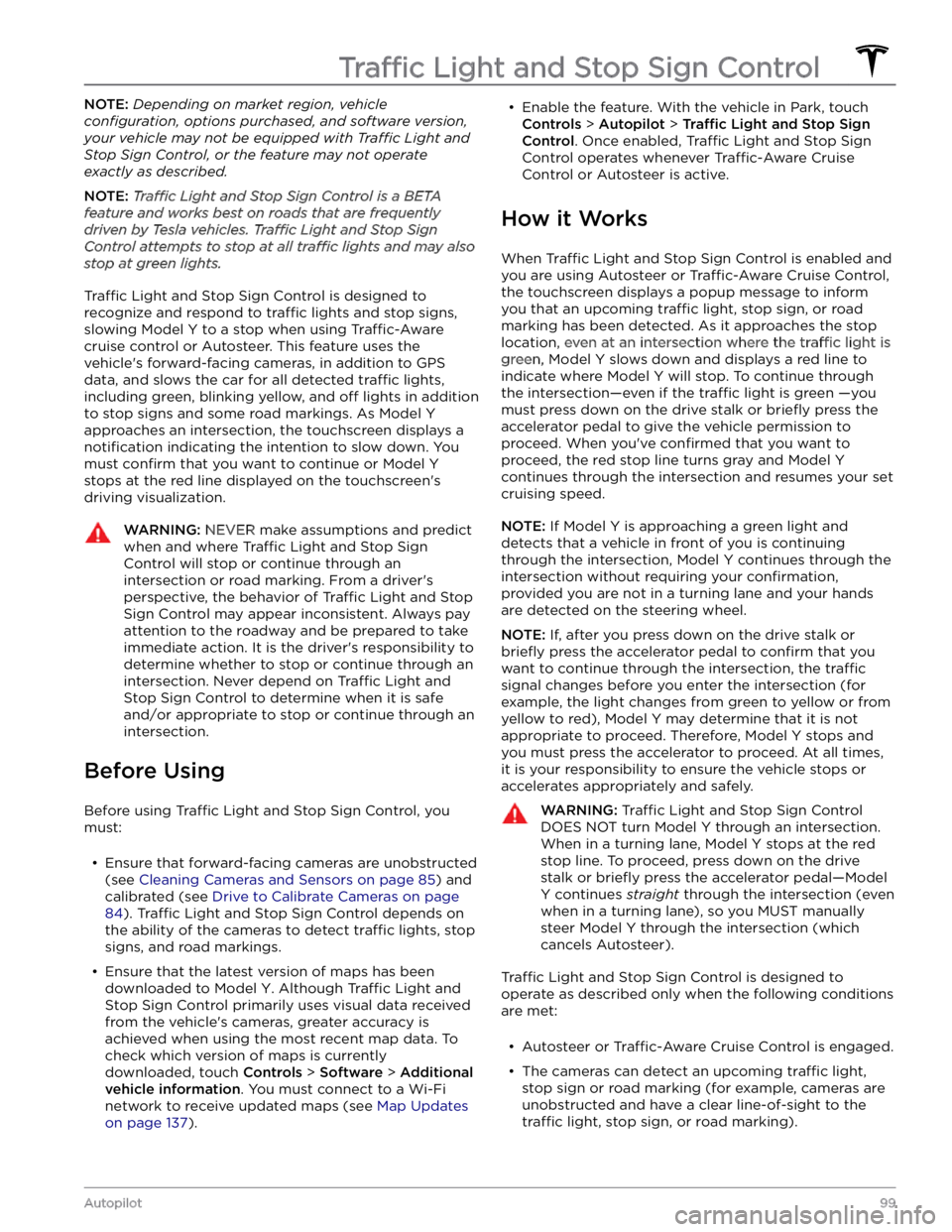
NOTE: Depending on market region, vehicle
configuration, options purchased, and software version,
your vehicle may not be equipped with Traffic Light and
Stop Sign Control, or the feature may not operate
exactly as described.
NOTE: Traffic Light and Stop Sign Control is a BETA
feature and works best on roads that are frequently
driven by Tesla vehicles. Traffic Light and Stop Sign
Control attempts to stop at all traffic lights and may also
stop at green lights.
Traffic Light and Stop Sign Control is designed to
recognize and respond to
traffic lights and stop signs,
slowing
Model Y to a stop when using Traffic-Aware
cruise control or Autosteer. This feature uses the
vehicle
Page 114 of 250

Immediately after initiating Smart Summon in either
mode, hazard lights
briefly flash, mirrors fold, and Model
Y shifts into the appropriate driving gear (Drive or
Reverse).
Model Y then slowly moves to within 3 feet (1
meter) of you (COME TO ME) or your chosen destination
(GO TO TARGET), navigating obstacles as needed. As
Model Y moves, the corresponding red arrow on the
map also moves to show the vehicle
Page 147 of 250
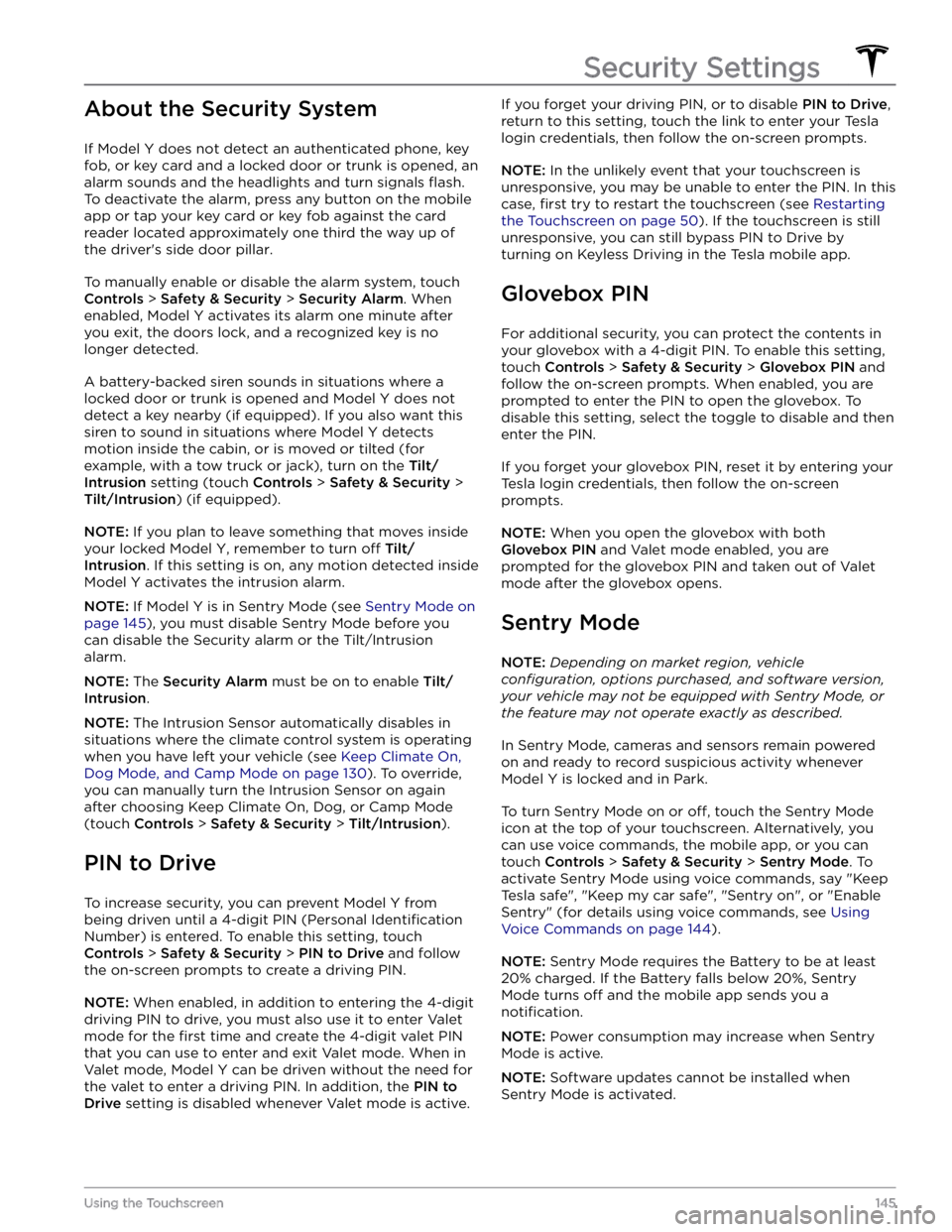
About the Security System
If Model Y does not detect an authenticated phone, key
fob, or key card and a locked door or trunk is opened, an alarm sounds and the headlights and turn signals
flash.
To deactivate the alarm, press any button on the mobile
app or tap your key card or key fob against the card reader located
approximately one third the way up of
the driver
Page 236 of 250
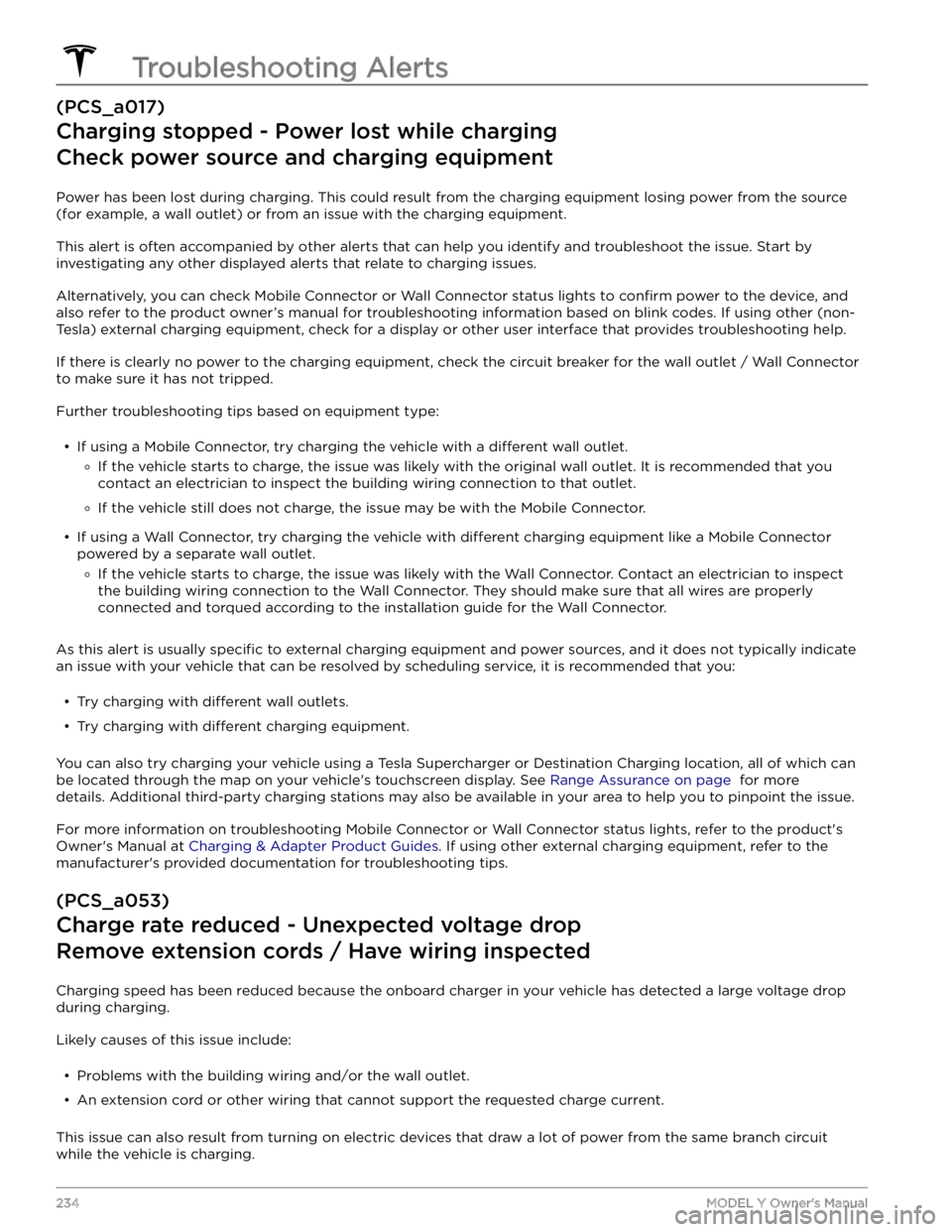
(PCS_a017)
Charging stopped - Power lost while charging
Check power source and charging equipment
Power has been lost during charging. This could result from the charging equipment losing power from the source
(for example, a wall outlet) or from an issue with the charging equipment.
This alert is often accompanied by other alerts that can help you identify and troubleshoot the issue. Start by
investigating any other displayed alerts that relate to charging issues.
Alternatively, you can check Mobile Connector or Wall Connector status lights to confirm power to the device, and
also refer to the product owner
Page 238 of 250

For more information on troubleshooting Mobile Connector or Wall Connector status lights, refer to the product
Page 243 of 250
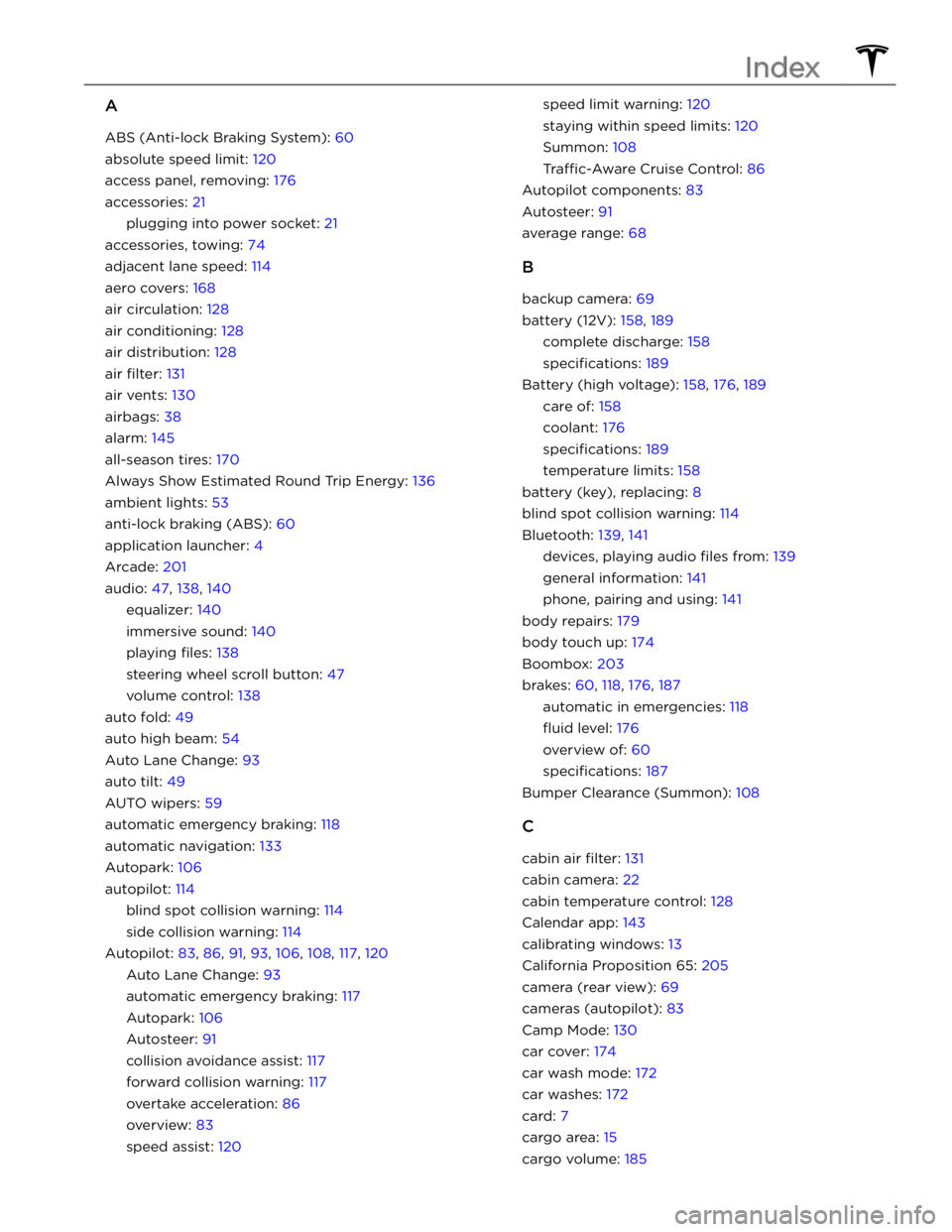
A
ABS (Anti-lock Braking System): 60
absolute speed limit: 120
access panel, removing: 176
accessories: 21
plugging into power socket: 21
accessories, towing: 74
adjacent lane speed: 114
aero covers: 168
air circulation: 128
air conditioning: 128
air distribution: 128
air filter: 131
air vents: 130
airbags: 38
alarm: 145
all-season tires: 170
Always Show Estimated Round Trip Energy: 136
ambient lights: 53
anti-lock braking (ABS): 60
application launcher: 4
Arcade: 201
audio: 47, 138, 140
equalizer: 140
immersive sound: 140
playing files: 138
steering wheel scroll button: 47
volume control: 138
auto fold: 49
auto high beam: 54
Auto Lane Change: 93
auto tilt: 49
AUTO wipers: 59
automatic emergency braking: 118
automatic navigation: 133
Autopark: 106
autopilot: 114
blind spot collision warning: 114
side collision warning: 114
Autopilot: 83, 86, 91, 93, 106, 108, 117, 120
Auto Lane Change: 93
automatic emergency braking: 117
Autopark: 106
Autosteer: 91
collision avoidance assist: 117
forward collision warning: 117
overtake acceleration: 86
overview: 83
speed assist: 120
speed limit warning: 120
staying within speed limits: 120
Summon: 108
Traffic-Aware Cruise Control: 86
Autopilot components: 83
Autosteer: 91
average range: 68
B
backup camera: 69
battery (12V): 158, 189
complete discharge: 158
specifications: 189
Battery (high voltage): 158, 176, 189
care of: 158
coolant: 176
specifications: 189
temperature limits: 158
battery (key), replacing: 8
blind spot collision warning: 114
Bluetooth: 139, 141
devices, playing audio files from: 139
general information: 141
phone, pairing and using: 141
body repairs: 179
body touch up: 174
Boombox: 203
brakes: 60, 118, 176, 187
automatic in emergencies: 118
fluid level: 176
overview of: 60
specifications: 187
Bumper Clearance (Summon): 108
C
cabin air filter: 131
cabin camera: 22
cabin temperature control: 128
Calendar app: 143
calibrating windows: 13
California Proposition 65: 205
camera (rear view): 69
cameras (autopilot): 83
Camp Mode: 130
car cover: 174
car wash mode: 172
car washes: 172
card: 7
cargo area: 15
cargo volume: 185
Index