display TOYOTA 4RUNNER 2013 N280 / 5.G Repair Manual
[x] Cancel search | Manufacturer: TOYOTA, Model Year: 2013, Model line: 4RUNNER, Model: TOYOTA 4RUNNER 2013 N280 / 5.GPages: 704, PDF Size: 11.56 MB
Page 401 of 704
401
3-3. Using the Bluetooth® audio system
3
Interior features
4RUNNER_U
Setting up a Bluetooth® enabled por table player
Registering a portable player in the Bluetooth® audio system allows
the system to function. The followin g functions can be used for reg-
istered portable players:
■ Functions and operation procedures
Press and hold until “BT AUDIO” is displayed.
Press (SETUP).
Select one of the following functions using a voice com-
mand or .
● Registering a portable player
“Pair Audio Players (Pair audio player)”
● Selecting a portable player to be used
“Select Audio Player”
● Changing the registered name of a portable player
“Change Name”
● Listing the registered portable players
“List Audio Players”
● Changing the passkey
“Set Passkey”
● Deleting a registered portable player
“Delete Audio Player”
STEP 1
STEP 2
STEP 3
Page 407 of 704
407
3
Interior features
4RUNNER_U
3-4. Using the hands-free phone system (for cellular phone)
Hands-free phone system (for cellular phone) features
This system supports Bluetooth®, which allows you to make or
receive calls without using cables to connect a cellular phone and
the system, and without oper ating the cellular phone.
Owners of models equipped with a Display Audio system should
refer to the “Display Audio System Owner's Manual”.
Owners of models equipped with a navigation system should refer to
the “Navigation System Owner's Manual”.
■ Hands-free system quick guide
Setting a cellular phone. ( P. 412)
Adding an entry to the phonebook (Up to 20 names can be
stored). ( P. 433)
Dialing by inputting a name. ( P. 421)
STEP 1
STEP 2
STEP 3
: If equipped
Page 412 of 704
412
3-4. Using the hands-free phone system (for cellular phone)
4RUNNER_U
Using the hands-free phone system (for cellular phone)
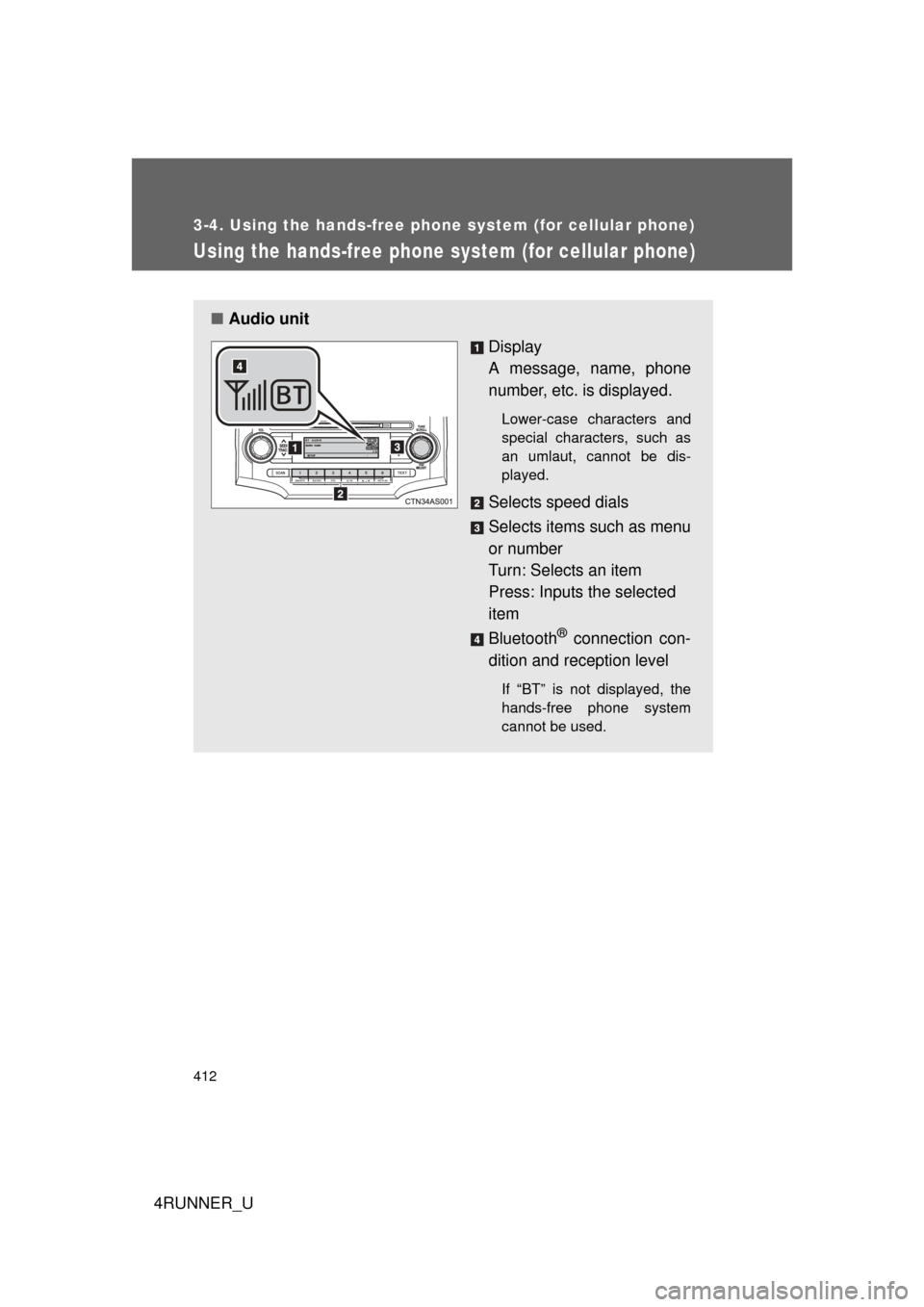
■Audio unit
Display
A message, name, phone
number, etc. is displayed.
Lower-case characters and
special characters, such as
an umlaut, cannot be dis-
played.
Selects speed dials
Selects items such as menu
or number
Turn: Selects an item
Press: Inputs the selected
item
Bluetooth
® connection con-
dition and reception level
If “BT” is not displayed, the
hands-free phone system
cannot be used.
Page 414 of 704
414 3-4. Using the hands-free phone system (for cellular phone)
4RUNNER_U
Operating the system using a voice command
By following voice gui dance instructions output from the speaker,
voice commands enable the operation of the hands-free phone sys-
tem without the need to check the display or operate .
■ Operation procedure when using a voice command
Press the talk switch and follo w voice guidance instructions.
■ Auxiliary commands when using a voice command
The following auxiliary commands can be used when operating the
system using a voice command:
“Cancel”: Exits the hands-free phone system
“Repeat”: Repeats the previous voice guidance instruction
“Go back”: Returns to the previous procedure
“Help”: Reads aloud the function summary if a help comment is
registered for the selected function
Using the hands-free phone system for the first time
Before using the hands-free phone system, it is necessary to register
a cellular phone in the system. Th e phone registration mode will be
entered automatically when starting the system with no cellular
phone registered. Follow the procedure below to register a cellular
phone:
Press the off-hook switch or the talk switch.
The introductory guidance and phone name registration instructions
are heard.
STEP 1
Page 415 of 704
415
3-4. Using the hand
s-free phone system (for cellular phone)
3
Interior features
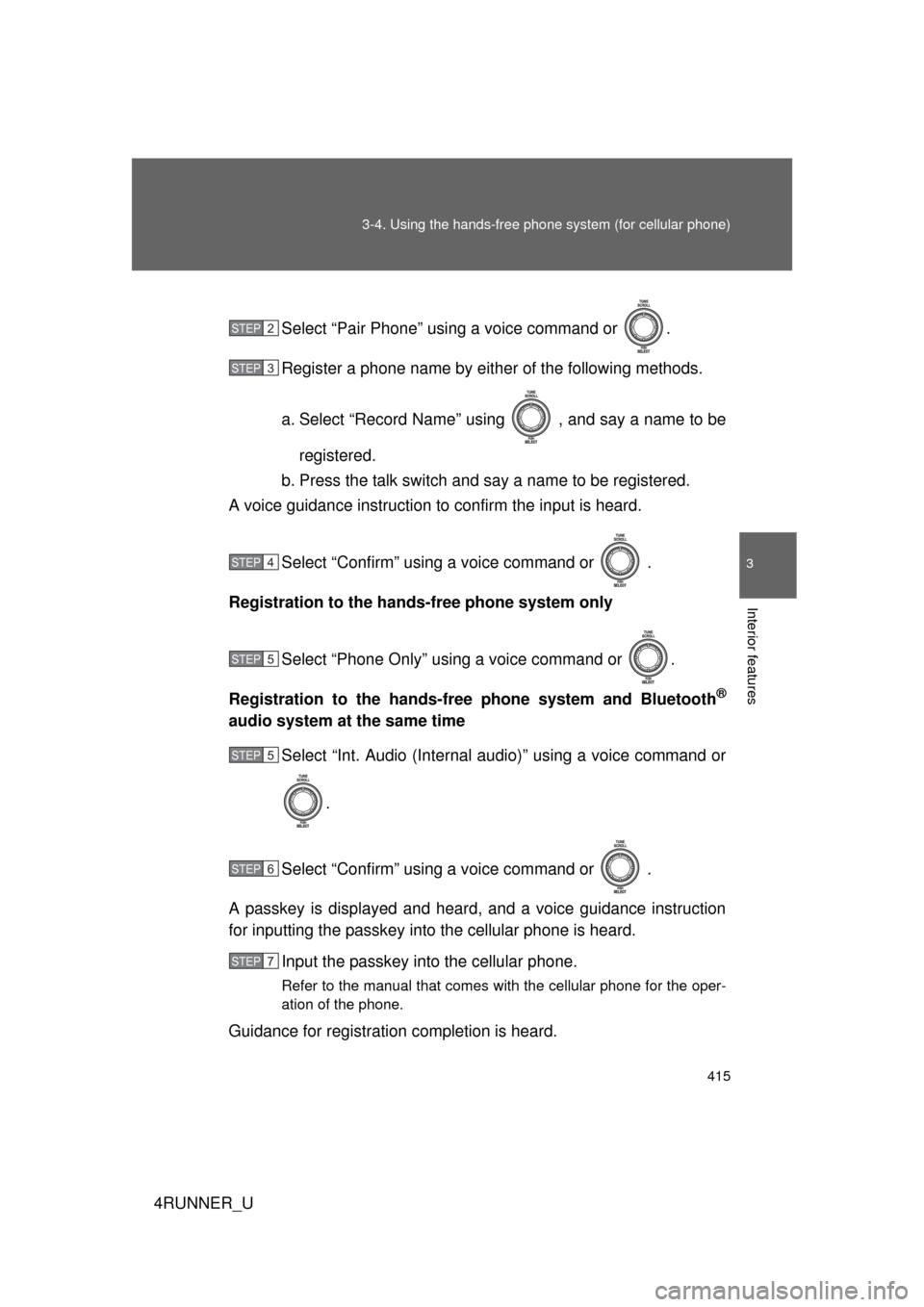
4RUNNER_USelect “Pair Phone” using a voice command or .
Register a phone name by either of the following methods.
a. Select “Record Name” using , and say a name to be
registered.
b. Press the talk switch and say a name to be registered.
A voice guidance instruction to confirm the input is heard.
Select “Confirm” using a voice command or .
Registration to the hands -free phone system only
Select “Phone Only” using a voice command or .
Registration to the hands-free phone system and Bluetooth
®
audio system at the same time Select “Int. Audio (Internal audio)” using a voice command or
.
Select “Confirm” using a voice command or .
A passkey is displayed and heard, and a voice guidance instruction
for inputting the passkey into the cellular phone is heard. Input the passkey into the cellular phone.
Refer to the manual that comes with the cellular phone for the oper-
ation of the phone.
Guidance for registration completion is heard.
STEP 2
STEP 3
STEP 4
STEP 5
STEP 5
STEP 6
STEP 7
Page 417 of 704
417
3-4. Using the hand
s-free phone system (for cellular phone)
3
Interior features
4RUNNER_U
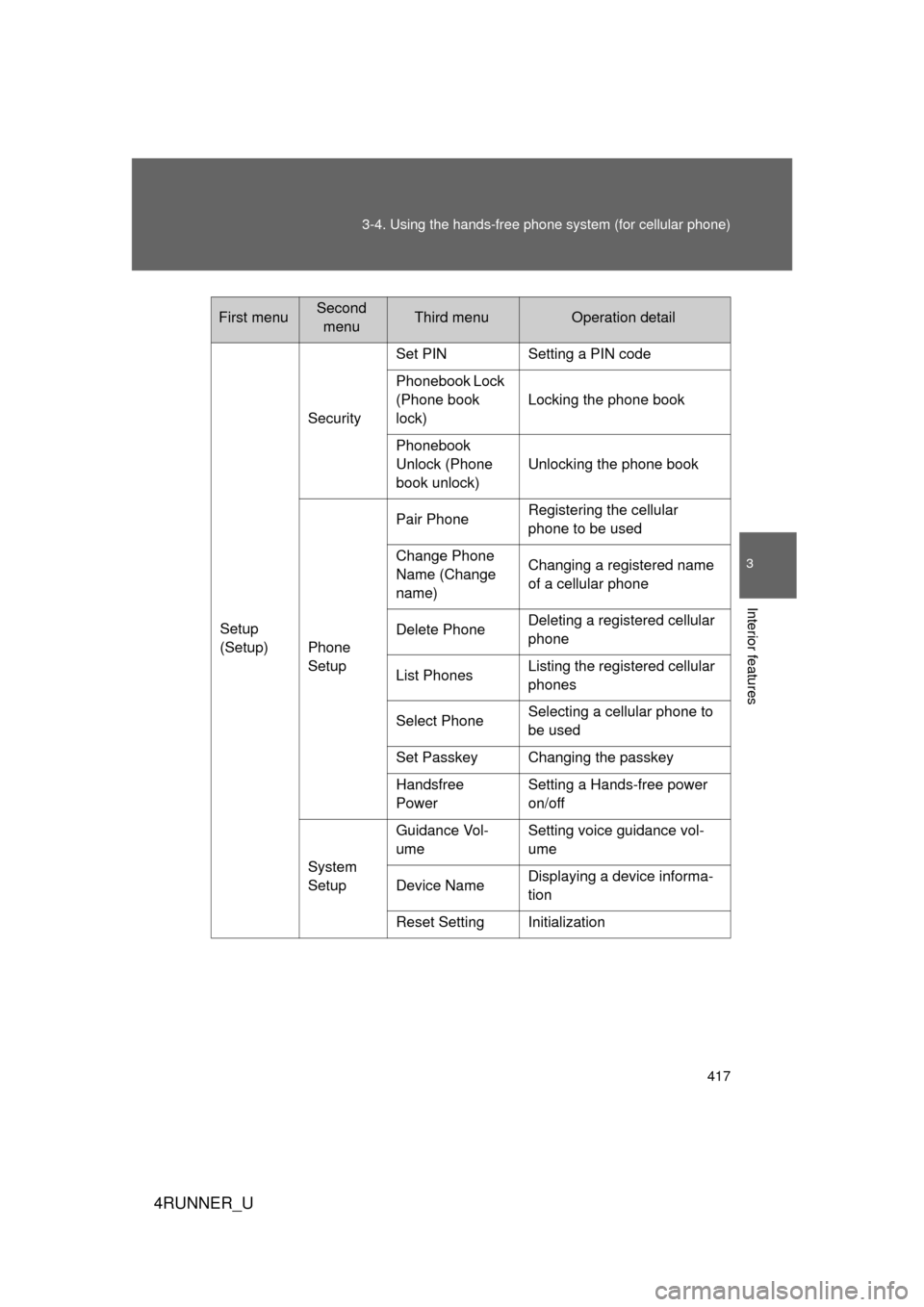
Setup
(Setup)Security
Set PIN Setting a PIN code
Phonebook Lock
(Phone book
lock)
Locking the phone book
Phonebook
Unlock (Phone
book unlock) Unlocking the phone book
Phone
Setup Pair Phone
Registering the cellular
phone to be used
Change Phone
Name (Change
name) Changing a registered name
of a cellular phone
Delete Phone Deleting a registered cellular
phone
List Phones Listing the registered cellular
phones
Select Phone Selecting a cellular phone to
be used
Set Passkey Changing the passkey
Handsfree
Power Setting a Hands-free power
on/off
System
Setup Guidance Vol-
ume
Setting voice guidance vol-
ume
Device Name Displaying a device informa-
tion
Reset Setting Initialization
First menuSecond menuThird menuOperation detail
Page 434 of 704
434 3-4. Using the hands-free phone system (for cellular phone)
4RUNNER_U■
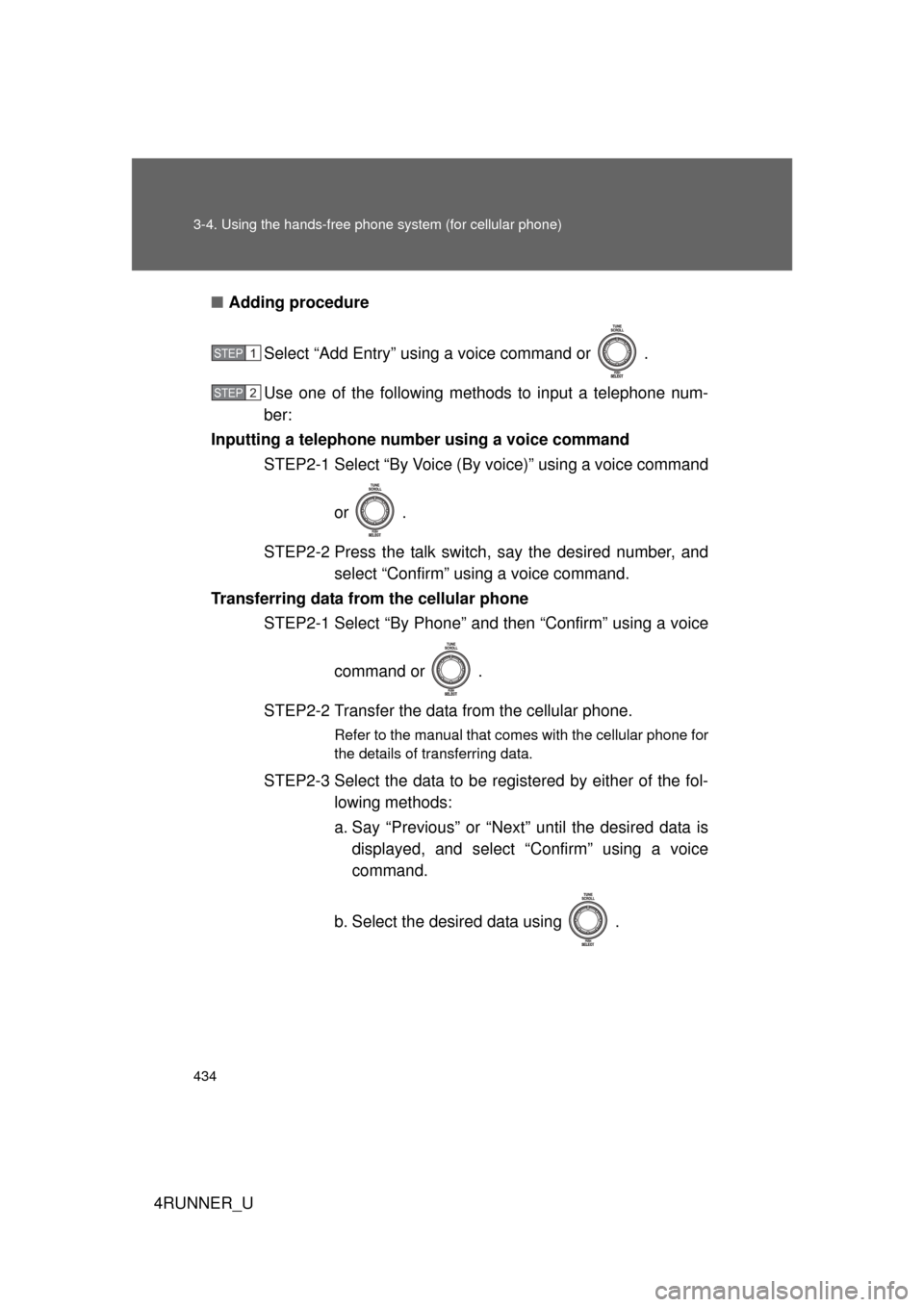
Adding procedure
Select “Add Entry” using a voice command or .
Use one of the following methods to input a telephone num-
ber:
Inputting a telephone number using a voice command STEP2-1 Select “By Voice (By voice)” using a voice command
or .
STEP2-2 Press the talk switch, say the desired number, and select “Confirm” us ing a voice command.
Transferring data from the cellular phone STEP2-1 Select “By Phone” and then “Confirm” using a voice
command or .
STEP2-2 Transfer the data from the cellular phone.
Refer to the manual that comes with the cellular phone for
the details of transferring data.
STEP2-3 Select the data to be registered by either of the fol- lowing methods:
a. Say “Previous” or “Next” until the desired data isdisplayed, and select “Confirm” using a voice
command.
b. Select the desired data using .
STEP 1
STEP 2
Page 435 of 704
435
3-4. Using the hand
s-free phone system (for cellular phone)
3
Interior features
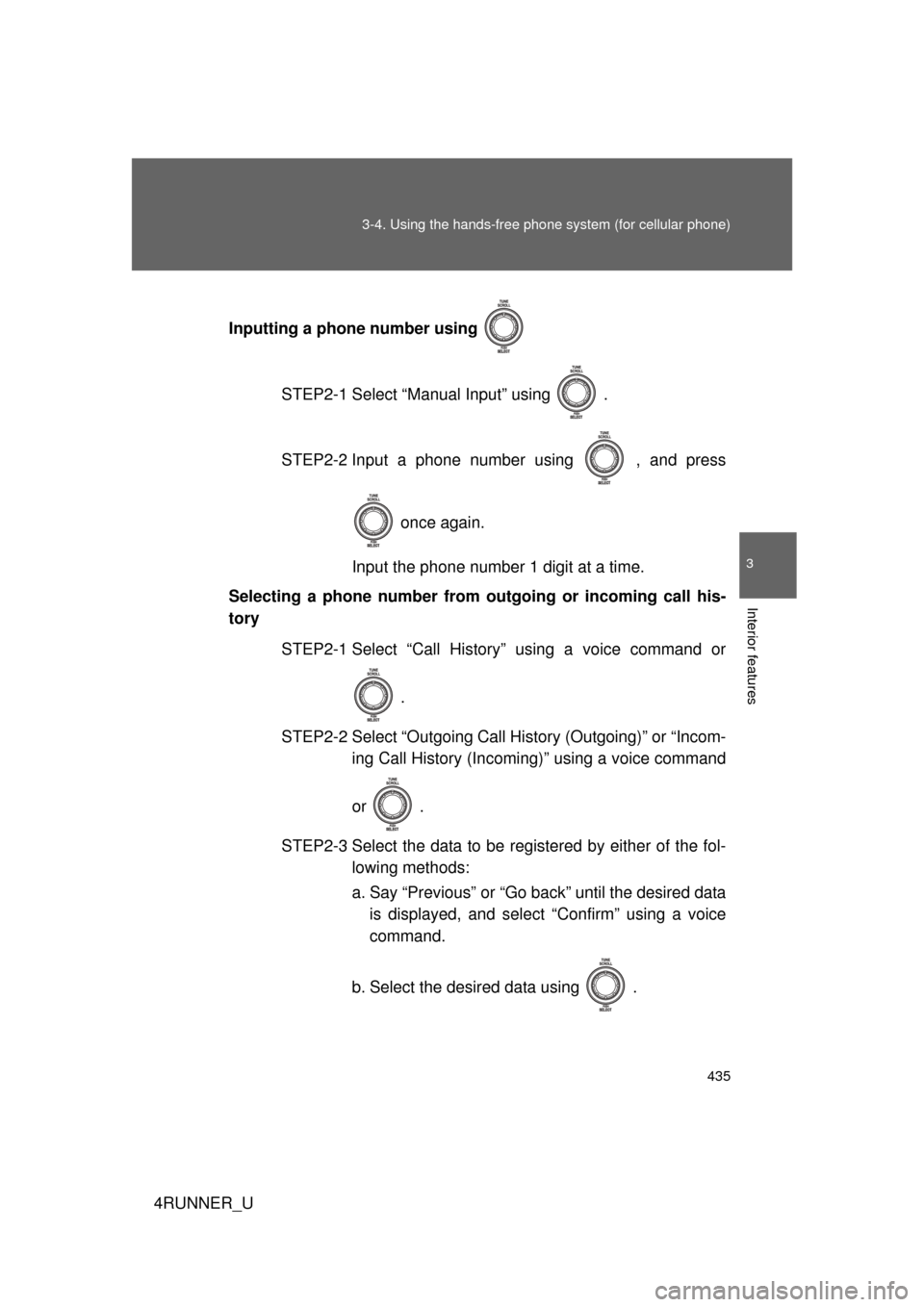
4RUNNER_UInputting a phone number using
STEP2-1 Select “Manual Input” using .
STEP2-2 Input a phone number using , and press once again.
Input the phone number 1 digit at a time.
Selecting a phone number from outgoing or incoming call his-
tory
STEP2-1 Select “Call History” using a voice command or
.
STEP2-2 Select “Outgoing Call History (Outgoing)” or “Incom- ing Call History (Incoming)” using a voice command
or .
STEP2-3 Select the data to be registered by either of the fol- lowing methods:
a. Say “Previous” or “Go back” until the desired datais displayed, and select “Confirm” using a voice
command.
b. Select the desired data using .
Page 460 of 704
460 3-7. Other interior features
4RUNNER_U
■For quicker adjustment of the clock
To advance the minutes and hours quickly, press and hold the “M” or “H” but-
ton.
The time can be adjusted back or forth by following the procedure below:
■ The clock is displayed when
Vehicles without a smart key system
The engine switch is in the “ACC” or “ON” position.
Vehicles with a smart key system
The “ENGINE START STOP” switch is in ACCESSORY or IGNITION ON
mode.
■ When disconnecting and reco nnecting battery terminals
The clock data will be reset.
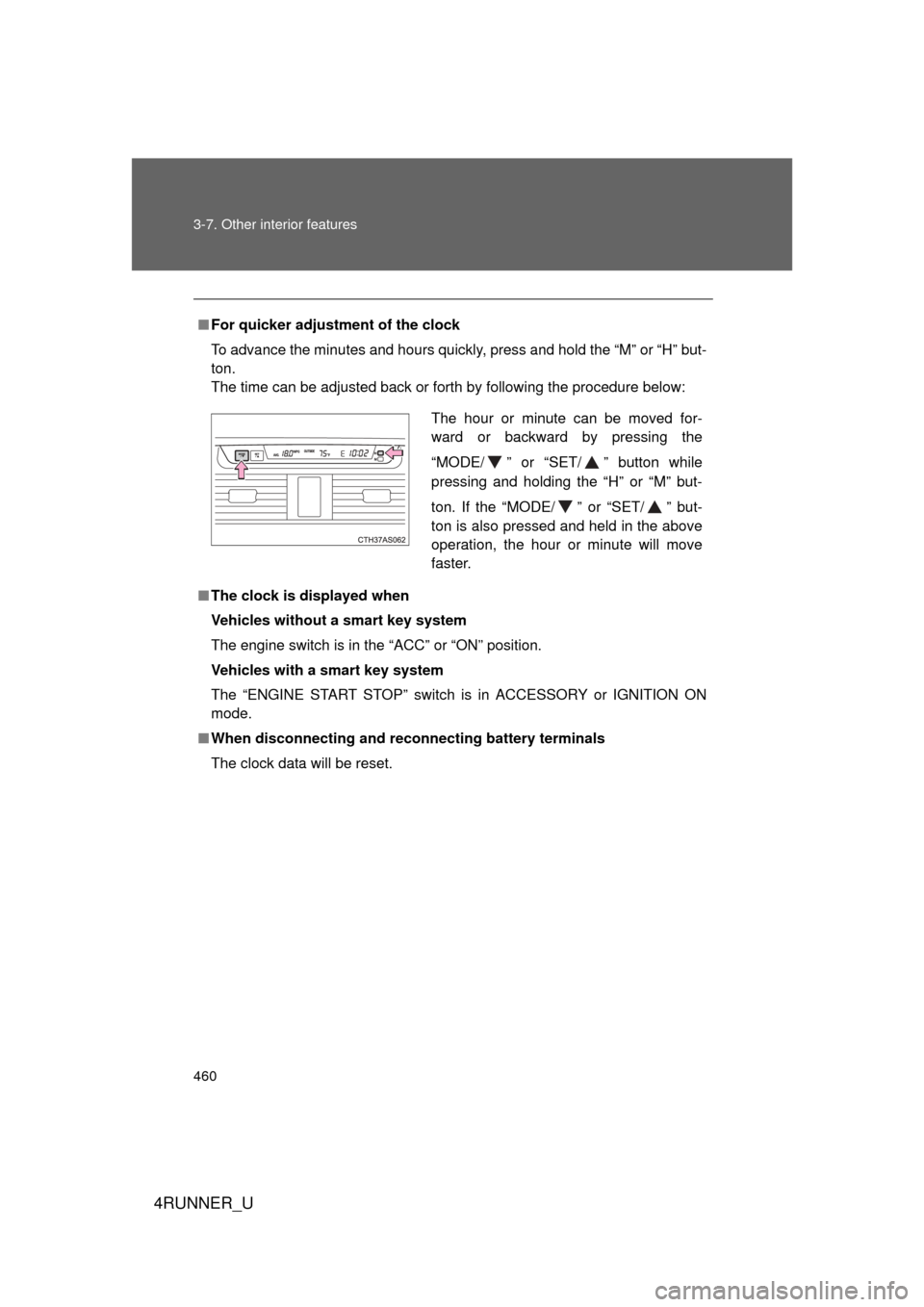
The hour or minute can be moved for-
ward or backward by pressing the
“MODE/ ” or “SET/ ” button while
pressing and holding the “H” or “M” but-
ton. If the “MODE/ ” or “SET/ ” but-
ton is also pressed and held in the above
operation, the hour or minute will move
faster.
Page 461 of 704
461
3-7. Other interior features
3
Interior features
4RUNNER_U
Outside temperature display
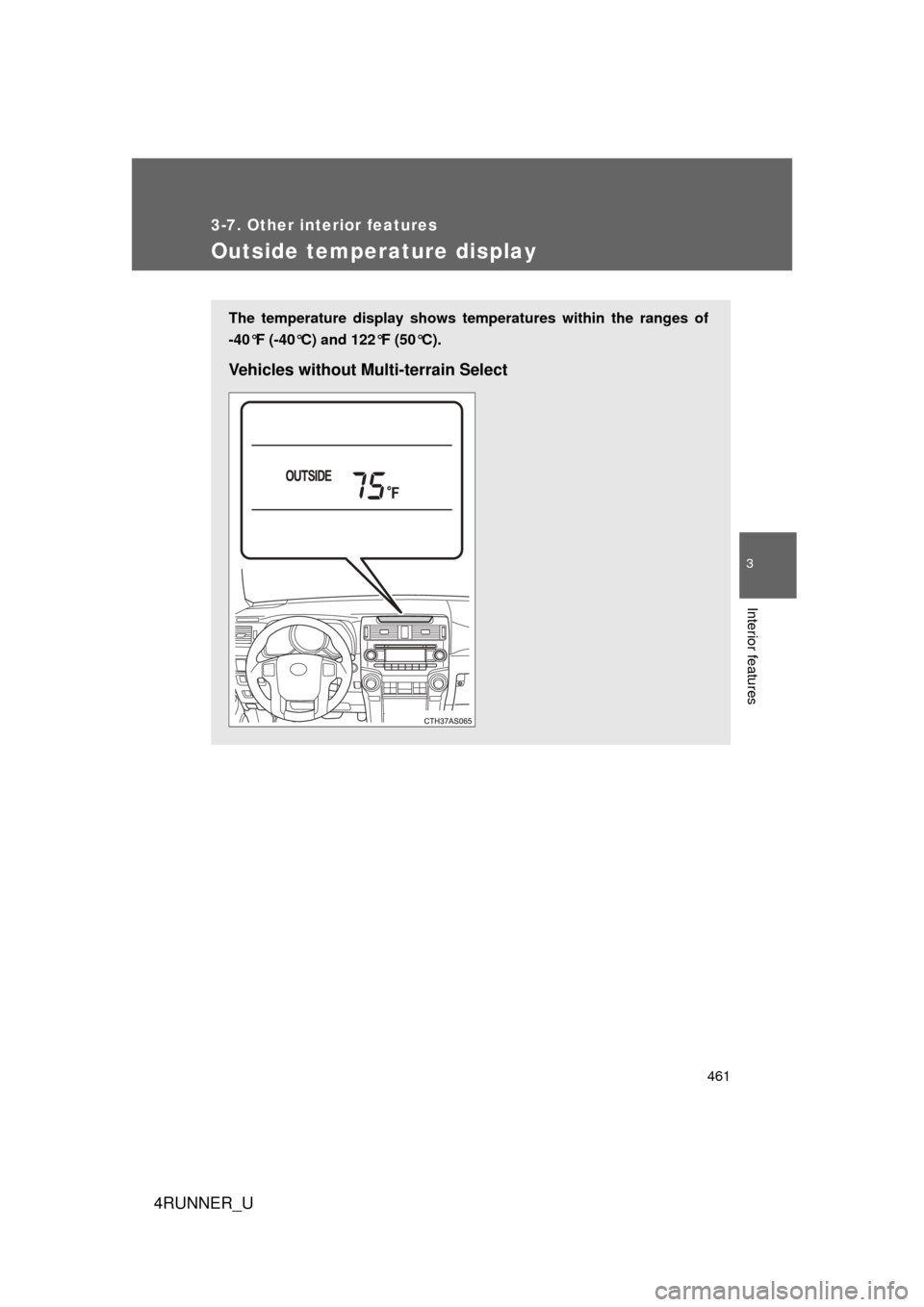
The temperature display shows temperatures within the ranges of
-40°F (-40°C) and 122°F (50°C).
Vehicles without Multi-terrain Select