sport mode TOYOTA AURIS TOURING SPORTS 2013 Manual Online
[x] Cancel search | Manufacturer: TOYOTA, Model Year: 2013, Model line: AURIS TOURING SPORTS, Model: TOYOTA AURIS TOURING SPORTS 2013Pages: 616, PDF Size: 17.28 MB
Page 326 of 616
3265-2. Using the audio system
Auris Touring Sports_EE (OM12G12E)Discs that can be used
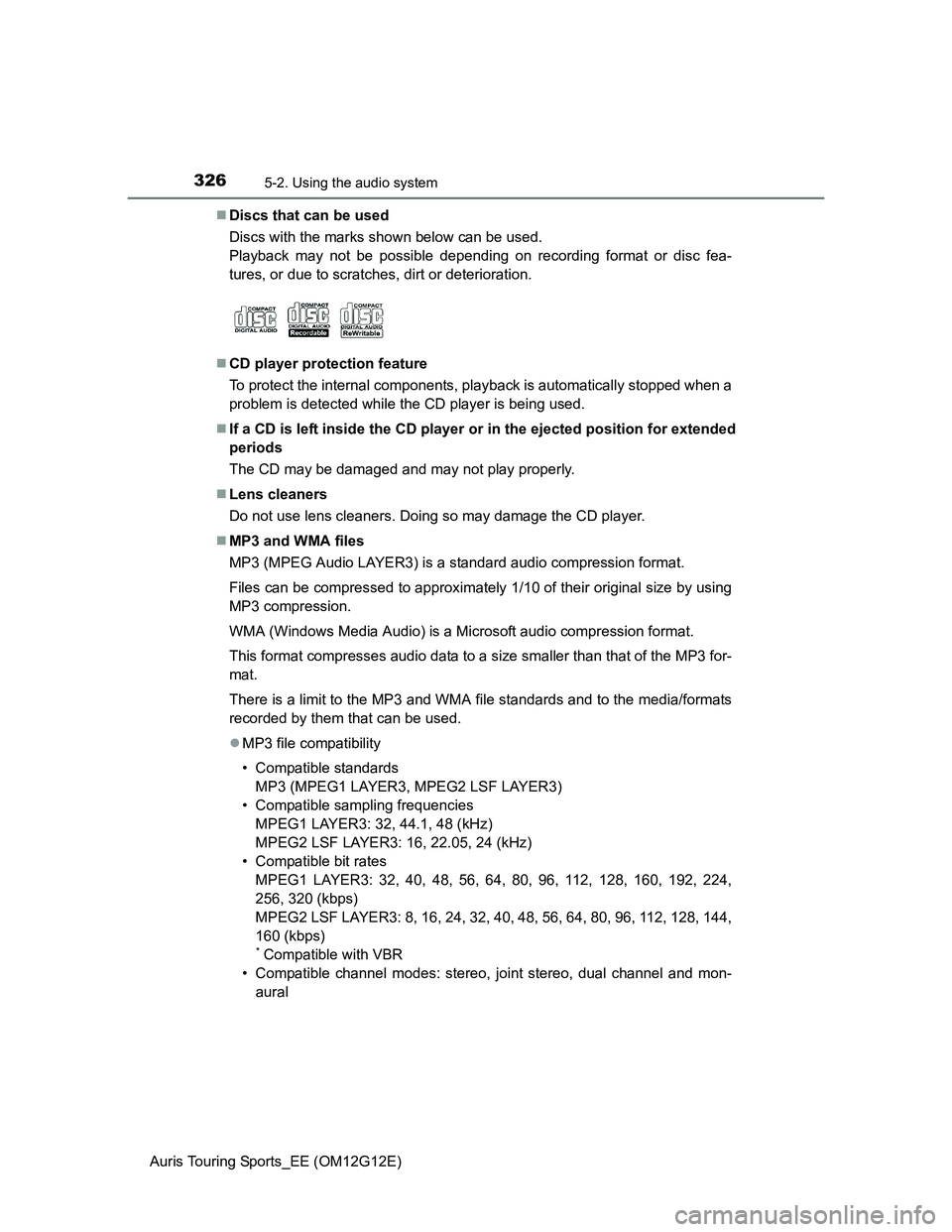
Discs with the marks shown below can be used.
Playback may not be possible depending on recording format or disc fea-
tures, or due to scratches, dirt or deterioration.
CD player protection feature
To protect the internal components, playback is automatically stopped when a
problem is detected while the CD player is being used.
If a CD is left inside the CD player or in the ejected position for extended
periods
The CD may be damaged and may not play properly.
Lens cleaners
Do not use lens cleaners. Doing so may damage the CD player.
MP3 and WMA files
MP3 (MPEG Audio LAYER3) is a standard audio compression format.
Files can be compressed to approximately 1/10 of their original size by using
MP3 compression.
WMA (Windows Media Audio) is a Microsoft audio compression format.
This format compresses audio data to a size smaller than that of the MP3 for-
mat.
There is a limit to the MP3 and WMA file standards and to the media/formats
recorded by them that can be used.
MP3 file compatibility
• Compatible standards
MP3 (MPEG1 LAYER3, MPEG2 LSF LAYER3)
• Compatible sampling frequencies
MPEG1 LAYER3: 32, 44.1, 48 (kHz)
MPEG2 LSF LAYER3: 16, 22.05, 24 (kHz)
• Compatible bit rates
MPEG1 LAYER3: 32, 40, 48, 56, 64, 80, 96, 112, 128, 160, 192, 224,
256, 320 (kbps)
MPEG2 LSF LAYER3: 8, 16, 24, 32, 40, 48, 56, 64, 80, 96, 112, 128, 144,
160 (kbps)
* Compatible with VBR
• Compatible channel modes: stereo, joint stereo, dual channel and mon-
aural
Page 327 of 616
3275-2. Using the audio system
Auris Touring Sports_EE (OM12G12E)
5
Interior features
WMA file compatibility
• Compatible standards
WMA Ver. 7, 8, 9
• Compatible sampling frequencies
32, 44.1, 48 (kHz)
• Compatible bit rates
Ver. 7, 8: CBR 48, 64, 80, 96, 128, 160, 192 (kbps)
Ver. 9: CBR 48, 64, 80, 96, 128, 160, 192, 256, 320 (kbps)
* Only compatible with 2-channel playback
Compatible media
Media that can be used for MP3 and WMA playback are CD-Rs and CD-
RWs.
Playback in some instances may not be possible, depending on the status
of the CD-R or CD-RW. Playback may not be possible or the audio may
jump if the disc is scratched or marked with fingerprints.
Compatible disc formats
The following disc formats can be used.
• Disc formats: CD-ROM Mode 1 and Mode 2
CD-ROM XA Mode 2, Form 1 and Form 2
• File formats: ISO9660 Level 1, Level 2, (Romeo, Joliet)
MP3 and WMA files written in any format other than those listed above
may not play correctly, and their file names and folder names may not be
displayed correctly.
Items related to standards and limitations are as follows.
• Maximum directory hierarchy: 8 levels
• Maximum length of folder names/file names: 32 characters
• Maximum number of folders: 192 (including the root)
• Maximum number of files per disc: 255
File names
The only files that can be recognized as MP3/WMA and played are those
with the extension .mp3 or .wma.
Multi-sessions
As the audio system is compatible with multi-sessions, it is possible to play
discs that contain MP3 and WMA files. However, only the first session can
be played.
Page 330 of 616
3305-2. Using the audio system
Auris Touring Sports_EE (OM12G12E)
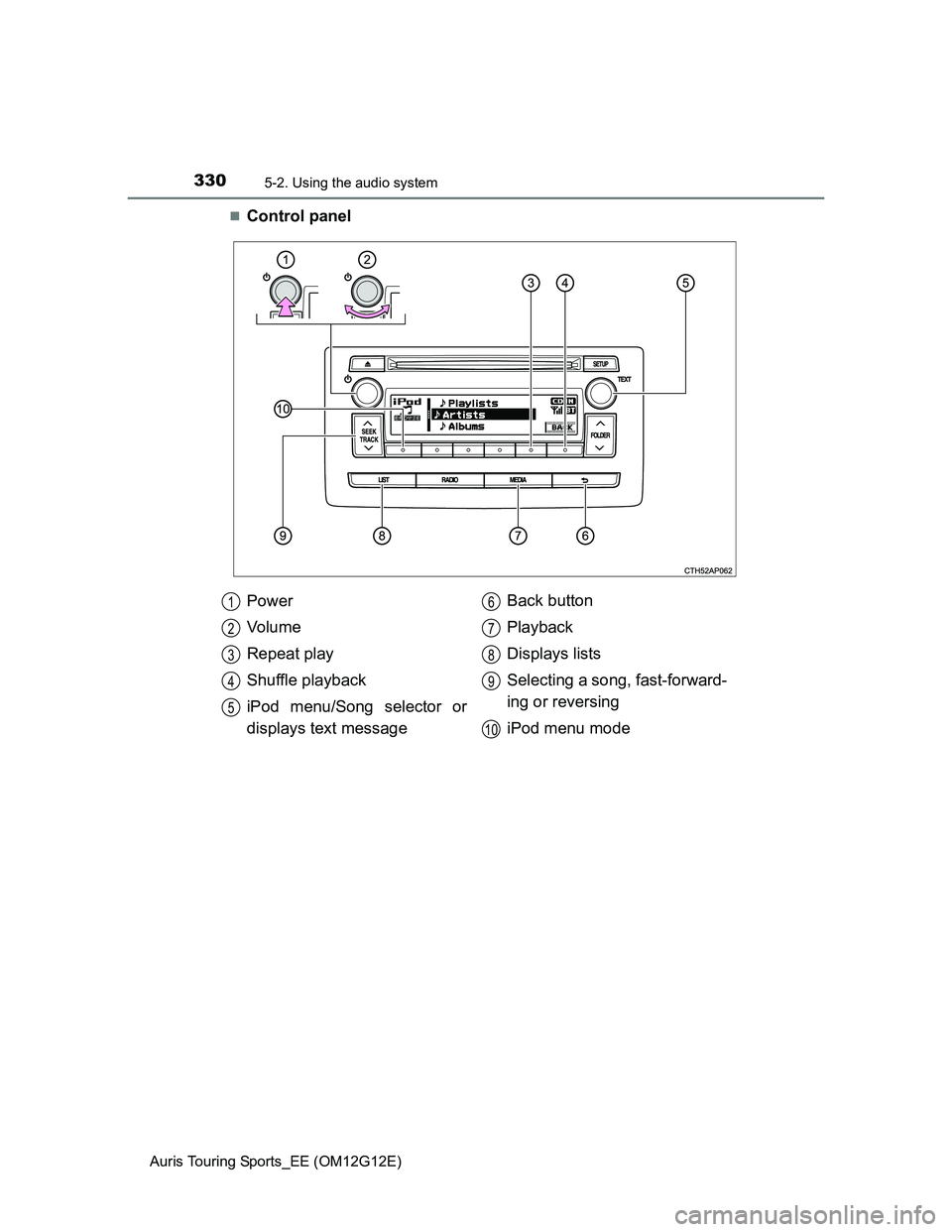
Control panel
Power
Vo l u m e
Repeat play
Shuffle playback
iPod menu/Song selector or
displays text messageBack button
Playback
Displays lists
Selecting a song, fast-forward-
ing or reversing
iPod menu mode
1
2
3
4
5
6
7
8
9
10
Page 331 of 616
3315-2. Using the audio system
Auris Touring Sports_EE (OM12G12E)
5
Interior features
Press (MENU) to select iPod menu mode.
Turning clockwise changes the play mode in the following
order:
“Playlists”“Artists”“Albums”“Songs”“Podcasts”“Genres”
“Composers”“Audiobooks”
Press to select the desired play mode.
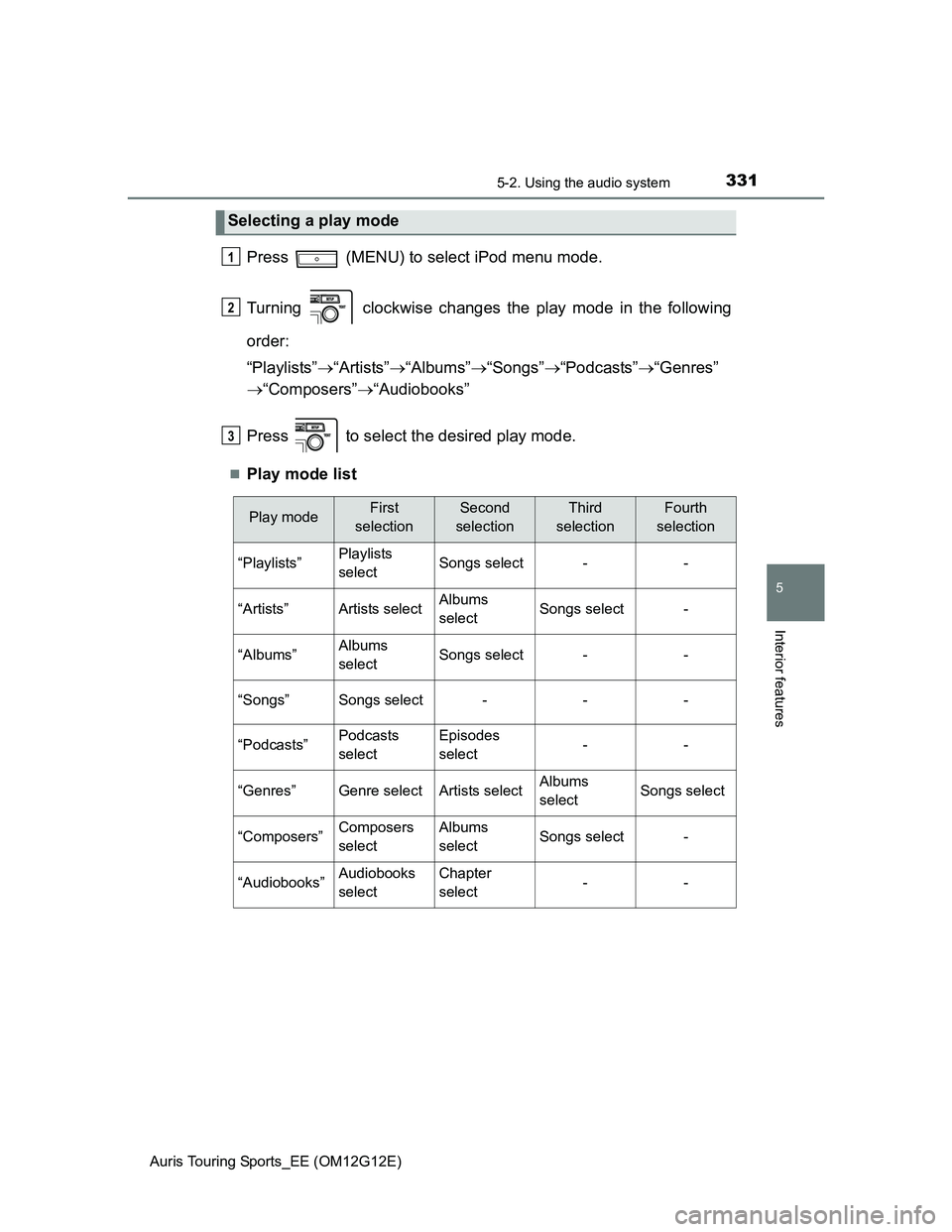
Play mode list
Selecting a play mode
1
2
3
Play modeFirst
selectionSecond
selectionThird
selectionFourth
selection
“Playlists”Playlists
selectSongs select--
“Artists”Artists selectAlbums
selectSongs select-
“Albums”Albums
selectSongs select--
“Songs”Songs select---
“Podcasts”Podcasts
selectEpisodes
select--
“Genres”Genre selectArtists selectAlbums
selectSongs select
“Composers”Composers
selectAlbums
selectSongs select-
“Audiobooks”Audiobooks
selectChapter
select--
Page 333 of 616
3335-2. Using the audio system
Auris Touring Sports_EE (OM12G12E)
5
Interior features
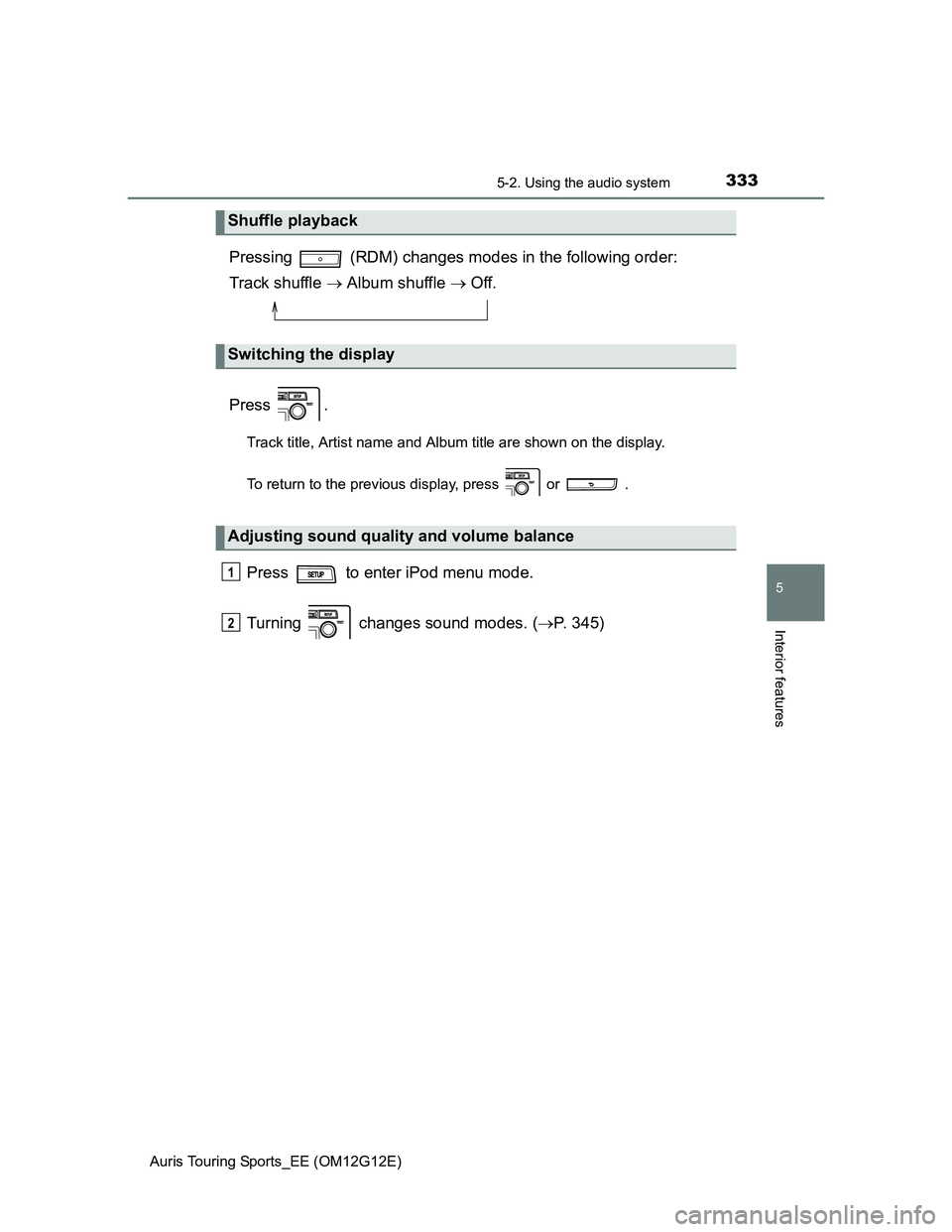
Pressing (RDM) changes modes in the following order:
Track shuffle Album shuffle Off.
Press .
Track title, Artist name and Album title are shown on the display.
To return to the previous display, press or .
Press to enter iPod menu mode.
Turning changes sound modes. (P. 345)
Shuffle playback
Switching the display
Adjusting sound quality and volume balance
1
2
Page 335 of 616
3355-2. Using the audio system
Auris Touring Sports_EE (OM12G12E)
5
Interior features
iPod functions
When an iPod is connected and the audio source is changed to iPod mode,
the iPod will resume play from the same point in which it was last used.
Depending on the iPod that is connected to the system, certain functions
may not be available. If a function is unavailable due to a malfunction (as
opposed to a system specification), disconnecting the device and recon-
necting it once again may resolve the problem.
While connected to the system, the iPod cannot be operated with its own
controls. It is necessary to use the controls of the vehicle’s audio system
instead.
When the battery level of an iPod is very low, the iPod may not operate. If
so, charge the iPod before use.
Supported models (P. 336)
iPod problems
To resolve most problems encountered when using your iPod, disconnect
your iPod from the vehicle iPod connection and reset it.
For instructions on how to reset your iPod, refer to your iPod Owner’s Man-
ual.
Display
P. 320
Error messages
“iPod ERROR”: This indicates that the data in the iPod cannot be read.
“ERROR 3”: This indicates that the iPod may be malfunctioning.
“ERROR 4”: This indicates that an over current error has occurred.
“ERROR 5”: This indicates that an iPod communication error has
occurred.
“ERROR 6”: This indicates that an authentication error has occurred.
“NO SONGS”: This indicates that there is no music data in the iPod.
“NO PLAYLIST”: This indicates that some available songs are not found in a
selected playlist.
“UPDATE YOUR iPod”: This indicates that the version of the iPod is not com-
patible. Upgrade your iPod software to the latest ver-
sions.
Page 336 of 616
3365-2. Using the audio system
Auris Touring Sports_EE (OM12G12E)Compatible models
The following iPod
, iPod nano, iPod classic, iPod touch and iPhone
devices can be used with this system.
Made for
• iPod touch (4th generation)
• iPod touch (3rd generation)
• iPod touch (2nd generation)
• iPod touch (1st generation)
• iPod classic
• iPod with video
• iPod nano (6th generation)
• iPod nano (5th generation)
• iPod nano (4th generation)
• iPod nano (3rd generation)
• iPod nano (2nd generation)
• iPod nano (1st generation)
• iPhone 4
• iPhone 3GS
• iPhone 3G
• iPhone
Depending on differences between models or software versions etc., some
models might be incompatible with this system.
Items related to standards and limitations are as follows:
Maximum number of lists in device: 9999
Maximum number of songs in device: 65535
Maximum number of songs per list: 65535
CAUTION
Caution while driving
Do not connect iPod or operate the controls.
Page 340 of 616
3405-2. Using the audio system
Auris Touring Sports_EE (OM12G12E)
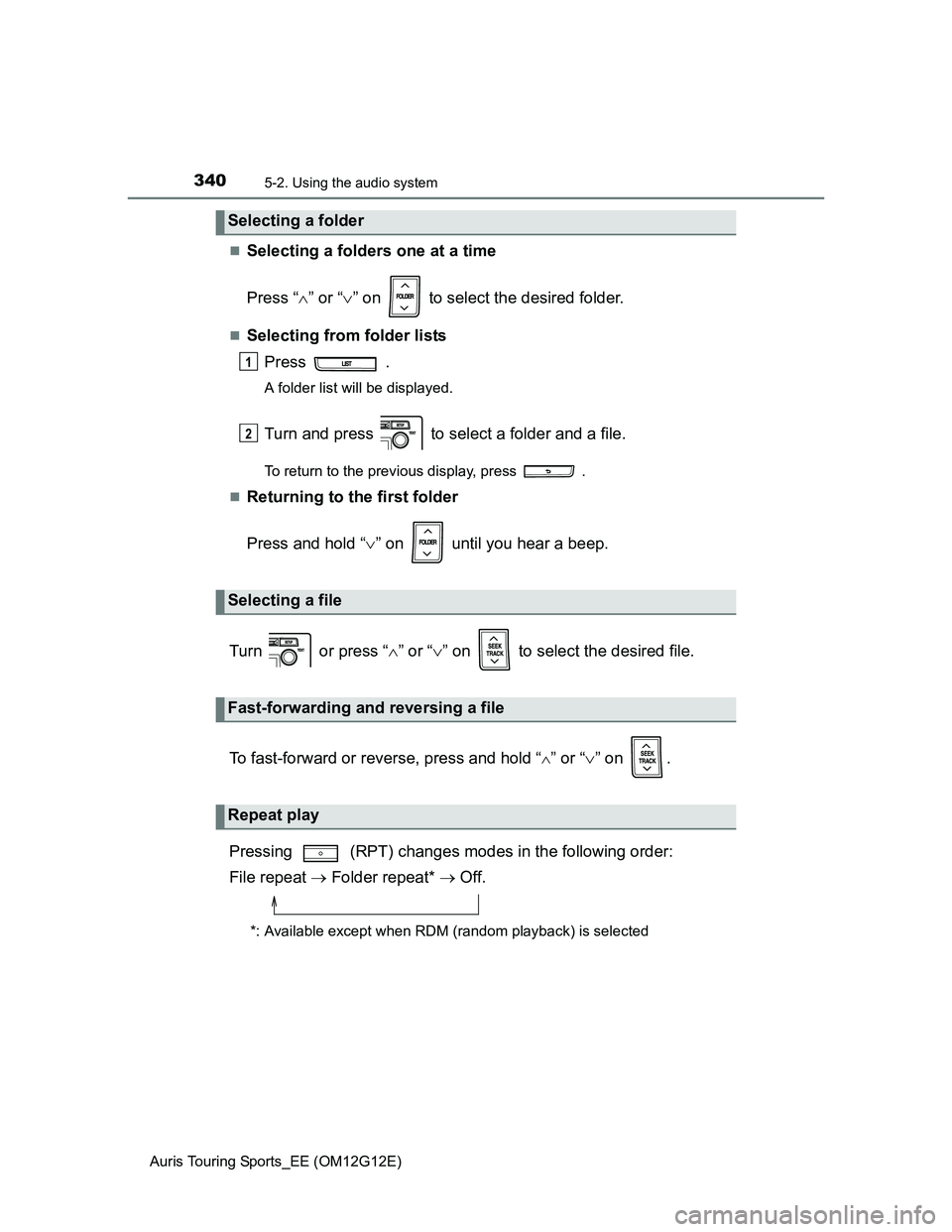
Selecting a folders one at a time
Press “” or “” on to select the desired folder.
Selecting from folder lists
Press .
A folder list will be displayed.
Turn and press to select a folder and a file.
To return to the previous display, press .
Returning to the first folder
Press and hold “” on until you hear a beep.
Turn or press “” or “” on to select the desired file.
To fast-forward or reverse, press and hold “
” or “” on .
Pressing (RPT) changes modes in the following order:
File repeat Folder repeat* Off.
*: Available except when RDM (random playback) is selected
Selecting a folder
Selecting a file
Fast-forwarding and reversing a file
Repeat play
1
2
Page 341 of 616
3415-2. Using the audio system
Auris Touring Sports_EE (OM12G12E)
5
Interior features
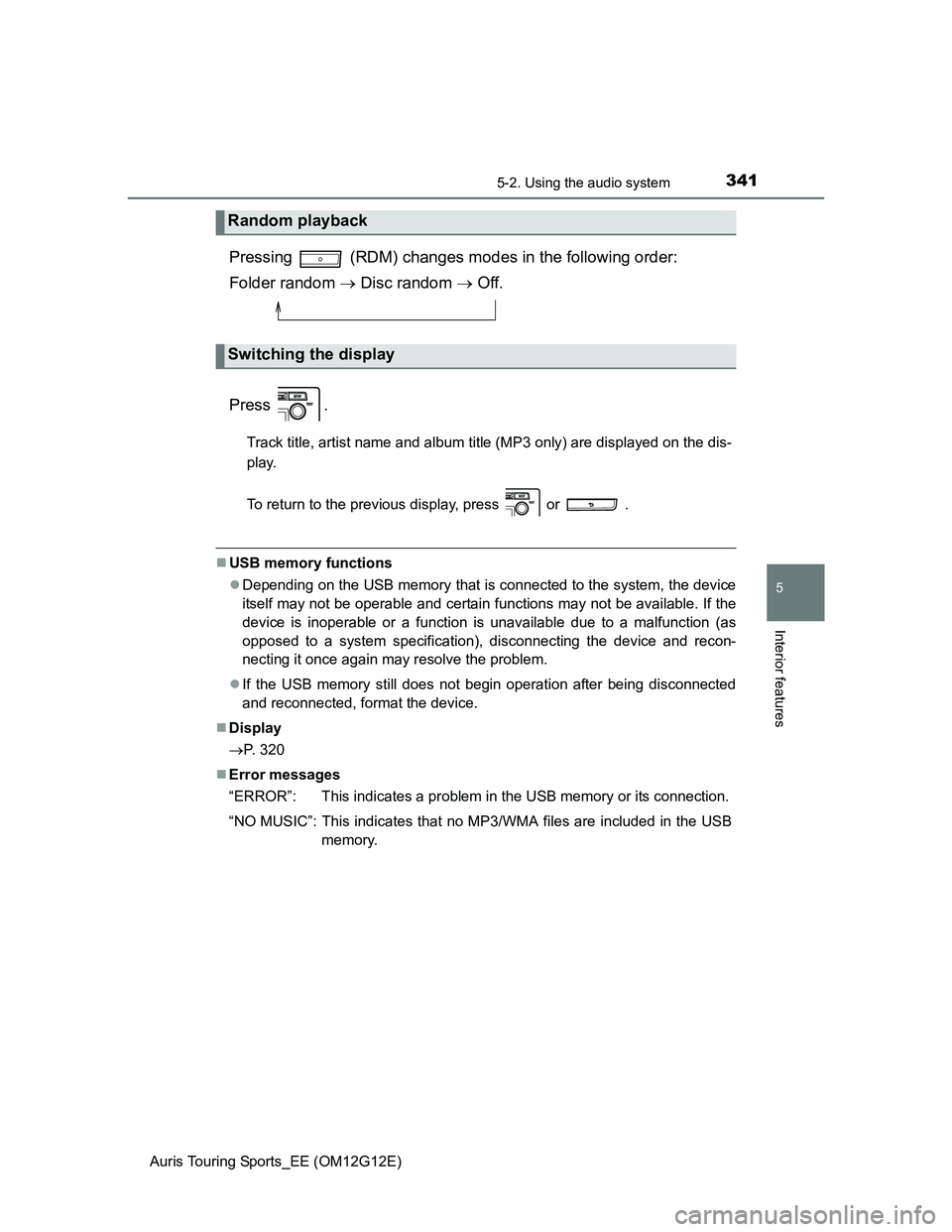
Pressing (RDM) changes modes in the following order:
Folder random Disc random Off.
Press .
Track title, artist name and album title (MP3 only) are displayed on the dis-
play.
To return to the previous display, press or .
USB memory functions
Depending on the USB memory that is connected to the system, the device
itself may not be operable and certain functions may not be available. If the
device is inoperable or a function is unavailable due to a malfunction (as
opposed to a system specification), disconnecting the device and recon-
necting it once again may resolve the problem.
If the USB memory still does not begin operation after being disconnected
and reconnected, format the device.
Display
P. 320
Error messages
“ERROR”: This indicates a problem in the USB memory or its connection.
“NO MUSIC”: This indicates that no MP3/WMA files are included in the USB
memory.
Random playback
Switching the display
Page 342 of 616
3425-2. Using the audio system
Auris Touring Sports_EE (OM12G12E)USB memory
Compatible devices
USB memory that can be used for MP3 and WMA playback
Compatible device formats
The following device formats can be used:
• USB communication formats: USB2.0 FS (12 Mbps)
• File formats: FAT12/16/32 (Windows)
• Correspondence class: Mass storage class
MP3 and WMA files written in any format other than those listed above may
not play correctly, and their file names and folder names may not be dis-
played correctly.
Items related to standards and limitations are as follows:
• Maximum directory hierarchy: 8 levels
• Maximum number of folders in a device: 999 (including the root)
• Maximum number of files in a device: 9999
• Maximum number of files per folder: 255
MP3 and WMA files
MP3 (MPEG Audio LAYER 3) is a standard audio compression format.
Files can be compressed to approximately 1/10 of their original size using
MP3 compression.
WMA (Windows Media Audio) is a Microsoft audio compression format.
This format compresses audio data to a size smaller than that of the MP3
format.
There is a limit to the MP3 and WMA file standards that can be used and to
the media/formats on which the files are recorded.
MP3 file compatibility
• Compatible standards
MP3 (MPEG1 AUDIO LAYERIII, MPEG2 AUDIO LAYERIII, MPEG2.5)
• Compatible sampling frequencies
MPEG1 AUDIO LAYERIII: 32, 44.1, 48 (kHz)
MPEG2 AUDIO LAYERIII: 16, 22.05, 24 (kHz)
MPEG2.5: 8, 11.025, 12 (kHz)
• Compatible bit rates (compatible with VBR)
MPEG1 AUDIO LAYERII, III: 32-320 (kbps)
MPEG2 AUDIO LAYERII, III: 8-160 (kbps)
MPEG2.5: 8-160 (kbps)
• Compatible channel modes: stereo, joint stereo, dual channel and mon-
aural