park assist TOYOTA AVALON HYBRID 2019 Accessories, Audio & Navigation (in English)
[x] Cancel search | Manufacturer: TOYOTA, Model Year: 2019, Model line: AVALON HYBRID, Model: TOYOTA AVALON HYBRID 2019Pages: 326, PDF Size: 5.97 MB
Page 166 of 326

166
2. PANORAMIC VIEW MONITOR
INFORMATION
●Pressing the camera switch changes the screen to the side views screen or previously
displayed screen, such as the navigation screen.
● The intuitive parking assist linked display will disappear when the vehicle is stopped or if
the intuitive parking assist no longer detects the object.
Page 168 of 326
168
2. PANORAMIC VIEW MONITOR
4. CHECKING THE SIDES OF THE VEHICLE
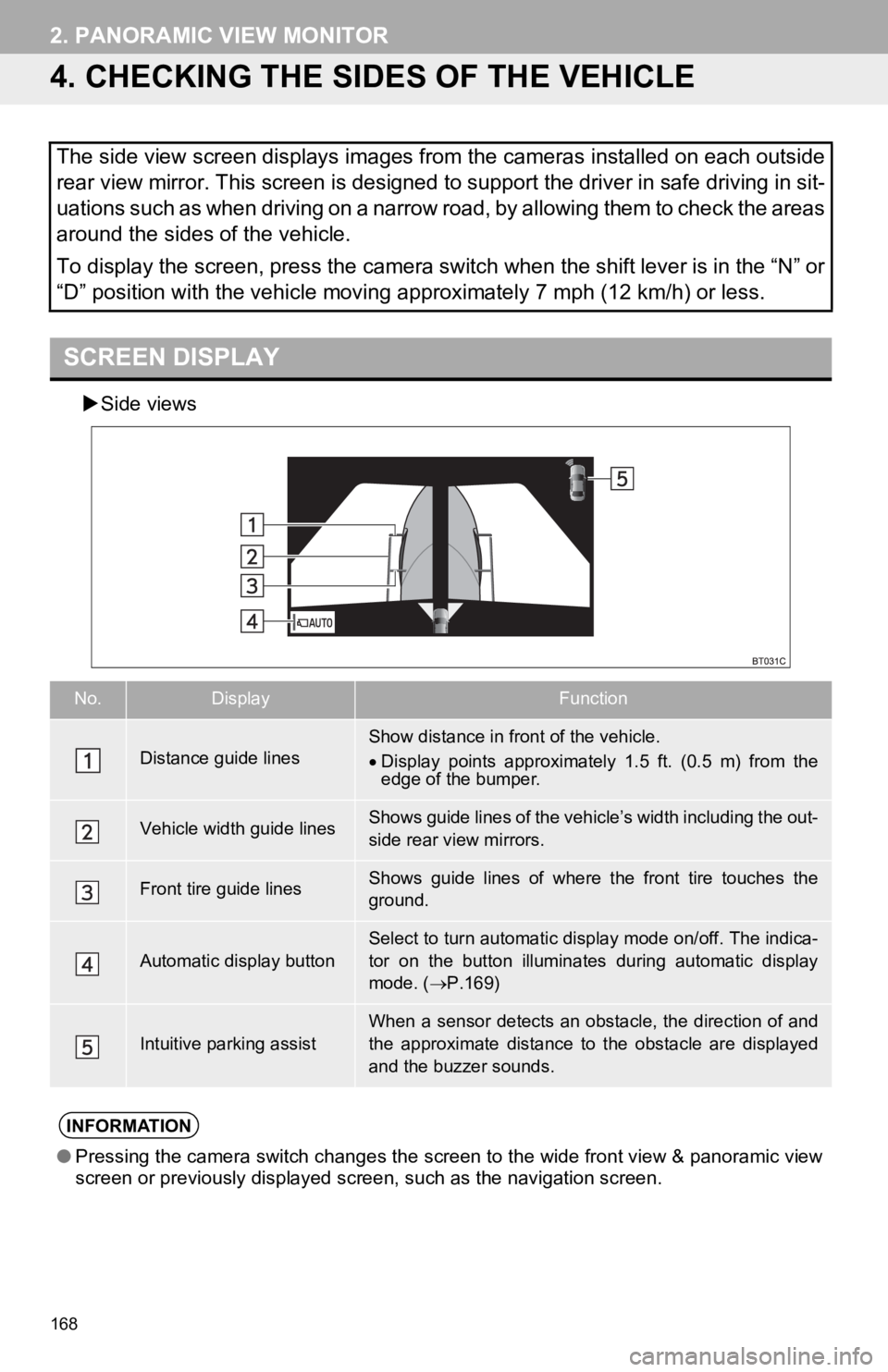
Side views
The side view screen displays images from the cameras installed on each outside
rear view mirror. This screen is designed to support the driver in safe driving in sit-
uations such as when driving on a narrow road, by allowing them to check the areas
around the sides of the vehicle.
To display the screen, press the camera switch when the shift lever is in the “N” or
“D” position with the vehicle moving approximately 7 mph (12 km /h) or less.
SCREEN DISPLAY
No.DisplayFunction
Distance guide linesShow distance in front of the vehicle.
Display points approximately 1.5 ft. (0.5 m) from the
edge of the bumper.
Vehicle width guide linesShows guide lines of the vehicle’s width including the out-
side rear view mirrors.
Front tire guide linesShows guide lines of where the front tire touches the
ground.
Automatic display button
Select to turn automatic display mode on/off. The indica-
tor on the button illuminates during automatic display
mode. ( P.169)
Intuitive parking assistWhen a sensor detects an obstacle, the direction of and
the approximate distance to the obstacle are displayed
and the buzzer sounds.
INFORMATION
● Pressing the camera switch changes the screen to the wide front view & panoramic view
screen or previously displayed screen, such as the navigation s creen.
Page 171 of 326
171
2. PANORAMIC VIEW MONITOR
PERIPHERAL MONITORING SYSTEM
6
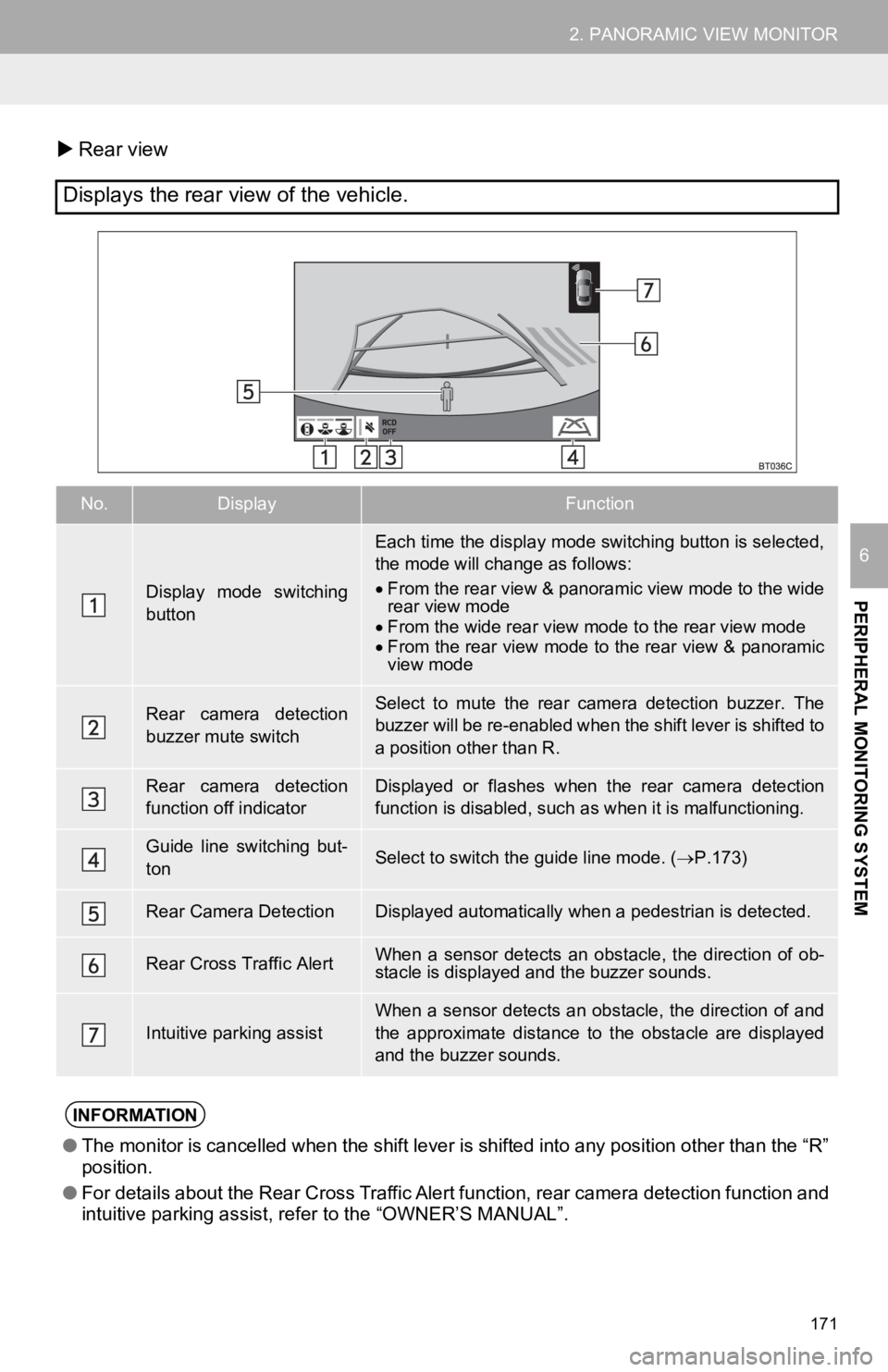
Rear view
Displays the rear view of the vehicle.
No.DisplayFunction
Display mode switching
button
Each time the display mode switching button is selected,
the mode will change as follows:
From the rear view & panoramic view mode to the wide
rear view mode
From the wide rear view mode to the rear view mode
From the rear view mode to the rear view & panoramic
view mode
Rear camera detection
buzzer mute switchSelect to mute the rear camera detection buzzer. The
buzzer will be re-enabled when the shift lever is shifted to
a position other than R.
Rear camera detection
function off indicatorDisplayed or flashes when the rear camera detection
function is disabled, such as when it is malfunctioning.
Guide line switching but-
tonSelect to switch the guide line mode. ( P.173)
Rear Camera DetectionDisplayed automatically when a pedestrian is detected.
Rear Cross Traffic AlertWhen a sensor detects an obs tacle, the direction of ob-
stacle is displayed and the buzzer sounds.
Intuitive parking assist
When a sensor detects an obstacle, the direction of and
the approximate distance to the obstacle are displayed
and the buzzer sounds.
INFORMATION
● The monitor is cancelled when the shift lever is shifted into any position other than the “R”
position.
● For details about the Rear Cross Traffic Alert function, rear c amera detection function and
intuitive parking assist, refer to the “OWNER’S MANUAL”.
Page 173 of 326
173
2. PANORAMIC VIEW MONITOR
PERIPHERAL MONITORING SYSTEM
6
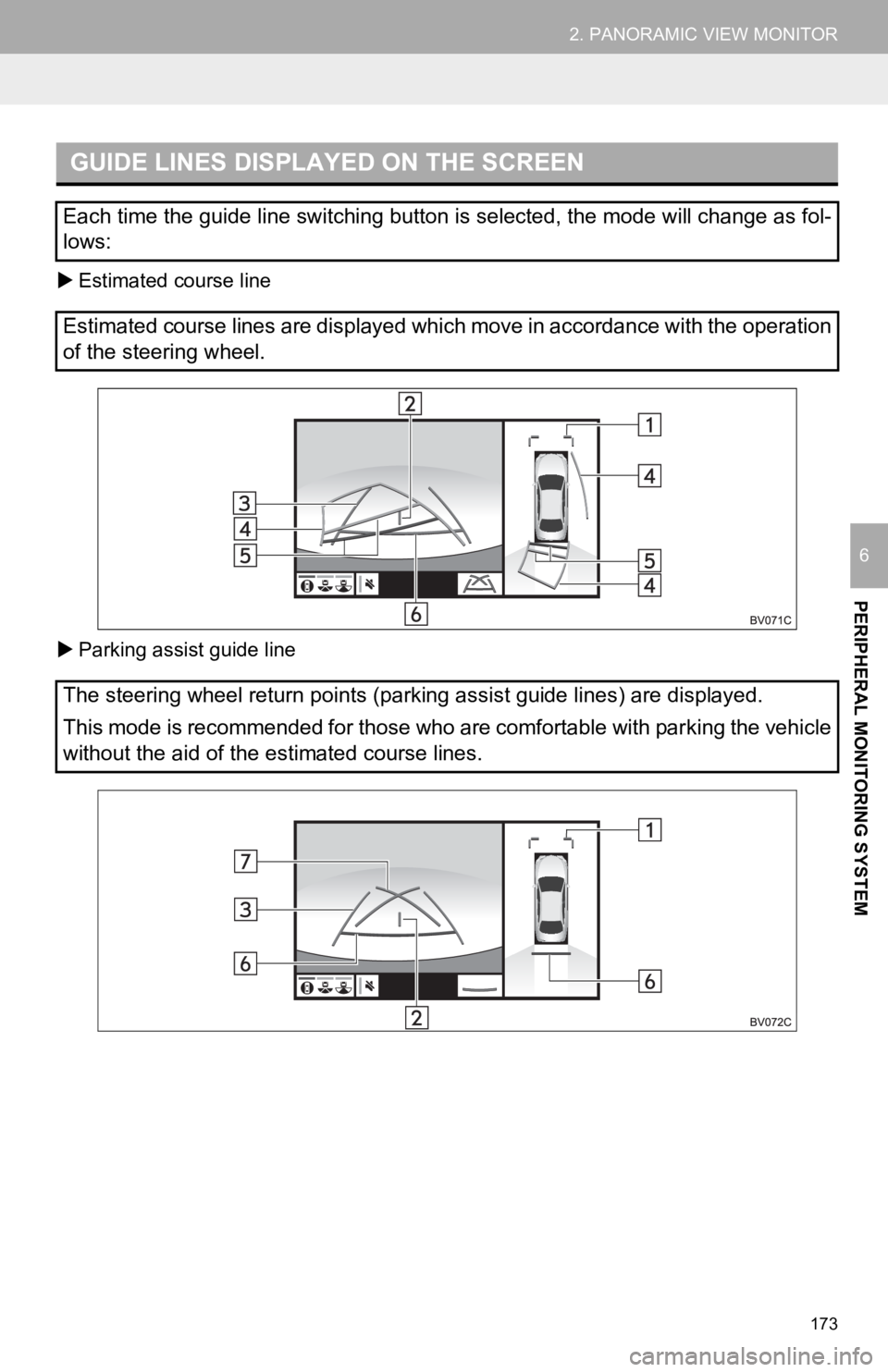
Estimated course line
Parking assist guide line
GUIDE LINES DISPLAYED ON THE SCREEN
Each time the guide line switching button is selected, the mode will change as fol-
lows:
Estimated course lines are displayed which move in accordance w ith the operation
of the steering wheel.
The steering wheel return points (parking assist guide lines) a re displayed.
This mode is recommended for those who are comfortable with par king the vehicle
without the aid of the estimated course lines.
Page 174 of 326
174
2. PANORAMIC VIEW MONITOR
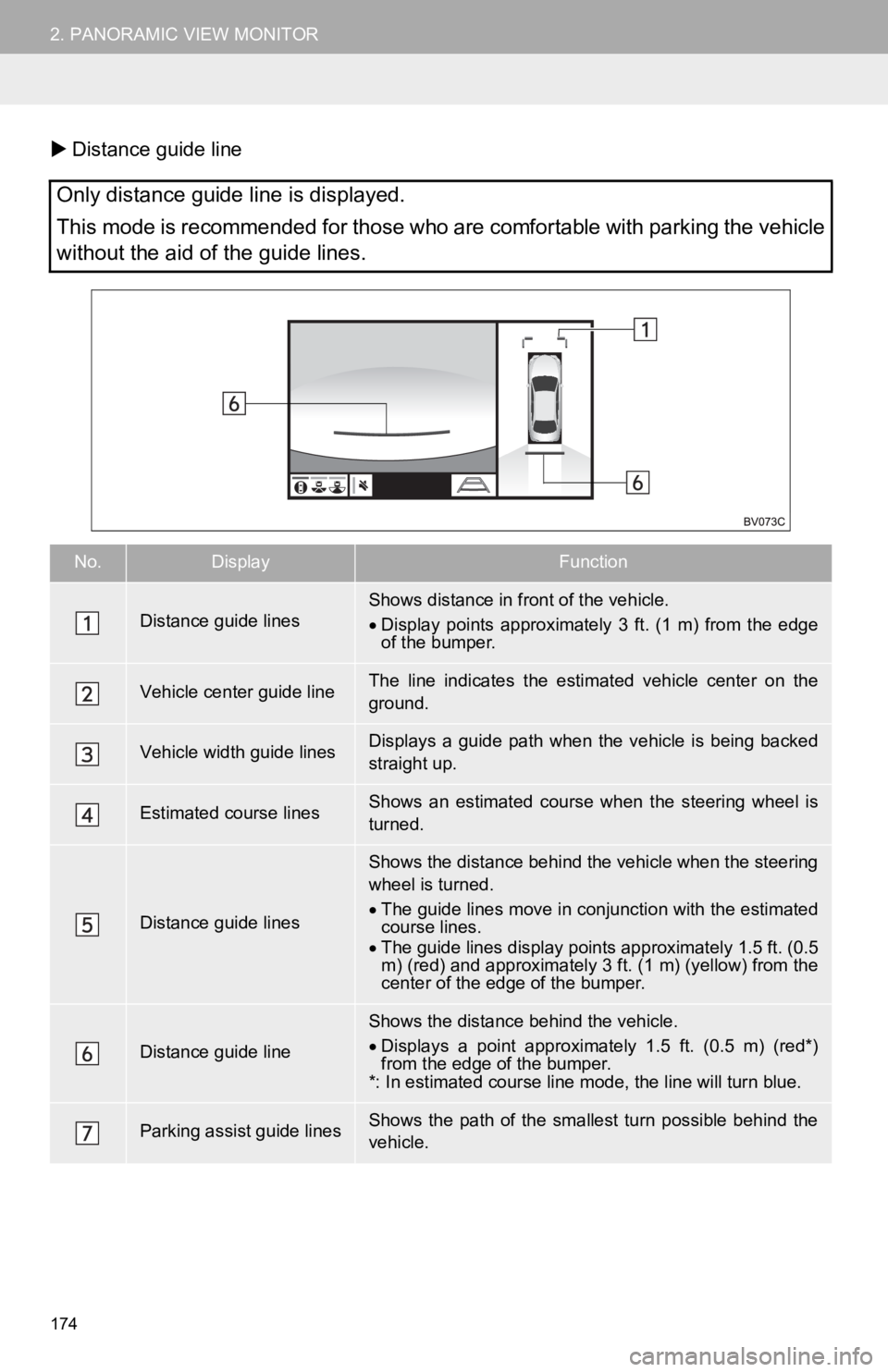
Distance guide line
Only distance guide line is displayed.
This mode is recommended for those who are comfortable with par king the vehicle
without the aid of the guide lines.
No.DisplayFunction
Distance guide linesShows distance in front of the vehicle.
Display points approximately 3 ft. (1 m) from the edge
of the bumper.
Vehicle center guide line The line indicates the estima ted vehicle center on the
ground.
Vehicle width guide linesDisplays a guide path when the vehicle is being backed
straight up.
Estimated course linesShows an estimated course when the steering wheel is
turned.
Distance guide lines
Shows the distance behind the vehicle when the steering
wheel is turned.
The guide lines move in conjunction with the estimated
course lines.
The guide lines display points approximately 1.5 ft. (0.5
m) (red) and approximately 3 ft. (1 m) (yellow) from the
center of the edge of the bumper.
Distance guide line
Shows the distance behind the vehicle.
Displays a point approximately 1.5 ft. (0.5 m) (red*)
from the edge of the bumper.
*: In estimated course line mode, the line will turn blue.
Parking assist guide linesShows the path of the smallest turn possible behind the
vehicle.
Page 177 of 326
177
2. PANORAMIC VIEW MONITOR
PERIPHERAL MONITORING SYSTEM
6
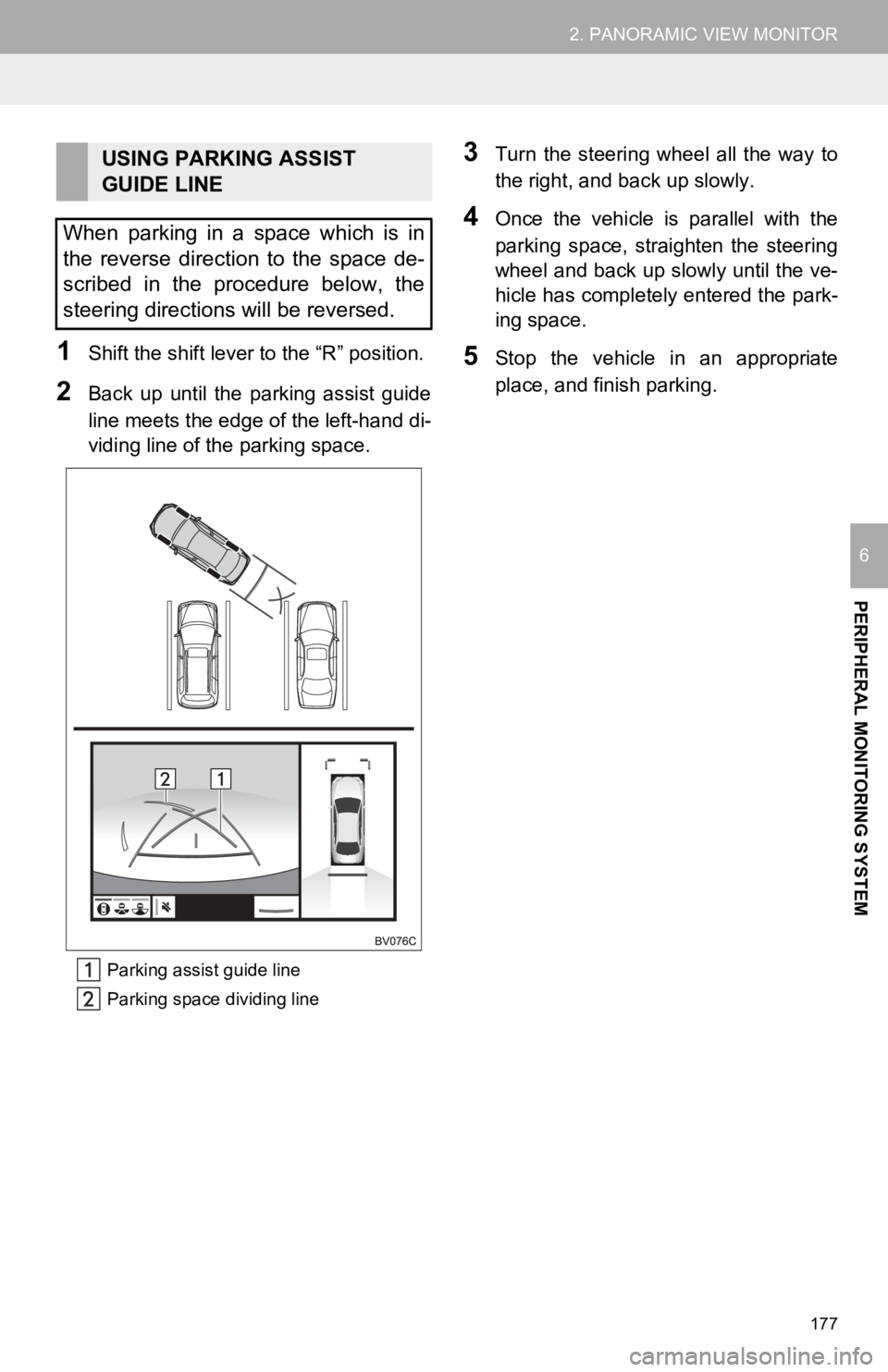
1Shift the shift lever to the “R” position.
2Back up until the parking assist guide
line meets the edge of the left-hand di-
viding line of the parking space.
Parking assist guide line
Parking space dividing line
3Turn the steering wheel all the way to
the right, and back up slowly.
4Once the vehicle is parallel with the
parking space, straighten the steering
wheel and back up slowly until the ve-
hicle has completely entered the park-
ing space.
5Stop the vehicle in an appropriate
place, and finish parking.
USING PARKING ASSIST
GUIDE LINE
When parking in a space which is in
the reverse direction to the space de-
scribed in the procedure below, the
steering directions will be reversed.
Page 178 of 326
178
2. PANORAMIC VIEW MONITOR
6. MAGNIFYING FUNCTION
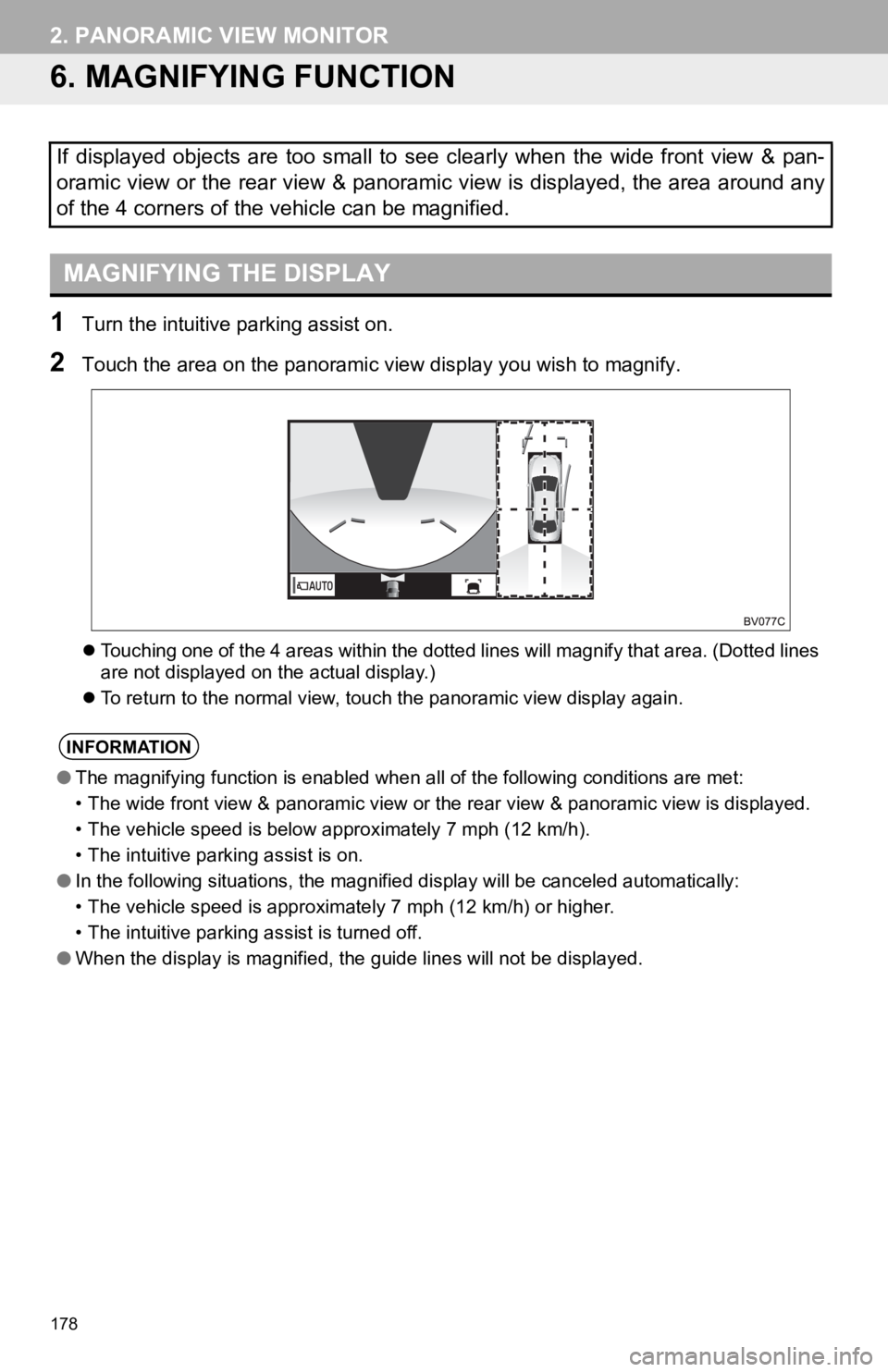
1Turn the intuitive parking assist on.
2Touch the area on the panoramic v iew display you wish to magnify.
Touching one of the 4 areas within the dotted lines will magnif y that area. (Dotted lines
are not displayed on the actual display.)
To return to the normal view, touch the panoramic view display again.
If displayed objects are too small to see clearly when the wide front view & pan-
oramic view or the rear view & panoramic view is displayed, the area around any
of the 4 corners of the vehicle can be magnified.
MAGNIFYING THE DISPLAY
INFORMATION
● The magnifying function is enabled when all of the following conditions are met:
• The wide front view & panoramic view or the rear view & panoramic view is displayed.
• The vehicle speed is below approximately 7 mph (12 km/h).
• The intuitive parking assist is on.
● In the following situations, the magnified display will be canc eled automatically:
• The vehicle speed is approximately 7 mph (12 km/h) or higher.
• The intuitive parking assist is turned off.
● When the display is magnified, the guide lines will not be disp layed.
Page 181 of 326
181
2. PANORAMIC VIEW MONITOR
PERIPHERAL MONITORING SYSTEM
6
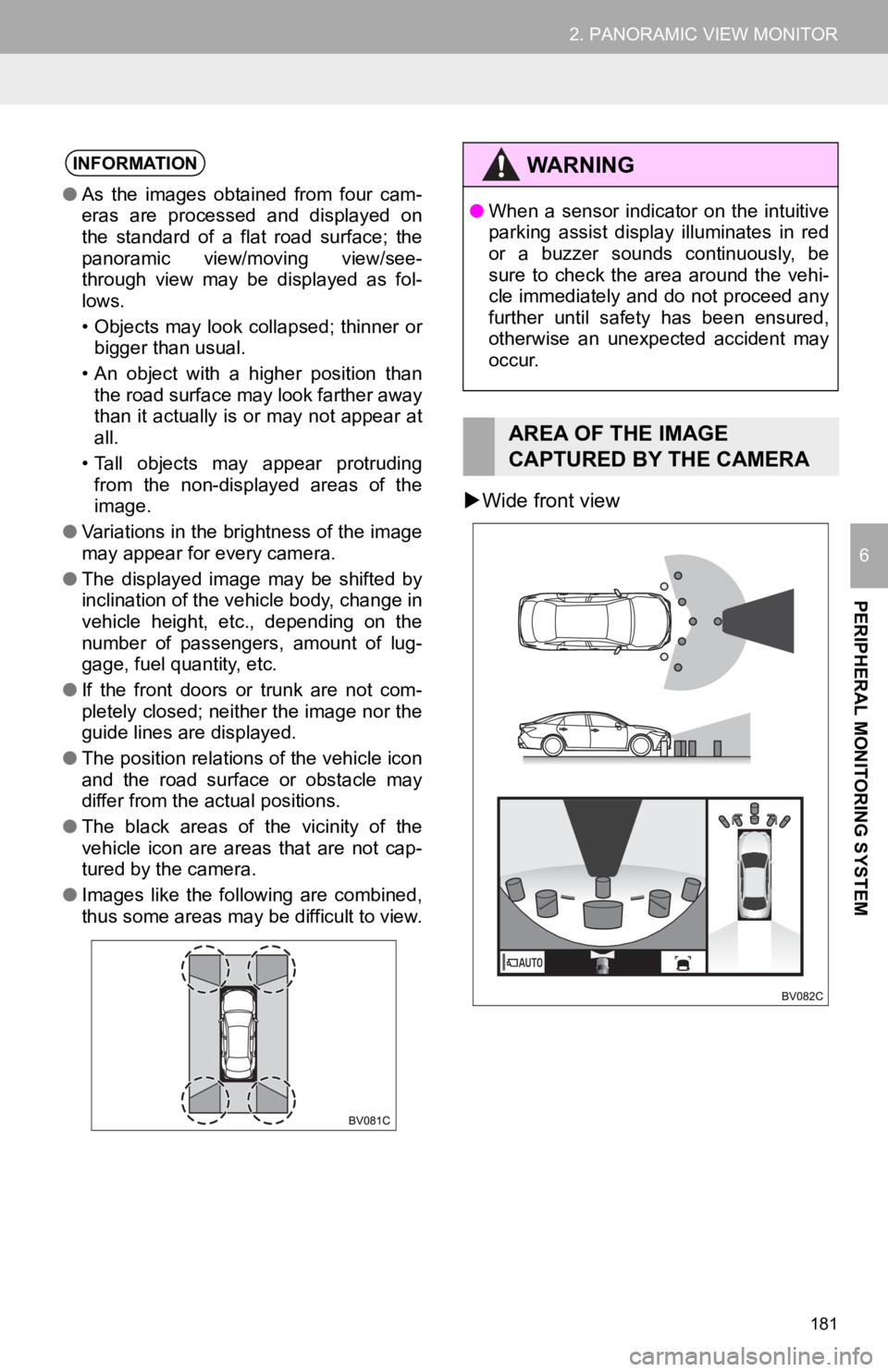
Wide front view
INFORMATION
● As the images obtained from four cam-
eras are processed and displayed on
the standard of a flat road surface; the
panoramic view/moving view/see-
through view may be displayed as fol-
lows.
• Objects may look collapsed; thinner or
bigger than usual.
• An object with a higher position than the road surface may look farther away
than it actually is or may not appear at
all.
• Tall objects may appear protruding from the non-displayed areas of the
image.
● Variations in the brightness of the image
may appear for every camera.
● The displayed image may be shifted by
inclination of the vehicle body, change in
vehicle height, etc., depending on the
number of passengers, amount of lug-
gage, fuel quantity, etc.
● If the front doors or trunk are not com-
pletely closed; neither the image nor the
guide lines are displayed.
● The position relations of the vehicle icon
and the road surface or obstacle may
differ from the actual positions.
● The black areas of the vicinity of the
vehicle icon are areas that are not cap-
tured by the camera.
● Images like the following are combined,
thus some areas may be difficult to view.
WA R N I N G
●When a sensor indicator on the intuitive
parking assist display illuminates in red
or a buzzer sounds continuously, be
sure to check the area around the vehi-
cle immediately and do not proceed any
further until safety has been ensured,
otherwise an unexpected accident may
occur.
AREA OF THE IMAGE
CAPTURED BY THE CAMERA
Page 186 of 326
186
2. PANORAMIC VIEW MONITOR
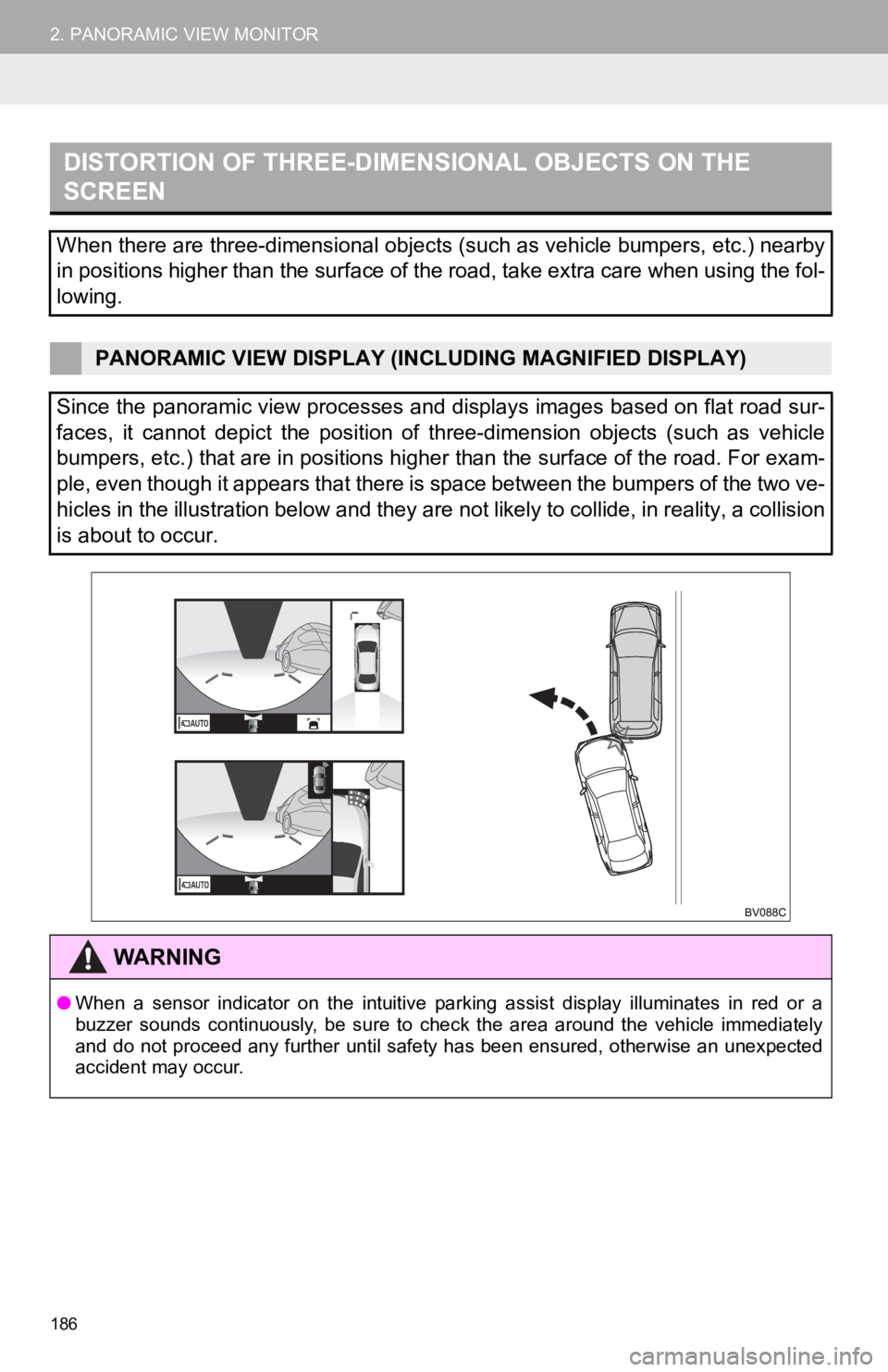
DISTORTION OF THREE-DIMENSIONAL OBJECTS ON THE
SCREEN
When there are three-dimensional objects (such as vehicle bumpers, etc.) nearby
in positions higher than the surface of the road, take extra ca re when using the fol-
lowing.
PANORAMIC VIEW DISPLAY (INCL UDING MAGNIFIED DISPLAY)
Since the panoramic view processes and displays images based on flat road sur-
faces, it cannot depict the position of three-dimension objects (such as vehicle
bumpers, etc.) that are in positions higher than the surface of the road. For exam-
ple, even though it appears that there is space between the bum pers of the two ve-
hicles in the illustration below and they are not likely to col lide, in reality, a collision
is about to occur.
WA R N I N G
● When a sensor indicator on the intuitive parking assist display illuminates in red or a
buzzer sounds continuously, be sure to check the area around th e vehicle immediately
and do not proceed any further until safety has been ensured, o therwise an unexpected
accident may occur.
Page 187 of 326
187
2. PANORAMIC VIEW MONITOR
PERIPHERAL MONITORING SYSTEM
6
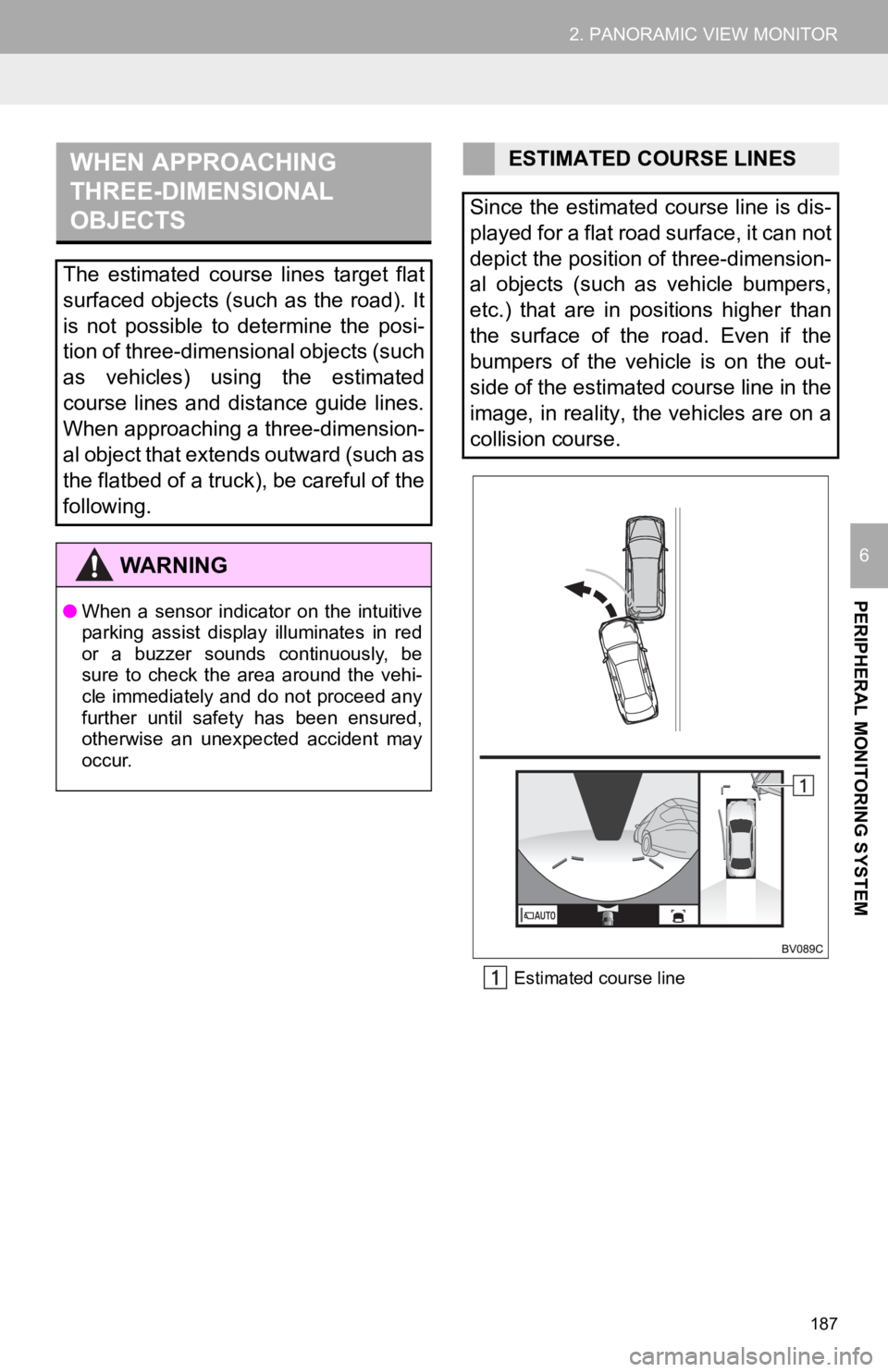
Estimated course line
WHEN APPROACHING
THREE-DIMENSIONAL
OBJECTS
The estimated course lines target flat
surfaced objects (such as the road). It
is not possible to determine the posi-
tion of three-dimensional objects (such
as vehicles) using the estimated
course lines and distance guide lines.
When approaching a three-dimension-
al object that extends outward (such as
the flatbed of a truck), be careful of the
following.
WA R N I N G
● When a sensor indicator on the intuitive
parking assist display illuminates in red
or a buzzer sounds continuously, be
sure to check the area around the vehi-
cle immediately and do not proceed any
further until safety has been ensured,
otherwise an unexpected accident may
occur.
ESTIMATED COURSE LINES
Since the estimated course line is dis-
played for a flat road surface, it can not
depict the position of three-dimension-
al objects (such as vehicle bumpers,
etc.) that are in positions higher than
the surface of the road. Even if the
bumpers of the vehicle is on the out-
side of the estimated course line in the
image, in reality, the vehicles are on a
collision course.