phone TOYOTA AVALON HYBRID 2019 Accessories, Audio & Navigation (in English)
[x] Cancel search | Manufacturer: TOYOTA, Model Year: 2019, Model line: AVALON HYBRID, Model: TOYOTA AVALON HYBRID 2019Pages: 326, PDF Size: 5.97 MB
Page 71 of 326
71
3. OTHER SETTINGS
BASIC FUNCTION
2
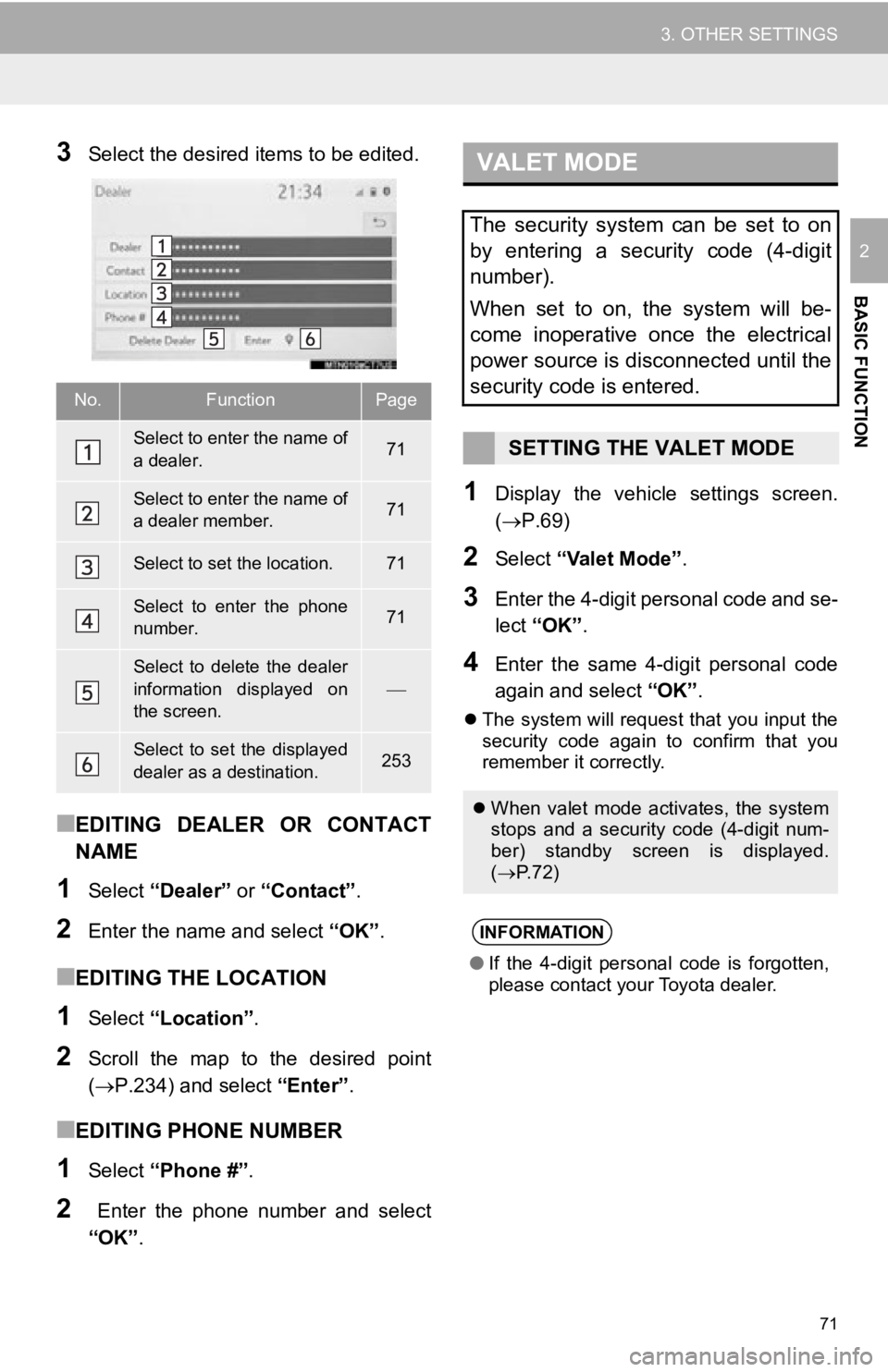
3Select the desired items to be edited.
■EDITING DEALER OR CONTACT
NAME
1Select “Dealer” or “Contact” .
2Enter the name and select “OK” .
■EDITING THE LOCATION
1Select “Location” .
2Scroll the map to the desired point
(P.234) and select “Enter”.
■EDITING PHONE NUMBER
1Select “Phone #” .
2 Enter the phone number and select
“OK”.
1Display the vehicle settings screen.
(P.69)
2Select “Valet Mode” .
3Enter the 4-digit personal code and se-
lect “OK” .
4Enter the same 4-digit personal code
again and select “OK”.
The system will request that you input the
security code again to confirm that you
remember it correctly.
No.FunctionPage
Select to enter the name of
a dealer.71
Select to enter the name of
a dealer member.71
Select to set the location.71
Select to enter the phone
number.71
Select to delete the dealer
information displayed on
the screen.
Select to set the displayed
dealer as a destination.253
VALET MODE
The security system can be set to on
by entering a security code (4-digit
number).
When set to on, the system will be-
come inoperative once the electrical
power source is disconnected until the
security code is entered.
SETTING THE VALET MODE
When valet mode activates, the system
stops and a security code (4-digit num-
ber) standby screen is displayed.
( P. 7 2 )
INFORMATION
●If the 4-digit personal code is forgotten,
please contact your Toyota dealer.
Page 72 of 326
72
3. OTHER SETTINGS
1Enter the 4-digit personal code and se-
lect “OK” .
1Display the vehicle settings screen.
(P.69)
2Select “Dealer Info” .
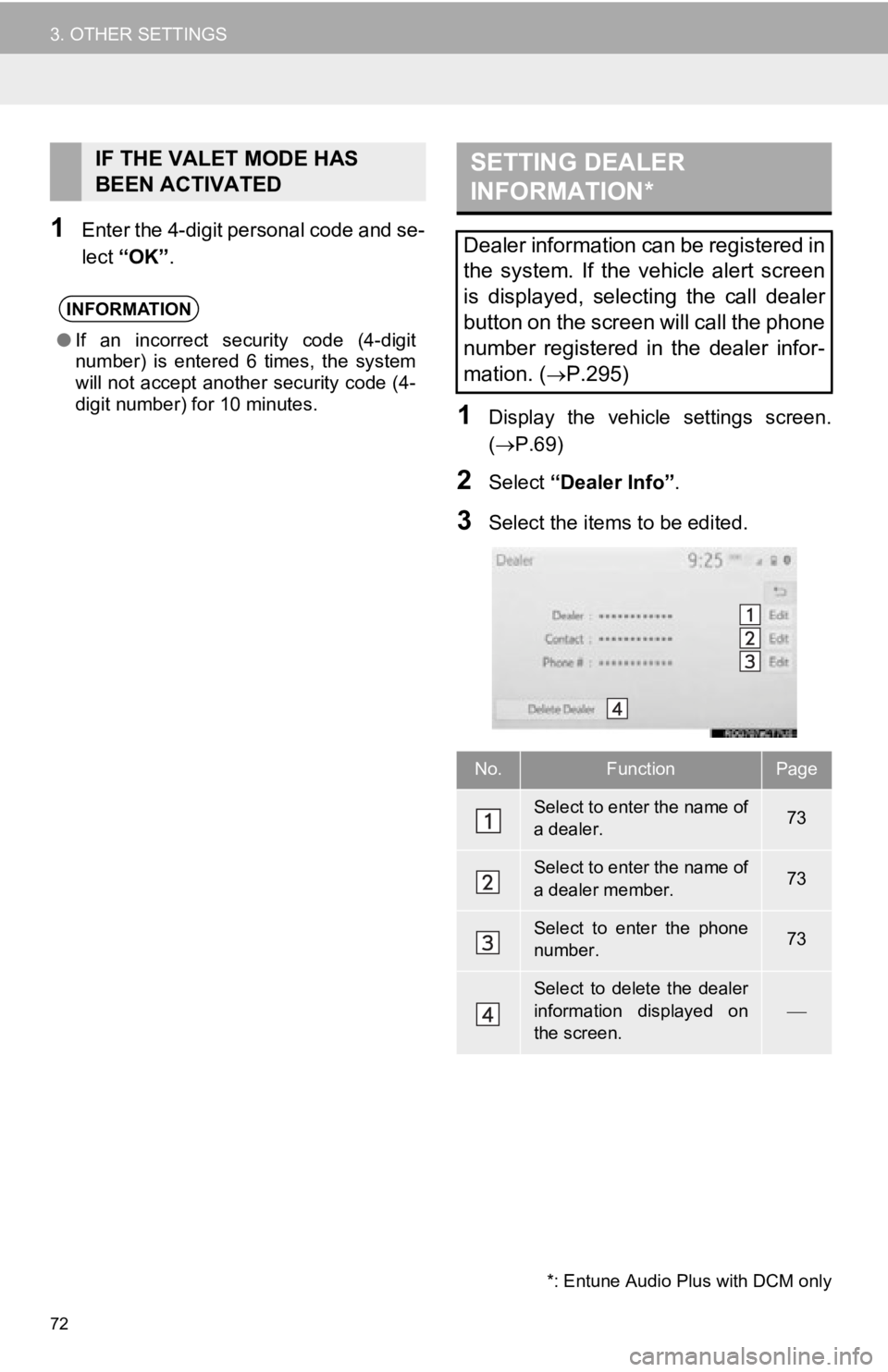
3Select the items to be edited.
IF THE VALET MODE HAS
BEEN ACTIVATED
INFORMATION
●If an incorrect security code (4-digit
number) is entered 6 times, the system
will not accept another security code (4-
digit number) for 10 minutes.
SETTING DEALER
INFORMATION*
Dealer information can be registered in
the system. If the vehicle alert screen
is displayed, selecting the call dealer
button on the screen will call the phone
number registered in the dealer infor-
mation. (
P.295)
No.FunctionPage
Select to enter the name of
a dealer.73
Select to enter the name of
a dealer member.73
Select to enter the phone
number.73
Select to delete the dealer
information displayed on
the screen.
*: Entune Audio Plus with DCM only
Page 73 of 326

73
3. OTHER SETTINGS
BASIC FUNCTION
21Select “Edit” next to “Dealer” or “Con-
tact”.
2Enter the name and select “OK” .
1Select “Edit” next to “Phone #”.
2 Enter the phone number and select
“OK”.
EDITING DEALER OR
CONTACT NAME
EDITING PHONE NUMBER
Page 75 of 326
3
75
4
5
6
7
8
9
1
2
3
1. USB MEMORY ............................... 95
OVERVIEW ........................................... 95
2. iPod/iPhone ................................... 98
OVERVIEW ........................................... 98
3. Bluetooth® AUDIO ...................... 102
OVERVIEW ......................................... 102
REGISTERING/CONNECTING A Bluetooth
® DEVICE .......................... 106
4. AUX .............................................. 107
OVERVIEW ......................................... 107
1. STEERING SWITCHES ............... 109 1. AUDIO SETTINGS ...................... 111
AUDIO SETTINGS SCREEN............... 111
1. OPERATING INFORMATION ..... 113
RADIO.................................................. 113
iPod ...................................................... 114
HIGH-RESOLUTION SOUND
SOURCE ........................................... 115
FILE INFORMATION ........................... 116
TERMS ................................................ 119
ERROR MESSAGES ........................... 121
3MEDIA OPERATION
4AUDIO/VISUAL REMOTE
CONTROLS
5SETUP
6TIPS FOR OPERATING THE
AUDIO/VISUAL SYSTEM
AUDIO/VISUAL SYSTEM
Page 76 of 326
76
1. BASIC OPERATION
1. QUICK REFERENCE
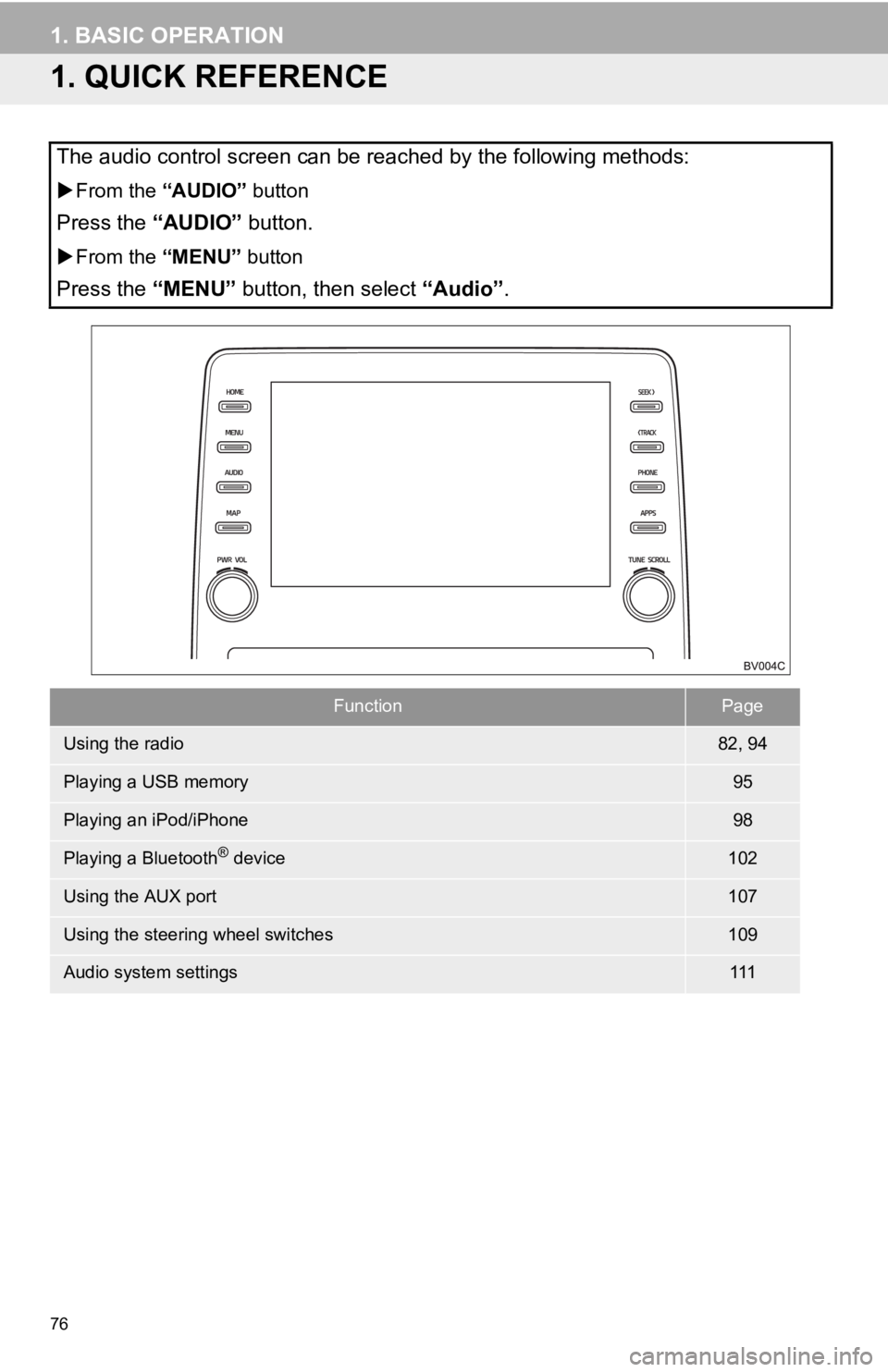
The audio control screen can be reached by the following methods:
From the “AUDIO” button
Press the “AUDIO” button.
From the “MENU” button
Press the “MENU” button, then select “Audio” .
FunctionPage
Using the radio82, 94
Playing a USB memory95
Playing an iPod/iPhone98
Playing a Bluetooth® device102
Using the AUX port107
Using the steering wheel switches109
Audio system settings111
Page 85 of 326
85
2. RADIO OPERATION
AUDIO/VISUAL SYSTEM
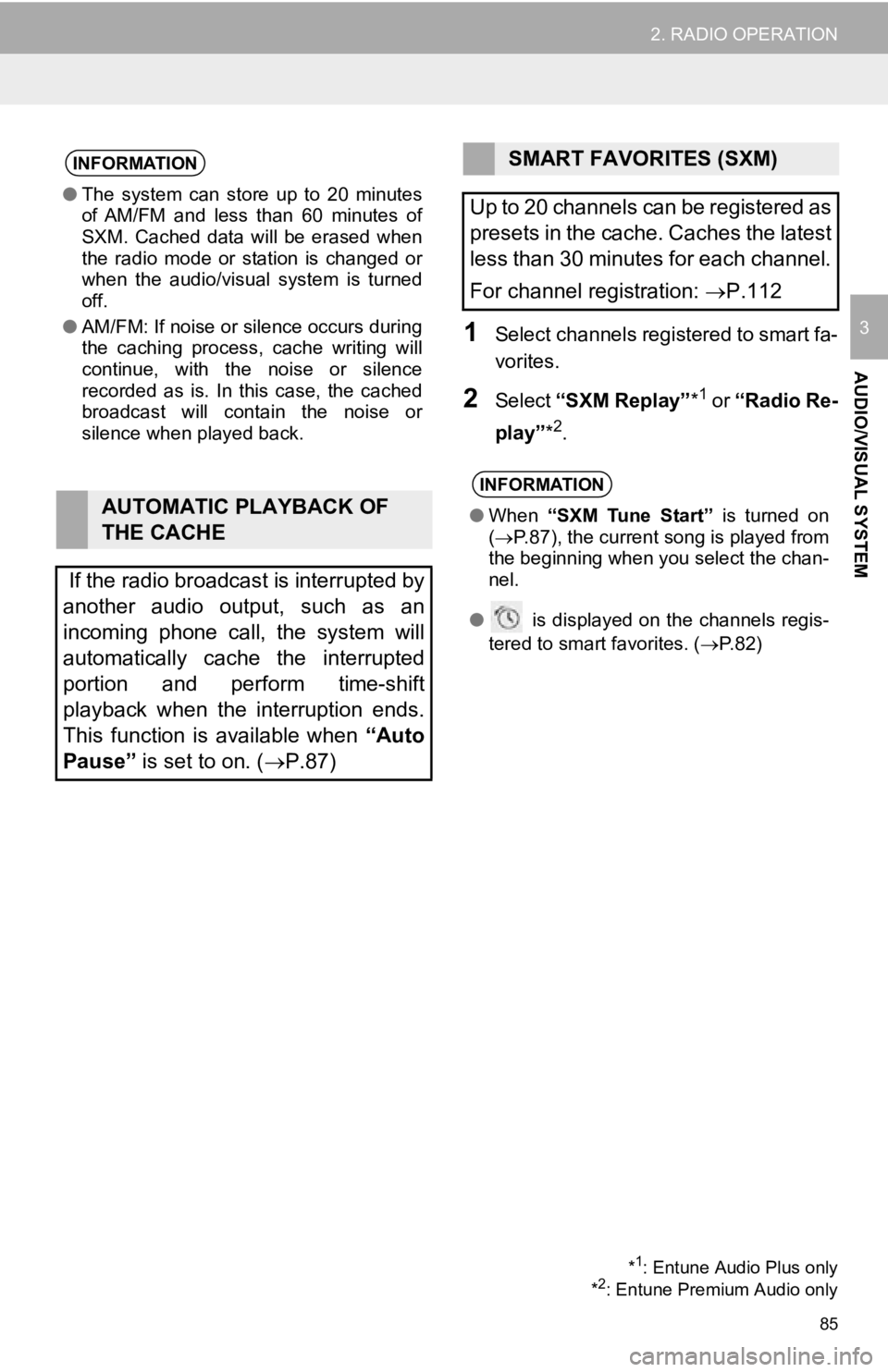
31Select channels registered to smart fa-
vorites.
2Select “SXM Replay” *1 or “Radio Re-
play” *
2.
INFORMATION
●The system can stor e up to 20 minutes
of AM/FM and less than 60 minutes of
SXM. Cached data will be erased when
the radio mode or station is changed or
when the audio/visual system is turned
off.
● AM/FM: If noise or silence occurs during
the caching process, cache writing will
continue, with the noise or silence
recorded as is. In this case, the cached
broadcast will contain the noise or
silence when played back.
AUTOMATIC PLAYBACK OF
THE CACHE
If the radio broadcast is interrupted by
another audio output, such as an
incoming phone call, the system will
automatically cache the interrupted
portion and perform time-shift
playback when the interruption ends.
This function is available when “Auto
Pause” is set to on. ( P.87)
SMART FAVORITES (SXM)
Up to 20 channels can be registered as
presets in the cache. Caches the latest
less than 30 minutes for each channel.
For channel registration: P.112
INFORMATION
●When “SXM Tune Start” is turned on
( P.87), the current song is played from
the beginning when you select the chan-
nel.
● is displayed on the channels regis-
tered to smart favorites. ( P. 8 2 )
*1: Entune Audio Plus only
*2: Entune Premium Audio only
Page 94 of 326
94
2. RADIO OPERATION
2. INTERNET RADIO
1Display the audio source selection
screen. (P.77)
2Select the desired application screen
button.
The internet radio application screen is
displayed.
Perform operations according to the dis-
played application screen.
For the instrument panel operation
method: P. 7 7
If a compatible phone is already regis-
tered, it will be connected automatically.
LISTENING TO INTERNET
RADIO
One of Toyota Entune App Suite Con-
nect features is the ability to listen to in-
ternet radio. In order to use this
service, a compatible phone and the
system needs to be set up. For details:
P.300
INFORMATION
●Other applications can be activated
while listening to internet radio.
● Some parts of applications can be
adjusted using the switches on the
steering wheel.
● For additional information, refer to
http://www.toyota.com/Entune/
or call
1-800-331-4331 in the United States,
http://www.toyota.ca/entune
or call
1-888-869-6828 in Canada, and
http://www.toyotapr.com/entune
or call
1-877-855-8377 in Puerto Rico.
Page 98 of 326
98
3. MEDIA OPERATION
2. iPod/iPhone
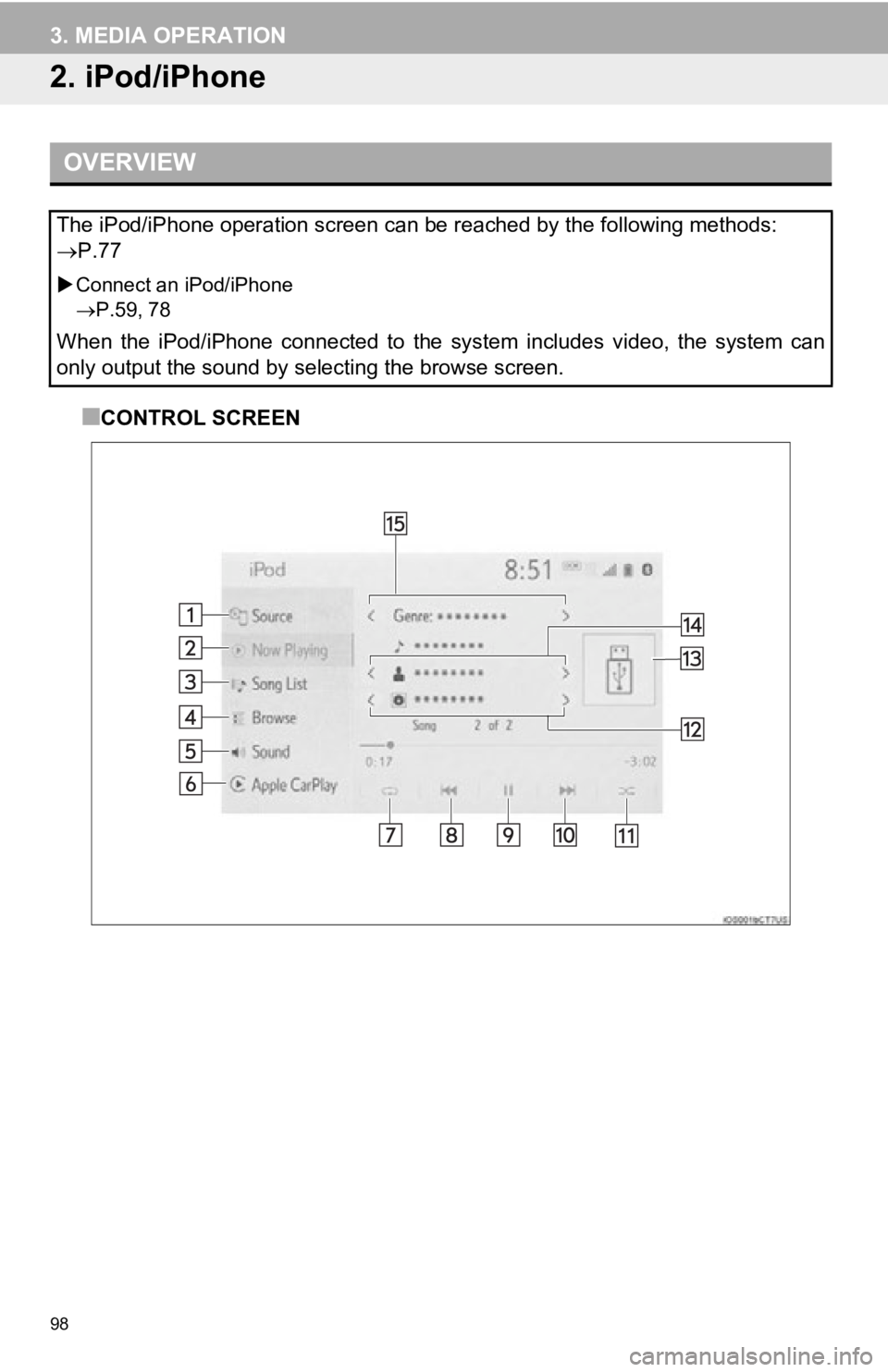
■CONTROL SCREEN
OVERVIEW
The iPod/iPhone operation screen can be reached by the following methods:
P.77
Connect an iPod/iPhone
P.59, 78
When the iPod/iPhone connected to the system includes video, the system can
only output the sound by selecting the browse screen.
Page 101 of 326
101
3. MEDIA OPERATION
AUDIO/VISUAL SYSTEM
3
WA R N I N G
●Do not operate the player’s controls or connect the iPod/iPhone while driving.
NOTICE
●Do not leave your portable player in the car. In particular, hi gh temperatures inside the
vehicle may damage the portable player.
● Do not push down on or apply unnecessary pressure to the portable player while it is con-
nected as this may damage the portable player or its terminal.
● Do not insert foreign objects into the port as this may damage the portable player or its
terminal.
INFORMATION
● When an iPod/iPhone is connected using a genuine iPod/iPhone cable, the iPod/iPhone
starts charging its battery.
● Depending on the iPod/iPhone, the video sound may not be able t o be heard.
● Depending on the iPod/iPhone and the songs in the iPod/iPhone, a cover art may be dis-
played. This function can be changed to on/off. ( P.111) It may take time to display the
cover art, and the iPod/iPhone may not be operated while the co ver art display is in pro-
cess.
● When an iPod/iPhone is connected and the audio source is change d to iPod/iPhone
mode, the iPod/iPhone will resume playing from the same point i t was last used.
● Depending on the iPod/iPhone that is connected to the system, c ertain functions may not
be available.
● Tracks selected by operating a co nnected iPod/iPhone may not be recognized or dis-
played properly.
● The system may not function properly if a conversion adapter is used to connect a
device.
Page 105 of 326
105
3. MEDIA OPERATION
AUDIO/VISUAL SYSTEM
3
INFORMATION
●Depending on the Bluetooth® device that is connected to the system, the music may start
playing when selecting while it is paused. Conversely, the music may pause when
selecting while it is playing.
● In the following conditions, the system may not function:
• The Bluetooth
® device is turned off.
• The Bluetooth
® device is not connected.
• The Bluetooth
® device has a low battery.
● When using the Bluetooth
® audio and Wi-Fi® Hotspot functions at the same time, the fol-
lowing problems may occur:
• It may take longer than normal to connect to the Bluetooth
® device.
• The sound may cut out.
● It may take time to connect the phone when Bluetooth
® audio is being played.
● For operating the portable player, see the instruction manual t hat comes with it.
● If the Bluetooth
® device is disconnected due to poor reception from the Bluetoot h® net-
work when the engine
the system will automat ically reconnect to the portable player.
● If the Bluetooth
® device is disconnected on purpose, such as it was turned off, this does
not happen. Reconnect the portable player manually.
● Bluetooth
® device information is registered when the Bluetooth® device is connected to
the Bluetooth® audio system. When selling or disposing of the vehicle, remove the
Bluetooth® audio information from the system. (P.66)