light TOYOTA BZ4X 2023 Owners Manual
[x] Cancel search | Manufacturer: TOYOTA, Model Year: 2023, Model line: BZ4X, Model: TOYOTA BZ4X 2023Pages: 628, PDF Size: 11.91 MB
Page 417 of 628
4176-2. Using the interior lights
Owners Manual_USA_M42C01_en
6
Interior features
the opening/closing of the doors.
The rear interior light turn on/off
together the front interior light.
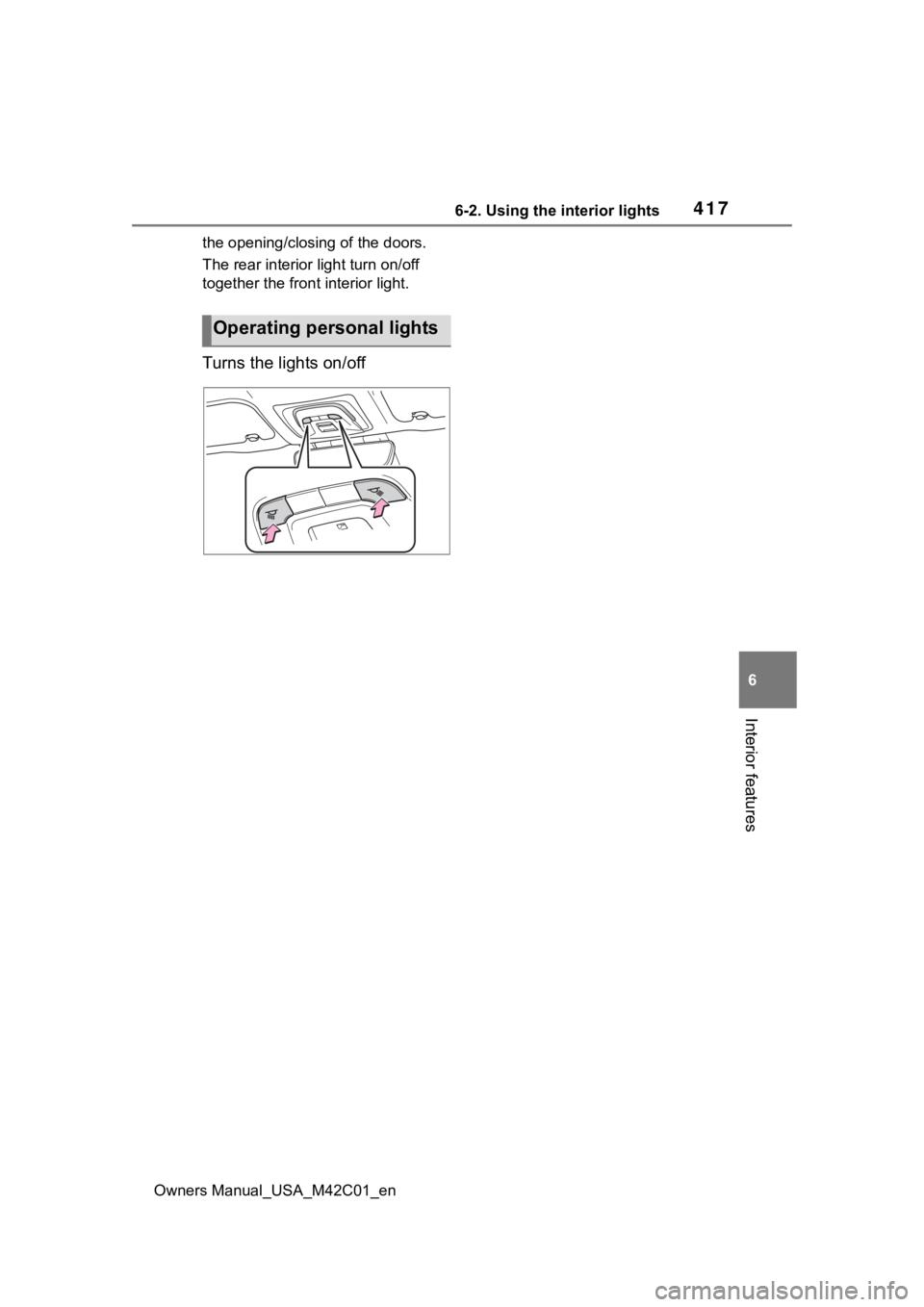
Turns the lights on/off
Operating personal lights
Page 418 of 628
4186-3. Using the storage features
Owners Manual_USA_M42C01_en
6-3.Using the storage features
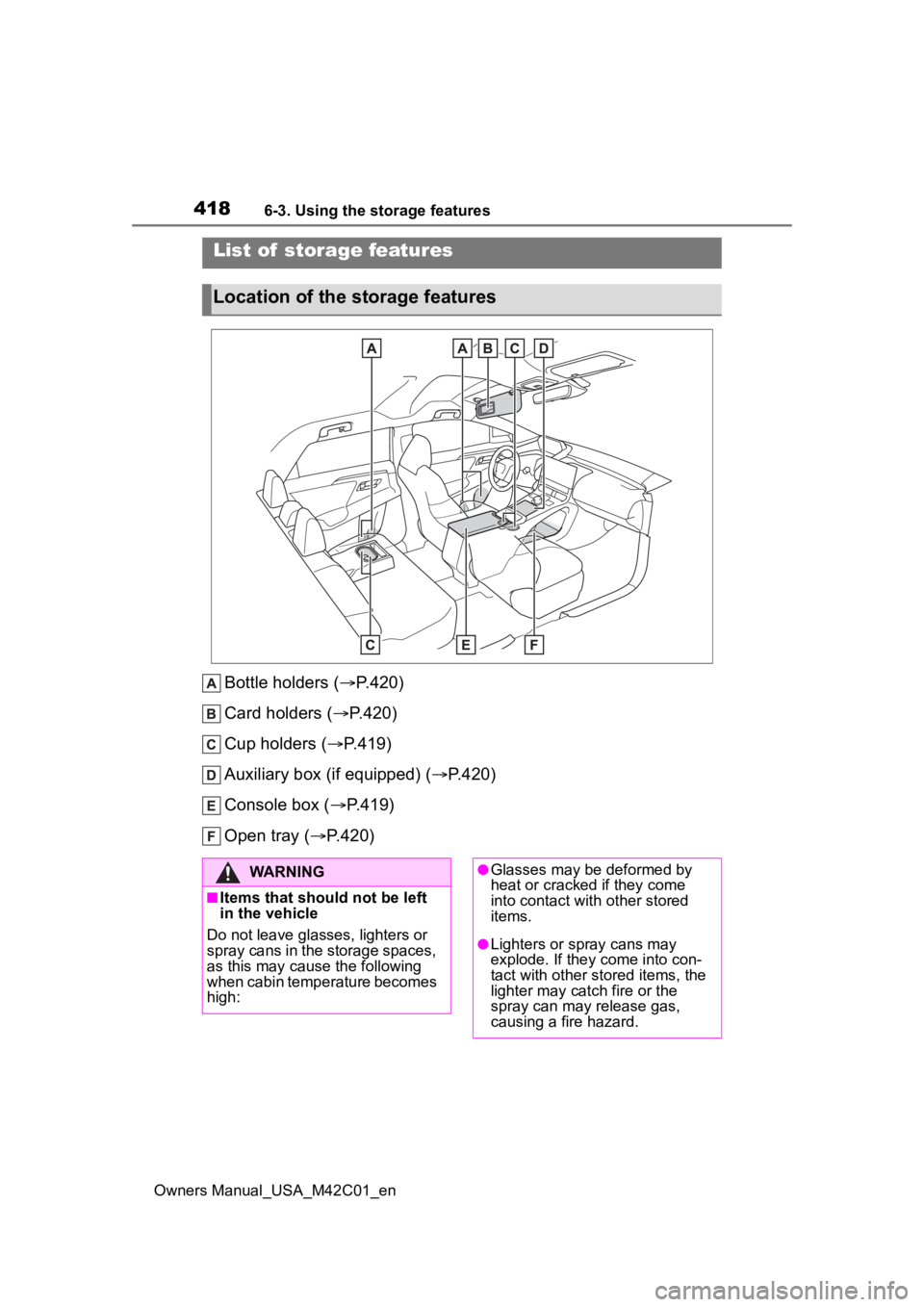
Bottle holders (P.420)
Card holders ( P.420)
Cup holders ( P.419)
Auxiliary box (if equipped) ( P.420)
Console box ( P.419)
Open tray ( P.420)
List of storage features
Location of the storage features
WARNING
■Items that should not be left
in the vehicle
Do not leave glasses, lighters or
spray cans in the storage spaces,
as this may cau se the following
when cabin temperature becomes
high:
●Glasses may be deformed by
heat or cracked if they come
into contact with other stored
items.
●Lighters or spray cans may
explode. If they come into con-
tact with other stored items, the
lighter may catch fire or the
spray can may release gas,
causing a fire hazard.
Page 426 of 628
4266-4. Using the other interior features
Owners Manual_USA_M42C01_en
6-4.Using the other interior features
*: If equipped
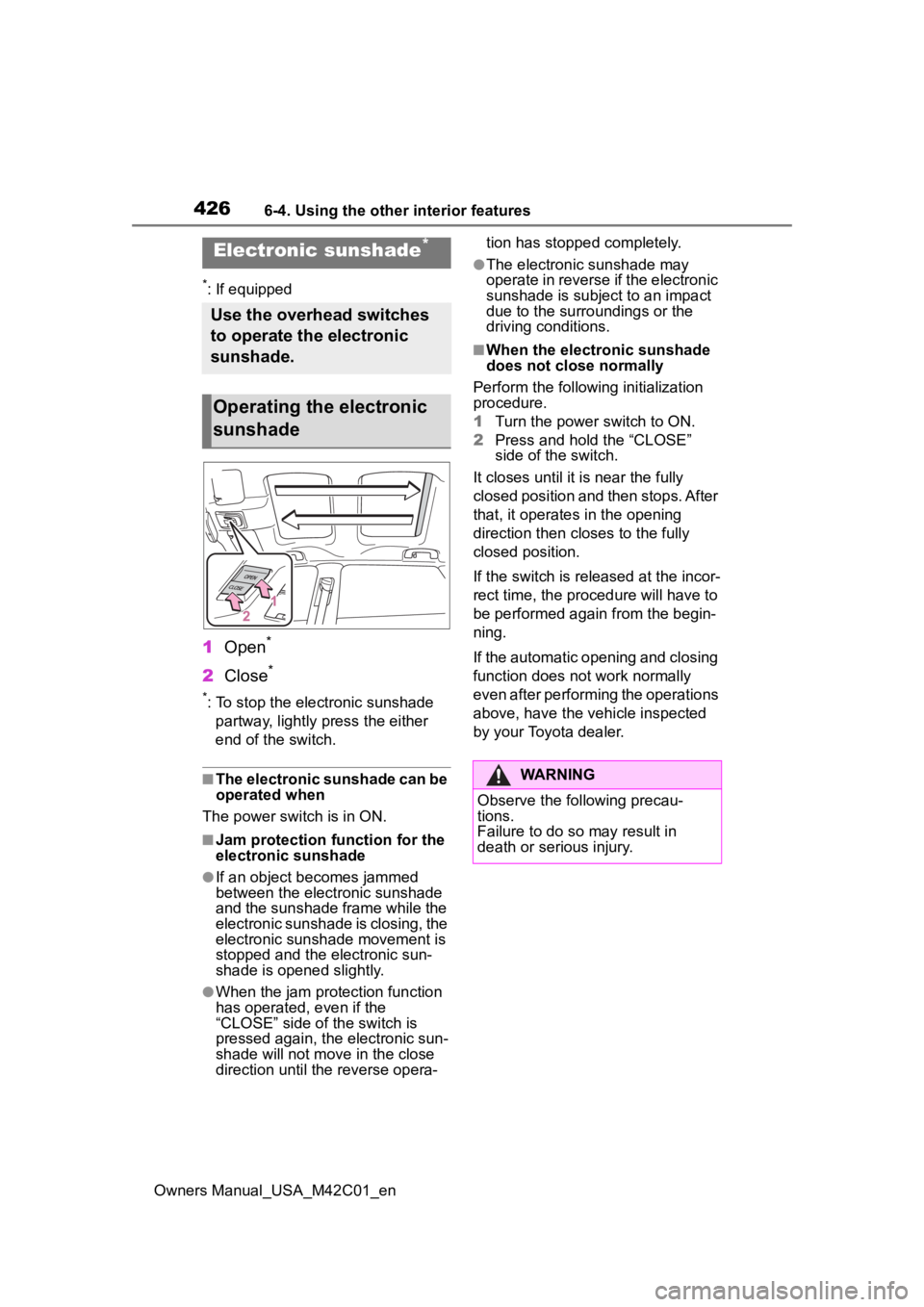
1Open*
2Close*
*: To stop the electronic sunshade
partway, lightly p ress the either
end of the switch.
■The electronic sunshade can be
operated when
The power swit ch is in ON.
■Jam protection function for the
electronic sunshade
●If an object becomes jammed
between the electronic sunshade
and the sunshade frame while the
electronic sunshade is closing, the
electronic sunshade movement is
stopped and the electronic sun-
shade is opened slightly.
●When the jam protection function
has operated, even if the
“CLOSE” side of the switch is
pressed again, the electronic sun-
shade will not m ove in the close
direction until the reverse opera- tion has stopped completely.
●The electronic sunshade may
operate in reverse if the electronic
sunshade is subject to an impact
due to the surro
undings or the
driving conditions.
■When the electronic sunshade
does not close normally
Perform the following initialization
procedure.
1 Turn the power switch to ON.
2 Press and hold the “CLOSE”
side of the switch.
It closes until it is near the fully
closed position and then stops. After
that, it operates in the opening
direction then closes to the fully
closed position.
If the switch is released at the incor-
rect time, the proc edure will have to
be performed again from the begin-
ning.
If the automatic opening and closing
function does not work normally
even after performing the operations
above, have the vehicle inspected
by your Toyota dealer.
Electronic sunshade*
Use the overhead switches
to operate the electronic
sunshade.
Operating the electronic
sunshade
WARNING
Observe the following precau-
tions.
Failure to do so may result in
death or serious injury.
Page 427 of 628
4276-4. Using the other interior features
Owners Manual_USA_M42C01_en
6
Interior features
WARNING
■Opening and closing the elec-
tronic sunshade
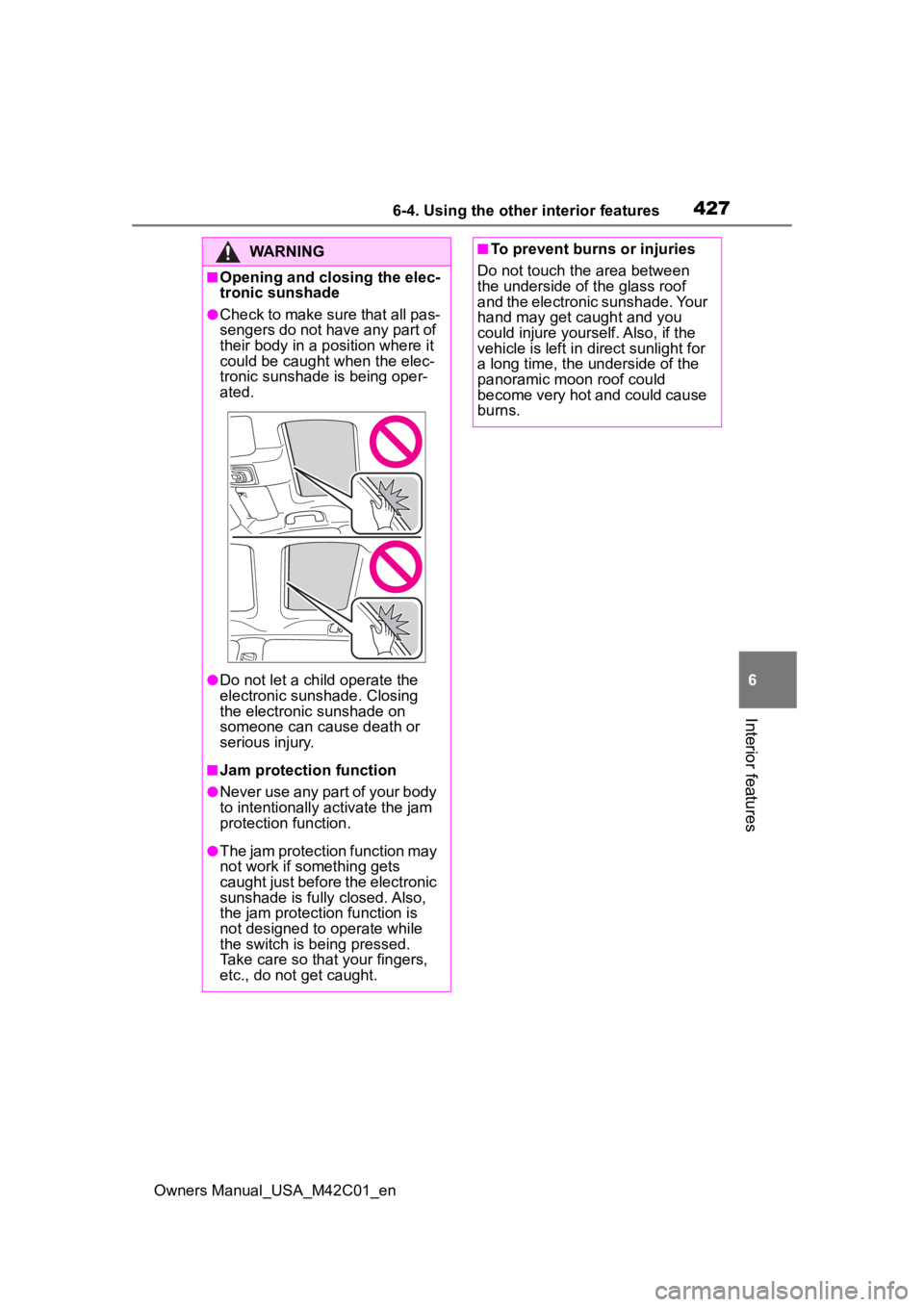
●Check to make sure that all pas-
sengers do not have any part of
their body in a position where it
could be caught when the elec-
tronic sunshade is being oper-
ated.
●Do not let a child operate the
electronic sunshade. Closing
the electronic sunshade on
someone can cause death or
serious injury.
■Jam protection function
●Never use any part of your body
to intentionally a ctivate the jam
protection function.
●The jam protection function may
not work if something gets
caught just before the electronic
sunshade is fully closed. Also,
the jam protecti on function is
not designed to operate while
the switch is being pressed.
Take care so that your fingers,
etc., do not get caught.
■To prevent burns or injuries
Do not touch the area between
the underside of the glass roof
and the electronic sunshade. Your
hand may get caught and you
could injure yourself. Also, if the
vehicle is left in direct sunlight for
a long time, the underside of the
panoramic moon roof could
become very hot and could cause
burns.
Page 428 of 628
4286-4. Using the other interior features
Owners Manual_USA_M42C01_en
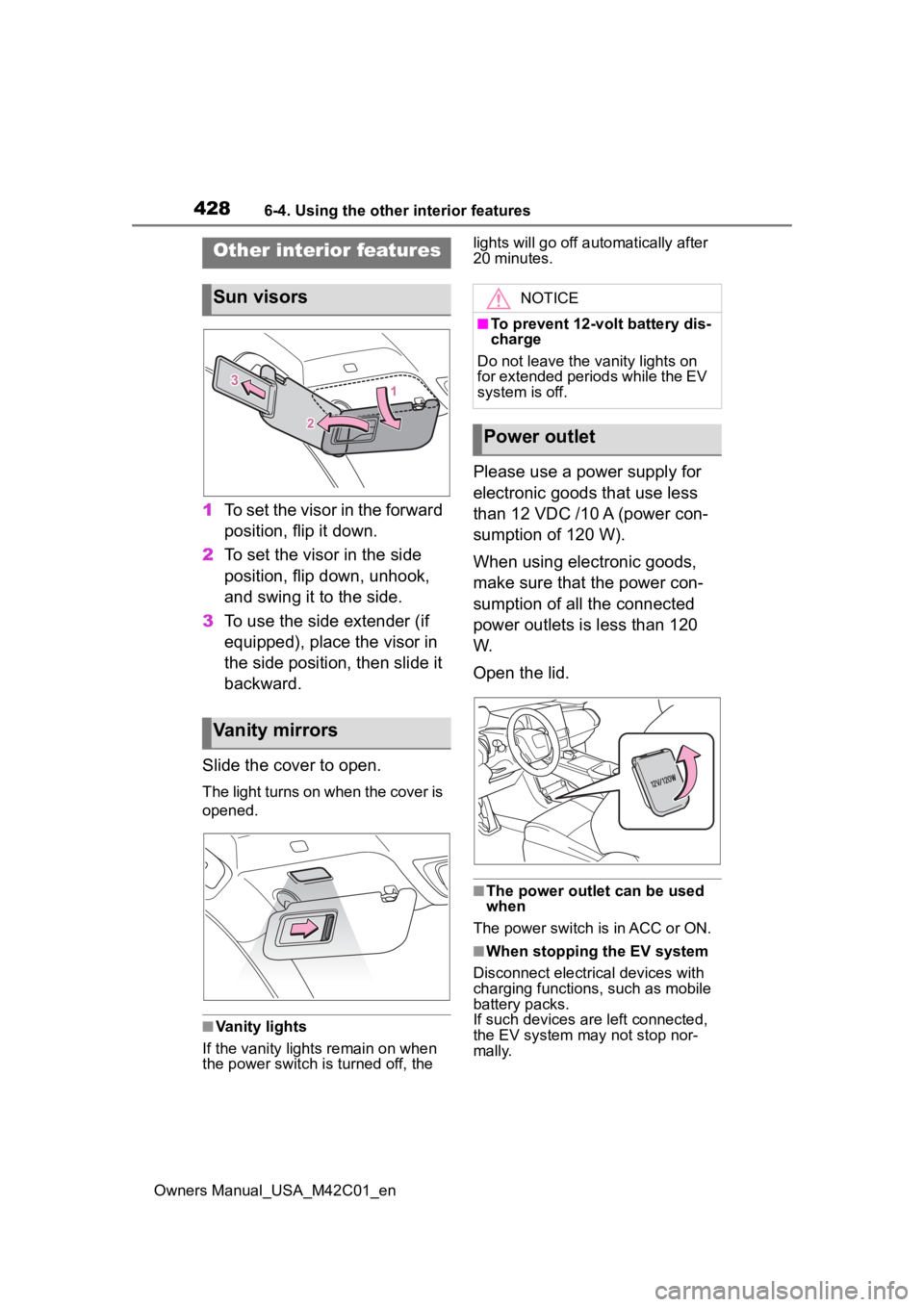
1To set the visor in the forward
position, flip it down.
2 To set the visor in the side
position, flip down, unhook,
and swing it to the side.
3 To use the side extender (if
equipped), place the visor in
the side position, then slide it
backward.
Slide the cover to open.
The light turns on when the cover is
opened.
■Vanity lights
If the vanity light s remain on when
the power switch is turned off, the lights will go off automatically after
20 minutes.
Please use a power supply for
electronic goods that use less
than 12 VDC /10 A (power con-
sumption of 120 W).
When using electronic goods,
make sure that the power con-
sumption of all the connected
power outlets is less than 120
W.
Open the lid.
■The power outlet can be used
when
The power switch is in ACC or ON.
■When stopping the EV system
Disconnect electrical devices with
charging functions, such as mobile
battery packs.
If such devices are left connected,
the EV system may not stop nor-
mally.
Other interior features
Sun visors
Vanity mirrors
NOTICE
■To prevent 12-volt battery dis-
charge
Do not leave the vanity lights on
for extended periods while the EV
system is off.
Power outlet
Page 429 of 628
4296-4. Using the other interior features
Owners Manual_USA_M42C01_en
6
Interior features
The USB Type-C charging ports
are used to supply 3 A of elec-
tricity at 5 V to external devices.
The USB Type-C charging ports
are for charging only. They are
not designed for data transfer or
other purposes. Depending on the external
device, it may not charge prop-
erly. Refer to the manual
included with the device before
using a USB charging port.
Refer to “MULTIMEDIA
OWNER’S MANUAL” for USB
Type-A information.
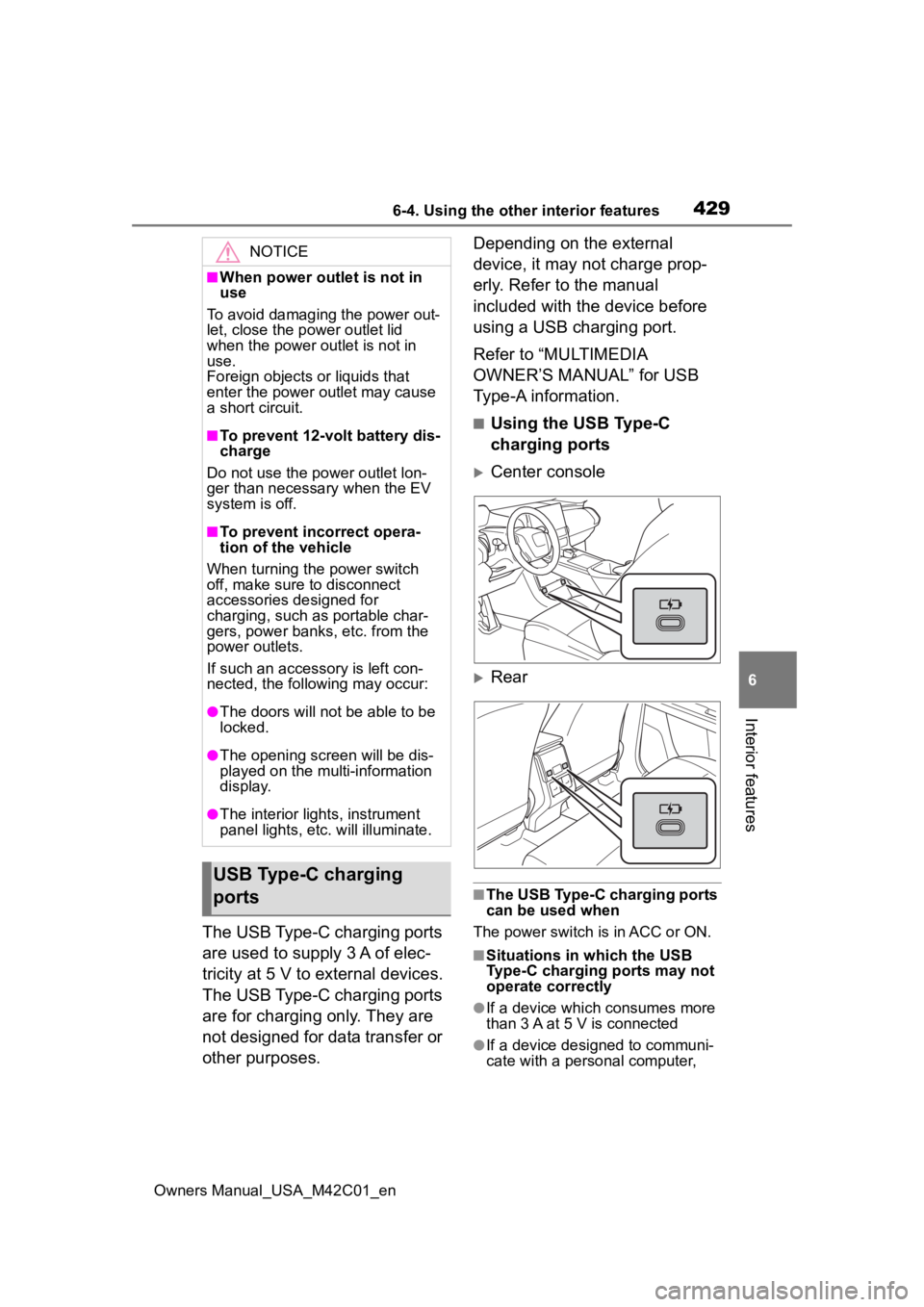
■Using the USB Type-C
charging ports
Center console
Rear
■The USB Type-C charging ports
can be used when
The power switch is in ACC or ON.
■Situations in which the USB
Type-C charging ports may not
operate correctly
●If a device which consumes more
than 3 A at 5 V is connected
●If a device designed to communi-
cate with a personal computer,
NOTICE
■When power outlet is not in
use
To avoid damaging the power out-
let, close the p ower outlet lid
when the power outlet is not in
use.
Foreign objects or liquids that
enter the power outlet may cause
a short circuit.
■To prevent 12-volt battery dis-
charge
Do not use the power outlet lon-
ger than necessary when the EV
system is off.
■To prevent incorrect opera-
tion of the vehicle
When turning the power switch
off, make sure to disconnect
accessories designed for
charging, such as portable char-
gers, power banks, etc. from the
power outlets.
If such an accessory is left con-
nected, the following may occur:
●The doors will not be able to be
locked.
●The opening scr een will be dis-
played on the multi-information
display.
●The interior lights, instrument
panel lights, etc. will illuminate.
USB Type-C charging
ports
Page 431 of 628
4316-4. Using the other interior features
Owners Manual_USA_M42C01_en
6
Interior features
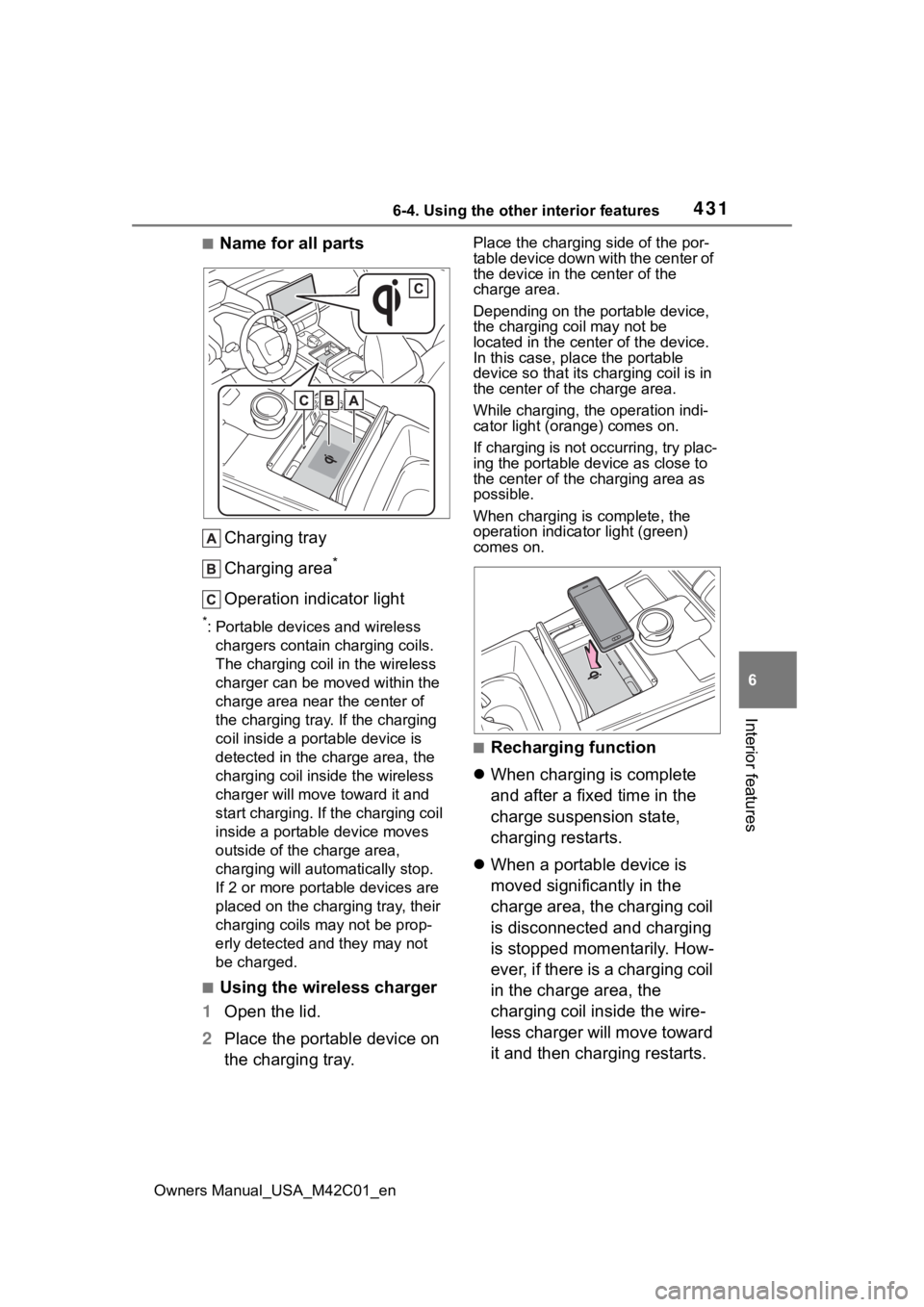
■Name for all parts Charging tray
Charging area
*
Operation indicator light
*: Portable devices and wireless chargers contain charging coils.
The charging coil in the wireless
charger can be m oved within the
charge area near the center of
the charging tray. If the charging
coil inside a portable device is
detected in the charge area, the
charging coil in side the wireless
charger will move t oward it and
start charging. If the charging coil
inside a portable device moves
outside of the charge area,
charging will automatically stop.
If 2 or more porta ble devices are
placed on the charging tray, their
charging coils may not be prop-
erly detected and they may not
be charged.
■Using the wireless charger
1 Open the lid.
2 Place the portable device on
the charging tray.
Place the charging side of the por-
table device down with the center of
the device in the center of the
charge area.
Depending on the portable device,
the charging coil may not be
located in the center of the device.
In this case, place the portable
device so that its charging coil is in
the center of the charge area.
While charging, the operation indi-
cator light (orange) comes on.
If charging is not occurring, try plac-
ing the portable device as close to
the center of the charging area as
possible.
When charging is complete, the
operation indicator light (green)
comes on.
■Recharging function
When charging is complete
and after a fixed time in the
charge suspension state,
charging restarts.
When a portable device is
moved significantly in the
charge area, the charging coil
is disconnected and charging
is stopped momentarily. How-
ever, if there is a charging coil
in the charge area, the
charging coil inside the wire-
less charger will move toward
it and then charging restarts.
Page 432 of 628
4326-4. Using the other interior features
Owners Manual_USA_M42C01_en
■Rapid charging function
The following portable
devices support rapid
charging.
• Portable devices compliant with
WPC Ver1.2.4 and compatible
with rapid charging • iPhone’s with an iOS version that
supports 7.5 W c harging (iPhone
8 and later models)
When a portable device that
supports rapid charging is
charged, charging automati-
cally switches to the rapid
charging function.
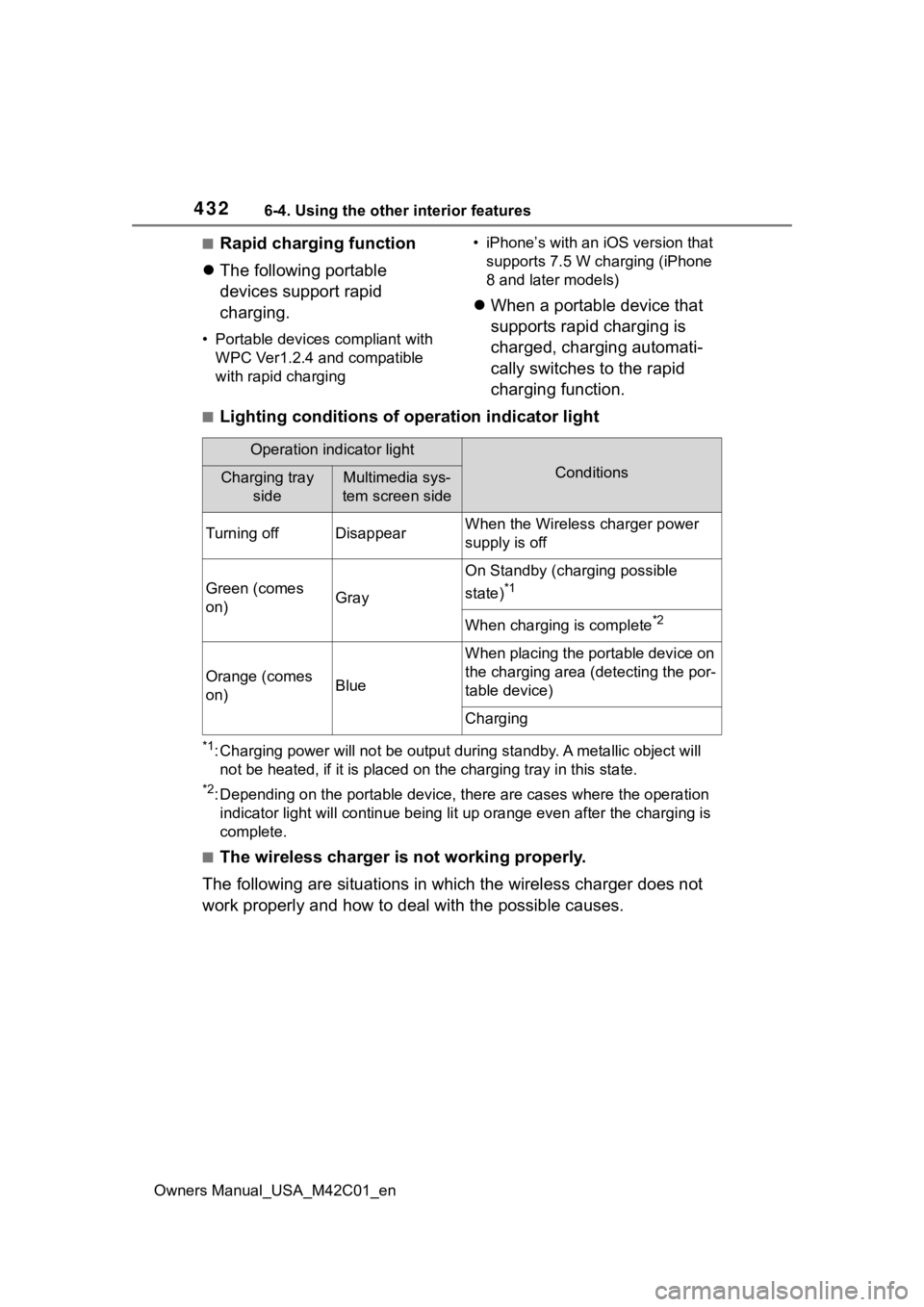
■Lighting conditions of operation indicator light
*1: Charging power will not be output during standby. A metallic o bject will
not be heated, if it is placed on the charging tray in this sta te.
*2: Depending on the portable devic e, there are cases where the operation
indicator light will continue bei ng lit up orange even after the charging is
complete.
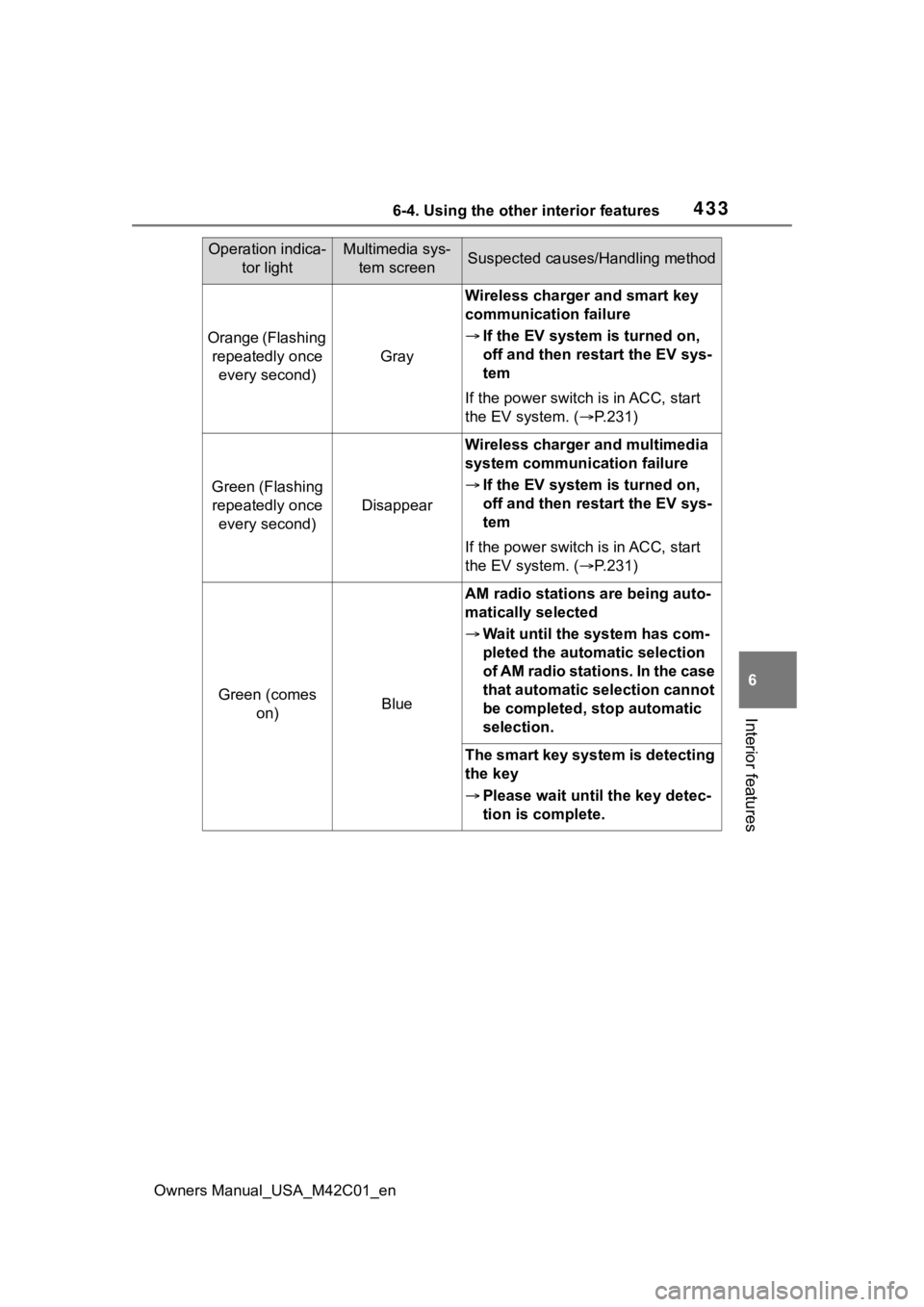
■The wireless charger is not working properly.
The following are situations in which the wireless charger does not
work properly and how to deal with the possible causes.
Operation indicator light
ConditionsCharging tray sideMultimedia sys-
tem screen side
Turning offDisappearWhen the Wireless charger power
supply is off
Green (comes
on)Gray
On Standby (charging possible
state)
*1
When charging is complete*2
Orange (comes
on)Blue
When placing the portable device on
the charging area (detecting the por-
table device)
Charging
Page 433 of 628
4336-4. Using the other interior features
Owners Manual_USA_M42C01_en
6
Interior features
Operation indica- tor lightMultimedia sys-tem screenSuspected causes/Handling method
Orange (Flashing repeatedly once every second)
Gray
Wireless charger and smart key
communication failure
If the EV system is turned on,
off and then restart the EV sys-
tem
If the power switch is in ACC, start
the EV system. ( P.231)
Green (Flashing
repeatedly once every second)
Disappear
Wireless charger and multimedia
system communication failure
If the EV system is turned on,
off and then restart the EV sys-
tem
If the power switch is in ACC, start
the EV system. ( P.231)
Green (comes
on)Blue
AM radio stations are being auto-
matically selected
Wait until the s ystem has com-
pleted the automatic selection
of AM radio stations. In the case
that automatic selection cannot
be completed, stop automatic
selection.
The smart key system is detecting
the key
Please wait until the key detec-
tion is complete.
Page 434 of 628
4346-4. Using the other interior features
Owners Manual_USA_M42C01_en
■The wireless charger can be
operated when
The power switch i s in ACC or ON.
■Portable devices that can be
charged
●Portable devices compatible with
the Qi wireless charging standard
can be charged by the wireless
charger. However, compatibility
with all devices which meet the Qi
wireless charging standard is not
guaranteed.
●The wireless charger is designed
to supply low power electricity (5
W or less) to a cellular phone,
smartphone, or other portable
device.
●Failure to do so may result in the
possibility of fire, However, porta- ble devices, such as the following,
can be charged with more than 5
W.
• 7.5 W charging compatible iPhones can be charged at 7.5 W
or less.
• Portable devices which conform to WPC Ver 1.2.4 (Extended Power
profile) can be charged at 10 W or
less.
■When covers and accessories
are attached to portable devices
Do not charge in situations where
cover and accessories not able to
handle Qi are attached to the porta-
ble device. Depending on the type
of cover (including for certain genu-
ine manufacturer parts) and acces-
sory, it may not be possible to
charge.
When charging is not performed
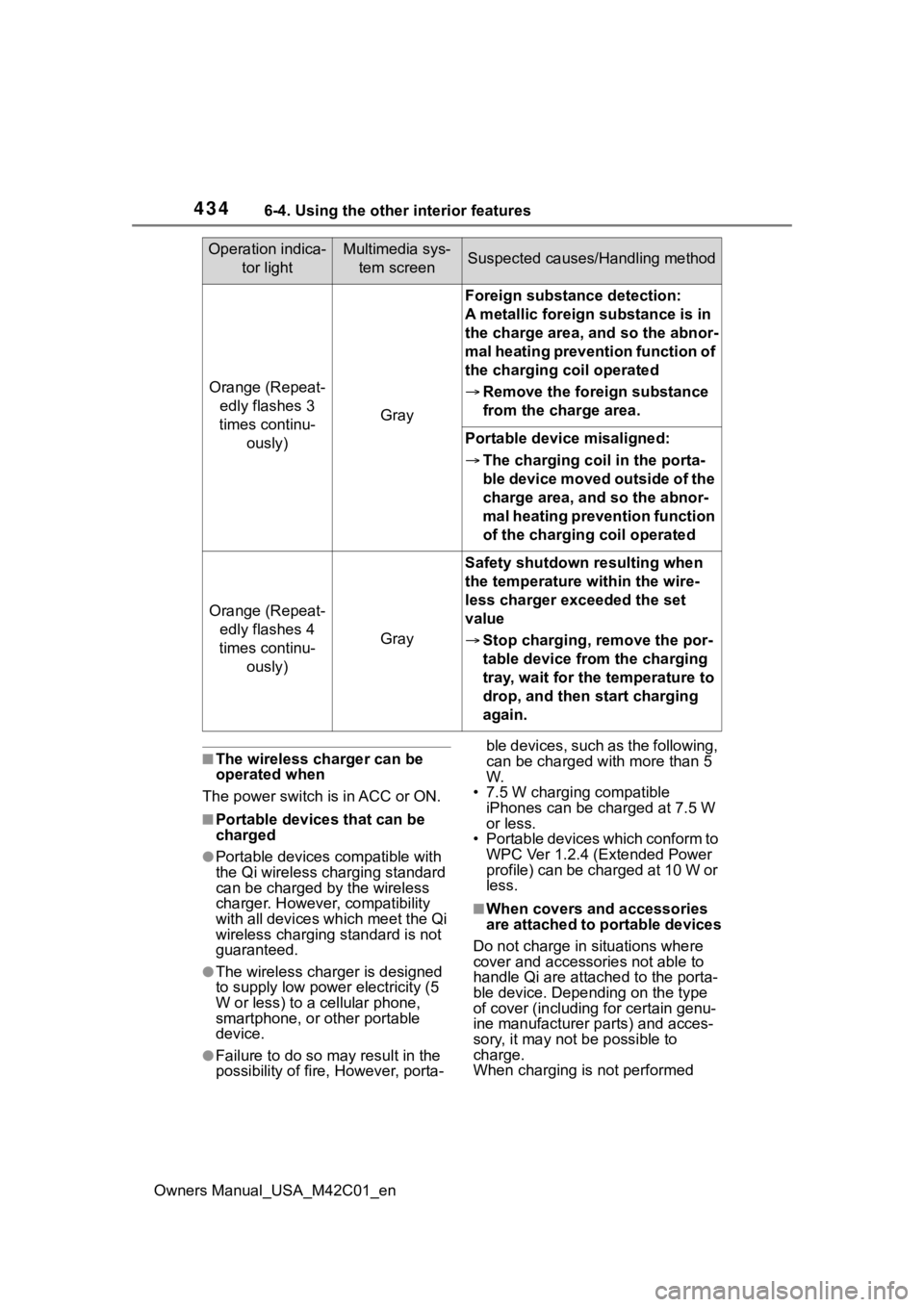
Orange (Repeat- edly flashes 3
times continu- ously)
Gray
Foreign substance detection:
A metallic foreign substance is in
the charge area, and so the abnor-
mal heating prevention function of
the charging coil operated
Remove the foreign substance
from the charge area.
Portable device misaligned:
The charging coil in the porta-
ble device moved outside of the
charge area, and so the abnor-
mal heating prevention function
of the charging coil operated
Orange (Repeat-
edly flashes 4
times continu- ously)
Gray
Safety shutdown resulting when
the temperature within the wire-
less charger exceeded the set
value
Stop charging, remove the por-
table device from the charging
tray, wait for the temperature to
drop, and then start charging
again.
Operation indica-
tor lightMultimedia sys-tem screenSuspected causes/Handling method