display TOYOTA CAMRY 2013 XV50 / 9.G Owner's Manual
[x] Cancel search | Manufacturer: TOYOTA, Model Year: 2013, Model line: CAMRY, Model: TOYOTA CAMRY 2013 XV50 / 9.GPages: 540, PDF Size: 7 MB
Page 178 of 540
178 2-2. Instrument cluster
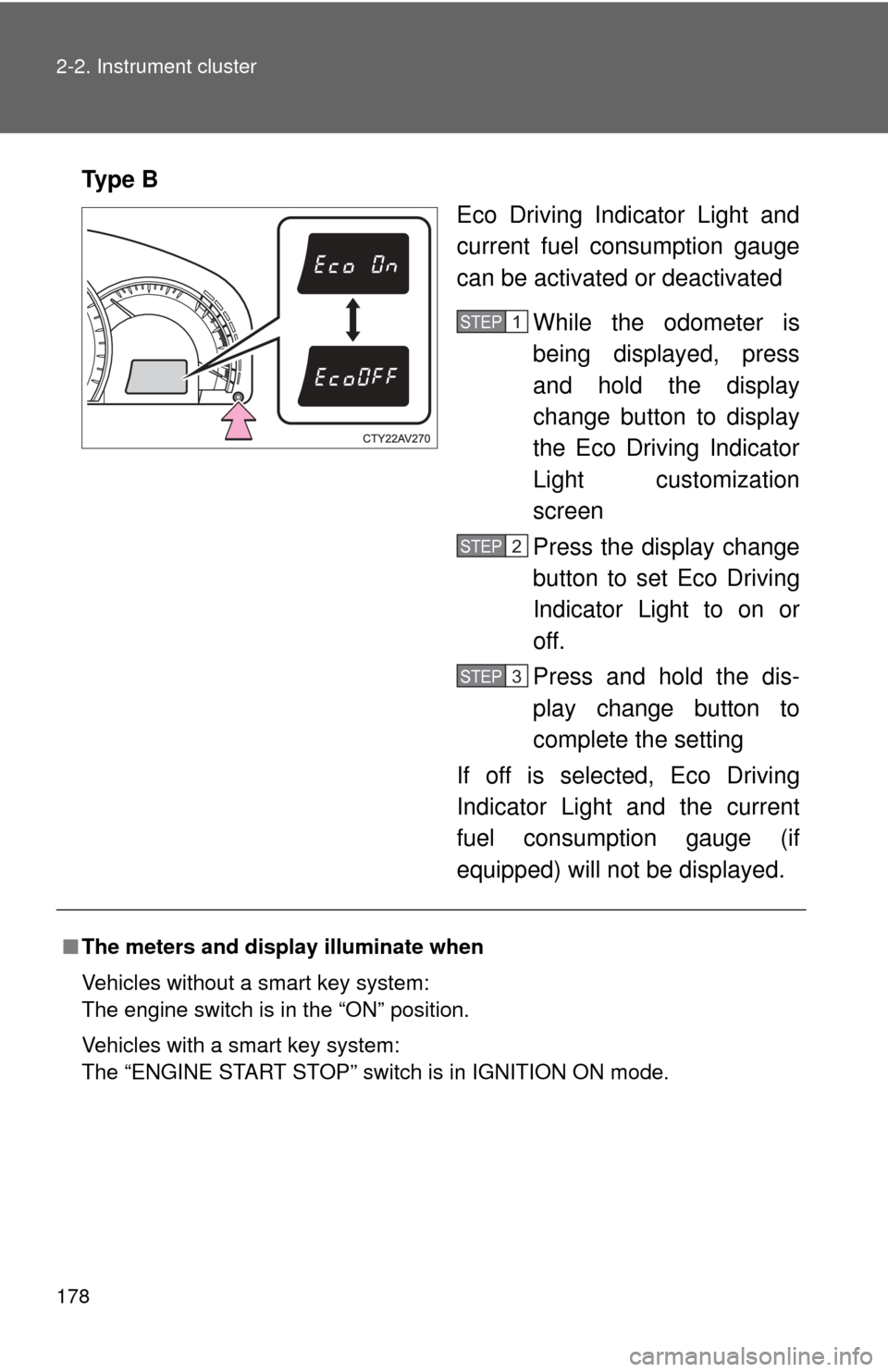
Ty p e BEco Driving Indicator Light and
current fuel consumption gauge
can be activated or deactivated
While the odometer is
being displayed, press
and hold the display
change button to display
the Eco Driving Indicator
Light customization
screen
Press the display change
button to set Eco Driving
Indicator Light to on or
off.
Press and hold the dis-
play change button to
complete the setting
If off is selected, Eco Driving
Indicator Light and the current
fuel consumption gauge (if
equipped) will not be displayed.
STEP1
STEP2
STEP3
■ The meters and display illuminate when
Vehicles without a smart key system:
The engine switch is in the “ON” position.
Vehicles with a smart key system:
The “ENGINE START STOP” switch is in IGNITION ON mode.
Page 179 of 540
179
2-2. Instrument cluster
2
When driving
■
The brightness of the instrument panel lights
When the tail lights are turned on, the meter’s brightness will be reduced
slightly unless the meter brightness level adjustment is set to the brightest
setting.
On some models: If the tail lights are turned on when the surroundings are
dark, the meter’s brightness will reduce slightly. However, when the sur-
roundings are bright, such as during the daytime, the meter’s brightness will
not be reduced even if the tail lights are turned on.
■ Fuel gauge and odometer/trip meter display remain on mode
Vehicles without a smart key system:
After the engine switch has been turned off, the fuel gauge and odometer/
trip meter display remain on for 10 minutes, enabling the fuel gauge and
odometer/trip meter values to be checked again without having to turn the
engine switch to the “ON” position.
When confirming the gauges and meters, turn the headlight switch to the
position. Press the display change button to change between the
odometer and trip meter displays.
Vehicles with a smart key system:
After the “ENGINE START STOP” switch has been turned off, the fuel gauge
and odometer/trip meter display remain on for 10 minutes, enabling the fuel
gauge and odometer/trip meter values to be checked again without having to
turn the “ENGINE START STOP” switch to IGNITION ON mode.
When confirming the gauges and meters, turn the headlight switch to the
position. Press the display change button to change between the
odometer and trip meter displays.
NOTICE
■ To prevent damage to the engine and its components
●Do not let the indicator needle of the tachometer enter the red zone, which
indicates the maximum engine speed.
● The engine may be overheating if the rightmost segment of the engine
coolant temperature display is flashing. In this case, immediately stop the
vehicle in a safe place, and check the engine after it has cooled com-
pletely. ( P. 465)
Page 231 of 540
Interior features3
231
3-1. Using the air conditioning system and defogger
Manual air conditioning system ........................... 232
Automatic air conditioning system ....... 239
Rear window and outside rear view
mirror defoggers ............ 246
3-2. Using the audio system Audio system types .......... 248
Using the radio ................. 253
Using the CD player ......... 256
Playing back MP3 and WMA discs ..................... 262
Operating an iPod ............ 270
Operating a USB memory .......................... 279
Optimal use of the audio system ........................... 287
Using the AUX port .......... 290
3-3. Using the interior lights Interior lights list ............... 292
• Interior lights .................. 293
• Personal lights ............... 294 3-4. Using the storage features
List of storage features .... 296
• Glove box....................... 297
• Console box ................... 298
• Coin holder .................... 299
• Bottle holders ................. 300
• Cup holders ................... 301
• Auxiliary boxes ............... 303
3-5. Other interior features Sun visors ........................ 305
Vanity mirrors ................... 306
Clock ................................ 307
Outside temperature display............................ 308
Ashtray ............................. 310
Power outlets ................... 311
Seat heaters..................... 314
Armrest ............................ 316
Assist grips....................... 317
Coat hooks ....................... 318
Floor mat .......................... 319
Trunk features .................. 321
Garage door opener......... 323
Compass .......................... 330
Safety Connect ................ 334
Page 239 of 540
239
3-1. Using the air conditioning system and defogger
3
Interior features
Automatic air conditioning system
: If equipped
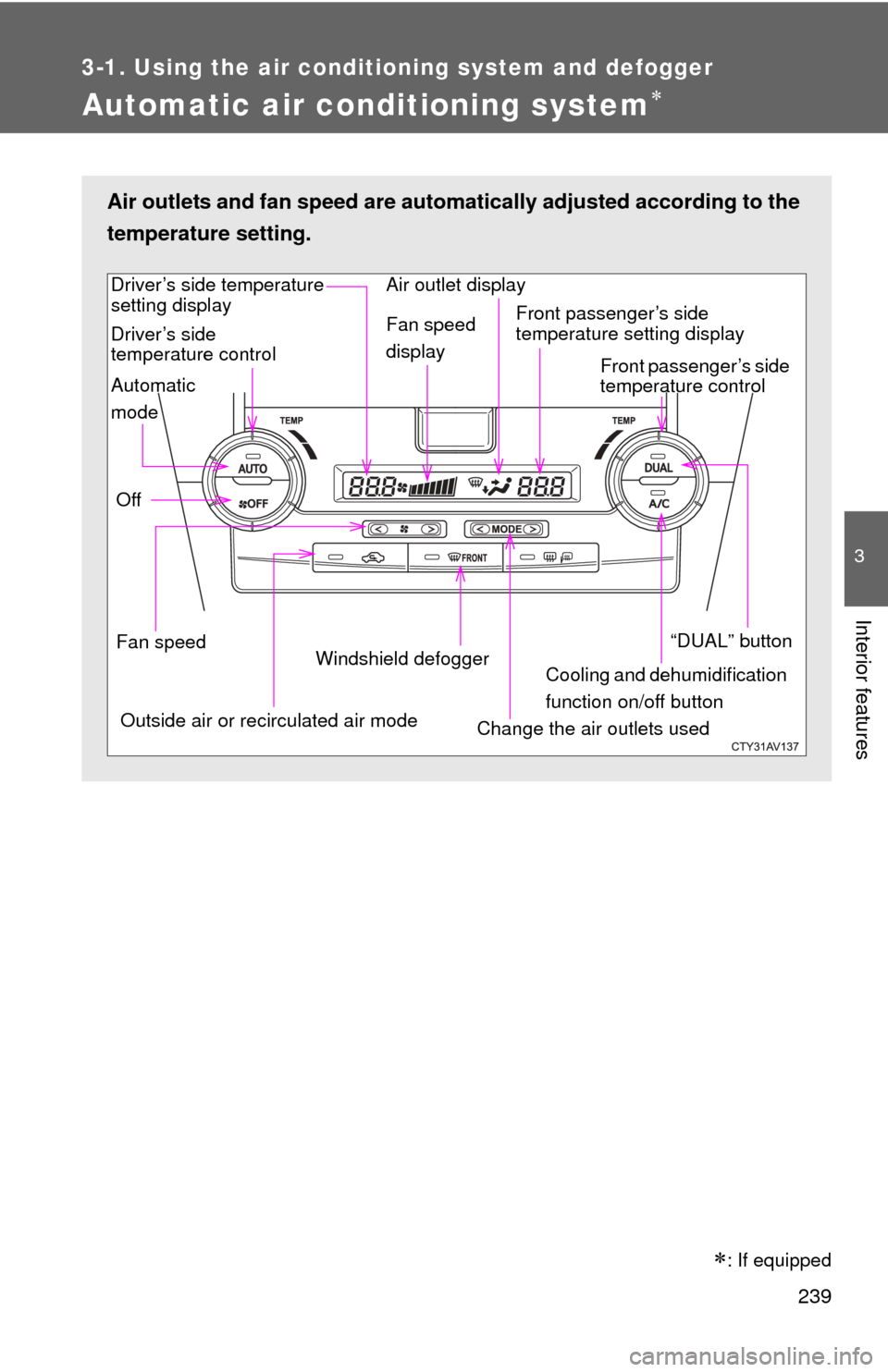
Air outlets and fan speed are automatically adjusted according to the
temperature setting.
Cooling and dehumidification
function on/off button
Front passenger’s side
temperature setting display
Driver’s side
temperature control
“DUAL” button
Automatic
mode
Off
Driver’s side temperature
setting display
Fan speedOutside air or recirculated air mode Fan speed
display
Change the air outlets used Front passenger’s side
temperature control
Windshield defogger Air outlet display
Page 248 of 540
248
3-2. Using the audio system
Audio system types
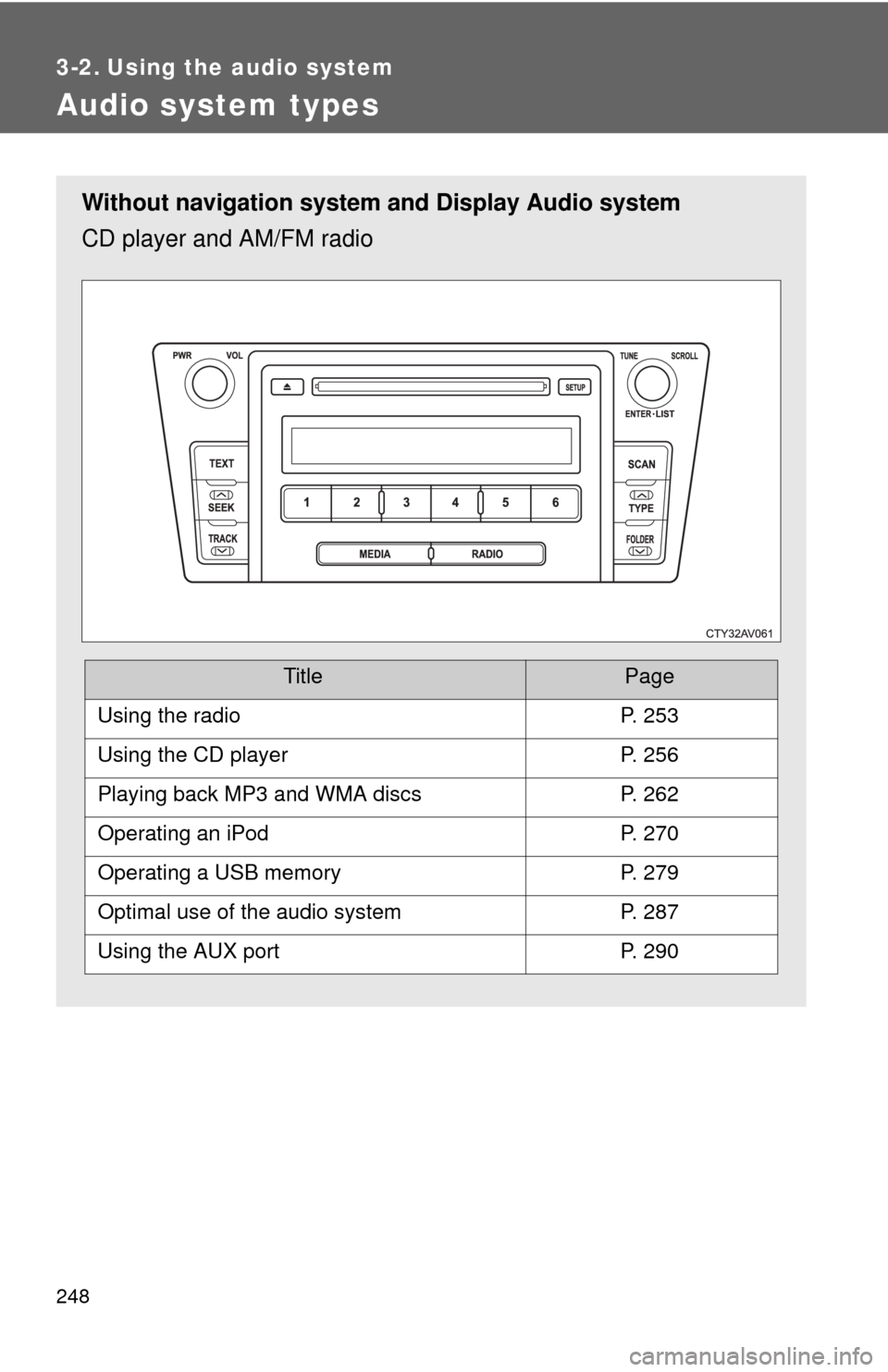
Without navigation system and Display Audio system
CD player and AM/FM radio
TitlePage
Using the radioP. 253
Using the CD playerP. 256
Playing back MP3 and WMA discsP. 262
Operating an iPodP. 270
Operating a USB memoryP. 279
Optimal use of the audio systemP. 287
Using the AUX portP. 290
Page 249 of 540
249
3-2. Using the audio system
3
Interior features
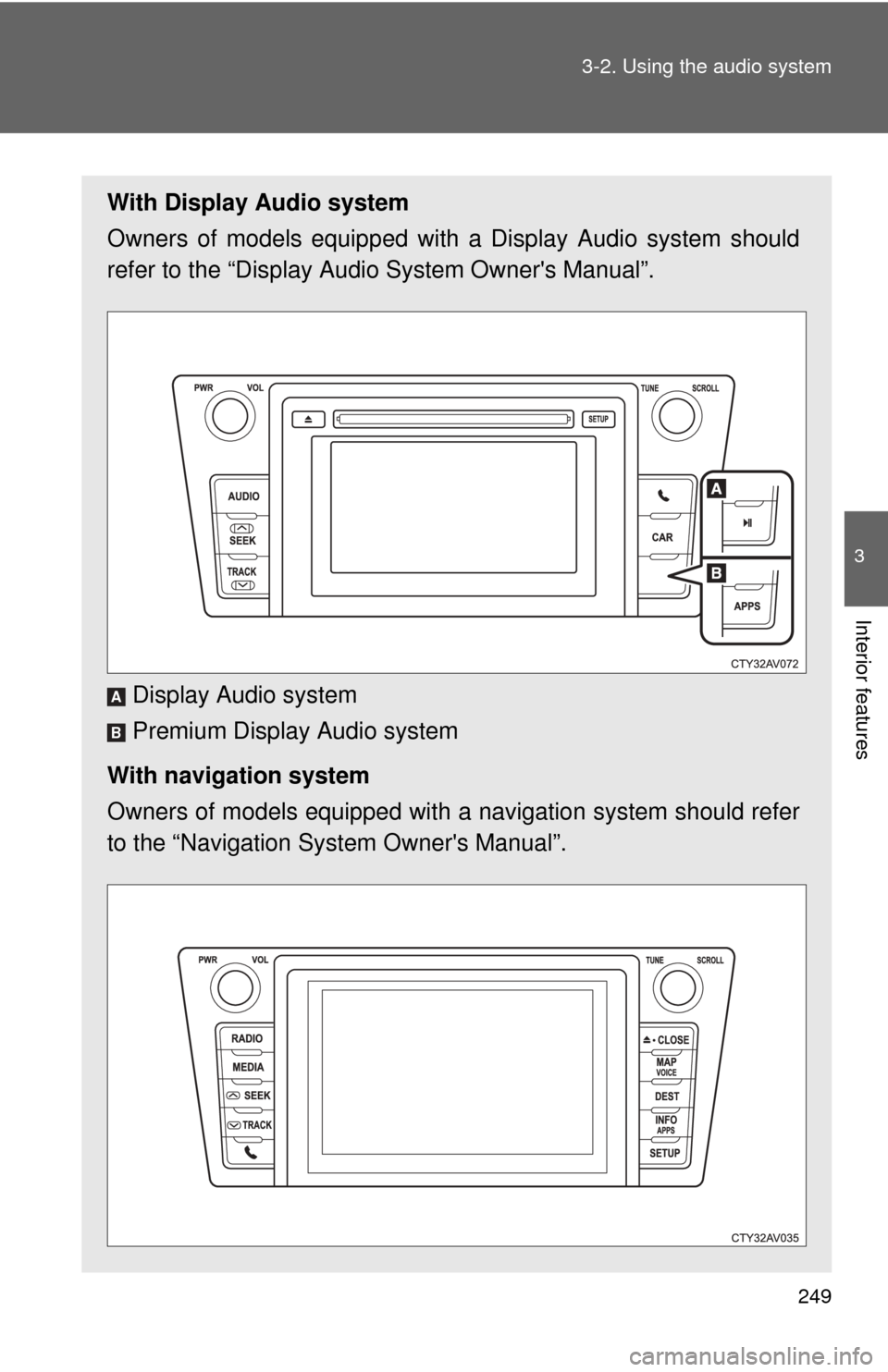
With Display Audio system
Owners of models equipped with
a Display Audio system should
refer to the “Display Audio System Owner's Manual”.
Display Audio system
Premium Display Audio system
With navigation system
Owners of models equipped with a navigation system should refer
to the “Navigation Sy stem Owner's Manual”.
A
B
Page 250 of 540
250 3-2. Using the audio system
■About Bluetooth® (with Display Audio system)
The Bluetooth wordmark and logo are owned by Bluetooth SIG. and permis-
sion has been granted to use the trademark of the licensee Panasonic Cor-
poration/Pioneer Corporation. Other trademarks and trade names are
owned by various different owners.
CAUTION
■ Certifications for the Bluetooth (with Display Audio system)
FCC ID: ACJ932CQ-US70G0
IC ID: 216J-CQUS70G0
● FCC WARNING:
Changes or modifications not expressly approved by the party responsible
for compliance could void the user's authority to operate the equipment.\
● Part 15 of the FCC Rules & Industry Canada licence-exempt RSS stan-
dard(s)
• Properly shielded a grounded cables and connectors must be used for
connection to host computer and/or peripherals in order to meet FCC
emission limits.
• This transmitter must not be co-located or operated in conjunction with any other antenna or transmitter.
• This device complies with Part 15 of FCC Rules and Industry Canada licence-exempt RSS standard(s). Operation is subject to the following
two conditions: (1) this device may not cause interference, and (2) this
device must accept any interference, including interference that may
cause undesired operation of this device.
• Le présent appareil est conforme aux la partie 15 des règles de la FCC et CNR d’Industrie Canada applicables aux appareils radio exempts de
licence. L’exploitation est autorisée aux deux conditions suivantes : (1)
l’appareil ne doit pas produire de brouillage, et (2) l’utilisateur de
l’appareil doit accepter tout brouillage radioélectrique subi, même si le
brouillage est susceptible d’en compromettre le fonctionnement.
Page 253 of 540
253
3-2. Using the audio system
3
Interior features
Using the radio
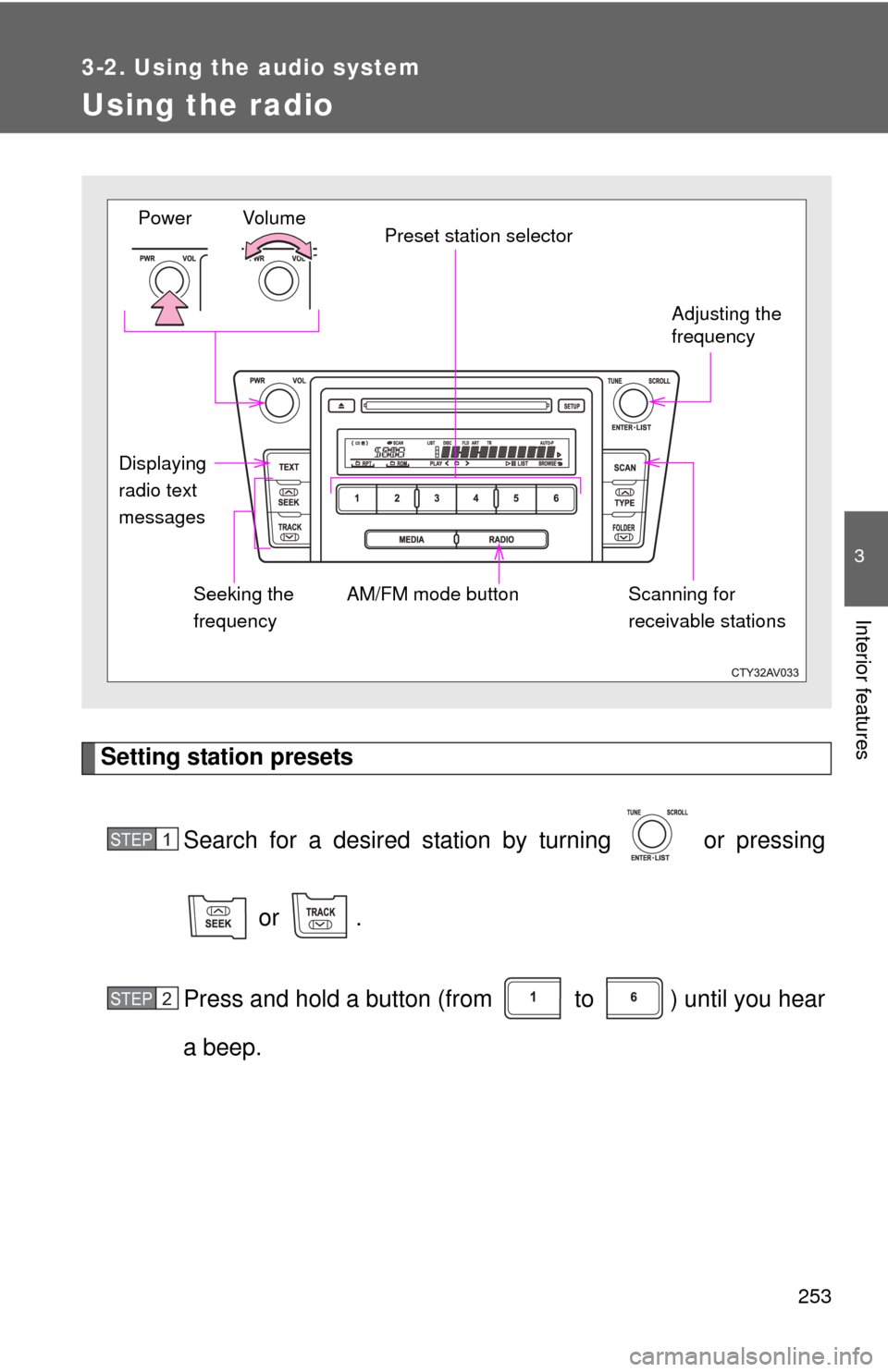
Setting station presetsSearch for a desired station by turning or pressing
or .
Press and hold a button (from to ) until you hear
a beep.
Vo lu m e Preset station selector
Seeking the
frequency Adjusting the
frequency
AM/FM mode button
Power
Displaying
radio text
messages Scanning for
receivable stations
STEP1
STEP2
Page 254 of 540
254 3-2. Using the audio system
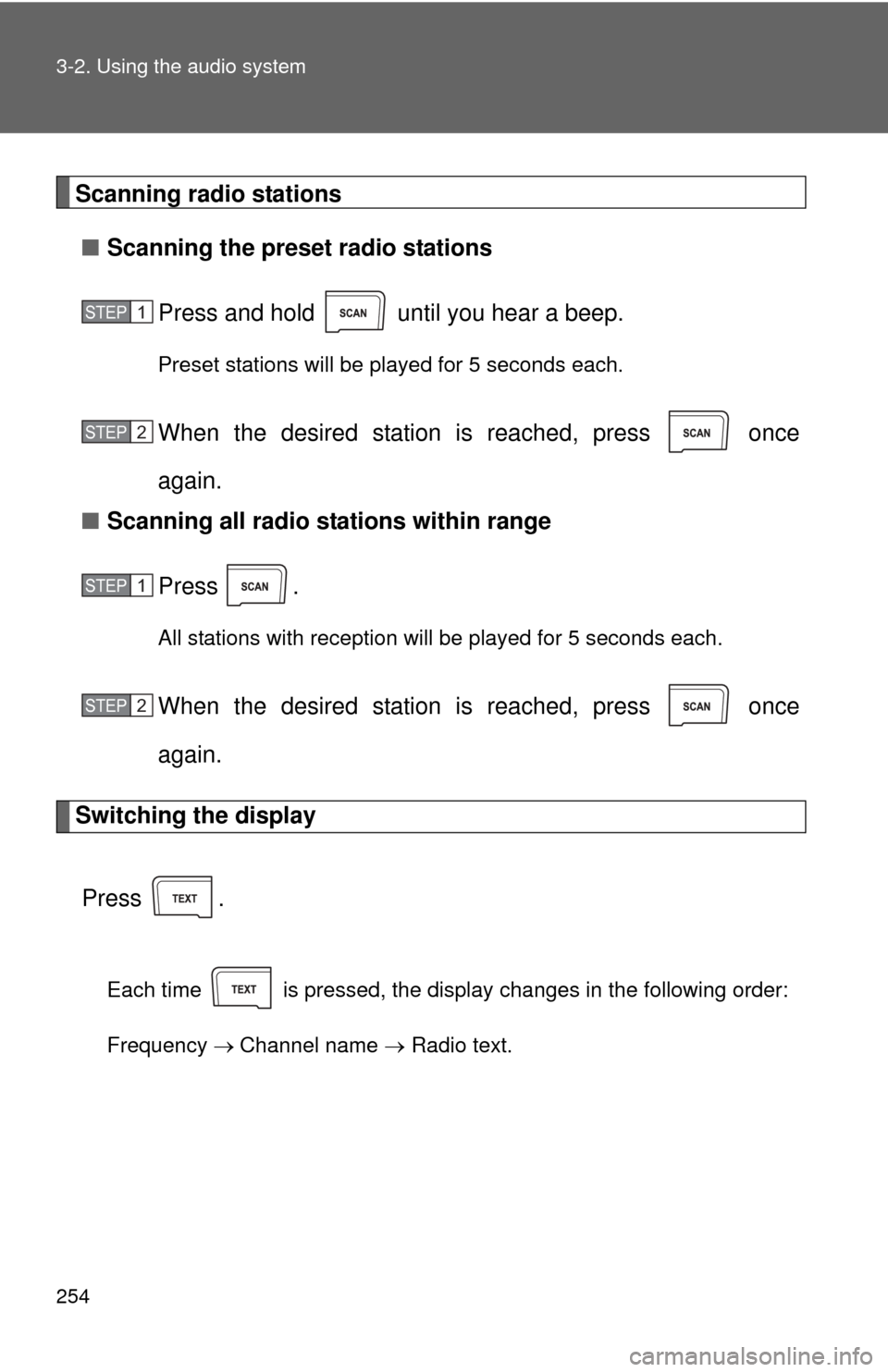
Scanning radio stations■ Scanning the preset radio stations
Press and hold until you hear a beep.
Preset stations will be played for 5 seconds each.
When the desired station is reached, press once
again.
■ Scanning all radio stations within range
Press
.
All stations with reception will be played for 5 seconds each.
When the desired station is reached, press once
again.
Switching the display
Press .
Each time is pressed, the display changes in the following order:
Frequency Channel name Radio text.
STEP1
STEP2
STEP1
STEP2
Page 256 of 540
256
3-2. Using the audio system
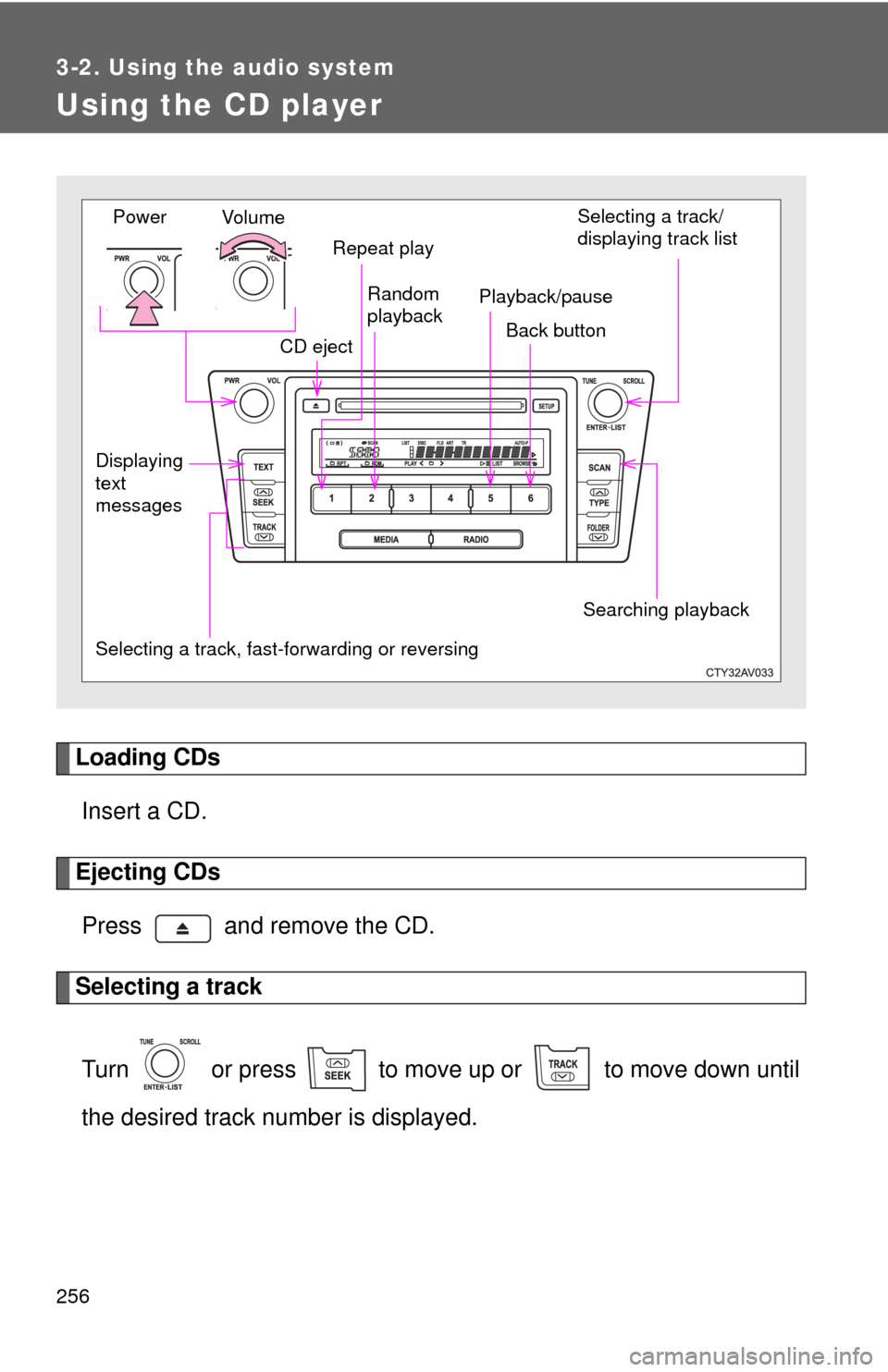
Using the CD player
Loading CDsInsert a CD.
Ejecting CDsPress and remove the CD.
Selecting a track
Turn or press to move up or to move down until
the desired track number is displayed.
Vol u m e
Random
playback
Selecting a track, fast-forwarding or reversing Repeat play
Power
CD eject Selecting a track/
displaying track list
Back button
Displaying
text
messages Searching playback
Playback/pause