Radio TOYOTA COROLLA 2012 10.G Owner's Manual
[x] Cancel search | Manufacturer: TOYOTA, Model Year: 2012, Model line: COROLLA, Model: TOYOTA COROLLA 2012 10.GPages: 529, PDF Size: 8.07 MB
Page 231 of 529
231
3-2. Using the audio system
3
Interior features
CAUTION
If this equipment does cause harmful interference to radio or television
reception, which can be determined by turning the equipment off and on, the
user is encouraged to try to correct the interference by one or more of the
following measures:
- Reorient or relocate the receiving antenna.
- Increase the separation between the equipment and receiver.
- Connect the equipment into an outlet on a circuit different from that to
which the receiver is connected.
- Consult the dealer or an experienced radio/TV technician for help.
This transmitter must not be co-located or operated in conjunction with any
other antenna or transmitter.
NOTICE
■ To prevent battery discharge
Do not leave the audio system on longer than necessary when the engine is
off.
■ To avoid damaging the audio system
Take care not to spill drinks or other fluids over the audio system.
Page 232 of 529
232
3-2. Using the audio system
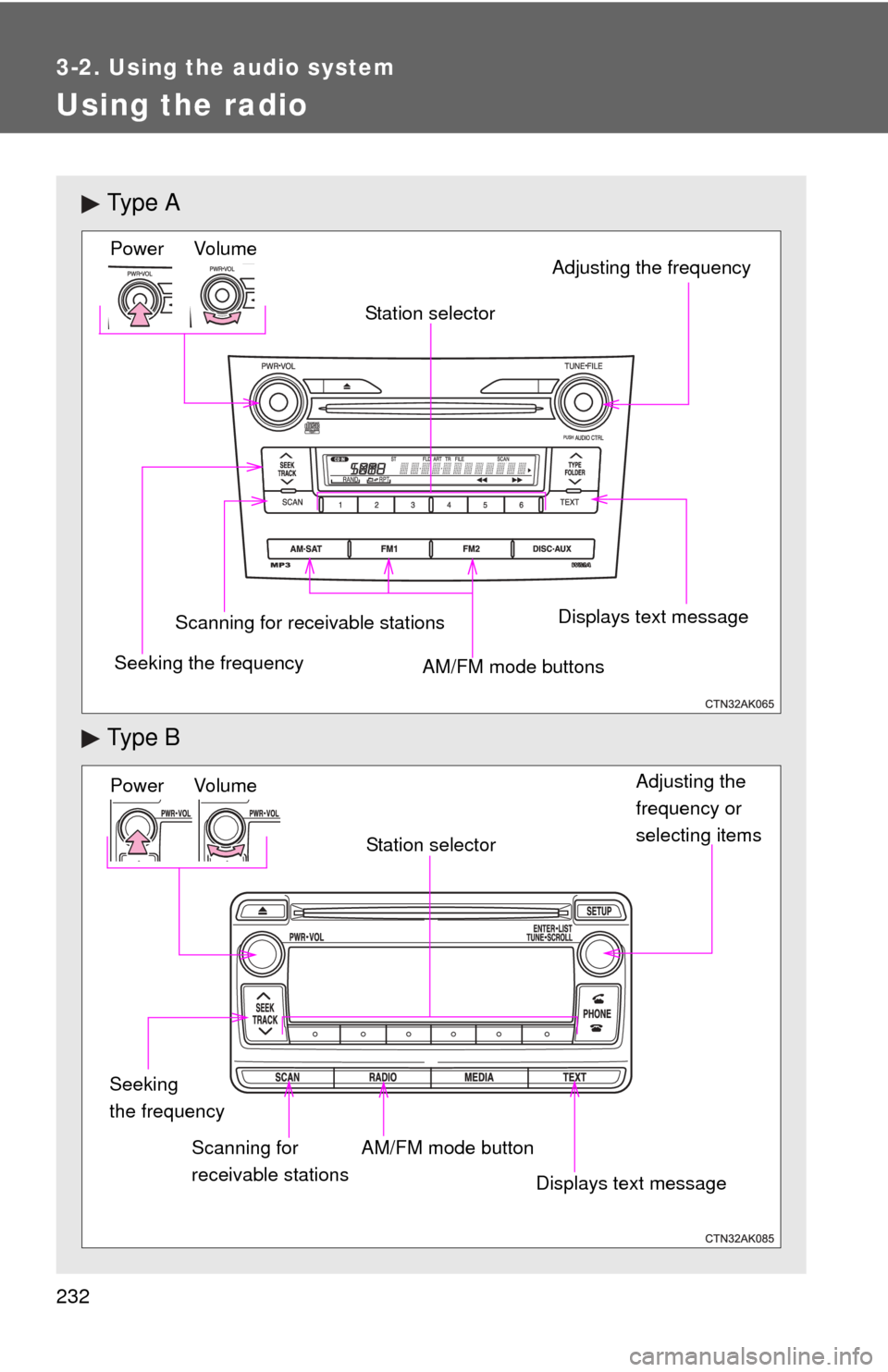
Using the radio
Ty p e A
Ty p e B
Vo lu m e
Seeking the frequency Station selector
AM/FM mode buttons Adjusting the frequency Power
Scanning for receivable stationsDisplays text message
Power Volume
Adjusting the
frequency or
selecting items
Seeking
the frequency AM/FM mode button
Scanning for
receivable stations Station selector
Displays text message
Page 233 of 529
233
3-2. Using the audio system
3
Interior features
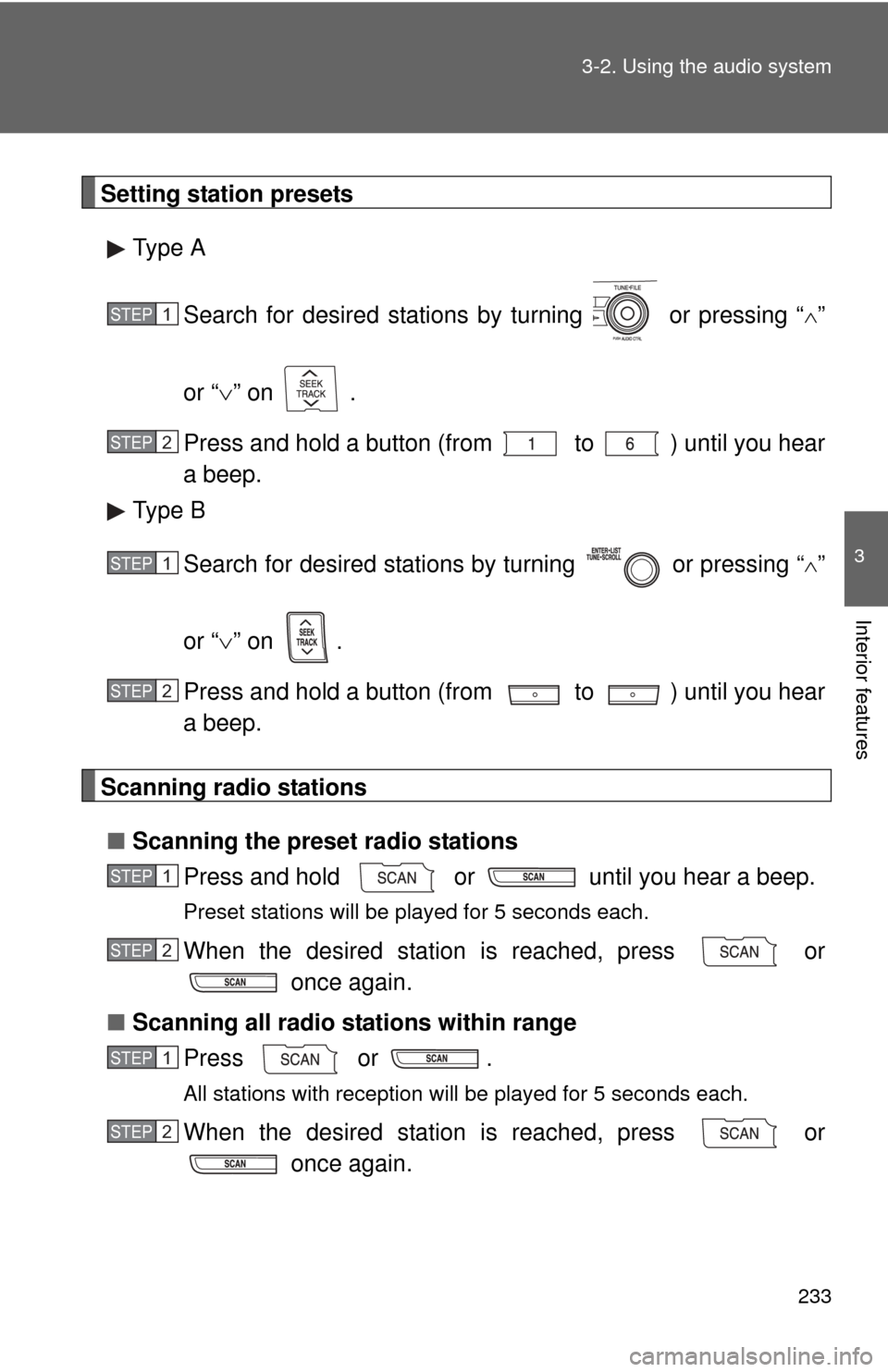
Setting station presets
Type A
Search for desired stations by turning or pressing “
”
or “ ” on .
Press and hold a button (from to ) until you hear
a beep.
Type B
Search for desired stations by turning or pressing “
”
or “ ” on .
Press and hold a button (from to ) until you hear
a beep.
Scanning radio stations
■ Scanning the preset radio stations
Press and hold or until you hear a beep.
Preset stations will be played for 5 seconds each.
When the desired station is reached, press or once again.
■ Scanning all radio stations within range
Press or .
All stations with reception will be played for 5 seconds each.
When the desired station is reached, press or once again.
STEP 1
STEP 2
STEP 1
STEP 2
STEP 1
STEP 2
STEP 1
STEP 2
Page 234 of 529
234 3-2. Using the audio system
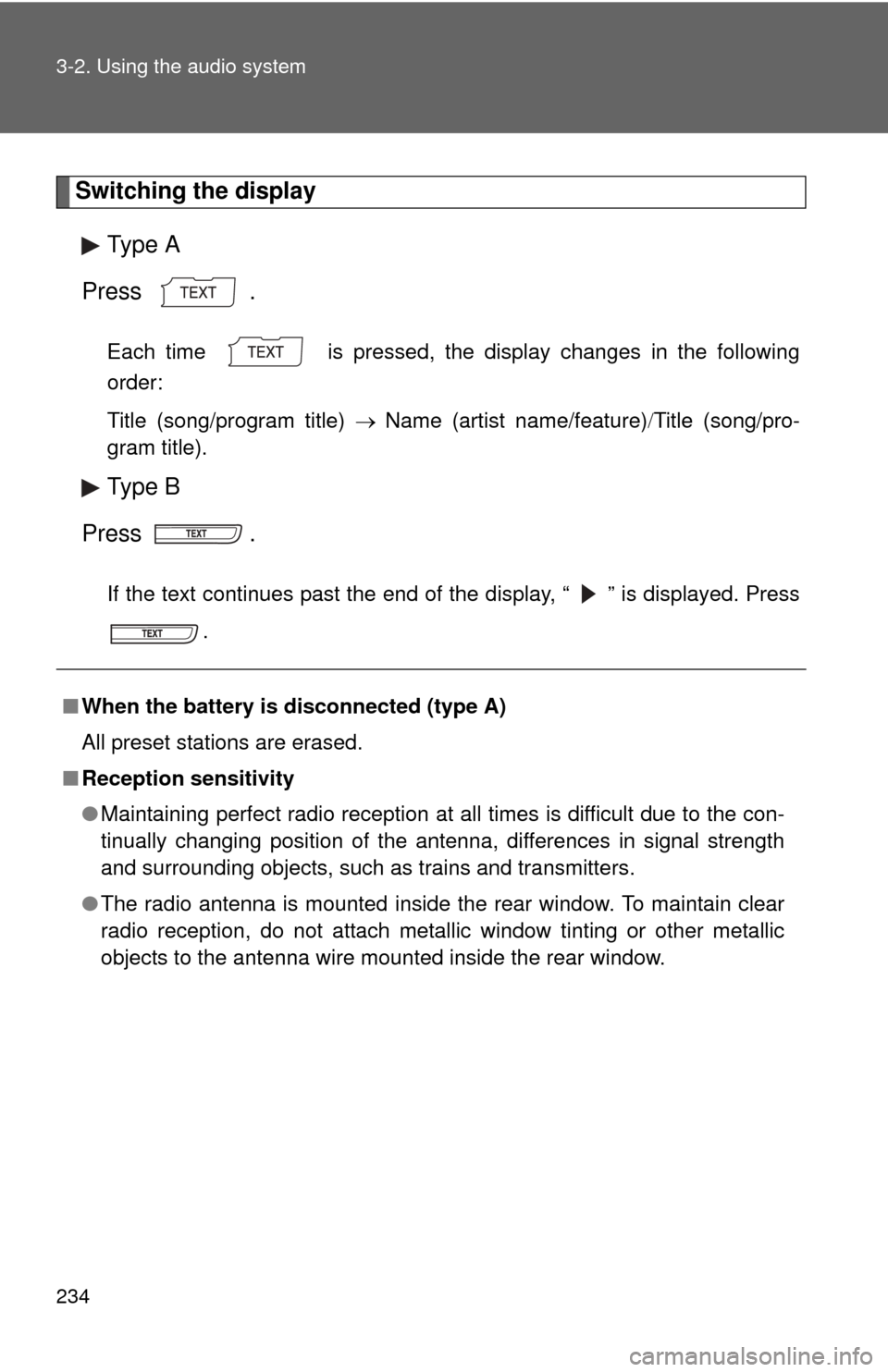
Switching the displayType A
Press .
Each time is pressed, the display changes in the following
order:
Title (song/program title) Name (artist name/feature)Title (song/pro-
gram title).
Type B
Press .
If the text continues past the end of the display, “ ” is displayed. Press .
■When the battery is disconnected (type A)
All preset stations are erased.
■ Reception sensitivity
●Maintaining perfect radio reception at all times is difficult due to the con-
tinually changing position of the antenna, differences in signal strength
and surrounding objects, such as trains and transmitters.
● The radio antenna is mounted inside the rear window. To maintain clear
radio reception, do not attach metallic window tinting or other metallic
objects to the antenna wire mounted inside the rear window.
Page 235 of 529
235
3-2. Using the audio system
3
Interior features
■
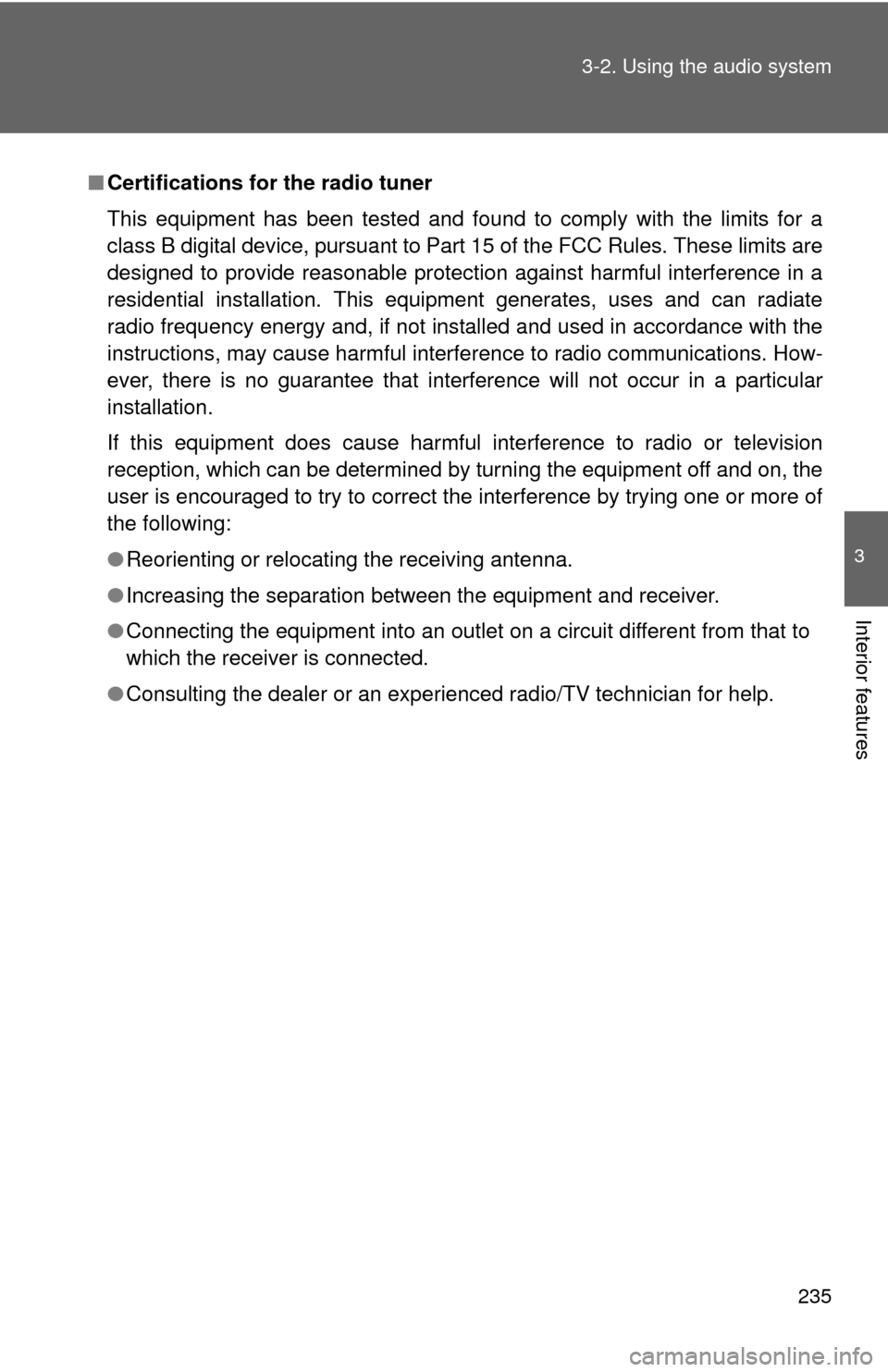
Certifications for the radio tuner
This equipment has been tested and found to comply with the limits for a
class B digital device, pursuant to Part 15 of the FCC Rules. These limits are
designed to provide reasonable protection against harmful interference in a
residential installation. This equipment generates, uses and can radiate
radio frequency energy and, if not installed and used in accordance with the
instructions, may cause harmful interference to radio communications. How-
ever, there is no guarantee that interference will not occur in a particular
installation.
If this equipment does cause harmful interference to radio or television
reception, which can be determined by turning the equipment off and on, the
user is encouraged to try to correct the interference by trying one or more of
the following:
●Reorienting or relocating the receiving antenna.
● Increasing the separation between the equipment and receiver.
● Connecting the equipment into an outlet on a circuit different from that to
which the receiver is connected.
● Consulting the dealer or an experienc ed radio/TV technician for help.
Page 271 of 529
271
3-2. Using the audio system
3
Interior features
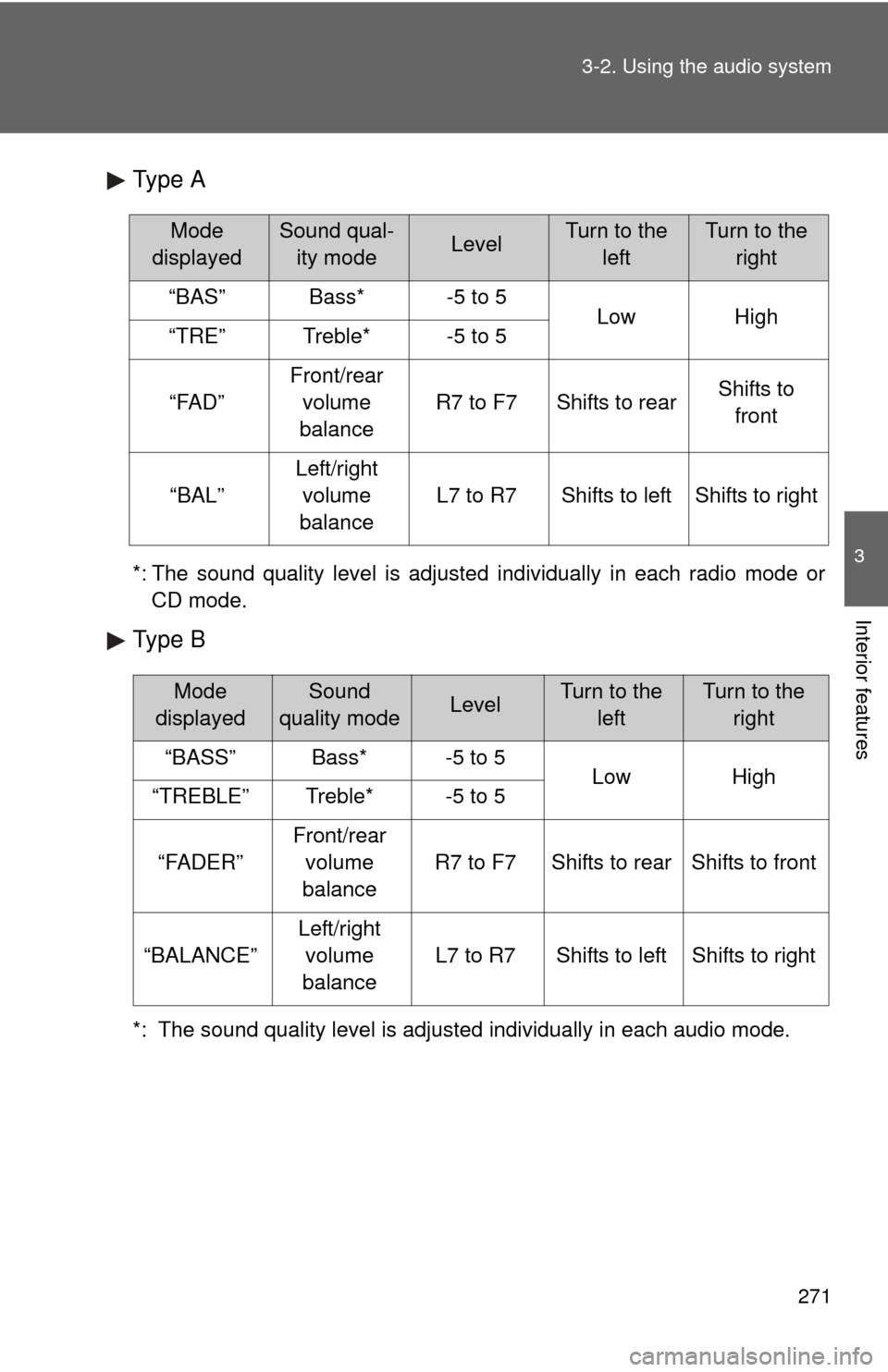
Type A
*: The sound quality level is adjusted individually in each radio mode or
CD mode.
Type B
*: The sound quality level is adjusted individually in each audio mode.
Mode
displayedSound qual- ity modeLevelTurn to the leftTurn to the right
“BAS”Bass*-5 to 5LowHigh“TRE”Treble*-5 to 5
“FAD”
Front/rear volume
balance
R7 to F7Shifts to rearShifts to front
“BAL”
Left/right volume
balance
L7 to R7Shifts to leftShifts to right
Mode
displayedSound
quality modeLevelTurn to the leftTurn to the right
“BASS”Bass*-5 to 5LowHigh“TREBLE”Treble*-5 to 5
“FADER”
Front/rear volume
balance
R7 to F7Shifts to rearShifts to front
“BALANCE”
Left/right volume
balance
L7 to R7Shifts to leftShifts to right
Page 272 of 529
272 3-2. Using the audio system
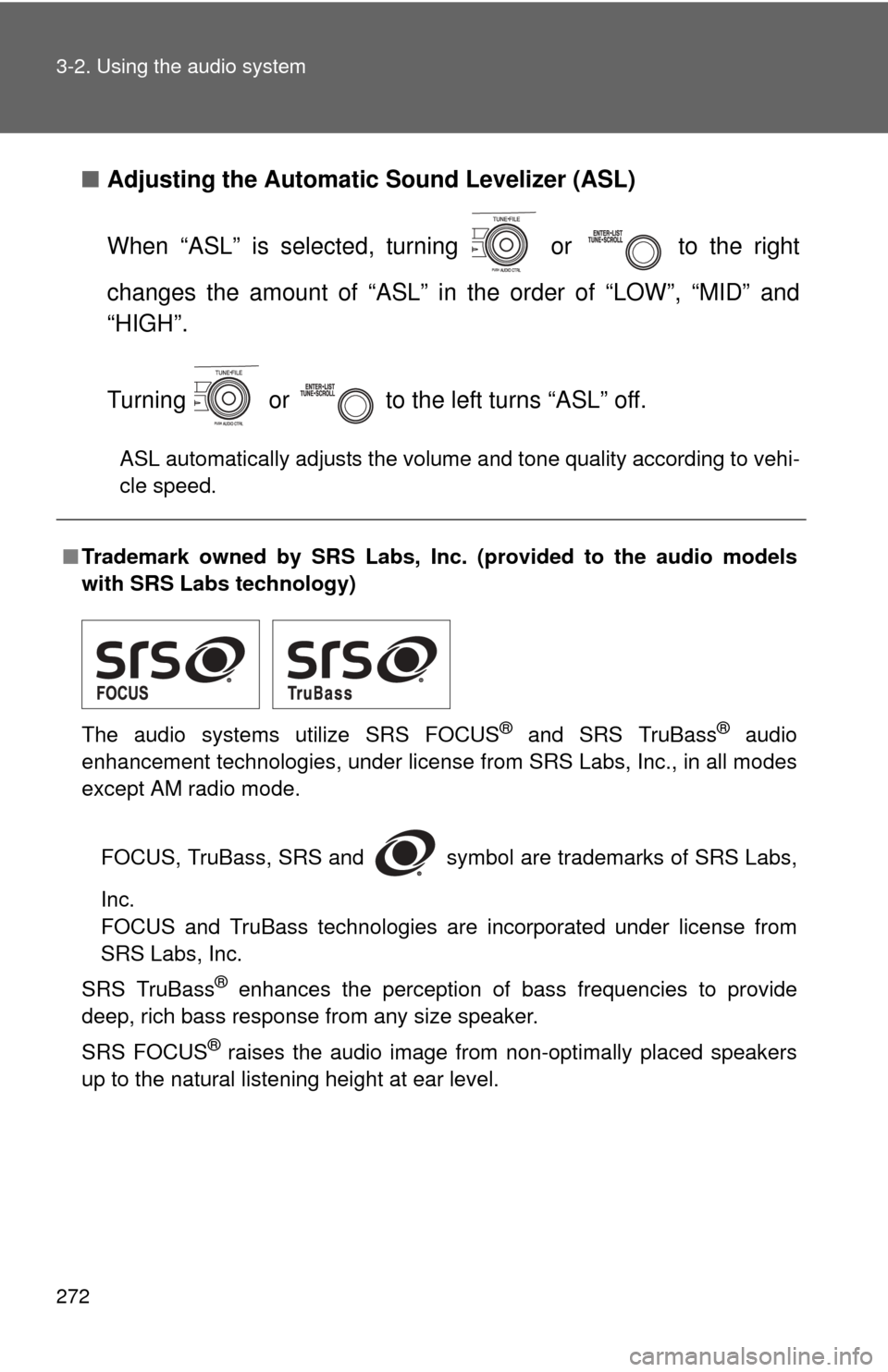
■Adjusting the Automatic Sound Levelizer (ASL)
When “ASL” is selected, turning or to the right
changes the amount of “ASL” in the order of “LOW”, “MID” and
“HIGH”.
Turning or to the left turns “ASL” off.
ASL automatically adjusts the volume and tone quality according to vehi-
cle speed.
■Trademark owned by SRS Labs, Inc. (provided to the audio models
with SRS Labs technology)
The audio systems utilize SRS FOCUS
® and SRS TruBass® audio
enhancement technologies, under license from SRS Labs, Inc., in all modes
except AM radio mode.
FOCUS, TruBass, SRS and symbol are trademarks of SRS Labs,
Inc.
FOCUS and TruBass technologies are incorporated under license from
SRS Labs, Inc.
SRS TruBass
® enhances the perception of bass frequencies to provide
deep, rich bass response from any size speaker.
SRS FOCUS
® raises the audio image from non-optimally placed speakers
up to the natural listening height at ear level.
Page 275 of 529
275
3-2. Using the audio system
3
Interior features
Using the steering wheel audio switches
: If equipped
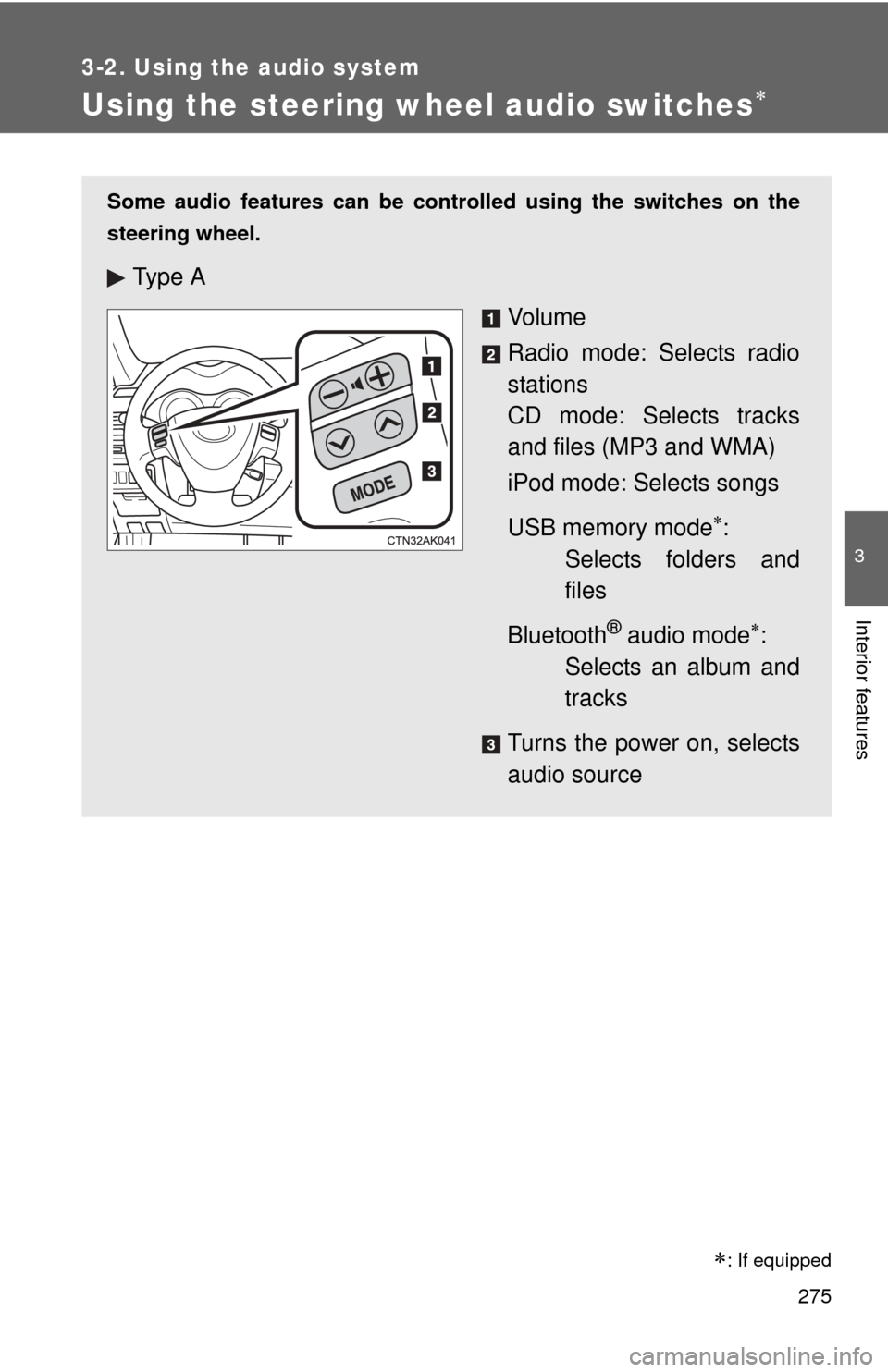
Some audio features can be controlled using the switches on the
steering wheel.
Ty p e A
Vo l u m e
Radio mode: Selects radio
stations
CD mode: Selects tracks
and files (MP3 and WMA)
iPod mode: Selects songs
USB memory mode
:
Selects folders and
files
Bluetooth
® audio mode:
Selects an album and
tracks
Turns the power on, selects
audio source
Page 276 of 529
276 3-2. Using the audio system
Turning on the powerPress or when the audio system is turned off.
Changing the audio source
Press or when the audio system is turned on. The
audio source changes each time or is pressed. If a
mode cannot be used , it will be skipped.
: If equipped
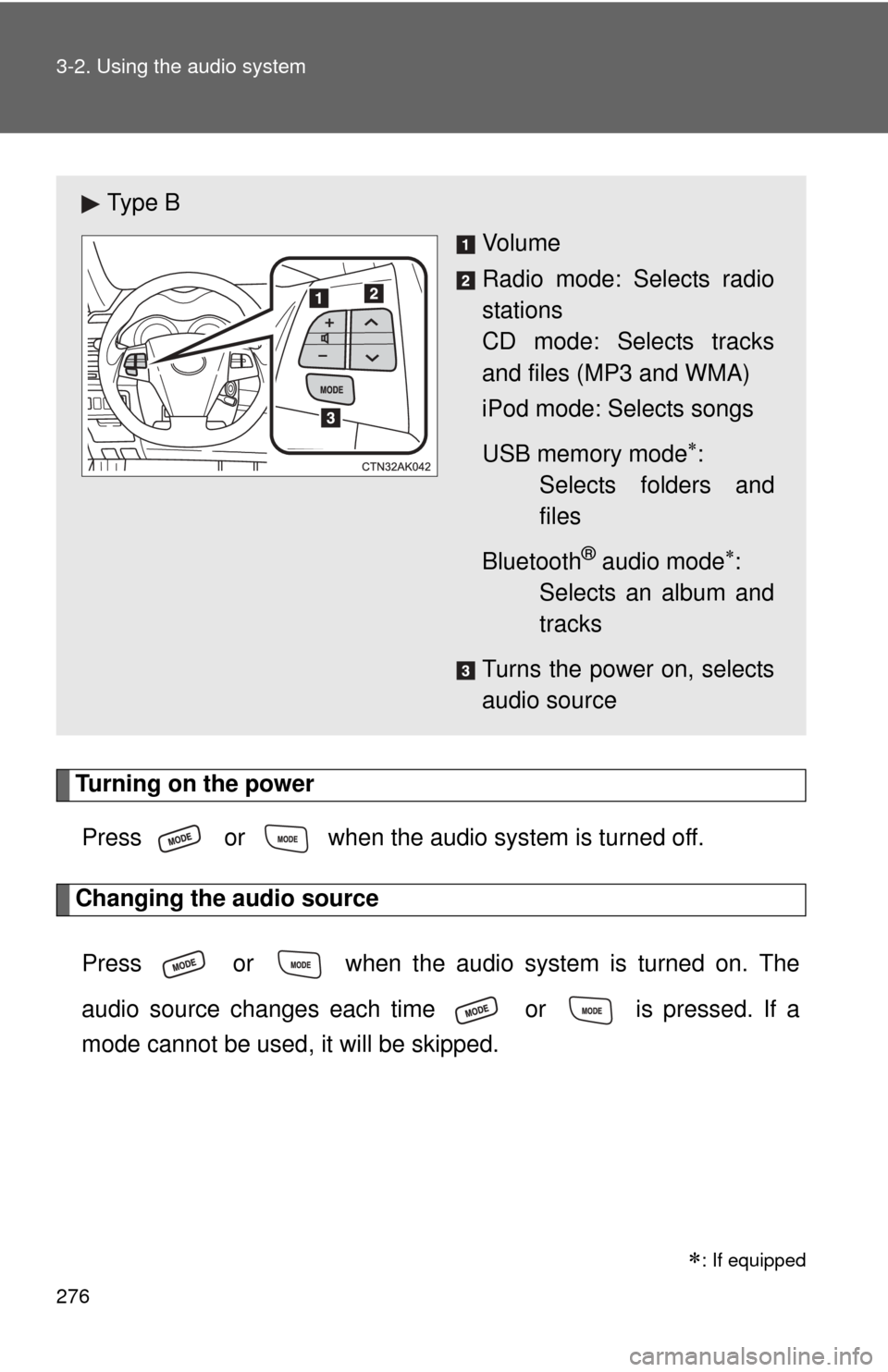
Ty p e B
Vo l u m e
Radio mode: Selects radio
stations
CD mode: Selects tracks
and files (MP3 and WMA)
iPod mode: Selects songs
USB memory mode
:
Selects folders and
files
Bluetooth
® audio mode:
Selects an album and
tracks
Turns the power on, selects
audio source
Page 277 of 529
277
3-2. Using the audio system
3
Interior features
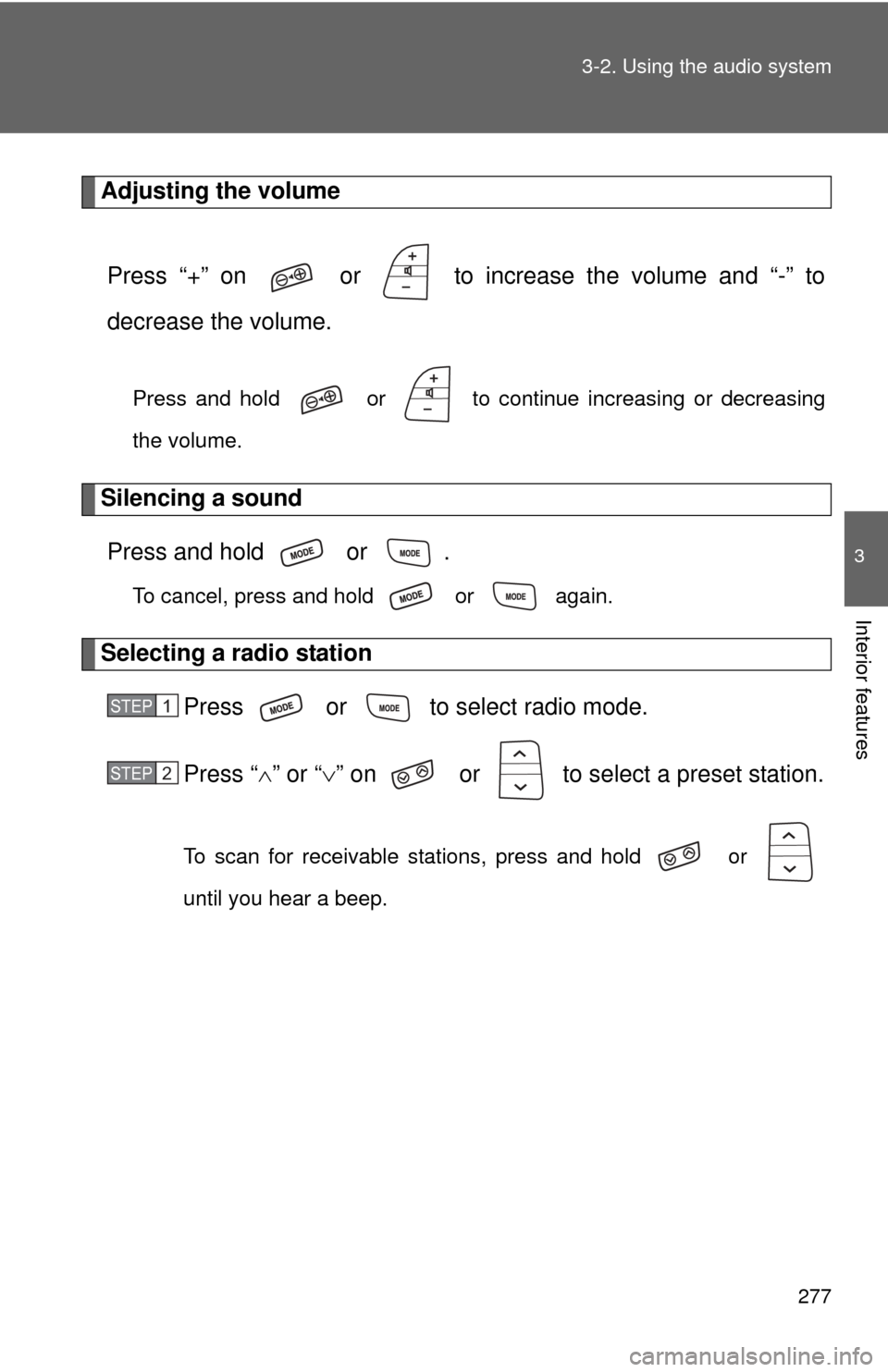
Adjusting the volume
Press “+” on or to increase the volume and “-” to
decrease the volume.
Press and hold or to continue increasing or decreasing
the volume.
Silencing a soundPress and hold or .
To cancel, press and hold or again.
Selecting a radio station Press or to select radio mode.
Press “” or “ ” on or to select a preset station.
To scan for receivable stations, press and hold or
until you hear a beep.
STEP 1
STEP 2