display TOYOTA COROLLA 2015 11.G Owners Manual
[x] Cancel search | Manufacturer: TOYOTA, Model Year: 2015, Model line: COROLLA, Model: TOYOTA COROLLA 2015 11.GPages: 612, PDF Size: 8.48 MB
Page 362 of 612
3625-19. Bluetooth® phone (Multimedia system)
COROLLA_TMMMS_TMMC_U (OM12F00U)
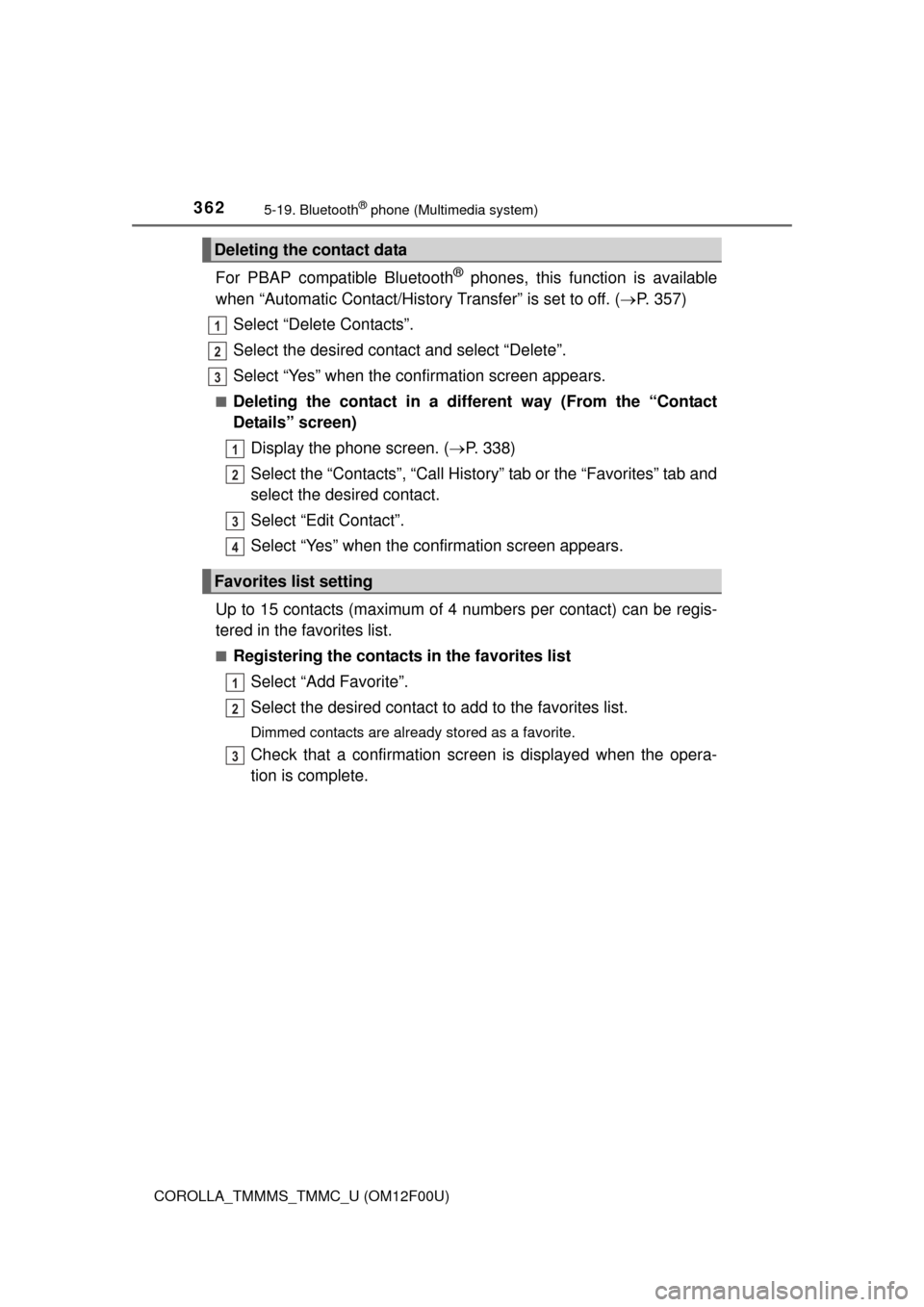
For PBAP compatible Bluetooth® phones, this function is available
when “Automatic Contact/Histor y Transfer” is set to off. (P. 357)
Select “Delete Contacts”.
Select the desired contact and select “Delete”.
Select “Yes” when the confirmation screen appears.
■Deleting the contact in a different way (From the “Contact
Details” screen) Display the phone screen. ( P. 338)
Select the “Contacts”, “Call History” tab or the “Favorites” tab and
select the desired contact.
Select “Edit Contact”.
Select “Yes” when the confirmation screen appears.
Up to 15 contacts (maximum of 4 numbers per contact) can be regis-
tered in the favorites list.
■Registering the contacts in the favorites list
Select “Add Favorite”.
Select the desired contact to add to the favorites list.
Dimmed contacts are already stored as a favorite.
Check that a confirmation scr een is displayed when the opera-
tion is complete.
Deleting the contact data
Favorites list setting
1
2
13
1
2
3
4
1
2
3
Page 363 of 612
3635-19. Bluetooth® phone (Multimedia system)
5
Audio system
COROLLA_TMMMS_TMMC_U (OM12F00U)
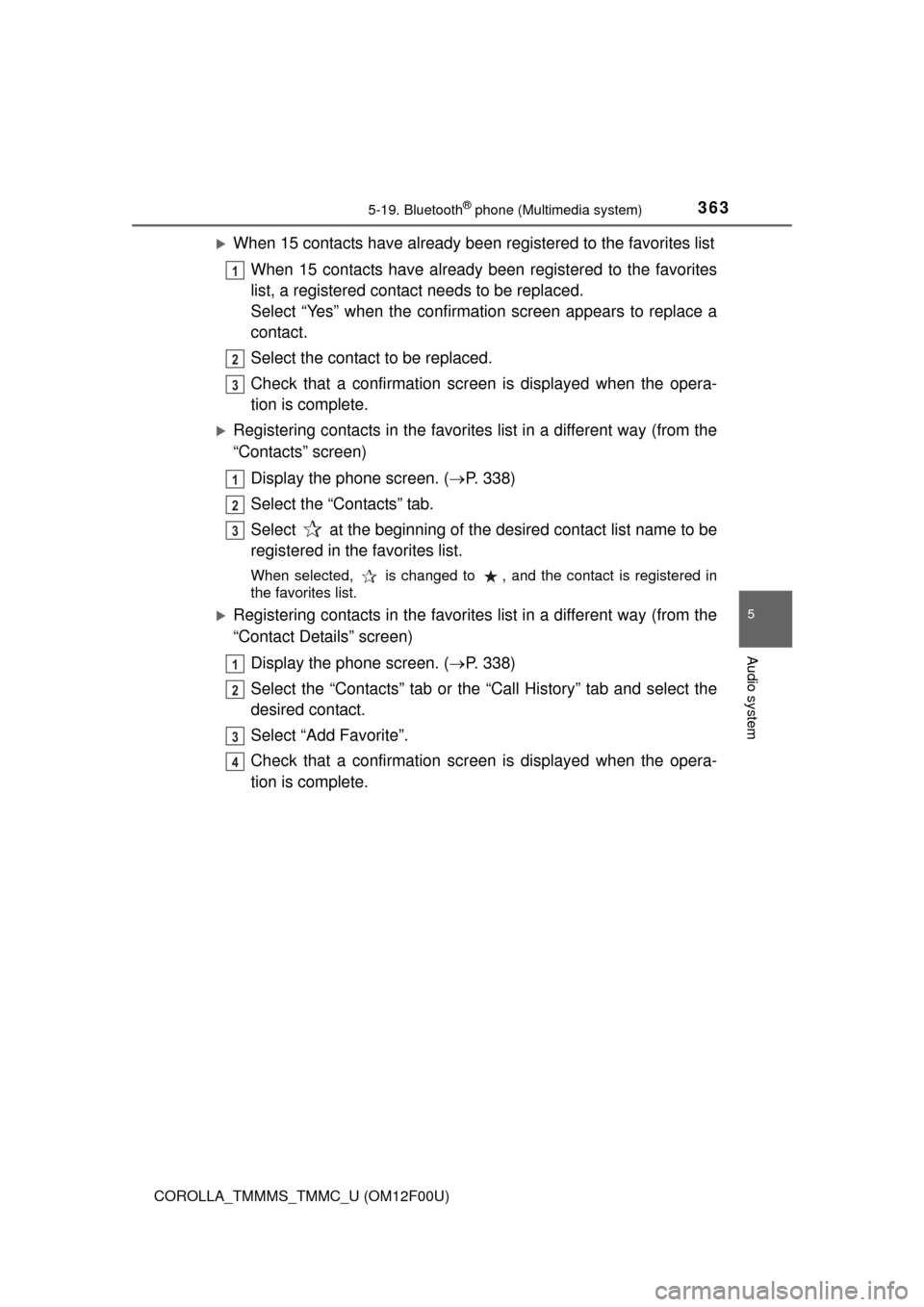
When 15 contacts have already been registered to the favorites listWhen 15 contacts have already been registered to the favorites
list, a registered contact needs to be replaced.
Select “Yes” when the confirmation screen appears to replace a
contact.
Select the contact to be replaced.
Check that a confirmation scr een is displayed when the opera-
tion is complete.
Registering contacts in the favorites list in a different way (from the
“Contacts” screen)
Display the phone screen. ( P. 338)
Select the “Contacts” tab.
Select at the beginning of the desired contact list name to be
registered in the favorites list.
When selected, is changed to , and the contact is registered in
the favorites list.
Registering contacts in the favorites list in a different way (from the
“Contact Details” screen)
Display the phone screen. ( P. 338)
Select the “Contacts” tab or the “Call History” tab and select the
desired contact.
Select “Add Favorite”.
Check that a confirmation scr een is displayed when the opera-
tion is complete.
1
2
3
1
2
3
1
2
3
4
Page 364 of 612
3645-19. Bluetooth® phone (Multimedia system)
COROLLA_TMMMS_TMMC_U (OM12F00U)■
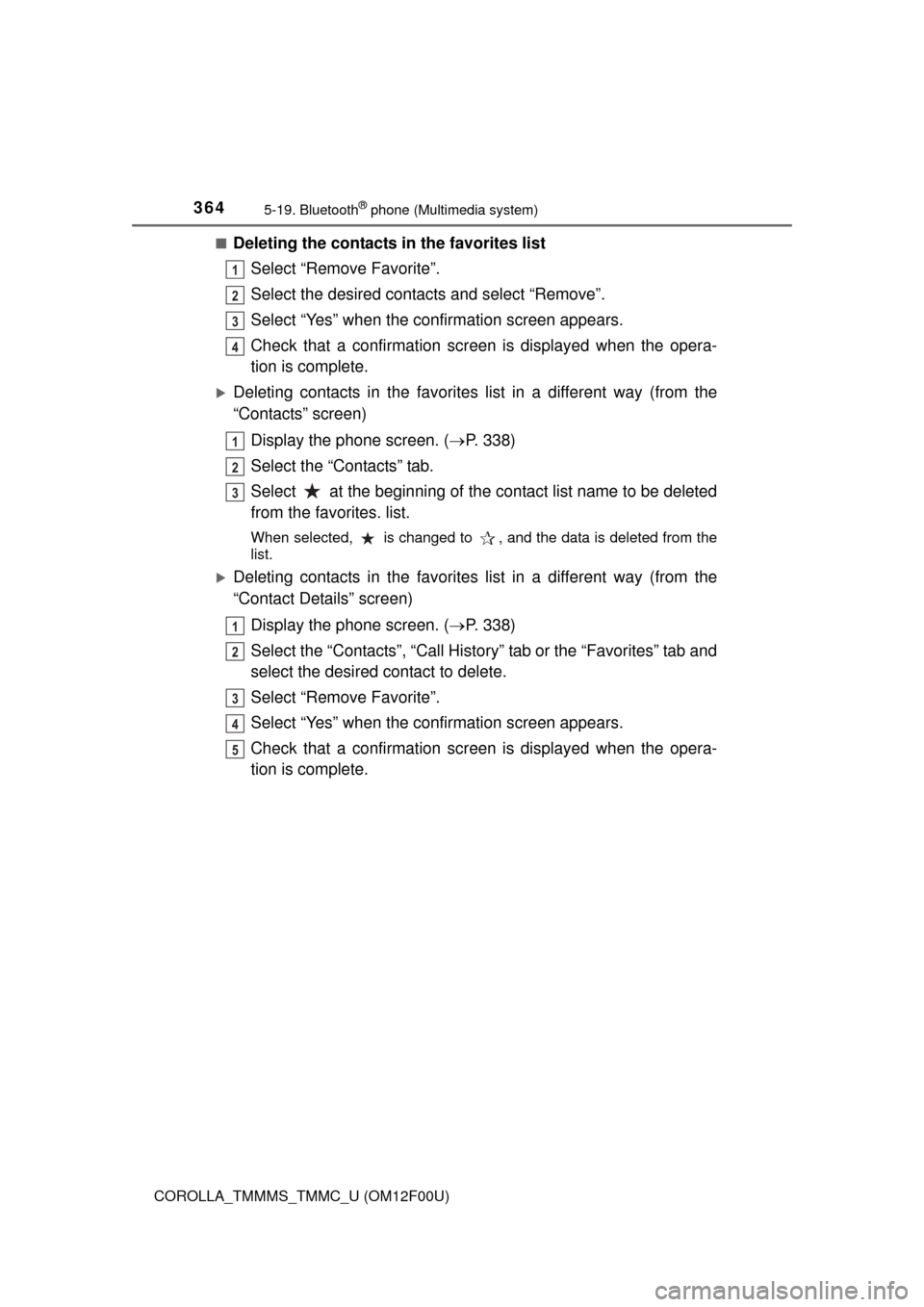
Deleting the contacts in the favorites list
Select “Remove Favorite”.
Select the desired contacts and select “Remove”.
Select “Yes” when the confirmation screen appears.
Check that a confirmation scr een is displayed when the opera-
tion is complete.
Deleting contacts in the favorites list in a different way (from the
“Contacts” screen)
Display the phone screen. ( P. 338)
Select the “Contacts” tab.
Select at the beginning of the contact list name to be deleted
from the favorites. list.
When selected, is changed to , and the data is deleted from the
list.
Deleting contacts in the favorites list in a different way (from the
“Contact Details” screen)
Display the phone screen. ( P. 338)
Select the “Contacts”, “Call History” tab or the “Favorites” tab and
select the desired contact to delete.
Select “Remove Favorite”.
Select “Yes” when the confirmation screen appears.
Check that a confirmation scr een is displayed when the opera-
tion is complete.
1
2
3
4
1
2
3
1
2
3
4
5
Page 365 of 612
3655-19. Bluetooth® phone (Multimedia system)
5
Audio system
COROLLA_TMMMS_TMMC_U (OM12F00U)
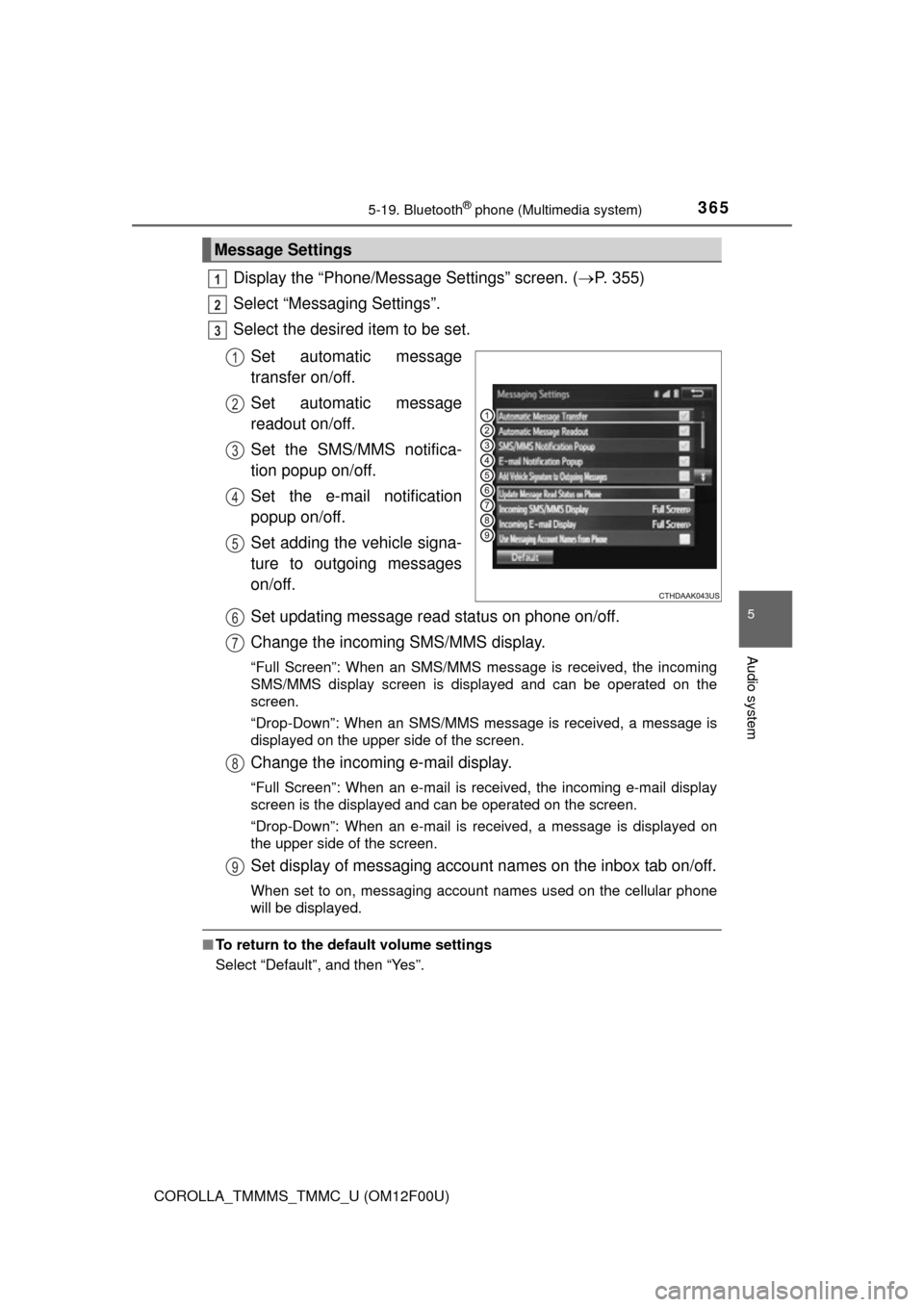
Display the “Phone/Message Settings” screen. (P. 355)
Select “Messaging Settings”.
Select the desired item to be set.
Set automatic message
transfer on/off.
Set automatic message
readout on/off.
Set the SMS/MMS notifica-
tion popup on/off.
Set the e-mail notification
popup on/off.
Set adding the vehicle signa-
ture to outgoing messages
on/off.
Set updating message read status on phone on/off.
Change the incoming SMS/MMS display.
“Full Screen”: When an SMS/MMS message is received, the incoming
SMS/MMS display screen is displayed and can be operated on the
screen.
“Drop-Down”: When an SMS/MMS message is received, a message is
displayed on the upper side of the screen.
Change the incoming e-mail display.
“Full Screen”: When an e-mail is received, the incoming e-mail display
screen is the displayed and can be operated on the screen.
“Drop-Down”: When an e-mail is received, a message is displayed on
the upper side of the screen.
Set display of messaging account names on the inbox tab on/off.
When set to on, messaging account names used on the cellular phone
will be displayed.
■To return to the default volume settings
Select “Default”, and then “Yes”.
Message Settings
1
2
3
1
2
3
4
5
6
7
8
9
Page 366 of 612
3665-19. Bluetooth® phone (Multimedia system)
COROLLA_TMMMS_TMMC_U (OM12F00U)■
Displaying the “Messaging Settings” screen in a different way
Display the phone screen. ( P. 338)
Select .
Select “Settings”.
Display the “Phone/Message Settings” screen. ( P. 355)
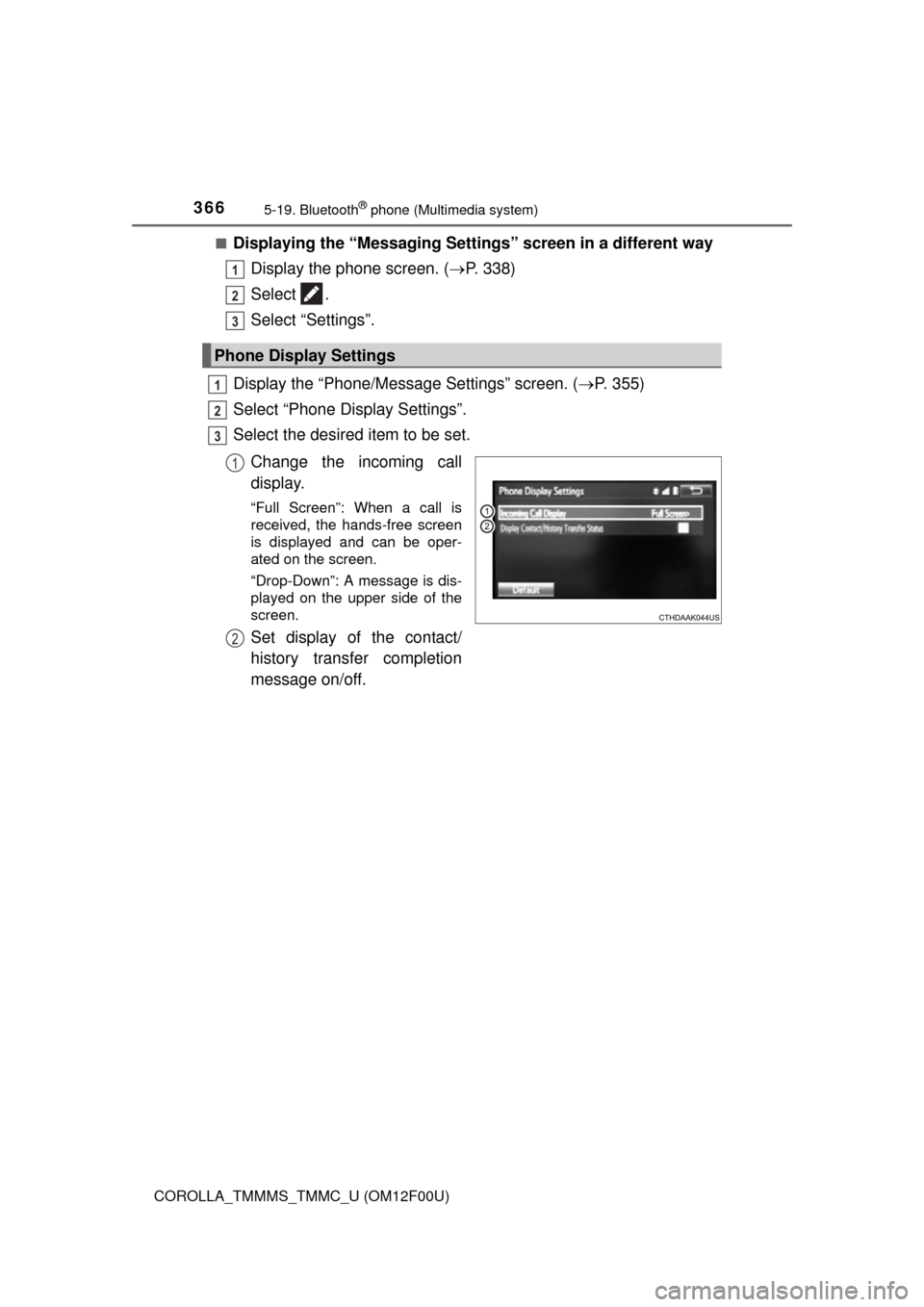
Select “Phone Display Settings”.
Select the desired item to be set.
Change the incoming call
display.
“Full Screen”: When a call is
received, the hands-free screen
is displayed and can be oper-
ated on the screen.
“Drop-Down”: A message is dis-
played on the upper side of the
screen.
Set display of the contact/
history transfer completion
message on/off.
Phone Display Settings
1
2
3
1
2
3
1
2
Page 368 of 612
3685-19. Bluetooth® phone (Multimedia system)
COROLLA_TMMMS_TMMC_U (OM12F00U)
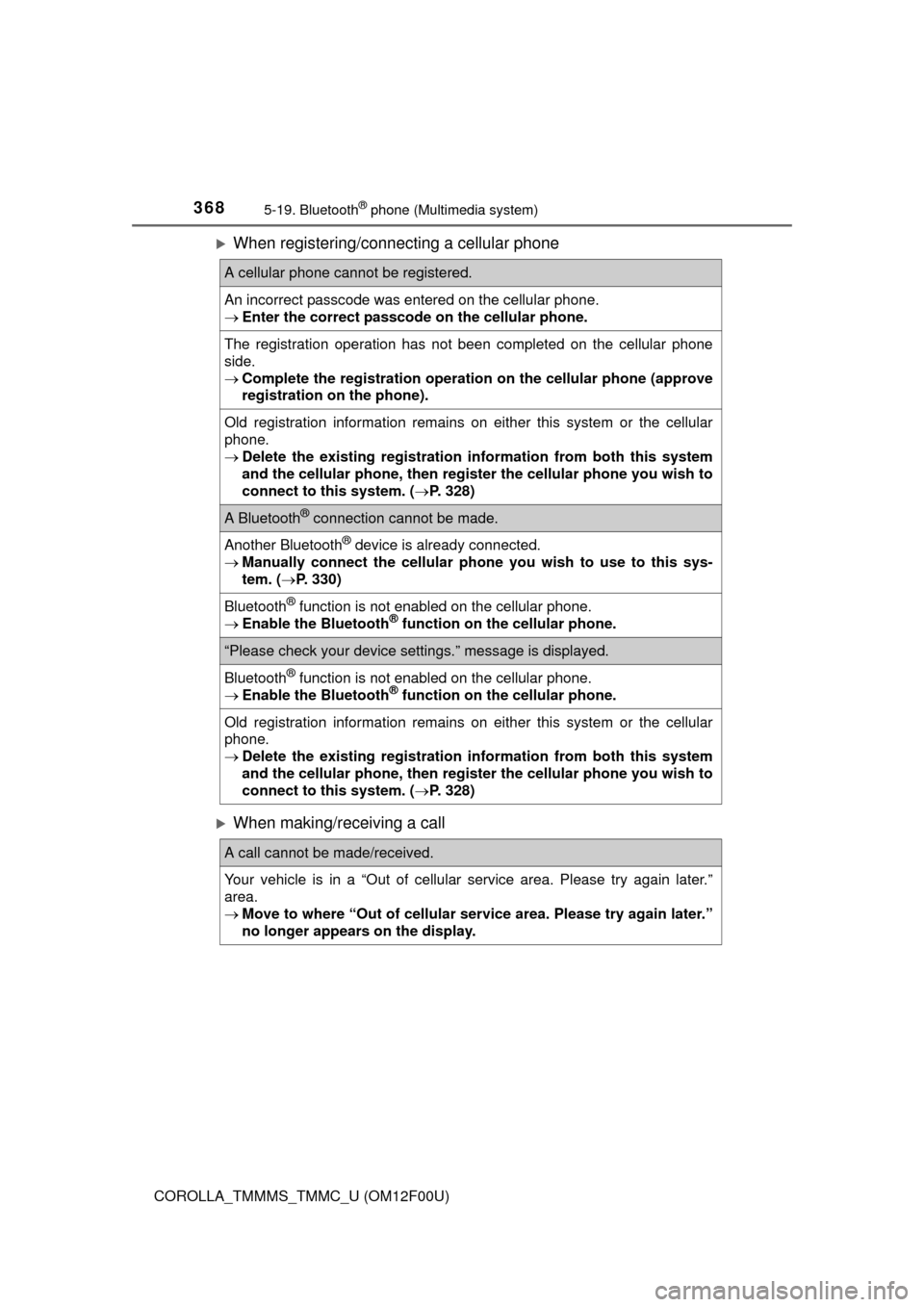
When registering/connecting a cellular phone
When making/receiving a call
A cellular phone cannot be registered.
An incorrect passcode was entered on the cellular phone.
Enter the correct passcode on the cellular phone.
The registration operation has not been completed on the cellular phone
side.
Complete the registration operation on the cellular phone (approve
registration on the phone).
Old registration information remains on either this system or the cellular
phone.
Delete the existing registration information from both this system
and the cellular phone, then regist er the cellular phone you wish to
connect to this system. ( P. 328)
A Bluetooth® connection cannot be made.
Another Bluetooth® device is already connected.
Manually connect the cellular phone you wish to use to this sys-
tem. ( P. 330)
Bluetooth® function is not enabled on the cellular phone.
Enable the Bluetooth® function on the cellular phone.
“Please check your device settings.” message is displayed.
Bluetooth® function is not enabled on the cellular phone.
Enable the Bluetooth® function on the cellular phone.
Old registration information remains on either this system or the cellular
phone.
Delete the existing registration information from both this system
and the cellular phone, then regist er the cellular phone you wish to
connect to this system. ( P. 328)
A call cannot be made/received.
Your vehicle is in a “Out of cellular service area. Please try again later.”
area.
Move to where “Out of cellular ser vice area. Please try again later.”
no longer appears on the display.
Page 369 of 612
3695-19. Bluetooth® phone (Multimedia system)
5
Audio system
COROLLA_TMMMS_TMMC_U (OM12F00U)
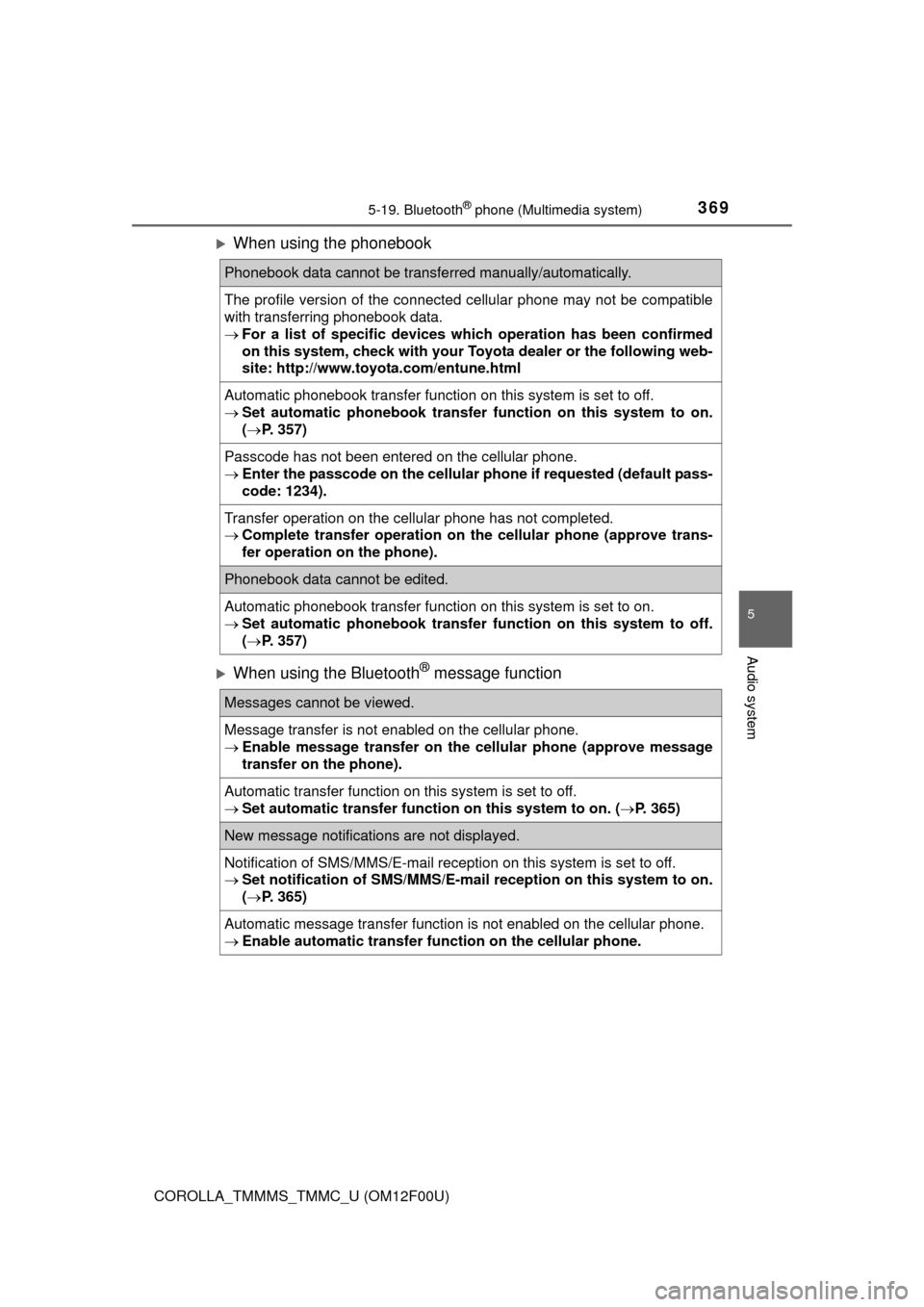
When using the phonebook
When using the Bluetooth® message function
Phonebook data cannot be transferred manually/automatically.
The profile version of the connected cellular phone may not be compatible
with transferring phonebook data.
For a list of specific devices whic h operation has been confirmed
on this system, check with your Toyo ta dealer or the following web-
site: http://www.toyota.com/entune.html
Automatic phonebook transfer function on this system is set to off.
Set automatic phonebook transfer function on this system to on.
( P. 357)
Passcode has not been entered on the cellular phone.
Enter the passcode on the cellular phone if requested (default pass-
code: 1234).
Transfer operation on the cellular phone has not completed.
Complete transfer operation on the cellular phone (approve trans-
fer operation on the phone).
Phonebook data cannot be edited.
Automatic phonebook transfer function on this system is set to on.
Set automatic phonebook transfer function on this system to off.
( P. 357)
Messages cannot be viewed.
Message transfer is not enabled on the cellular phone.
Enable message transfer on the cellular phone (approve message
transfer on the phone).
Automatic transfer function on this system is set to off.
Set automatic transfer functi on on this system to on. (P. 365)
New message notifications are not displayed.
Notification of SMS/MMS/E-mail reception on this system is set to off.
Set notification of SMS/MMS/E-mail reception on this system to on.
( P. 365)
Automatic message transfer function is not enabled on the cellular phone.
Enable automatic transfer fu nction on the cellular phone.
Page 372 of 612
3725-20. Bluetooth® (Multimedia system)
COROLLA_TMMMS_TMMC_U (OM12F00U)■
Bluetooth
® antenna
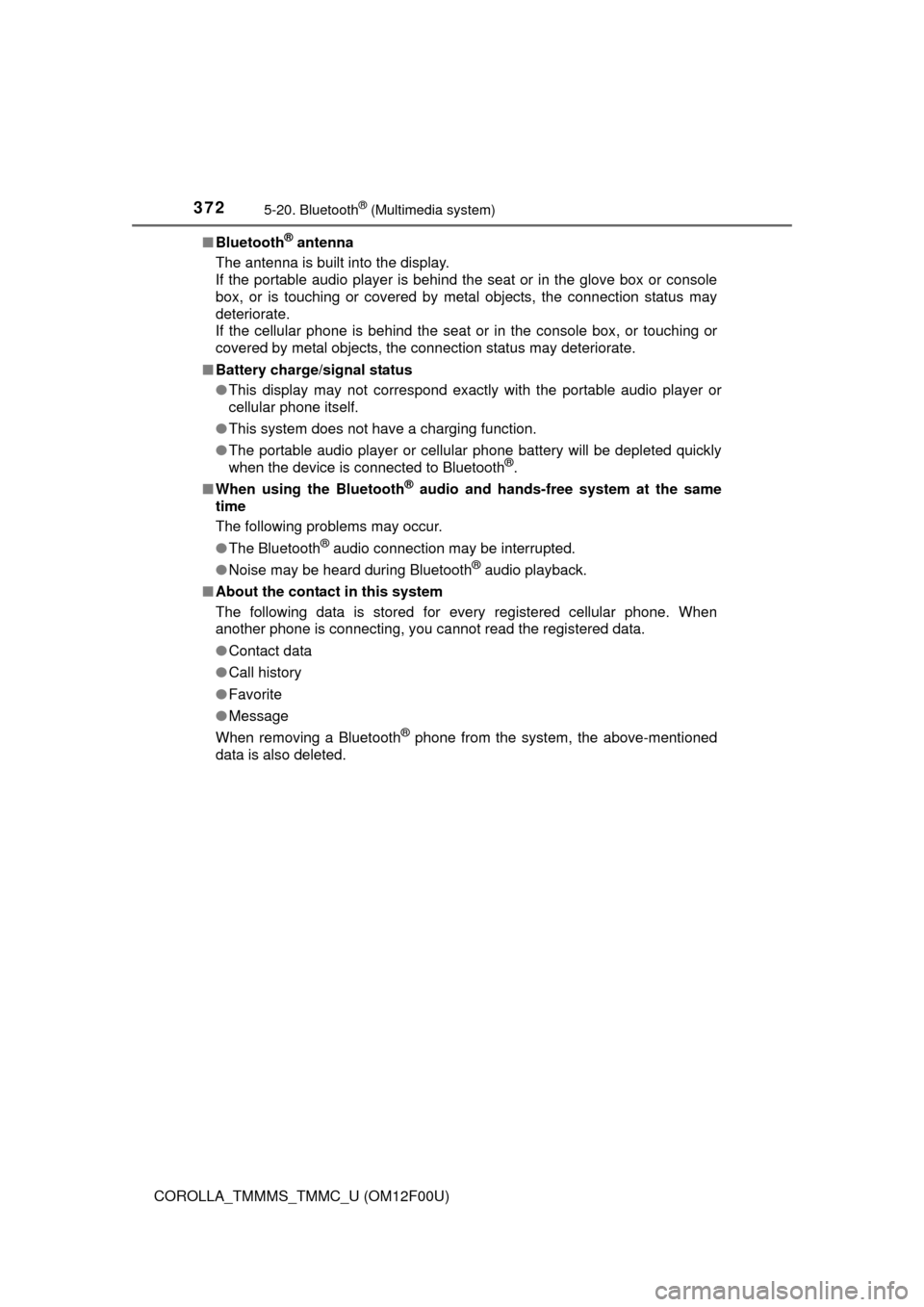
The antenna is built into the display.
If the portable audio player is behind the seat or in the glove box or console
box, or is touching or covered by metal objects, the connection status may
deteriorate.
If the cellular phone is behind the seat or in the console box, or touching or
covered by metal objects, the connection status may deteriorate.
■ Battery charge/signal status
●This display may not correspond exactly with the portable audio player or
cellular phone itself.
● This system does not have a charging function.
● The portable audio player or cellular phone battery will be depleted quickly
when the device is connected to Bluetooth
®.
■ When using the Bluetooth
® audio and hands-free system at the same
time
The following problems may occur.
● The Bluetooth
® audio connection may be interrupted.
● Noise may be heard during Bluetooth
® audio playback.
■ About the contact in this system
The following data is stored for every registered cellular phone. When
another phone is connecting, you cannot read the registered data.
●Contact data
● Call history
● Favorite
● Message
When removing a Bluetooth
® phone from the system, the above-mentioned
data is also deleted.
Page 376 of 612
376
COROLLA_TMMMS_TMMC_U (OM12F00U)
5-21.Using the voice command system (Multimedia system)
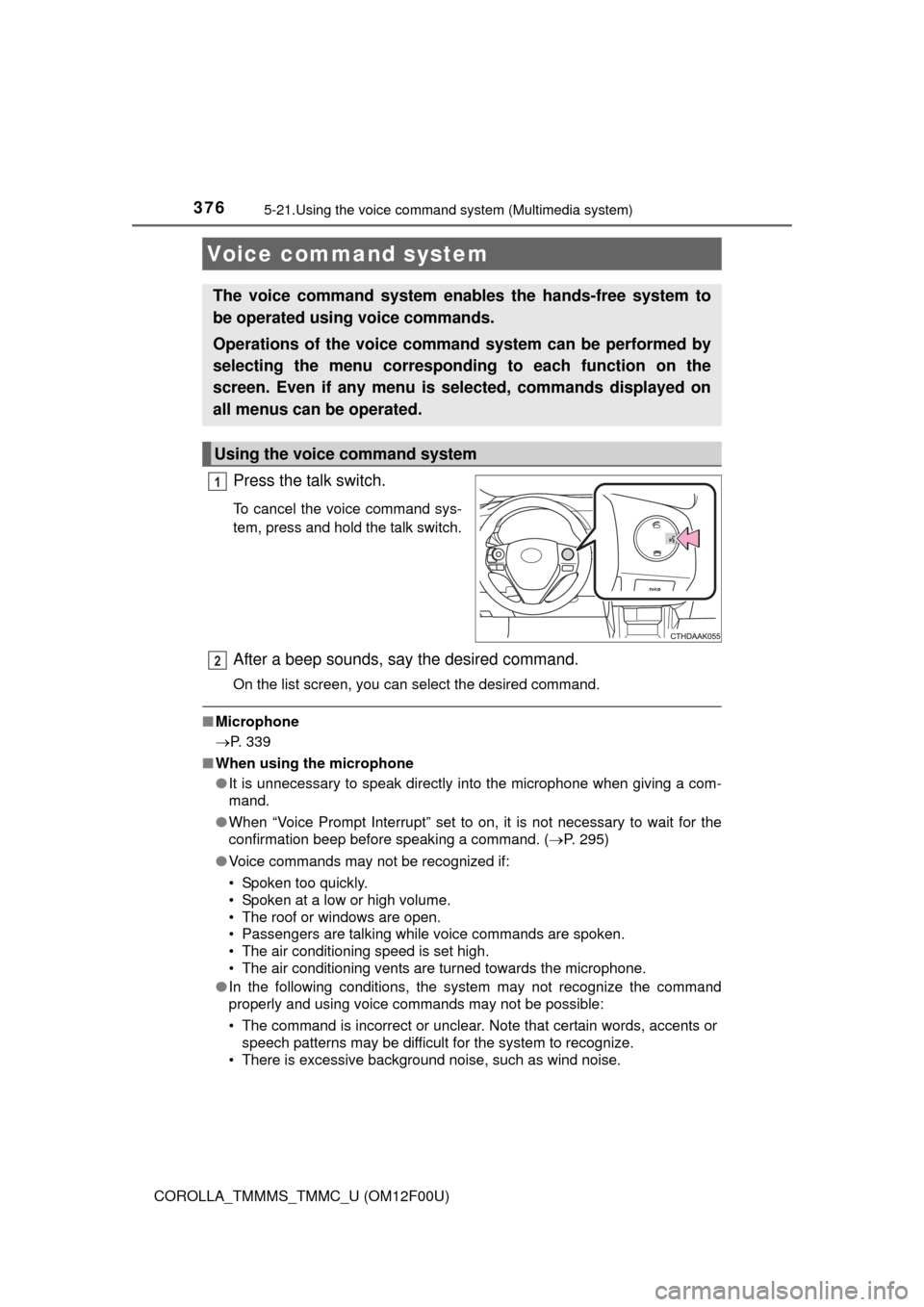
Press the talk switch.
To cancel the voice command sys-
tem, press and hold the talk switch.
After a beep sounds, say the desired command.
On the list screen, you can select the desired command.
■Microphone
P. 339
■ When using the microphone
●It is unnecessary to speak directly into the microphone when giving a com-
mand.
● When “Voice Prompt Interrupt” set to on, it is not necessary to wait for the
confirmation beep before speaking a command. ( P. 295)
● Voice commands may not be recognized if:
• Spoken too quickly.
• Spoken at a low or high volume.
• The roof or windows are open.
• Passengers are talking while voice commands are spoken.
• The air conditioning speed is set high.
• The air conditioning vents are turned towards the microphone.
● In the following conditions, the system may not recognize the command
properly and using voice commands may not be possible:
• The command is incorrect or unclear. Note that certain words, accents or
speech patterns may be difficult for the system to recognize.
• There is excessive background noise, such as wind noise.
Voice command system
The voice command system enables the hands-free system to
be operated using voice commands.
Operations of the voice comm and system can be performed by
selecting the menu corresponding to each function on the
screen. Even if any menu is selected, commands displayed on
all menus can be operated.
Using the voice command system
1
2
Page 377 of 612
3775-21. Using the voice command system (Multimedia system)
5
Audio system
COROLLA_TMMMS_TMMC_U (OM12F00U)
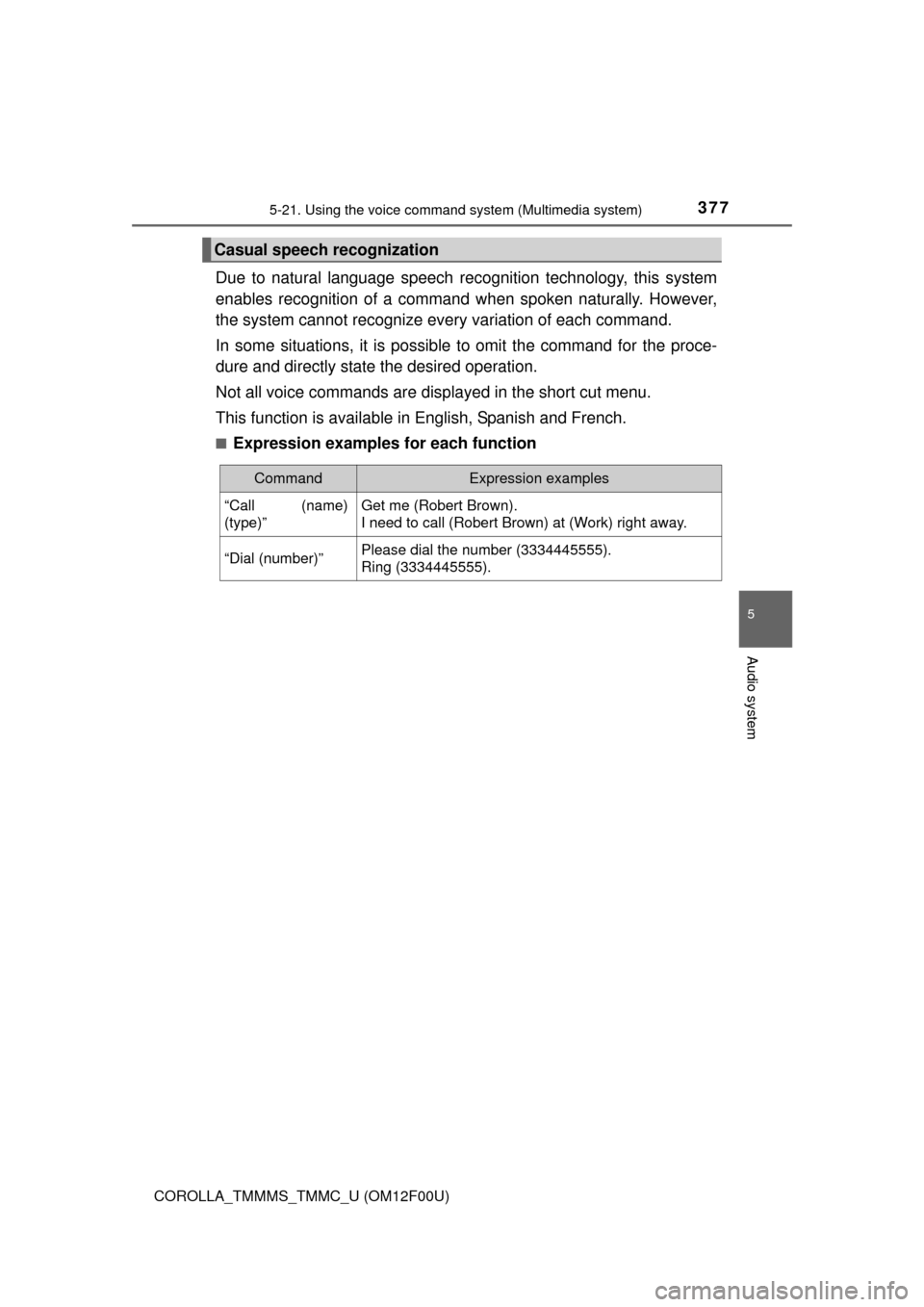
Due to natural language speech recognition technology, this system
enables recognition of a command when spoken naturally. However,
the system cannot recognize every variation of each command.
In some situations, it is possibl e to omit the command for the proce-
dure and directly state the desired operation.
Not all voice commands are displayed in the short cut menu.
This function is available in English, Spanish and French.
■Expression examples for each function
Casual speech recognization
CommandExpression examples
“Call (name)
(type)”Get me (Robert Brown).
I need to call (Robert Brown) at (Work) right away.
“Dial (number)”Please dial the number (3334445555).
Ring (3334445555).