display TOYOTA COROLLA 2015 11.G Owners Manual
[x] Cancel search | Manufacturer: TOYOTA, Model Year: 2015, Model line: COROLLA, Model: TOYOTA COROLLA 2015 11.GPages: 612, PDF Size: 8.48 MB
Page 323 of 612
3235-17. Connecting Bluetooth® (Multimedia system)
5
Audio system
COROLLA_TMMMS_TMMC_U (OM12F00U)
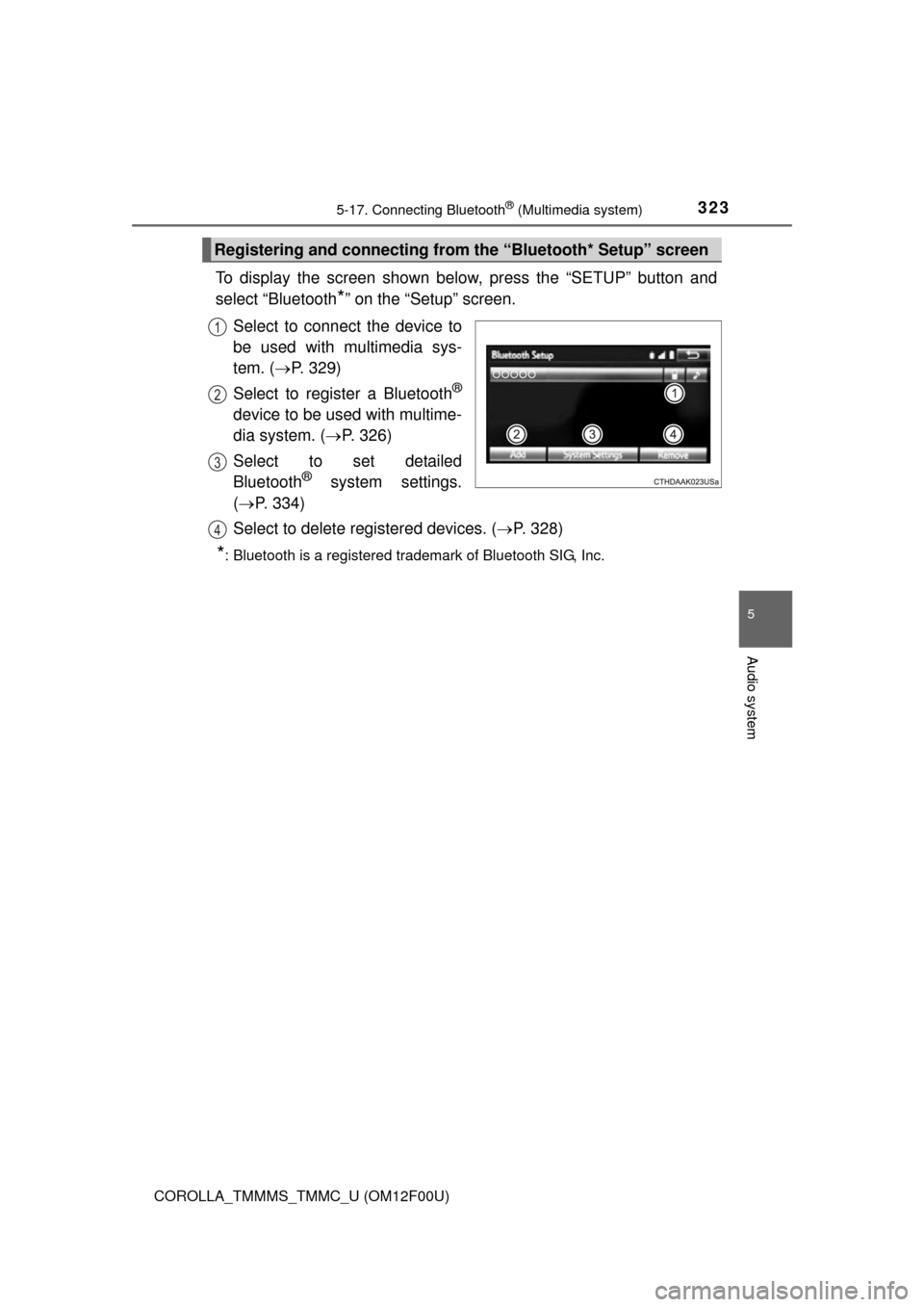
To display the screen shown below, press the “SETUP” button and
select “Bluetooth
*” on the “Setup” screen.
Select to connect the device to
be used with multimedia sys-
tem. ( P. 329)
Select to register a Bluetooth
®
device to be used with multime-
dia system. ( P. 326)
Select to set detailed
Bluetooth
® system settings.
( P. 334)
Select to delete registered devices. ( P. 328)
*: Bluetooth is a registered trademark of Bluetooth SIG, Inc.
Registering and connecting from the “Bluetooth* Setup” screen
1
2
3
4
Page 326 of 612
3265-17. Connecting Bluetooth® (Multimedia system)
COROLLA_TMMMS_TMMC_U (OM12F00U)
Display the “Bluetooth* Setup” screen. (P. 323)
*: Bluetooth is a registered trademark of Bluetooth SIG, Inc.
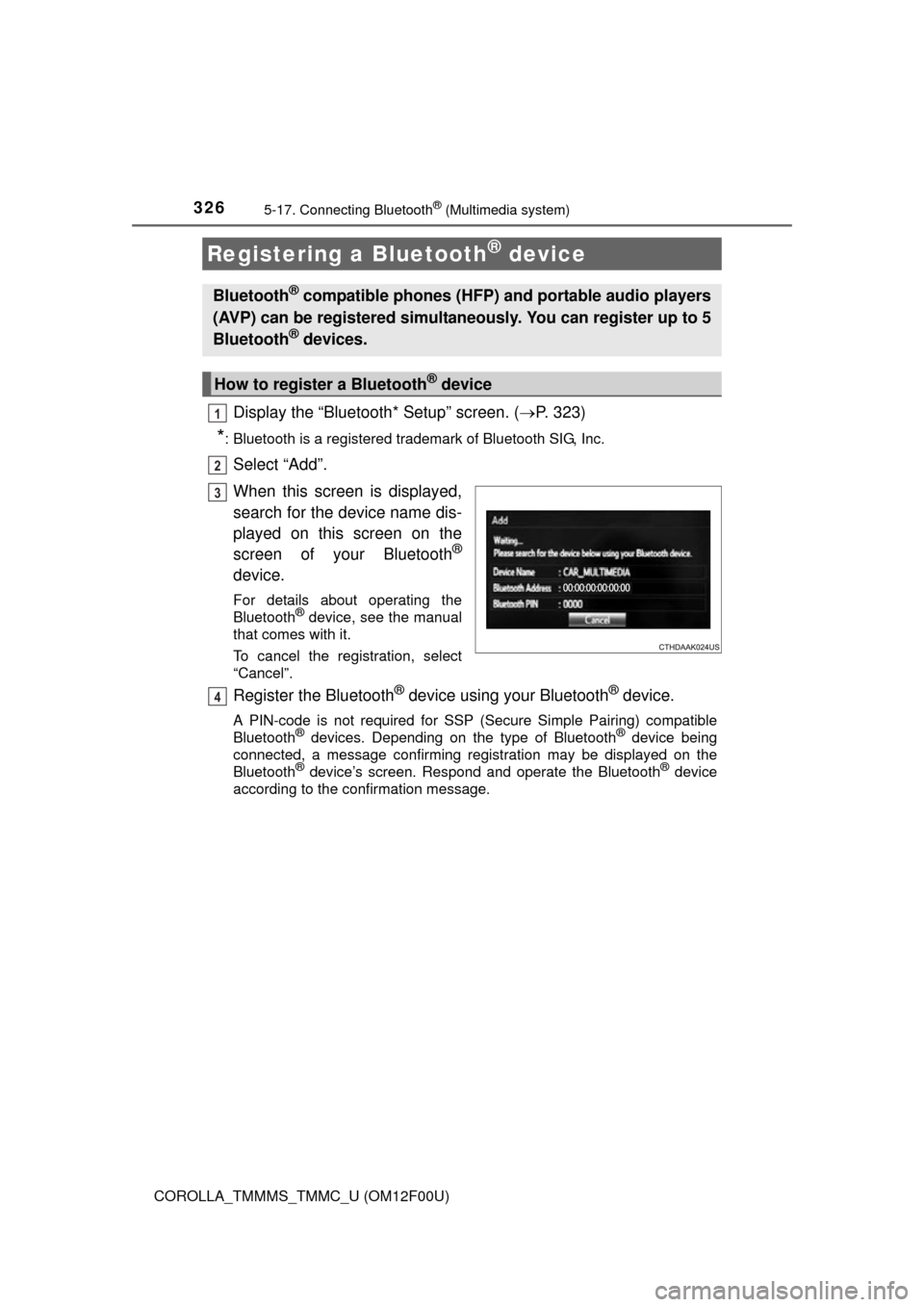
Select “Add”.
When this screen is displayed,
search for the device name dis-
played on this screen on the
screen of your Bluetooth
®
device.
For details about operating the
Bluetooth® device, see the manual
that comes with it.
To cancel the registration, select
“Cancel”.
Register the Bluetooth® device using your Bluetooth® device.
A PIN-code is not required for SSP (S ecure Simple Pairing) compatible
Bluetooth® devices. Depending on the type of Bluetooth® device being
connected, a message confirming registration may be displayed on the
Bluetooth
® device’s screen. Respond and operate the Bluetooth® device
according to the confirmation message.
Registering a Bluetooth® device
Bluetooth® compatible phones (HFP) and portable audio players
(AVP) can be registered simultaneously. You can register up to 5
Bluetooth
® devices.
How to register a Bluetooth® device
1
2
3
4
Page 327 of 612
3275-17. Connecting Bluetooth® (Multimedia system)
5
Audio system
COROLLA_TMMMS_TMMC_U (OM12F00U)
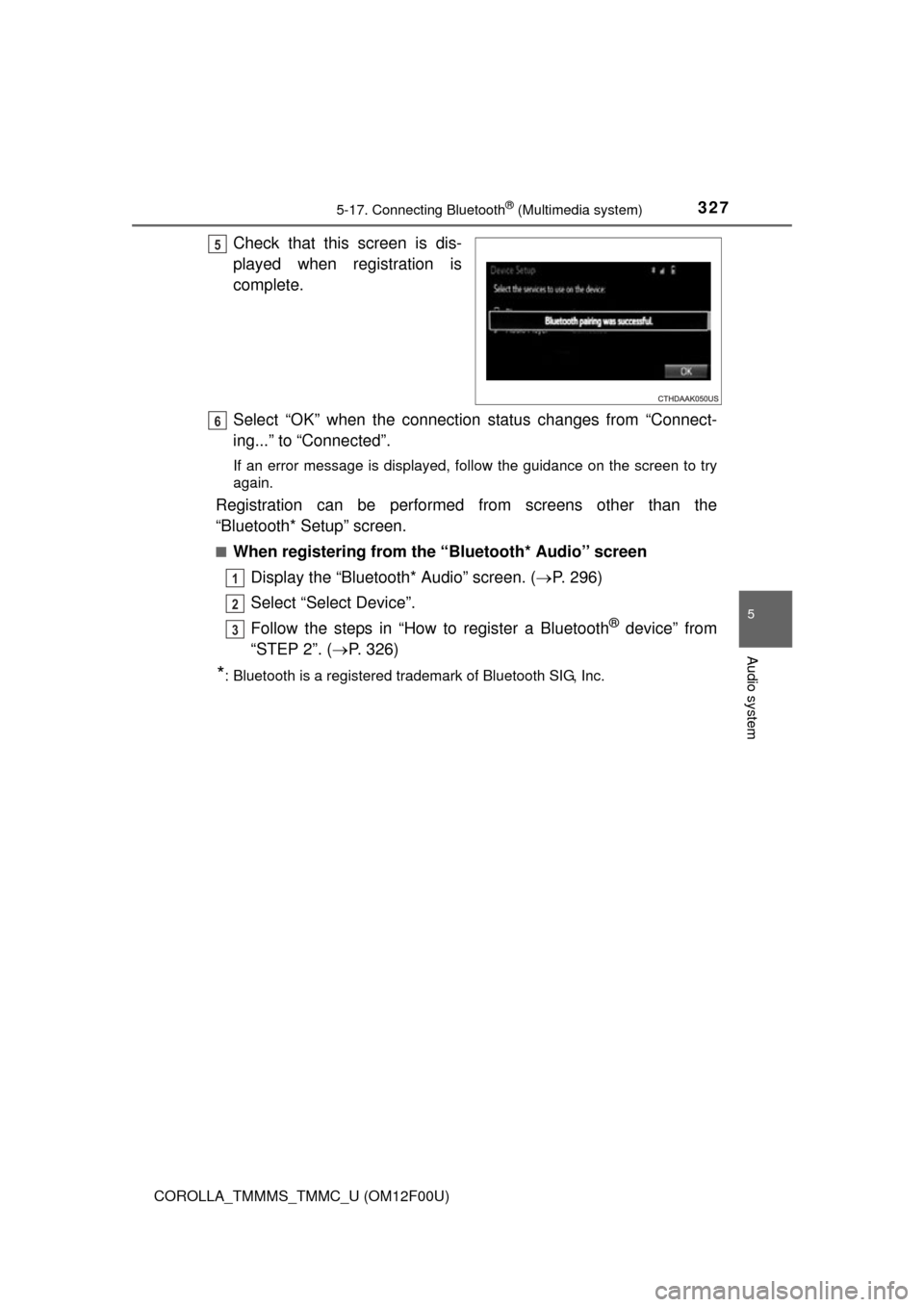
Check that this screen is dis-
played when registration is
complete.
Select “OK” when the connection status changes from “Connect-
ing...” to “Connected”.
If an error message is displayed, follow the guidance on the screen to try
again.
Registration can be performed from screens other than the
“Bluetooth* Setup” screen.
■When registering from the “Bluetooth* Audio” screenDisplay the “Bluetooth* Audio” screen. ( P. 296)
Select “Select Device”.
Follow the steps in “How to register a Bluetooth
® device” from
“STEP 2”. ( P. 326)
*: Bluetooth is a registered trademark of Bluetooth SIG, Inc.
5
6
1
2
3
Page 328 of 612
3285-17. Connecting Bluetooth® (Multimedia system)
COROLLA_TMMMS_TMMC_U (OM12F00U)
Display the “Bluetooth* Setup” screen. (P. 323)
*: Bluetooth is a registered trademark of Bluetooth SIG, Inc.
Select “Remove”.
Select the desired device.
A confirmation message will be displa yed, select “Yes” to delete the
device.
Check that a confirmation screen is displayed when the operation is
complete.
Deleting a Bluetooth® device
1
2
3
4
5
Page 330 of 612
3305-17. Connecting Bluetooth® (Multimedia system)
COROLLA_TMMMS_TMMC_U (OM12F00U)
To turn auto connection mode on, set “Bluetooth* Power” to on.
( P. 334)
When you register a phone, auto co nnection will be activated. Always
set it to this mode and leave the Bluetooth
® phone in a place where a
connection can be established.
When the engine switch is turned to ACCESSORY or ON (IGNITION ON)
mode, the system will search for a nearby cellular phone you have regis-
tered.
Next, the system automatically connects with the most recent of the
phones connected to in the past. Then, the connection result is displayed.
When auto connection has failed or “Bluetooth* Power” is turned off,
you must connec t the Bluetooth® device manually.
*: Bluetooth is a registered trademark of Bluetooth SIG, Inc.
Follow the steps in “Connecting a Bluetooth® device” from “STEP
1”. ( P. 329)
Registering an additional device
Select “Select Device” on the Bluetooth
® audio control screen.
For more information: P. 3 2 6
Selecting a registered device
Select “Select Device” on the Bluetooth
® audio control screen.
For more information: P. 3 2 9
Auto connection
Manual connection
Connecting a Bluetooth® audio player
1
1
2
1
2
Page 332 of 612
3325-17. Connecting Bluetooth® (Multimedia system)
COROLLA_TMMMS_TMMC_U (OM12F00U)
Display the “Bluetooth* Setup” screen. (P. 323)
*: Bluetooth is a registered trademark of Bluetooth SIG, Inc.
Select the device.
Select “Device Info”.
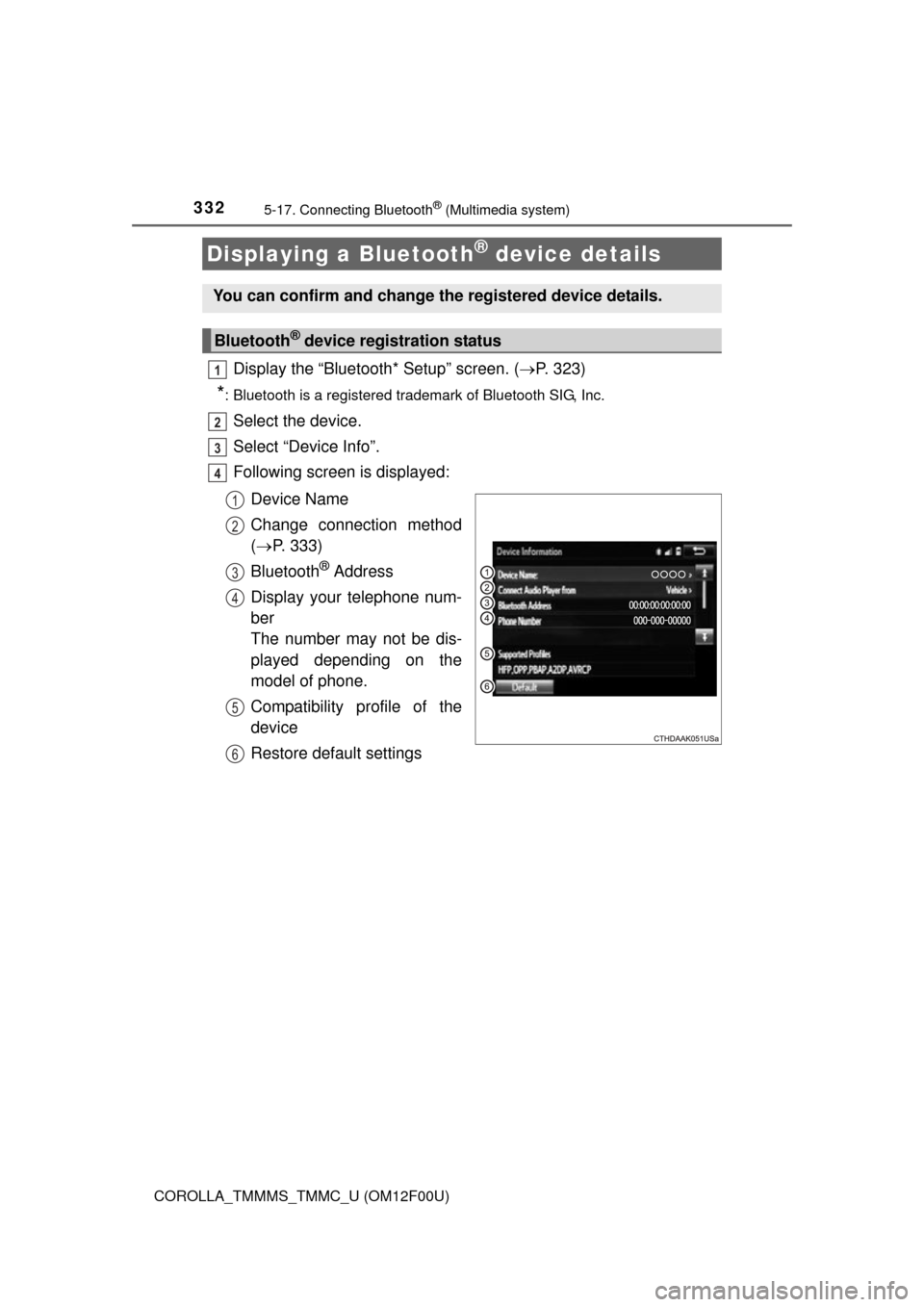
Following screen is displayed:
Device Name
Change connection method
( P. 333)
Bluetooth
® Address
Display your telephone num-
ber
The number may not be dis-
played depending on the
model of phone.
Compatibility profile of the
device
Restore default settings
Displaying a Bluetooth® device details
You can confirm and change the registered device details.
Bluetooth® device registration status
1
2
3
4
1
2
3
4
5
6
Page 334 of 612
3345-17. Connecting Bluetooth® (Multimedia system)
COROLLA_TMMMS_TMMC_U (OM12F00U)
Display the “Bluetooth* Setup” screen. (P. 323)
Select “System Settings”.
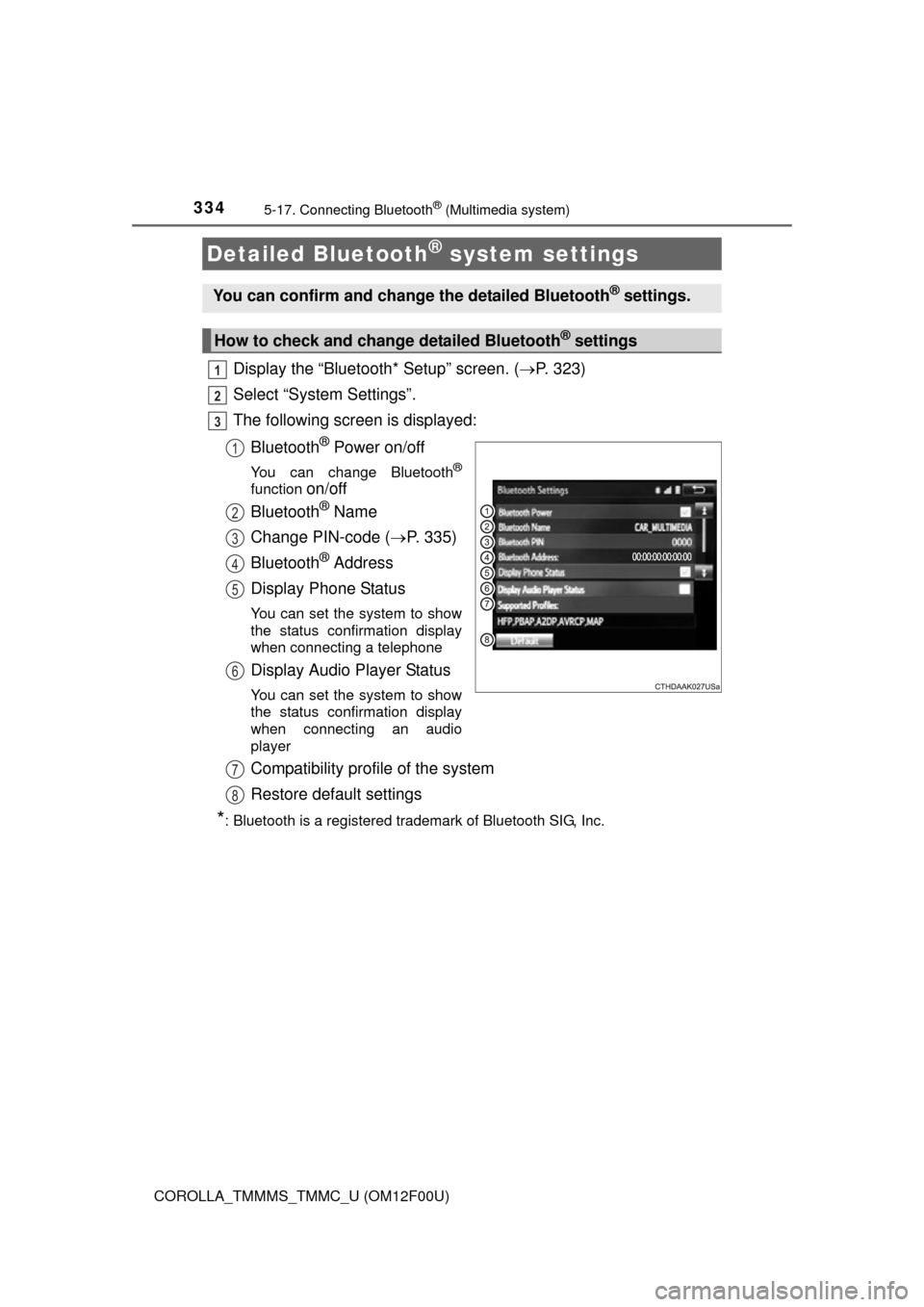
The following screen is displayed:
Bluetooth
® Power on/off
You can change Bluetooth®
function on/off
Bluetooth
® Name
Change PIN-code ( P. 335)
Bluetooth
® Address
Display Phone Status
You can set the system to show
the status confirmation display
when connecting a telephone
Display Audio Player Status
You can set the system to show
the status confirmation display
when connecting an audio
player
Compatibility profile of the system
Restore default settings
*: Bluetooth is a registered trademark of Bluetooth SIG, Inc.
Detailed Bluetooth® system settings
You can confirm and change the detailed Bluetooth® settings.
How to check and change detailed Bluetooth® settings
1
2
3
1
2
3
4
5
6
7
8
Page 336 of 612
336
COROLLA_TMMMS_TMMC_U (OM12F00U)
5-18.Bluetooth® Audio (Multimedia system)
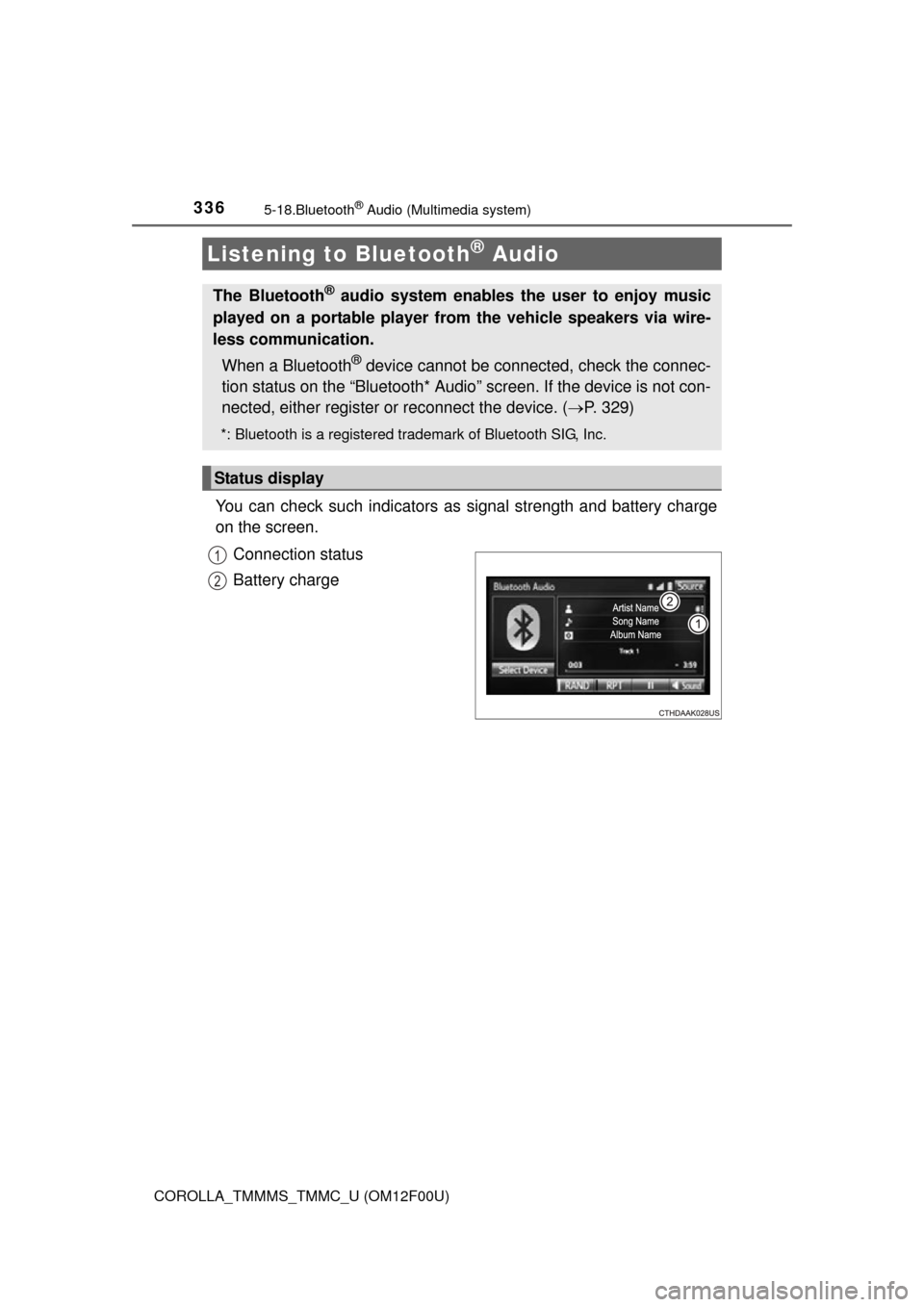
You can check such indicators as signal strength and battery charge
on the screen.
Connection status
Battery charge
Listening to Bluetooth® Audio
The Bluetooth® audio system enables the user to enjoy music
played on a portable player from the vehicle speakers via wire-
less communication.
When a Bluetooth
® device cannot be connected, check the connec-
tion status on the “Bluetooth* Audio” screen. If the device is not con-
nected, either register or reconnect the device. ( P. 329)
*: Bluetooth is a registered trademark of Bluetooth SIG, Inc.
Status display
1
2
Page 338 of 612
338
COROLLA_TMMMS_TMMC_U (OM12F00U)
5-19.Bluetooth® phone (Multimedia system)
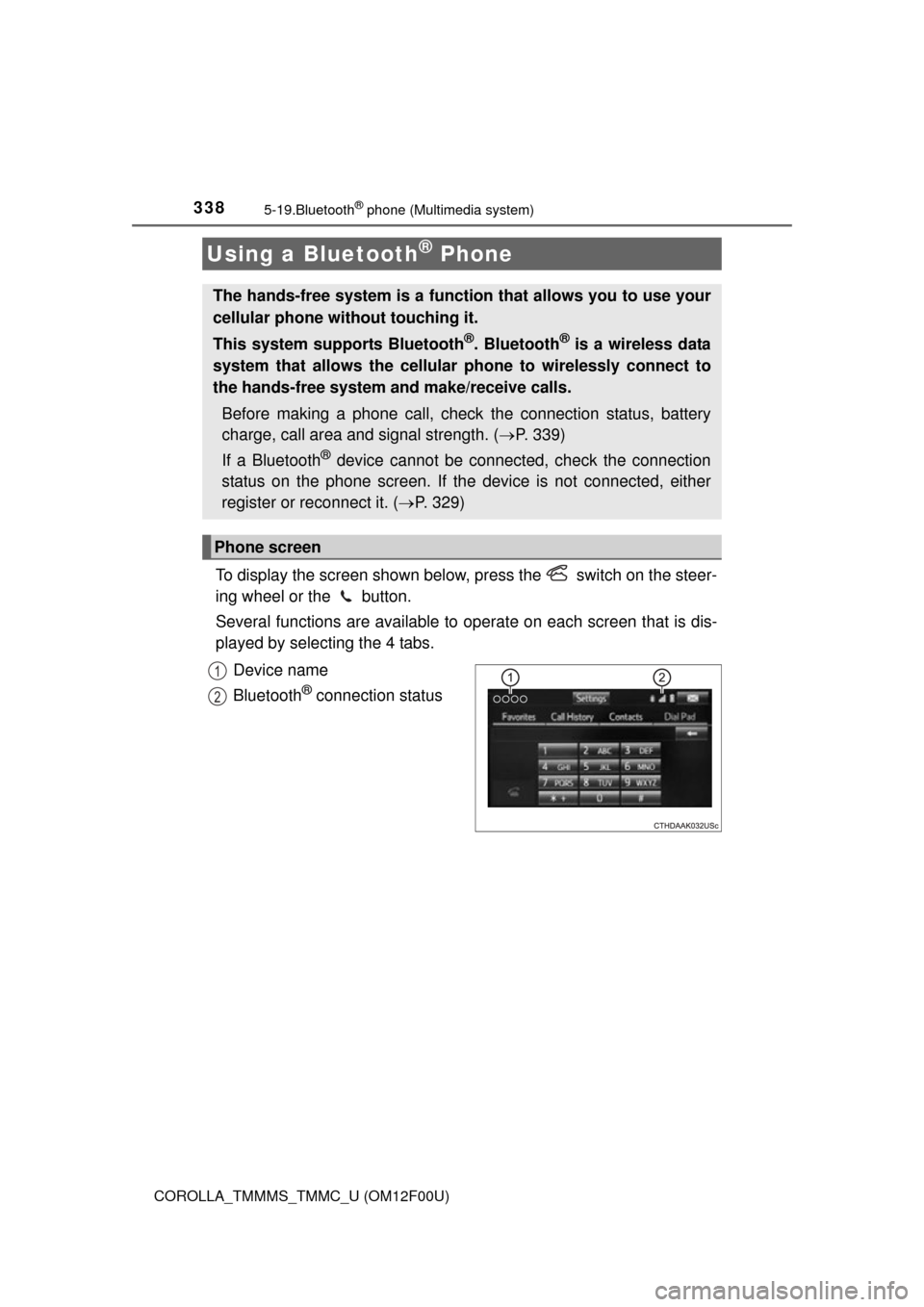
To display the screen shown below, press the switch on the steer-
ing wheel or the button.
Several functions are available to operate on each screen that is dis-
played by selecting the 4 tabs.
Device name
Bluetooth
® connection status
Using a Bluetooth® Phone
The hands-free system is a function that allows you to use your
cellular phone without touching it.
This system supports Bluetooth
®. Bluetooth® is a wireless data
system that allows the cellular phone to wirelessly connect to
the hands-free system and make/receive calls.
Before making a phone call, check the connection status, battery
charge, call area and signal strength. ( P. 339)
If a Bluetooth
® device cannot be connected, check the connection
status on the phone screen. If th e device is not connected, either
register or reconnect it. ( P. 329)
Phone screen
1
2
Page 339 of 612
3395-19. Bluetooth® phone (Multimedia system)
5
Audio system
COROLLA_TMMMS_TMMC_U (OM12F00U)■
Telephone switch (
P. 354)
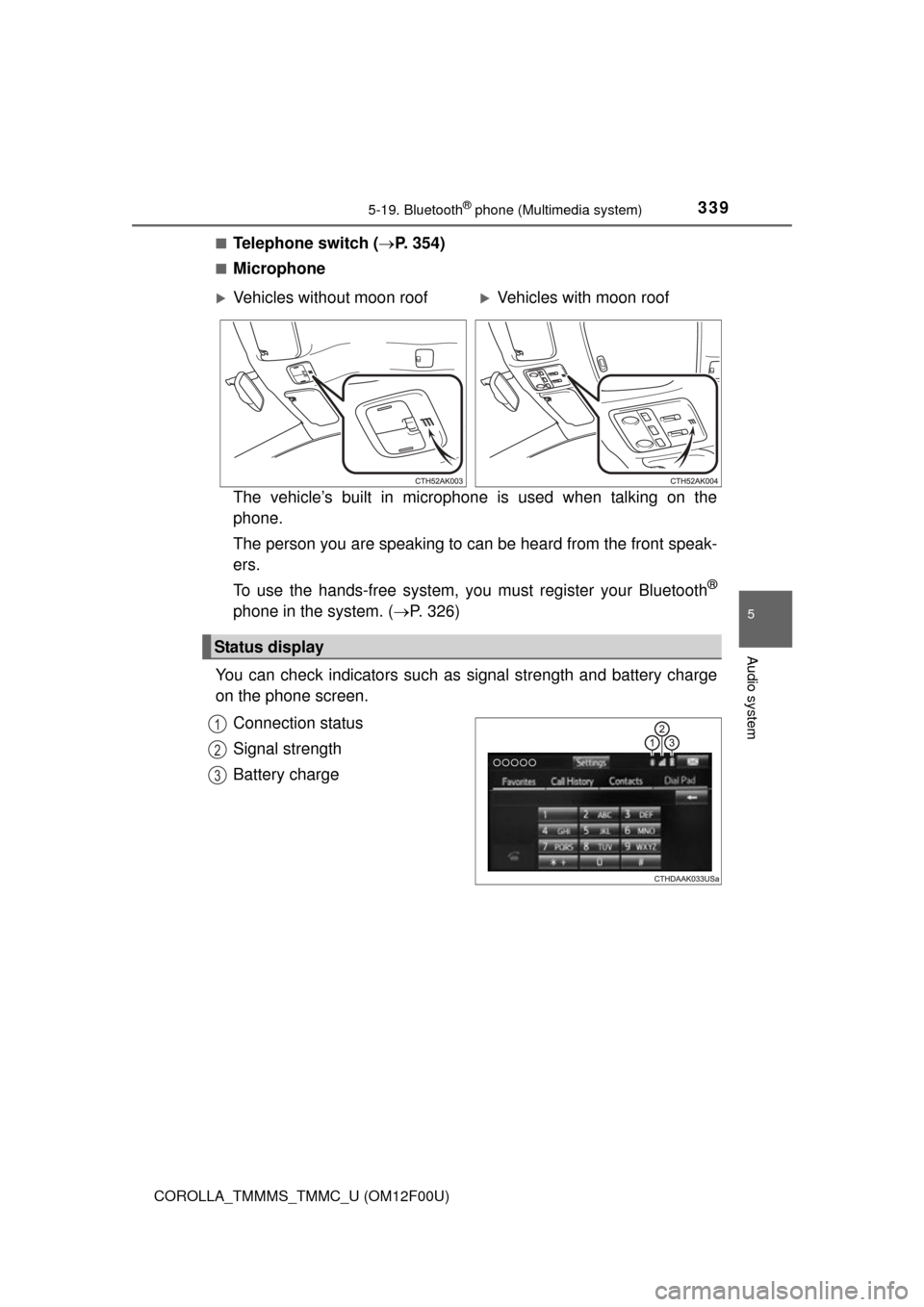
■Microphone
The vehicle’s built in microphone is used when talking on the
phone.
The person you are speaking to can be heard from the front speak-
ers.
To use the hands-free system, you must register your Bluetooth
®
phone in the system. (P. 326)
You can check indicators such as signal strength and battery charge
on the phone screen.
Connection status
Signal strength
Battery charge
Vehicles without moon roofVehicles with moon roof
Status display
1
2
3