Media TOYOTA COROLLA 2015 11.G Repair Manual
[x] Cancel search | Manufacturer: TOYOTA, Model Year: 2015, Model line: COROLLA, Model: TOYOTA COROLLA 2015 11.GPages: 612, PDF Size: 8.48 MB
Page 316 of 612
3165-16. Using an external device (Multimedia system)
COROLLA_TMMMS_TMMC_U (OM12F00U)●
MP3, WMA and AAC playback
• When a device containing MP3, WMA and AAC files is connected, all
files in the USB memory device are checked. Once the file check is fin-
ished, the first MP3, WMA and AAC file is played. To make the file check
finish more quickly, we recommend that you do not include any files other
than MP3, WMA and AAC files or create any unnecessary folders.
• When a USB memory device is connected and the audio source is
changed to USB memory mode, the USB memory device will start play-
ing the first file in the first folder. If the same device is removed and
reconnected (and the con- tents have not been changed), the USB mem-
ory device will resume play from the same point in which it was last used.
● Extensions
If the file extensions .mp3, .wma and .m4a are used for files other than
MP3, WMA and AAC files, they will be skipped (not played).
● Playback
• To play MP3 files with steady sound quality, we recommend a fixed bit
rate of at least 128 kbps and a sampling frequency of 44.1 kHz.
• There is a wide variety of freeware and other encoding software for MP3, WMA and AAC files on the market, and depending on the status of the
encoding and the file format, poor sound quality or noise at the start of
playback may result. In some cases, playback may not be possible at all.\
• Microsoft, Windows, and Windows Media are the registered trademarks of Microsoft Corporation in the U.S.A. and other countries.
CAUTION
■While driving
Do not connect a USB memory device or operate the device controls.
NOTICE
■To prevent damage to the USB memory device or its terminals
● Do not leave the USB memory device in the vehicle. The temperature
inside the vehicle may become high, resulting in damage to the USB
memory device.
● Do not push down on or apply unnecessary pressure to the USB memory
device while it is connected.
● Do not insert foreign objects into the port.
Page 317 of 612
3175-16. Using an external device (Multimedia system)
5
Audio system
COROLLA_TMMMS_TMMC_U (OM12F00U)
P. 2 8 6
■Operating portable audio players co nnected to the multimedia system
The volume can be adjusted using the vehicle's audio controls. All other
adjustments must be made on the portable audio player itself.
■ When using a portable audio player connected to the power outlet
Noise may occur during playback. Use the power source of the portable
audio player.
Using the AUX port
To use the AUX port, connect a portable player, press the
“AUDIO” button, then select “AUX ” to display the audio control
screen.
Connecting a portable audio player
CAUTION
■ While driving
Do not connect a portable audio player or operate the device controls.
Page 318 of 612
3185-16. Using an external device (Multimedia system)
COROLLA_TMMMS_TMMC_U (OM12F00U)
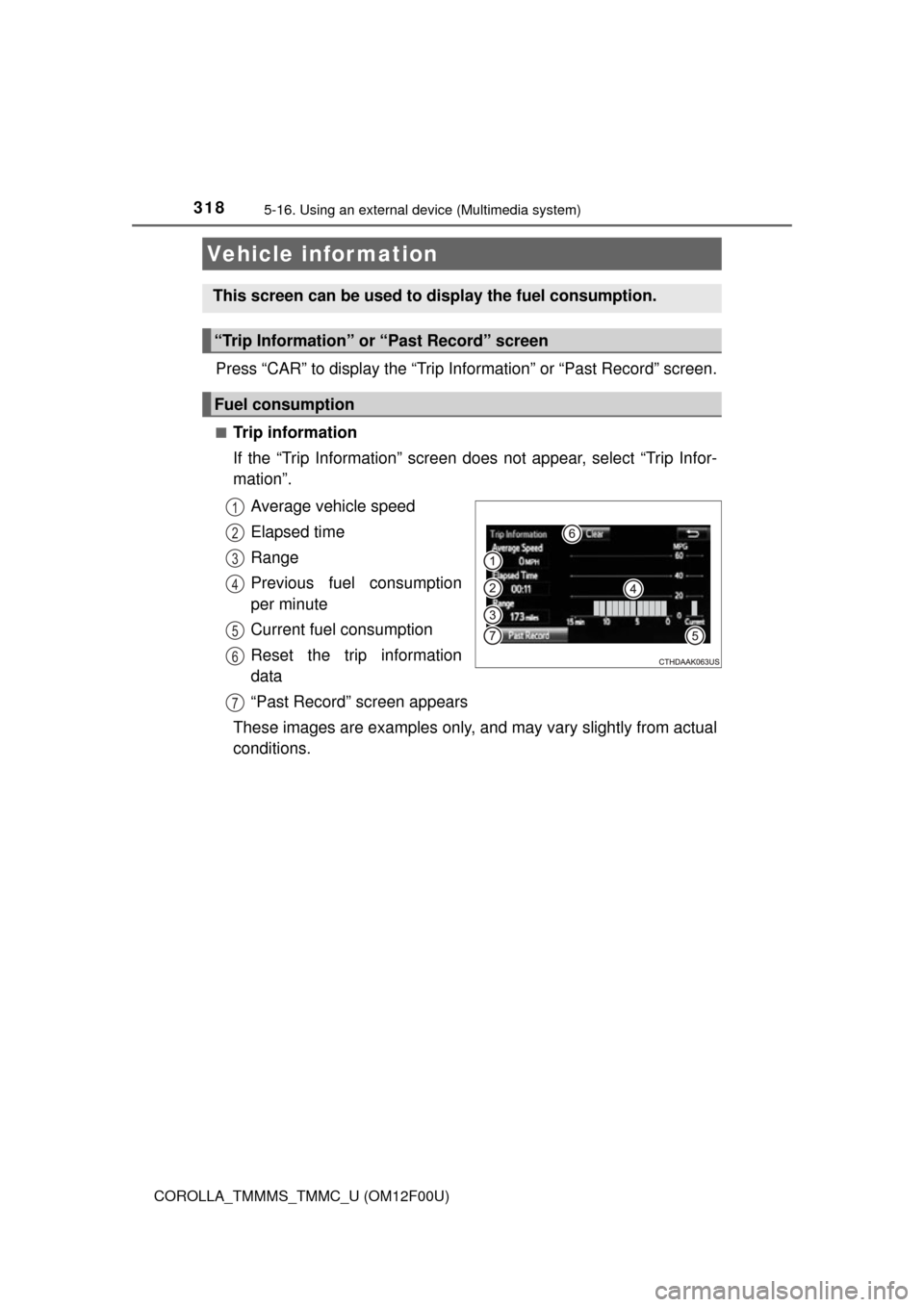
Press “CAR” to display the “Trip Information” or “Past Record” screen.
■Trip information
If the “Trip Information” screen does not appear, select “Trip Infor-
mation”.Average vehicle speed
Elapsed time
Range
Previous fuel consumption
per minute
Current fuel consumption
Reset the trip information
data
“Past Record” screen appears
These images are examples only, and may vary slightly from actual
conditions.
Vehicle information
This screen can be used to display the fuel consumption.
“Trip Information” or “Past Record” screen
Fuel consumption
1
2
3
4
5
6
7
Page 319 of 612
3195-16. Using an external device (Multimedia system)
5
Audio system
COROLLA_TMMMS_TMMC_U (OM12F00U)■
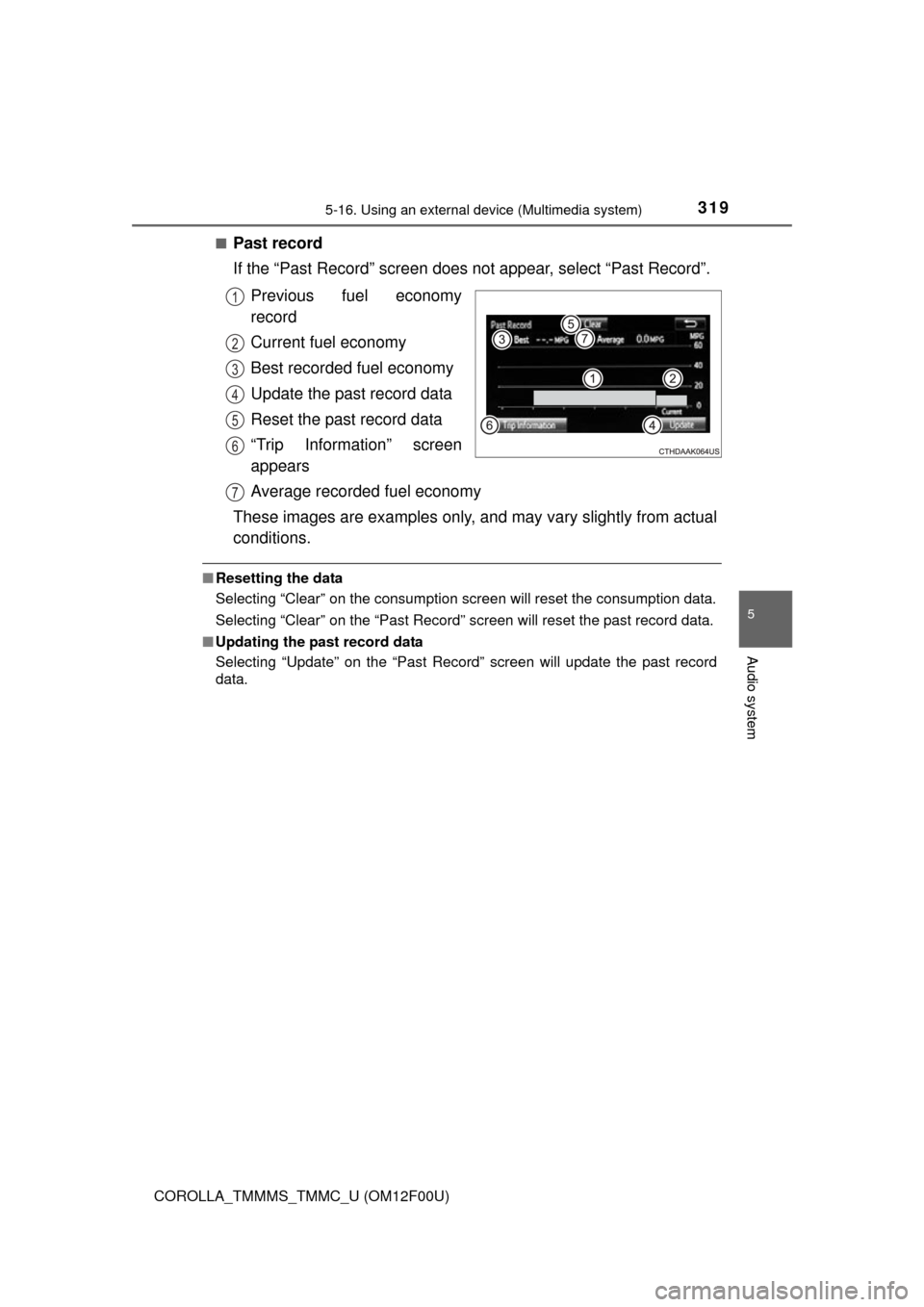
Past record
If the “Past Record” screen does
not appear, select “Past Record”.
Previous fuel economy
record
Current fuel economy
Best recorded fuel economy
Update the past record data
Reset the past record data
“Trip Information” screen
appears
Average recorded fuel economy
These images are examples only, and may vary slightly from actual
conditions.
■ Resetting the data
Selecting “Clear” on the consumption screen will reset the consumption data.
Selecting “Clear” on the “Past Record” screen will reset the past record data.
■ Updating the past record data
Selecting “Update” on the “Past Record” screen will update t\
he past record
data.
1
2
3
4
5
6
7
Page 320 of 612
320
COROLLA_TMMMS_TMMC_U (OM12F00U)
5-17.Connecting Bluetooth® (Multimedia system)
■About Bluetooth®
Preparations to use wireless communica-
tion
The following can be performed using Bluetooth® wireless com-
munication:
■A portable audio player can be operated and listened to via
multimedia system
■Hands-free phone calls can be made via a cellular phone
In order to use wireless communication, register and connect a
Bluetooth
® device by performing the following procedures.
The Bluetooth® word mark and logos are
registered trademarks owned Bluetooth
SIG, Inc. and any use of such marks by
Fujitsu Ten Limited is under license.
Other trademarks and trade names are
those of their respective owners.
CAUTION
■ Certifications for the Bluetooth
FCC ID: BABFT0049A
Page 321 of 612
3215-17. Connecting Bluetooth® (Multimedia system)
5
Audio system
COROLLA_TMMMS_TMMC_U (OM12F00U)
CAUTION
●CAUTION: Radio Frequency Radiation Exposure
This equipment complies with FCC radiation exposure limits set forth for
uncontrolled equipment and meets the FCC radio frequency (RF) Expo-
sure Guidelines in Supplement C to OET65. This equipment has very low
levels of RF energy that it deemed to comply without maximum permis-
sive exposure evaluation (MPE). But it is desirable that it should be
installed and operated with at least 20cm and more between the radiator
and person's body (excluding extremities: hands, wrists, feet and ankles).
• Co-location: This transmitter must not be co-located or operated in con- junction with any other antenna or transmitter.
• This device complies with part 15 of the FCC Rules. Operation is sub-
ject to the following two conditions: (1) This device may not cause
harmful interference, and (2) this device must accept any interference\
received, including interference that may cause undesired operation.
● FCC WARNING:
Changes or modifications not expressly approved by the party responsi-
ble for compliance could void the user's authority to operate the equip-
ment.
● IC: 2024B-FT0049A
• This device complies with Industry Canada licence-exempt RSS stan-
dard(s). Operation is subject to the following two conditions: (1) this
device may not cause interference, and (2) this device must accept any
interference, including interference that may cause undesired operation
of the device.
● CAUTION: Radio Frequency Radiation Exposure
This equipment complies with IC radiation exposure limits set forth for
uncontrolled equipment and meets RSS-102 of the IC radio frequency
(RF) Exposure rules.
This equipment has very low levels of RF energy that it deemed to comply
without maximum permissive exposure evaluation (MPE).
But it is desirable that it should be installed and operated with at least
20cm and more between the radiator and person's body (excluding
extremities: hands, wrists, feet and ankles).
Page 322 of 612

3225-17. Connecting Bluetooth® (Multimedia system)
COROLLA_TMMMS_TMMC_U (OM12F00U)
Device registration/connection flow
1. Register the Bluetooth® device to be used with multimedia
system ( P. 324, 325, 326)
2. Connect the Bluetooth® device to be used
( P. 329)
To be used for audio To be used for hands-free
phone
3. Start Bluetooth® connec-
tion ( P. 329)3. Start Bluetooth® connec-
tion ( P. 329)
4. Check connection status
( P. 336)4. Check connection status
( P. 339)
5. Use Bluetooth® audio
( P. 336)5. Use Bluetooth® phone
( P. 338)
Page 323 of 612
3235-17. Connecting Bluetooth® (Multimedia system)
5
Audio system
COROLLA_TMMMS_TMMC_U (OM12F00U)
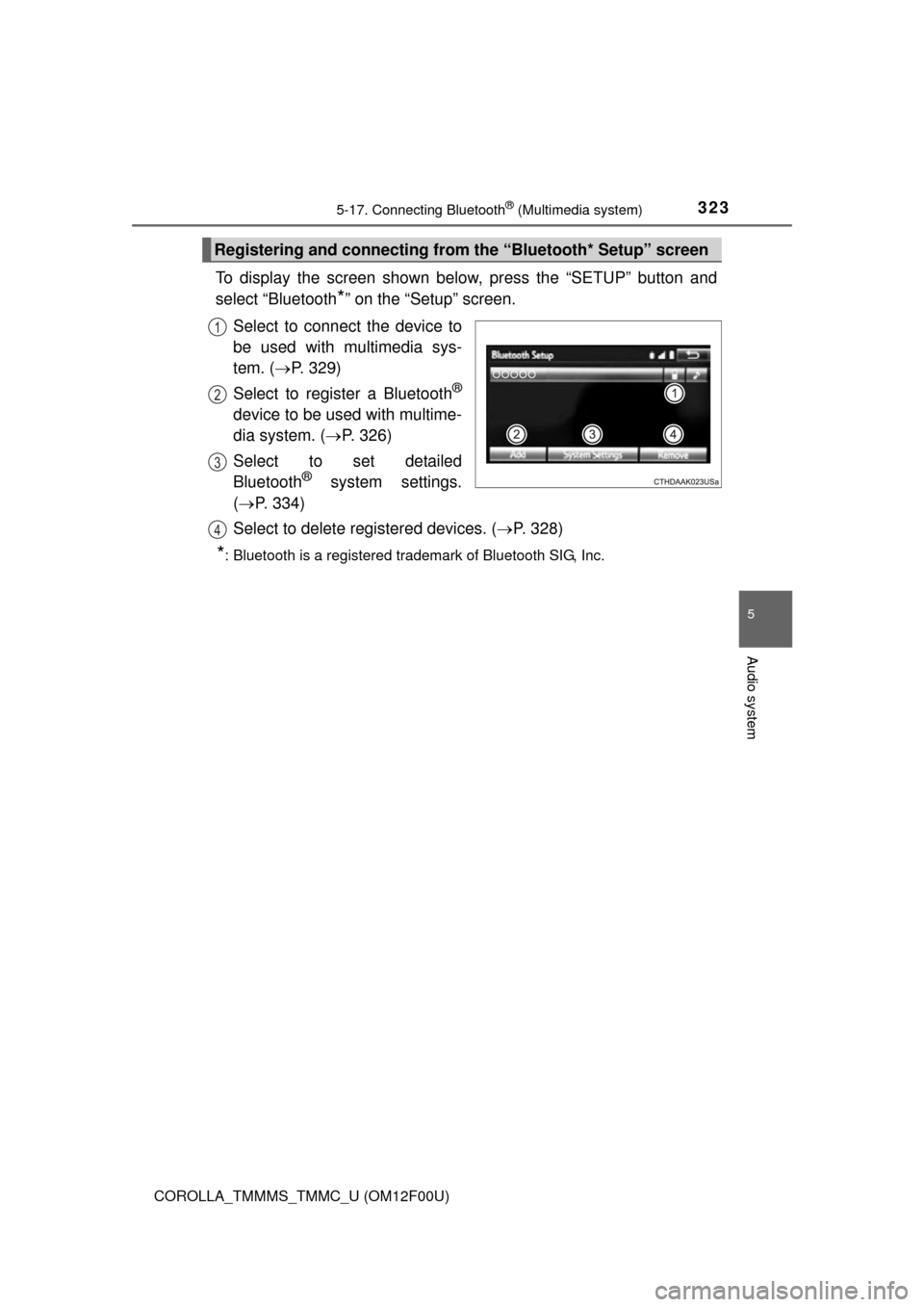
To display the screen shown below, press the “SETUP” button and
select “Bluetooth
*” on the “Setup” screen.
Select to connect the device to
be used with multimedia sys-
tem. ( P. 329)
Select to register a Bluetooth
®
device to be used with multime-
dia system. ( P. 326)
Select to set detailed
Bluetooth
® system settings.
( P. 334)
Select to delete registered devices. ( P. 328)
*: Bluetooth is a registered trademark of Bluetooth SIG, Inc.
Registering and connecting from the “Bluetooth* Setup” screen
1
2
3
4
Page 324 of 612
3245-17. Connecting Bluetooth® (Multimedia system)
COROLLA_TMMMS_TMMC_U (OM12F00U)
Turn the Bluetooth® connection setting of your audio player on.
Press the “AUDIO” button.
Select “ Audio”.
Select “Select Device”.
Follow the steps in “How to register a Bluetooth
® device” from
“STEP 2”. ( P. 326)
Registering a Bluetooth® audio player for
the first time
To use the Bluetooth® Audio, it is necessary to register an audio
player with the system.
Once the player has been registered, it is possible to use the
Bluetooth
® Audio.
For details about registering a Bluetooth
® device ( P. 326)
1
2
3
4
5
Page 325 of 612
3255-17. Connecting Bluetooth® (Multimedia system)
5
Audio system
COROLLA_TMMMS_TMMC_U (OM12F00U)
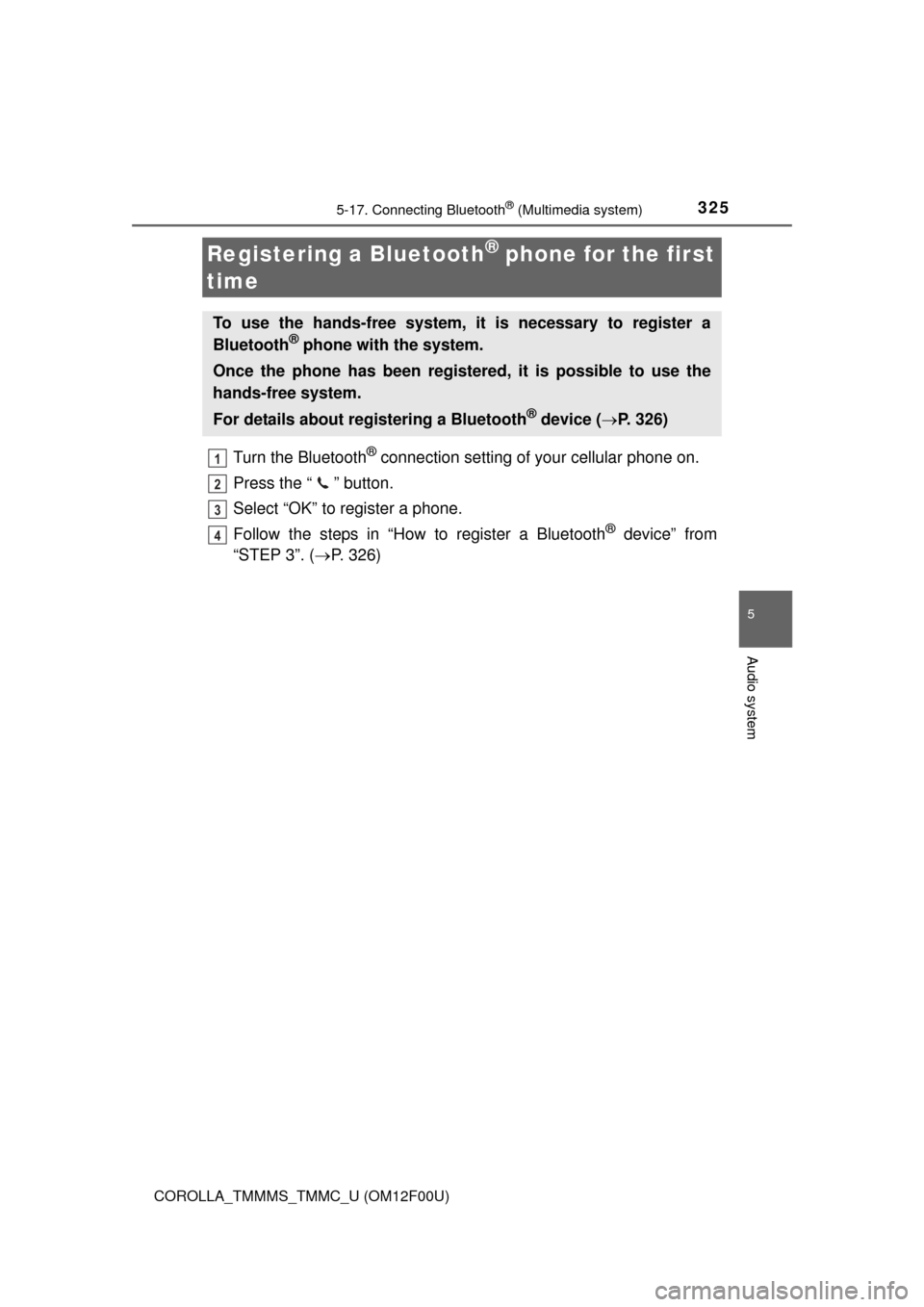
Turn the Bluetooth® connection setting of your cellular phone on.
Press the “ ” button.
Select “OK” to register a phone.
Follow the steps in “How to register a Bluetooth
® device” from
“STEP 3”. ( P. 326)
Registering a Bluetooth® phone for the first
time
To use the hands-free system, it is necessary to register a
Bluetooth® phone with the system.
Once the phone has been registered, it is possible to use the
hands-free system.
For details about registering a Bluetooth
® device ( P. 326)
1
2
3
4