CD player TOYOTA COROLLA 2016 11.G Owner's Guide
[x] Cancel search | Manufacturer: TOYOTA, Model Year: 2016, Model line: COROLLA, Model: TOYOTA COROLLA 2016 11.GPages: 620, PDF Size: 9.12 MB
Page 314 of 620
3145-15. Playing an audio CD and MP3/WMA/AAC discs (Multimedia system)
COROLLA_TMMMS_TMMC_U (OM12J84U)
NOTICE
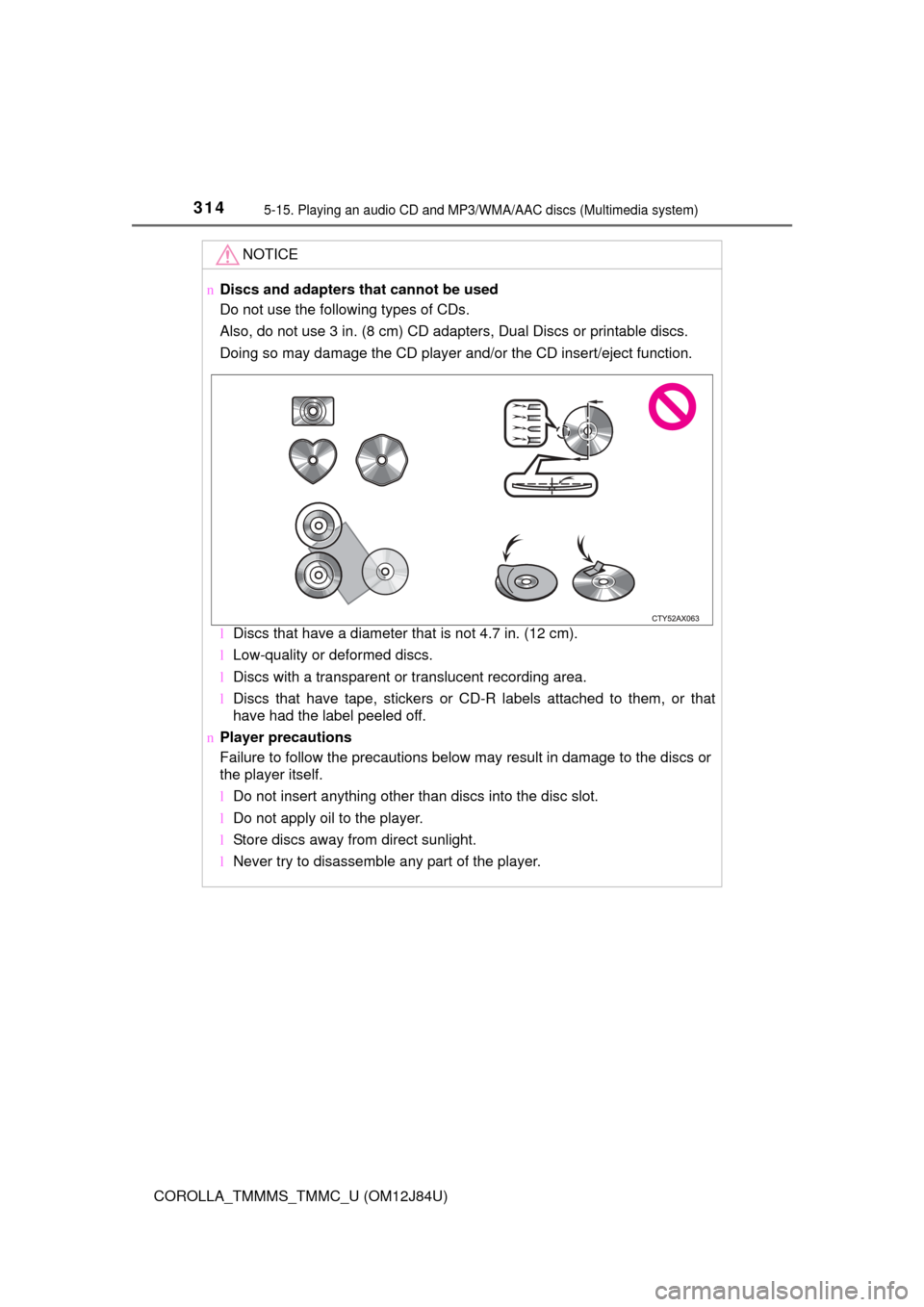
nDiscs and adapters that cannot be used
Do not use the following types of CDs.
Also, do not use 3 in. (8 cm) CD adapters, Dual Discs or printable discs.
Doing so may damage the CD player and/or the CD insert/eject function.
lDiscs that have a diameter that is not 4.7 in. (12 cm).
l Low-quality or deformed discs.
l Discs with a transparent or translucent recording area.
l Discs that have tape, stickers or CD-R labels attached to them, or that
have had the label peeled off.
n Player precautions
Failure to follow the precautions below may result in damage to the discs or
the player itself.
lDo not insert anything other than discs into the disc slot.
l Do not apply oil to the player.
l Store discs away from direct sunlight.
l Never try to disassemble any part of the player.
Page 324 of 620
3245-16. Using an external device (Multimedia system)
COROLLA_TMMMS_TMMC_U (OM12J84U)
P. 2 9 3
nOperating portable audio players co nnected to the multimedia system
The volume can be adjusted using the vehicle's audio controls. All other
adjustments must be made on the portable audio player itself.
n When using a portable audio player connected to the power outlet
Noise may occur during playback. Use the power source of the portable
audio player.
Using the AUX port
To use the AUX port, connect a portable player, press the
“AUDIO” button, then select “AUX ” to display the audio control
screen.
Connecting a portable audio player
CAUTION
n While driving
Do not connect a portable audio player or operate the device controls.
Page 325 of 620
325
5
Audio system
COROLLA_TMMMS_TMMC_U (OM12J84U)
5-17.Connecting Bluetooth® (Multimedia system)
nAbout Bluetooth®
Preparations to use wireless communica-
tion
The following can be performed using Bluetooth® wireless com-
munication:
nA portable audio player can be operated and listened to via
multimedia system
nHands-free phone calls can be made via a cellular phone
In order to use wireless communication, register and connect a
Bluetooth
® device by performing the following procedures.
The Bluetooth® word mark and logos are
registered trademarks owned Bluetooth
SIG, Inc. and any use of such marks by
Fujitsu Ten Limited is under license.
Other trademarks and trade names are
those of their respective owners.
CAUTION
n Certifications for the Bluetooth
FCC ID: BABFT0049A
Page 329 of 620
3295-17. Connecting Bluetooth® (Multimedia system)
5
Audio system
COROLLA_TMMMS_TMMC_U (OM12J84U)
Turn the Bluetooth® connection setting of your audio player on.
Press the “AUDIO” button.
Select “ Audio”.
Select “Select Device”.
Follow the steps in “How to registering a Bluetooth
® device” from
step . ( P. 331)
Registering a Bluetooth® audio player for
the first time
To use the Bluetooth® Audio, it is necessary to register an audio
player with the system.
Once the player has been registered, it is possible to use the
Bluetooth
® Audio.
For details about registering a Bluetooth
® device ( P. 331)
1
2
3
4
5
2
Page 331 of 620
3315-17. Connecting Bluetooth® (Multimedia system)
5
Audio system
COROLLA_TMMMS_TMMC_U (OM12J84U)
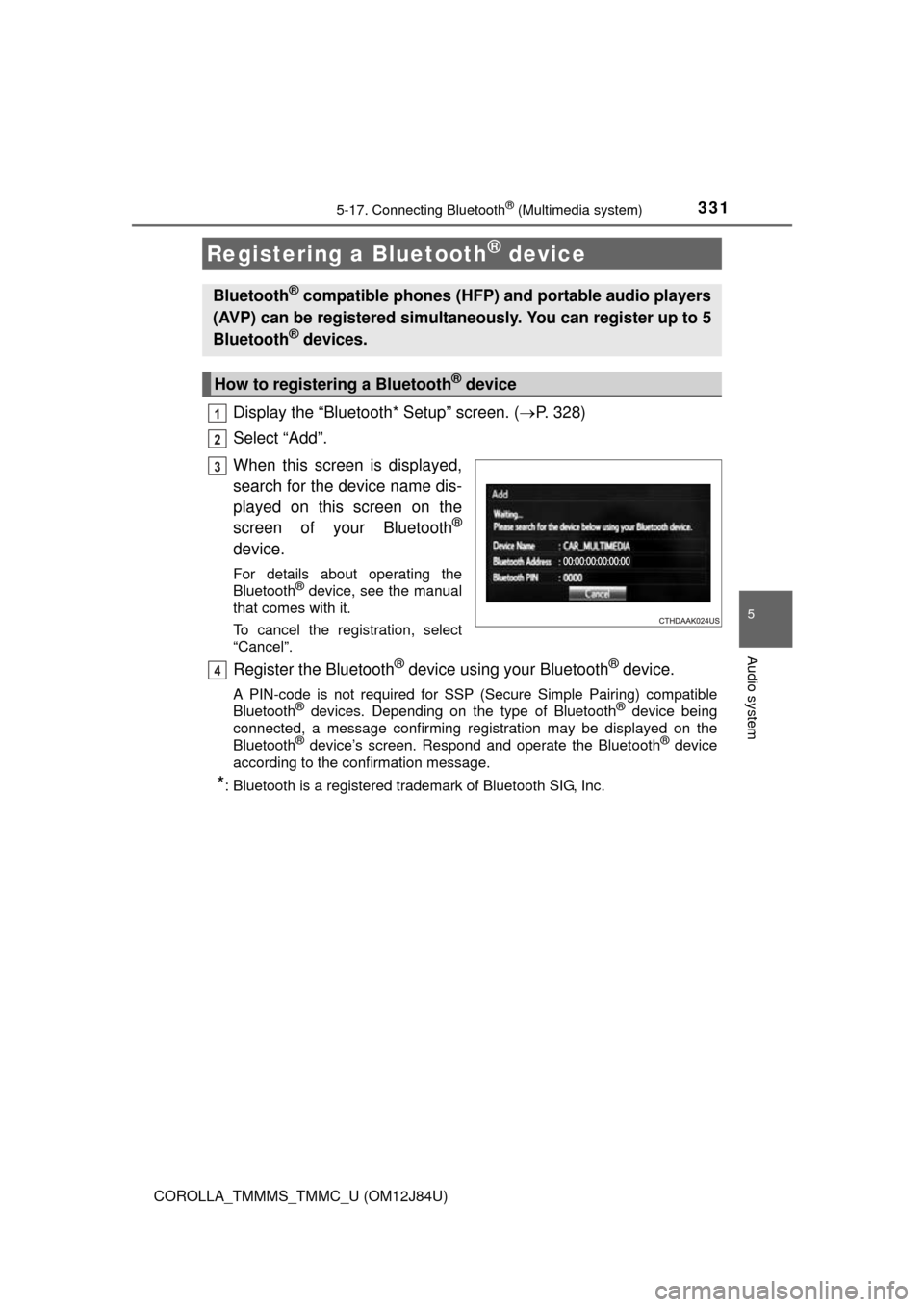
Display the “Bluetooth* Setup” screen. (P. 328)
Select “Add”.
When this screen is displayed,
search for the device name dis-
played on this screen on the
screen of your Bluetooth
®
device.
For details about operating the
Bluetooth® device, see the manual
that comes with it.
To cancel the registration, select
“Cancel”.
Register the Bluetooth® device using your Bluetooth® device.
A PIN-code is not required for SSP (S ecure Simple Pairing) compatible
Bluetooth® devices. Depending on the type of Bluetooth® device being
connected, a message confirming registration may be displayed on the
Bluetooth
® device’s screen. Respond and operate the Bluetooth® device
according to the confirmation message.
*: Bluetooth is a registered trademark of Bluetooth SIG, Inc.
Registering a Bluetooth® device
Bluetooth® compatible phones (HFP) and portable audio players
(AVP) can be registered simultaneously. You can register up to 5
Bluetooth
® devices.
How to registering a Bluetooth® device
1
2
3
4
Page 334 of 620
3345-17. Connecting Bluetooth® (Multimedia system)
COROLLA_TMMMS_TMMC_U (OM12J84U)
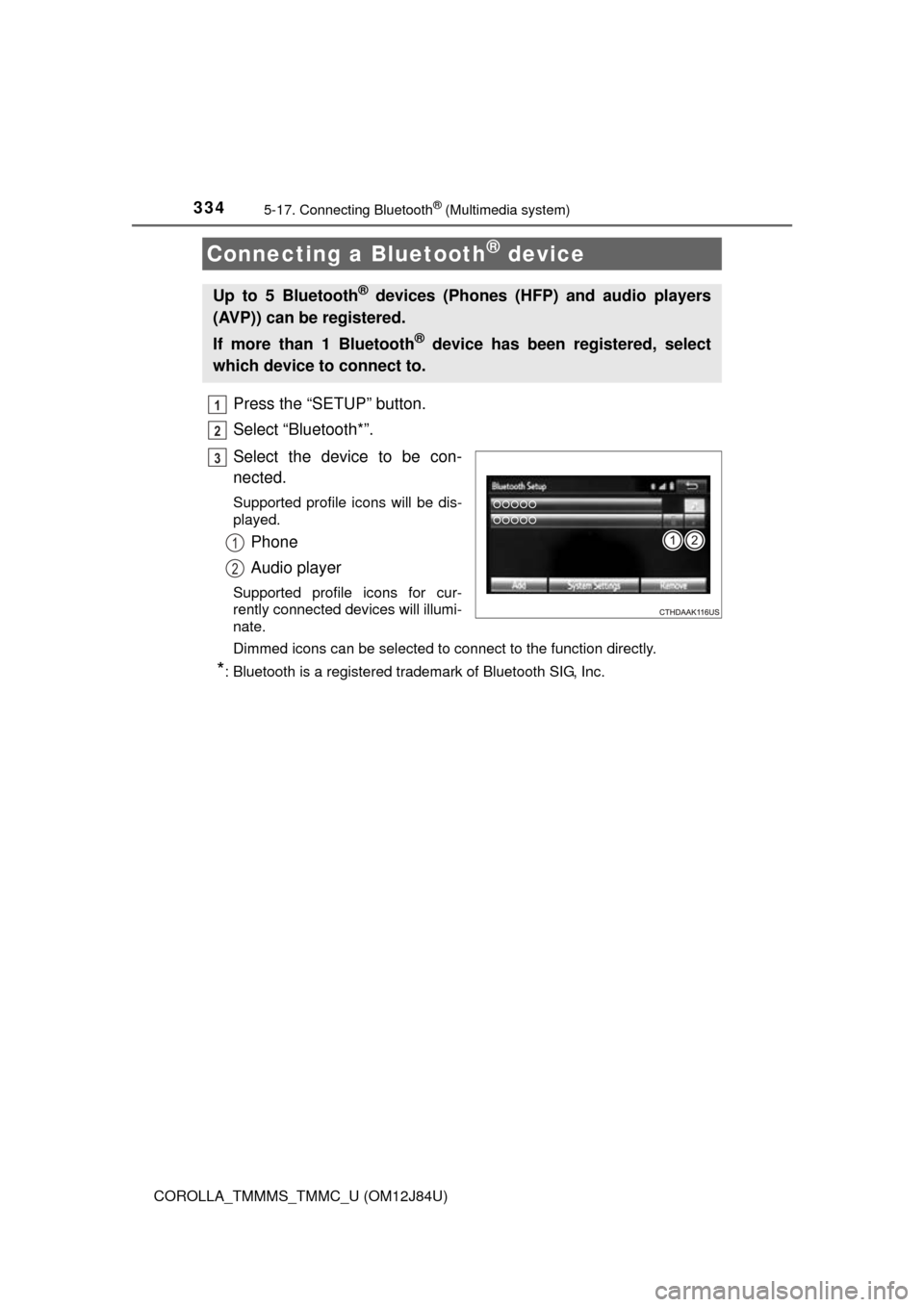
Press the “SETUP” button.
Select “Bluetooth*”.
Select the device to be con-
nected.
Supported profile icons will be dis-
played.
Phone
Audio player
Supported profile icons for cur-
rently connected devices will illumi-
nate.
Dimmed icons can be selected to connect to the function directly.
*: Bluetooth is a registered trademark of Bluetooth SIG, Inc.
Connecting a Bluetooth® device
Up to 5 Bluetooth® devices (Phones (HFP) and audio players
(AVP)) can be registered.
If more than 1 Bluetooth
® device has been registered, select
which device to connect to.
1
2
3
1
2
Page 335 of 620
3355-17. Connecting Bluetooth® (Multimedia system)
5
Audio system
COROLLA_TMMMS_TMMC_U (OM12J84U)
To turn auto connection mode on, set “Bluetooth* Power” to on.
( P. 339)
When you register a phone, auto co nnection will be activated. Always
set it to this mode and leave the Bluetooth
® phone in a place where a
connection can be established.
When the engine switch is turned to ACCESSORY or ON (IGNITION ON)
mode, the system will search for a nearby cellular phone you have regis-
tered.
Next, the system automatically connects with the most recent of the
phones connected to in the past. Then, the connection result is displayed.
*: Bluetooth is a registered trademark of Bluetooth SIG, Inc.
When auto connection has failed or “Bluetooth* Power” is turned off,
you must connec t the Bluetooth® device manually.
Follow the steps in “Connecting a Bluetooth
® device” from step .
( P. 334)
*: Bluetooth is a registered trademark of Bluetooth SIG, Inc.
Registering an additional device
Select “Select Device” on the Bluetooth
® audio control screen.
For more information: P. 3 3 1
Selecting a registered device
Select “Select Device” on the Bluetooth
® audio control screen.
For more information: P. 3 3 4
Auto connection
Manual connection
Connecting a Bluetooth® audio player
11
1
2
1
2
Page 338 of 620

3385-17. Connecting Bluetooth® (Multimedia system)
COROLLA_TMMMS_TMMC_U (OM12J84U)
Select “Connect Audio Player from”.
Select “Vehicle” or “Device”.
“Vehicle”: Connect the multimedia system to the portable audio player.
“Device”: Connect the portable audio player to the multimedia system
Changing connection method
1
2
Page 339 of 620
3395-17. Connecting Bluetooth® (Multimedia system)
5
Audio system
COROLLA_TMMMS_TMMC_U (OM12J84U)
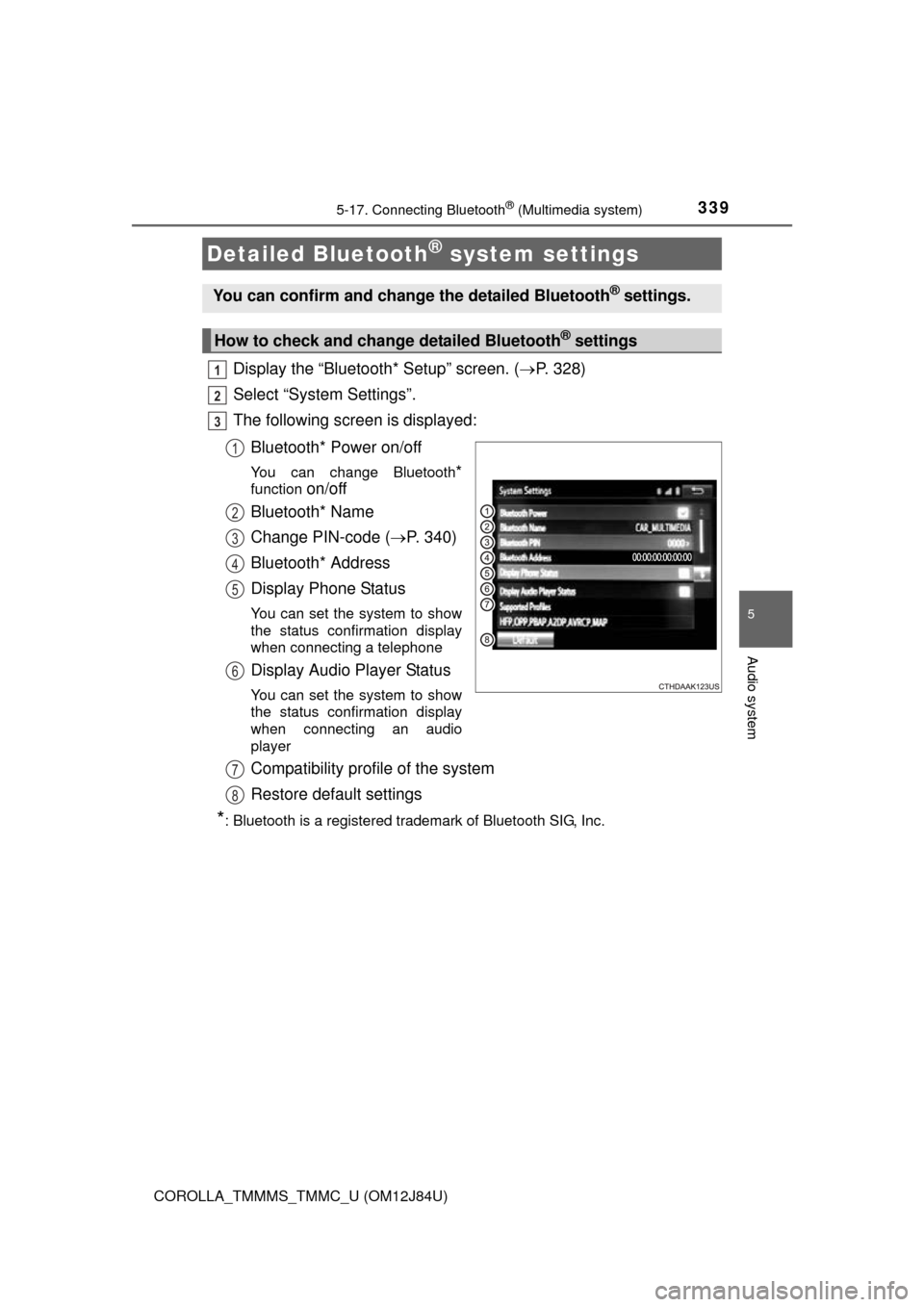
Display the “Bluetooth* Setup” screen. (P. 328)
Select “System Settings”.
The following screen is displayed:
Bluetooth* Power on/off
You can change Bluetooth*
function on/off
Bluetooth* Name
Change PIN-code ( P. 340)
Bluetooth* Address
Display Phone Status
You can set the system to show
the status confirmation display
when connecting a telephone
Display Audio Player Status
You can set the system to show
the status confirmation display
when connecting an audio
player
Compatibility profile of the system
Restore default settings
*: Bluetooth is a registered trademark of Bluetooth SIG, Inc.
Detailed Bluetooth® system settings
You can confirm and change the detailed Bluetooth® settings.
How to check and change detailed Bluetooth® settings
1
2
3
1
2
3
4
5
6
7
8
Page 341 of 620
341
5
Audio system
COROLLA_TMMMS_TMMC_U (OM12J84U)
5-18.Bluetooth® Audio (Multimedia system)
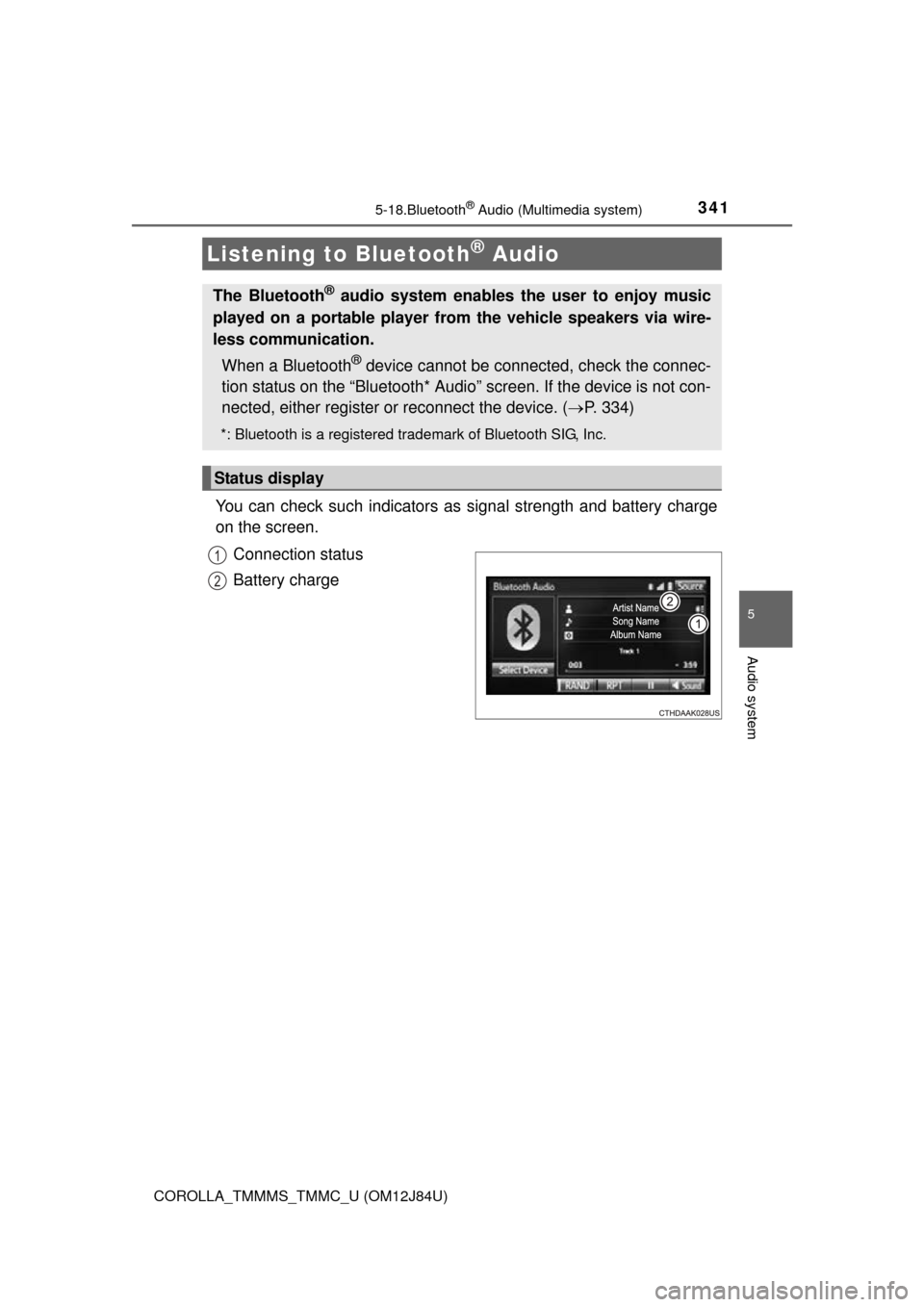
You can check such indicators as signal strength and battery charge
on the screen.
Connection status
Battery charge
Listening to Bluetooth® Audio
The Bluetooth® audio system enables the user to enjoy music
played on a portable player from the vehicle speakers via wire-
less communication.
When a Bluetooth
® device cannot be connected, check the connec-
tion status on the “Bluetooth* Audio” screen. If the device is not con-
nected, either register or reconnect the device. ( P. 334)
*: Bluetooth is a registered trademark of Bluetooth SIG, Inc.
Status display
1
2