service TOYOTA COROLLA 2017 11.G Navigation Manual
[x] Cancel search | Manufacturer: TOYOTA, Model Year: 2017, Model line: COROLLA, Model: TOYOTA COROLLA 2017 11.GPages: 300, PDF Size: 8.56 MB
Page 277 of 300
277
1. Entune App Suite OVERVIEW
COROLLA_Navi_U_OM02496U
Entune App Suite
9
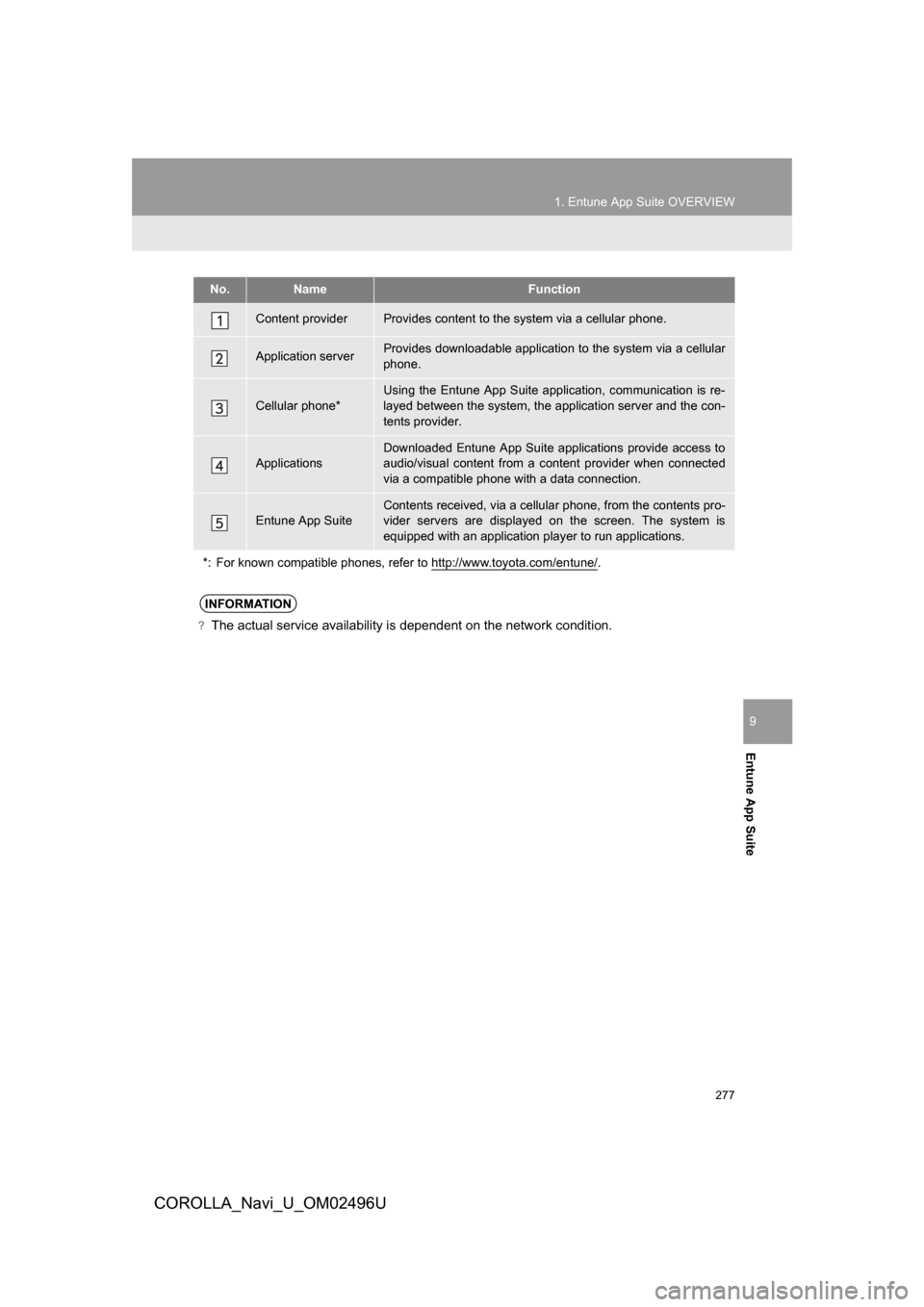
No.NameFunction
Content providerProvides content to the system via a cellular phone.
Application serverProvides downloadable application to the system via a cellular
phone.
Cellular phone*
Using the Entune App Suite application, communication is re-
layed between the system, the application server and the con-
tents provider.
Applications
Downloaded Entune App Suite applications provide access to
audio/visual content from a content provider when connected
via a compatible phone with a data connection.
Entune App SuiteContents received, via a cellular phone, from the contents pro-
vider servers are displayed on the screen. The system is
equipped with an application player to run applications.
*: For known compatible phones, refer to http://www.toyota.com/entune/
.
INFORMATION
?The actual service availability is dependent on the network condition.
Page 278 of 300
278
1. Entune App Suite OVERVIEW
COROLLA_Navi_U_OM02496U
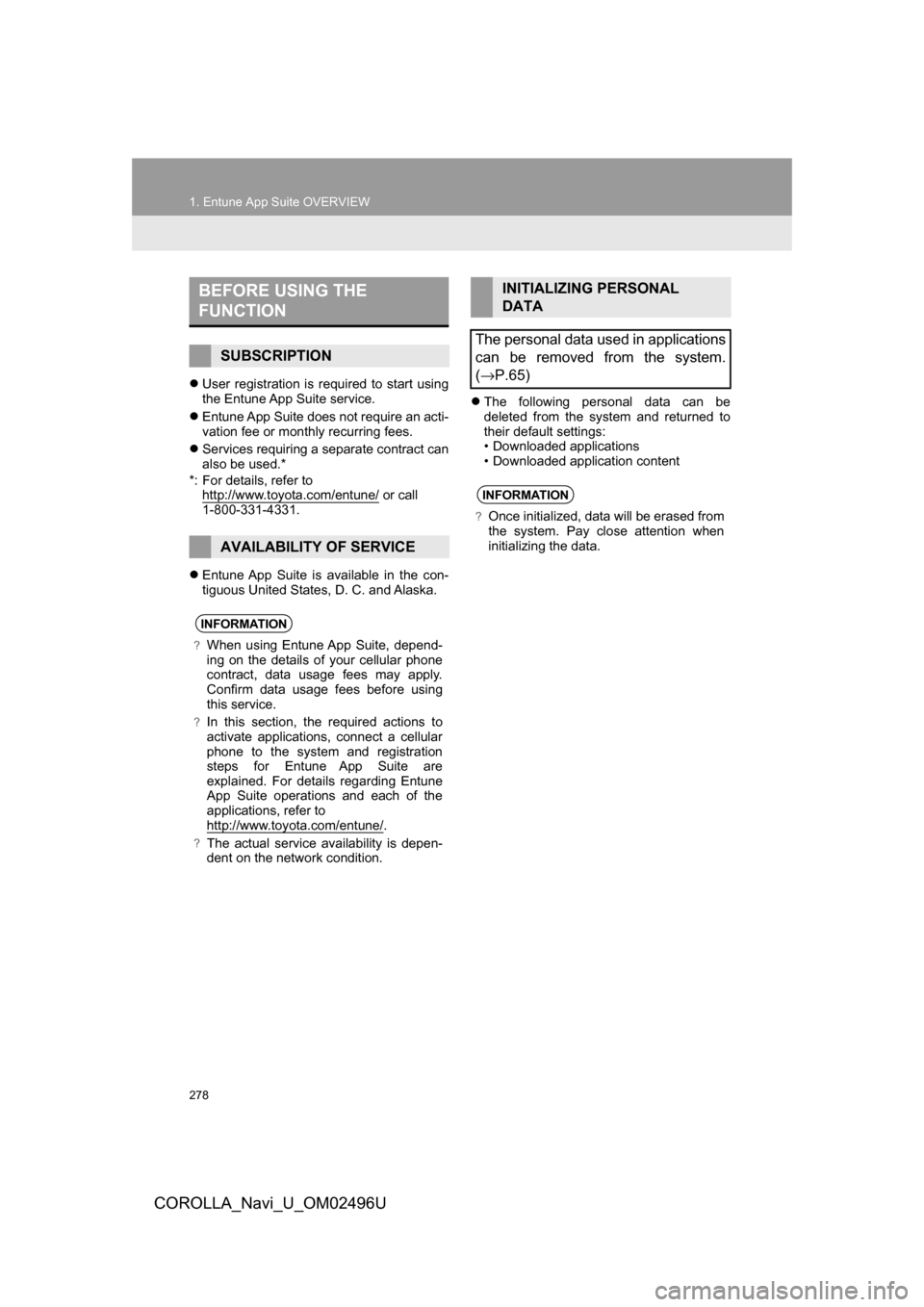
User registration is required to start using
the Entune App Suite service.
Entune App Suite does not require an acti-
vation fee or monthly recurring fees.
Services requiring a separate contract can
also be used.*
*: For details, refer to http://www.toyota.com/entune/
or call
1-800-331-4331.
Entune App Suite is available in the con-
tiguous United States, D. C. and Alaska.
The following personal data can be
deleted from the system and returned to
their default settings:
• Downloaded applications
• Downloaded application content
BEFORE USING THE
FUNCTION
SUBSCRIPTION
AVAILABILITY OF SERVICE
INFORMATION
?When using Entune App Suite, depend-
ing on the details of your cellular phone
contract, data usage fees may apply.
Confirm data usage fees before using
this service.
?In this section, the required actions to
activate applications, connect a cellular
phone to the system and registration
steps for Entune App Suite are
explained. For details regarding Entune
App Suite operations and each of the
applications, refer to
http://www.toyota.com/entune/
.
?The actual service availability is depen-
dent on the network condition.
INITIALIZING PERSONAL
DATA
The personal data used in applications
can be removed from the system.
( →P.65)
INFORMATION
?Once initialized, data will be erased from
the system. Pay close attention when
initializing the data.
Page 279 of 300
279
1. Entune App Suite OVERVIEW
COROLLA_Navi_U_OM02496U
Entune App Suite
9
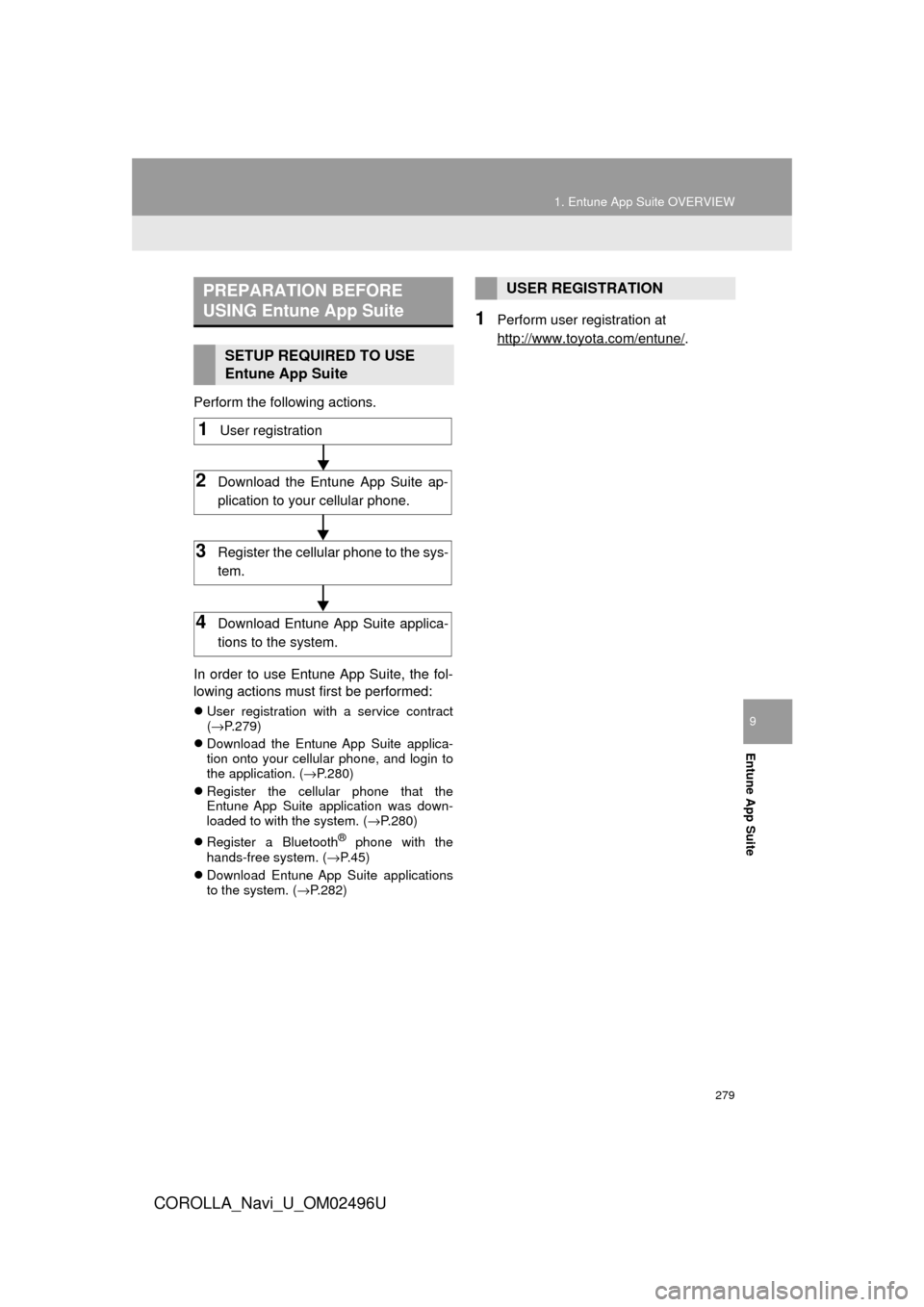
Perform the following actions.
In order to use Entune App Suite, the fol-
lowing actions must first be performed:
User registration with a service contract
(→ P.279)
Download the Entune App Suite applica-
tion onto your cellular phone, and login to
the application. ( →P.280)
Register the cellular phone that the
Entune App Suite application was down-
loaded to with the system. ( →P.280)
Register a Bluetooth
® phone with the
hands-free system. (→ P.45)
Download Entune App Suite applications
to the system. ( →P.282)
1Perform user registration at
http://www.toyota.com/entune/
.
PREPARATION BEFORE
USING Entune App Suite
SETUP REQUIRED TO USE
Entune App Suite
1User registration
2Download the Entune App Suite ap-
plication to your cellular phone.
3Register the cellul ar phone to the sys-
tem.
4Download Entune App Suite applica-
tions to the system.
USER REGISTRATION
Page 281 of 300
281
COROLLA_Navi_U_OM02496U
Entune App Suite
9
2. Entune App Suite OPERATION
1. Entune App Suite
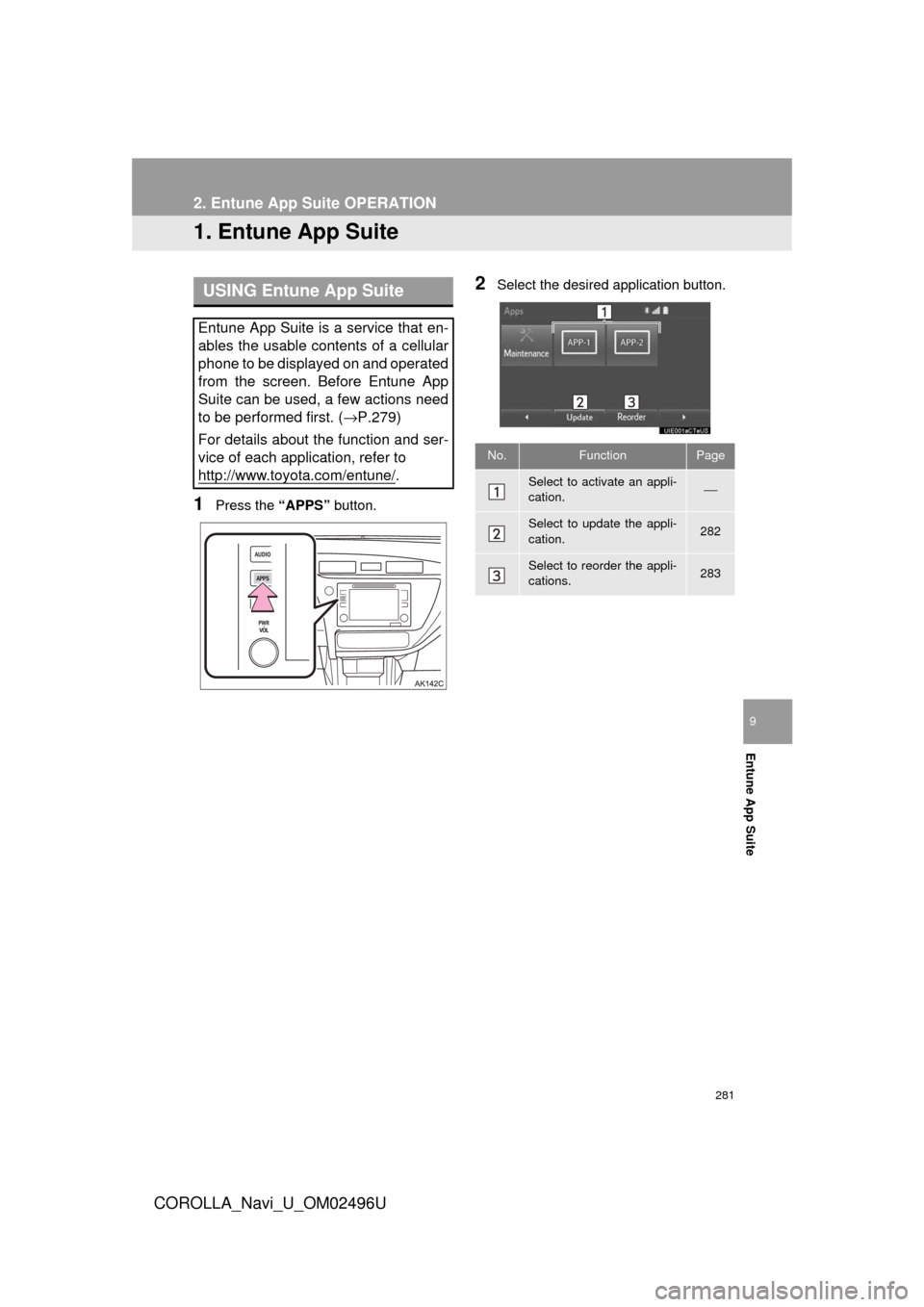
1Press the “APPS” button.
2Select the desired application button.USING Entune App Suite
Entune App Suite is a service that en-
ables the usable contents of a cellular
phone to be displayed on and operated
from the screen. Before Entune App
Suite can be used, a few actions need
to be performed first. ( →P.279)
For details about the function and ser-
vice of each application, refer to
http://www.toyota.com/entune/
.
No.FunctionPage
Select to activate an appli-
cation.⎯
Select to update the appli-
cation.282
Select to reorder the appli-
cations.283
Page 284 of 300
284
2. Entune App Suite OPERATION
COROLLA_Navi_U_OM02496U
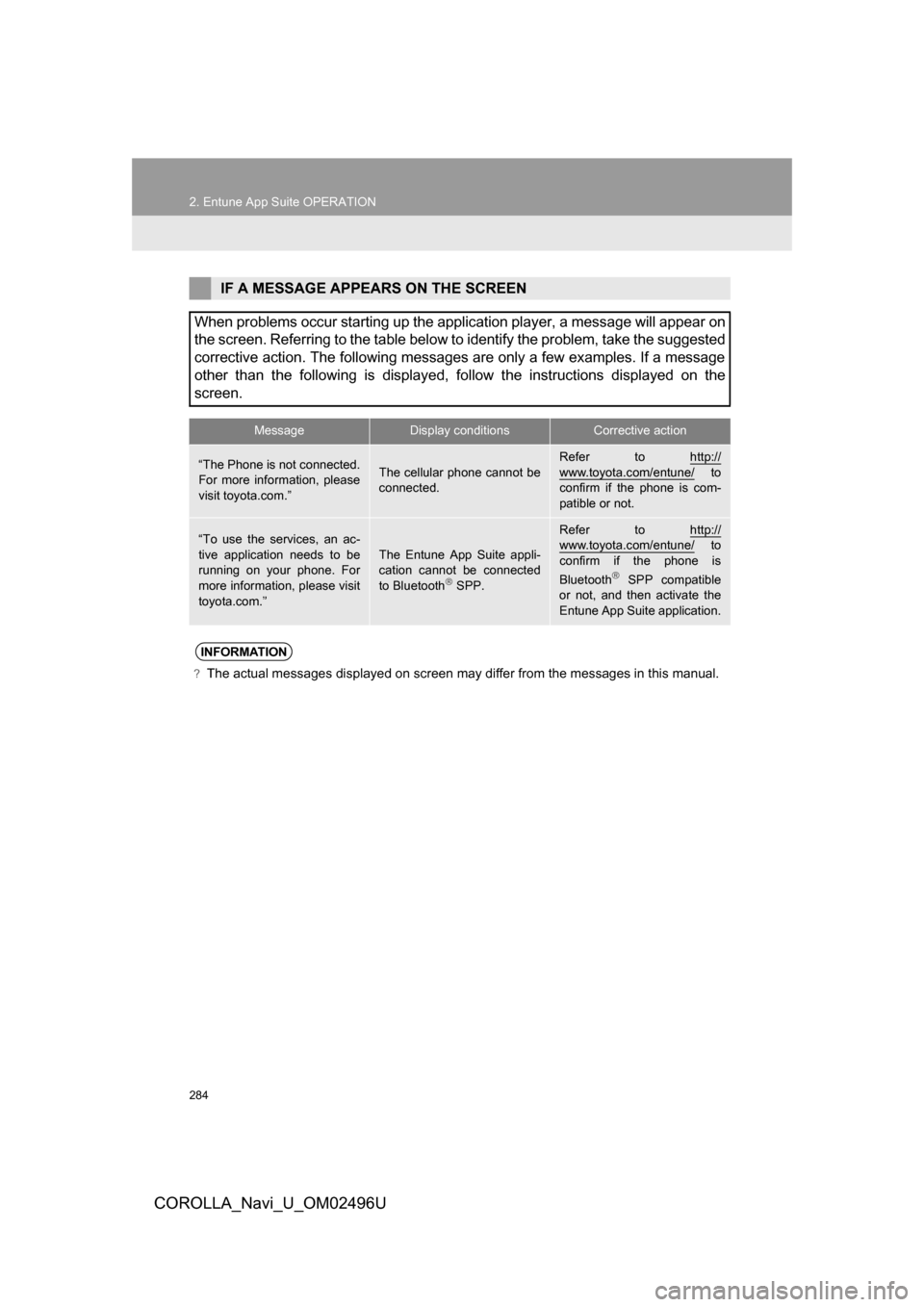
IF A MESSAGE APPEARS ON THE SCREEN
When problems occur starting up the application player, a message will appear on
the screen. Referring to the table below to identify the problem, take the suggested
corrective action. The following messages are only a few examples. If a message
other than the following is displayed, follow the instructions displayed on the
screen.
MessageDisplay conditionsCorrective action
“The Phone is not connected.
For more information, please
visit toyota.com.”The cellular phone cannot be
connected.
Refer to http://
www.toyota.com/entune/ to
confirm if the phone is com-
patible or not.
“To use the services, an ac-
tive application needs to be
running on your phone. For
more information, please visit
toyota.com.”The Entune App Suite appli-
cation cannot be connected
to Bluetooth
SPP.
Refer to http://www.toyota.com/entune/ to
confirm if the phone is
Bluetooth
SPP compatible
or not, and then activate the
Entune App Suite application.
INFORMATION
?The actual messages displayed on screen may differ from the messages in this manual.
Page 285 of 300
285
2. Entune App Suite OPERATION
COROLLA_Navi_U_OM02496U
Entune App Suite
9
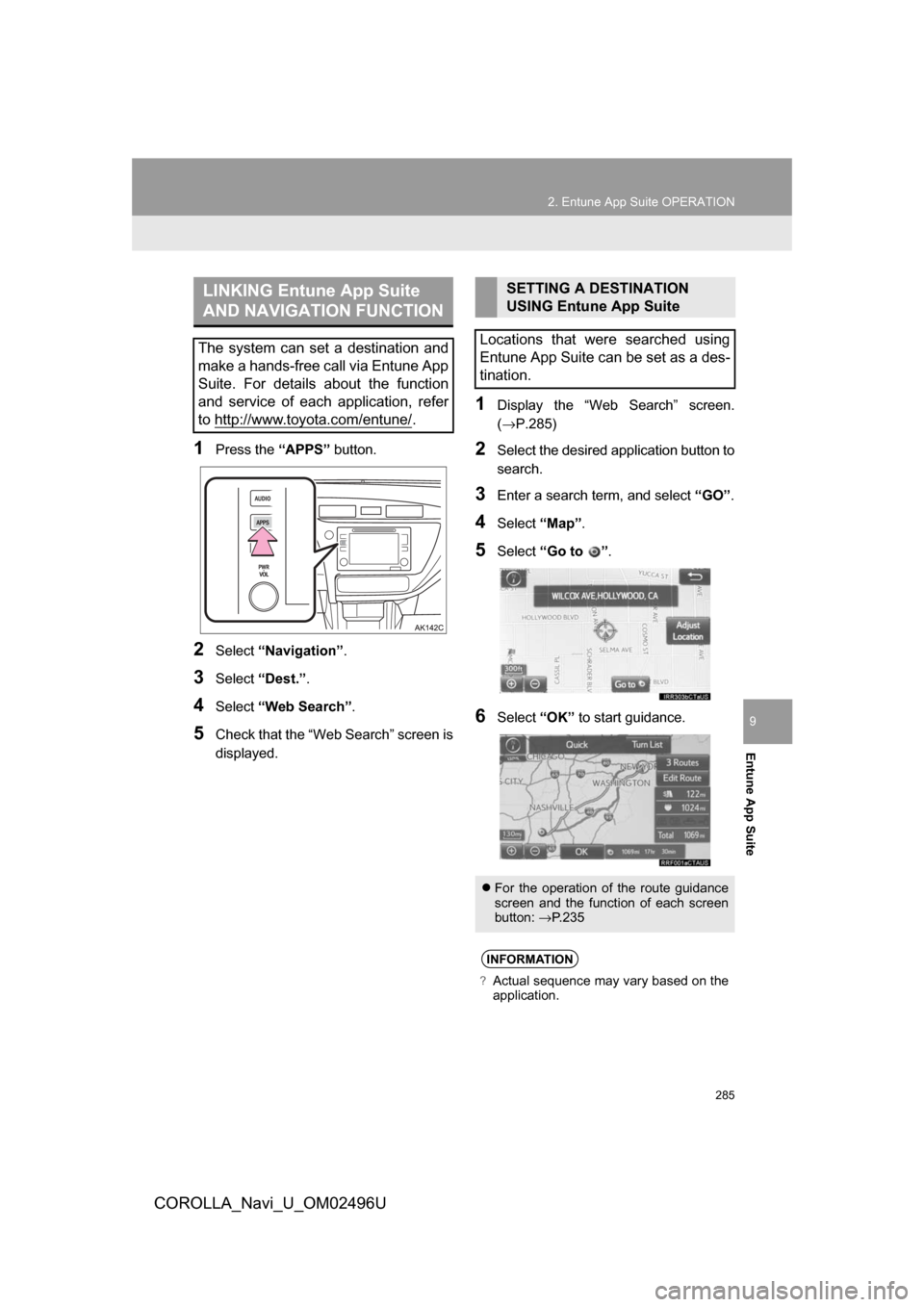
1Press the “APPS” button.
2Select“Navigation” .
3Select“Dest.” .
4Select“Web Search” .
5Check that the “Web Search” screen is
displayed.
1Display the “Web Search” screen.
(→P.285)
2Select the desired application button to
search.
3Enter a search term, and select “GO” .
4Select“Map”.
5Select “Go to ” .
6Select “OK” to start guidance.
LINKING Entune App Suite
AND NAVIGATION FUNCTION
The system can set a destination and
make a hands-free call via Entune App
Suite. For details about the function
and service of each application, refer
to http://www.toyota.com/entune/
.
SETTING A DESTINATION
USING Entune App Suite
Locations that were searched using
Entune App Suite can be set as a des-
tination.
For the operation of the route guidance
screen and the function of each screen
button: →P.235
INFORMATION
?Actual sequence may vary based on the
application.
Page 286 of 300
286
2. Entune App Suite OPERATION
COROLLA_Navi_U_OM02496U
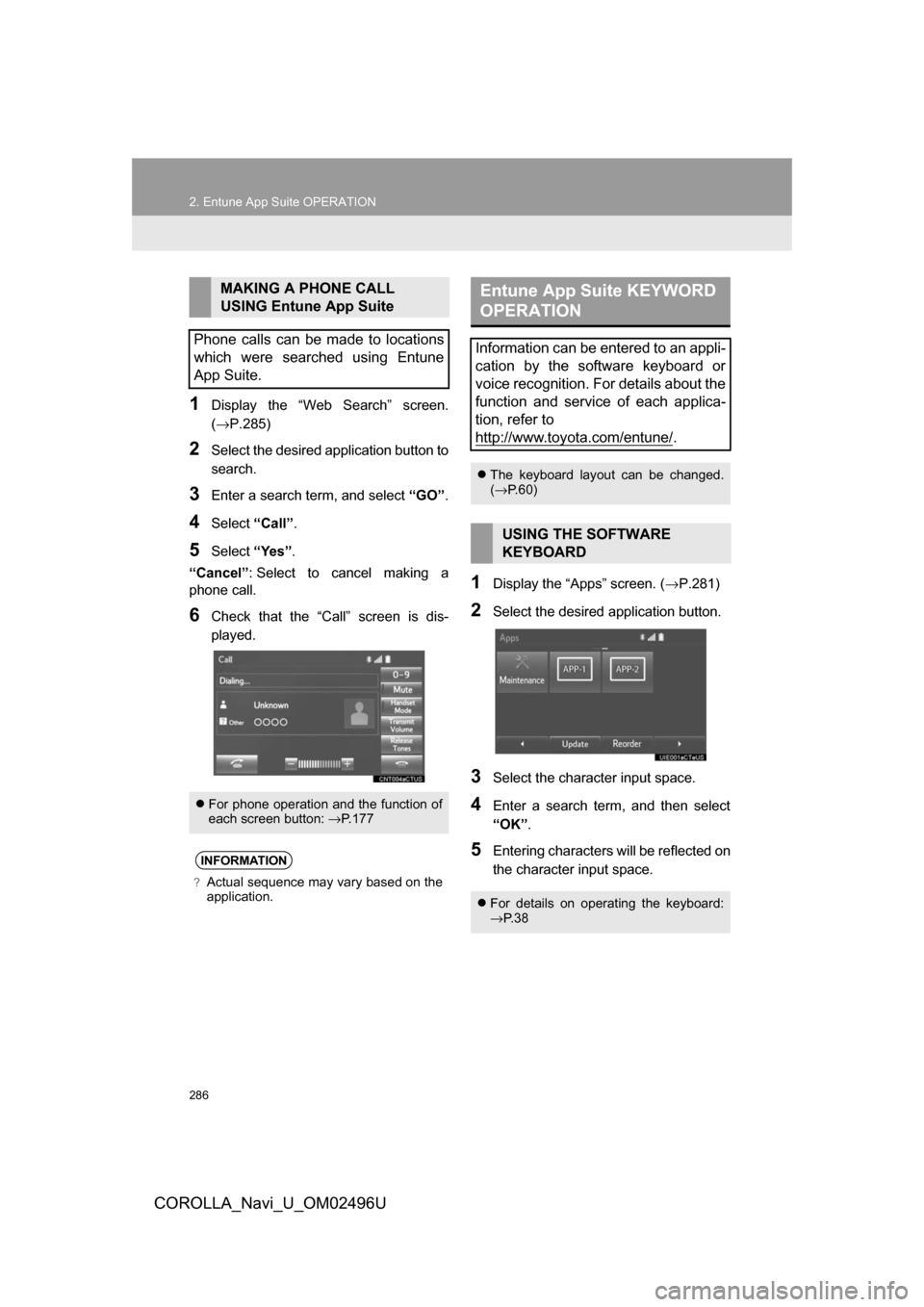
1Display the “Web Search” screen.
(→P.285)
2Select the desired application button to
search.
3Enter a search term, and select “GO”.
4Select“Call”.
5Select “Yes”.
“Cancel” : Select to cancel making a
phone call.
6Check that the “Call” screen is dis-
played.
1Display the “Apps” screen. ( →P.281)
2Select the desired application button.
3Select the character input space.
4Enter a search term, and then select
“OK”.
5Entering characters will be reflected on
the character input space.
MAKING A PHONE CALL
USING Entune App Suite
Phone calls can be made to locations
which were searched using Entune
App Suite.
For phone operation and the function of
each screen button: →P.177
INFORMATION
?Actual sequence may vary based on the
application.
Entune App Suite KEYWORD
OPERATION
Information can be entered to an appli-
cation by the software keyboard or
voice recognition. For details about the
function and service of each applica-
tion, refer to
http://www.toyota.com/entune/
.
The keyboard layout can be changed.
(→ P.60)
USING THE SOFTWARE
KEYBOARD
For details on operating the keyboard:
→P. 3 8
Page 290 of 300

290
ALPHABETICAL INDEX
COROLLA_Navi_U_OM02496U
A
AAC.......................................................... 99
AM............................................................ 81
APPS button ............................................ 12
“Apps” screen........................................... 14
AUDIO button........................................... 12
Audio settings ........................................ 121
AUX........................................................ 117
B
Bluetooth®................................................ 45
Profiles ................................................. 48
Registering a Bluetooth
® audio
player ................................................ 46
Registering a Bluetooth
® phone ........... 45
Bluetooth® audio .................................... 111
Connecting a Bluetooth® device ........ 116
Listening to Bluetooth® audio ............. 116
Bluetooth® phone................................... 164
Bluetooth® phone message function ..... 180
Buttons overview...................................... 12
C
Calling on the Bluetooth® phone............ 170
Casual speech recognization ................. 141
CD ............................................................ 99
Playing an audio CD........................... 101
Playing an MP3/WMA/AAC disc......... 101
Command list ......................................... 142
D
Data services settings ............................ 151
Setting download methods ................. 151
Destination search screen...................... 222
Driver settings .......................................... 67
E
Editing route ........................................... 246
Adding destinations ............................ 247
Deleting destinations .......................... 248
Detour setting ..................................... 249
Reordering destinations...................... 247
Selecting route type ............................ 249
Setting route preferences ................... 248
Emergency ............................................. 232
Entering letters and numbers/ list screen operation ............................. 38
Entering letters and numbers ............... 38
Entune App Suite ................................... 281
Entering keyword operation ................ 286
Linking Entune App Suite and navigation function ................... 285