display TOYOTA COROLLA 2017 11.G Repair Manual
[x] Cancel search | Manufacturer: TOYOTA, Model Year: 2017, Model line: COROLLA, Model: TOYOTA COROLLA 2017 11.GPages: 612, PDF Size: 14.18 MB
Page 250 of 612
2504-5. Using the driving support systems
COROLLA_TMMMS_TMMC_U (OM02494U)■Automatic cancelation of constant speed control mode
Constant speed control mode is automatically canceled in the following situa-
tions:
●Actual vehicle speed is more than approximately 10 mph (16 km/h) below
the set vehicle speed.
●Actual vehicle speed falls below approximately 25 mph (40 km/h).
●VSC is activated.
●TRAC is activated for a period of time.
●When the VSC or TRAC system is turned off.
●Pre-collision braking is activated.
●The engine speed is too high, or too low. (vehicles with a manual transmis-
sion)
If constant speed control mode is automatically canceled for any other rea-
son, there may be a malfunction in the system. Contact your Toyota dealer.
■Warning messages and buzzers for dynamic radar cruise control
Warning messages and buzzers are used to indicate a system malfunction or
to inform the driver of the need for caution while driving. If a warning message
is shown on the multi-information display, read the message and follow the
instructions. (→P. 493)
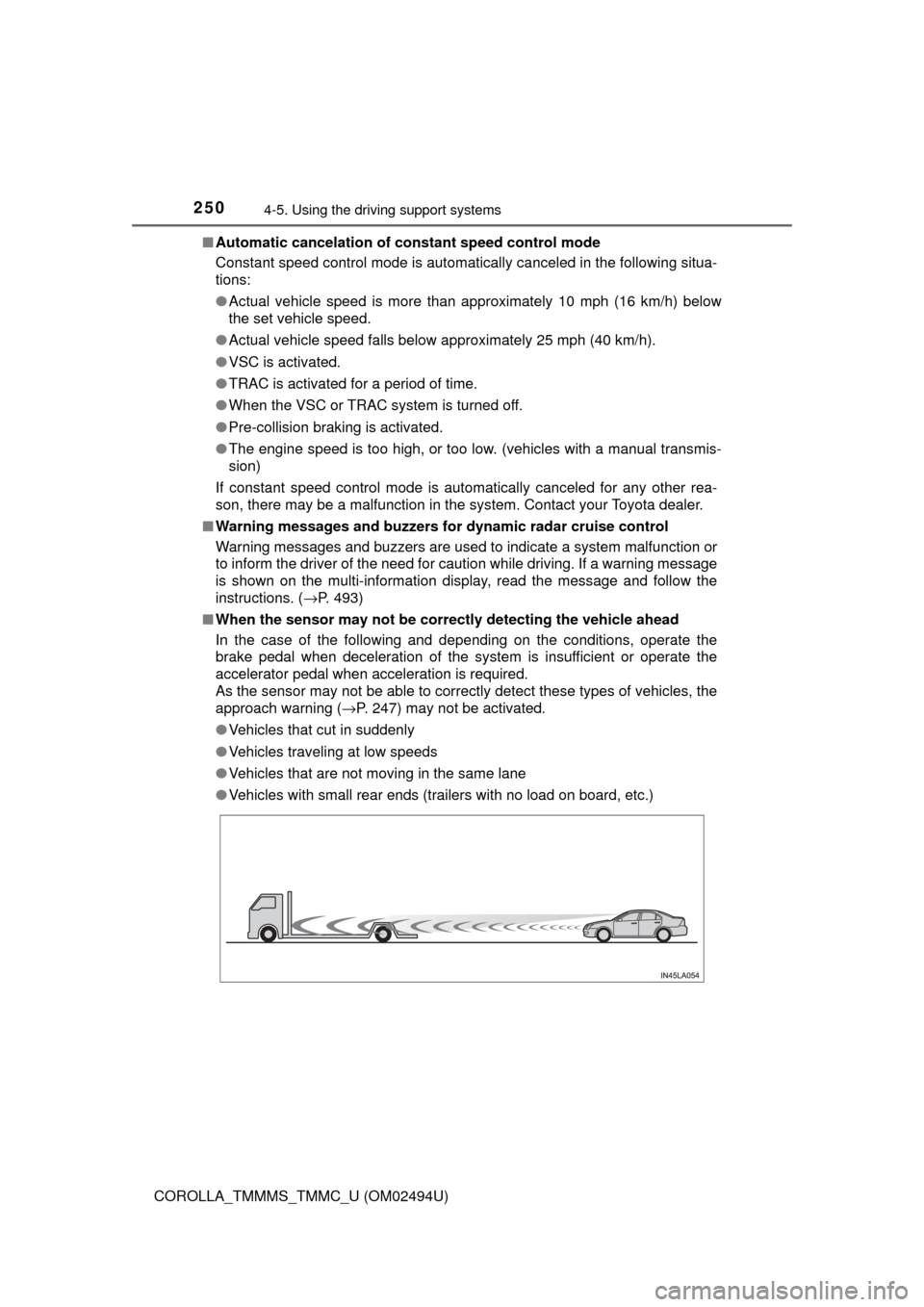
■When the sensor may not be correctly detecting the vehicle ahead
In the case of the following and depending on the conditions, operate the
brake pedal when deceleration of the system is insufficient or operate the
accelerator pedal when acceleration is required.
As the sensor may not be able to correctly detect these types of vehicles, the
approach warning (→P. 247) may not be activated.
●Vehicles that cut in suddenly
●Vehicles traveling at low speeds
●Vehicles that are not moving in the same lane
●Vehicles with small rear ends (trailers with no load on board, etc.)
Page 252 of 612
2524-5. Using the driving support systems
COROLLA_TMMMS_TMMC_U (OM02494U)
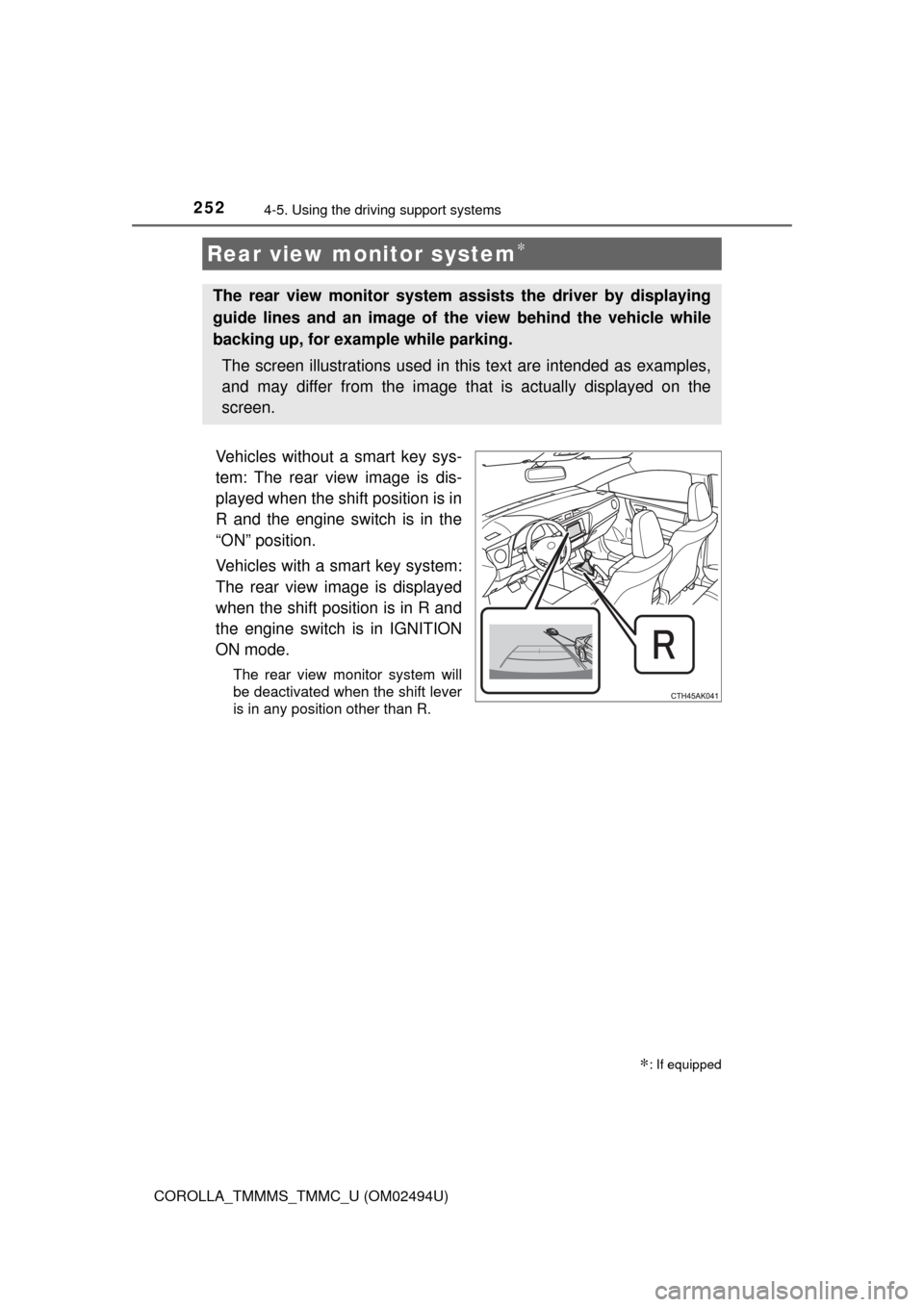
Vehicles without a smart key sys-
tem: The rear view image is dis-
played when the shift position is in
R and the engine switch is in the
“ON” position.
Vehicles with a smart key system:
The rear view image is displayed
when the shift position is in R and
the engine switch is in IGNITION
ON mode.
The rear view monitor system will
be deactivated when the shift lever
is in any position other than R.
Rear view monitor system∗
∗: If equipped
The rear view monitor system assists the driver by displaying
guide lines and an image of the view behind the vehicle while
backing up, for example while parking.
The screen illustrations used in this text are intended as examples,
and may differ from the image that is actually displayed on the
screen.
Page 253 of 612
2534-5. Using the driving support systems
4
Driving
COROLLA_TMMMS_TMMC_U (OM02494U)■
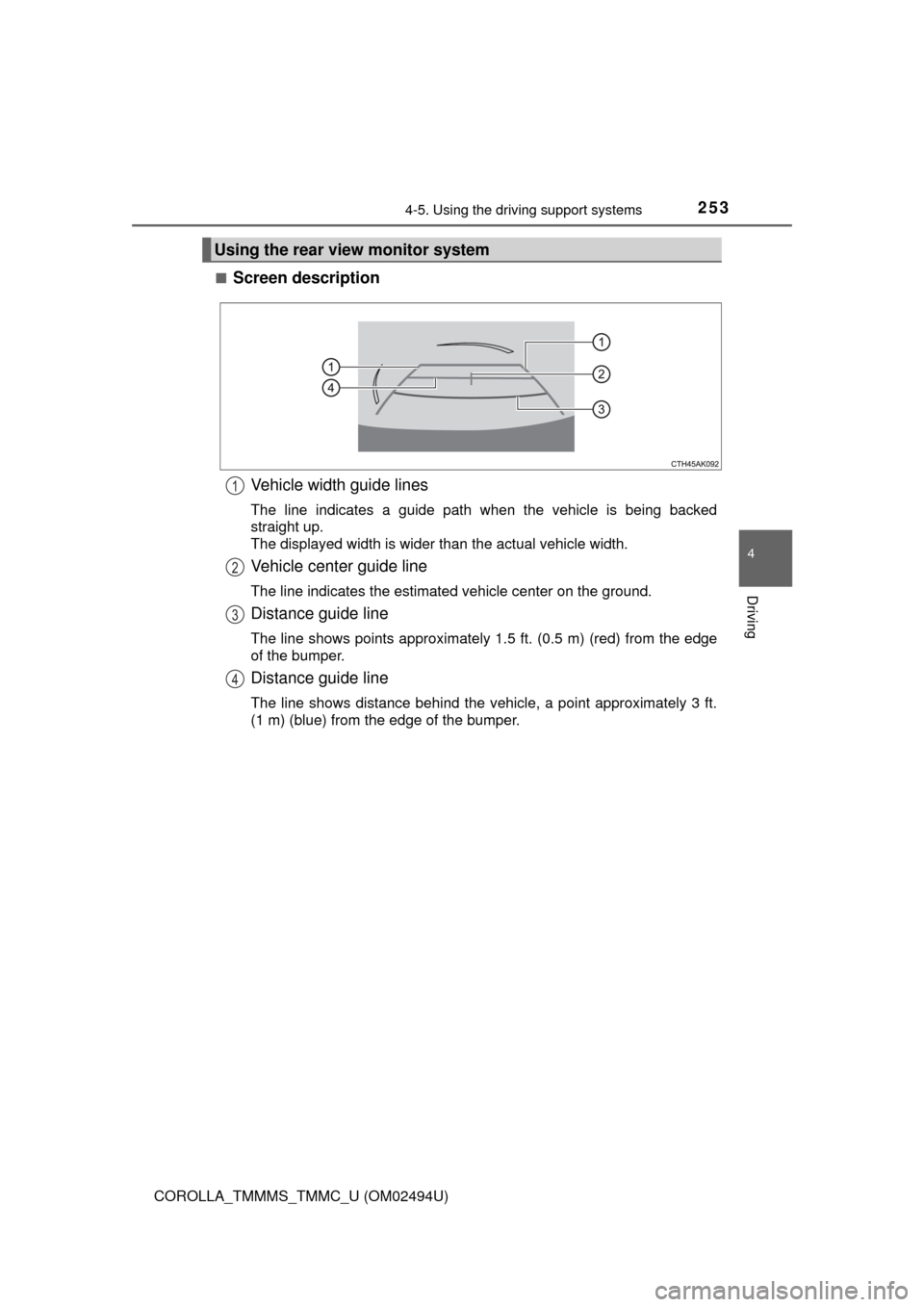
Screen description
Vehicle width guide lines
The line indicates a guide path when the vehicle is being backed
straight up.
The displayed width is wider than the actual vehicle width.
Vehicle center guide line
The line indicates the estimated vehicle center on the ground.
Distance guide line
The line shows points approximately 1.5 ft. (0.5 m) (red) from the edge
of the bumper.
Distance guide line
The line shows distance behind the vehicle, a point approximately 3 ft.
(1 m) (blue) from the edge of the bumper.
Using the rear view monitor system
1
2
3
4
Page 254 of 612
2544-5. Using the driving support systems
COROLLA_TMMMS_TMMC_U (OM02494U)■
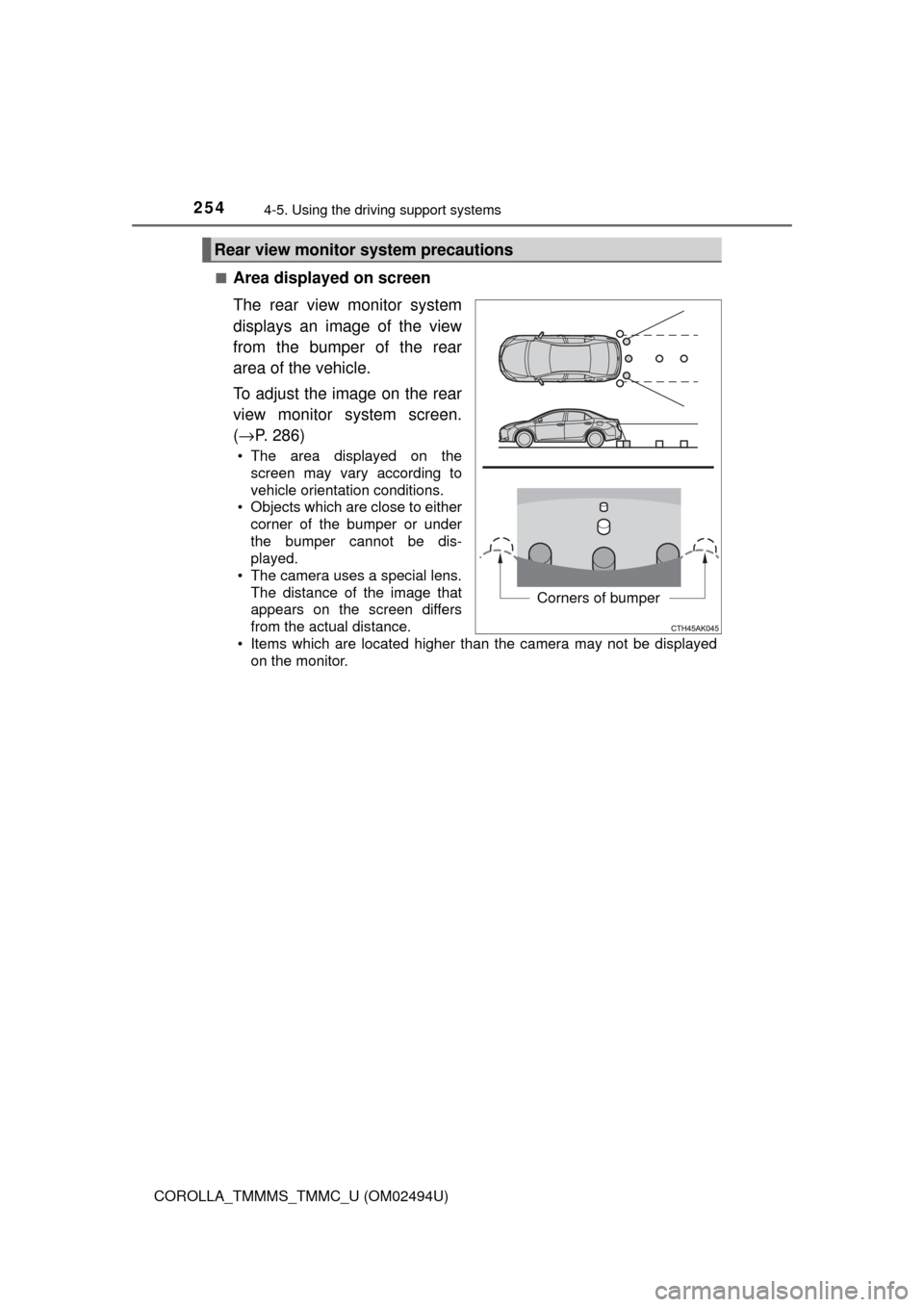
Area displayed on screen
The rear view monitor system
displays an image of the view
from the bumper of the rear
area of the vehicle.
To adjust the image on the rear
view monitor system screen.
(→P. 286)
• The area displayed on the
screen may vary according to
vehicle orientation conditions.
• Objects which are close to either
corner of the bumper or under
the bumper cannot be dis-
played.
• The camera uses a special lens.
The distance of the image that
appears on the screen differs
from the actual distance.
• Items which are located higher than the camera may not be displayed
on the monitor.
Rear view monitor system precautions
Corners of bumper
Page 257 of 612
2574-5. Using the driving support systems
4
Driving
COROLLA_TMMMS_TMMC_U (OM02494U)
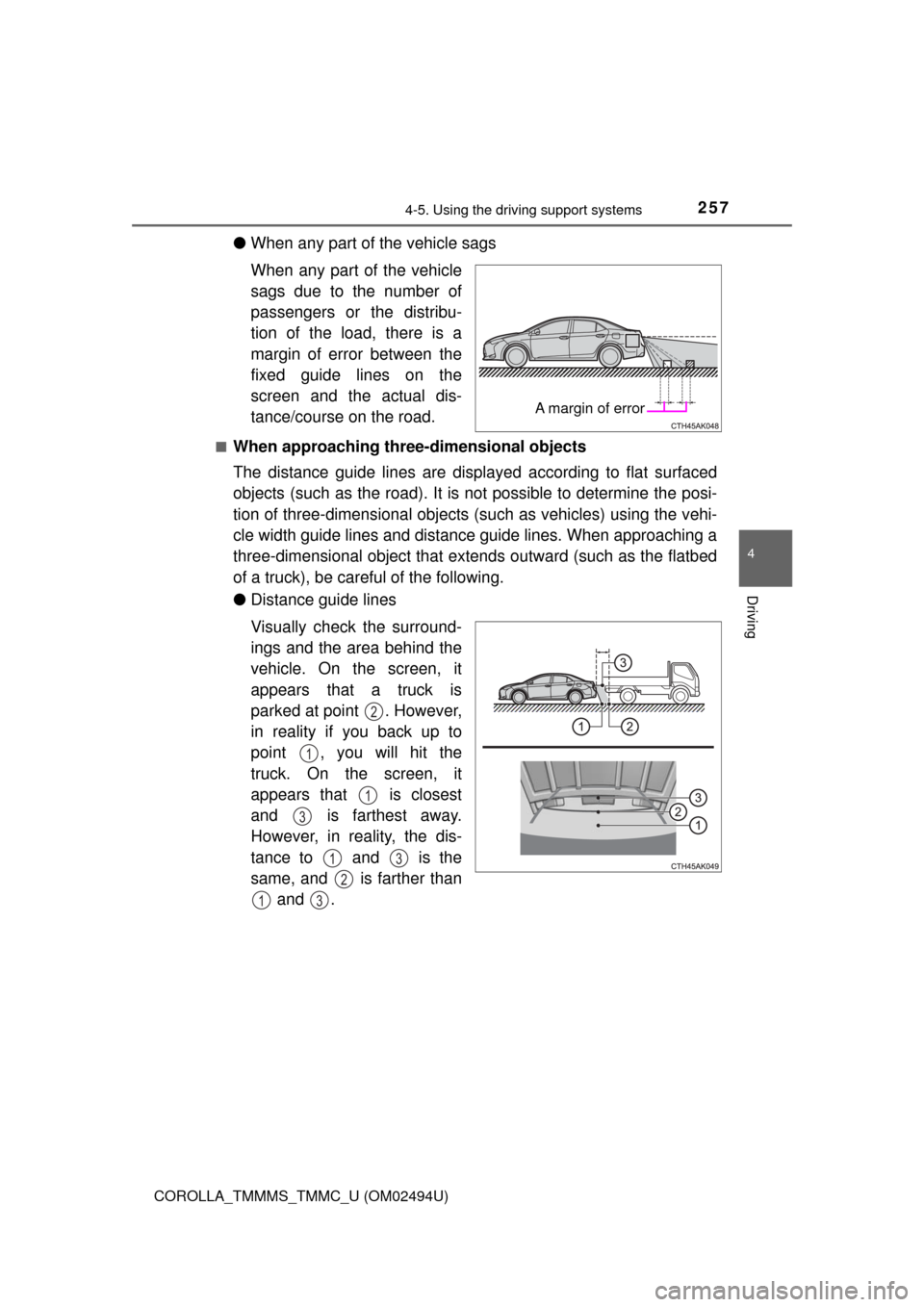
●When any part of the vehicle sags
When any part of the vehicle
sags due to the number of
passengers or the distribu-
tion of the load, there is a
margin of error between the
fixed guide lines on the
screen and the actual dis-
tance/course on the road.
■When approaching three-dimensional objects
The distance guide lines are displayed according to flat surfaced
objects (such as the road). It is not possible to determine the posi-
tion of three-dimensional objects (such as vehicles) using the vehi-
cle width guide lines and distance guide lines. When approaching a
three-dimensional object that extends outward (such as the flatbed
of a truck), be careful of the following.
●Distance guide lines
Visually check the surround-
ings and the area behind the
vehicle. On the screen, it
appears that a truck is
parked at point . However,
in reality if you back up to
point , you will hit the
truck. On the screen, it
appears that is closest
and is farthest away.
However, in reality, the dis-
tance to and is the
same, and is farther than
and .
A margin of error
2
1
1
3
13
2
13
Page 260 of 612

2604-5. Using the driving support systems
COROLLA_TMMMS_TMMC_U (OM02494U)
WARNING
■When using the rear view monitor system
The rear view monitor system is a supplemental device intended to assist
the driver when backing up. When backing up, be sure to visually check all
around the vehicle both directly and using the mirrors before proceeding. If
you do not, you may hit another vehicle, and could possibly cause an acci-
dent.
Pay attention to the following precautions when using the rear view monitor
system.
●Never depend on the rear view monitor system entirely when backing up.
The image and the position of the guide lines displayed on the screen may
differ from the actual state.
Use caution, just as you would when backing up any vehicle.
●Be sure to back up slowly, depressing the brake pedal to control vehicle
speed.
●The instructions given are only guidelines.
When and how much to turn the steering wheel will vary according to traf-
fic conditions, road surface conditions, vehicle condition, etc. when park-
ing. It is necessary to be fully aware of this before using the rear view
monitor system.
●When parking, be sure to check that the parking space will accommodate
your vehicle before maneuvering into it.
●Do not use the rear view monitor system in the following cases:
• On icy or slick road surfaces, or in snow
• When using tire chains or the compact spare tire
• When the trunk lid is not closed completely
• On roads that are not flat or straight, such as curves or slopes.
●In low temperatures, the screen may darken or the image may become
faint. The image could distort when the vehicle is moving, or you may
become unable to see the image on the screen. Be sure to visually check
all around the vehicle both directly and using the mirrors before proceed-
ing.
●If the tire sizes are changed, the position of the fixed guide lines displayed
on the screen may change.
●The camera uses a special lens. The distances between objects and
pedestrians that appear in the image displayed on the screen will differ
from the actual distances. (→P. 255)
Page 263 of 612
2634-5. Using the driving support systems
4
Driving
COROLLA_TMMMS_TMMC_U (OM02494U)
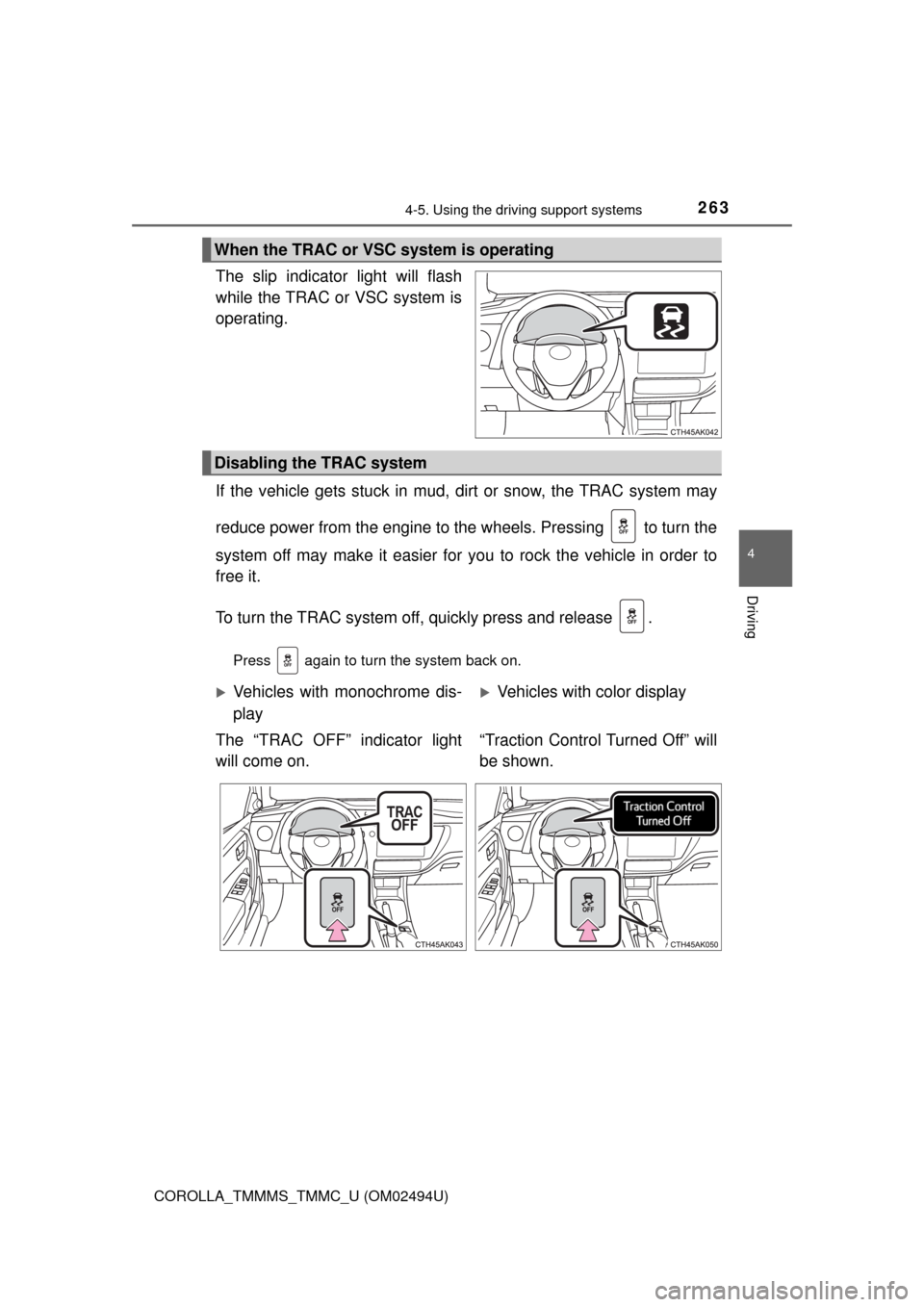
The slip indicator light will flash
while the TRAC or VSC system is
operating.
If the vehicle gets stuck in mud, dirt or snow, the TRAC system may
reduce power from the engine to the wheels. Pressing to turn the
system off may make it easier for you to rock the vehicle in order to
free it.
To turn the TRAC system off, quickly press and release .
Press again to turn the system back on.
When the TRAC or VSC system is operating
Disabling the TRAC system
Vehicles with monochrome dis-
play
The “TRAC OFF” indicator light
will come on.Vehicles with color display
“Traction Control Turned Off” will
be shown.
Page 264 of 612
2644-5. Using the driving support systems
COROLLA_TMMMS_TMMC_U (OM02494U)
■Turning off both TRAC and VSC systems
To turn the TRAC and VSC systems off, press and hold for more than 3
seconds while the vehicle is stopped.
The “TRAC OFF” indicator light and VSC OFF indicator light will come on.
(vehicles with monochrome display)
“Traction Control Turned Off” will be shown and VSC OFF indicator light will
come on. (vehicles with color display)
Press again to turn the systems back on.
■When the “TRAC OFF” indicator light comes on even if the VSC OFF
switch has not been pressed (vehicles with monochrome display)
TRAC cannot be operated. Contact your Toyota dealer.
■When “Traction Control Turned Off” is shown even if the VSC OFF
switch has not been pressed (vehicles with color display)
TRAC cannot be operated. Contact your Toyota dealer.
■Sounds and vibrations caused by the ABS, brake assist, TRAC, VSC and
hill-start assist control systems
●A sound may be heard from the engine compartment when the engine is
started or just after the vehicle begins to move. This sound does not indicate
that a malfunction has occurred in any of these systems.
●Any of the following conditions may occur when the above systems are
operating. None of these indicates that a malfunction has occurred.
• Vibrations may be felt through the vehicle body and steering.
• A motor sound may be heard after the vehicle comes to a stop.
• The brake pedal may pulsate slightly after the ABS is activated.
• The brake pedal may move down slightly after the ABS is activated.
■EPS operation sound
When the steering wheel is operated, a motor sound (whirring sound) may be
heard. This does not indicate a malfunction.
■Automatic reactivation of TRAC and VSC systems
After turning the TRAC and VSC systems off, the systems will be automati-
cally re-enabled in the following situations:
●Vehicles without a smart key system: When the engine switch is turned to
the “LOCK” position
Vehicles with a smart key system: When the engine switch is turned off
●If only the TRAC system is turned off, the TRAC will turn on when vehicle
speed increases
If both the TRAC and VSC systems are turned off, automatic re-enabling will
not occur when vehicle speed increases.
Page 272 of 612
272
COROLLA_TMMMS_TMMC_U (OM02494U)5-1. Basic Operations
Audio system types ........... 274
Steering wheel audio switches .......................... 275
AUX port/USB port ............ 276
Entune Audio .................... 277
Basic audio operations...... 280
5-2. Setup Setup menu....................... 282
General settings ................ 283
Audio settings ................... 285
Display settings ................. 286
Voice settings.................... 287
5-3. Using Entune Audio Selecting the audio source ............................. 288
List screen operation......... 289
Optimal use of Entune Audio............................... 291
5-4. Using the radio Radio operation................. 292
5-5. Playing an audio CD and MP3/WMA/AAC discs
CD player operation .......... 294
5-6. Using an external device Listening to an iPod .......... 300
Listening to a USB memory device ............... 305
Using the AUX port ........... 309
5Audio system
Page 273 of 612
273
5Audio system
COROLLA_TMMMS_TMMC_U (OM02494U)5-7. Connecting Bluetooth
®
Preparations to
use wireless
communication ................ 310
Registering a Bluetooth
®
audio player for the
first time .......................... 314
Registering a Bluetooth
®
phone for the
first time .......................... 315
Registering a Bluetooth
®
device.............................. 316
Connecting a Bluetooth
®
device.............................. 319
Displaying a Bluetooth
®
device details .................. 322
Detailed Bluetooth
®
system settings ............... 323
5-8. Bluetooth
® Audio
Listening to Bluetooth®
Audio ............................... 3245-9. Bluetooth
® phone
Using a Bluetooth®
Phone ............................. 326
Making a call ..................... 329
Receiving a call ................. 332
Speaking on the phone ..... 333
Bluetooth
® phone
message function ............ 337
Using the steering
wheel switches ................ 342
Bluetooth
® phone
settings ........................... 343
Contact/Call History
Settings ........................... 345
What to do if...
(Troubleshooting) ............ 355
5-10. Bluetooth
®
Bluetooth®......................... 359
5-11. Using the voice
command system
Voice command
system ............................ 363