display TOYOTA COROLLA 2017 11.G Manual PDF
[x] Cancel search | Manufacturer: TOYOTA, Model Year: 2017, Model line: COROLLA, Model: TOYOTA COROLLA 2017 11.GPages: 612, PDF Size: 14.18 MB
Page 277 of 612
2775-1. Basic Operations
5
Audio system
COROLLA_TMMMS_TMMC_U (OM02494U)
Entune Audio∗
∗: If equipped
With Entune Audio
Operations such as listening to audio, using the hands-free
phone and changing Entune Audio settings are started by using
the following buttons.
With Entune Audio Plus
Owners of this system should refer to the “NAVIGATION AND
MULTIMEDIA SYSTEM OWNER'S MANUAL”.
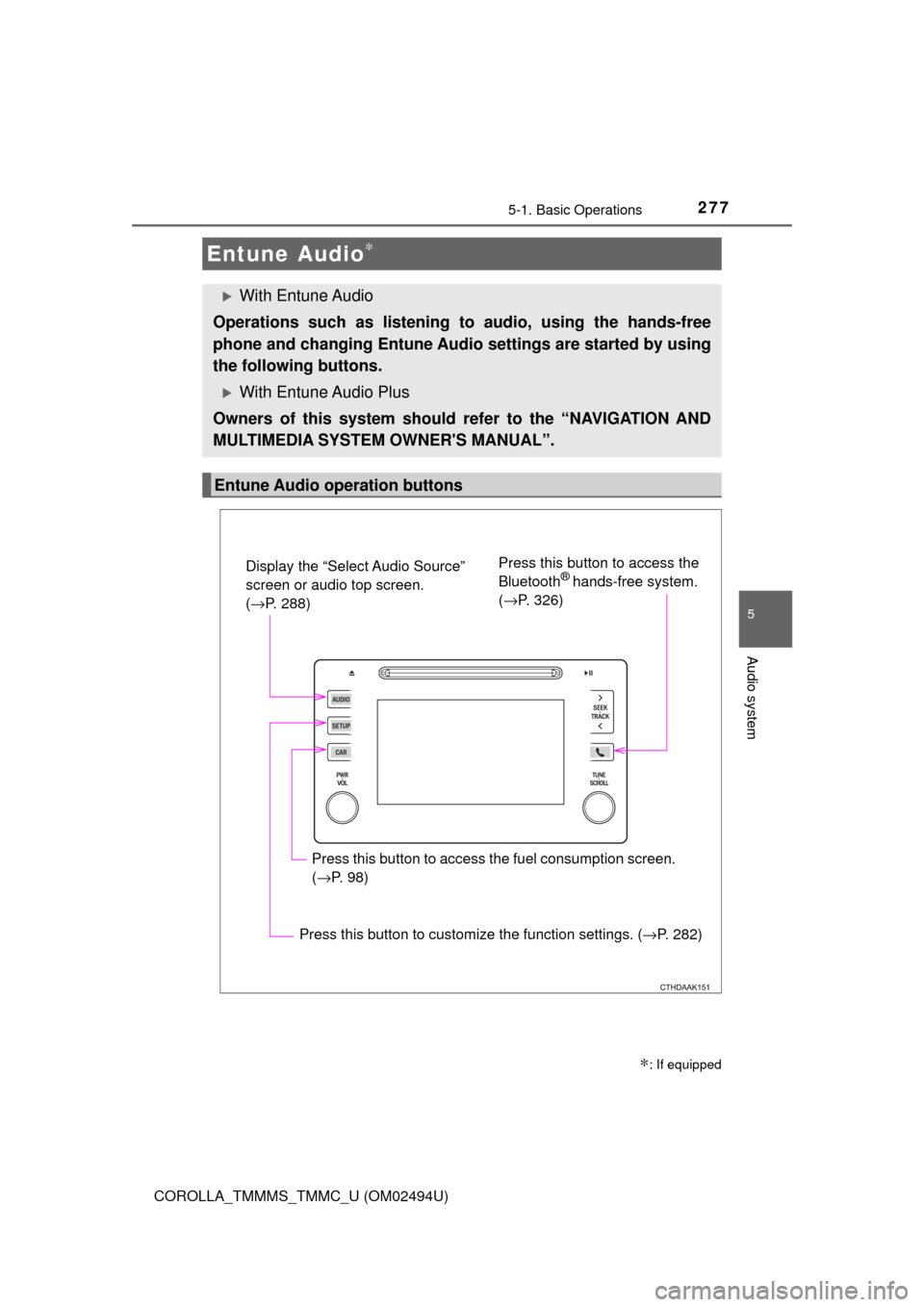
Entune Audio operation buttons
Display the “Select Audio Source”
screen or audio top screen.
(→P. 288)Press this button to access the
Bluetooth® hands-free system.
(→P. 326)
Press this button to access the fuel consumption screen.
(→P. 98)
Press this button to customize the function settings. (→P. 282)
Page 278 of 612

2785-1. Basic Operations
COROLLA_TMMMS_TMMC_U (OM02494U)
By touching the screen with your finger, you can control Entune Audio,
etc.
■Drag*
Touch the screen with your finger, and move the screen to the
desired position.
●Scrolling the lists
■Flick*
Touch the screen with your finger and quickly move the screen by
flicking your finger.
●Scrolling the main screen page
*: The above operations may not be performed on all screens.
■Capacitive touch switches
The control panel uses capacitive touch sensors.
●In the following cases, incorrect operation or non-response may occur.
• If the operating section is dirty or has liquid attached to it, incorrect opera-
tion or non-response may occur.
• If the operating section receives electromagnetic waves, incorrect opera-
tion or non-response may occur.
• If wearing gloves during operation, non-response may occur.
• If fingernails are used to operate the system, non-response may occur.
• If a touch pen is used to operate the system, non-response may occur.
• If the palm of your hand touches the operating section during operation,
incorrect operation may occur.
• If the palm of your hand touches the operating section, incorrect opera-
tion may occur.
• If operations are performed quickly, non-response may occur.
●Please do not reach your hand to the part of button when Entune Audio turn
on. Because the button may become unresponsive for a while. But it will be
back to normal for a given time even if Entune Audio turned on under the
condition.
■When using the touch screen
●If the screen is cold, the display may be dark, or the system may seem to be
operating slightly slower than normal.
●The screen may seem dark and hard to see when viewed through sun-
glasses. Change your angle of viewing, adjust the display on the “Display
Settings” screen (→P. 286) or remove your sunglasses.
●Flick operations may not be performed smoothly in high altitudes.
Operating the touch screen
Page 280 of 612
2805-1. Basic Operations
COROLLA_TMMMS_TMMC_U (OM02494U)
Basic audio operations
Basic audio operations and functions common to each mode are
explained in this section.
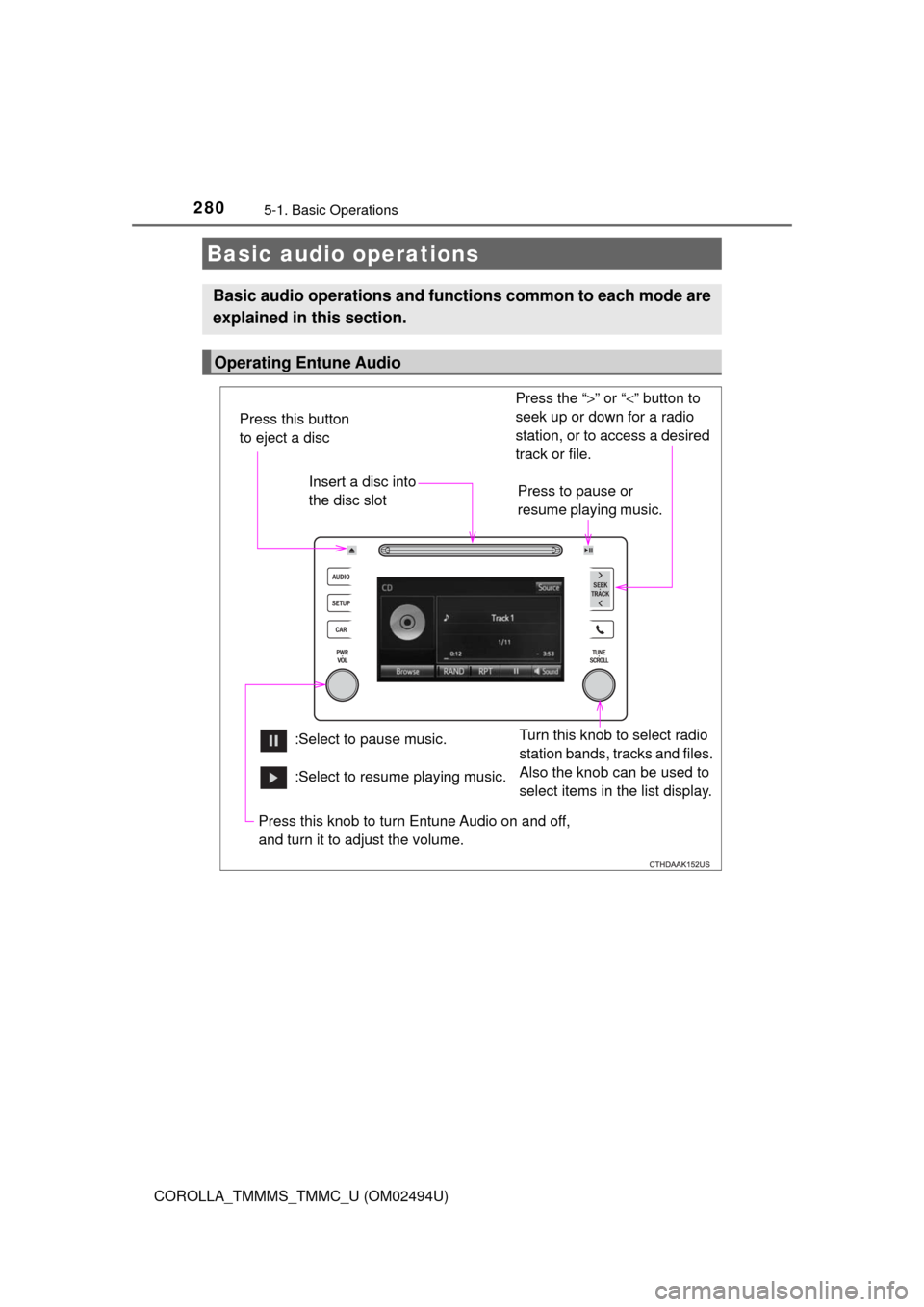
Operating Entune Audio
Press the “>” or “<” button to
seek up or down for a radio
station, or to access a desired
track or file.
Press this knob to turn Entune Audio on and off,
and turn it to adjust the volume. Press this button
to eject a disc
Press to pause or
resume playing music. Insert a disc into
the disc slot
:Select to pause music.Turn this knob to select radio
station bands, tracks and files.
Also the knob can be used to
select items in the list display.
:Select to resume playing music.
Page 282 of 612
282
COROLLA_TMMMS_TMMC_U (OM02494U)
5-2. Setup
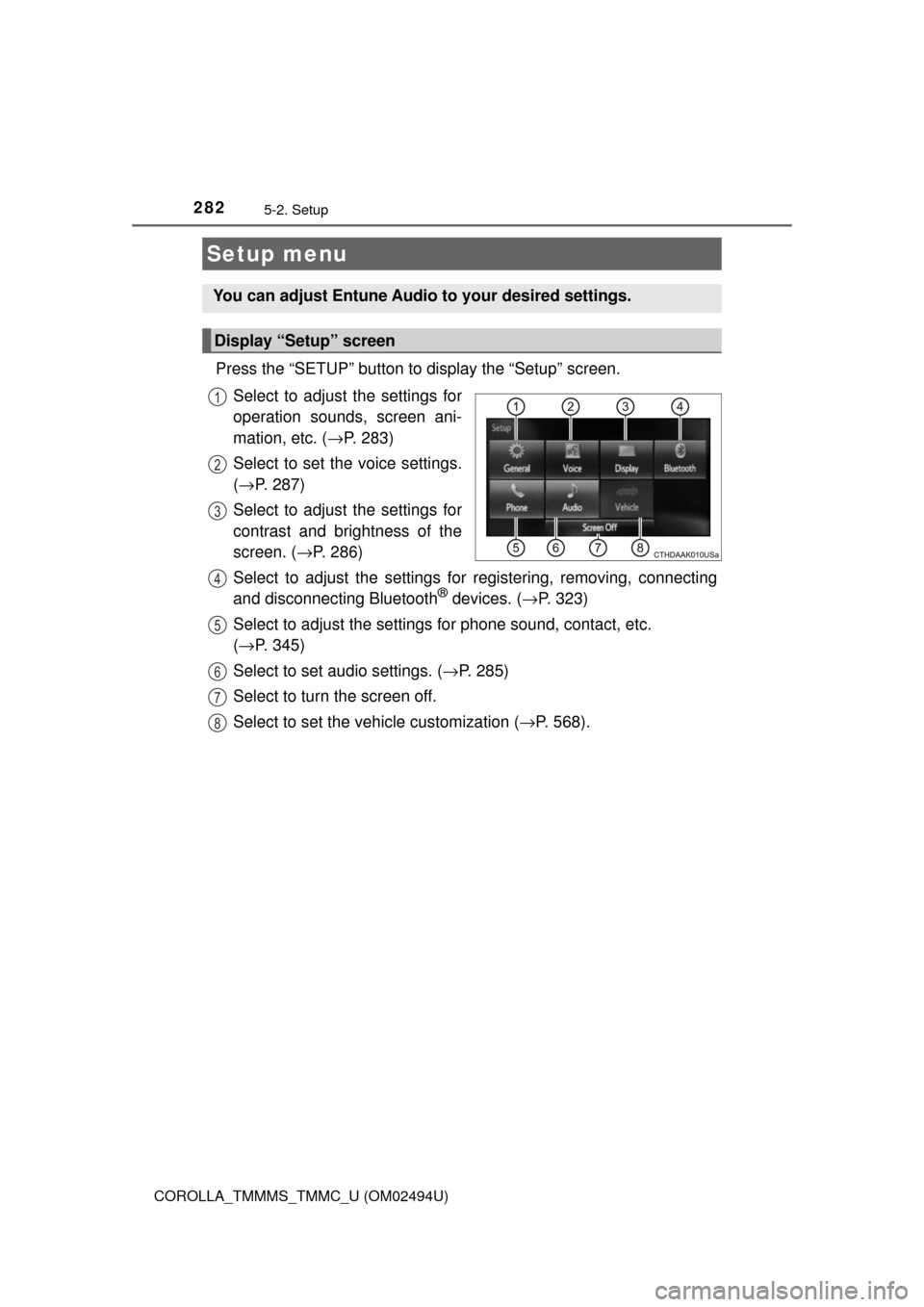
Press the “SETUP” button to display the “Setup” screen.
Select to adjust the settings for
operation sounds, screen ani-
mation, etc. (→P. 283)
Select to set the voice settings.
(→P. 287)
Select to adjust the settings for
contrast and brightness of the
screen. (→P. 286)
Select to adjust the settings for registering, removing, connecting
and disconnecting Bluetooth
® devices. (→P. 323)
Select to adjust the settings for phone sound, contact, etc.
(→P. 345)
Select to set audio settings. (→P. 285)
Select to turn the screen off.
Select to set the vehicle customization (→P. 568).
Setup menu
You can adjust Entune Audio to your desired settings.
Display “Setup” screen
1
2
3
4
5
6
7
8
Page 283 of 612
2835-2. Setup
5
Audio system
COROLLA_TMMMS_TMMC_U (OM02494U)
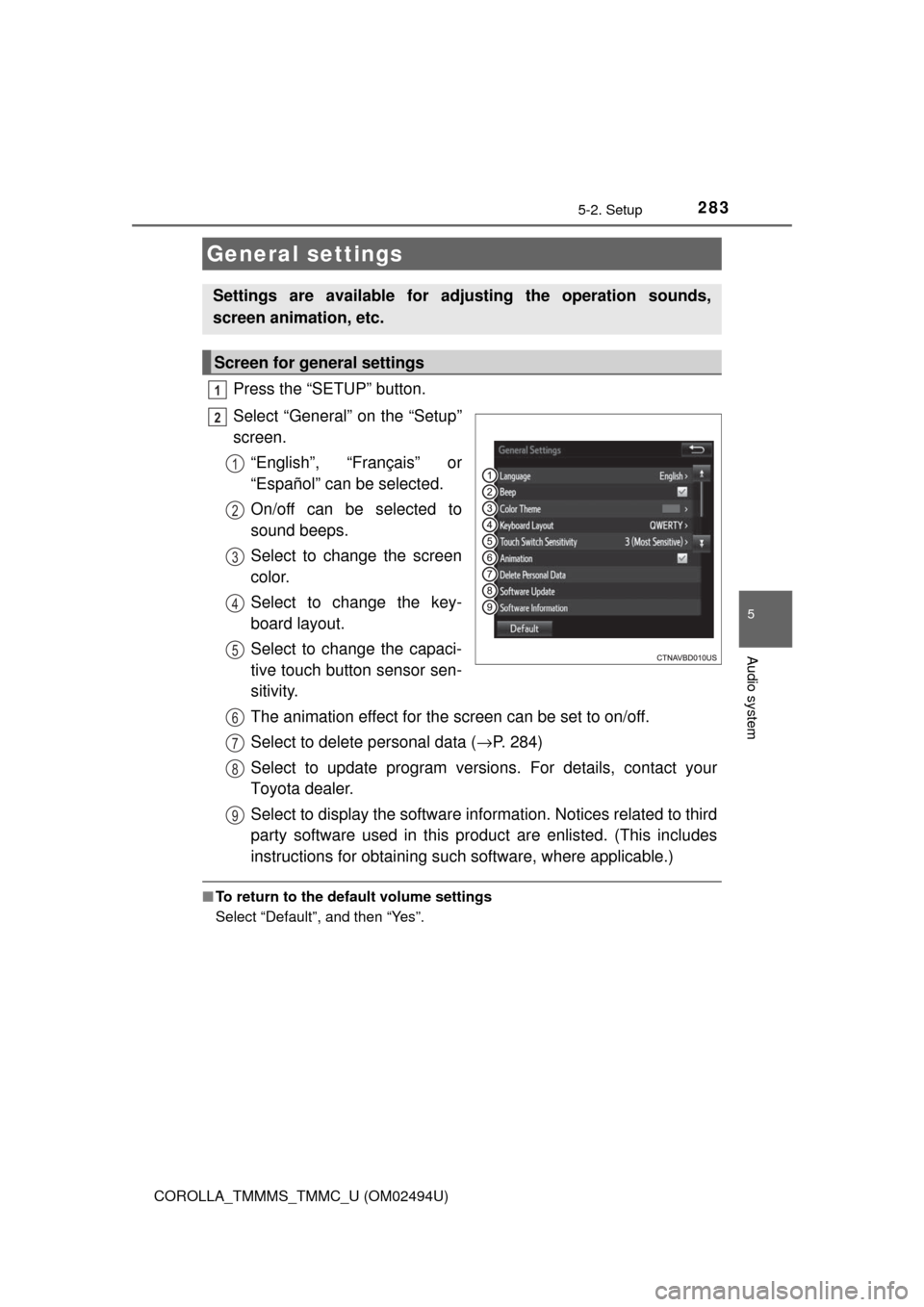
Press the “SETUP” button.
Select “General” on the “Setup”
screen.
“English”, “Français” or
“Español” can be selected.
On/off can be selected to
sound beeps.
Select to change the screen
color.
Select to change the key-
board layout.
Select to change the capaci-
tive touch button sensor sen-
sitivity.
The animation effect for the screen can be set to on/off.
Select to delete personal data (→P. 284)
Select to update program versions. For details, contact your
Toyota dealer.
Select to display the software information. Notices related to third
party software used in this product are enlisted. (This includes
instructions for obtaining such software, where applicable.)
■To return to the default volume settings
Select “Default”, and then “Yes”.
General settings
Settings are available for adjusting the operation sounds,
screen animation, etc.
Screen for general settings
1
2
1
2
3
4
5
6
7
8
9
Page 284 of 612

2845-2. Setup
COROLLA_TMMMS_TMMC_U (OM02494U)
Select “Delete Personal Data” on the “General Settings” screen.
Select “Delete”.
Check carefully beforehand, as data cannot be retrieved once deleted.
A confirmation screen will be displayed. Select “Yes”.
The following personal data will be deleted or changed to its default
settings.
• General settings
• Audio settings
• Phone settings
Delete personal data
1
2
3
Page 285 of 612
2855-2. Setup
5
Audio system
COROLLA_TMMMS_TMMC_U (OM02494U)
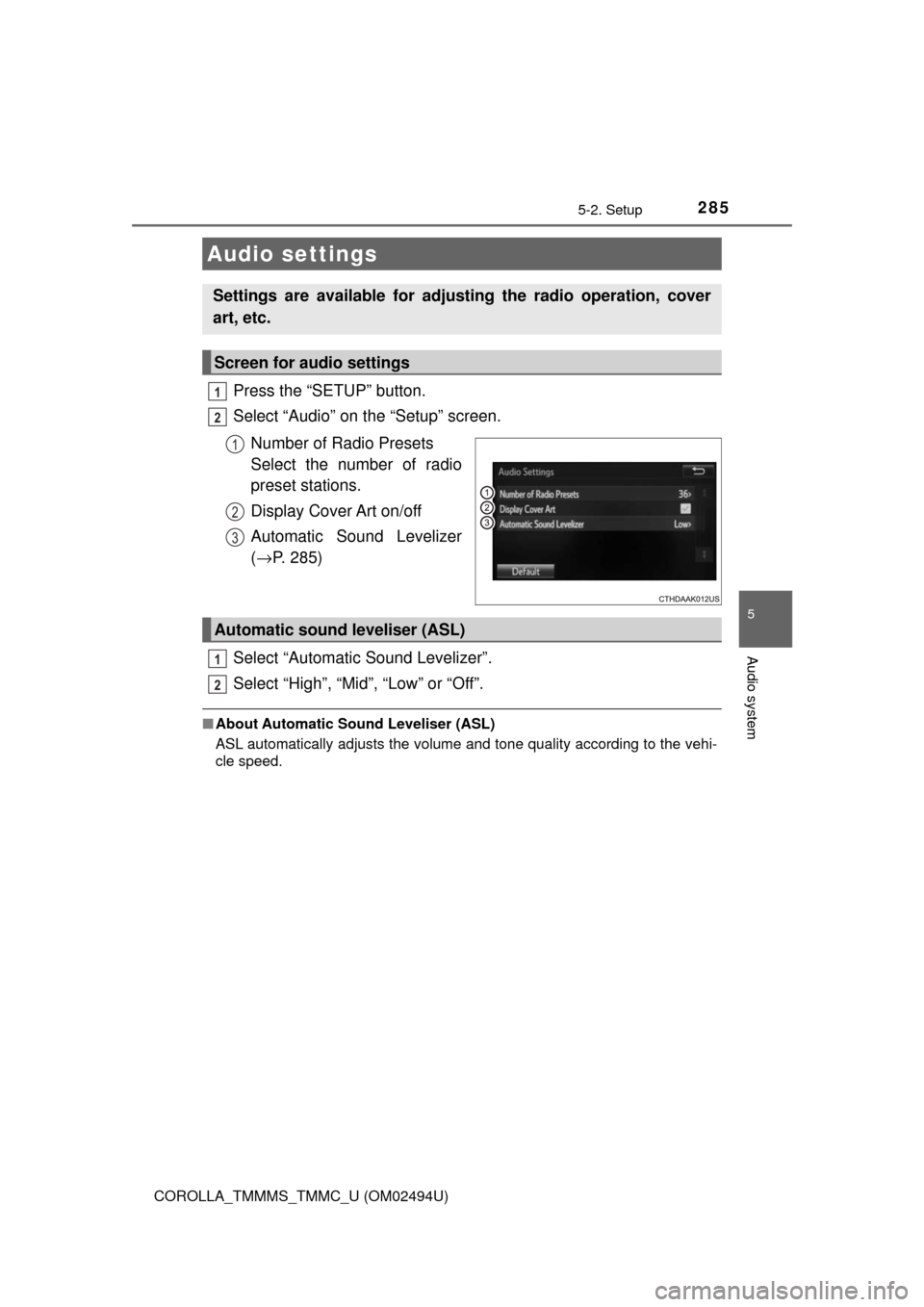
Press the “SETUP” button.
Select “Audio” on the “Setup” screen.
Number of Radio Presets
Select the number of radio
preset stations.
Display Cover Art on/off
Automatic Sound Levelizer
(→P. 285)
Select “Automatic Sound Levelizer”.
Select “High”, “Mid”, “Low” or “Off”.
■About Automatic Sound Leveliser (ASL)
ASL automatically adjusts the volume and tone quality according to the vehi-
cle speed.
Audio settings
Settings are available for adjusting the radio operation, cover
art, etc.
Screen for audio settings
1
2
1
2
3
Automatic sound leveliser (ASL)
1
2
Page 286 of 612
2865-2. Setup
COROLLA_TMMMS_TMMC_U (OM02494U)
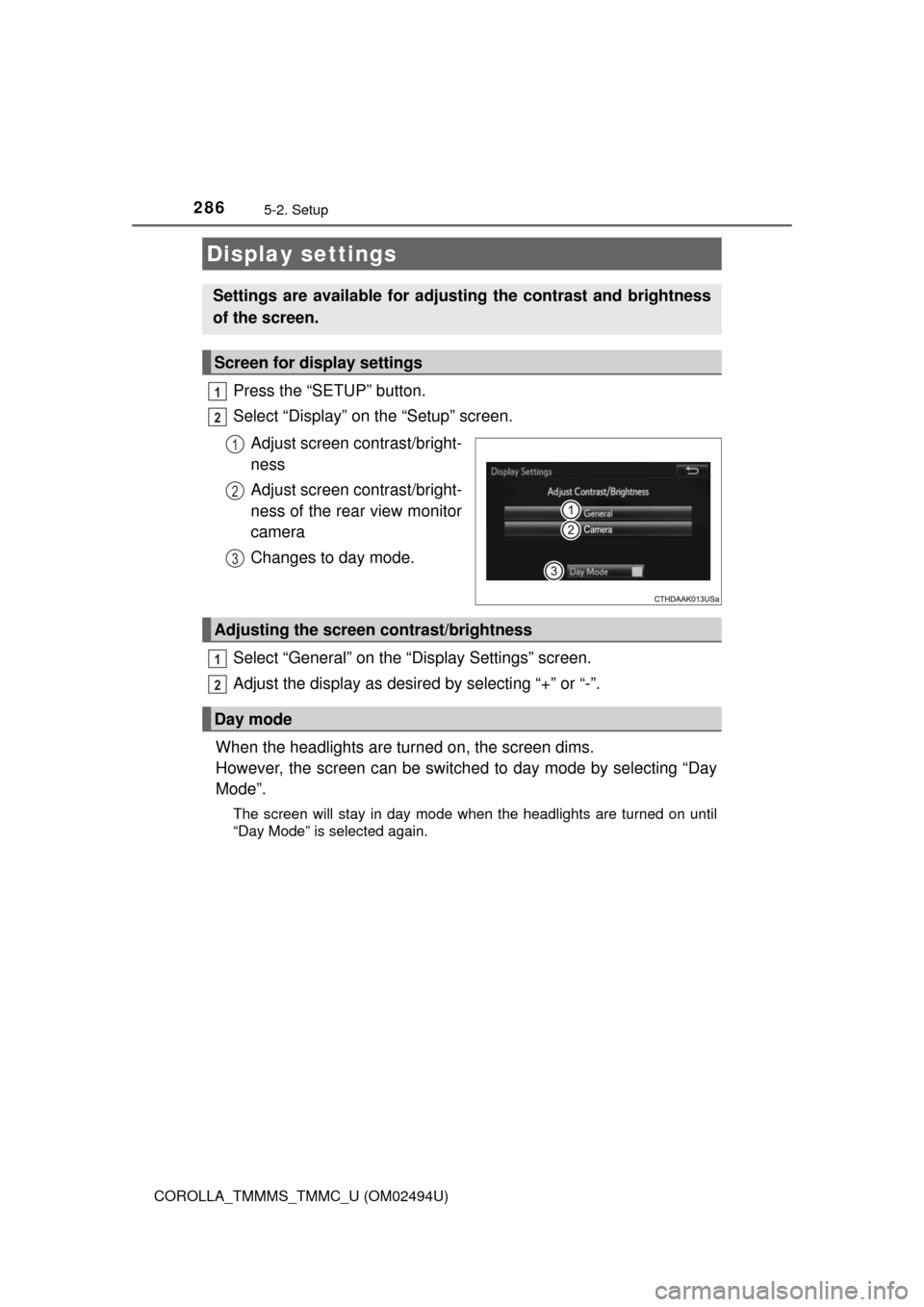
Press the “SETUP” button.
Select “Display” on the “Setup” screen.
Adjust screen contrast/bright-
ness
Adjust screen contrast/bright-
ness of the rear view monitor
camera
Changes to day mode.
Select “General” on the “Display Settings” screen.
Adjust the display as desired by selecting “+” or “-”.
When the headlights are turned on, the screen dims.
However, the screen can be switched to day mode by selecting “Day
Mode”.
The screen will stay in day mode when the headlights are turned on until
“Day Mode” is selected again.
Display settings
Settings are available for adjusting the contrast and brightness
of the screen.
Screen for display settings
1
2
1
2
3
Adjusting the screen contrast/brightness
Day mode
1
2
Page 288 of 612
288
COROLLA_TMMMS_TMMC_U (OM02494U)
5-3. Using Entune Audio
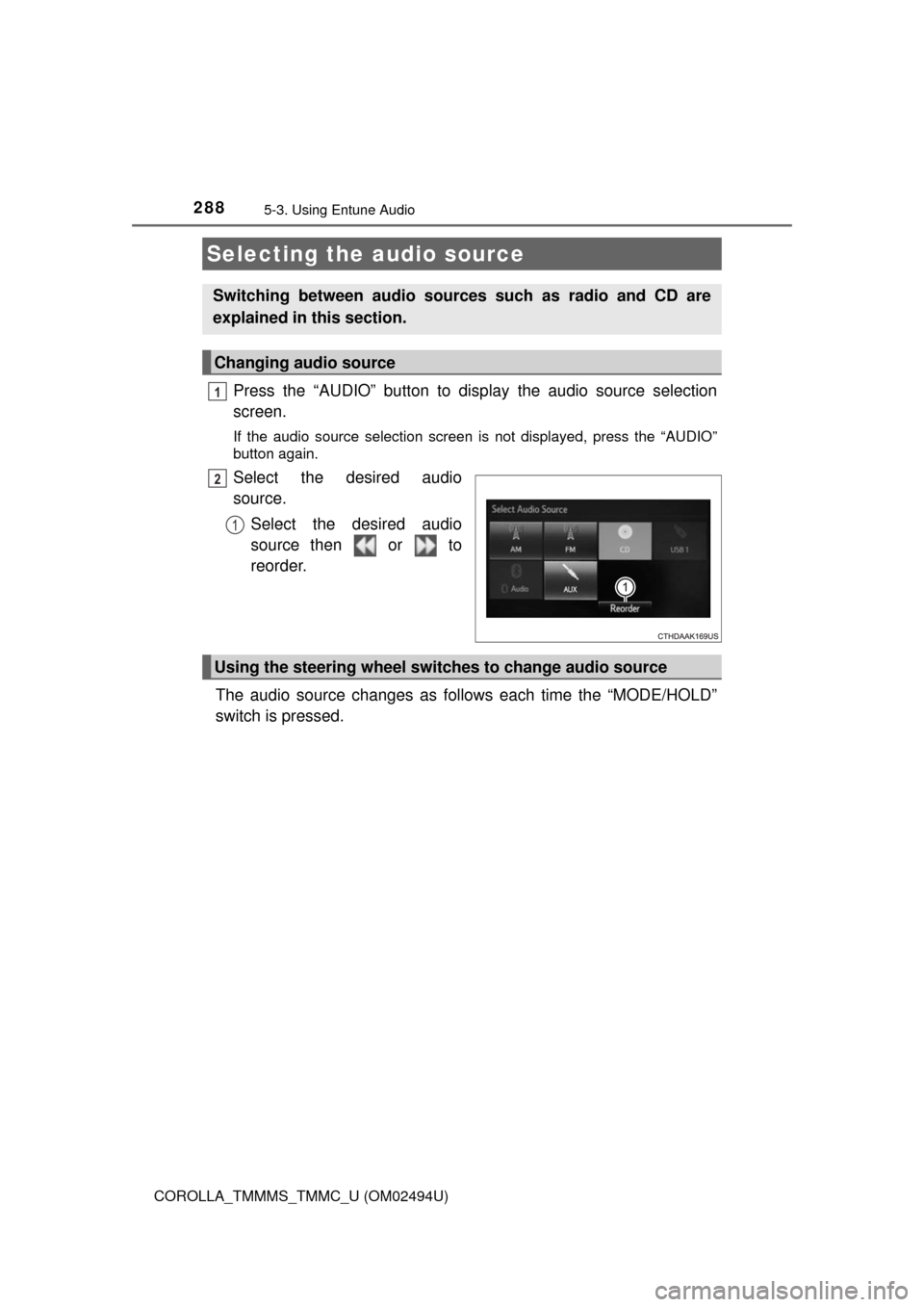
Press the “AUDIO” button to display the audio source selection
screen.
If the audio source selection screen is not displayed, press the “AUDIO”
button again.
Select the desired audio
source.
Select the desired audio
source then or to
reorder.
The audio source changes as follows each time the “MODE/HOLD”
switch is pressed.
Selecting the audio source
Switching between audio sources such as radio and CD are
explained in this section.
Changing audio source
1
2
1
Using the steering wheel switches to change audio source
Page 289 of 612
2895-3. Using Entune Audio
5
Audio system
COROLLA_TMMMS_TMMC_U (OM02494U)
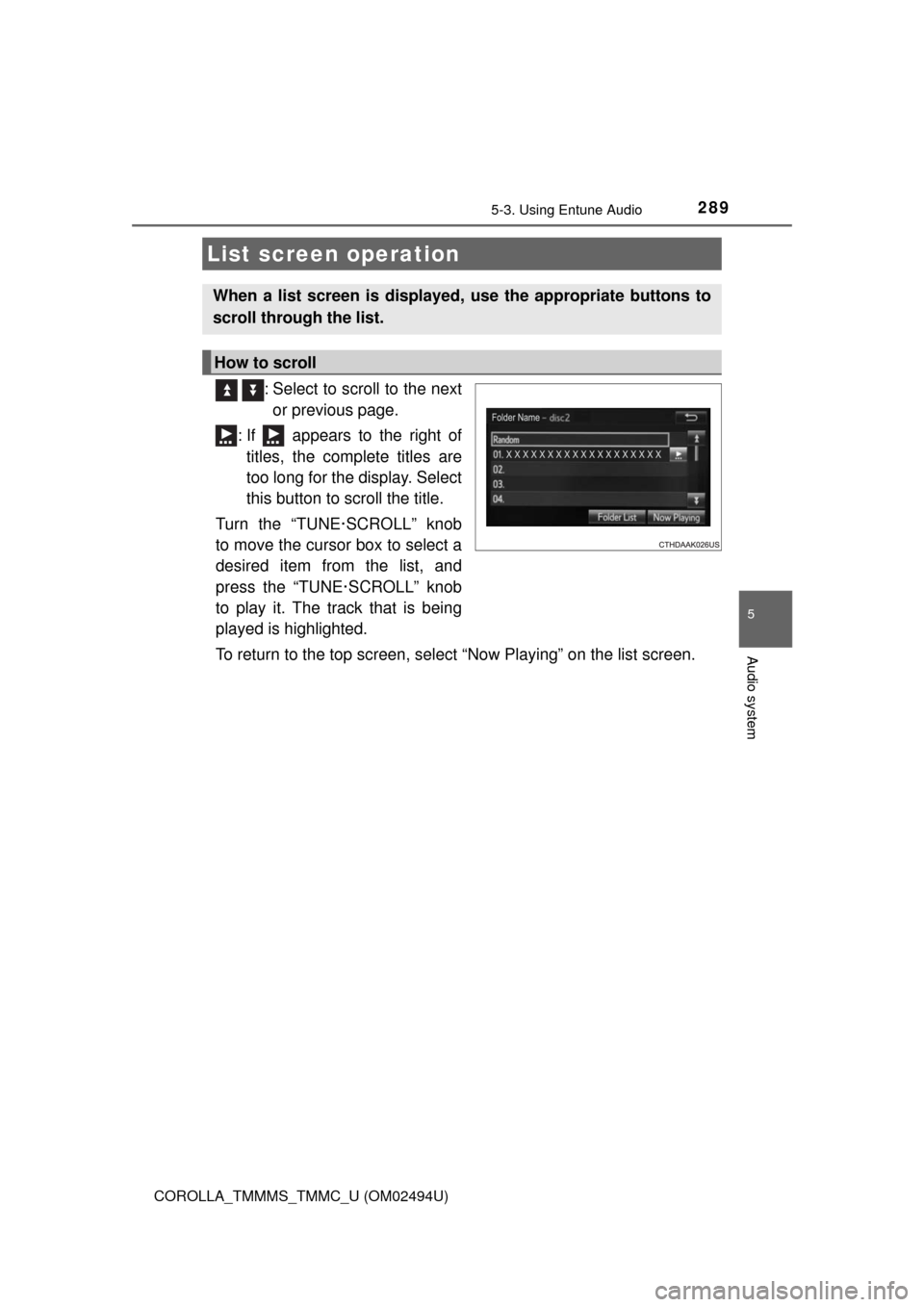
: Select to scroll to the next
or previous page.
: If appears to the right of
titles, the complete titles are
too long for the display. Select
this button to scroll the title.
Turn the “TUNE·SCROLL” knob
to move the cursor box to select a
desired item from the list, and
press the “TUNE·SCROLL” knob
to play it. The track that is being
played is highlighted.
To return to the top screen, select “Now Playing” on the list screen.
List screen operation
When a list screen is displayed, use the appropriate buttons to
scroll through the list.
How to scroll