bluetooth TOYOTA COROLLA 2020 (in English) Workshop Manual
[x] Cancel search | Manufacturer: TOYOTA, Model Year: 2020, Model line: COROLLA, Model: TOYOTA COROLLA 2020Pages: 588, PDF Size: 13.49 MB
Page 371 of 588
3715-15. What to do if... (Bluetooth®)
COROLLA_U
5
Entune audio
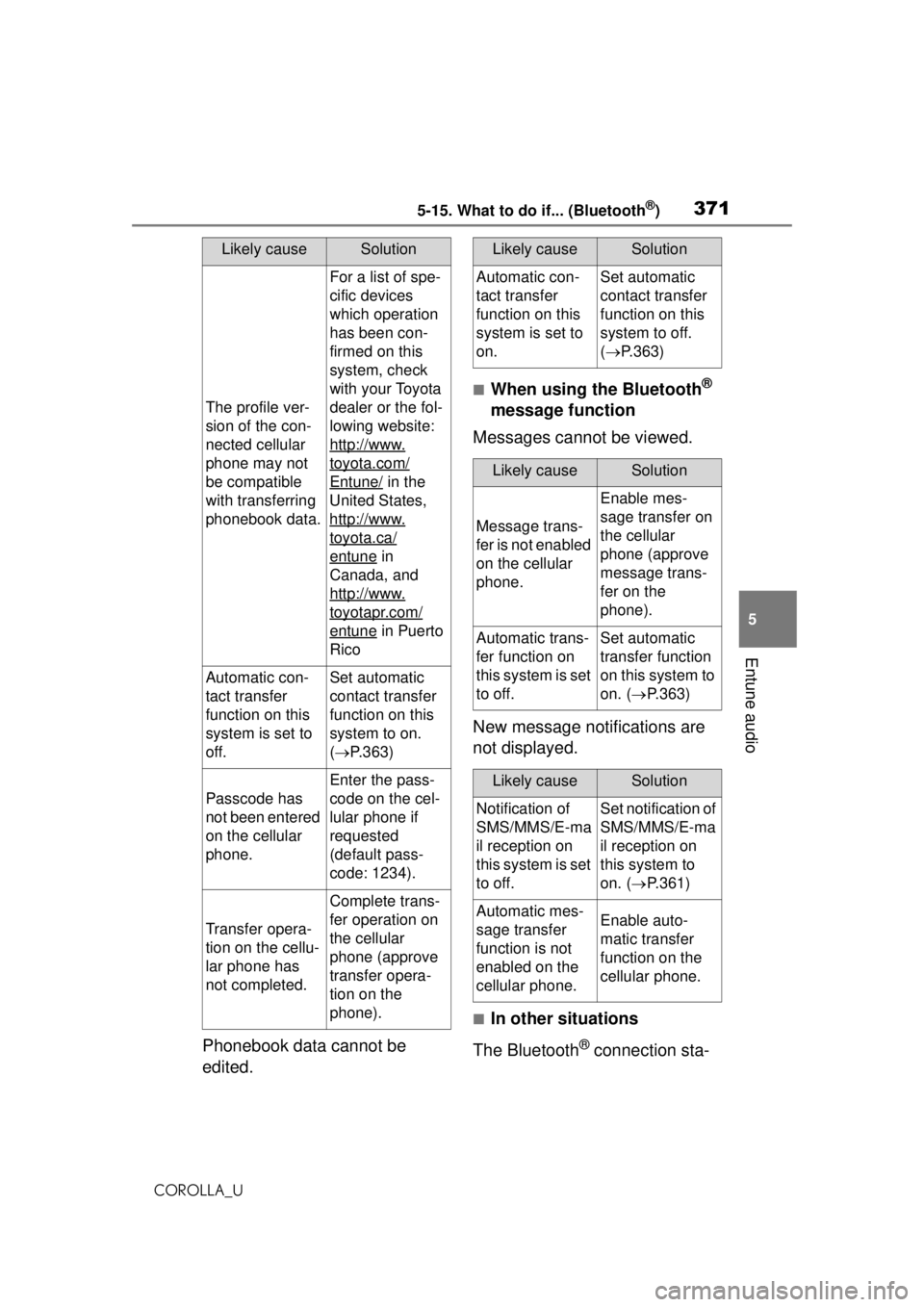
Phonebook data cannot be
edited.
■When using the Bluetooth®
message function
Messages cannot be viewed.
New message notifications are
not displayed.
■In other situations
The Bluetooth
® connection sta-
Likely causeSolution
The profile ver-
sion of the con-
nected cellular
phone may not
be compatible
with transferring
phonebook data.
For a list of spe-
cific devices
which operation
has been con-
firmed on this
system, check
with your Toyota
dealer or the fol-
lowing website:
http://www.
toyota.com/
Entune/ in the
United States,
http://www.
toyota.ca/
entune in
Canada, and
http://www.
toyotapr.com/
entune in Puerto
Rico
Automatic con-
tact transfer
function on this
system is set to
off.Set automatic
contact transfer
function on this
system to on.
( P.363)
Passcode has
not been entered
on the cellular
phone.
Enter the pass-
code on the cel-
lular phone if
requested
(default pass-
code: 1234).
Transfer opera-
tion on the cellu-
lar phone has
not completed.
Complete trans-
fer operation on
the cellular
phone (approve
transfer opera-
tion on the
phone).
Likely causeSolution
Automatic con-
tact transfer
function on this
system is set to
on.Set automatic
contact transfer
function on this
system to off.
( P.363)
Likely causeSolution
Message trans-
fer is not enabled
on the cellular
phone.
Enable mes-
sage transfer on
the cellular
phone (approve
message trans-
fer on the
phone).
Automatic trans-
fer function on
this system is set
to off.Set automatic
transfer function
on this system to
on. ( P.363)
Likely causeSolution
Notification of
SMS/MMS/E-ma
il reception on
this system is set
to off.Set notification of
SMS/MMS/E-ma
il reception on
this system to
on. ( P.361)
Automatic mes-
sage transfer
function is not
enabled on the
cellular phone.Enable auto-
matic transfer
function on the
cellular phone.
Page 372 of 588

3725-15. What to do if... (Bluetooth®)
COROLLA_U
tus is displayed at the top of the
screen each time the engine
switch is in ACC or ON.
Even though all conceivable
measures have been taken, the
symptom status does not
change.
For details, refer to the owner’s
manual that came with the cellular
phone.
Likely causeSolution
Connection con-
firmation display
on this system is
set to on.
To turn off the
display, set con-
nection confir-
mation display
on this system to
off. ( P.285)
Likely causeSolution
The cellular
phone is not
close enough to
this system.Bring the cellu-
lar phone closer
to this system.
Radio interfer-
ence has
occurred.
Turn off Wi-Fi®
devices or other
devices that may
emit radio
waves.
The cellular
phone is the
most likely cause
of the symptom.
Turn the cellular
phone off,
remove and rein-
stall the battery
pack, and then
restart the cellu-
lar phone.
Enable the cellu-
lar phone’s Blue-
tooth
®
connection.
Stop the cellular
phone’s security
software and
close all applica-
tions.
Before using an
application
installed on the
cellular phone,
carefully check
its source and
how its opera-
tion might affect
this system.
Likely causeSolution
Page 374 of 588
3745-16. Toyota Entune overview
COROLLA_U
*: If equipped
Type A: Function achieved by using a smar t
phone or DCM
*
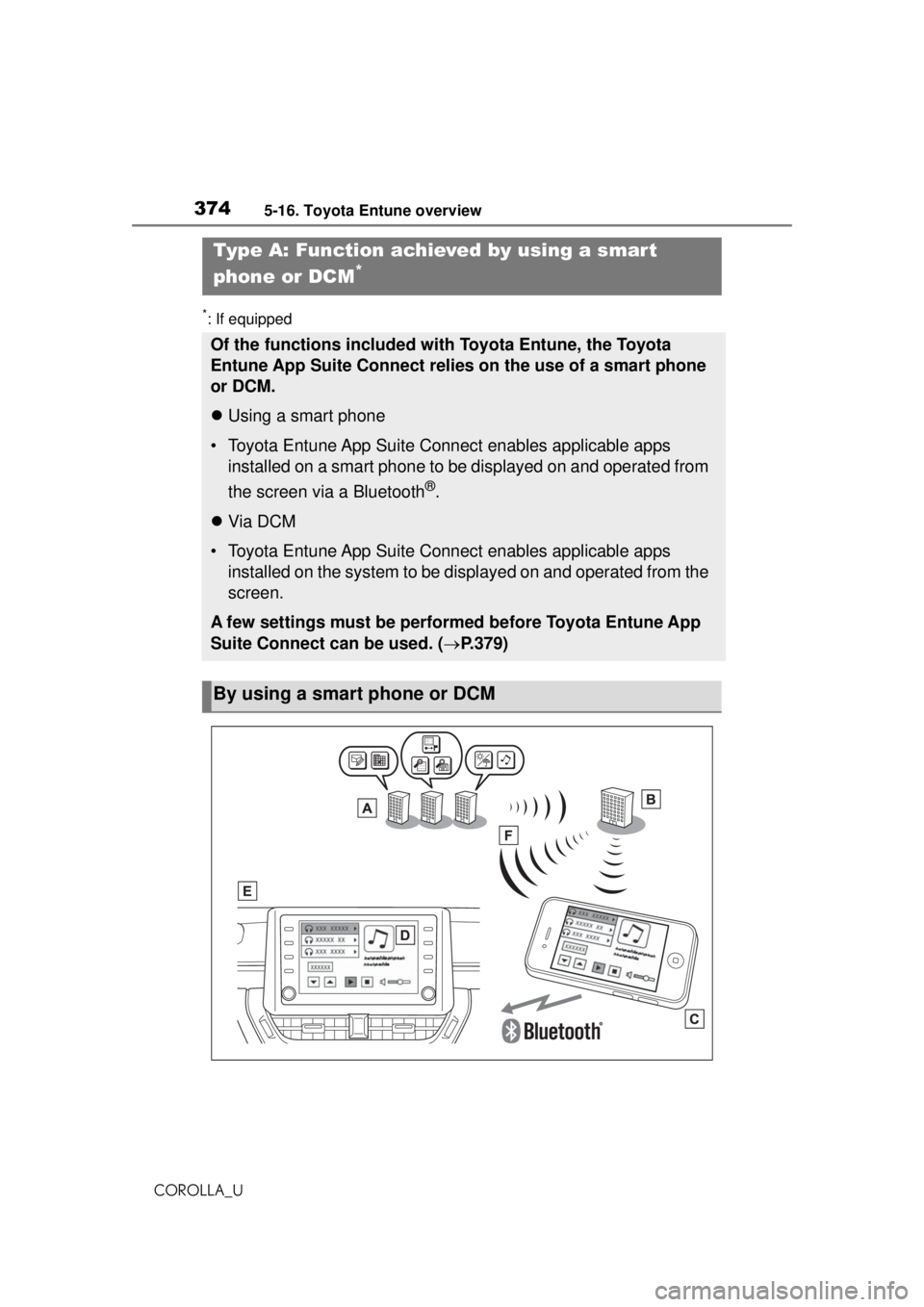
Of the functions included with Toyota Entune, the Toyota
Entune App Suite Connect relies on the use of a smart phone
or DCM.
Using a smart phone
• Toyota Entune App Suite Connect enables applicable apps
installed on a smart phone to be displayed on and operated from
the screen via a Bluetooth
®.
Via DCM
• Toyota Entune App Suite Connect enables applicable apps
installed on the system to be displayed on and operated from the
screen.
A few settings must be performed before Toyota Entune App
Suite Connect can be used. ( P.379)
By using a smart phone or DCM
Page 376 of 588
3765-16. Toyota Entune overview
COROLLA_U
Washington D.C., Alaska,
Hawaii, Puerto Rico and Can-
ada.
Toyota Entune App Suite
Connect is not available in the
United States Virgin Islands.
●Data usage fees may apply while
using Toyota Entune App Suite
Connect function. Confirm data
usage fees before using this func-
tion.
●For details regarding operation of
the Toyota Entune App Suite Con-
nect and the applications, refer to
http://www.toyota.com/Entune/
in the United States,
http://www.toyota.ca/entune
in Canada, and
http://www.toyo tapr.com/entune
in Puerto Rico.
●These functions are not made
available in some countries or
areas. Availability of functions of
the Toyota Entune App Suite Con-
nect service is dependent on net-
work reception level.
■Initializing personal data
The personal data used in appli-
cations can be reset. ( P.298)
The following personal data can
be deleted and returned to their
default settings:
Downloaded contents
Radio stations that were lis-
tened to
Once initialized, the data and set-
tings will be erased. Pay much
attention when initializing the data.
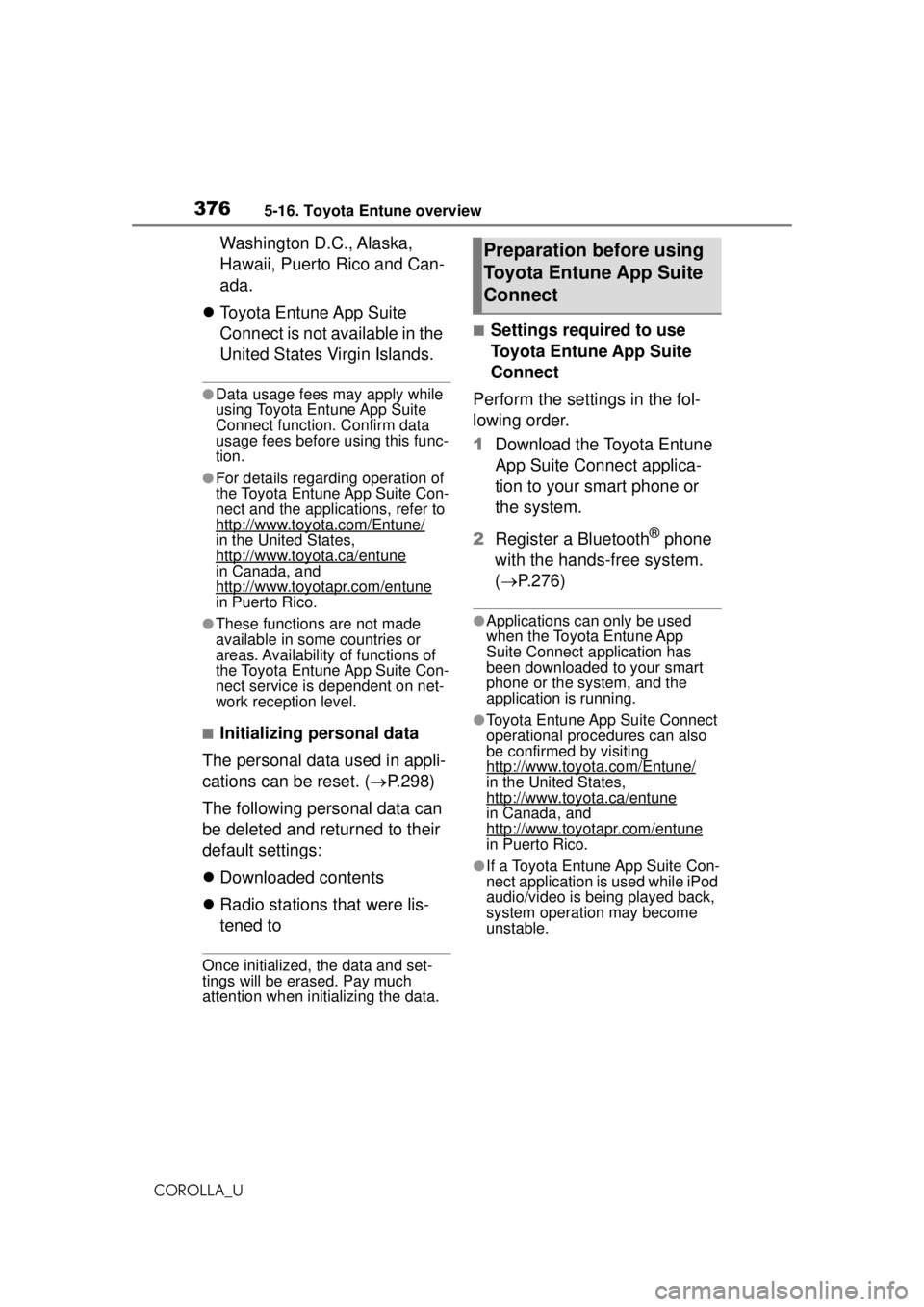
■Settings required to use
Toyota Entune App Suite
Connect
Perform the settings in the fol-
lowing order.
1 Download the Toyota Entune
App Suite Connect applica-
tion to your smart phone or
the system.
2 Register a Bluetooth
® phone
with the hands-free system.
( P.276)
●Applications can only be used
when the Toyota Entune App
Suite Connect application has
been downloaded to your smart
phone or the system, and the
application is running.
●Toyota Entune App Suite Connect
operational procedures can also
be confirmed by visiting
http://www.toyota.com/Entune/
in the United States,
http://www.toyota.ca/entune
in Canada, and
http://www.toyotapr.com/entune
in Puerto Rico.
●If a Toyota Entune App Suite Con-
nect application is used while iPod
audio/video is being played back,
system operation may become
unstable.
Preparation before using
Toyota Entune App Suite
Connect
Page 380 of 588
3805-17. Toyota Entune operation
COROLLA_U
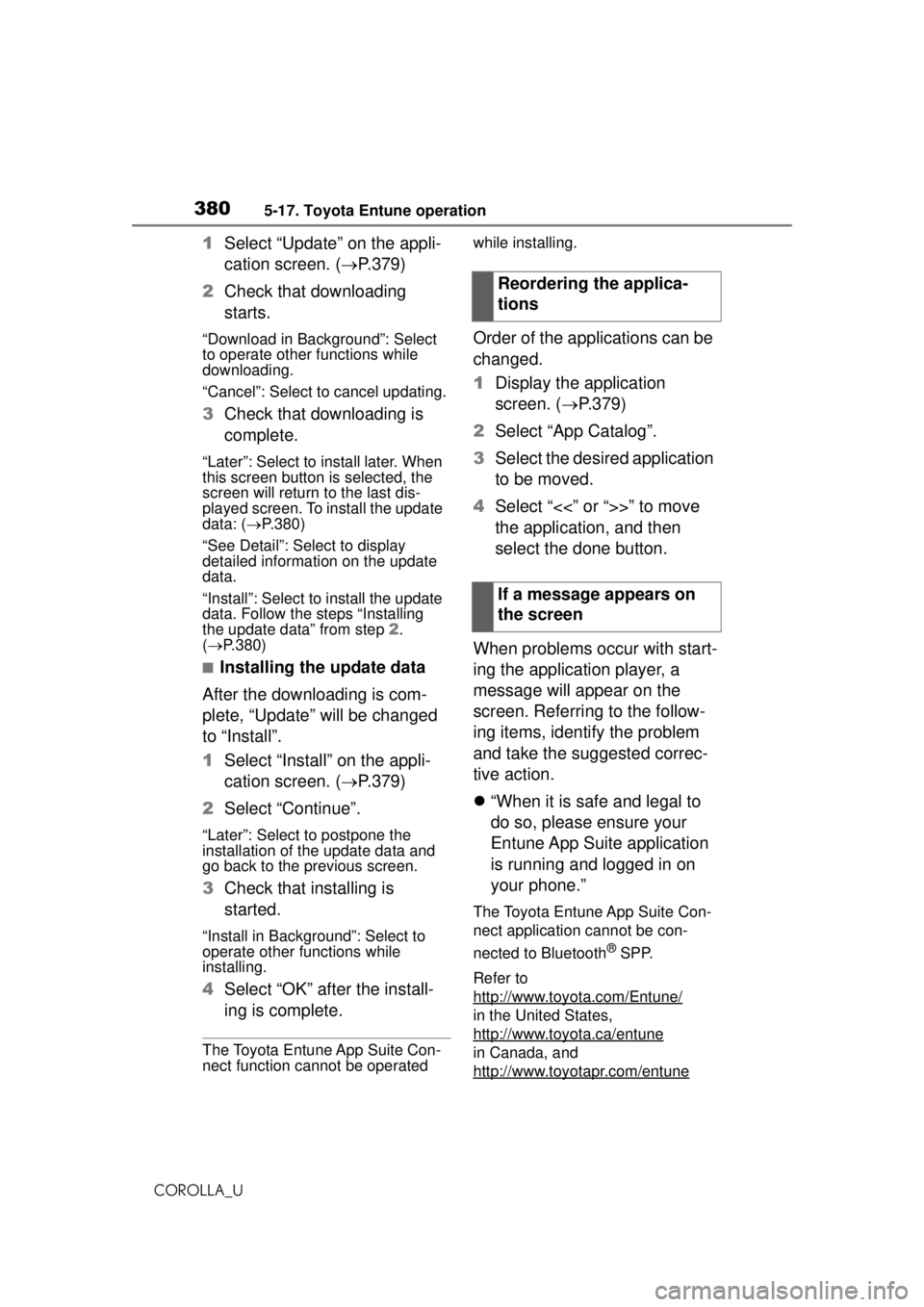
1Select “Update” on the appli-
cation screen. ( P.379)
2 Check that downloading
starts.
“Download in Background”: Select
to operate other functions while
downloading.
“Cancel”: Select to cancel updating.
3Check that downloading is
complete.
“Later”: Select to install later. When
this screen button is selected, the
screen will return to the last dis-
played screen. To install the update
data: ( P.380)
“See Detail”: Select to display
detailed information on the update
data.
“Install”: Select to install the update
data. Follow the steps “Installing
the update data” from step 2.
( P.380)
■Installing the update data
After the downloading is com-
plete, “Update” will be changed
to “Install”.
1 Select “Install” on the appli-
cation screen. ( P.379)
2 Select “Continue”.
“Later”: Select to postpone the
installation of the update data and
go back to the previous screen.
3Check that installing is
started.
“Install in Background”: Select to
operate other functions while
installing.
4Select “OK” after the install-
ing is complete.
The Toyota Entune App Suite Con-
nect function cannot be operated while installing.
Order of the applications can be
changed.
1
Display the application
screen. ( P.379)
2 Select “App Catalog”.
3 Select the desired application
to be moved.
4 Select “<<” or “>>” to move
the application, and then
select the done button.
When problems occur with start-
ing the application player, a
message will appear on the
screen. Referring to the follow-
ing items, identify the problem
and take the suggested correc-
tive action.
“When it is safe and legal to
do so, please ensure your
Entune App Suite application
is running and logged in on
your phone.”
The Toyota Entune App Suite Con-
nect application cannot be con-
nected to Bluetooth
® SPP.
Refer to
http://www.toyota.com/Entune/
in the United States,
http://www.toyota.ca/entune
in Canada, and
http://www.toyotapr.com/entune
Reordering the applica-
tions
If a message appears on
the screen
Page 381 of 588
3815-17. Toyota Entune operation
COROLLA_U
5
Entune audio
in Puerto Rico, to confirm if the
phone is Bluetooth
® SPP compati-
ble or not, and then activate the
Toyota Entune App Suite Connect
application.
“Installation failed, please try
again”
Installation can be attempted again
by changing to the application
screen and pressing the “Install”
switch.
“Application download error.
Please try again later.”
Downloading can be attempted
again by checking the communica-
tion status, changing to the applica-
tion screen and pressing the
“Download” switch again.
“Download error, some
Entune App Suite functions
may not work as expected.
Please reinitiate the download
process.”
The Toyota Entune App Suite Con-
nect application cannot be con-
nected to Bluetooth
® SPP.
Refer to
http://www.toyota.com/Entune/
in the United States,
http://www.toyota.ca/entune
in Canada, and
http://www.toyotapr.com/entune
in Puerto Rico, to confirm if the
phone is Bluetooth
® SPP compati-
ble or not, and then activate the
Toyota Entune App Suite Connect
application.
Please ensure your Toyota Entune
App Suite Connect application is
running and logged in on your
phone while vehicle is not moving.
“To use the services, Entune
APP Suite Connect applica-
tion needs to be running on
your phone. For more infor-
mation, please visit toy-
ota.com or call
1-800-331-4331 in the United
States, 1-888-869-6828 in
Canada, and 1-877-855-8377
in Puerto Rico.”
The Toyota Entune App Suite Con-
nect application cannot be con-
nected to Bluetooth
® SPP.
Refer to
http://www.toyota.com/Entune/
in the United States,
http://www.toyota.ca/entune
in Canada, and
http://www.toyotapr.com/entune
in Puerto Rico, to confirm if the
phone is Bluetooth
® SPP compati-
ble or not, and then activate the
Toyota Entune App Suite Connect
application.
“Communication unsuccess-
ful. Please try again.”
Communication was disconnected.
After a few moments, retry the
operation.
A keyword can be entered to an
application by the software key-
board or voice recognition func-
tion. For details about the
functions and services provided
by each application, refer to
http://www.toyota.com/Entune/
Entering keyword opera-
tion
Page 572 of 588
572Alphabetical Index
COROLLA_U
Automatic air conditioning sys- tem ......................................... 391
Automatic headlight leveling system ................................... 171
Automatic High Beam ............ 173
Automatic light control system ............................................... 171
AUX .......................................... 319
Average fuel economy ............. 88
Average vehicle speed............. 90
B
Back-up lights Replacing light bulbs ............ 469
Wattage ................................ 533
Battery Battery checking................... 442
If the battery is discharged ... 515
Preparing and checking before winter.................................. 255
Warning light ........................ 482
Blind Spot Monitor (BSM) ...... 236
Bluetooth
® audio .................... 316
Registering/Connecting a Blue- tooth
® device...................... 318
Bluetooth® button (Setup
screen) .................................. 266
Bluetooth
® details settings ... 280
Bluetooth® setup screen ...... 280
Connecting a Bluetooth® device
........................................... 281
Deleting a Bluetooth
® device283
Detailed settings screen ....... 285
Displaying the Bluetooth
® setup
screen ................................ 280
Editing the Bluetooth
® device
information ......................... 283
Registering a Bluetooth
® device
........................................... 282
Bluetooth
® device information
............................................... 283 Bluetooth
® hands-free system
...............................................345
Bluetooth
® phone message func-
tion .........................................356 Calling the message sender .359
Checking received messages ...........................................357
Displaying the message screen ...........................................356
Receiving a mess age ...........356
Replying to a message (dicta- tion reply)............................358
Replying to a message (quick reply) ..................................358
Bottle holders .........................401
Brake Brake hold ............................167
Fluid..............................441, 530
Parking brake ...............163, 164
Warning light.........................481
Brake assist ............................250
Break-in tips ............................136
Brightness control Instrument panel light control79, 84
BSM (Blind Spot Monitor) ......236
C
Care Aluminum wheels .................422
Exterior .................................422
Interior ..................................424
Seat belts .............................424
Cargo capacity ........................145
Chains......................................256
Child restraint system Fixed with a LATCH system ...56
Fixed with a seat belt..............51
Front passenger occupant clas-sification system ...................39
Points to remember ................46
Riding with children ................45
Page 580 of 588
580Alphabetical Index
COROLLA_U
Rear view monitor system ..... 241 If you notice any symptoms.. 246
Rear window defogger ... 388, 392
Receiving a call using the Blue- tooth
® hands-free system ... 353
Refueling Capacity ............................... 526
Fuel types............................. 526
Opening the fuel tank cap .... 178
Registering/Connecting a Blue- tooth
® device ........................ 276
Profiles ................................. 279
Registering a Bluetooth
® audio
player for the first time........ 278
Registering a Bluetooth
® phone
for the first time .................. 276
Replacing Electronic key battery ........... 458
Fuses ................................... 461
Light bulbs ............................ 464
Tires ..................................... 503
Wireless remote control battery........................................... 458
Reporting safety defects for U.S. owners................................... 558
Resetting the message indicat- ing maintenance is required 428
Road Sign Assist .................... 233
RSA (Road Sign Assist) ......... 233
S
Safety Connect ......................... 61
Screen adjustment ................. 274
Seat belt reminder light . 484, 485
Seat belts .................................. 25 Adjusting the seat belt ............ 27
Automatic Locking Retractor .. 27
Child restraint system installation............................................. 48
Cleaning and maintaining the seat belt.............................. 424
Emergency Locking Retractor 27 How to wear your seat belt .....26
How your child should wear the
seat belt ................................26
Pregnant women, proper seat belt use .................................25
Reminder light and buzzer .484, 485
Seat belt extender ..................26
Seat belt pretensioners ..........28
SRS warning light .................482
Seat heaters ....... .....................396
Seating capacity .....................145
Seats Adjustment ........................... 118
Adjustment precautions ........ 118
Child seats/child restraint system
installation ............................46
Cleaning ...............................424
Head restraints .....................121
Properly sitting in the seat ......23
Seat heaters .........................396
Secondary Collision Brake ....251
Sensor Automatic headlight system .171
Automatic High Beam system...........................................173
BSM (Blind Sport Monitor) ....236
Inside rear view mirror ..........125
LDA (Lane Departure Alert with steering control)..................205
LTA (Lane Tracing Assist) .....195
Radar sensor ................180, 238
Service reminder message ....428
Setup button (Menu screen) 263, 266
Setup screen ...........................266
Shift lever Continuously variable transmis-sion .............................153, 155
If the shift lever cannot be shifted from P .........................154, 157
Manual transmission ............160
Page 582 of 588

582Alphabetical Index
COROLLA_U
Vehicle-to-vehicle distance switch ......................... 214, 224
VSC OFF switch................... 251
Window lock switch .............. 129
Windshield wiper and washer switch ................................. 176
T
Tachometer ......................... 77, 81
Tail lights Light switch .......................... 170
Replacing light bulbs ............ 465
Talking on the Bluetooth
®
hands-free system ............... 354 Call screen operation ........... 354
Incoming call waiting ............ 355
Sending tones ...................... 354
Transmit volume setting ....... 355
Theft deterrent system Alarm ...................................... 69
Engine immobilizer system .... 67
Tire inflation pressure............ 453 Maintenance data................. 531
Warning light ........................ 485
Tire information ...................... 537 Glossary ............................... 541
Size ...................................... 539
Tire identification number ..... 539
Uniform Tire Quality Grading 540
Tire pressure warning system Function ............................... 447
Initializing ............................. 450
Installing tire pressure warning valves and transmitters ...... 449
Registering ID codes ............ 451
Warning light ........................ 485
Tires Chains .................................. 256
Checking .............................. 444
Emergency tire puncture repair kit........................................ 493
If you have a flat tire ..... 493, 503 Inflation pressure
..................453
Information ......... ..................537
Replacing .............................503
Rotating tires ........................446
Size ......................................531
Snow tires.............................255
Spare tire ..............................503
Tire pressure warning system ...........................................447
Warning light.........................485
Tools ................................494, 504
Top tether strap ........................58
Total load capacity .................524
Touch screen ..........................268 Touch screen gestures .........268
Touch screen operation ........268
To w i n g Dinghy towing .......................146
Emergency towing ................475
Towing eyelet........................477
Trailer towing ........................145
Toyota Entune .........................373
Toyota Entune App Suite Entering keyword ..................381
Toyota Entune App Suite Con- nect ........................................379
Toyota Entune App Suite Con- nect settings .........................383
Toyota Safety Sense 2.0 Automatic High Be am ...........173
Dynamic radar cruise control 223
Dynamic radar cruise control with full-speed range ..........213
LDA (Lane Departure Alert with steering control)..................205
LTA (Lane Tracing Assist) .....195
PCS (Pre-Collisio n System) .187
RSA (Road Sign Assist) ........233
TRAC (Traction Control) ........251
Traction Control (TRAC) ........251
Trailer towing ..........................145