radio TOYOTA COROLLA 2021 (in English) Owner's Manual
[x] Cancel search | Manufacturer: TOYOTA, Model Year: 2021, Model line: COROLLA, Model: TOYOTA COROLLA 2021Pages: 624, PDF Size: 20.3 MB
Page 333 of 624
3335-6. Radio operation
5
Audio
COROLLA_U
5-6.Radio operation
*: If equipped
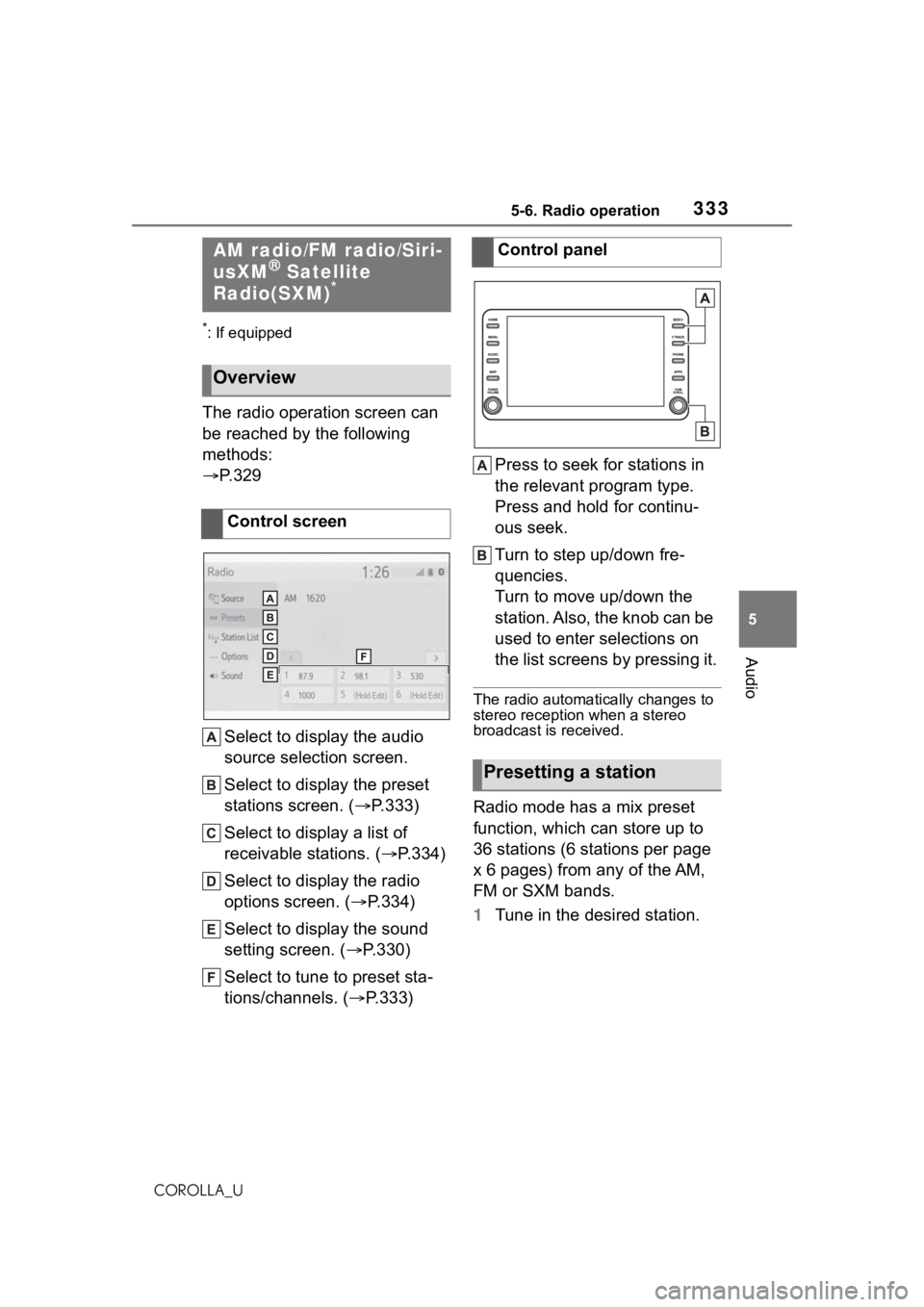
The radio operation screen can
be reached by the following
methods:
P. 3 2 9
Select to display the audio
source selection screen.
Select to display the preset
stations screen. ( P.333)
Select to display a list of
receivable stations. ( P.334)
Select to display the radio
options screen. ( P.334)
Select to display the sound
setting screen. ( P.330)
Select to tune to preset sta-
tions/channels. ( P.333) Press to seek for stations in
the relevant program type.
Press and hold for continu-
ous seek.
Turn to step up/down fre-
quencies.
Turn to move up/down the
station. Also, the knob can be
used to enter selections on
the list screens by pressing it.
The radio automatically changes to
stereo reception when a stereo
broadcast is received.
Radio mode has a mix preset
function, which can store up to
36 stations (6 stations per page
x 6 pages) from any of the AM,
FM or SXM bands.
1
Tune in the desired station.
AM radio/FM radio/Siri-
usXM® Satellite
Radio(SXM)*
Overview
Control screen
Control panel
Presetting a station
Page 334 of 624
3345-6. Radio operation
COROLLA_U
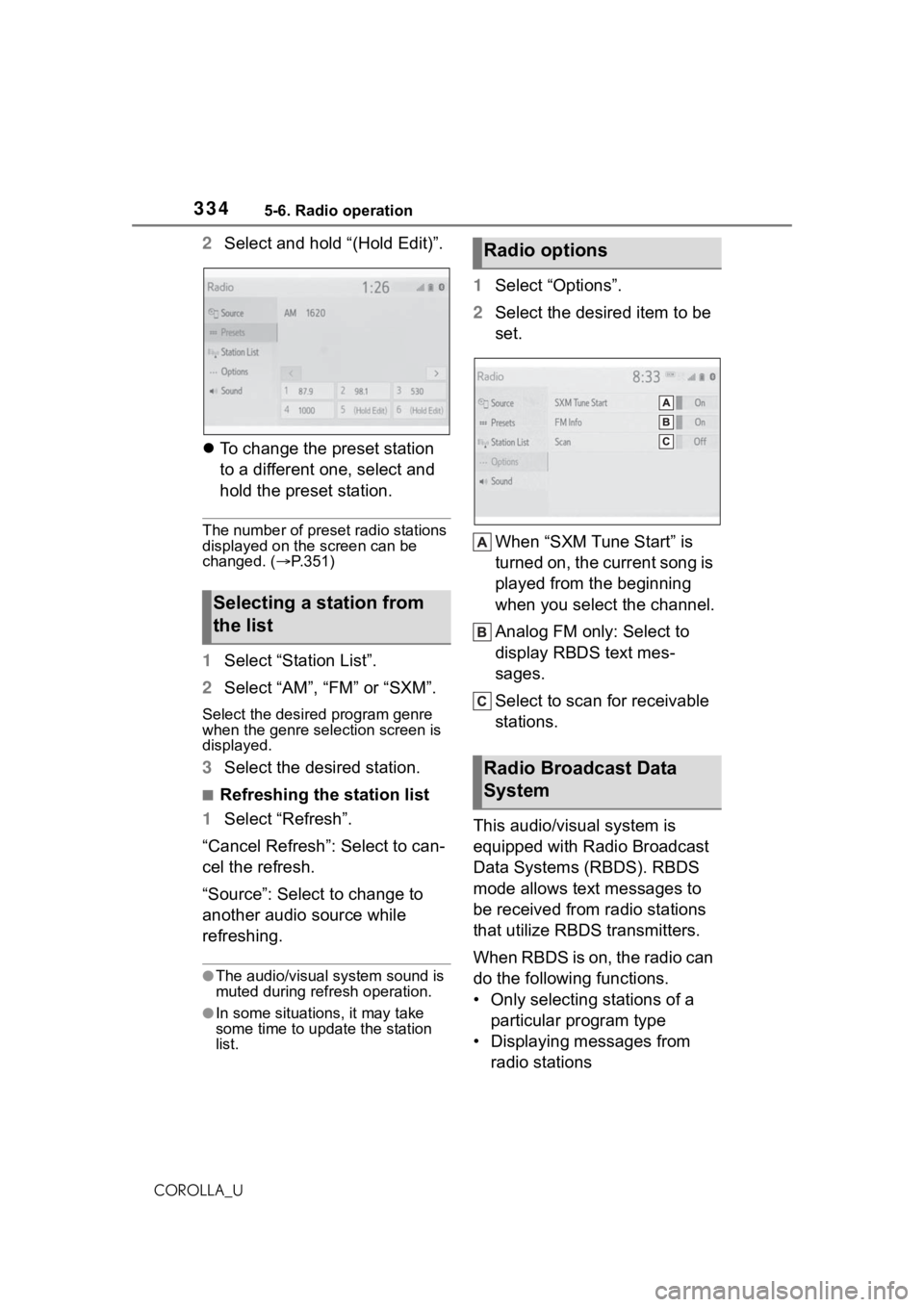
2Select and hold “(Hold Edit)”.
To change the preset station
to a different one, select and
hold the preset station.
The number of preset radio stations
displayed on the screen can be
changed. ( P.351)
1 Select “Station List”.
2 Select “AM”, “FM” or “SXM”.
Select the desired program genre
when the genre selection screen is
displayed.
3Select the desired station.
■Refreshing the station list
1 Select “Refresh”.
“Cancel Refresh”: Select to can-
cel the refresh.
“Source”: Select to change to
another audio source while
refreshing.
●The audio/visual system sound is
muted during refresh operation.
●In some situations, it may take
some time to update the station
list.
1 Select “Options”.
2 Select the desired item to be
set.
When “SXM Tune Start” is
turned on, the current song is
played from the beginning
when you select the channel.
Analog FM only: Select to
display RBDS text mes-
sages.
Select to scan for receivable
stations.
This audio/visual system is
equipped with Radio Broadcast
Data Systems (RBDS). RBDS
mode allows text messages to
be received from radio stations
that utilize RBDS transmitters.
When RBDS is on, the radio can
do the following functions.
• Only selecting stations of a particular program type
• Displaying messages from radio stations
Selecting a station from
the list
Radio options
Radio Broadcast Data
System
Page 335 of 624
3355-6. Radio operation
5
Audio
COROLLA_U
• Searching for a stronger sig-nal station
RBDS features are available
only when listening to an FM
station that broadcasts RBDS
information and the “FM Info”
function is on. ( P.334)
All SiriusXM services, including
satellite radio and data services,
plus streaming services, require
a subscription, sold separately
or as a package by Sirius XM
Radio Inc. (or in Canada, Sirius
XM Canada Inc.), after any trial
subscription which may be
included with your vehicle pur-
chase or lease. To subscribe
after your trial subscription, call
1-877-447-0011 (U.S.A.) or
1-877-438-9677 (Canada).
■Important information
about your subscription
Your SiriusXM services will
automatically stop at the end of
your trial unless you decide to
subscribe. If you decide to con-
tinue service, the paid subscrip-
tion plan you choose will
automatically renew and you will
be charged the rate in effect at
that time and according to your
chosen payment method. Fees
and taxes apply. You may can-
cel at any time by calling
1-866-635-2349. See SiriusXM Customer Agreement for com-
plete terms at www.siri-
usxm.com (U.S.A.) or
www.siriusxm.ca
(Canada). All
fees and programming subject
to change. Traffic information
not available in all markets.
●About SiriusXM Services
• Most in-car trials today include
SiriusXM’s best package — All
Access. It includes every channel
available on your radio, plus
streaming.
●SiriusXM All Access Subscription
• Listen everywhere with All Access. You get every channel
available in your ride, plus you can
listen on the app a nd online — so
you can enjoy the best SiriusXM
has to offer, anywhere life takes
you. It’s the only package that
gives you all of our premium pro-
gramming, including Howard
How to subscribe to Siri-
usXM Radio Services
NOTICE
●It is prohibited to copy, decom-
pile, disassemble, reverse engi-
neer, hack, manipulate, or
otherwise make available any
technology or software incorpo-
rated in receivers compatible
with the SiriusXM Satellite
Radio System or that support
the SiriusXM website, the
streaming service or any of its
content. Furthermore, the
AMBE
® voice compression soft-
ware included in this product is
protected by intellectual prop-
erty rights including patent
rights, copyrights, and trade
secrets of Digital Voice Sys-
tems, Inc.
●Note: this applies to SiriusXM
Satellite Radio receivers only
and not SiriusXM Ready
devices.
Page 336 of 624
3365-6. Radio operation
COROLLA_UStern, every NFL, MLB
® and NBA
game, every NASCAR® race,
NHL® games, 24/7 talk channels
dedicated to the biggest leagues,
and more. You get all kinds of
commercial-free m usic, including
artist-dedicated channels and
more, plus sports, news, talk and
entertainment.
●Radio operation
• Look for the Sirius, XM, SiriusXM, Band, SAT, AUX, Radio or Source
button and you’re in. If you can’t
hear us, it’s easy to get started:
U.S.A.:
Locate your Radio ID by turning to
Channel 0. If you don’t see your
number there, go to siri-
usxm.com/activationhelp to find it.
Visit siriusxm.com/refresh
or call
1-855-MYREFRESH (697-3373)
to send a refresh signal to your
radio.
Canada:
Locate your Radio ID by turning to
Channel 0.
Visit siriusxm.ca/refresh
to send a refresh signal to your radio or call
1-888-539-7474 for service.
Each SiriusXM tuner is identified
with a unique radio ID. The radio
ID is required when activating
an SiriusXM service or when
reporting a problem.
If “Ch 000” is selected using
the “TUNE SCROLL” knob,
the ID code, which is 8 alpha-
numeric characters, will be
displayed. If another channel
is selected, the ID code will no
longer be displayed. The
channel (000) alternates
between displaying the radio
ID and the specific radio
code.
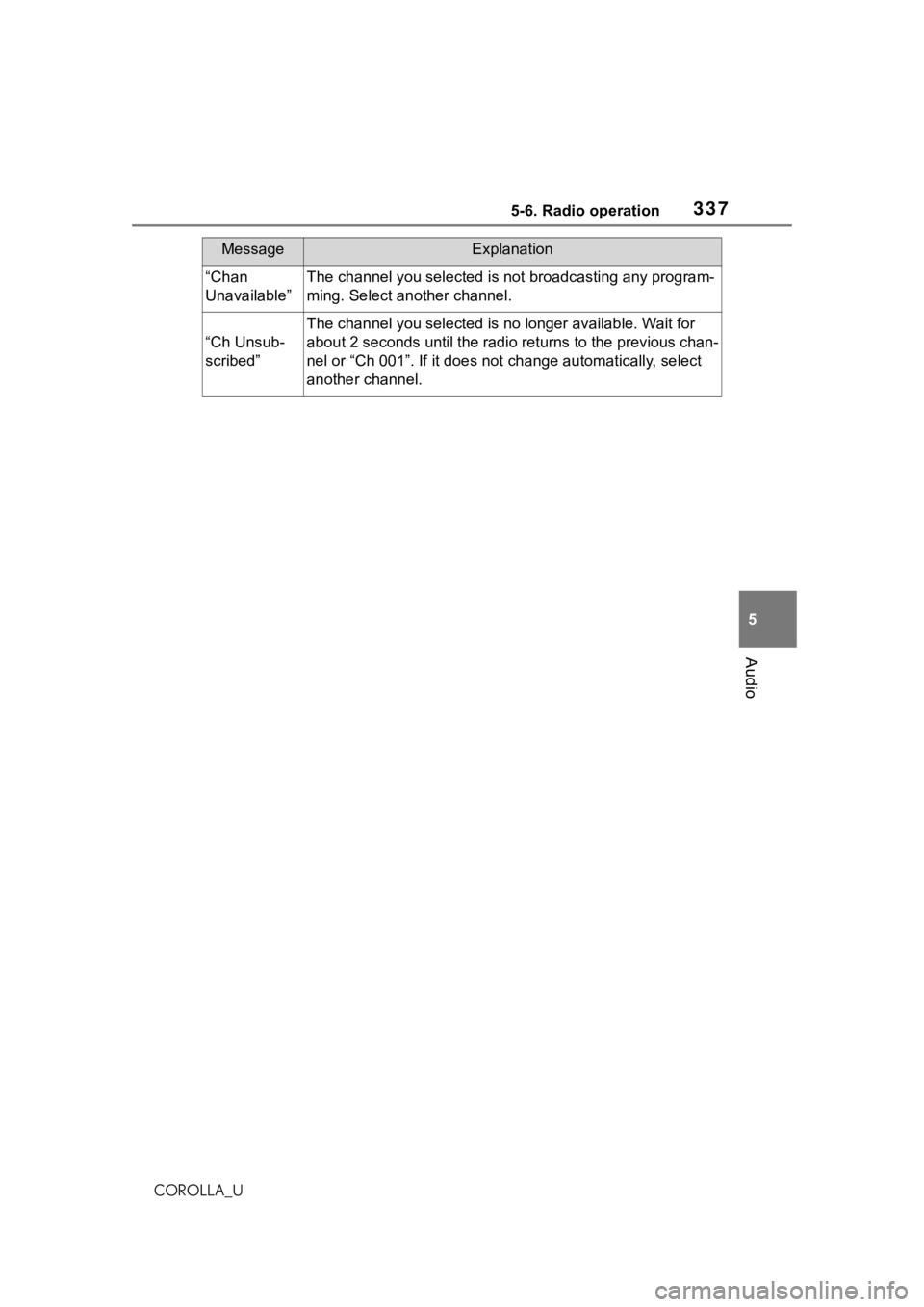
When problems occur with the SiriusXM tuner, a message will
appear on the screen. Referring to the table below to identify the
problem, take the suggested corrective action.
Displaying the radio ID
Refer to the table below to identify the problem and take
the suggested corrective action
MessageExplanation
“Check
Antenna”
The SiriusXM antenna is not c onnected. Check whether the
SiriusXM antenna cable is at tached securely. Contact your
Toyota dealer for assistance.
A short circuit occurs in the antenna or the surrounding
antenna cable. Contact your T oyota dealer for assistance.
“No Signal”The SiriusXM signal is too weak at the current location. Wait
until your vehicle reaches a location with a stronger signal.
Page 337 of 624
3375-6. Radio operation
5
Audio
COROLLA_U
“Chan
Unavailable”The channel you selected is not broadcasting any program-
ming. Select another channel.
“Ch Unsub-
scribed”
The channel you selected is no longer available. Wait for
about 2 seconds until the radio returns to the previous chan-
nel or “Ch 001”. If i t does not change automatically, select
another channel.
MessageExplanation
Page 338 of 624
3385-6. Radio operation
COROLLA_U
●Other applications can be acti-
vated while listening to internet
radio.
●Some parts of applications can be
adjusted using the switches on the
steering wheel.
●For additional information, refer to
https://www.toyota.com/
audio-multimedia or call
1-800-331-4331 in the United
States,
https://www.toyota.ca/connected
or call
1-888-869-6828 in Canada, and
http://www.toyotapr.com/
audio-multimedia or call
1-877-855-8377 in Puerto Rico.
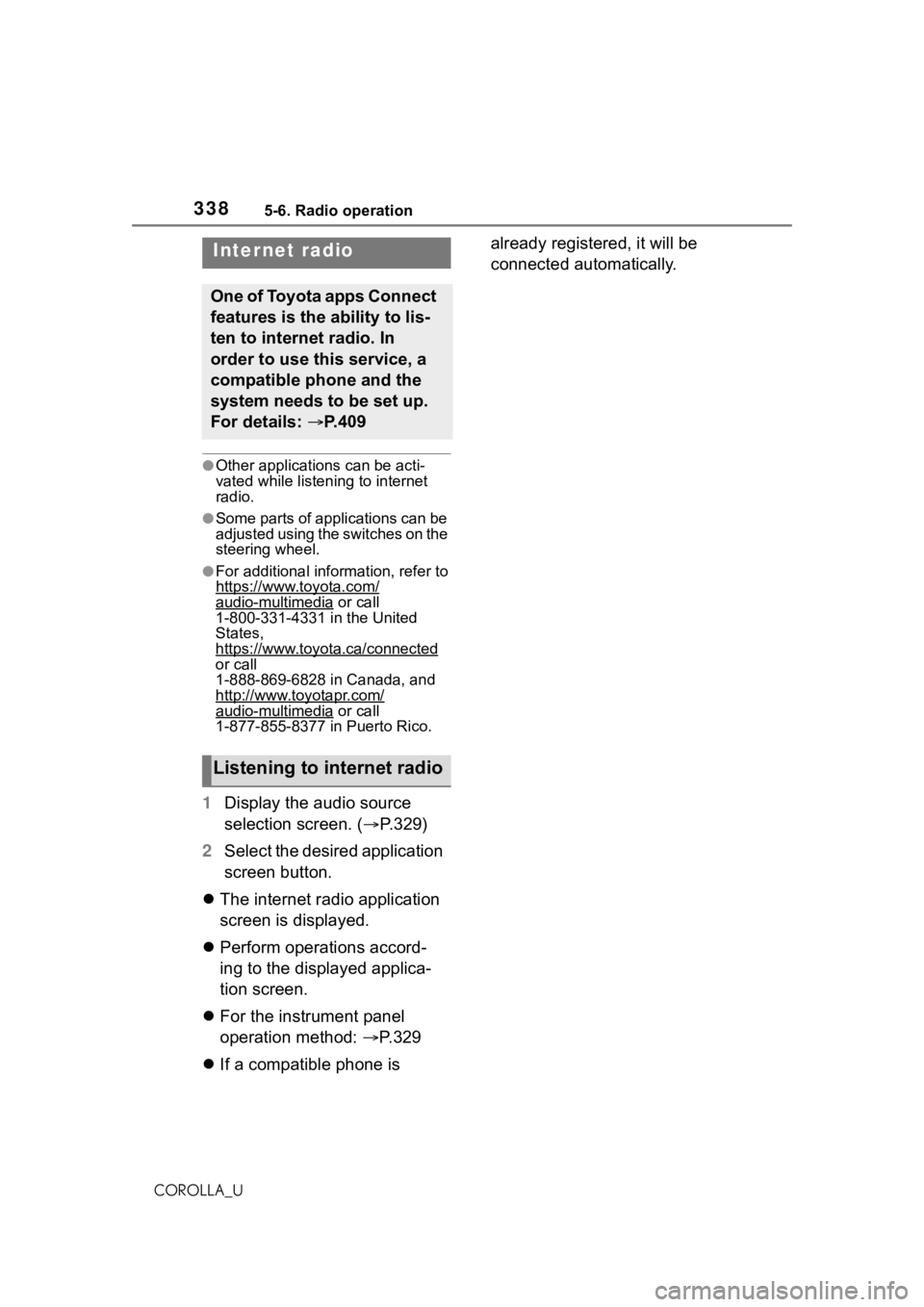
1 Display the audio source
selection screen. ( P.329)
2 Select the desired application
screen button.
The internet radio application
screen is displayed.
Perform operations accord-
ing to the displayed applica-
tion screen.
For the instrument panel
operation method: P.329
If a compatible phone is already registered, it will be
connected automatically.
Internet radio
One of Toyota apps Connect
features is the ability to lis-
ten to internet radio. In
order to use this service, a
compatible phone and the
system needs to be set up.
For details:
P.409
Listening to internet radio
Page 346 of 624
3465-7. Media operation
COROLLA_U
The Bluetooth® audio operation
screen can be reached by the
following methods: P. 3 2 9
Connecting a Bluetooth
® audio
device ( P.347)
Depending on the type of porta-
ble player connected, some
functions may not be available and/or the screen may look dif-
ferently than shown in this man-
ual.
When an Apple CarPlay/Android
Auto connection is established,
Bluetooth
® audio will be sus-
pended and become unavail-
able
*.
*: This function is not made avail- able in some countries or areas.
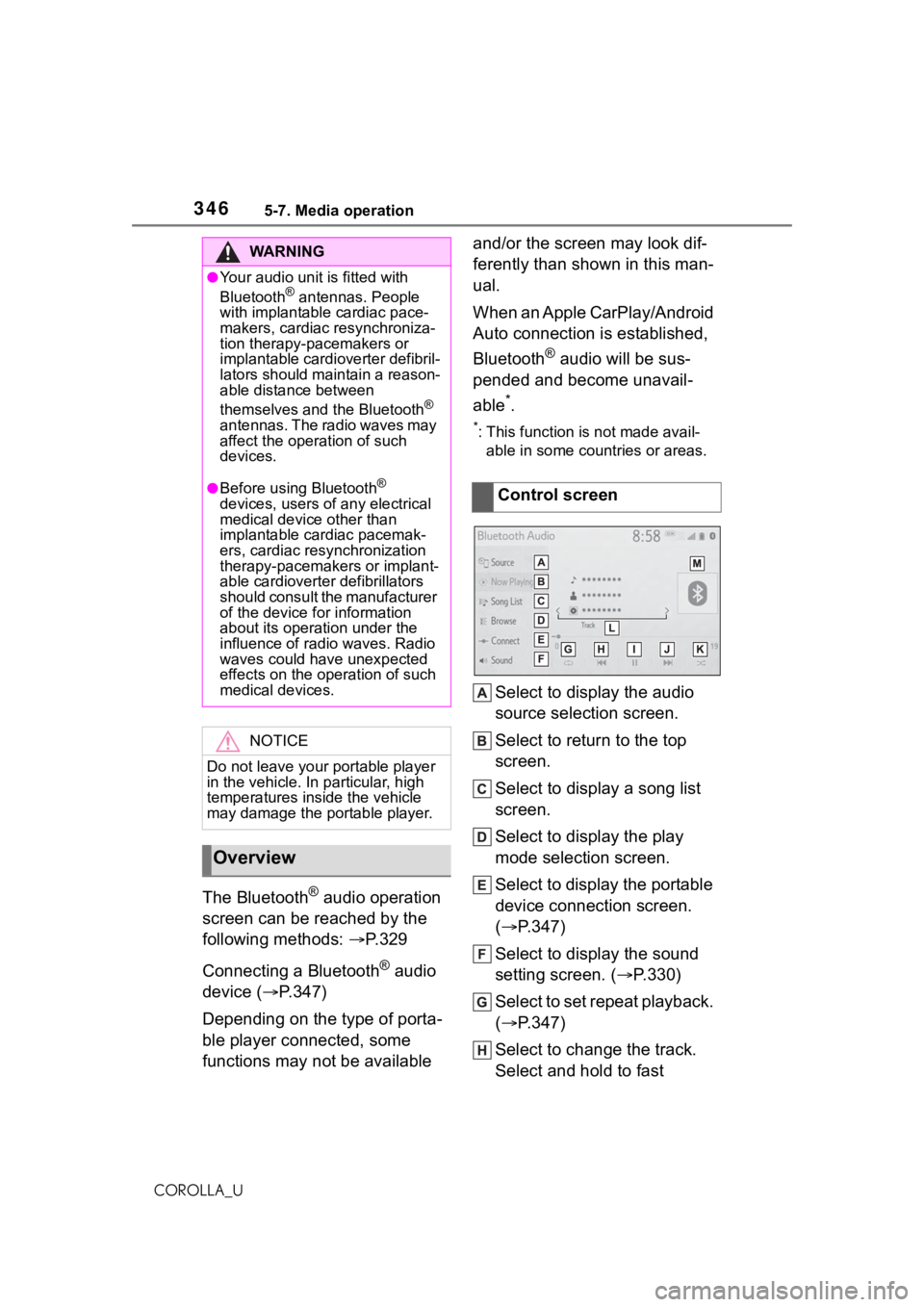
Select to display the audio
source selection screen.
Select to return to the top
screen.
Select to display a song list
screen.
Select to display the play
mode selection screen.
Select to display the portable
device connection screen.
( P.347)
Select to display the sound
setting screen. ( P.330)
Select to set repeat playback.
( P.347)
Select to change the track.
Select and hold to fast
WA R N I N G
●Your audio unit is fitted with
Bluetooth® antennas. People
with implantable cardiac pace-
makers, cardiac resynchroniza-
tion therapy-pacemakers or
implantable cardioverter defibril-
lators should maintain a reason-
able distance between
themselves and the Bluetooth
®
antennas. The radio waves may
affect the operation of such
devices.
●Before using Bluetooth®
devices, users of any electrical
medical device other than
implantable cardiac pacemak-
ers, cardiac resynchronization
therapy-pacemakers or implant-
able cardioverter defibrillators
should consult the manufacturer
of the device for information
about its operation under the
influence of radio waves. Radio
waves could have unexpected
effects on the operation of such
medical devices.
NOTICE
Do not leave your portable player
in the vehicle. In particular, high
temperatures inside the vehicle
may damage the portable player.
Overview
Control screen
Page 349 of 624
3495-8. Audio/visual remote controls
5
Audio
COROLLA_U
5-8.Audio/visual remote controls
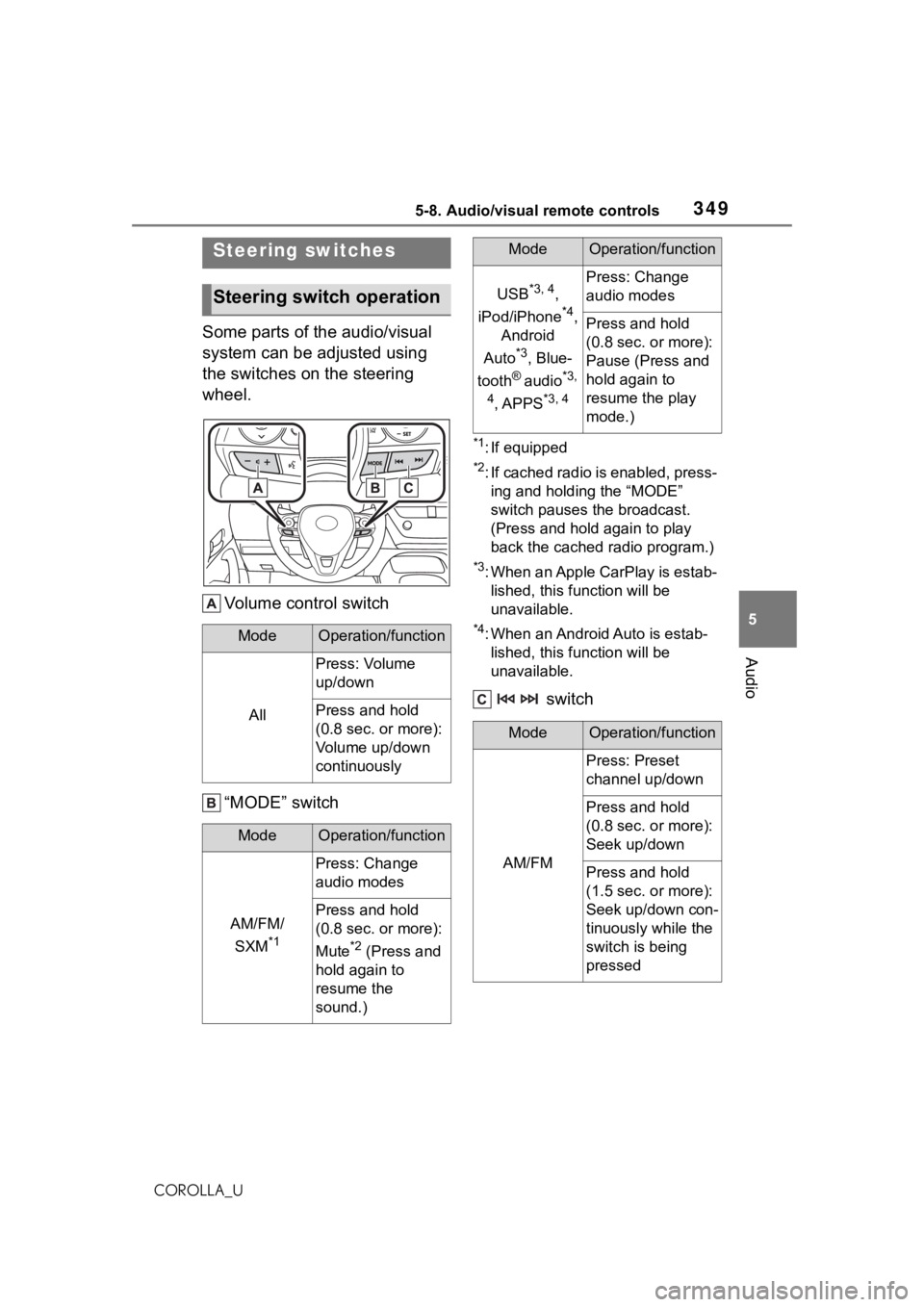
Some parts of the audio/visual
system can be adjusted using
the switches on the steering
wheel.Volume control switch
“MODE” switch
*1: If equipped
*2: If cached radio is enabled, press-ing and holding the “MODE”
switch pauses the broadcast.
(Press and hold again to play
back the cached radio program.)
*3: When an Apple CarPlay is estab-lished, this function will be
unavailable.
*4: When an Android Auto is estab-lished, this function will be
unavailable.
switch
Steering switches
Steering switch operation
ModeOperation/function
All
Press: Volume
up/down
Press and hold
(0.8 sec. or more):
Volume up/down
continuously
ModeOperation/function
AM/FM/
SXM
*1
Press: Change
audio modes
Press and hold
(0.8 sec. or more):
Mute
*2 (Press and
hold again to
resume the
sound.)
USB*3, 4,
iPod/iPhone
*4,
Android
Auto
*3, Blue-
tooth
® audio*3,
4
, APPS*3, 4
Press: Change
audio modes
Press and hold
(0.8 sec. or more):
Pause (Press and
hold again to
resume the play
mode.)
ModeOperation/function
AM/FM
Press: Preset
channel up/down
Press and hold
(0.8 sec. or more):
Seek up/down
Press and hold
(1.5 sec. or more):
Seek up/down con-
tinuously while the
switch is being
pressed
ModeOperation/function
Page 351 of 624
3515-9. Audio settings
5
Audio
COROLLA_U
5-9.Audio settings
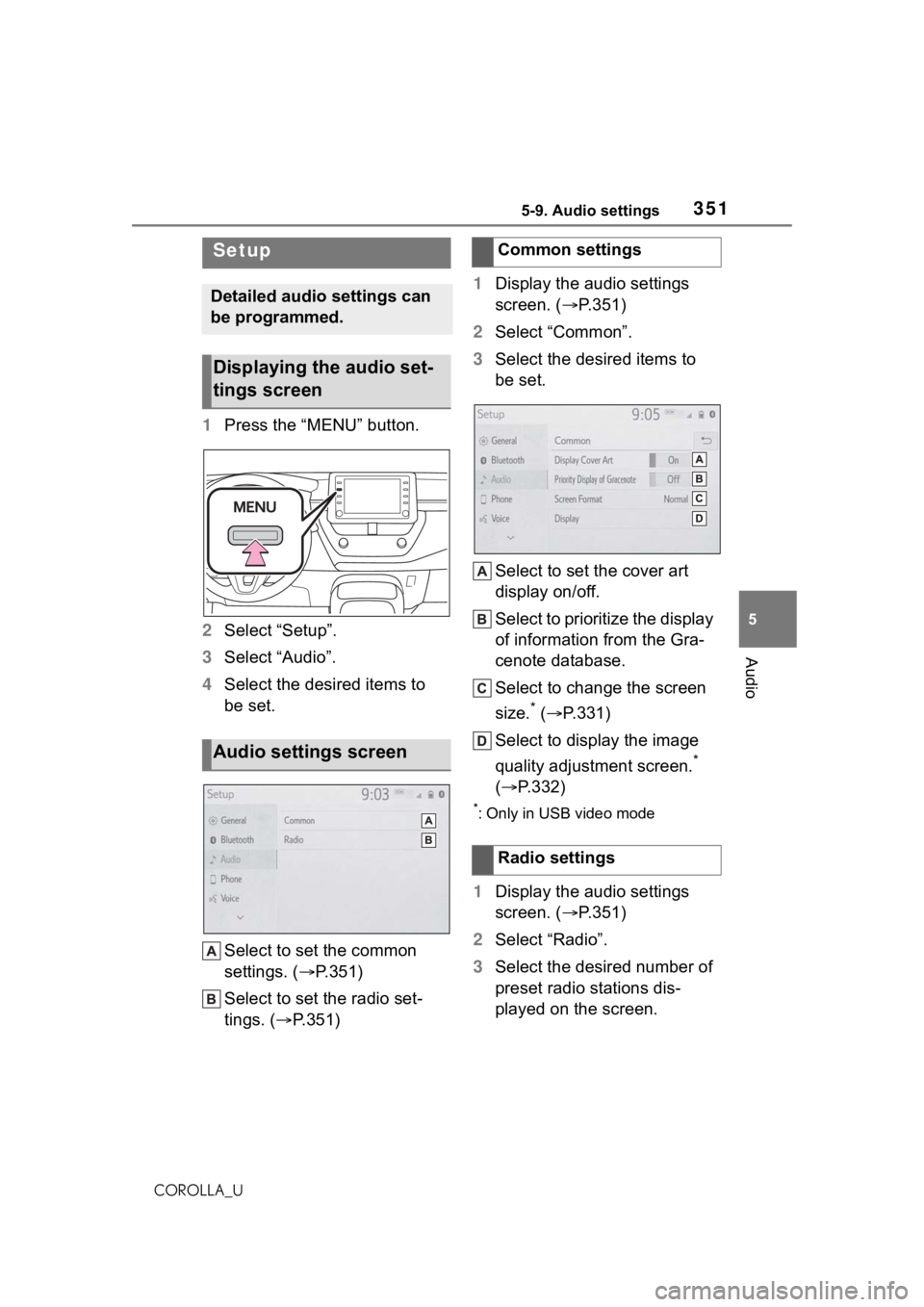
1Press the “MENU” button.
2 Select “Setup”.
3 Select “Audio”.
4 Select the desired items to
be set.
Select to set the common
settings. ( P.351)
Select to set the radio set-
tings. ( P.351) 1
Display the audio settings
screen. ( P.351)
2 Select “Common”.
3 Select the desired items to
be set.
Select to set the cover art
display on/off.
Select to prioritize the display
of information from the Gra-
cenote database.
Select to change the screen
size.
* ( P.331)
Select to display the image
quality adjustment screen.
*
( P.332)
*: Only in USB video mode
1Display the audio settings
screen. ( P.351)
2 Select “Radio”.
3 Select the desired number of
preset radio stations dis-
played on the screen.
Setup
Detailed audio settings can
be programmed.
Displaying the audio set-
tings screen
Audio settings screen
Common settings
Radio settings
Page 352 of 624
3525-10. Tips for operating the audio/visual system
COROLLA_U
5-10.Tips for operating the audio/visual system
The use of a cellular phone inside or
near the vehicle may cause a noise
from the speakers of the
audio/visual system which you are
listening to. However, this does not
indicate a malfunction.
Usually, a problem with radio
reception does not mean there
is a problem with the radio it
is just the normal result of condi-
tions outside the vehicle.
For example, nearby buildings
and terrain can interfere with FM
reception. Power lines or phone
wires can interfere with AM sig-
nals. And of course, radio sig-
nals have a limited range. The
farther the vehicle is from a sta-
tion, the weaker i ts signal will
be. In addition, reception condi-
tions change constantly as the
vehicle moves.
Here are some common recep-
tion problems that may not indi-
cate a problem with the radio as
described.
■FM
Fading and drifting stations:
Generally, the effective range of FM is about 25 miles (40 km).
Once outside this range, you
may notice fading and drifting,
which increase with the distance
from the radio transmitter. They
are often accompanied by dis-
tortion.
Multi-path: FM signals are
reflective, making it possible for
2 signals to reach the vehicle’s
antenna at the same time. If this
happens, the signals will cancel
each other out, causing a
momentary flutter or loss of
reception.
Static and fluttering: These
occur when signals are blocked
by buildings, trees or other large
objects. Increasing the bass
level may reduce static and flut-
tering.
Station swapping: If the FM sig-
nal being listened to is inter-
rupted or weakened, and there
is another strong station nearby
on the FM band, the radio may
tune in the second station until
the original signal can be picked
up again.
■AM
Fading: AM broadcasts are
reflected by the upper atmo-
sphere especially at night.
These reflected signals can
interfere with those received
directly from the radio station,
causing the radio station to
sound alternately strong and
weak.
Operating infor mation
NOTICE
To avoid damage to the
audio/visual system:
Be careful not to spill beverages
over the audio/visual system.
Radio