radio TOYOTA COROLLA 2021 (in English) Owner's Guide
[x] Cancel search | Manufacturer: TOYOTA, Model Year: 2021, Model line: COROLLA, Model: TOYOTA COROLLA 2021Pages: 624, PDF Size: 20.3 MB
Page 353 of 624
3535-10. Tips for operating the audio/visual system
5
Audio
COROLLA_U
Station interference: When a
reflected signal and a signal
received directly from a radio
station are very nearly the same
frequency, they can interfere
with each other, making it diffi-
cult to hear the broadcast.
Static: AM is easily affected by
external sources of electrical
noise, such as high tension
power lines, lightening or electri-
cal motors. This results in static.
■SiriusXM
Cargo loaded on the roof lug-
gage carrier, especially metal
objects, may adversely affect
the reception of SiriusXM Sat-
ellite Radio.
Alternation or modifications
carried out without appropri-
ate authorization may invali-
date the user’s right to
operate the equipment.
■Certification
Use of the Made for Apple
badge means that an acces-
sory has been designed to
connect specifically to the
Apple product(s) identified in
the badge, and has been cer-
tified by the developer to meet
Apple performance stan-
dards. Apple is not responsi-
ble for the operation of this
device or its compliance with
safety and regulatory stan-
dards. Please note that the
use of this accessory with an
Apple product may affect
wireless performance.
iPhone
®, iPod®, iPod clas-
sic
®, iPod nano®, iPod
touch
®, and Lightning® are
trademarks of Apple Inc., reg-
istered in the U.S. and other
countries.
■Compatible models
Made for
• iPhone X
• iPhone 8
• iPhone 8 Plus
• iPhone 7
• iPhone 7 Plus
• iPhone SE
• iPhone 6s
• iPhone 6s Plus
iPod
Page 364 of 624
3645-11. Voice command system operation
COROLLA_U
5-11.Voice command system operation
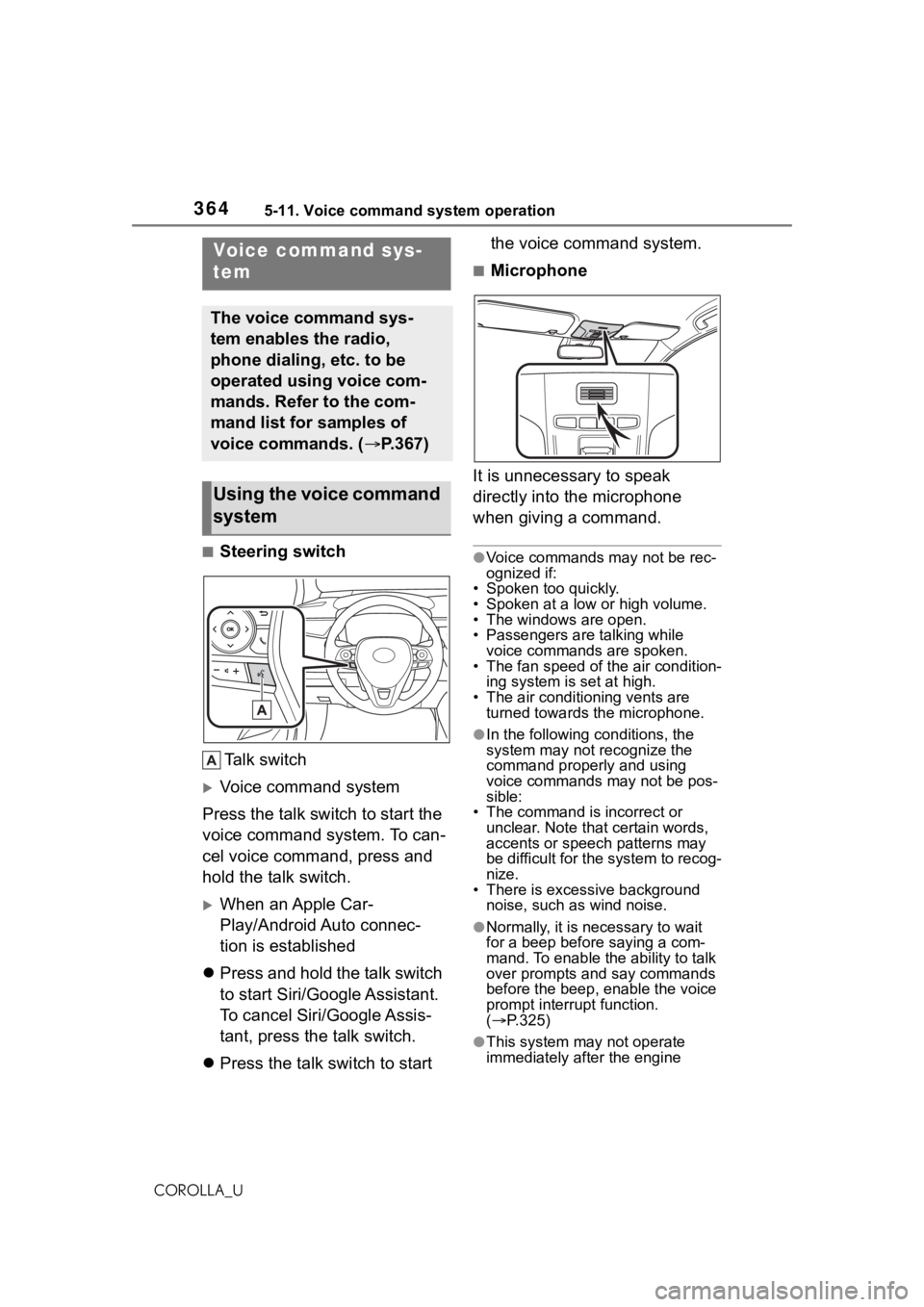
■Steering switchTa l k s w i t c h
Voice command system
Press the talk switch to start the
voice command system. To can-
cel voice command, press and
hold the talk switch.
When an Apple Car-
Play/Android Auto connec-
tion is established
Press and hold the talk switch
to start Siri/Google Assistant.
To cancel Siri/Google Assis-
tant, press the talk switch.
Press the talk switch to start the voice command system.
■Microphone
It is unnecessary to speak
directly into the microphone
when giving a command.
●Voice commands may not be rec-
ognized if:
• Spoken too quickly.
• Spoken at a low or high volume.
• The windows are open.
• Passengers are talking while voice commands are spoken.
• The fan speed of the air condition-
ing system is set at high.
• The air conditioning vents are turned towards the microphone.
●In the following c onditions, the
system may not recognize the
command properly and using
voice commands may not be pos-
sible:
• The command is incorrect or unclear. Note that certain words,
accents or speech patterns may
be difficult for the system to recog-
nize.
• There is excessive background
noise, such as wind noise.
●Normally, it is necessary to wait
for a beep before saying a com-
mand. To enable th e ability to talk
over prompts and say commands
before the beep, enable the voice
prompt interrupt function.
( P.325)
●This system may not operate
immediately after the engine
Voice command sys-
tem
The voice command sys-
tem enables the radio,
phone dialing, etc. to be
operated using voice com-
mands. Refer to the com-
mand list for samples of
voice commands. ( P.367)
Using the voice command
system
Page 369 of 624
3695-11. Voice command system operation
5
Audio
COROLLA_Ucommands will be unavailable.
■Radio
*1: A station list must be built first
using the radio screen ( P.333)
*2: Requires a satellite radio sub-
scription
■Audio*1
*1: The audio device must be con-nected via a USB cable to use
CommandAction
“Tune to
Changes the
radio to the
specified AM fre-
quency
“Tune to
Changes the
radio to the
specified FM fre-
quency
“Play a
station”
Changes the
radio to an FM
station of the
specified genre
*1
“Tune to preset
<1-36>”
Changes the
radio to the
specified preset
radio station
“Tune to a
lite station”
Changes the
radio to a satel-
lite radio channel
of the specified
genre
*2
“Tune to
name>”
Changes the
radio to the sat-
ellite radio chan-
nel with the
specified name
*2
“Tune to chan-
nel
XM”
Changes the
radio to a satel-
lite radio channel
of the specified
number
*2
CommandAction
“Play Playlist
*2
Plays tracks
from the
selected playlist
“Play Artist
*2
Plays tracks
from the
selected artist
“Play Song
*2Plays the
selected track
“Play Album
*2
Plays tracks
from the
selected album
“Play Genre
*2
Plays tracks
from the
selected genre
“Play Composer
*2
Plays tracks
from the
selected com-
poser
“Play Podcast
*2
Plays tracks
from the
selected podcast
“Play Audiobook
*2
Plays tracks
from the
selected audio-
book
“Audio On”
Turns the
audio/visual sys-
tem on
“Audio Off”
Turns the
audio/visual sys-
tem off
“Change the
audio source to
to the specified
audio mode
Page 375 of 624
3755-13. Phone operation (Hands-free system for cellular phones)
5
Audio
COROLLA_U
To use the hands-free system
for cellular phones, it is neces-
sary to register a cellular phone
with the system. (P.298)
■Connecting a Bluetooth®
device
Registering an additional
device
1 Display the phone top
screen. ( P.373)
2 Select “Select Device”.
3 Select “Add Device”.
When another Bluetooth® device is
connected, a confirmation screen
will be displayed. To disconnect the
Bluetooth
® device, select “Yes”.
4 Follow the steps in “Register-
ing a Bluetooth
® phone for
the first time” from step 5.
( P.298)
Selecting a registered device
1 Display the phone top
screen. ( P.373)
2 Select “Select Device”.
3 Select the desired device to
be connected.
4 Check that a confirmation
screen is displayed when the
connection is complete.
If an error message is displayed,
follow the guidance on the screen
to try again.
■Bluetooth® phone condition
display
The condition of the Bluetooth
®
phone appears on the upper
right side of the screen.
( P.287)
WA R N I N G
●Your audio unit is fitted with
Bluetooth® antennas. People
with implantable cardiac pace-
makers, cardiac resynchroniza-
tion therapy-pacemakers or
implantable cardioverter defibril-
lators should maintain a reason-
able distance between
themselves and the Bluetooth
®
antennas. The radio waves may
affect the operation of such
devices.
●Before using Bluetooth®
devices, users of any electrical
medical device other than
implantable cardiac pacemak-
ers, cardiac resynchronization
therapy-pacemakers or implant-
able cardioverter defibrillators
should consult the manufacturer
of the device for information
about its operation under the
influence of radio waves. Radio
waves could have unexpected
effects on the operation of such
medical devices.
NOTICE
Do not leave your cellular phone
in the vehicle. The temperature
inside may rise to a level that
could damage the phone.
Registering/Connecting a
Bluetooth® phone
Page 401 of 624
4015-15. What to do if... (Bluetooth®)
5
Audio
COROLLA_U
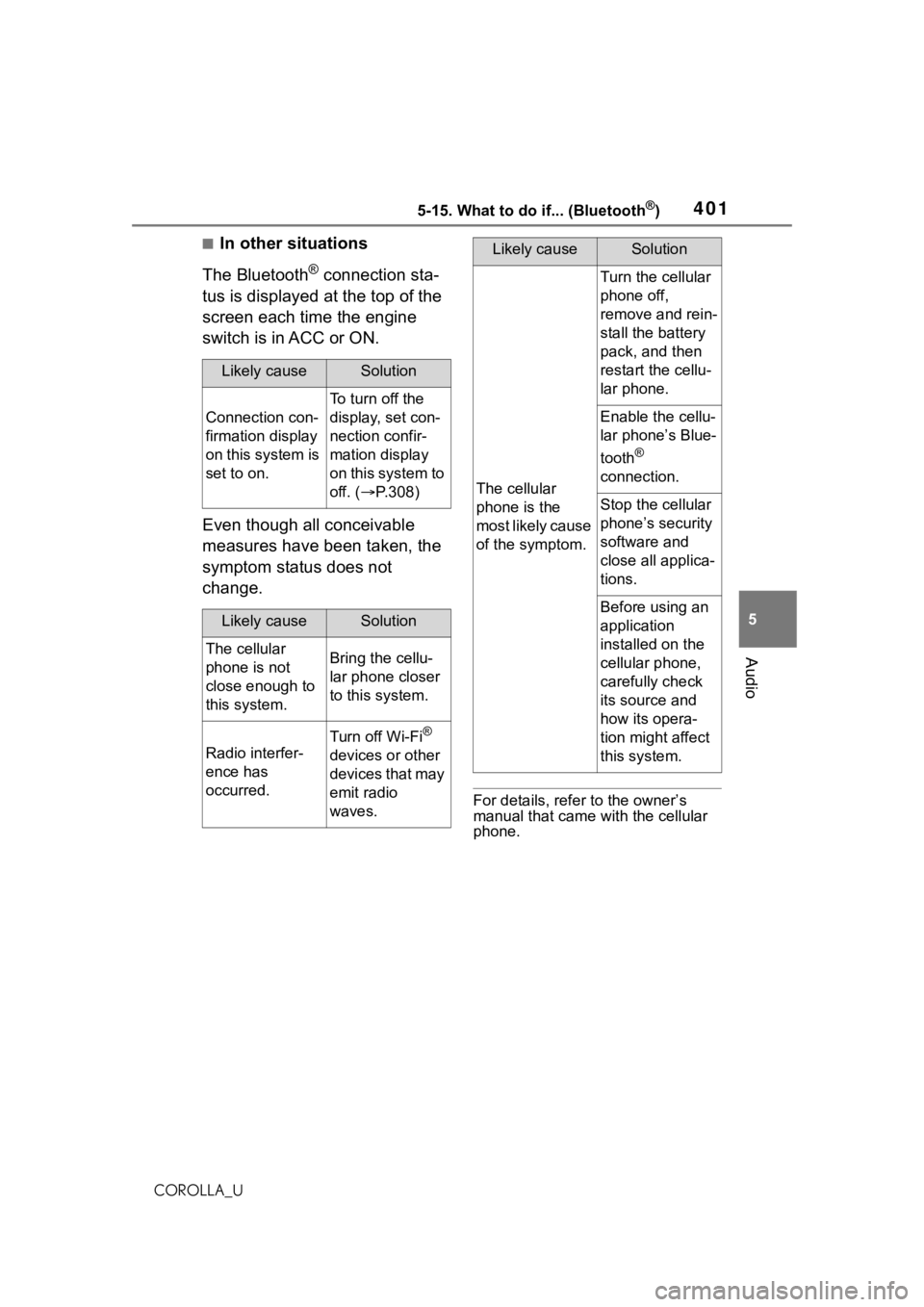
■In other situations
The Bluetooth
® connection sta-
tus is displayed at the top of the
screen each time the engine
switch is in ACC or ON.
Even though all conceivable
measures have been taken, the
symptom status does not
change.
For details, refer to the owner’s
manual that came with the cellular
phone.
Likely causeSolution
Connection con-
firmation display
on this system is
set to on.
To turn off the
display, set con-
nection confir-
mation display
on this system to
off. ( P.308)
Likely causeSolution
The cellular
phone is not
close enough to
this system.Bring the cellu-
lar phone closer
to this system.
Radio interfer-
ence has
occurred.
Turn off Wi-Fi®
devices or other
devices that may
emit radio
waves.
The cellular
phone is the
most likely cause
of the symptom.
Turn the cellular
phone off,
remove and rein-
stall the battery
pack, and then
restart the cellu-
lar phone.
Enable the cellu-
lar phone’s Blue-
tooth
®
connection.
Stop the cellular
phone’s security
software and
close all applica-
tions.
Before using an
application
installed on the
cellular phone,
carefully check
its source and
how its opera-
tion might affect
this system.
Likely causeSolution
Page 405 of 624
4055-16. Connected Services Overview
5
Audio
COROLLA_Uusing Toyota apps function. Con-
firm data usage fees before using
this function.
●For details regarding operation of
the Toyota apps, refer to
https://www.toyota.com/
connected-servicesin the United States,
https://www.toyota.ca/connected
in Canada, and
http://www.toyotapr.com/
connected-services
in Puerto Rico.
●These functions are not made
available in some countries or
areas. Availability
of functions of
the Toyota apps is dependent on
network reception level.
■Initializing personal data
The personal data used in appli-
cations can be reset. ( P.324)
The following personal data can
be deleted and returned to their
default settings:
Downloaded contents
Radio stations that were lis-
tened to
Once initialized, the data and set-
tings will be erased. Pay much
attention when initializing the data.
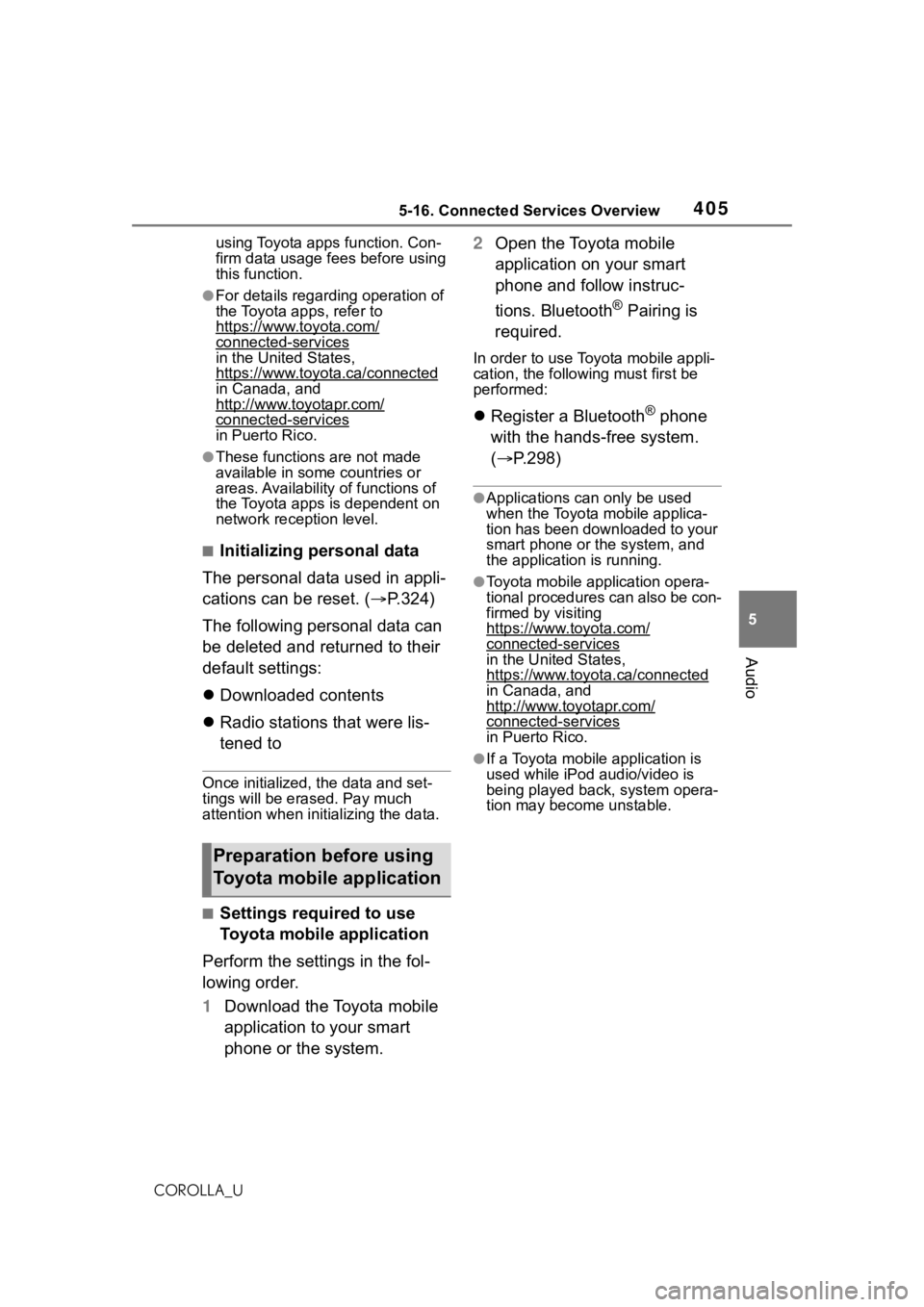
■Settings required to use
Toyota mobile application
Perform the settings in the fol-
lowing order.
1 Download the Toyota mobile
application to your smart
phone or the system. 2
Open the Toyota mobile
application on your smart
phone and follow instruc-
tions. Bluetooth
® Pairing is
required.
In order to use Toyota mobile appli-
cation, the following must first be
performed:
Register a Bluetooth® phone
with the hands-free system.
( P.298)
●Applications can only be used
when the Toyota mobile applica-
tion has been downloaded to your
smart phone or the system, and
the application is running.
●Toyota mobile application opera-
tional procedures can also be con-
firmed by visiting
https://www.toyota.com/
connected-services
in the United States,
https://www.toyota.ca/connected
in Canada, and
http://www.toyotapr.com/
connected-servicesin Puerto Rico.
●If a Toyota mobile application is
used while iPod audio/video is
being played back, system opera-
tion may become unstable.
Preparation before using
Toyota mobile application
Page 438 of 624
4386-4. Other interior features
COROLLA_U
■If a cover or accessory is
attached to the portable device
Do not charge a portable device if a
cover or accessory which is not Qi
compatible is attached. Depending
on the type of cover and/or acces-
sory attached, it may not be possi-
ble to charge the portable device. If
the portable device is placed on the
charging area and does not charge,
remove the cover and/or accesso-
ries.
■If interference is heard in AM
radio broadcasts while
charging
Turn off the wireless charger and
check if the noise is reduced. If
noise is reduced, press and hold the
power supply switch of the wireless
charger for 2 seconds. The fre-
quency of the wireless charger is
changed and noise may be
reduced. When the frequency is
changed, the operation indicator
light will blink (o range) 2 times.
■Charging precautions
●If the electronic key cannot be
detected in the cabin, charging
cannot be performed. When a
door is opened and closed,
charging may be temporarily sus-
pended.
●While charging, the wireless char-
ger and the portable device will
become warm.
This is not a malfunction.If a porta-
ble device becomes warm while
charging and charging stops due
to the protection f unction of the
portable device, wait until the por-
table device cools down and
charge it again.
■Sound generated during opera-
tion
When the power supply switch is
turned on or while a portable device
is being identified, operation sounds
may be heard. This is not a malfunc-
tion.
■Cleaning the wireless charger
P.455
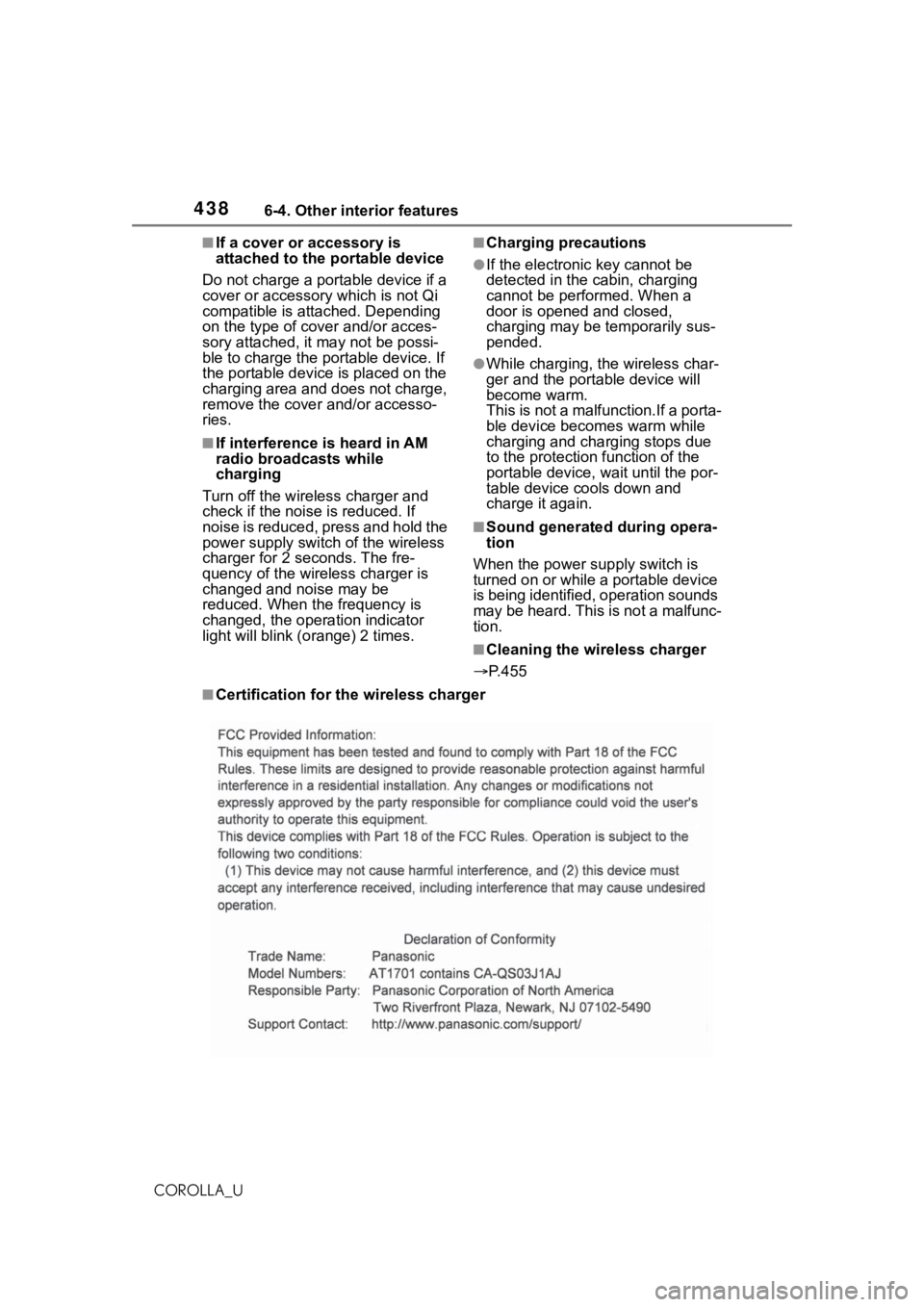
■Certification for the wireless charger
Page 441 of 624
4416-4. Other interior features
6
Interior features
COROLLA_U
WA R N I N G
■Caution while driving
When charging a portable device
while driving, for safety reasons,
the driver should not operate the
portable device.
■Caution regarding interfer-
ence with electronic devices
People with implantable cardiac
pacemakers, cardiac resynchroni-
zation therapy pacemakers or
implantable cardioverter defibrilla-
tors, as well as any other electri-
cal medical device, should consult
their physician about the usage of
the wireless charger.
Operations of the wireless char-
ger may have an affect on medi-
cal devices.
■To prevent damage or burns
Observe the following precau-
tions.
Failure to do so may result in the
possibility of fire , equipment fail-
ure or damage, or burns due to
heat.
●Do not put any metallic objects
between the charging area and
the portable device while
charging.
●Do not attach me tallic objects,
such as aluminum stickers, to
the charging area.
●Do not cover the wireless char-
ger with a cloth or other object
while charging.
●Do not attempt t o charge porta-
ble devices whic h are not com-
patible with the Qi wireless
charging standard.
●Do not disassemble, modify or
remove the wireless charger.
●Do not apply force or impact to
the wireless charger.
NOTICE
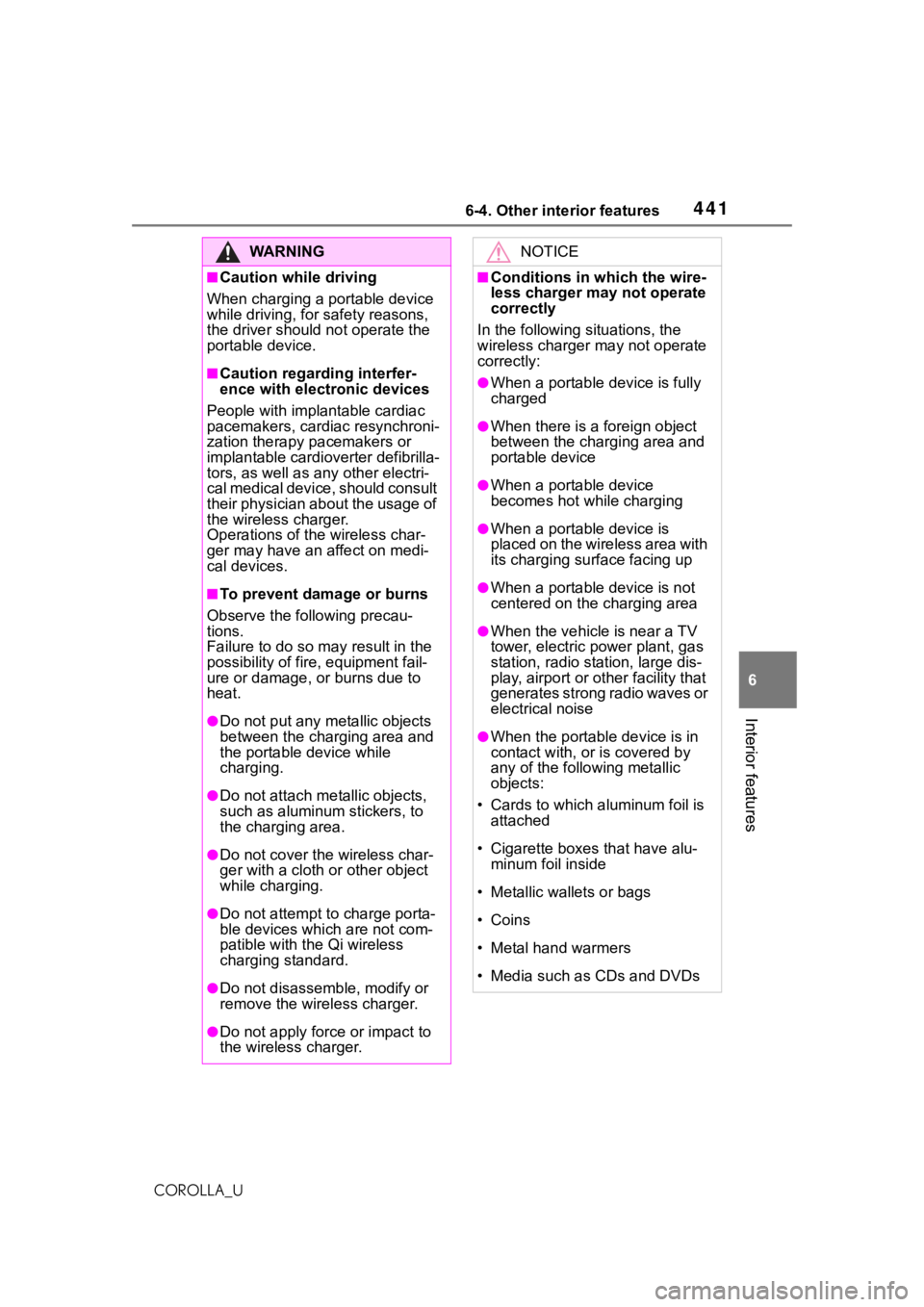
■Conditions in which the wire-
less charger may not operate
correctly
In the following situations, the
wireless charger may not operate
correctly:
●When a portable device is fully
charged
●When there is a foreign object
between the charging area and
portable device
●When a portable device
becomes hot wh ile charging
●When a portable device is
placed on the wireless area with
its charging surface facing up
●When a portable device is not
centered on the charging area
●When the vehicle is near a TV
tower, electric po wer plant, gas
station, radio station, large dis-
play, airport or ot her facility that
generates strong radio waves or
electrical noise
●When the portable device is in
contact with, or is covered by
any of the following metallic
objects:
• Cards to which aluminum foil is attached
• Cigarette boxes that have alu- minum foil inside
• Metallic wallets or bags
• Coins
• Metal hand warmers
• Media such as CDs and DVDs
Page 442 of 624
4426-4. Other interior features
COROLLA_U
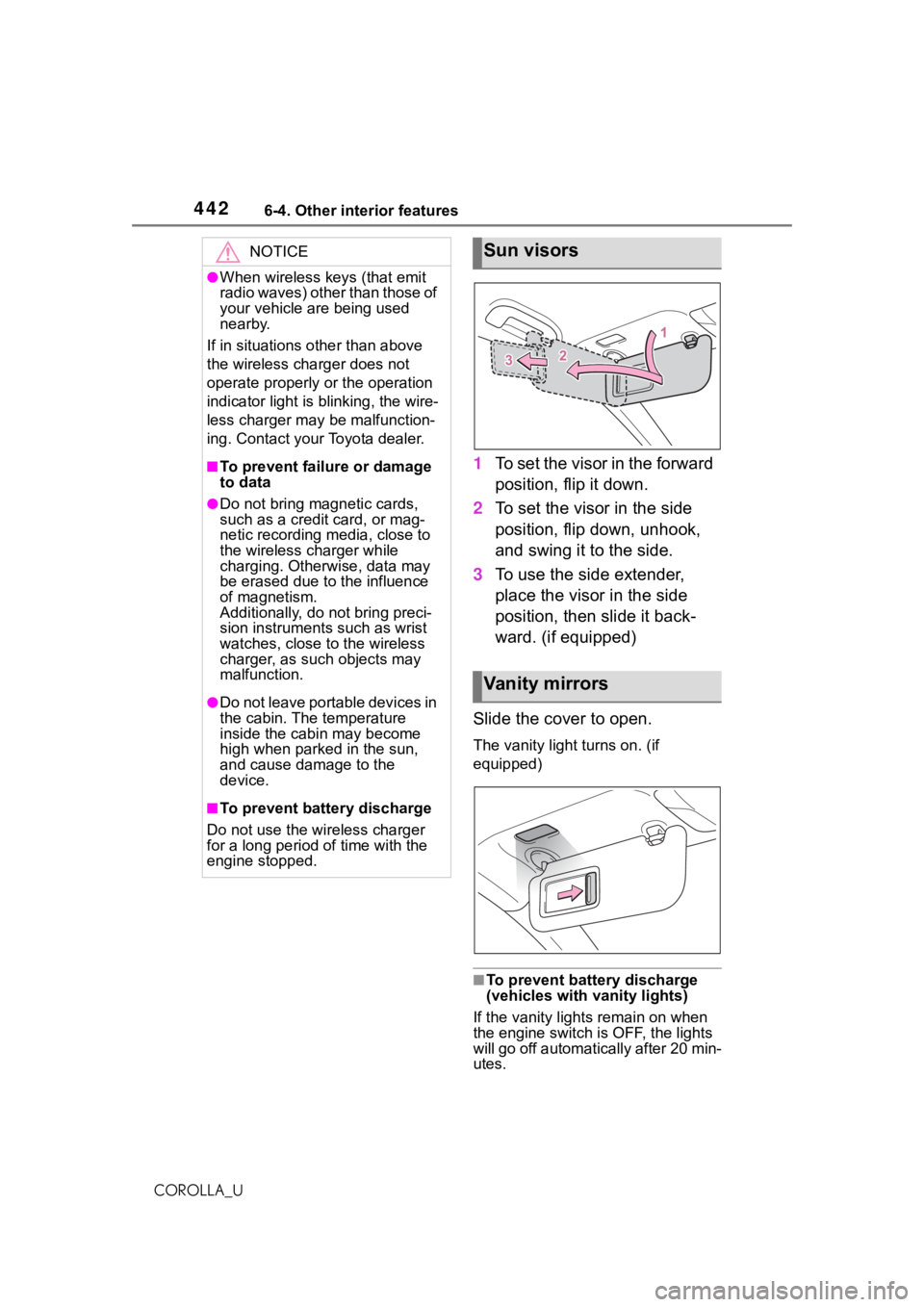
1To set the visor in the forward
position, flip it down.
2 To set the visor in the side
position, flip down, unhook,
and swing it to the side.
3 To use the side extender,
place the visor in the side
position, then slide it back-
ward. (if equipped)
Slide the cover to open.
The vanity light turns on. (if
equipped)
■To prevent batte ry discharge
(vehicles with vanity lights)
If the vanity lights remain on when
the engine switch is OFF, the lights
will go off automatically after 20 min-
utes.
NOTICE
●When wireless keys (that emit
radio waves) other than those of
your vehicle are being used
nearby.
If in situations other than above
the wireless charger does not
operate properly or the operation
indicator light is blinking, the wire-
less charger may be malfunction-
ing. Contact your Toyota dealer.
■To prevent failu re or damage
to data
●Do not bring magnetic cards,
such as a credit card, or mag-
netic recording media, close to
the wireless charger while
charging. Otherwise, data may
be erased due to the influence
of magnetism.
Additionally, do not bring preci-
sion instruments such as wrist
watches, close to the wireless
charger, as such objects may
malfunction.
●Do not leave portable devices in
the cabin. The temperature
inside the cabin may become
high when parked in the sun,
and cause damage to the
device.
■To prevent battery discharge
Do not use the wireless charger
for a long period of time with the
engine stopped.
Sun visors
Va n i t y m i r r o r s
Page 478 of 624
4787-3. Do-it-yourself maintenance
COROLLA_U
■Situations in which the tire
pressure warning system may
not operate properly
●In the following cases, the tire
pressure warning system may not
operate properly.
• If non-genuine Toyota wheels are used.
• A tire has been replaced with a tire that is not an OE (Original
Equipment) tire.
• A tire has been replaced with a tire that is not of the specified size.
• Tire chains, etc. are equipped.
• An auxiliary-supported run-flat tire
is equipped.
• If a window tint that affects the
radio wave signals is installed.
• If there is a lot of snow or ice on the vehicle, particularly around the
wheels or wheel housings.
• If the tire inflation pressure is extremely higher than the speci-
fied level.
• If tires not equipped with tire pres- sure warning valves and transmit-
ters are used.
• If the ID code on the tire pressure warning valves and transmitters is
not registered in the tire pressure
warning computer.
●Performance may be affected in
the following situations.
• Near a TV tower, electric power
plant, gas station, radio station,
large display, airpo rt or other facil-
ity that generates strong radio
waves or electrical noise.
• When carrying a portable radio, cellular phone, cordless phone or
other wireless communication
device.
●When the vehicle is parked, the
time taken for the warning to start
or go off could be extended.
●When tire inflation pressure
declines rapidly for example when
a tire has burst, the warning may
not function.
■Warning performance of the tire
pressure warning system
The warning of the tire pressure
warning system w ill change in
accordance with driving conditions.
For this reason, the system may
give a warning even if the tire pres-
sure does not reach a low enough
level, or if the p ressure is higher
than the pressure that was adjusted
to when the system w as initialized.
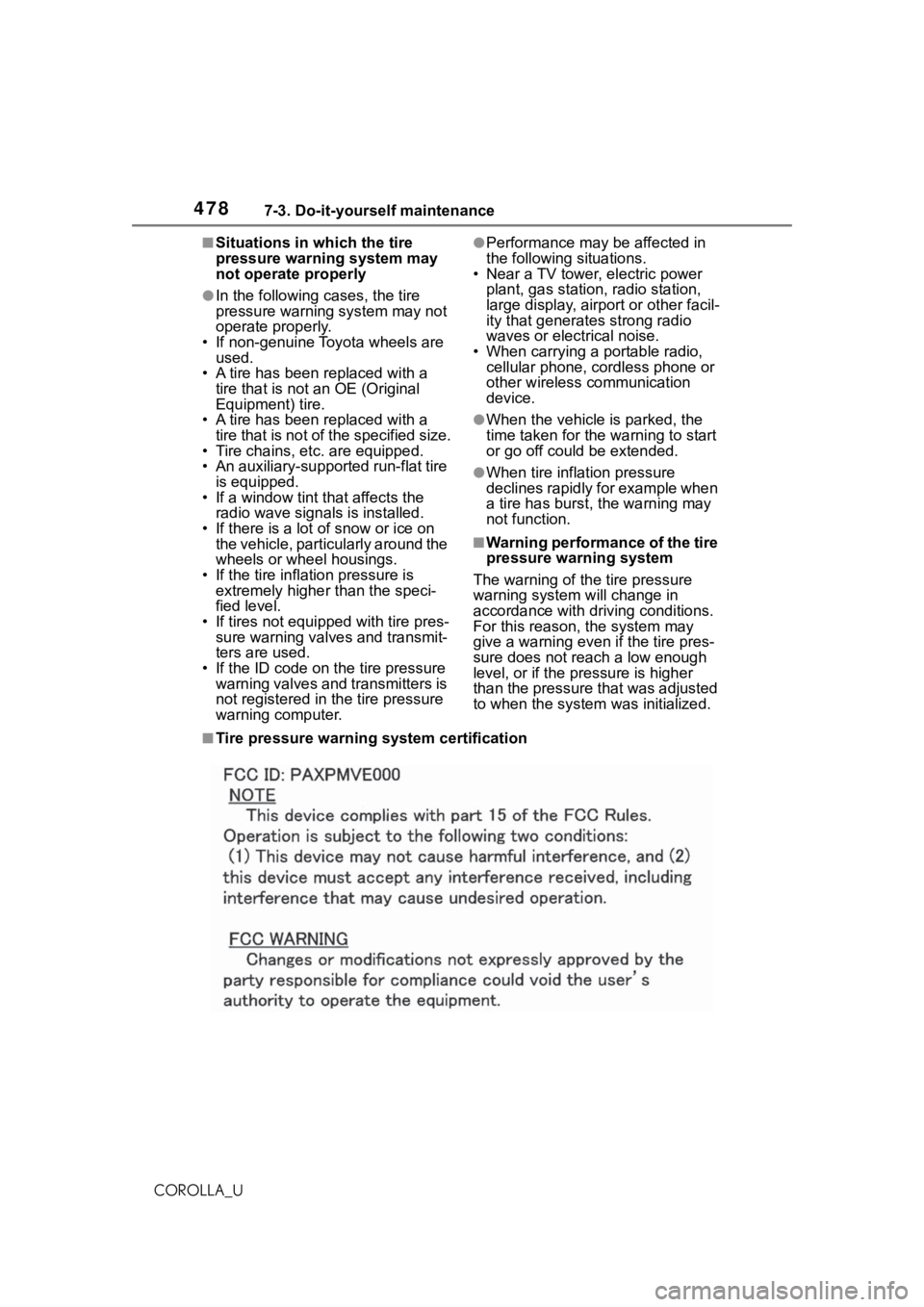
■Tire pressure warning system certification