buttons TOYOTA COROLLA 2021 Owners Manual (in English)
[x] Cancel search | Manufacturer: TOYOTA, Model Year: 2021, Model line: COROLLA, Model: TOYOTA COROLLA 2021Pages: 624, PDF Size: 20.3 MB
Page 3 of 624
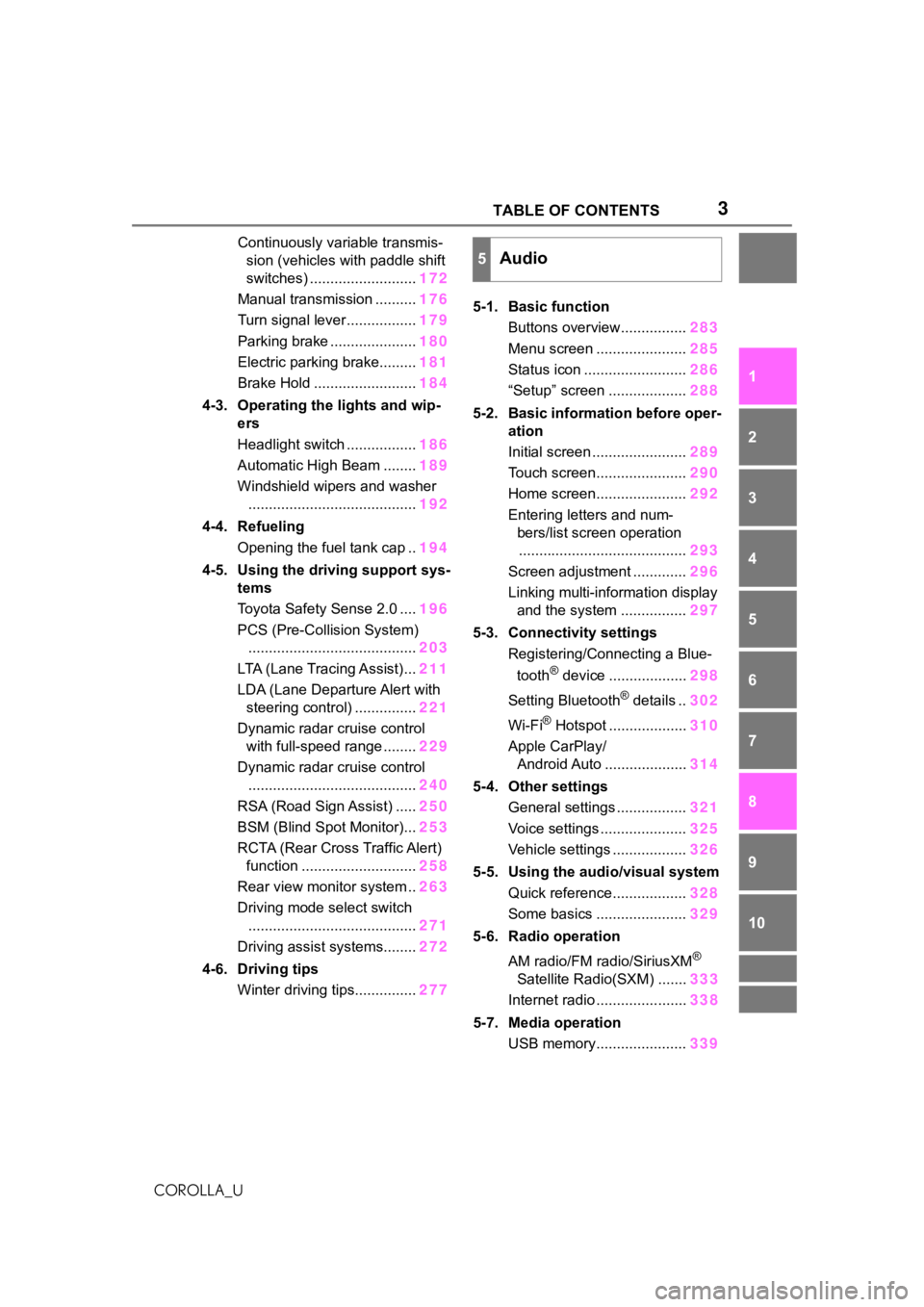
3TABLE OF CONTENTS
1
2
3
4
5
6
7
8
9
10
COROLLA_U
Continuously variable transmis- sion (vehicles with paddle shift
switches) .......................... 172
Manual transmission .......... 176
Turn signal lever................. 179
Parking brake ..................... 180
Electric parking brake......... 181
Brake Hold ......................... 184
4-3. Operating the lights and wip- ers
Headlight switch ................. 186
Automatic High Beam ........ 189
Windshield wipers and washer ......................................... 192
4-4. Refueling Opening the fuel tank cap .. 194
4-5. Using the driving support sys- tems
Toyota Safety Sense 2.0 .... 196
PCS (Pre-Collision System) ......................................... 203
LTA (Lane Tracing Assist)... 211
LDA (Lane Departure Alert with steering control) ............... 221
Dynamic radar cruise control with full-speed range ........ 229
Dynamic radar cruise control ......................................... 240
RSA (Road Sign Assist) ..... 250
BSM (Blind Spot Monitor)... 253
RCTA (Rear Cross Traffic Alert) function ............................ 258
Rear view monitor system .. 263
Driving mode select switch ......................................... 271
Driving assist systems........ 272
4-6. Driving tips Winter driving tips............... 2775-1. Basic function
Buttons overview................ 283
Menu screen ...................... 285
Status icon ......................... 286
“Setup” screen ................... 288
5-2. Basic information before oper- ation
Initial screen ....................... 289
Touch screen...................... 290
Home screen...................... 292
Entering letters and num- bers/list screen operation......................................... 293
Screen adjustment ............. 296
Linking multi-information display and the system ................ 297
5-3. Connectivity settings Registering/Connecting a Blue-
tooth
® device ................... 298
Setting Bluetooth
® details .. 302
Wi-Fi
® Hotspot ................... 310
Apple CarPlay/ Android Auto .................... 314
5-4. Other settings General settings ................. 321
Voice settings ..................... 325
Vehicle settings .................. 326
5-5. Using the audio/visual system Quick reference.................. 328
Some basics ...................... 329
5-6. Radio operation
AM radio/FM radio/SiriusXM
®
Satellite Radio(SXM) ....... 333
Internet radio ...................... 338
5-7. Media operation USB memory...................... 339
5Audio
Page 20 of 624
20Pictorial index
COROLLA_U
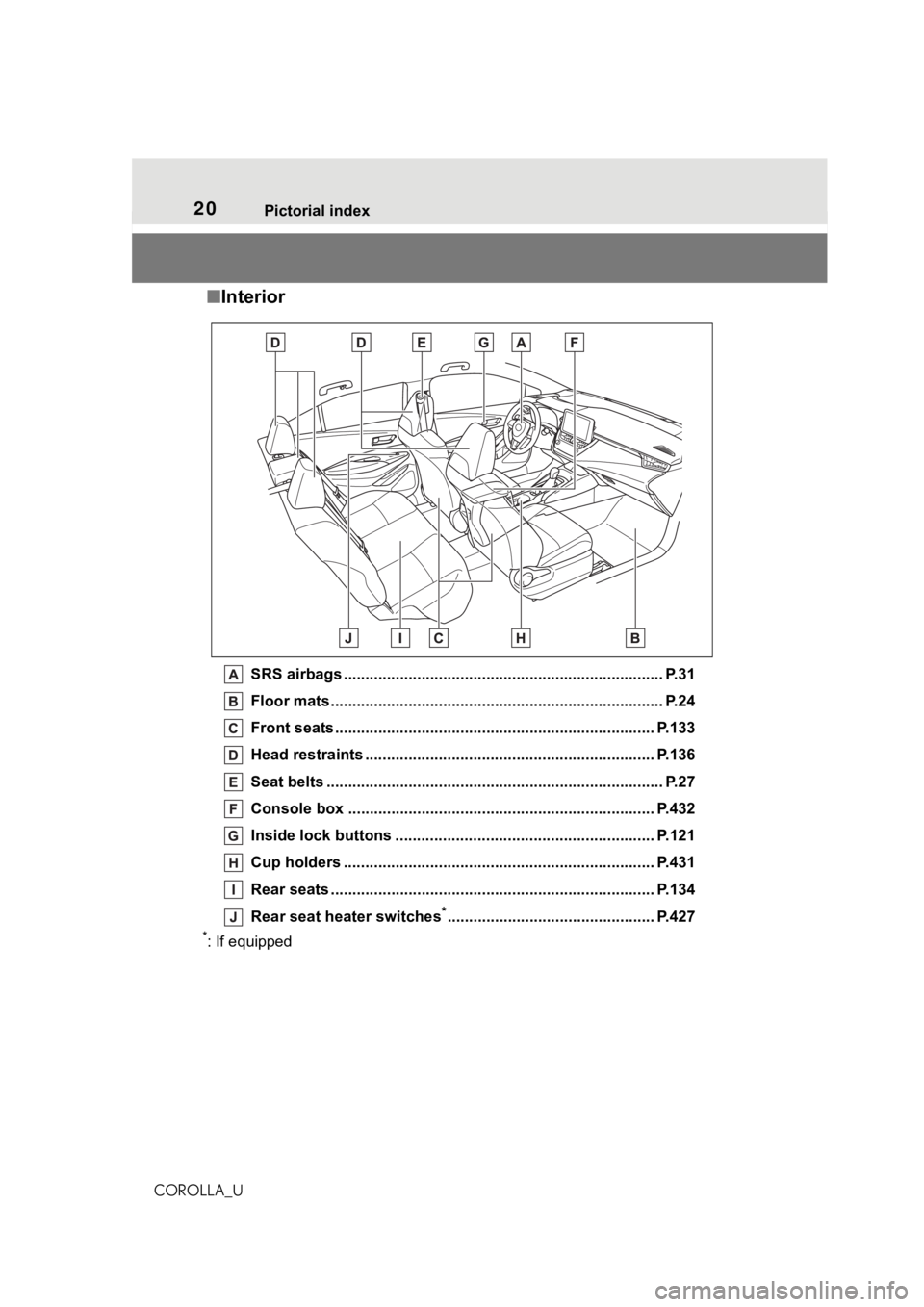
■Interior
SRS airbags .................................................... ...................... P.31
Floor mats..................................................... ........................ P.24
Front seats .................................................... ...................... P.133
Head restraints ................................................ ................... P.136
Seat belts ..................................................... ......................... P.27
Console box ....................................................................... P.432
Inside lock buttons ............................................ ................ P.121
Cup holders .................................................... .................... P.431
Rear seats ..................................................... ...................... P.134
Rear seat heater switches
*................................................ P.427
*: If equipped
Page 110 of 624
1103-1. Key information
COROLLA_U
3-1.Key information
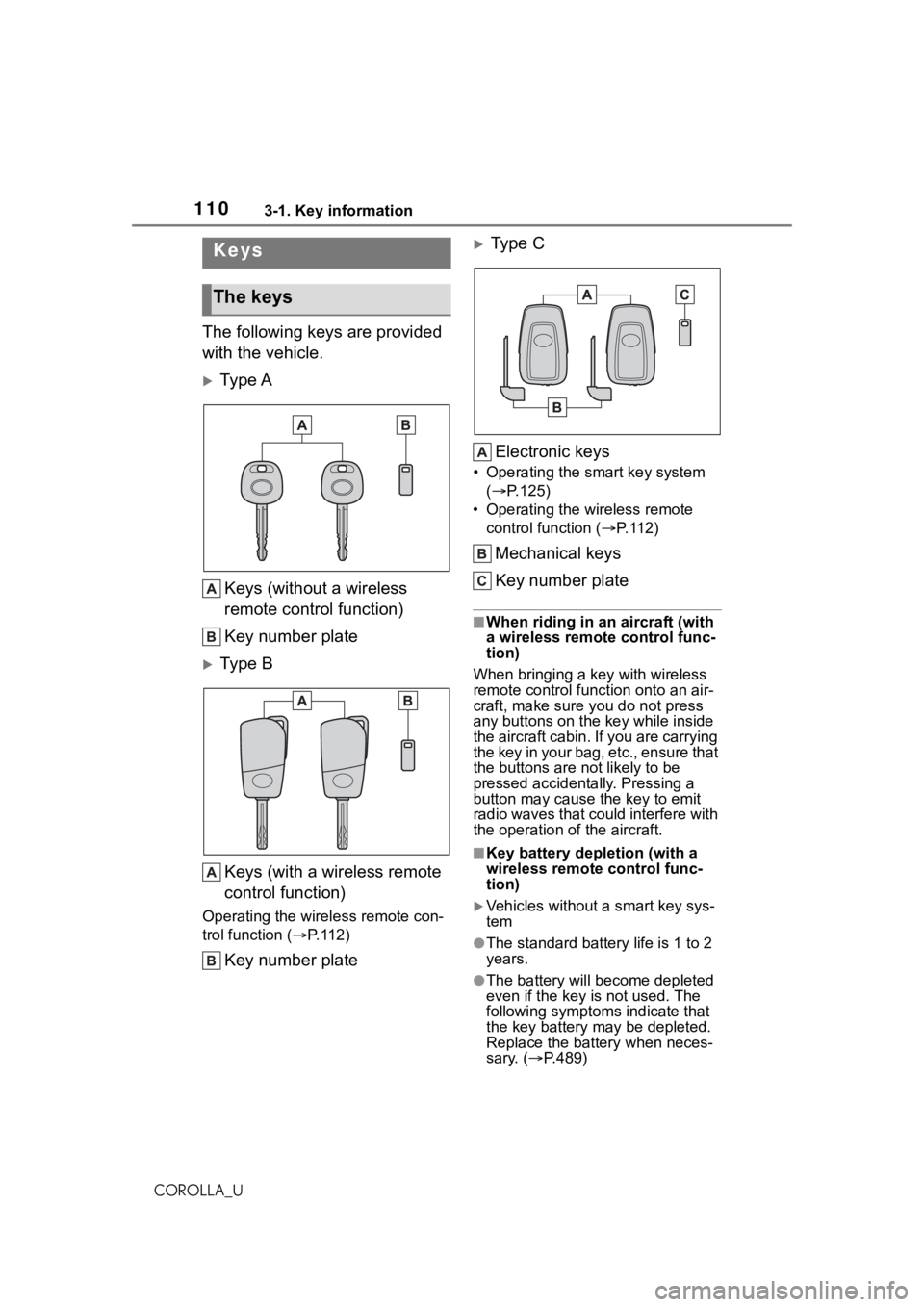
The following keys are provided
with the vehicle.
Ty p e AKeys (without a wireless
remote control function)
Key number plate
Ty p e BKeys (with a wireless remote
control function)
Operating the wireless remote con-
trol function ( P. 1 1 2 )
Key number plate
Type C
Electronic keys
• Operating the smart key system ( P.125)
• Operating the wireless remote control function ( P. 1 1 2 )
Mechanical keys
Key number plate
■When riding in an aircraft (with
a wireless remote control func-
tion)
When bringing a ke y with wireless
remote control func tion onto an air-
craft, make sure you do not press
any buttons on the key while inside
the aircraft cabin. If you are carrying
the key in your bag, etc., ensure that
the buttons are not likely to be
pressed accidentally. Pressing a
button may cause the key to emit
radio waves that could interfere with
the operation of the aircraft.
■Key battery depletion (with a
wireless remote control func-
tion)
Vehicles without a smart key sys-
tem
●The standard battery life is 1 to 2
years.
●The battery will be come depleted
even if the key is not used. The
following symptoms indicate that
the key battery may be depleted.
Replace the battery when neces-
sary. ( P.489)
Keys
The keys
Page 118 of 624
1183-2. Opening, closing and locking the doors
COROLLA_Uagain within 3 seconds unlocks the
other doors.
Press and hold to open the win-
dows
*1and moon roof.*1, 2
*1
:This setting mu st be customized
at your Toyota dealer.
*2: If equipped
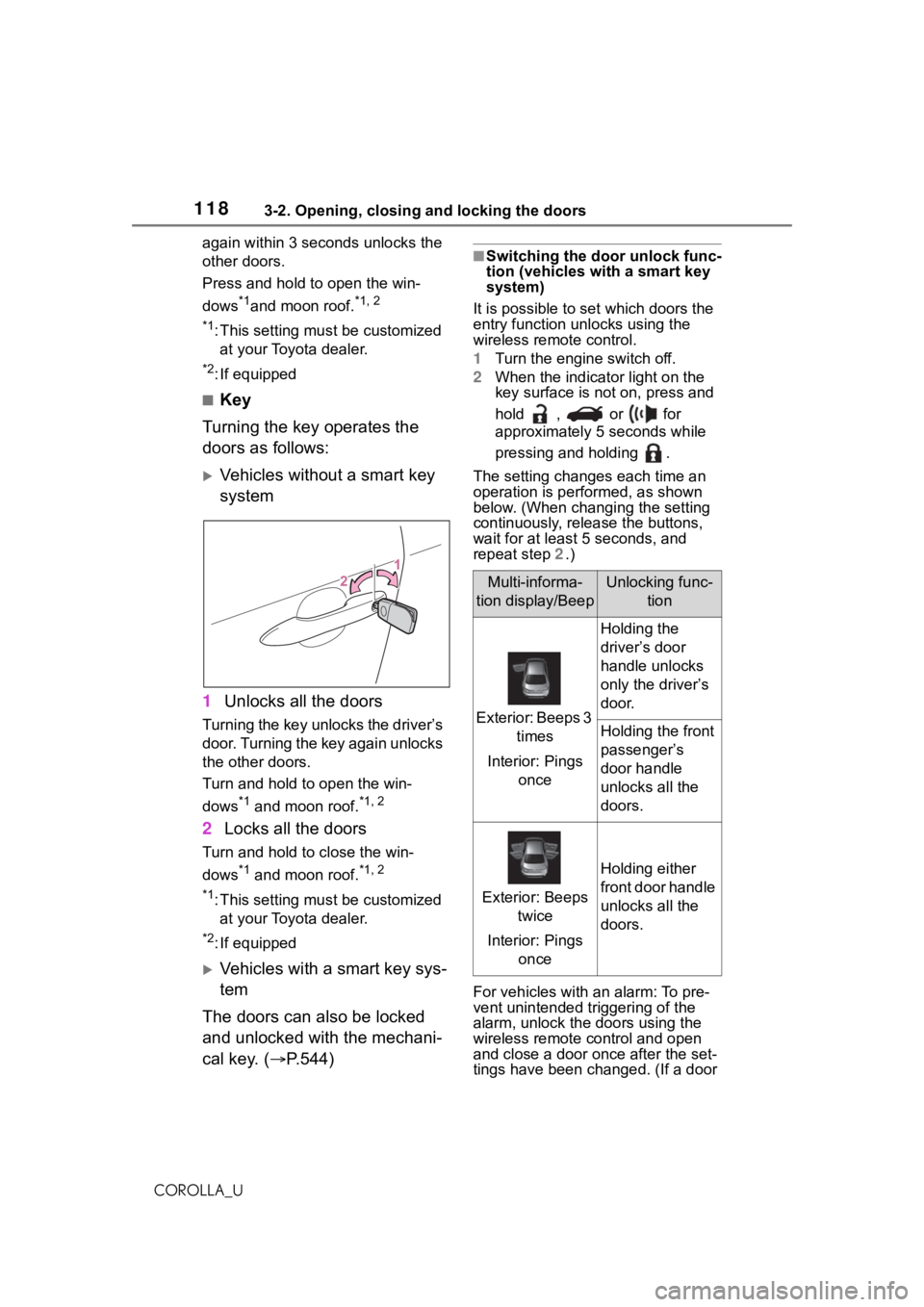
■Key
Turning the key operates the
doors as follows:
Vehicles without a smart key
system
1 Unlocks all the doors
Turning the key unlocks the driver’s
door. Turning the key again unlocks
the other doors.
Turn and hold to open the win-
dows
*1 and moon roof.*1, 2
2Locks all the doors
Turn and hold to close the win-
dows
*1 and moon roof.*1, 2
*1
:This setting mu st be customized
at your Toyota dealer.
*2: If equipped
Vehicles with a smart key sys-
tem
The doors can also be locked
and unlocked with the mechani-
cal key. ( P.544)
■Switching the door unlock func-
tion (vehicles with a smart key
system)
It is possible to set which doors the
entry function unlocks using the
wireless remote control.
1 Turn the engine switch off.
2 When the indicator light on the
key surface is not on, press and
hold , or for
approximately 5 seconds while
pressing and holding .
The setting changes each time an
operation is per formed, as shown
below. (When changing the setting
continuously, release the buttons,
wait for at least 5 seconds, and
repeat step 2 .)
For vehicles with an alarm: To pre-
vent unintended triggering of the
alarm, unlock the doors using the
wireless remote control and open
and close a door once after the set-
tings have been ch anged. (If a door
Multi-informa-
tion display/BeepUnlocking func- tion
Exterior: Beeps 3 times
Interior: Pings once
Holding the
driver’s door
handle unlocks
only the driver’s
door.
Holding the front
passenger’s
door handle
unlocks all the
doors.
Exterior: Beeps twice
Interior: Pings once
Holding either
front door handle
unlocks all the
doors.
Page 120 of 624
1203-2. Opening, closing and locking the doors
COROLLA_U
■If the smart key system or the
wireless remote control does
not operate properly (if
equipped)
Vehicles without a smart key sys-
tem
Replace the key battery with a new
one if it is depleted. ( P.489)
Vehicles with a smart key system
Use the mechanical key to lock and
unlock the doors. ( P.544)
Replace the key battery with a new
one if it is depleted. ( P.489)
■If the battery is discharged
(vehicles with a smart key sys-
tem)
The doors cannot be locked and
unlocked using the smart key sys-
tem or wireless remote control. Lock
or unlock the doors using the
mechanical key. ( P.544)
■Customization
Some functions can be customized.
( P.581)
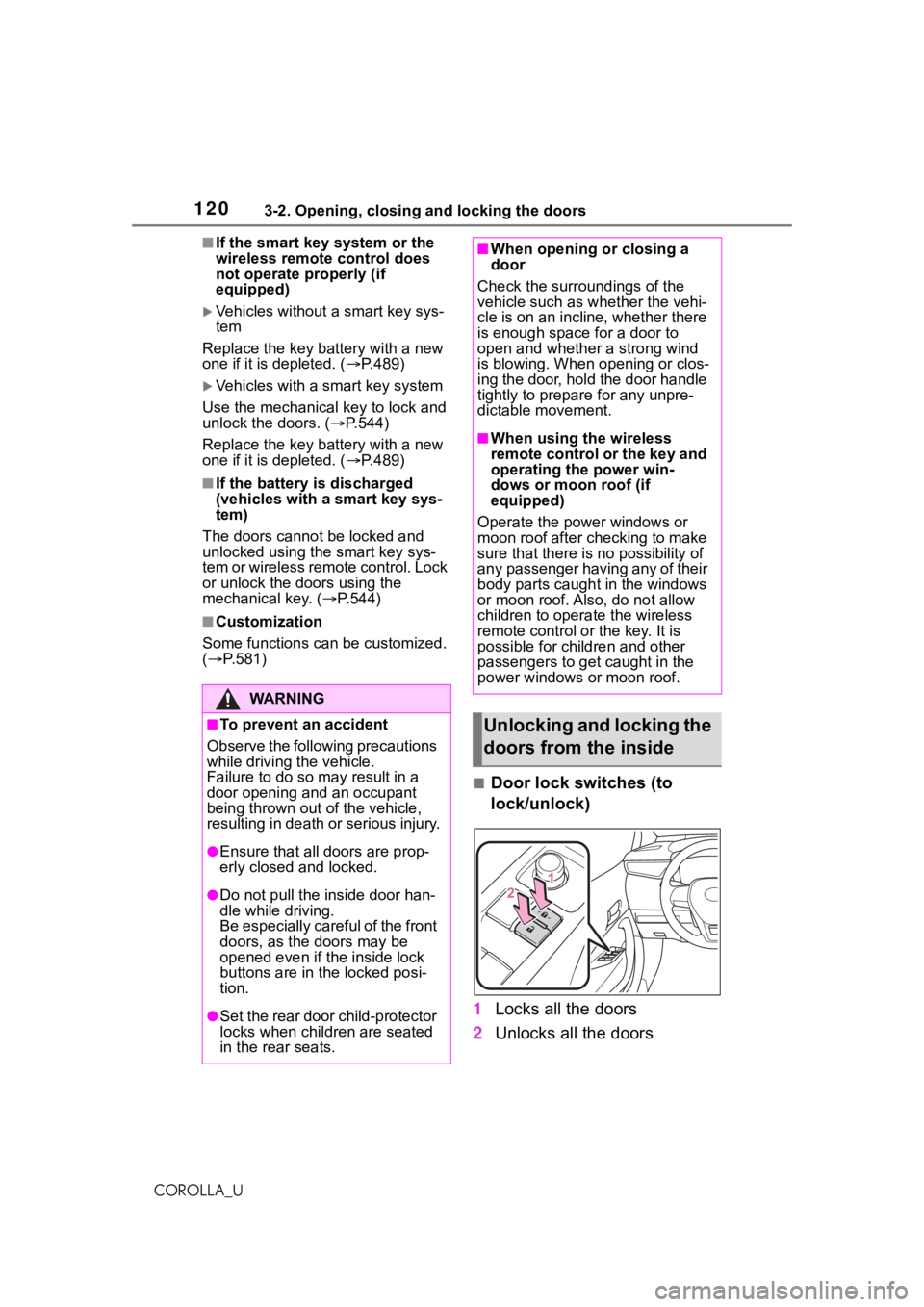
■Door lock switches (to
lock/unlock)
1 Locks all the doors
2 Unlocks all the doors
WA R N I N G
■To prevent an accident
Observe the following precautions
while driving t he vehicle.
Failure to do so m ay result in a
door opening and an occupant
being thrown out of the vehicle,
resulting in death or serious injury.
●Ensure that all doors are prop-
erly closed and locked.
●Do not pull the inside door han-
dle while driving.
Be especially careful of the front
doors, as the doors may be
opened even if the inside lock
buttons are in the locked posi-
tion.
●Set the rear door child-protector
locks when children are seated
in the rear seats.
■When opening or closing a
door
Check the surroundings of the
vehicle such as wh ether the vehi-
cle is on an incline, whether there
is enough space for a door to
open and whether a strong wind
is blowing. When opening or clos-
ing the door, hold the door handle
tightly to prepare for any unpre-
dictable movement.
■When using the wireless
remote control or the key and
operating the power win-
dows or moon roof (if
equipped)
Operate the power windows or
moon roof after checking to make
sure that there is no possibility of
any passenger having any of their
body parts caught in the windows
or moon roof. Also, do not allow
children to opera te the wireless
remote control or the key. It is
possible for children and other
passengers to get caught in the
power windows or moon roof.
Unlocking and locking the
doors from the inside
Page 121 of 624
1213-2. Opening, closing and locking the doors
3
Before driving
COROLLA_U
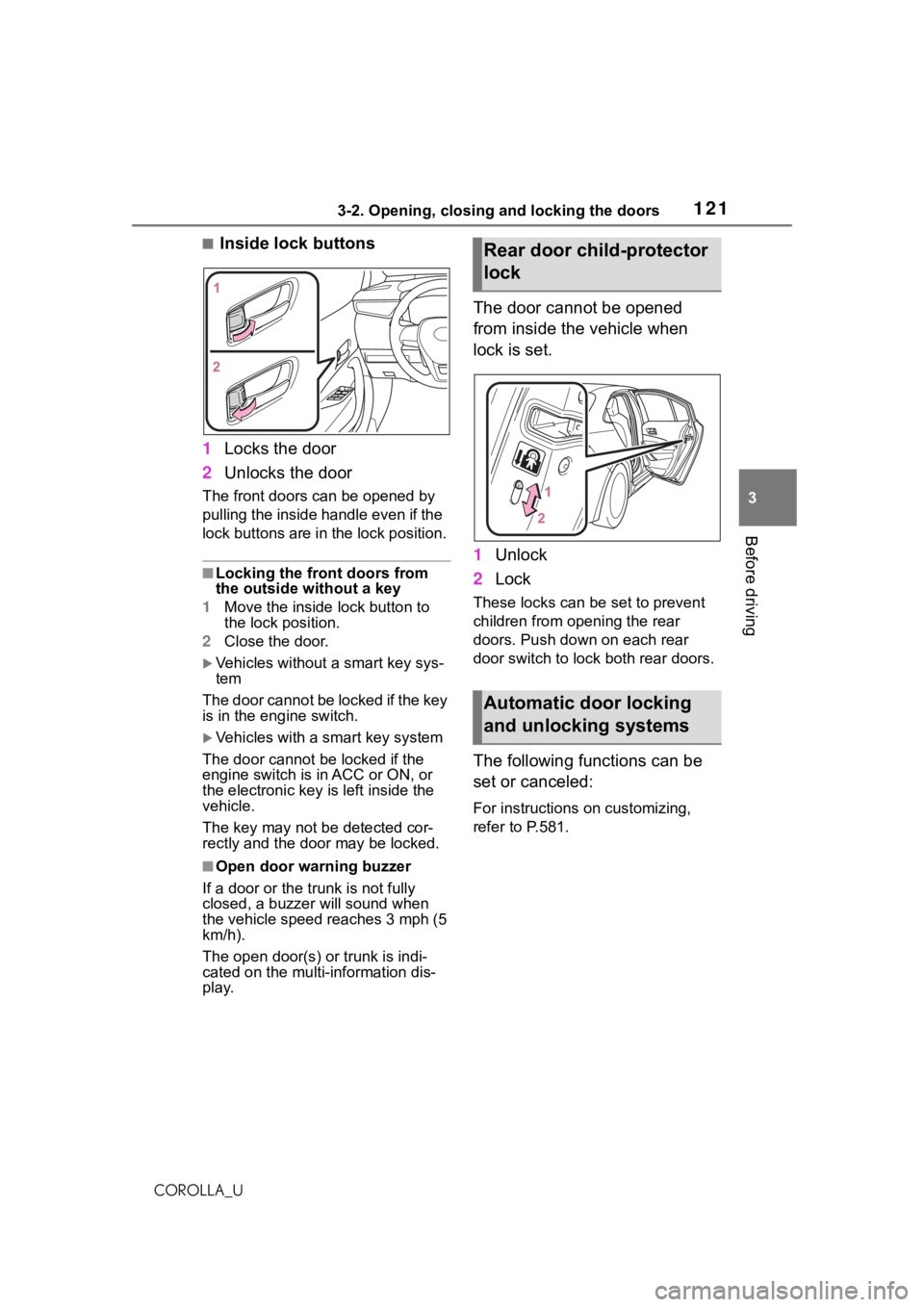
■Inside lock buttons
1 Locks the door
2 Unlocks the door
The front doors can be opened by
pulling the inside ha ndle even if the
lock buttons are in the lock position.
■Locking the front doors from
the outside without a key
1 Move the inside lock button to
the lock position.
2 Close the door.
Vehicles without a smart key sys-
tem
The door cannot be locked if the key
is in the engine switch.
Vehicles with a smart key system
The door cannot be locked if the
engine switch is in ACC or ON, or
the electronic key is left inside the
vehicle.
The key may not b e detected cor-
rectly and the door may be locked.
■Open door warning buzzer
If a door or the trunk is not fully
closed, a buzzer will sound when
the vehicle speed reaches 3 mph (5
km/h).
The open door(s) or trunk is indi-
cated on the multi -information dis-
play.
The door cannot be opened
from inside the vehicle when
lock is set.
1 Unlock
2 Lock
These locks can be set to prevent
children from opening the rear
doors. Push down on each rear
door switch to lock both rear doors.
The following functions can be
set or canceled:
For instructions on customizing,
refer to P.581.
Rear door child-protector
lock
Automatic door locking
and unlocking systems
Page 127 of 624
1273-2. Opening, closing and locking the doors
3
Before driving
COROLLA_Ubeen used for 5 days or longer.
●If the smart key system has not
been used for 14 days or longer,
the doors cann
ot be unlocked
from any door except the driver’s
door. In this case, hold the driver’s
door handle, or use the wireless
remote control or mechanical key
to unlock the doors.
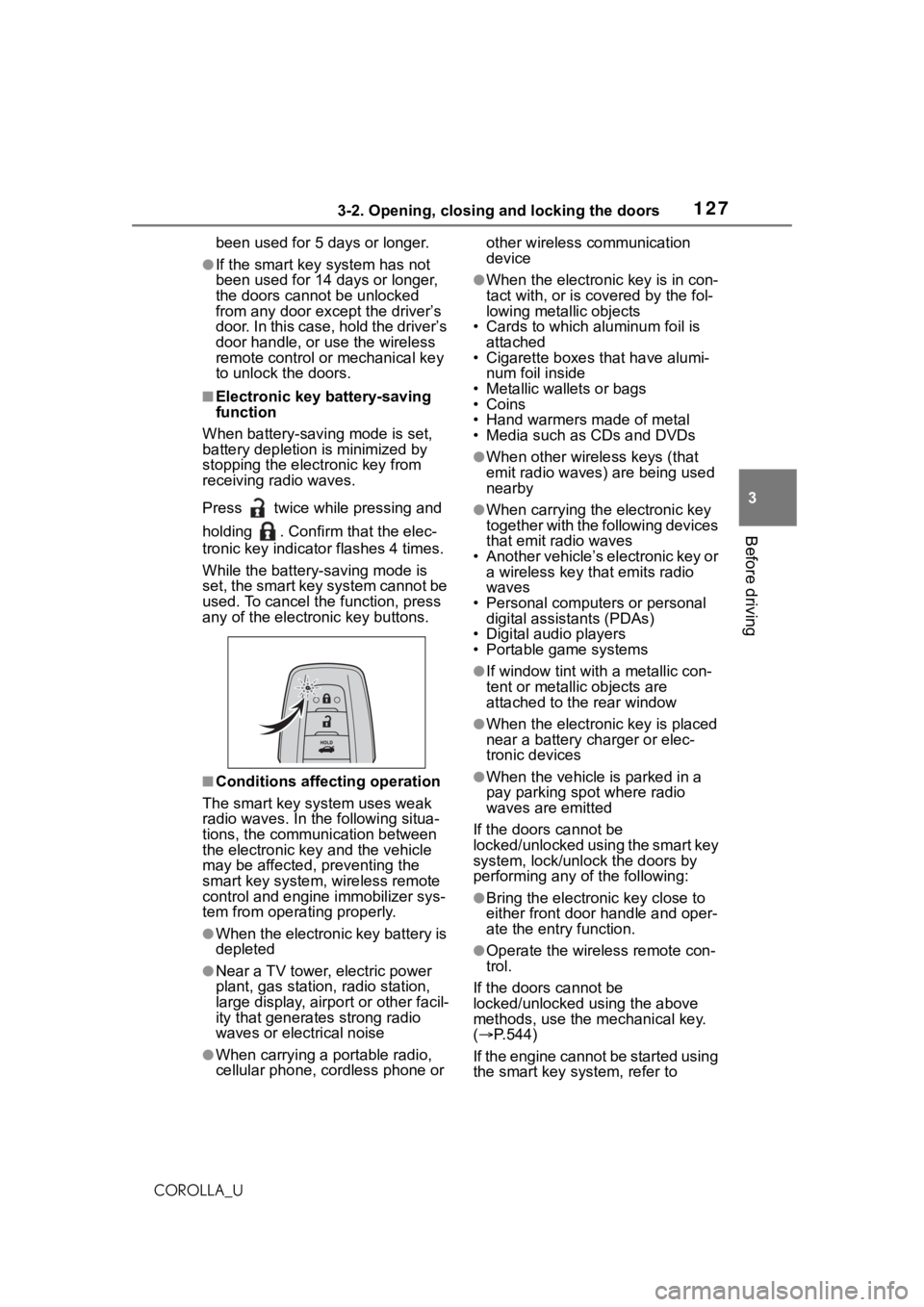
■Electronic key battery-saving
function
When battery-savi ng mode is set,
battery depletion is minimized by
stopping the electronic key from
receiving radio waves.
Press twice while pressing and
holding . Confirm that the elec-
tronic key indicator flashes 4 times.
While the battery-saving mode is
set, the smart key system cannot be
used. To cancel the function, press
any of the electronic key buttons.
■Conditions affecting operation
The smart key system uses weak
radio waves. In the following situa-
tions, the communication between
the electronic key and the vehicle
may be affected, preventing the
smart key system, wireless remote
control and engine immobilizer sys-
tem from operating properly.
●When the electronic key battery is
depleted
●Near a TV tower, electric power
plant, gas station , radio station,
large display, airpo rt or other facil-
ity that generates strong radio
waves or electrical noise
●When carrying a portable radio,
cellular phone, cordless phone or other wireless communication
device
●When the electronic key is in con-
tact with, or is c
overed by the fol-
lowing metallic objects
• Cards to which aluminum foil is
attached
• Cigarette boxes that have alumi-
num foil inside
• Metallic wallets or bags
•Coins
• Hand warmers made of metal
• Media such as CDs and DVDs
●When other wirel ess keys (that
emit radio waves) are being used
nearby
●When carrying the electronic key
together with the following devices
that emit radio waves
• Another vehicle’s electronic key or a wireless key that emits radio
waves
• Personal computers or personal digital assistants (PDAs)
• Digital audio players
• Portable game systems
●If window tint wit h a metallic con-
tent or metallic objects are
attached to the rear window
●When the electronic key is placed
near a battery charger or elec-
tronic devices
●When the vehicle is parked in a
pay parking spot where radio
waves are emitted
If the doors cannot be
locked/unlocked using the smart key
system, lock/unlock the doors by
performing any of the following:
●Bring the electronic key close to
either front door handle and oper-
ate the entry function.
●Operate the wireless remote con-
trol.
If the doors cannot be
locked/unlocked using the above
methods, use the mechanical key.
( P.544)
If the engine cannot be started using
the smart key system, refer to
Page 281 of 624
281
5
5
Audio
COROLLA_U
Audio
.5-1. Basic functionButtons overview......... 283
Menu screen ............... 285
Status icon .................. 286
“Setup” screen ............ 288
5-2. Basic information before operation
Initial screen ................ 289
Touch screen............... 290
Home screen............... 292
Entering letters and num- bers/list screen operation
.................................. 293
Screen adjustment ...... 296
Linking multi-information display and the system
.................................. 297
5-3. Connectivity settings Registering/Connecting a Bluetooth
® device ..... 298
Setting Bluetooth
® details
.................................. 302
Wi-Fi
® Hotspot ............ 310
Apple CarPlay/ Android Auto.............. 314
5-4. Other settings General settings .......... 321
Voice settings .............. 325
Vehicle settings ........... 3265-5. Using the audio/visual
system
Quick reference ........... 328
Some basics................ 329
5-6. Radio operation AM radio/FM radio/Siri-usXM
® Satellite
Radio(SXM) ............... 333
Internet radio ............... 338
5-7. Media operation USB memory ............... 339
iPod/iPhone (Apple Car- Play) .......................... 341
Android Auto................ 344
Bluetooth
® audio ......... 345
5-8. Audio/visual remote con- trols
Steering switches ........ 349
5-9. Audio settings Setup ........................... 351
5-10.Tips for operating the audio/visual system
Operating information.. 352
5-11.Voice command system operation
Voice command system .................................. 364
Command list .............. 367
5-12.Mobile Assistant opera- tion
Mobile Assistant .......... 371
Page 283 of 624
2835-1. Basic function
5
Audio
COROLLA_U
5-1.Basic function
*: If equipped
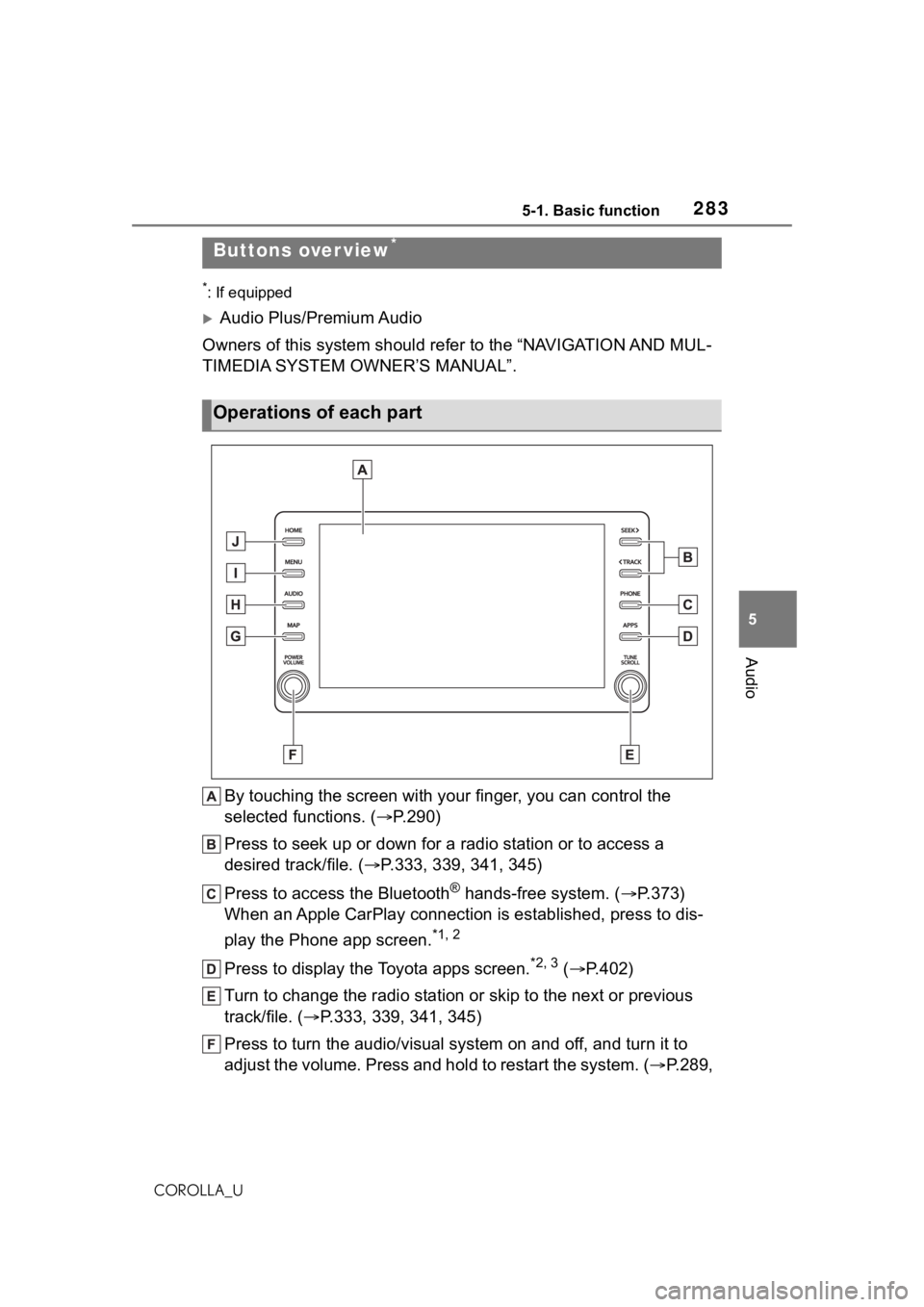
Audio Plus/Premium Audio
Owners of this system should refer to the “NAVIGATION AND MUL-
TIMEDIA SYSTEM OWNER’S MANUAL”.
By touching the screen with y our finger, you can control the
selected functions. ( P.290)
Press to seek up or down for a radio station or to access a
desired track/file. ( P.333, 339, 341, 345)
Press to access the Bluetooth
® hands-free system. ( P.373)
When an Apple CarPlay connection is established, press to dis-
play the Phone app screen.
*1, 2
Press to display the Toyota apps screen.*2, 3 ( P.402)
Turn to change the radio station or skip to the next or previou s
track/file. ( P.333, 339, 341, 345)
Press to turn the audio/visual system on and off, and turn it t o
adjust the volume. Press and hold to restart the system. ( P.289,
Buttons over view*
Operations of each part
Page 290 of 624
2905-2. Basic information before operation
COROLLA_U
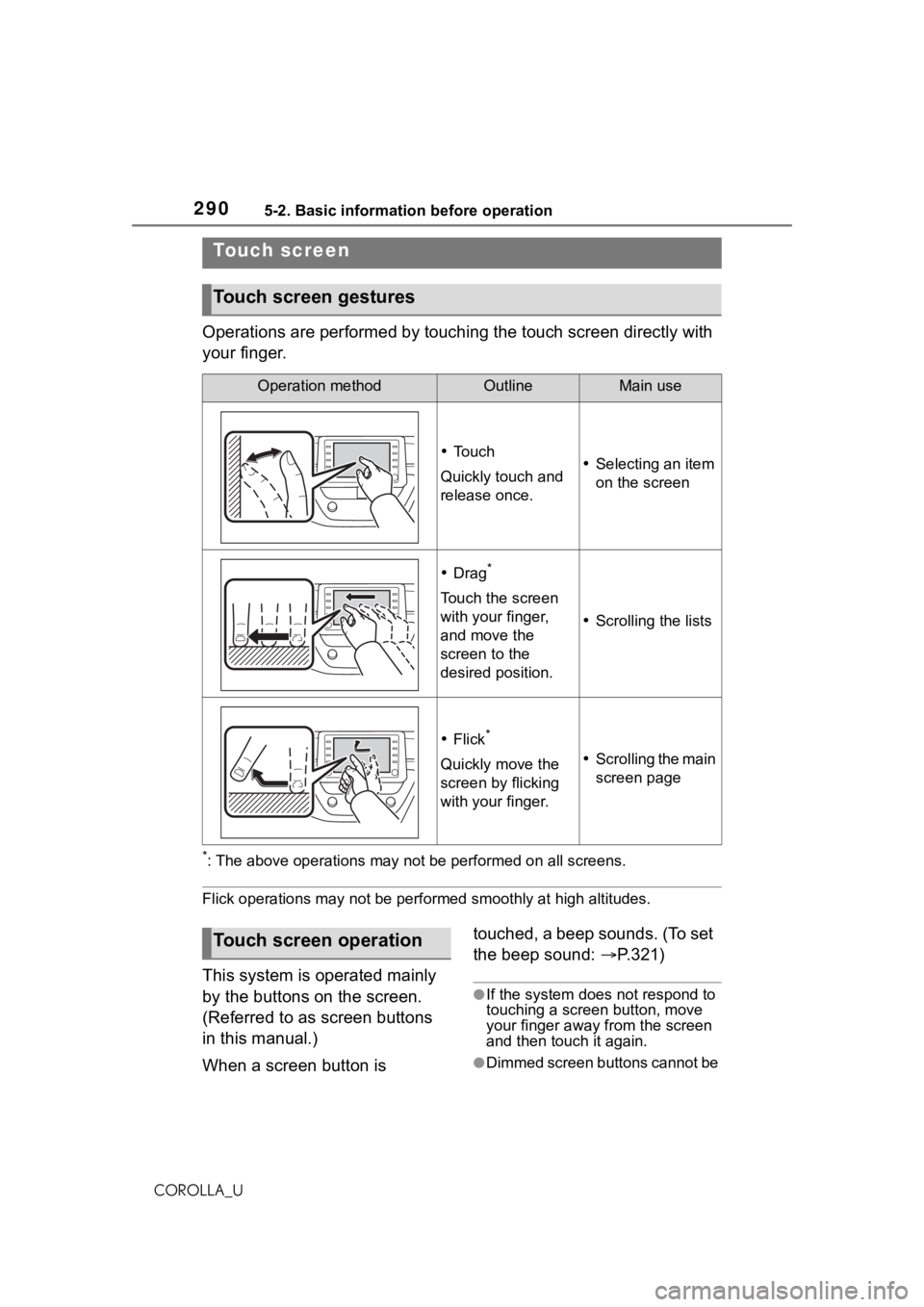
Operations are performed by touching the touch screen directly with
your finger.
*: The above operations may not be performed on all screens.
Flick operations may not be perf ormed smoothly at high altitudes.
This system is operated mainly
by the buttons on the screen.
(Referred to as screen buttons
in this manual.)
When a screen button is touched, a beep sounds. (To set
the beep sound:
P.321)
●If the system does not respond to
touching a screen button, move
your finger away from the screen
and then touch it again.
●Dimmed screen buttons cannot be
Touch screen
Touch screen gestures
Operation methodOutlineMain use
To u c h
Quickly touch and
release once. Selecting an item
on the screen
Drag*
Touch the screen
with your finger,
and move the
screen to the
desired position.
Scrolling the lists
Flick*
Quickly move the
screen by flicking
with your finger. Scrolling the main
screen page
Touch screen operation