lock TOYOTA COROLLA CROSS 2022 Owner's Manual
[x] Cancel search | Manufacturer: TOYOTA, Model Year: 2022, Model line: COROLLA CROSS, Model: TOYOTA COROLLA CROSS 2022Pages: 612, PDF Size: 17.18 MB
Page 83 of 612
832-1. Instrument cluster
2
Vehicle status information and indicators
different distances independently.
To reset, display the desired trip
meter and press and hold the dis-
play change button.
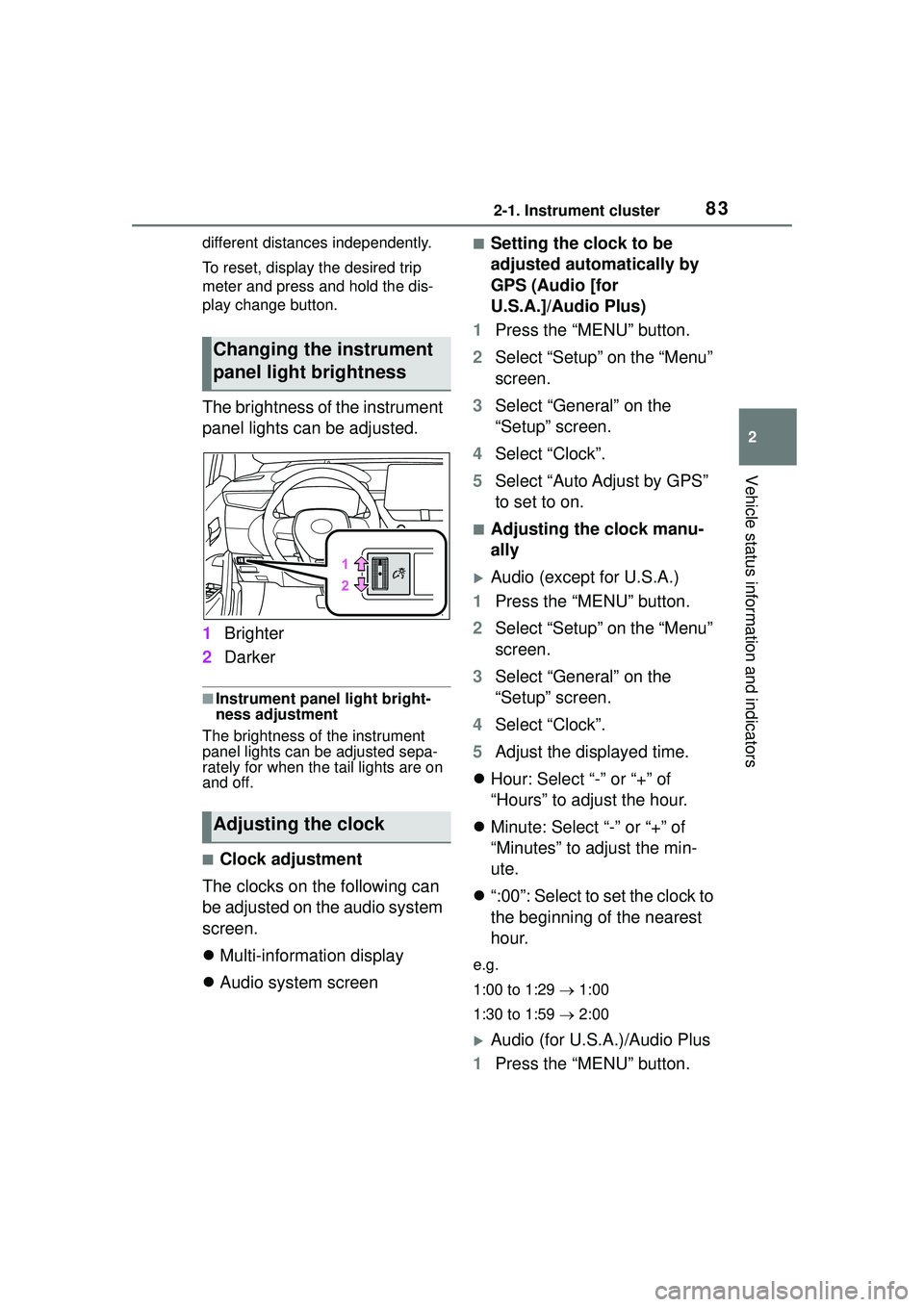
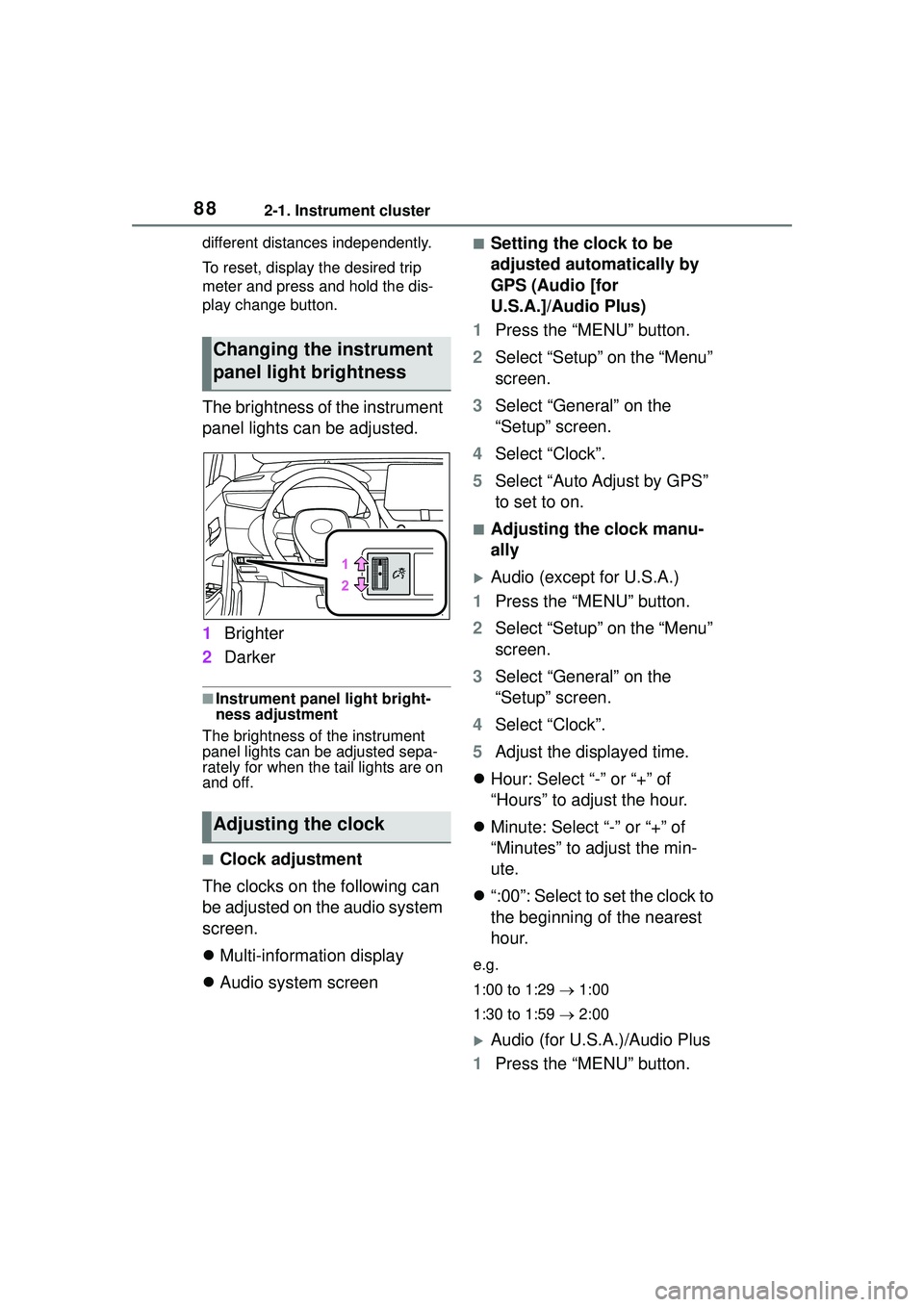
The brightness of the instrument
panel lights can be adjusted.
1Brighter
2 Darker
■Instrument panel light bright-
ness adjustment
The brightness of the instrument
panel lights can be adjusted sepa-
rately for when the tail lights are on
and off.
■Clock adjustment
The clocks on the following can
be adjusted on the audio system
screen.
Multi-information display
Audio system screen
■Setting the clock to be
adjusted automatically by
GPS (Audio [for
U.S.A.]/Audio Plus)
1 Press the “MENU” button.
2 Select “Setup” on the “Menu”
screen.
3 Select “General” on the
“Setup” screen.
4 Select “Clock”.
5 Select “Auto Adjust by GPS”
to set to on.
■Adjusting the clock manu-
ally
Audio (except for U.S.A.)
1 Press the “MENU” button.
2 Select “Setup” on the “Menu”
screen.
3 Select “General” on the
“Setup” screen.
4 Select “Clock”.
5 Adjust the displayed time.
Hour: Select “-” or “+” of
“Hours” to adjust the hour.
Minute: Select “-” or “+” of
“Minutes” to adjust the min-
ute.
“:00”: Select to set the clock to
the beginning of the nearest
hour.
e.g.
1:00 to 1:29 1:00
1:30 to 1:59 2:00
Audio (for U.S.A.)/Audio Plus
1 Press the “MENU” button.
Changing the instrument
panel light brightness
Adjusting the clock
Page 84 of 612
842-1. Instrument cluster
2Select “Setup” on the “Menu”
screen.
3 Select “General” on the
“Setup” screen.
4 Select “Clock”.
5 Select “Auto Adjust by GPS”
to set to off.
6 Adjust the displayed time.
Hour: Select “-” or “+” of
“Hours” to adjust the hour.
Minute: Select “-” or “+” of
“Minutes” to adjust the min-
ute.
“:00”: Select to set the clock to
the beginning of the nearest
hour.
e.g.
1:00 to 1:29 1:00
1:30 to 1:59 2:00
■Setting the time zone
(Audio [for U.S.A.]/Audio
Plus)
1 Press the “MENU” button.
2 Select “Setup” on the “Menu”
screen.
3 Select “General” on the
“Setup” screen.
4 Select “Clock”.
5 Select “Time Zone”.
Select the desired time zone.
■Setting daylight saving time
(Audio [for U.S.A.]/Audio
Plus)
1 Press the “MENU” button. 2
Select “Setup” on the “Menu”
screen.
3 Select “General” on the
“Setup” screen.
4 Select “Clock”.
5 Select “Daylight Saving
Time” then on/off.
■Changing the clock
between 12-hour/24-hour
format
1 Press the “MENU” button.
2 Select “Setup” on the “Menu”
screen.
3 Select “General” on the
“Setup” screen.
4 Select “Clock”.
5 Select “24-Hour Time For-
mat” and then on/off.
When set to off, the clock is dis-
played in 12 hour time format.
■Clock settings screen (Audio
[for U.S.A.]/Audio Plus)
If “Clock : 00” is displayed when
is selected on the multi-information
display, the system may be malfunc-
tioning. Have the vehicle inspected
by your Toyota dealer.
Page 85 of 612
852-1. Instrument cluster
2
Vehicle status information and indicators
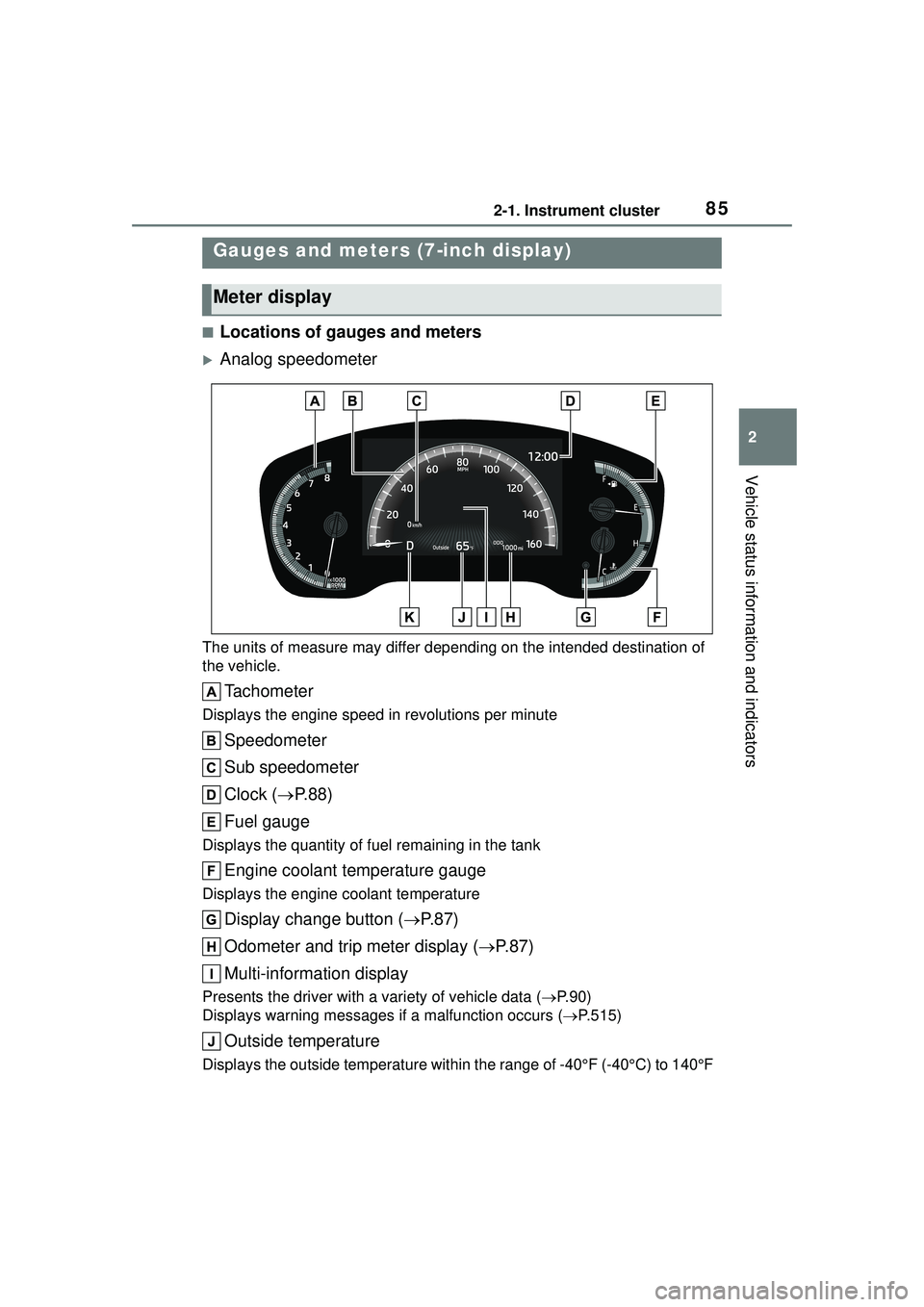
■Locations of gauges and meters
Analog speedometer
The units of measure may differ depending on the intended destination of
the vehicle.
Tachometer
Displays the engine speed in revolutions per minute
Speedometer
Sub speedometer
Clock (P. 8 8 )
Fuel gauge
Displays the quantity of fuel remaining in the tank
Engine coolant temperature gauge
Displays the engine coolant temperature
Display change button ( P.87)
Odometer and trip meter display ( P.87)
Multi-information display
Presents the driver with a variety of vehicle data ( P.90)
Displays warning me ssages if a malfunction occurs ( P.515)
Outside temperature
Displays the outside temperature within the range of -40°F (-40°C) to 140°F
Gauges and meters (7-inch display)
Meter display
Page 86 of 612
862-1. Instrument cluster
(60°C)
Shift position indicator (P.167)
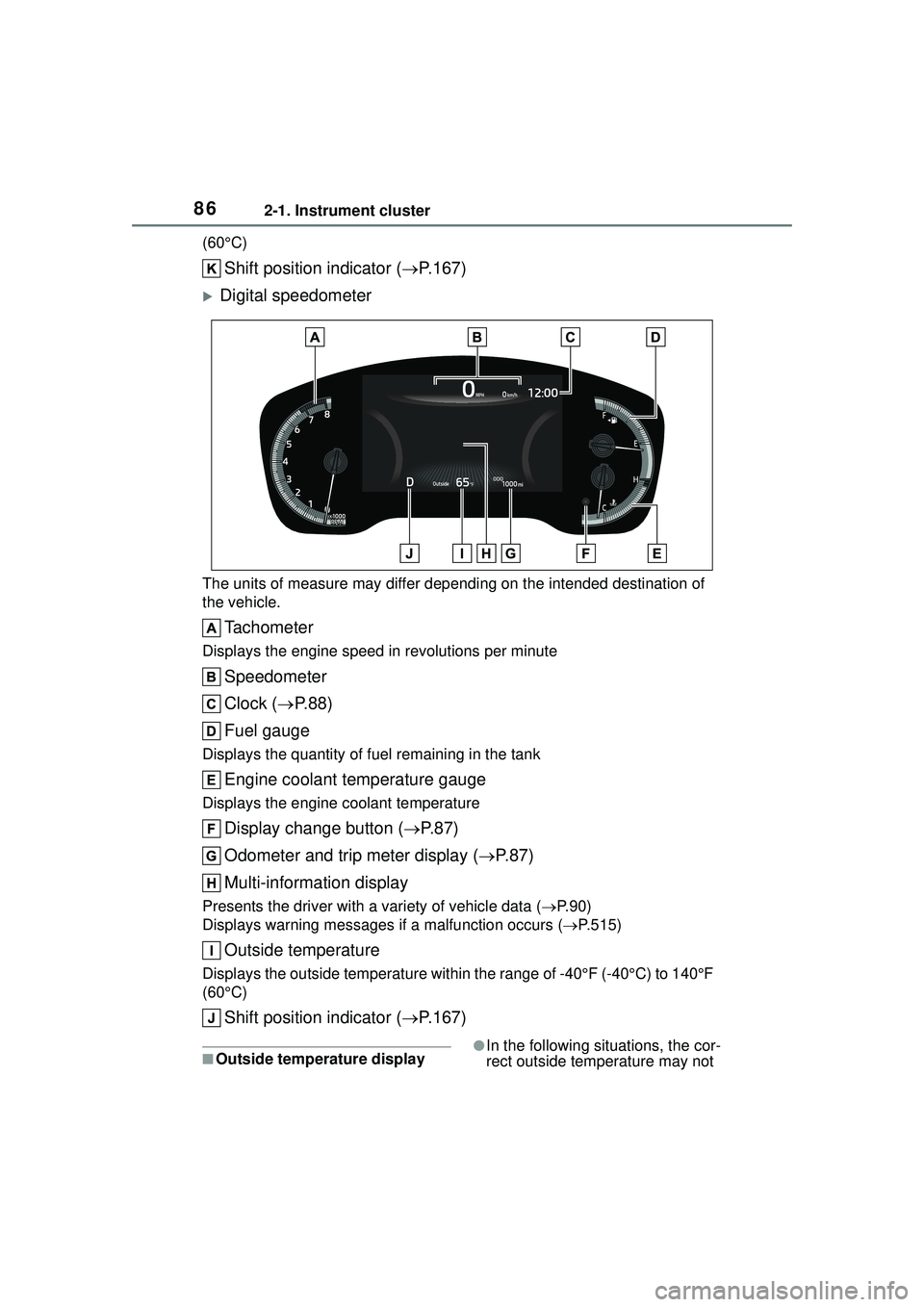
Digital speedometer
The units of measure may differ depending on the intended destination of
the vehicle.
Tachometer
Displays the engine speed in revolutions per minute
Speedometer
Clock ( P. 8 8 )
Fuel gauge
Displays the quantity of fuel remaining in the tank
Engine coolant temperature gauge
Displays the engine coolant temperature
Display change button ( P.87)
Odometer and trip meter display ( P.87)
Multi-information display
Presents the driver with a variety of vehicle data ( P.90)
Displays warning me ssages if a malfunction occurs ( P.515)
Outside temperature
Displays the outside temperature within the range of -40°F (-40°C) to 140°F
(60°C)
Shift position indicator ( P.167)
■Outside temperature display●In the following situations, the cor-
rect outside temperature may not
Page 88 of 612
882-1. Instrument cluster
different distances independently.
To reset, display the desired trip
meter and press and hold the dis-
play change button.
The brightness of the instrument
panel lights can be adjusted.
1Brighter
2 Darker
■Instrument panel light bright-
ness adjustment
The brightness of the instrument
panel lights can be adjusted sepa-
rately for when the tail lights are on
and off.
■Clock adjustment
The clocks on the following can
be adjusted on the audio system
screen.
Multi-information display
Audio system screen
■Setting the clock to be
adjusted automatically by
GPS (Audio [for
U.S.A.]/Audio Plus)
1 Press the “MENU” button.
2 Select “Setup” on the “Menu”
screen.
3 Select “General” on the
“Setup” screen.
4 Select “Clock”.
5 Select “Auto Adjust by GPS”
to set to on.
■Adjusting the clock manu-
ally
Audio (except for U.S.A.)
1 Press the “MENU” button.
2 Select “Setup” on the “Menu”
screen.
3 Select “General” on the
“Setup” screen.
4 Select “Clock”.
5 Adjust the displayed time.
Hour: Select “-” or “+” of
“Hours” to adjust the hour.
Minute: Select “-” or “+” of
“Minutes” to adjust the min-
ute.
“:00”: Select to set the clock to
the beginning of the nearest
hour.
e.g.
1:00 to 1:29 1:00
1:30 to 1:59 2:00
Audio (for U.S.A.)/Audio Plus
1 Press the “MENU” button.
Changing the instrument
panel light brightness
Adjusting the clock
Page 89 of 612
892-1. Instrument cluster
2
Vehicle status information and indicators
2Select “Setup” on the “Menu”
screen.
3 Select “General” on the
“Setup” screen.
4 Select “Clock”.
5 Select “Auto Adjust by GPS”
to set to off.
6 Adjust the displayed time.
Hour: Select “-” or “+” of
“Hours” to adjust the hour.
Minute: Select “-” or “+” of
“Minutes” to adjust the min-
ute.
“:00”: Select to set the clock to
the beginning of the nearest
hour.
e.g.
1:00 to 1:29 1:00
1:30 to 1:59 2:00
■Setting the time zone
(Audio [for U.S.A.]/Audio
Plus)
1 Press the “MENU” button.
2 Select “Setup” on the “Menu”
screen.
3 Select “General” on the
“Setup” screen.
4 Select “Clock”.
5 Select “Time Zone”.
Select the desired time zone.
■Setting daylight saving time
(Audio [for U.S.A.]/Audio
Plus)
1 Press the “MENU” button. 2
Select “Setup” on the “Menu”
screen.
3 Select “General” on the
“Setup” screen.
4 Select “Clock”.
5 Select “Daylight Saving
Time” then on/off.
■Changing the clock
between 12-hour/24-hour
format
1 Press the “MENU” button.
2 Select “Setup” on the “Menu”
screen.
3 Select “General” on the
“Setup” screen.
4 Select “Clock”.
5 Select “24-Hour Time For-
mat” and then on/off.
When set to off, the clock is dis-
played in 12 hour time format.
■Clock settings screen (Audio
[for U.S.A.]/Audio Plus)
If “Clock : 00” is displayed when
is selected on the multi-information
display, the system may be malfunc-
tioning. Have the vehicle inspected
by your Toyota dealer.
Page 99 of 612
99
3
3
Before driving
Before driving
.3-1. Key informationKeys ............................ 100
3-2. Opening, closing and locking the doors
Side doors ................... 104
Back door .................... 109
Smart key system ....... 119
3-3. Adjusting the seats Front seats .................. 124
Rear seats................... 125
Head restraints............ 127
3-4. Adjusting the steering wheel and mirrors
Steering wheel ............ 129
Inside rear view mirror .................................. 130
Outside rear view mirrors .................................. 131
3-5. Opening and closing the windows
Power windows ........... 133
Moon roof .................... 136
Page 101 of 612

1013-1. Key information
3
Before driving
when necessary. (P.483)
• The smart key system or the wire- less remote control does not oper-
ate.
• The detection area becomes smaller.
• The LED indicator on the key sur- face does not turn on.
●To avoid serious deterioration, do
not leave the electronic key within
3 ft. (1 m) of the following electri-
cal appliances that produce a
magnetic field:
• TVs
• Personal computers
• Cellular phones, cordless phones and battery chargers
• Recharging cellular phones or cordless phones
• Table lamps
• Induction cookers
●If the electronic key is near the
vehicle for longer than necessary,
even if the smart key system is not
operated, the key battery may
become depleted faster than nor-
mal.
■Replacing the battery
P. 4 8 3
■If “A New Key has been Regis-
tered Contact Your Dealer for
Details” is shown on the
multi-information display (vehi-
cles with a smart key system)
This message will be displayed
each time the driver’s door is
opened when the doors are
unlocked from the outside for
approximately 10 days after a new
electronic key has been registered.
If this message is displayed but you
have not had a new electronic key
registered, ask your Toyota dealer to
check if an unknown electronic key
(other than those in your posses-
sion) has been registered.
NOTICE
■To prevent key damage
●Do not drop the keys, subject
them to strong shocks or bend
them.
●Do not expose the keys to high
temperatures for long periods of
time.
●Do not get the keys wet or wash
them in an ultrasonic washer
etc.
●Vehicles with a smart key sys-
tem: Do not attach metallic or
magnetic materials to the keys
or place the keys close to such
materials.
●Do not disassemble the keys.
●Do not attach a sticker or any-
thing else to the surface of the
key.
●Vehicles with a smart key sys-
tem: Do not place the keys near
objects that produce magnetic
fields, such as TVs, audio sys-
tems and induction cookers.
●Vehicles with a smart key sys-
tem: Do not place the keys near
medical electrical equipment
such as low-fr equency therapy
equipment or microwave ther-
apy equipment, and do not
receive medical attention with
the keys on your person.
■Carrying the electronic key
on your person (vehicles with
a smart key system)
Carry the electronic key 3.9 in.
(10 cm) or more away from elec-
tric appliances that are turned on.
Radio waves emitted from electric
appliances within 3.9 in. (10 cm)
of the electronic key may interfere
with the key, causing the key to
not function properly.
Page 102 of 612
1023-1. Key information
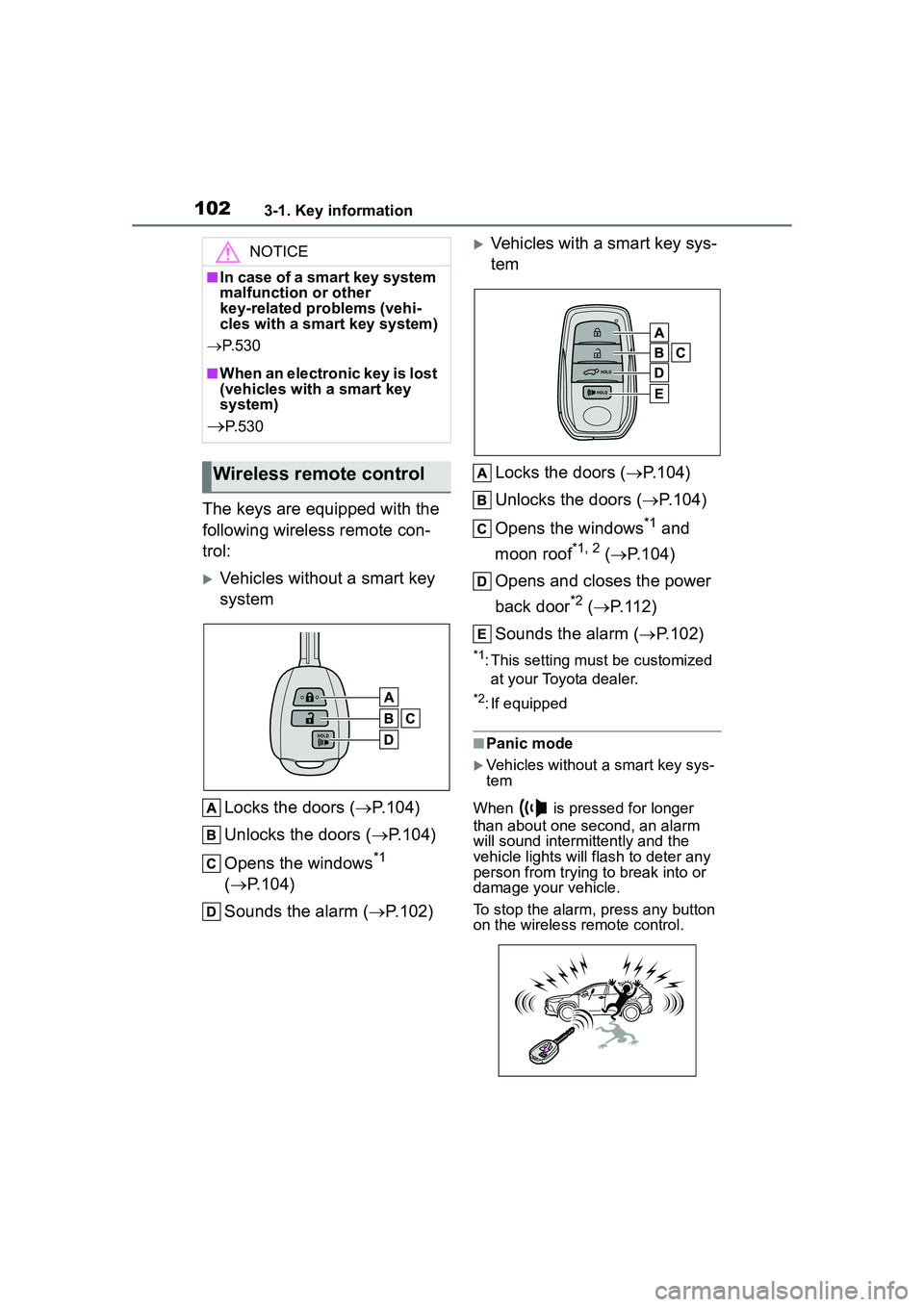
The keys are equipped with the
following wireless remote con-
trol:
Vehicles without a smart key
systemLocks the doors ( P.104)
Unlocks the doors ( P.104)
Opens the windows
*1
( P.104)
Sounds the alarm ( P.102)
Vehicles with a smart key sys-
tem
Locks the doors ( P.104)
Unlocks the doors ( P.104)
Opens the windows
*1 and
moon roof
*1, 2 ( P.104)
Opens and closes the power
back door
*2 ( P.112)
Sounds the alarm ( P.102)
*1: This setting must be customized
at your Toyota dealer.
*2: If equipped
■Panic mode
Vehicles without a smart key sys-
tem
When is pressed for longer
than about one second, an alarm
will sound intermittently and the
vehicle lights will flash to deter any
person from trying to break into or
damage your vehicle.
To stop the alarm, press any button
on the wireless remote control.
NOTICE
■In case of a smart key system
malfunction or other
key-related problems (vehi-
cles with a smart key system)
P. 5 3 0
■When an electronic key is lost
(vehicles with a smart key
system)
P. 5 3 0
Wireless remote control
Page 103 of 612
1033-1. Key information
3
Before driving
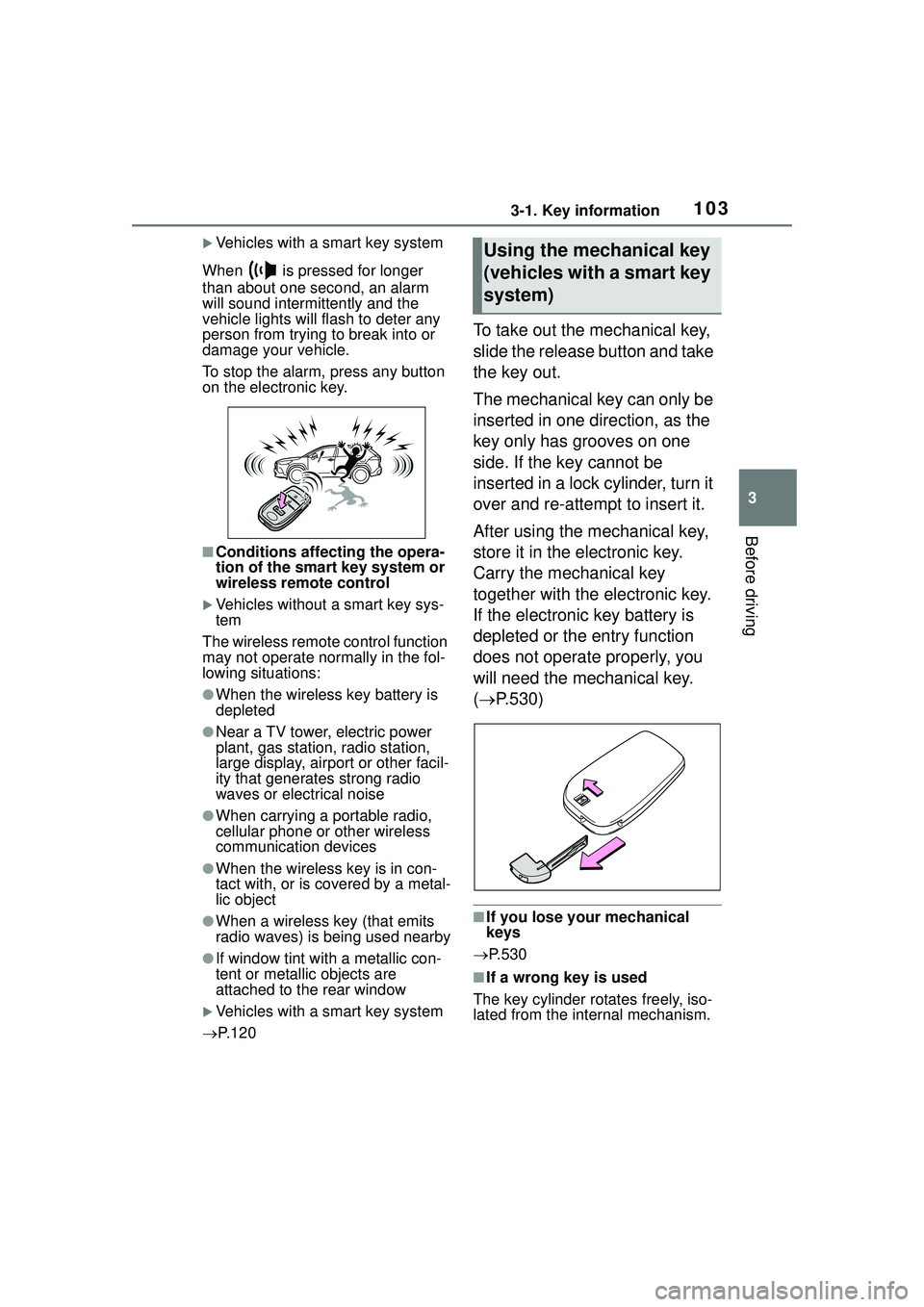
Vehicles with a smart key system
When is pressed for longer
than about one second, an alarm
will sound intermittently and the
vehicle lights will flash to deter any
person from trying to break into or
damage your vehicle.
To stop the alarm, press any button
on the electronic key.
■Conditions affecting the opera-
tion of the smart key system or
wireless remo te control
Vehicles without a smart key sys-
tem
The wireless remote control function
may not operate normally in the fol-
lowing situations:
●When the wireless key battery is
depleted
●Near a TV tower, electric power
plant, gas station, radio station,
large display, airport or other facil-
ity that generates strong radio
waves or electrical noise
●When carrying a portable radio,
cellular phone or other wireless
communication devices
●When the wireless key is in con-
tact with, or is covered by a metal-
lic object
●When a wireless key (that emits
radio waves) is being used nearby
●If window tint with a metallic con-
tent or metallic objects are
attached to the rear window
Vehicles with a smart key system
P. 1 2 0
To take out the mechanical key,
slide the release button and take
the key out.
The mechanical key can only be
inserted in one direction, as the
key only has grooves on one
side. If the key cannot be
inserted in a lock cylinder, turn it
over and re-attempt to insert it.
After using the mechanical key,
store it in the electronic key.
Carry the mechanical key
together with the electronic key.
If the electronic key battery is
depleted or the entry function
does not operate properly, you
will need the mechanical key.
( P.530)
■If you lose your mechanical
keys
P.530
■If a wrong key is used
The key cylinder rotates freely, iso-
lated from the internal mechanism.
Using the mechanical key
(vehicles with a smart key
system)