ESP TOYOTA COROLLA CROSS 2022 Service Manual
[x] Cancel search | Manufacturer: TOYOTA, Model Year: 2022, Model line: COROLLA CROSS, Model: TOYOTA COROLLA CROSS 2022Pages: 612, PDF Size: 17.18 MB
Page 272 of 612
2724-5. Using the driving support systems
■Secondary Collision Brake
operating conditions
The system operates when the SRS
airbag sensor detects a collision
while the vehicle is in motion.
However, the system does not oper-
ate in any of the following situations.
●The vehicle speed is below 6 mph
(10 km/h)
●Components are damaged
■Secondary Collision Brake
automatic cancellation
The system is automatically can-
celed in any of the following situa-
tions.
●The vehicle speed drops below
approximately 6 mph (10 km/h)
●A certain amount of time elapses
during operation
●The accelerator pedal is
depressed a large amount
WARNING
■The ABS does not operate
effectively when
●The limits of tire gripping perfor-
mance have been exceeded
(such as excessively worn tires
on a snow covered road).
●The vehicle hydroplanes while
driving at high speed on wet or
slick roads.
■Stopping distance when the
ABS is operating may exceed
that of normal conditions
The ABS is not designed to
shorten the vehicle’s stopping dis-
tance. Always main tain a safe dis-
tance from the vehicle in front of
you, especially in the following sit-
uations:
●When driving on dirt, gravel or
snow-covered roads
●When driving with tire chains
●When driving over bumps in the
road
●When driving over roads with
potholes or uneven surfaces
■TRAC/VSC may not operate
effectively when
Directional control and power may
not be achievable while driving on
slippery road surfaces, even if the
TRAC/VSC system is operating.
Drive the vehicle carefully in con-
ditions where stability and power
may be lost.
■Active Cornering Assist does
not operate effectively when
●Do not overly rely on Active
Cornering Assist. Active Corner-
ing Assist may not operate
effectively when accelerating
down slopes or driving on slip-
pery road surfaces.
●When Active Cornering Assist
frequently operates, Active Cor-
nering Assist may temporarily
stop operating to ensure proper
operation of the brakes, TRAC
and VSC.
■Hill-start assist control does
not operate effectively when
●Do not overly rely on hill-start
assist control. Hill-start assist
control may not operate effec-
tively on steep inclines and
roads covered with ice.
●Unlike the parking brake,
hill-start assist control is not
intended to hold the vehicle sta-
tionary for an extended period
of time. Do not attempt to use
hill-start assist control to hold
the vehicle on an incline, as
doing so may lead to an acci-
dent.
Page 273 of 612
2734-5. Using the driving support systems
4
Driving
WARNING
■When the TRAC/VSC is acti-
vated
The slip indicator light flashes.
Always drive carefully. Reckless
driving may cause an accident.
Exercise particular care when the
indicator light flashes.
■When the TRAC/VSC systems
are turned off
Be especially careful and drive at
a speed appropriate to the road
conditions. As these are the sys-
tems to help ensure vehicle stabil-
ity and driving force, do not turn
the TRAC/VSC systems off
unless necessary.
■Replacing tires
Make sure that all tires are of the
specified size, brand, tread pat-
tern and total load capacity. In
addition, make sure that the tires
are inflated to the recommended
tire inflation pressure level.
The ABS, TRAC and VSC sys-
tems will not function correctly if
different tires are installed on the
vehicle.
Contact your Toyota dealer for fur-
ther information when replacing
tires or wheels.
■Handling of tires and the sus-
pension
Using tires with any kind of prob-
lem or modifying the suspension
will affect the driving assist sys-
tems, and may cause a system to
malfunction.
■Secondary Collision Brake
Do not rely solely upon the Sec-
ondary Collision Brake. This sys-
tem is designed to help reduce
the possibility of further damage
due to a secondary collision, how-
ever, that effect changes accord-
ing to various conditions. Overly
relying on the system may result
in death or serious injury.
Page 277 of 612
2774-6. Driving tips
4
Driving
When driving your vehicle
off-road, please observe the fol-
lowing precautions to ensure
your driving enjoyment and to
help prevent the closure of
areas to off-road vehicles:
Drive your vehicle only in
areas where off-road vehicles
are permitted to travel.
Respect private property. Get
owner’s permission before
entering private property.
Do not enter areas that are
closed. Honor gates, barriers
and signs that restrict travel.
Stay on established roads.
When conditions are wet,
driving techniques should be
changed or travel delayed to
prevent damage to roads.
■Additional information for
off-road driving
For owners in U.S. mainland,
Hawaii and Puerto Rico:
To obtain additional information per-
taining to driving your vehicle
off-road, consult the following orga-
nizations.
●State and Local Parks and Recre-
ation Departments
●State Motor Vehicle Bureau
●Recreational Vehicle Clubs
●U.S. Forest Service and Bureau of
Land Management
Off-road drivingWARNING
■Off-road driving precautions
Always observe the following pre-
cautions to minimize the risk of
death, serious injury or damage to
your vehicle:
●Drive carefully when off the
road. Do not take unnecessary
risks by driving in dangerous
places.
●Do not grip the steering wheel
spokes when driving off-road. A
bad bump could jerk the wheel
and injure your hands. Keep
both hands and especially your
thumbs on the outside of the
rim.
●Always check your brakes for
effectiveness immediately after
driving in sand, mud, water or
snow.
●After driving through tall grass,
mud, rock, sand, rivers, etc.,
check that there is no grass,
bush, paper, rags, stone, sand,
etc. adhering or trapped on the
underbody. Clear off any such
matter from the underbody. If
the vehicle is used with these
materials trapped or adhering to
the underbody, a breakdown or
fire could occur.
●When driving off-road or in rug-
ged terrain, do not drive at
excessive speeds, jump, make
sharp turns, strike objects, etc.
This may cause loss of control
or vehicle rollover causing
death or serious injury. You are
also risking expensive damage
to your vehicle’s suspension
and chassis.
Page 284 of 612
2845-1. Basic function
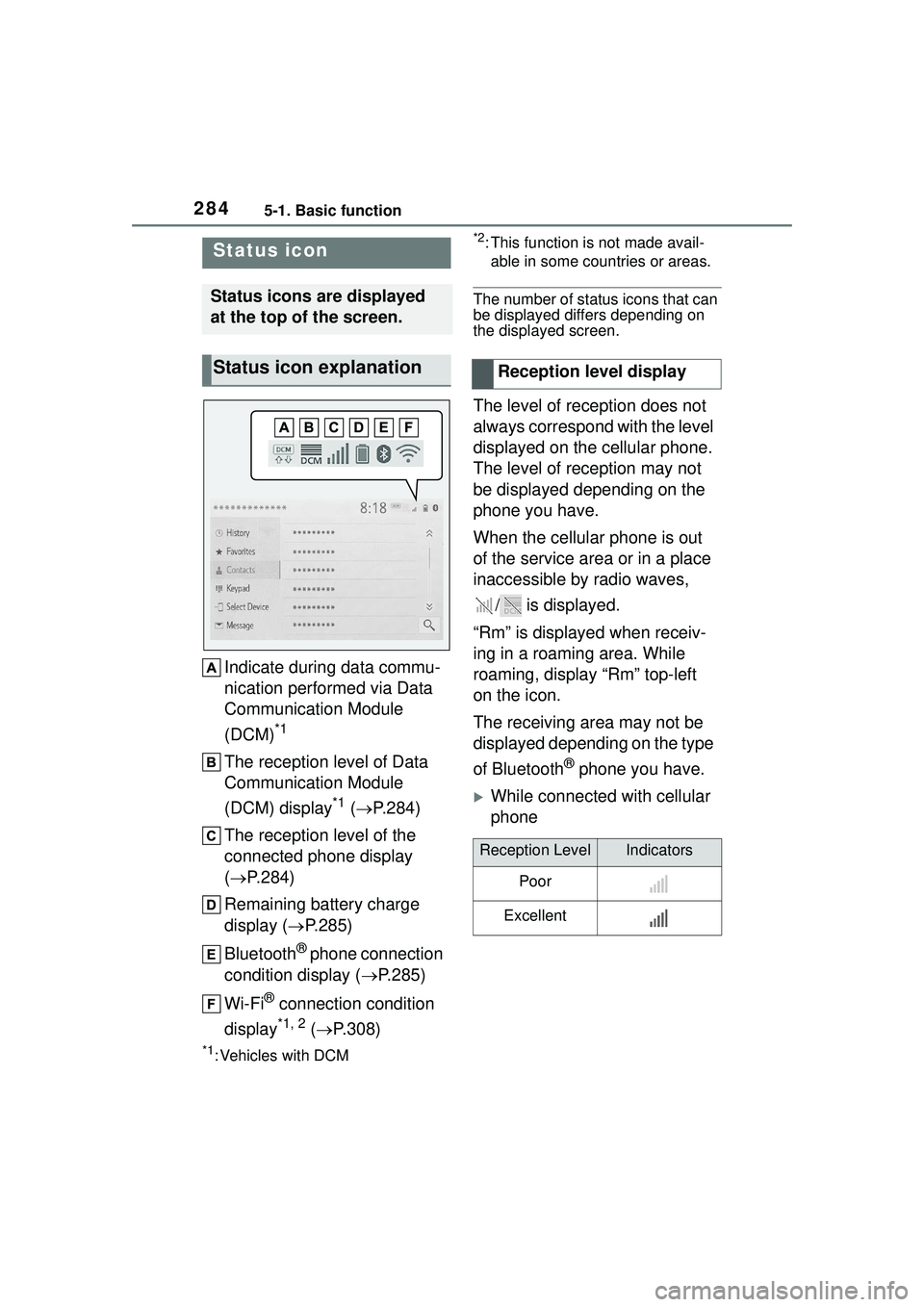
Indicate during data commu-
nication performed via Data
Communication Module
(DCM)
*1
The reception level of Data
Communication Module
(DCM) display
*1 ( P.284)
The reception level of the
connected phone display
( P.284)
Remaining battery charge
display ( P.285)
Bluetooth
® phone connection
condition display ( P.285)
Wi-Fi
® connection condition
display
*1, 2 ( P.308)
*1: Vehicles with DCM
*2: This function is not made avail-
able in some countries or areas.
The number of status icons that can
be displayed differs depending on
the displayed screen.
The level of reception does not
always correspond with the level
displayed on the cellular phone.
The level of reception may not
be displayed depending on the
phone you have.
When the cellular phone is out
of the service area or in a place
inaccessible by radio waves,
/ is displayed.
“Rm” is displayed when receiv-
ing in a roaming area. While
roaming, display “Rm” top-left
on the icon.
The receiving area may not be
displayed depending on the type
of Bluetooth
® phone you have.
While connected with cellular
phone
Status icon
Status icons are displayed
at the top of the screen.
Status icon explanationReception level display
Reception LevelIndicators
Poor
Excellent
Page 285 of 612
2855-1. Basic function
5
Audio
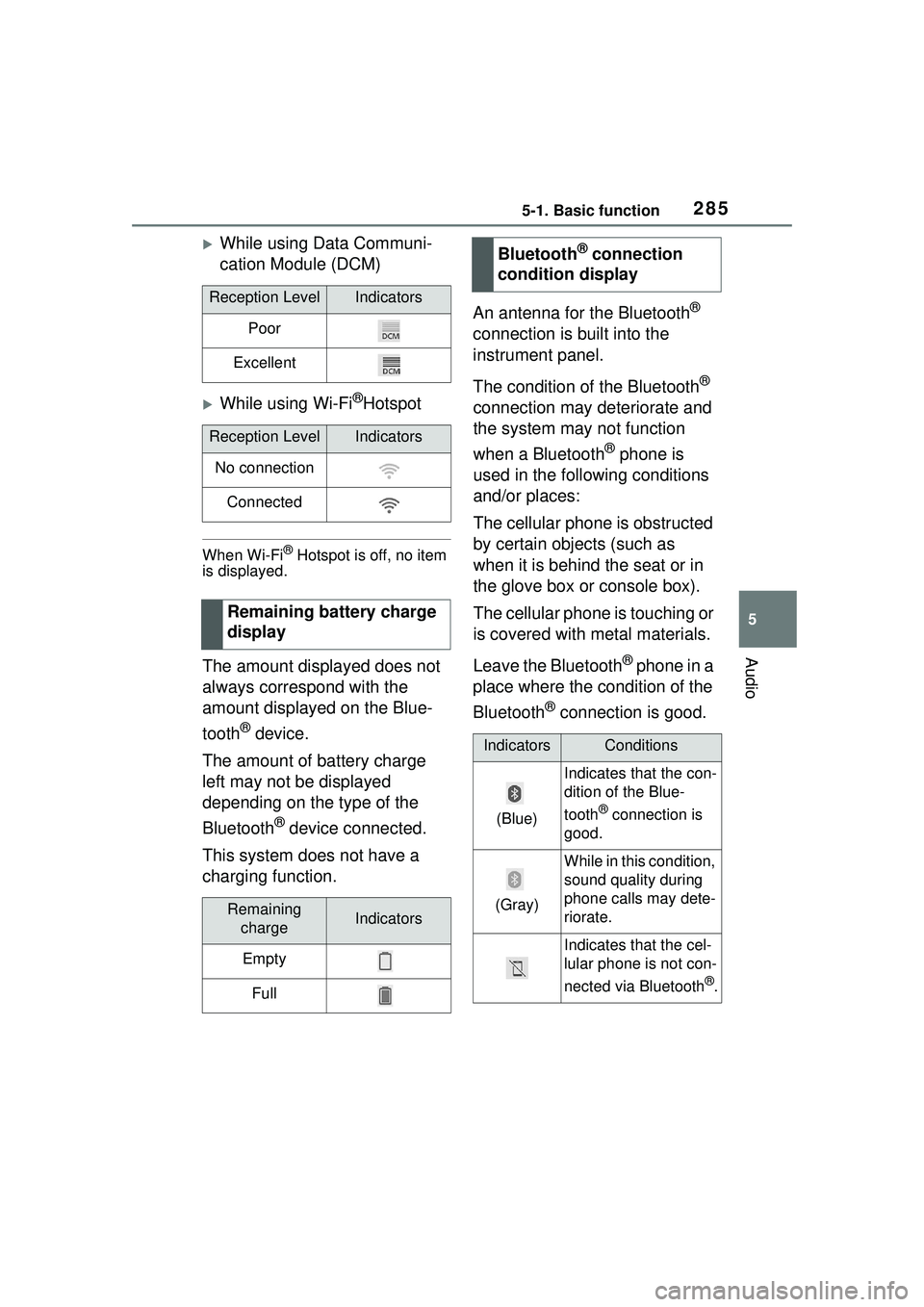
While using Data Communi-
cation Module (DCM)
While using Wi-Fi®Hotspot
When Wi-Fi® Hotspot is off, no item
is displayed.
The amount displayed does not
always correspond with the
amount displayed on the Blue-
tooth
® device.
The amount of battery charge
left may not be displayed
depending on the type of the
Bluetooth
® device connected.
This system does not have a
charging function. An antenna for the Bluetooth
®
connection is built into the
instrument panel.
The condition of the Bluetooth
®
connection may deteriorate and
the system may not function
when a Bluetooth
® phone is
used in the following conditions
and/or places:
The cellular phone is obstructed
by certain objects (such as
when it is behind the seat or in
the glove box or console box).
The cellular phone is touching or
is covered with metal materials.
Leave the Bluetooth
® phone in a
place where the condition of the
Bluetooth
® connection is good.
Reception LevelIndicators
Poor
Excellent
Reception LevelIndicators
No connection
Connected
Remaining battery charge
display
Remaining chargeIndicators
Empty
Full
Bluetooth® connection
condition display
IndicatorsConditions
(Blue)
Indicates that the con-
dition of the Blue-
tooth
® connection is
good.
(Gray)
While in this condition,
sound quality during
phone calls may dete-
riorate.
Indicates that the cel-
lular phone is not con-
nected via Bluetooth
®.
Page 287 of 612
2875-2. Basic information before operation
5
Audio
5-2.Basic information before operation
After a few seconds, the caution
screen will be displayed.
After about 5 seconds or select-
ing “Continue”, the caution
screen automatically switches to
the next screen.
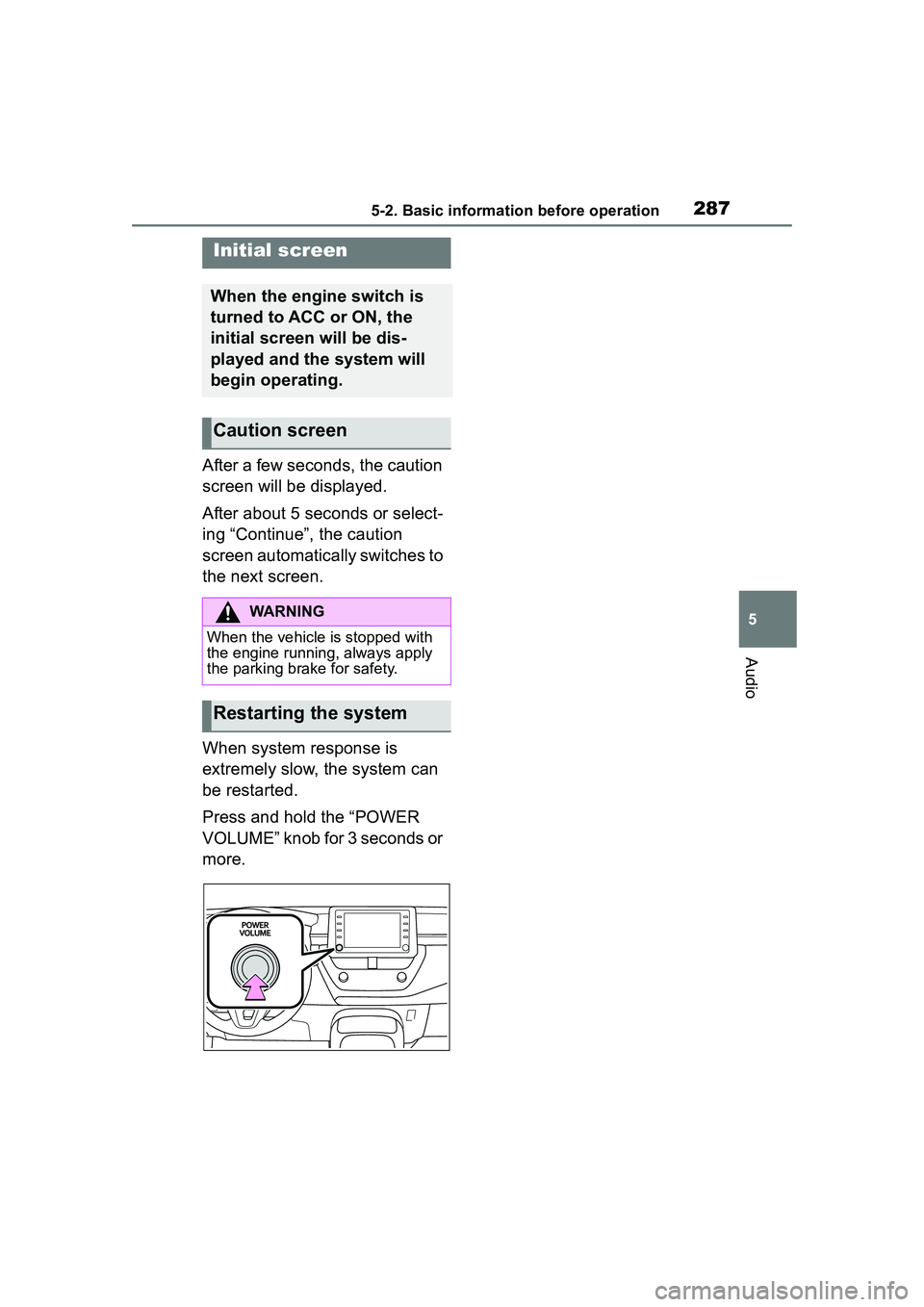
When system response is
extremely slow, the system can
be restarted.
Press and hold the “POWER
VOLUME” knob for 3 seconds or
more.
Initial screen
When the engine switch is
turned to ACC or ON, the
initial screen will be dis-
played and the system will
begin operating.
Caution screen
WARNING
When the vehicle is stopped with
the engine running, always apply
the parking brake for safety.
Restarting the system
Page 288 of 612
2885-2. Basic information before operation
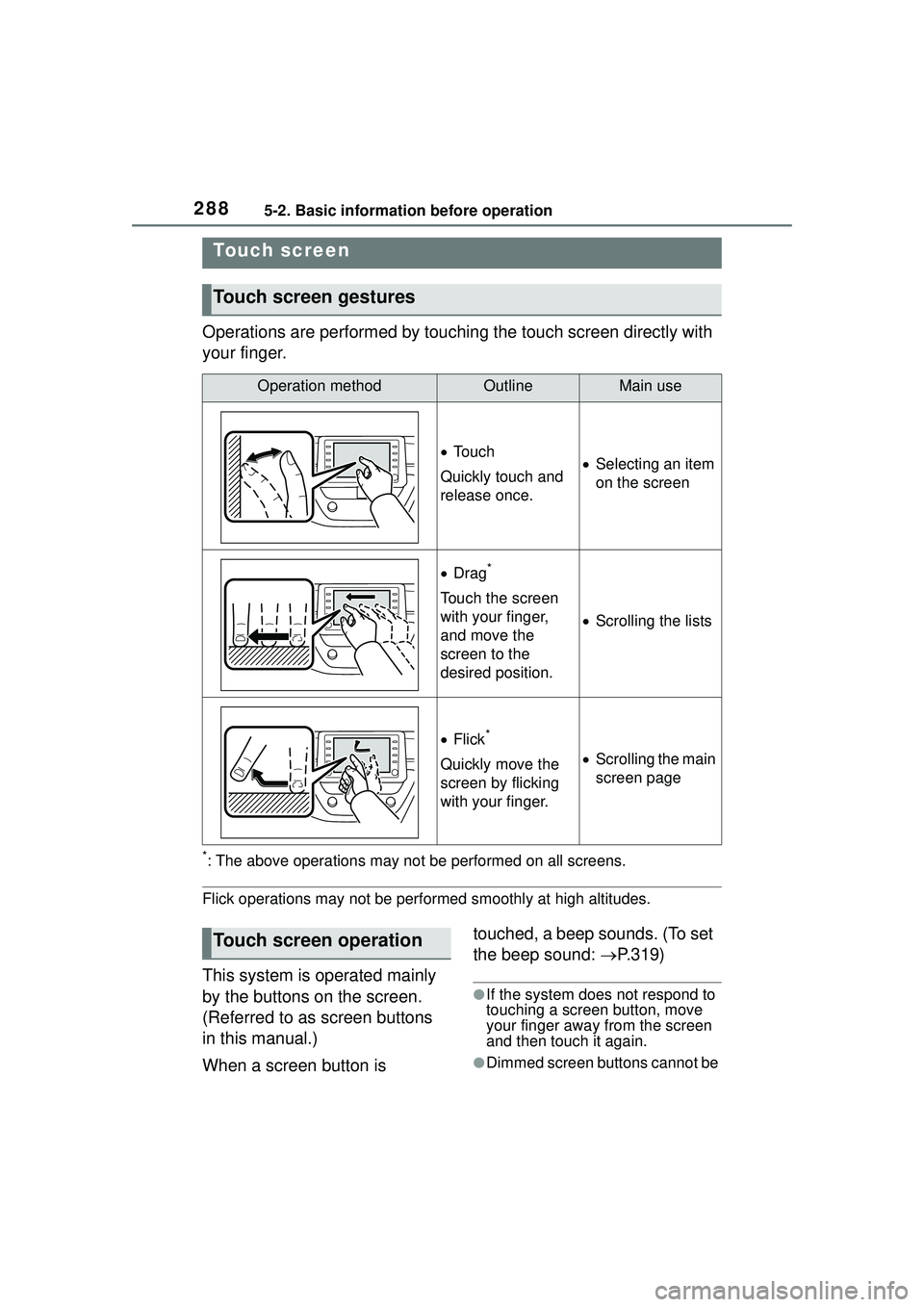
Operations are performed by touching the touch screen directly with
your finger.
*: The above operations may not be performed on all screens.
Flick operations may not be performed smoothly at high altitudes.
This system is operated mainly
by the buttons on the screen.
(Referred to as screen buttons
in this manual.)
When a screen button is touched, a beep sounds. (To set
the beep sound:
P.319)
●If the system does not respond to
touching a screen button, move
your finger away from the screen
and then touch it again.
●Dimmed screen buttons cannot be
Touch screen
Touch screen gestures
Operation methodOutlineMain use
To u c h
Quickly touch and
release once. Selecting an item
on the screen
Drag*
Touch the screen
with your finger,
and move the
screen to the
desired position.
Scrolling the lists
Flick*
Quickly move the
screen by flicking
with your finger. Scrolling the main
screen page
Touch screen operation
Page 297 of 612
2975-3. Connectivity settings
5
Audio
Operations up to this point can also
be performed by pressing the
“PHONE” button on the instrument
panel.
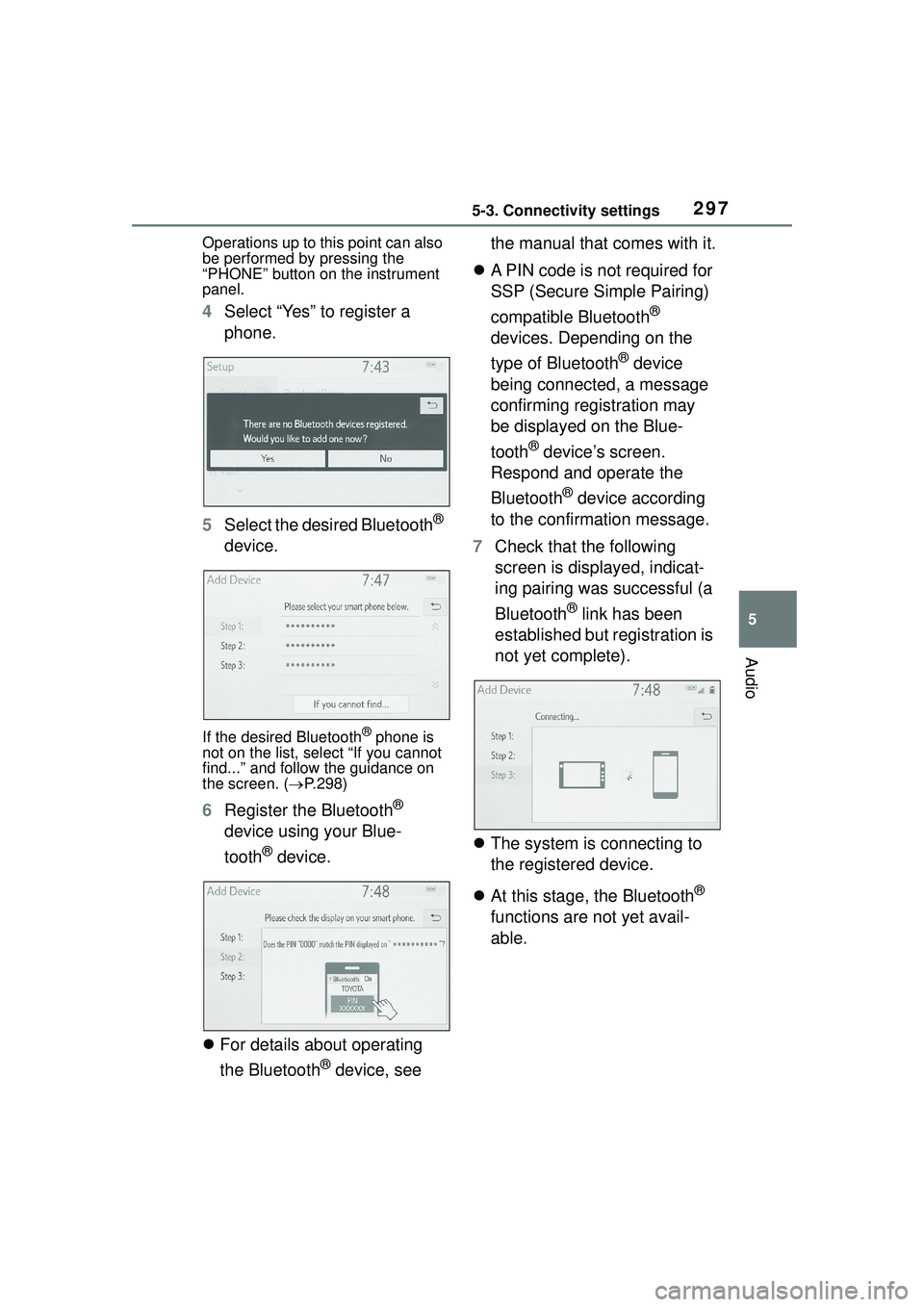
4Select “Yes” to register a
phone.
5 Select the desired Bluetooth
®
device.
If the desired Bluetooth® phone is
not on the list, select “If you cannot
find...” and follow the guidance on
the screen. ( P.298)
6 Register the Bluetooth®
device using your Blue-
tooth
® device.
For details about operating
the Bluetooth
® device, see the manual that comes with it.
A PIN code is not required for
SSP (Secure Simple Pairing)
compatible Bluetooth
®
devices. Depending on the
type of Bluetooth
® device
being connected, a message
confirming registration may
be displayed on the Blue-
tooth
® device’s screen.
Respond and operate the
Bluetooth
® device according
to the confirmation message.
7 Check that the following
screen is displayed, indicat-
ing pairing was successful (a
Bluetooth
® link has been
established but registration is
not yet complete).
The system is connecting to
the registered device.
At this stage, the Bluetooth
®
functions are not yet avail-
able.
Page 298 of 612
2985-3. Connectivity settings
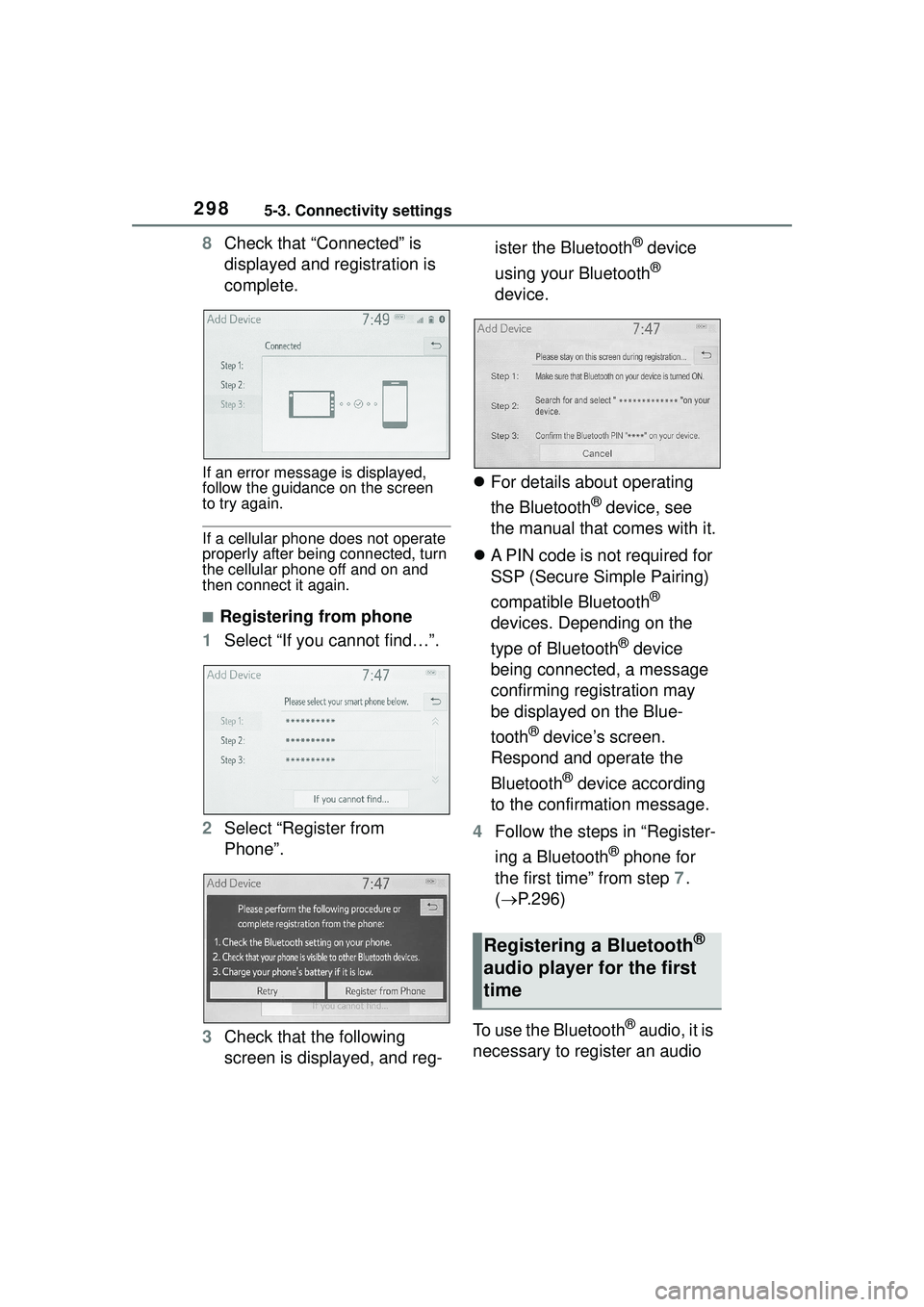
8Check that “Connected” is
displayed and registration is
complete.
If an error message is displayed,
follow the guidance on the screen
to try again.
If a cellular phone does not operate
properly after being connected, turn
the cellular phone off and on and
then connect it again.
■Registering from phone
1 Select “If you cannot find…”.
2 Select “Register from
Phone”.
3 Check that the following
screen is displayed, and reg- ister the Bluetooth
® device
using your Bluetooth
®
device.
For details about operating
the Bluetooth
® device, see
the manual that comes with it.
A PIN code is not required for
SSP (Secure Simple Pairing)
compatible Bluetooth
®
devices. Depending on the
type of Bluetooth
® device
being connected, a message
confirming registration may
be displayed on the Blue-
tooth
® device’s screen.
Respond and operate the
Bluetooth
® device according
to the confirmation message.
4 Follow the steps in “Register-
ing a Bluetooth
® phone for
the first time” from step 7.
( P.296)
To use the Bluetooth
® audio, it is
necessary to register an audio
Registering a Bluetooth®
audio player for the first
time
Page 314 of 612
3145-3. Connectivity settings
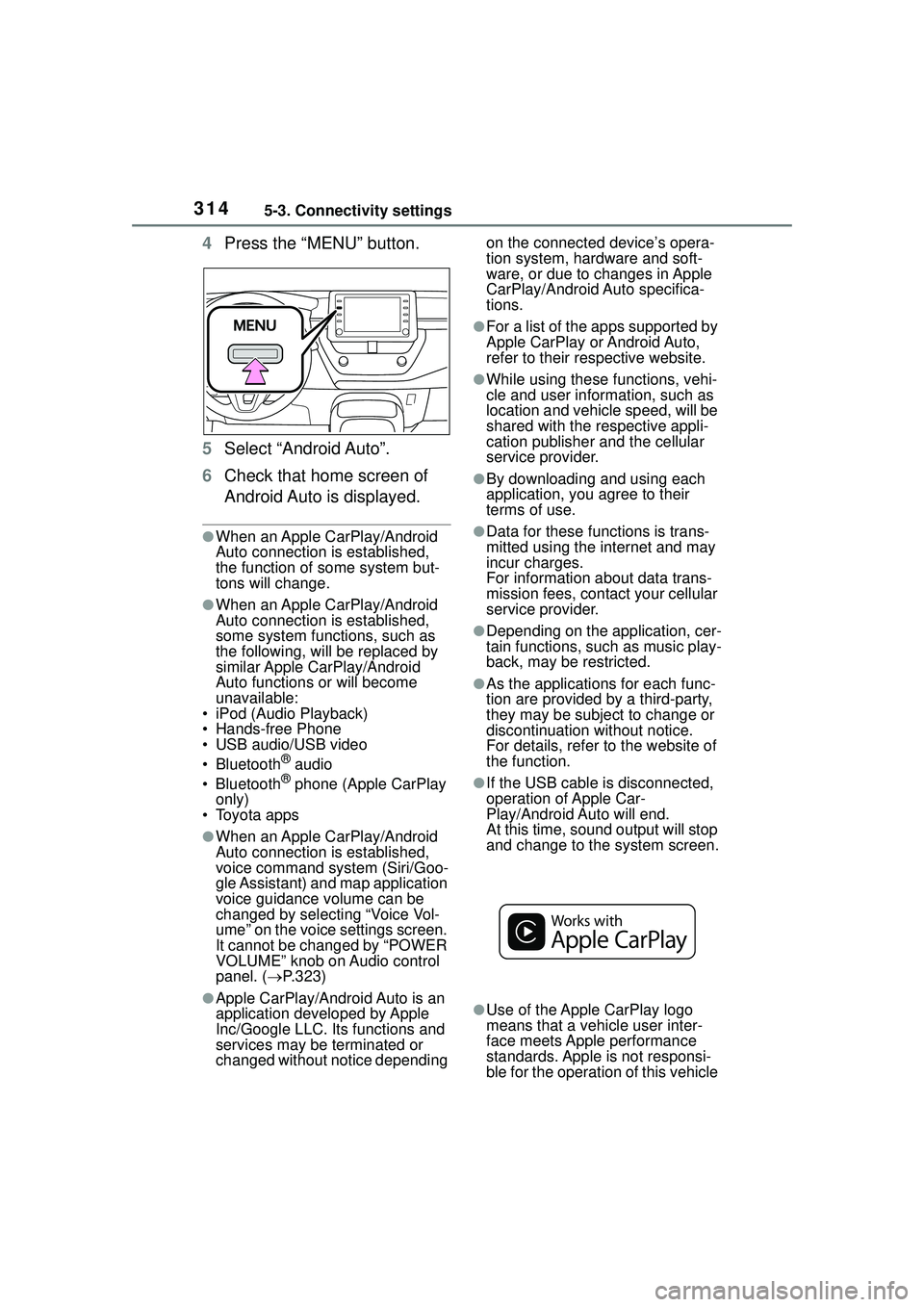
4Press the “MENU” button.
5 Select “Android Auto”.
6 Check that home screen of
Android Auto is displayed.
●When an Apple CarPlay/Android
Auto connection is established,
the function of some system but-
tons will change.
●When an Apple CarPlay/Android
Auto connection is established,
some system functi ons, such as
the following, will be replaced by
similar Apple CarPlay/Android
Auto functions or will become
unavailable:
• iPod (Audio Playback)
• Hands-free Phone
• USB audio/USB video
• Bluetooth
® audio
• Bluetooth® phone (Apple CarPlay
only)
• Toyota apps
●When an Apple CarPlay/Android
Auto connection is established,
voice command system (Siri/Goo-
gle Assistant) and map application
voice guidance volume can be
changed by selecting “Voice Vol-
ume” on the voice settings screen.
It cannot be changed by “POWER
VOLUME” knob on Audio control
panel. ( P.323)
●Apple CarPlay/Android Auto is an
application developed by Apple
Inc/Google LLC. Its functions and
services may be terminated or
changed without notice depending on the connected device’s opera-
tion system, hardware and soft-
ware, or due to changes in Apple
CarPlay/Android Auto specifica-
tions.
●For a list of the apps supported by
Apple CarPlay or Android Auto,
refer to their respective website.
●While using these functions, vehi-
cle and user information, such as
location and vehicle speed, will be
shared with the
respective appli-
cation publisher and the cellular
service provider.
●By downloading and using each
application, you agree to their
terms of use.
●Data for these fu nctions is trans-
mitted using the internet and may
incur charges.
For information about data trans-
mission fees, contact your cellular
service provider.
●Depending on the application, cer-
tain functions, such as music play-
back, may be restricted.
●As the applications for each func-
tion are provided by a third-party,
they may be subject to change or
discontinuation without notice.
For details, refer to the website of
the function.
●If the USB cable is disconnected,
operation of Apple Car-
Play/Android Auto will end.
At this time, sound output will stop
and change to the system screen.
●Use of the Apple CarPlay logo
means that a vehicle user inter-
face meets Apple performance
standards. Apple is not responsi-
ble for the operation of this vehicle