key TOYOTA COROLLA CROSS 2022 Service Manual
[x] Cancel search | Manufacturer: TOYOTA, Model Year: 2022, Model line: COROLLA CROSS, Model: TOYOTA COROLLA CROSS 2022Pages: 612, PDF Size: 17.18 MB
Page 178 of 612
1784-3. Operating the lights and wipers
■Daytime running light system
●Vehicles without a smart key sys-
tem :The daytime running lights
illuminate using the same lights as
the headlights and illuminate
darker than the headlights.
Vehicles with a smart key system
:The daytime running lights illumi-
nate using the same lights as the
parking lights and illuminate darker
than the parking lights.
●To make your vehicle more visible
to other drivers during daytime
driving, the daytime running lights
turn on automatically when all of
the following conditions are met.
(The daytime running lights are
not designed for use at night.)
• The engine is running
• The parking brake is released
• Type A: The headlight switch is in
the or
* position
Type B: The headlight switch is in
the or position
*: When the surroundings are bright
The daytime running lights remain
on after they illuminate, even if the
parking brake is set again.
●Daytime running lights can be
turned off by operating the switch.
●Compared to turning on the head-
lights, the daytime running light
system offers greater durability
and consumes less electricity, so
it can help improve fuel economy.
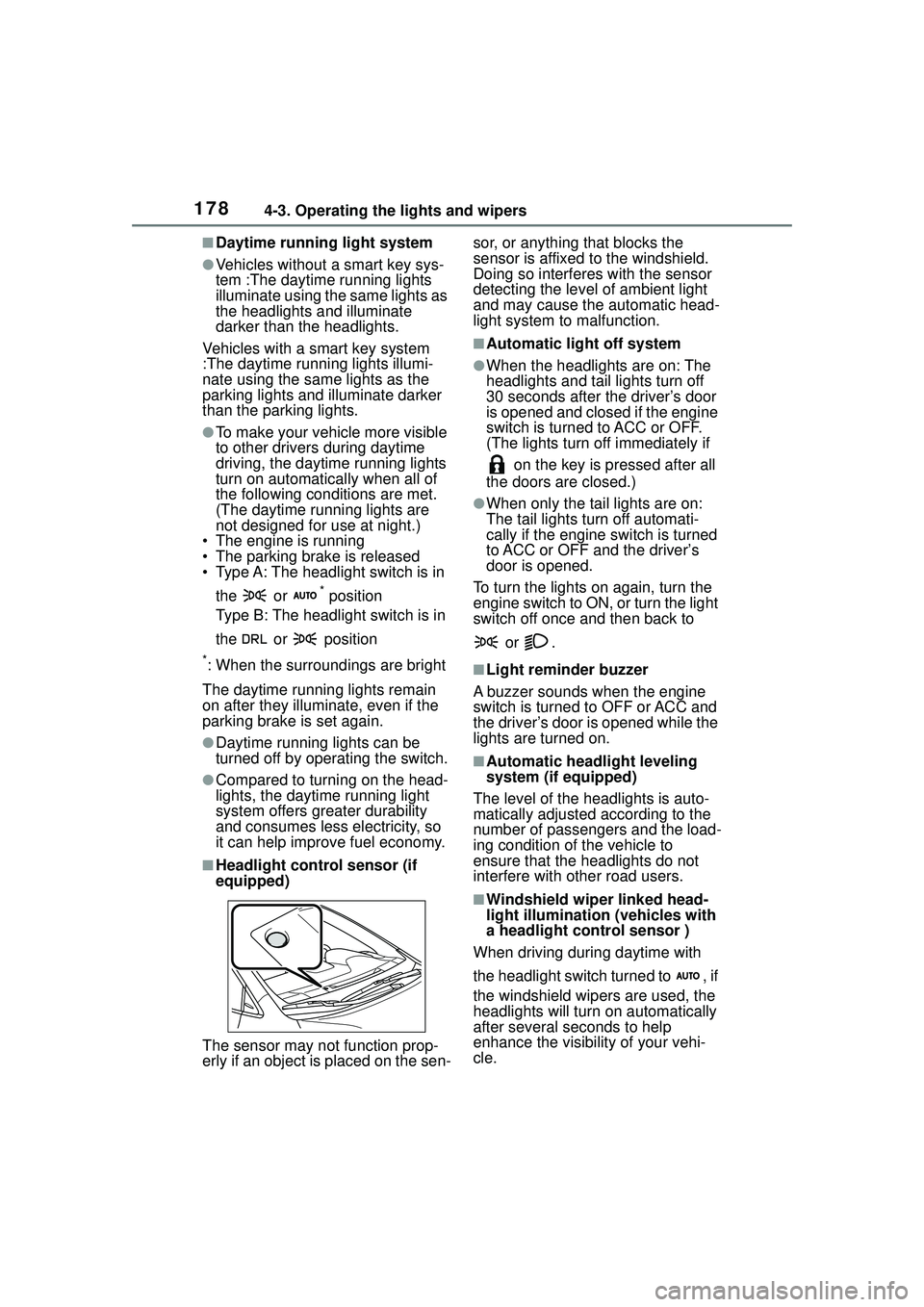
■Headlight control sensor (if
equipped)
The sensor may not function prop-
erly if an object is placed on the sen- sor, or anything that blocks the
sensor is affixed to the windshield.
Doing so interferes with the sensor
detecting the level of ambient light
and may cause the automatic head-
light system to
malfunction.
■Automatic light off system
●When the headlights are on: The
headlights and tail lights turn off
30 seconds after the driver’s door
is opened and closed if the engine
switch is turned to ACC or OFF.
(The lights turn off immediately if
on the key is pressed after all
the doors are closed.)
●When only the tail lights are on:
The tail lights turn off automati-
cally if the engine switch is turned
to ACC or OFF and the driver’s
door is opened.
To turn the lights on again, turn the
engine switch to ON, or turn the light
switch off once and then back to
or .
■Light reminder buzzer
A buzzer sounds when the engine
switch is turned to OFF or ACC and
the driver’s door is opened while the
lights are turned on.
■Automatic headlight leveling
system (if equipped)
The level of the headlights is auto-
matically adjusted according to the
number of passengers and the load-
ing condition of the vehicle to
ensure that the headlights do not
interfere with other road users.
■Windshield wiper linked head-
light illumination (vehicles with
a headlight control sensor )
When driving during daytime with
the headlight switch turned to , if
the windshield wipers are used, the
headlights will turn on automatically
after several se conds to help
enhance the visibility of your vehi-
cle.
Page 292 of 612
2925-2. Basic information before operation
Select to change character
types. (P.292)
Select to make a space on
cursor.
Keyboard layout can be changed.
( P.319)
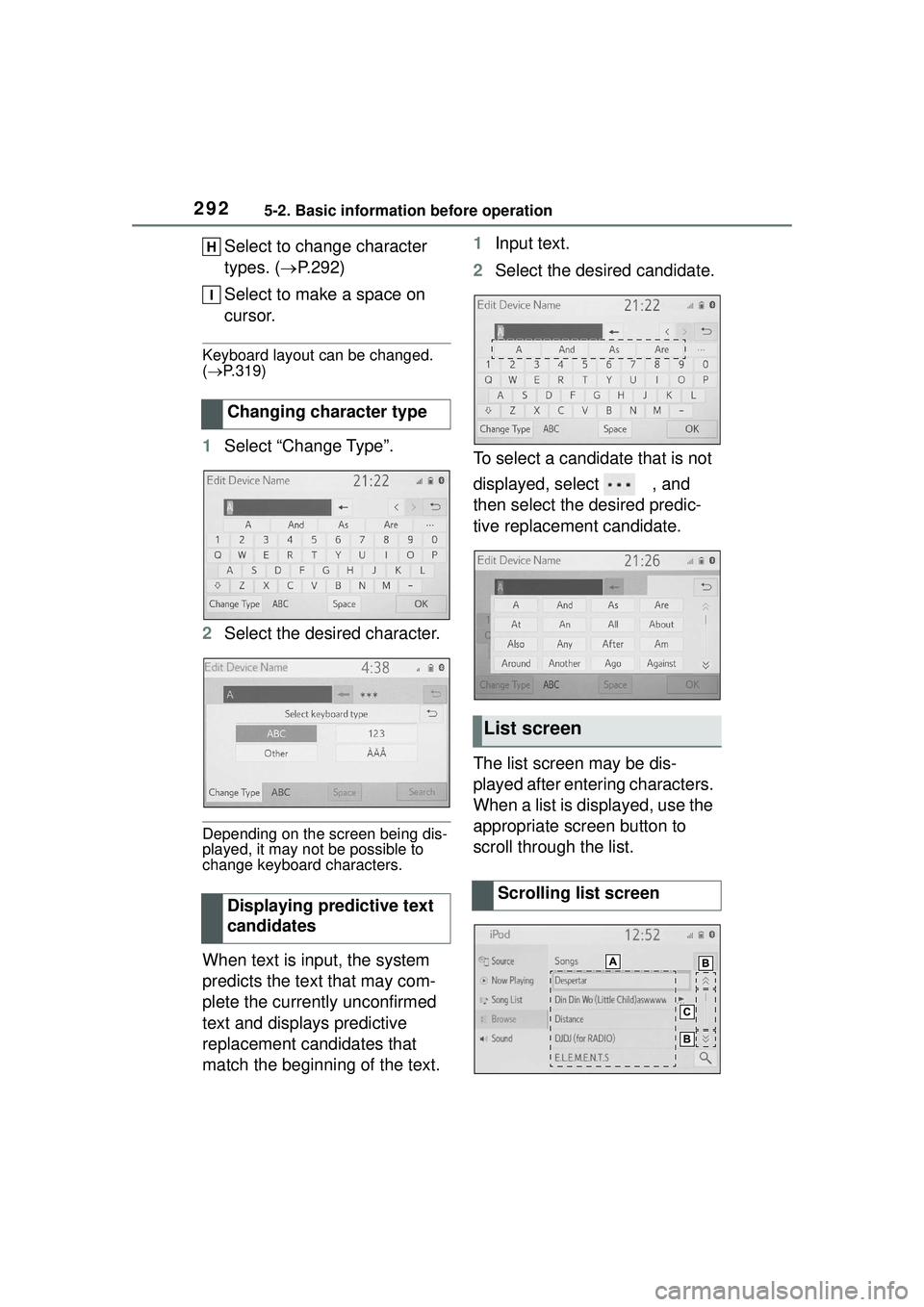
1 Select “Change Type”.
2 Select the desired character.
Depending on the screen being dis-
played, it may not be possible to
change keyboard characters.
When text is input, the system
predicts the text that may com-
plete the currently unconfirmed
text and displays predictive
replacement candidates that
match the beginning of the text. 1
Input text.
2 Select the desired candidate.
To select a candidate that is not
displayed, select , and
then select the desired predic-
tive replacement candidate.
The list screen may be dis-
played after entering characters.
When a list is displayed, use the
appropriate screen button to
scroll through the list.
Changing character type
Displaying predictive text
candidates
List screen
Scrolling list screen
Page 319 of 612
3195-4. Other settings
5
Audio
5-4.Other settings
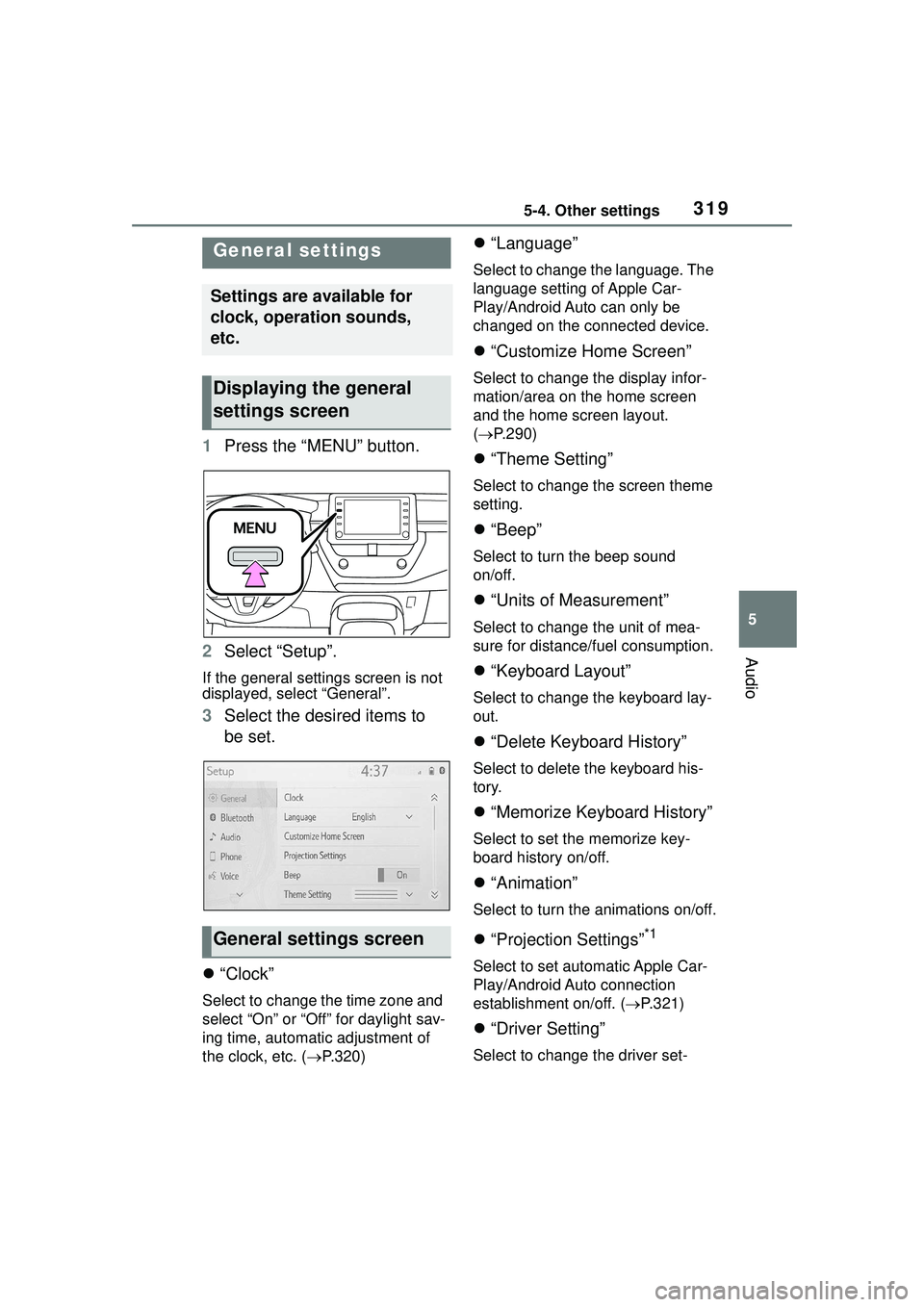
1Press the “MENU” button.
2 Select “Setup”.
If the general settings screen is not
displayed, select “General”.
3Select the desired items to
be set.
“Clock”
Select to change the time zone and
select “On” or “Off” for daylight sav-
ing time, automatic adjustment of
the clock, etc. ( P.320)
“Language”
Select to change the language. The
language setting of Apple Car-
Play/Android Auto can only be
changed on the connected device.
“Customize Home Screen”
Select to change the display infor-
mation/area on the home screen
and the home screen layout.
( P.290)
“Theme Setting”
Select to change the screen theme
setting.
“Beep”
Select to turn the beep sound
on/off.
“Units of Measurement”
Select to change the unit of mea-
sure for distance/fuel consumption.
“Keyboard Layout”
Select to change the keyboard lay-
out.
“Delete Keyboard History”
Select to delete the keyboard his-
tory.
“Memorize Keyboard History”
Select to set the memorize key-
board history on/off.
“Animation”
Select to turn the animations on/off.
“Projection Settings”*1
Select to set automatic Apple Car-
Play/Android Auto connection
establishment on/off. ( P.321)
“Driver Setting”
Select to change the driver set-
General settings
Settings are available for
clock, operation sounds,
etc.
Displaying the general
settings screen
General settings screen
Page 372 of 612
3725-13. Phone operation (Hands-free system for cellular phones)
1Display the phone top
screen. ( P.367)
2 Select the desired method to
call from.
■Calling methods from
phone screen
By call history ( P.372)
By favorites ( P.372)
By contacts ( P.373)
By keypad ( P.374)
By message ( P.381)
■Also the following lists are
available from each func-
tion’s screen
By voice command system
( P.359)
By home screen ( P.374)
Up to 30 of the latest call history items (missed, incoming and
outgoing) can be selected.
1
Display the phone top
screen. ( P.367)
2 Select “History” and select
the desired contact.
If the contact which is not regis-
tered on the contact list is selected,
the name is displayed as “Unknown
Contact”. In this case, select the
number to make a call properly.
3Check that the dialing screen
is displayed.
●The icons of call type are dis-
played.
: Missed call
: Incoming call
: Outgoing call
●When making a call to the same
number continuously, only the
most recent call is listed in call his-
tory.
●When a phone number registered
in the contact list is received, the
name is displayed.
●Number-withheld calls are also
memorized in the system.
●International phone calls may not
be made depending on the type of
Bluetooth
® phone you have.
●The list should group together
consecutive entries with the same
phone number and same call
type. For example, two calls from
John’s mobile would be displayed
as follows: John (2)
Calls can be made using regis-
tered contacts which can be
Placing a call using
the Bluetooth®
hands-free system
After a Bluetooth® phone
has been registered, a call
can be made using the
hands-free system. There
are several methods by
which a call can be made, as
described below.
Calling methods on the
Bluetooth
® phone
By call history
By favorites list
Page 374 of 612
3745-13. Phone operation (Hands-free system for cellular phones)
2Check that a confirmation
screen is displayed when the
operation is complete.
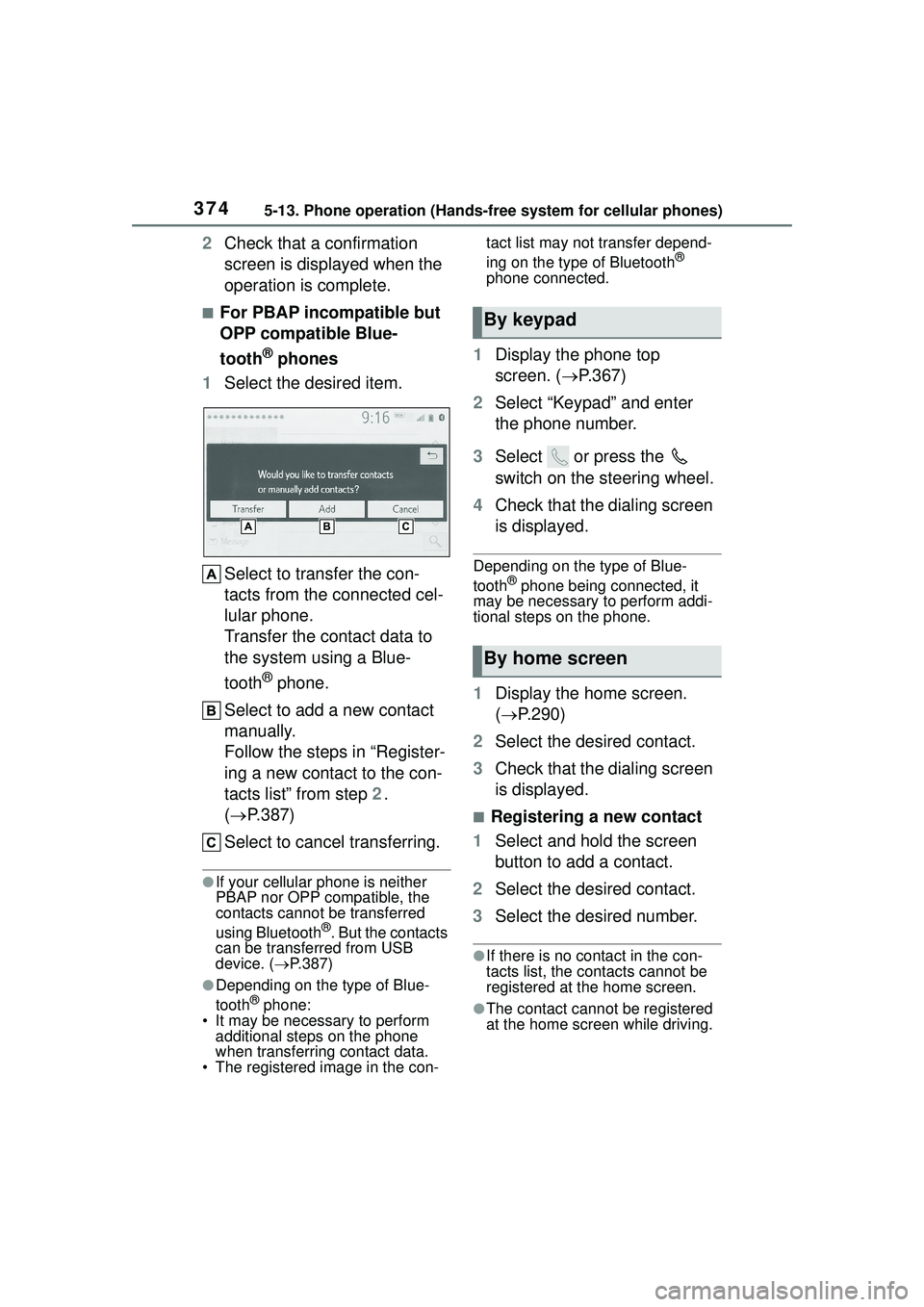
■For PBAP incompatible but
OPP compatible Blue-
tooth
® phones
1 Select the desired item.
Select to transfer the con-
tacts from the connected cel-
lular phone.
Transfer the contact data to
the system using a Blue-
tooth
® phone.
Select to add a new contact
manually.
Follow the steps in “Register-
ing a new contact to the con-
tacts list” from step 2.
( P.387)
Select to cancel transferring.
●If your cellular phone is neither
PBAP nor OPP compatible, the
contacts cannot be transferred
using Bluetooth
®. But the contacts
can be transferred from USB
device. ( P.387)
●Depending on the type of Blue-
tooth® phone:
• It may be necessa ry to perform
additional steps on the phone
when transferring contact data.
• The registered image in the con- tact list may not transfer depend-
ing on the type of Bluetooth
®
phone connected.
1 Display the phone top
screen. ( P.367)
2 Select “Keypad” and enter
the phone number.
3 Select or press the
switch on the steering wheel.
4 Check that the dialing screen
is displayed.
Depending on the type of Blue-
tooth® phone being connected, it
may be necessary to perform addi-
tional steps on the phone.
1 Display the home screen.
( P.290)
2 Select the desired contact.
3 Check that the dialing screen
is displayed.
■Registering a new contact
1 Select and hold the screen
button to add a contact.
2 Select the desired contact.
3 Select the desired number.
●If there is no contact in the con-
tacts list, the contacts cannot be
registered at the home screen.
●The contact cannot be registered
at the home screen while driving.
By keypad
By home screen
Page 376 of 612
3765-13. Phone operation (Hands-free system for cellular phones)
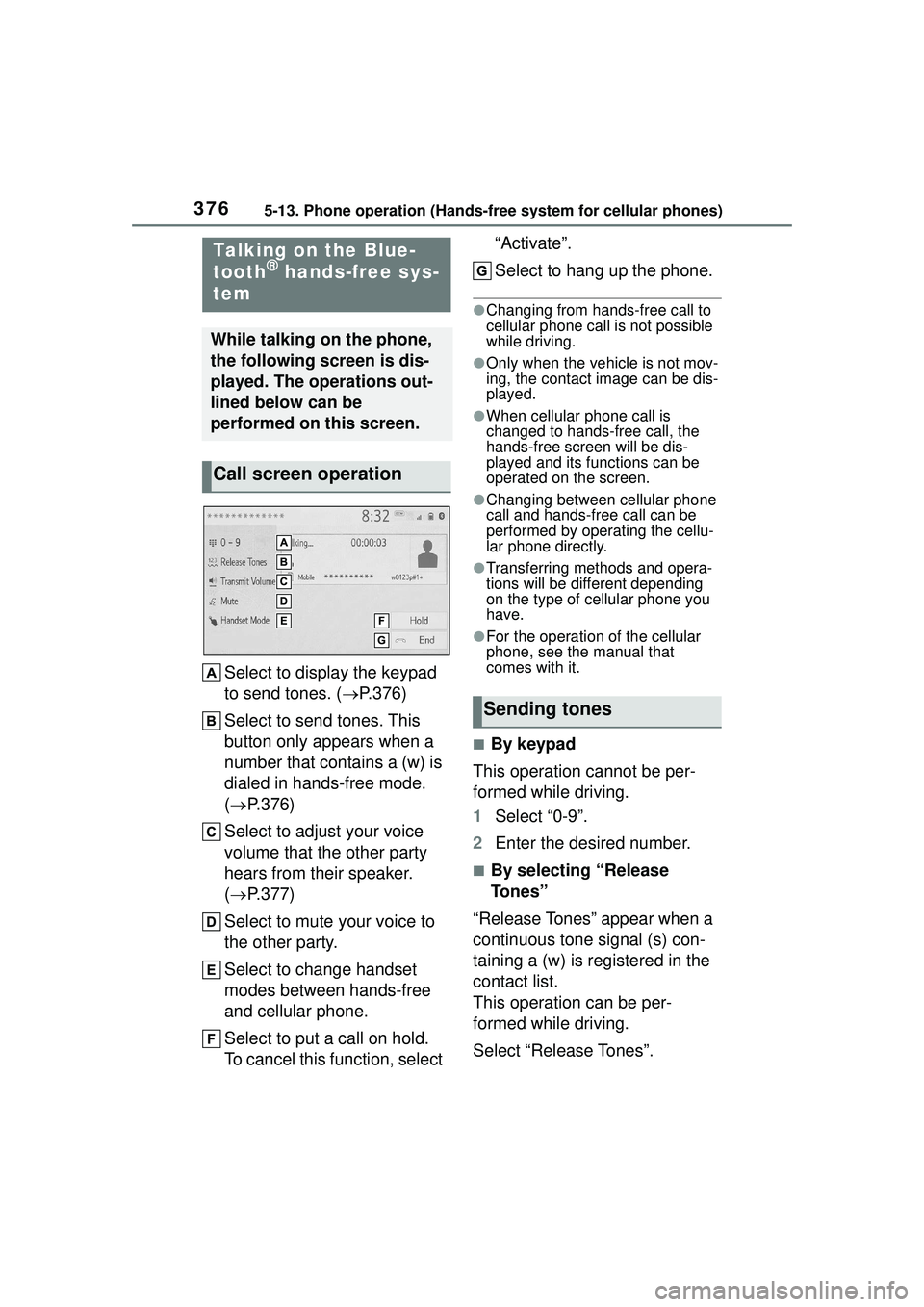
Select to display the keypad
to send tones. (P.376)
Select to send tones. This
button only appears when a
number that contains a (w) is
dialed in hands-free mode.
( P.376)
Select to adjust your voice
volume that the other party
hears from their speaker.
( P.377)
Select to mute your voice to
the other party.
Select to change handset
modes between hands-free
and cellular phone.
Select to put a call on hold.
To cancel this function, select “Activate”.
Select to hang up the phone.
●Changing from hands-free call to
cellular phone call is not possible
while driving.
●Only when the vehicle is not mov-
ing, the contact image can be dis-
played.
●When cellular phone call is
changed to hands-free call, the
hands-free screen will be dis-
played and its functions can be
operated on the screen.
●Changing between cellular phone
call and hands-free call can be
performed by operating the cellu-
lar phone directly.
●Transferring methods and opera-
tions will be differ
ent depending
on the type of cellular phone you
have.
●For the operation of the cellular
phone, see the manual that
comes with it.
■By keypad
This operation cannot be per-
formed while driving.
1 Select “0-9”.
2 Enter the desired number.
■By selecting “Release
Tones”
“Release Tones” appear when a
continuous tone signal (s) con-
taining a (w) is registered in the
contact list.
This operation can be per-
formed while driving.
Select “Release Tones”.
Talking on the Blue-
tooth® hands-free sys-
tem
While talking on the phone,
the following screen is dis-
played. The operations out-
lined below can be
performed on this screen.
Call screen operation
Sending tones
Page 391 of 612
3915-14. Phone settings
5
Audio
2Enter desired signature with
using keyboard.
3 Select “OK”.
4 Select “OK” on the confirma-
tion screen, or select “Edit
Again” when it needs to
amend.
Page 405 of 612
4055-17. Connected Services Operation
5
Audio
phone is Bluetooth® SPP compati-
ble or not, and then activate the
Toyota mobile application.
“Installation failed, please try
again”
Installation can be attempted again
by changing to the application
screen and pressing the “Install”
switch.
“Application download error.
Please try again later.”
Downloading can be attempted
again by checking the communica-
tion status, changing to the applica-
tion screen and pressing the
“Download” switch again.
“Download error, some mobile
application functions may not
work as expected. Please
reinitiate the download pro-
cess.”
The Toyota mobile application can-
not be connected to Bluetooth
®
SPP.
Refer to
https://www.toyota.com/
connected-services
in the United States,
https://www.toyota.ca/connected
in Canada, and
http://www.toyotapr.com/
connected-services
in Puerto Rico, to confirm if the
phone is Bluetooth
® SPP compati-
ble or not, and then activate the
Toyota mobile application.
Please ensure your Toyota mobile
application is running and logged in
on your phone while vehicle is not
moving.
“To use the services, mobile
application needs to be run-
ning on your phone. For more
information, please visit toy-
ota.com or call
1-800-331-4331 in the United
States, 1-888-869-6828 in
Canada, and 1-877-855-8377
in Puerto Rico.”
The Toyota mobile application can-
not be connected to Bluetooth
®
SPP.
Refer to
https://www.toyota.com/
connected-services
in the United States,
https://www.toyota.ca/connected
in Canada, and
http://www.toyotapr.com/
connected-services
in Puerto Rico, to confirm if the
phone is Bluetooth
® SPP compati-
ble or not, and then activate the
Toyota mobile application.
“Communication unsuccess-
ful. Please try again.”
Communication was disconnected.
After a few moments, retry the
operation.
A keyword can be entered to an
application by the software key-
board or voice recognition func-
tion. For details about the
functions and services provided
by each application, refer to
https://www.toyota.com/
Entering keyword opera-
tion
Page 406 of 612
4065-17. Connected Services Operation
connected-services
in the United States,
https://www.toyota.ca/connected
in Canada, and
http://www.toyotapr.com/
connected-services
in Puerto Rico.
The keyboard layout can be
changed. (P.319)
1 Display the application
screen. ( P.403)
2 Select the desired application
screen button.
3 Select the character entering
space.
4 Enter a search term, and
then select “OK”.
5 Entering characters will be
reflected on the character
entering space.
For details on operating the key-
board: P.291
1 Display the application
screen. ( P.403)
2 Select the desired application
screen button.
3 Press the talk switch.
( P.358)
4 Say the desired keyword.
Completion of the keyword will be
detected automatically.
5Search results will be dis-
played on the screen.
Entering a keyword using
the software keyboard
Entering a keyword using
the voice recognition func-
tion
Page 427 of 612
4276-2. Using the interior lights
6
Interior features
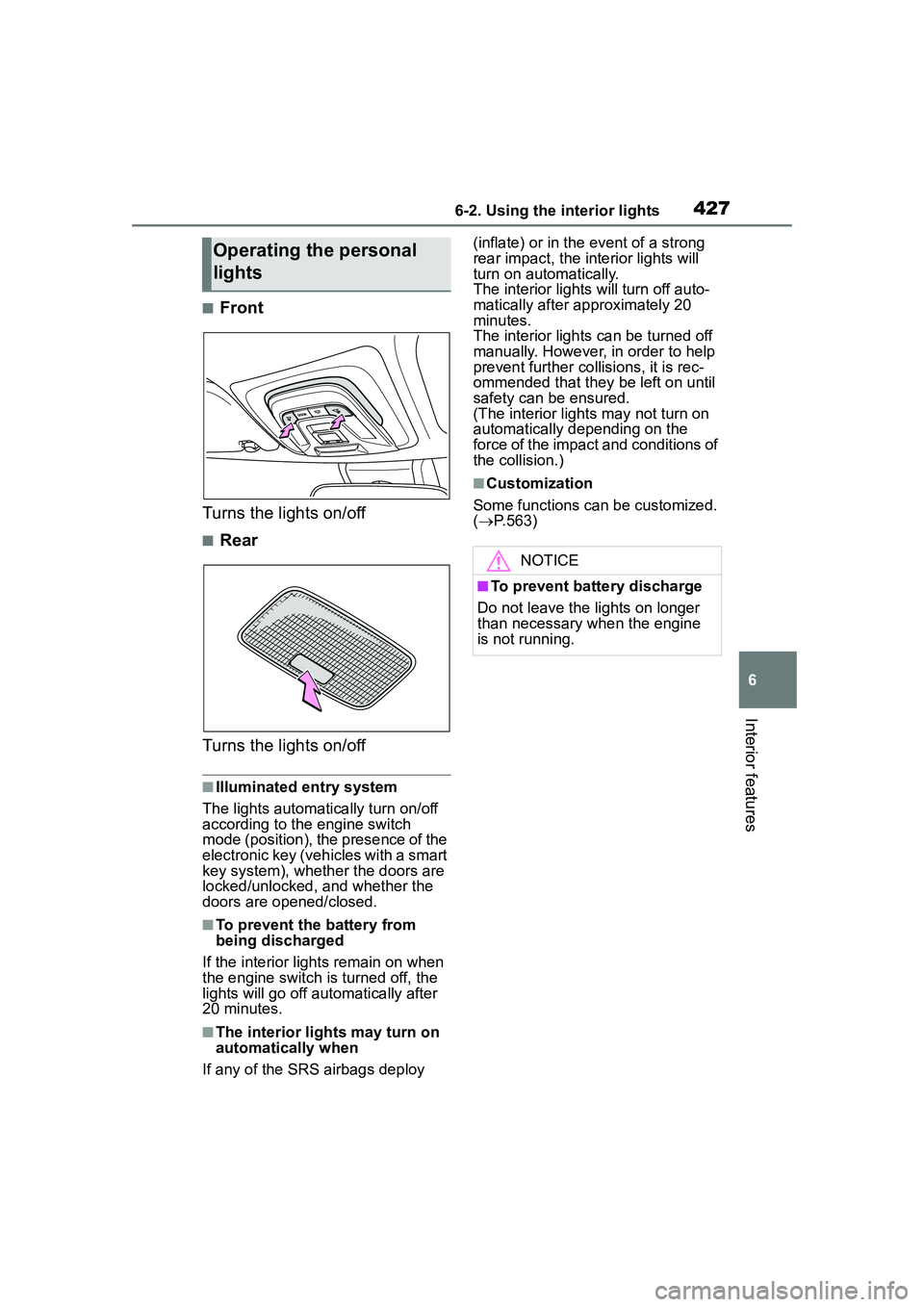
■Front
Turns the lights on/off
■Rear
Turns the lights on/off
■Illuminated entry system
The lights automatically turn on/off
according to the engine switch
mode (position), the presence of the
electronic key (vehicles with a smart
key system), whether the doors are
locked/unlocked, and whether the
doors are opened/closed.
■To prevent the battery from
being discharged
If the interior light s remain on when
the engine switch is turned off, the
lights will go off automatically after
20 minutes.
■The interior lights may turn on
automatically when
If any of the SRS airbags deploy (inflate) or in the event of a strong
rear impact, the interior lights will
turn on automatically.
The interior light
s will turn off auto-
matically after approximately 20
minutes.
The interior lights can be turned off
manually. However, in order to help
prevent further collisions, it is rec-
ommended that they be left on until
safety can be ensured.
(The interior lights may not turn on
automatically depending on the
force of the impact and conditions of
the collision.)
■Customization
Some functions can be customized.
( P.563)
Operating the personal
lights
NOTICE
■To prevent battery discharge
Do not leave the lights on longer
than necessary when the engine
is not running.