instrument cluster TOYOTA COROLLA HATCHBACK 2022 (in English) Owner's Manual
[x] Cancel search | Manufacturer: TOYOTA, Model Year: 2022, Model line: COROLLA HATCHBACK, Model: TOYOTA COROLLA HATCHBACK 2022Pages: 758, PDF Size: 155.26 MB
Page 104 of 758
1022-1. Instrument cluster
be updated.
When refueling, turn the engine switch
off. If the vehicle is refueled without
turning the engine switch off, the dis-
play may not be updated.
The average fuel economy display
can be changed in . ( P.104)
Average fuel economy (after
start)
Displays the average fuel consumption
since engine start.
Average fuel economy (after
refuel)
Displays the average fuel consumption
since the vehicle was refueled.
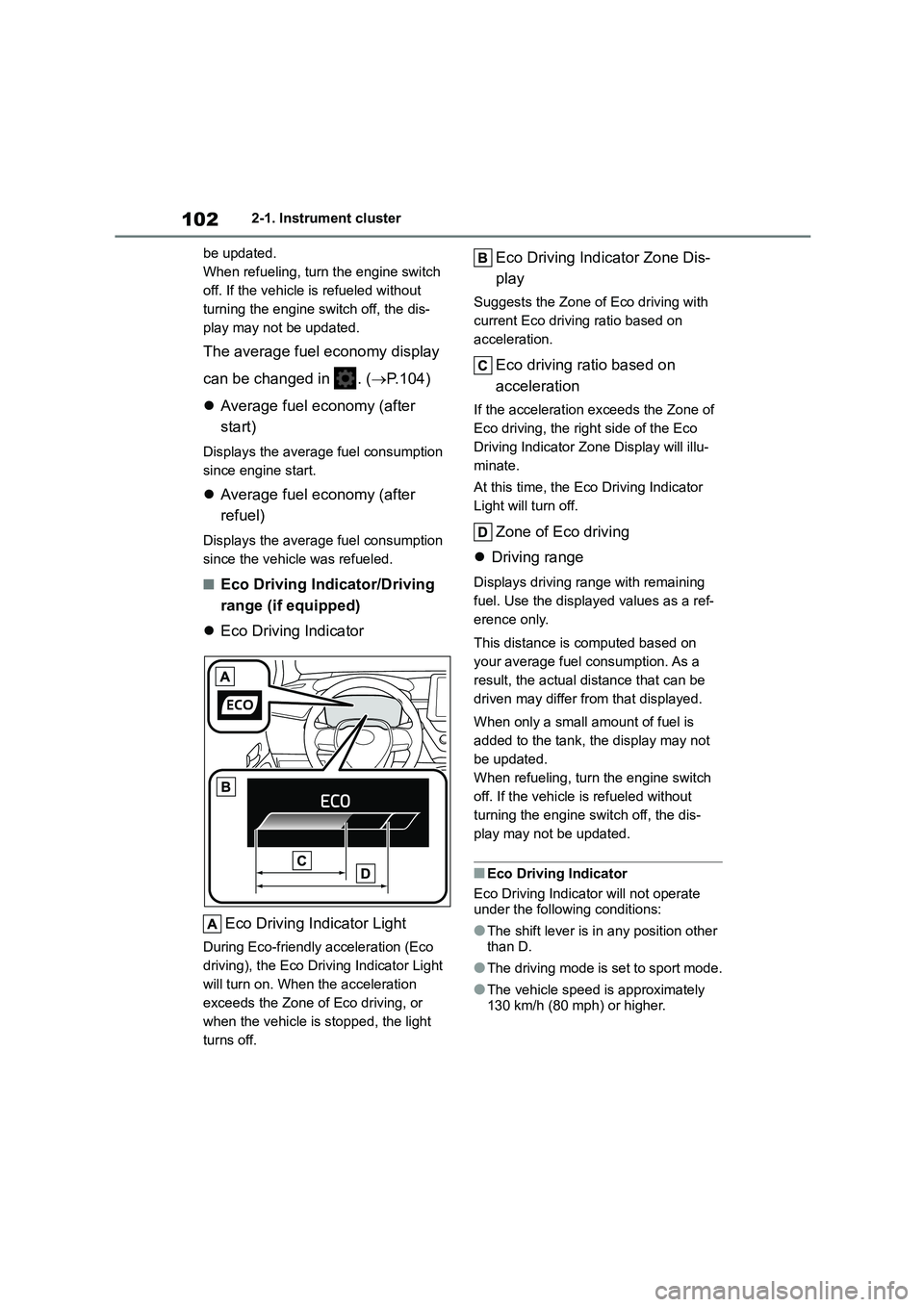
■Eco Driving Indicator/Driving
range (if equipped)
Eco Driving Indicator
Eco Driving Indicator Light
During Eco-friendly acceleration (Eco
driving), the Eco Driving Indicator Light
will turn on. When the acceleration
exceeds the Zone of Eco driving, or
when the vehicle is stopped, the light
turns off.
Eco Driving Indicator Zone Dis-
play
Suggests the Zone of Eco driving with
current Eco driving ratio based on
acceleration.
Eco driving ratio based on
acceleration
If the acceleration exceeds the Zone of
Eco driving, the right side of the Eco
Driving Indicator Zone Display will illu-
minate.
At this time, the Eco Driving Indicator
Light will turn off.
Zone of Eco driving
Driving range
Displays driving range with remaining
fuel. Use the displayed values as a ref-
erence only.
This distance is computed based on
your average fuel consumption. As a
result, the actual distance that can be
driven may differ from that displayed.
When only a small amount of fuel is
added to the tank, the display may not
be updated.
When refueling, turn the engine switch
off. If the vehicle is refueled without
turning the engine switch off, the dis-
play may not be updated.
■Eco Driving Indicator
Eco Driving Indicator will not operate
under the following conditions:
●The shift lever is in any position other
than D.
●The driving mode is set to sport mode.
●The vehicle speed is approximately 130 km/h (80 mph) or higher.
Page 105 of 758
103
2
2-1. Instrument cluster
Vehicle status information and indicators
■Driving support system infor-
mation
Select to display the operational
status of the following systems:
LTA (Lane Tracing Assist) (if
equipped) ( P.231)
LDA (Lane Departure Alert with
steering control) (if equipped)
( P.241)
Cruise control (if equipped)
( P.271)
Dynamic radar cruise control (if
equipped) ( P.260)
Dynamic radar cruise control
with full-speed range (if
equipped) ( P.249)
■Navigation system-linked dis-
play (if equipped)
Select to display the following navi-
gation system-linked information:
Route guidance to destination
Compass display (heading-up
display)
■Route guidance to destination dis-
play
When the route guidance to destination
display is enabled on the head-up dis-
play, it will not be displayed on the multi-information display. ( P.107)
Select to enable selection of an
audio source or track on the meter
using the meter control switches.
This menu icon can be set to be dis-
played/not displayed in .
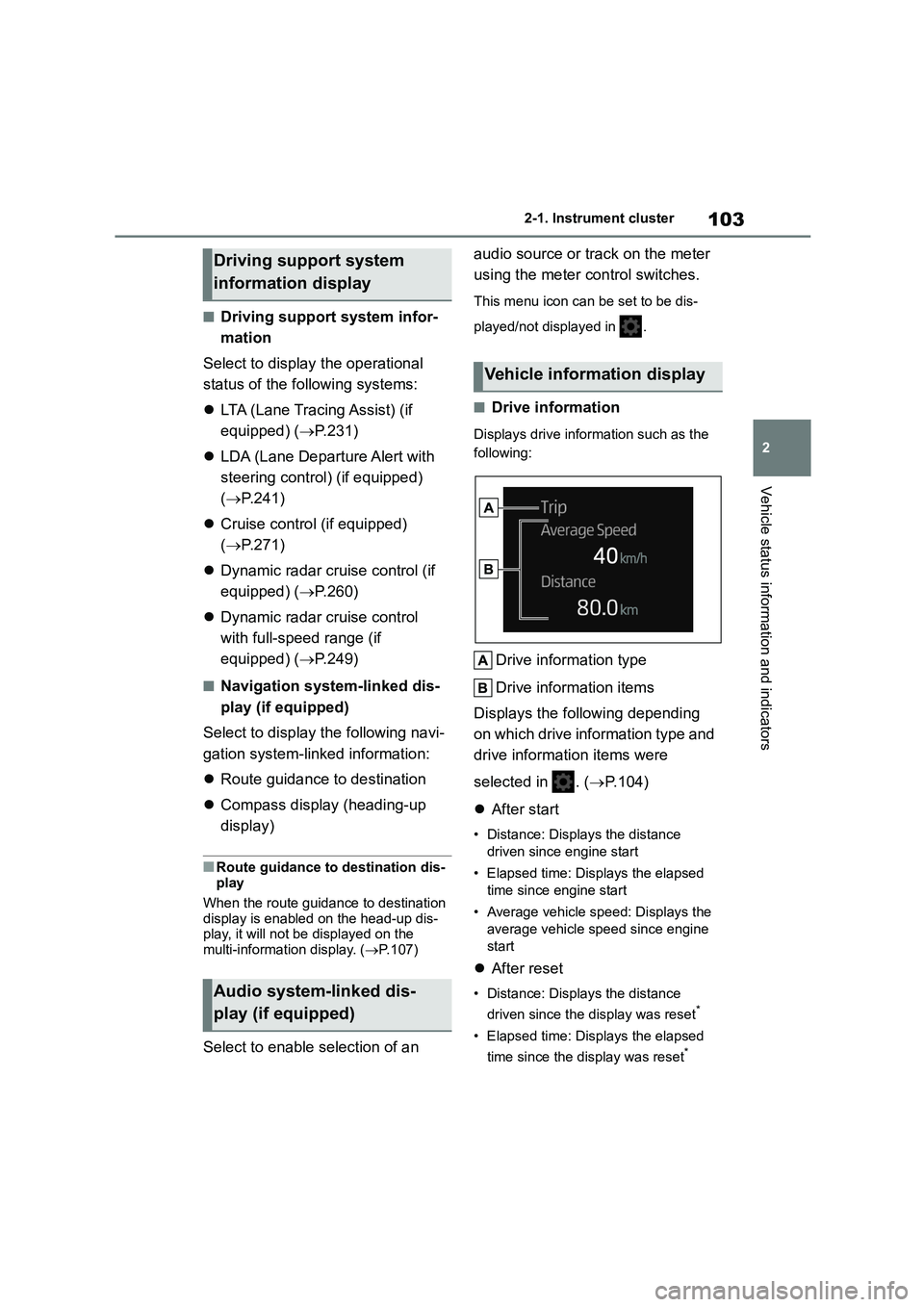
■Drive information
Displays drive information such as the
following:
Drive information type
Drive information items
Displays the following depending
on which drive information type and
drive information items were
selected in . ( P.104)
After start
• Distance: Displays the distance
driven since engine start
• Elapsed time: Displays the elapsed
time since engine start
• Average vehicle speed: Displays the
average vehicle speed since engine
start
After reset
• Distance: Displays the distance
driven since the display was reset*
• Elapsed time: Displays the elapsed
time since the display was reset*
Driving support system
information display
Audio system-linked dis-
play (if equipped)
Vehicle information display
Page 106 of 758
1042-1. Instrument cluster
• Average vehicle speed: Displays the
average vehicle speed since the dis-
play was reset*
*: To reset, display the desired item and
press and hold the meter control
switch.
■Meter display settings that can
be changed
Clock setting (vehicles without
navigation/multimedia system)
P.91, 97
Language
Select to change the language dis-
played.
Units
Select to change the units of measure
displayed.
Speedometer display (7-inch dis-
play)
Select to set the display of the speed-
ometer to analog/digital/digital+ (if
equipped).
Eco Driving Indicator Light (if
equipped)
Select to enable/disable the Eco Driv-
ing Indicator Light.
• Fuel economy display
Select to change the average fuel con-
sumption display between after
start/after reset. ( P.101)
(if equipped)
Select to display/not display the audio
system linked display.
Select to change the displayed content
of the following:
• Drive information type
Select to change the drive information
type display between after start/after
reset.
• Drive information items
Select to set the first and second items
of the drive information display to any of
the following: average vehicle
speed/distance/elapsed time.
Pop-up display
Select to enable/disable pop-up dis-
plays for each relevant system.
Multi-information display off
(when analog/digital speedome-
ter is displayed)
Select to turn the multi-information dis-
play off.
To turn the multi-information display on
again, press any of the following meter
control sw itches
//// /.
Analog clock (when digital+
speedometer is displayed) (if
equipped)
Display the analog clock.
To turn the multi-information display on
again, press any of the following meter
control sw itches
//// /.
Default setting
Select to reset the meter display set-
tings to the default setting.
Settings display
Page 107 of 758
105
2
2-1. Instrument cluster
Vehicle status information and indicators
■Vehicle functions and settings
that can be changed
P. 5 7 7
■Suspension of the settings display
●Some settings cannot be changed
while driving. When changing set-
tings, park the vehicle in a safe place.
●If a warning message is displayed,
operation of the settings display will be suspended.
Stop & Start system operation
time (after start)/status notifica-
tion
Displays the current amount of time the
engine has been stopped by the opera-
tion of the Stop & Start system.
Also shows the status of the Stop &
Start system with a pop-up display.
( P.285)
Stop & Start system settings
The length of time of the Stop & Start
system will operate when the “A/C”
switch of the air co nditioning system is
on can be set to 2 different levels in
of the multi-information display.
( P.285)
WA R N I N G
■Cautions during setting up the
display
If the engine is running when chang- ing the display settings, ensure that
the vehicle is parked in a place with
adequate ventilation. In a closed area such as a garage, exhaust gases
including harmful carbon monoxide
(CO) may collect and enter the vehi- cle. This may lead to death or a seri-
ous health hazard.
NOTICE
■During setting up the display
To prevent battery discharge, ensure
that the engine is running while set-
ting up the display features.
Stop & Start system infor-
mation (if equipped)
Page 108 of 758
1062-1. Instrument cluster
*: If equipped
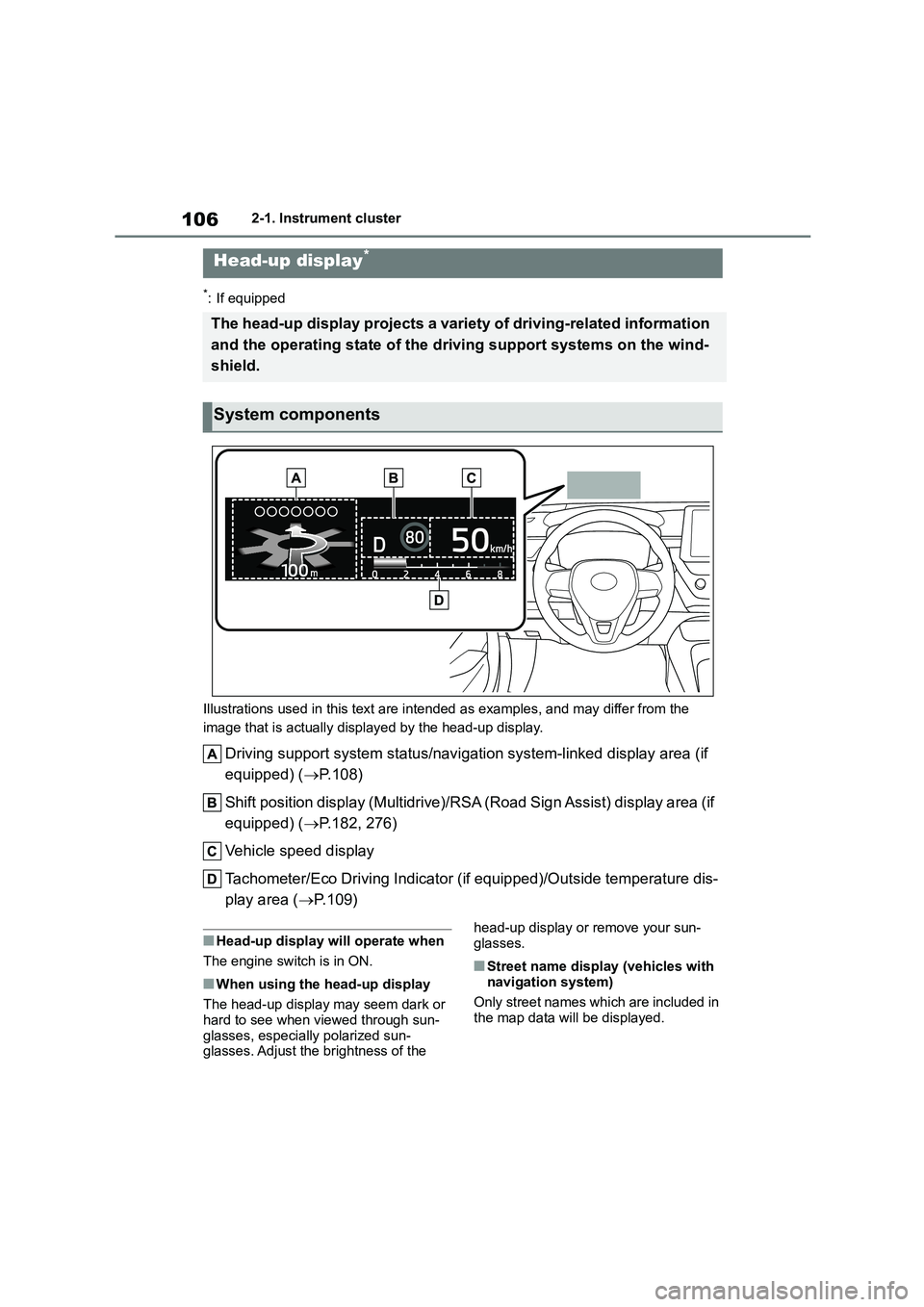
Illustrations used in this text are intended as examples, and may differ from the
image that is actually displayed by the head-up display.
Driving support system status/navigation system-linked display area (if
equipped) ( P.108)
Shift position display (Multidrive)/RSA (Road Sign Assist) display area (if
equipped) ( P.182, 276)
Vehicle speed display
Tachometer/Eco Driving Indicator (i f equipped)/Outside temperature dis-
play area ( P.109)
■Head-up display will operate when
The engine switch is in ON.
■When using the head-up display
The head-up display may seem dark or
hard to see when viewed through sun-
glasses, especially polarized sun- glasses. Adjust the brightness of the
head-up display or remove your sun-
glasses.
■Street name display (vehicles with
navigation system)
Only street names which are included in
the map data will be displayed.
Head-up display*
The head-up display projects a variety of driving-related information
and the operating state of the driving support systems on the wind-
shield.
System components
Page 109 of 758
107
2
2-1. Instrument cluster
Vehicle status information and indicators
Select on the multi-information
display ( P.104) and then “HUD
Main”.
■Enabling/disabling the
head-up display
Press the meter control switch
to enable/disable the head-up dis-
play.
■Changing the head-up display
settings
Press and hold the meter con-
trol switch to change the following
settings:
Brightness and vertical position
of the head-up display
Select to adjust the brightness or verti-
cal position of the head-up display.
Display content
Select to change the display between
the following:
• No content
• Eco Driving Indicator (if equipped)
• Tachometer
Select to enable/disable the following
items:
• Route guidance to destination (if
equipped)
• Driving support system display
• Compass (heading-up display) (if
equipped)
• Audio system operation status (if
equipped)
Display angle
Select to adjust the angle of the
WA R N I N G
■When using the head-up display
●Check that the position and bright-
ness of the head-up display image does not interfere with safe driving.
Incorrect adjustment of the image’s
position or bright ness may obstruct the driver’s view and lead to an
accident, resulting in death or seri-
ous injury.
●Do not continuously look at the
head-up display while driving as
you may fail to see pedestrians, objects on the road, etc. ahead of
the vehicle.
NOTICE
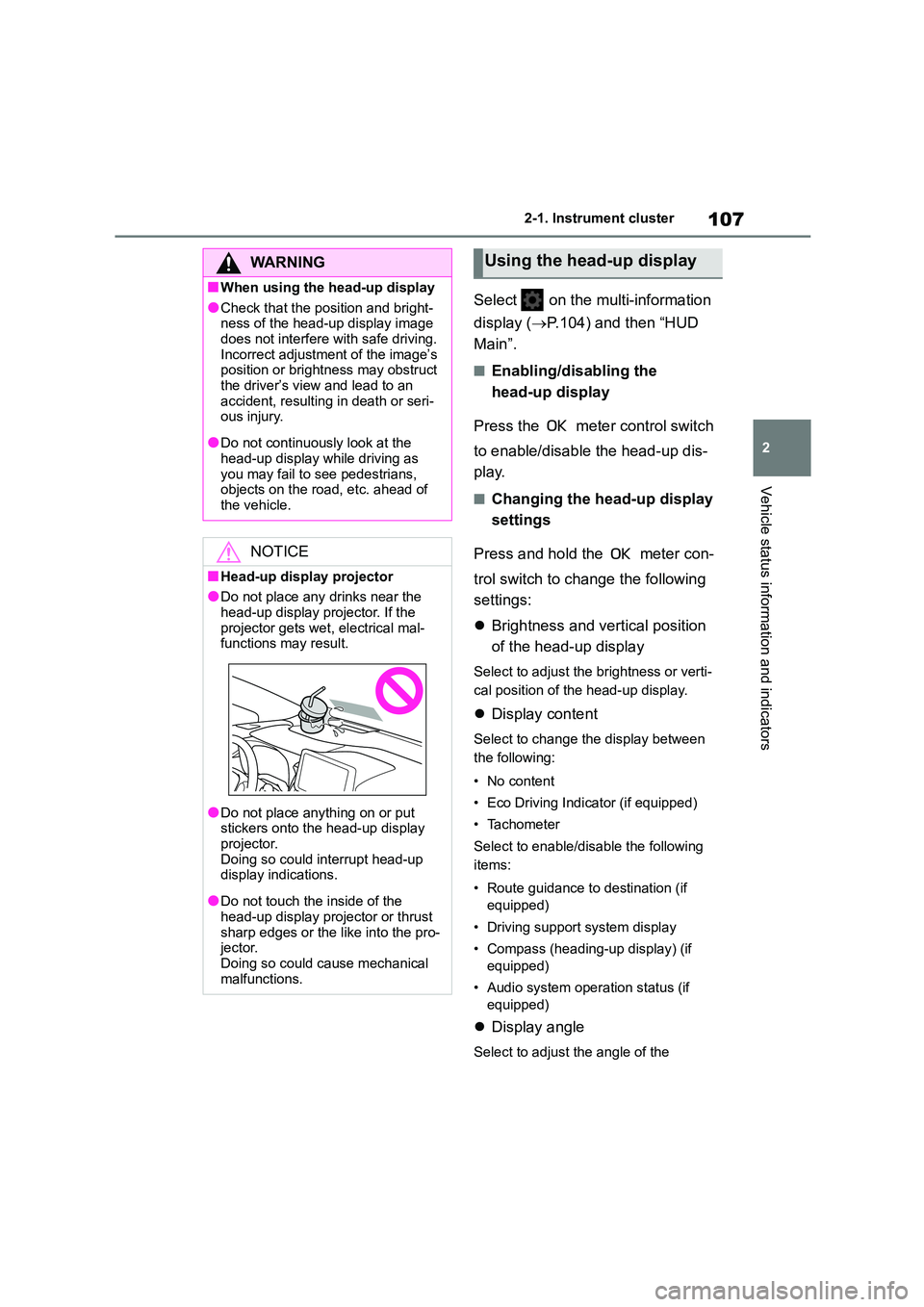
■Head-up display projector
●Do not place any drinks near the
head-up display projector. If the projector gets wet, electrical mal-
functions may result.
●Do not place anything on or put stickers onto the head-up display
projector.
Doing so could interrupt head-up display indications.
●Do not touch the inside of the head-up display projector or thrust
sharp edges or the like into the pro-
jector. Doing so could cause mechanical
malfunctions.
Using the head-up display
Page 110 of 758
1082-1. Instrument cluster
head-up display.
■Enabling/disabling of the head-up
display
If the head-up display is disabled, it will
remain disabled when the engine switch
is turned off then back to ON.
■Display brightness
The brightness of the head-up display
can be adjusted on of the
multi-information display. Also, it is auto- matically adjusted according to the
ambient brightness.
■Driving support system status
display
Displays the operational status of
the following systems:
Dynamic radar cruise control
with full-speed range (if
equipped) ( P.249)
Dynamic radar cruise control (if
equipped) ( P.260)
LTA (Lane Tracing Assist) (if
equipped) ( P.231)
LDA (Lane Departure Alert with
steering control) (if equipped)
( P.241)
Details of content displayed on the
head-up display may differ from that
displayed on the multi-information dis-
play. For details, refer to the explana-
tion of each system.
■Navigation system-linked dis-
play area (if equipped)
Displays the following items which
are linked to the navigation system:
Street name
Route guidance to destination
Compass (heading-up display)
Pop-up displays for the following
systems will be displayed when
necessary:
■Driving support systems
Displays a warning/sugges-
tion/advice message or the operat-
ing state of a relevant system.
PCS (Pre-Collision System) (if
equipped) ( P.224)
Toyota parking assist-sensor (if
WA R N I N G
■Caution for changing settings of
the head-up display
If the engine is running when chang-
ing the display settings, ensure that
the vehicle is parked in a place with adequate ventilation. In a closed area
such as a garage, exhaust gases
including harmful carbon monoxide (CO) may collect and enter the vehi-
cle. This may lead to death or a seri-
ous health hazard.
NOTICE
■When changing the settings of
the head-up display
To prevent battery discharge, ensure that the engine is running while
changing the settings of the head-up
display.
Driving support system sta-
tus/navigation sys-
tem-linked display area (if
equipped)
Pop-up display
Page 111 of 758
109
2
2-1. Instrument cluster
Vehicle status information and indicators
equipped) ( P.303)
PKSB (Parking Support Brake)
(if equipped) ( P.317)
Brake Override System
( P.162)
Drive-Start Control (if equipped)
( P.163)
Details of content displayed on the
head-up display may differ from that
displayed on the multi-information dis-
play. For details, refer to the explana-
tion of each system.
■ icon
Displayed when a warning mes-
sage is displayed on the multi-infor-
mation display. ( P.520)
■Warning message
Some warning messages are dis-
played when necessary, according
to certain conditions.
Details of content displayed on the
head-up display may differ from that
displayed on the multi-information dis-
play.
■Audio system operation status
(if equipped)
Displayed when an audio remote
control switch on the steering wheel
is operated.
■Hands-free system status (if
equipped)
Displayed when the hands-free
system is operated.
■When a pop-up display is displayed
When a pop-up display is displayed, a
current display may no longer be dis-
played. In this case, the display will
return after the pop-up display disap- pears.
■Tachometer
Displays the engine speed in revo-
lutions per minute.
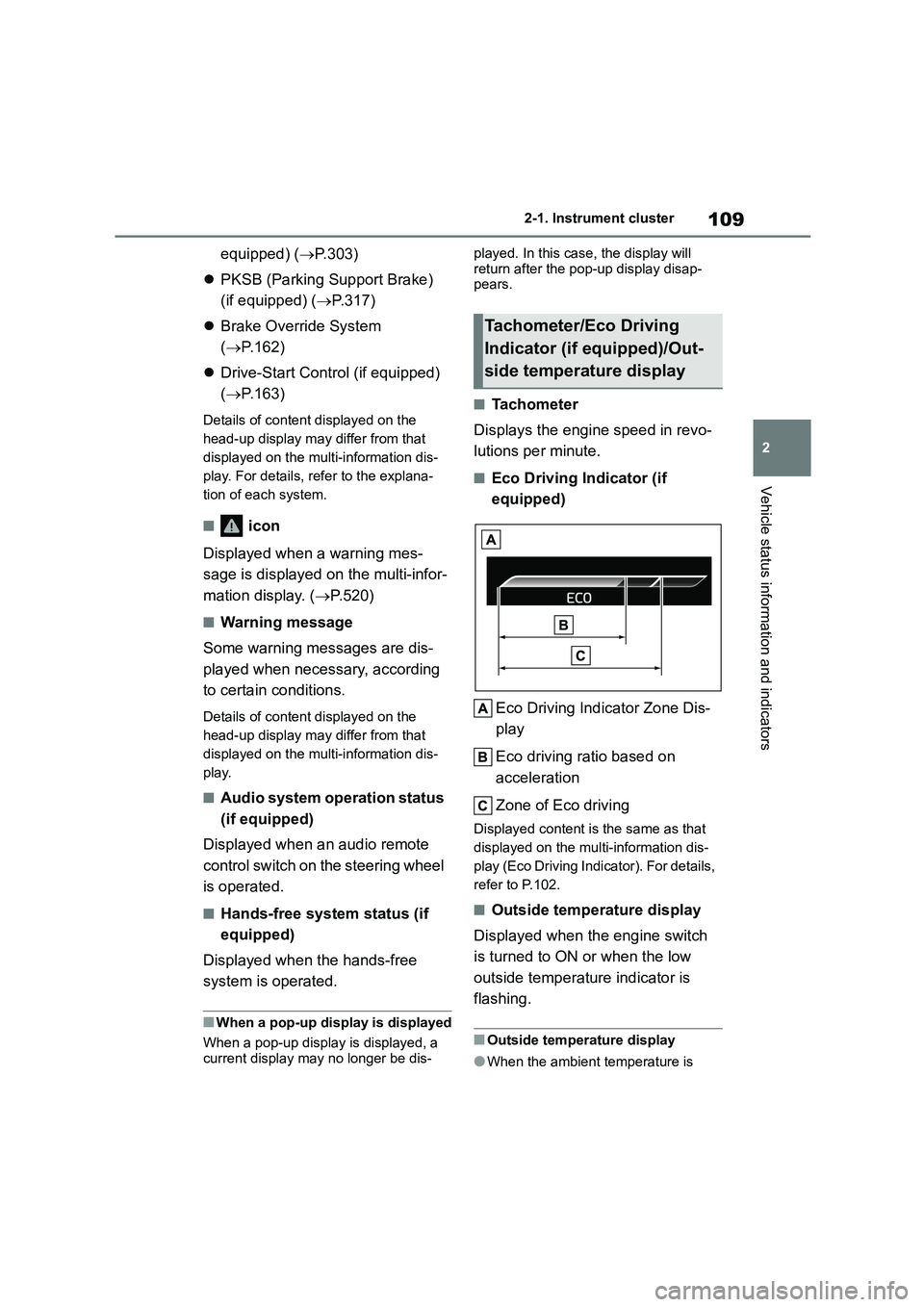
■Eco Driving Indicator (if
equipped)
Eco Driving Indicator Zone Dis-
play
Eco driving ratio based on
acceleration
Zone of Eco driving
Displayed cont ent is the same as that
displayed on the multi-information dis-
play (Eco Driving Indicator). For details,
refer to P.102.
■Outside temperature display
Displayed when the engine switch
is turned to ON or when the low
outside temperature indicator is
flashing.
■Outside temperature display
●When the ambient temperature is
Tachometer/Eco Driving
Indicator (if equipped)/Out-
side temperature display
Page 112 of 758
1102-1. Instrument cluster
approximately 3°C (37°F) or lower, the
low outside temperature indicator will flash for approximately 10 seconds
and the outside temperature display
will turn off. In this case, the display will be displayed again when the out-
side temperature becomes approxi-
mately 5°C (41°F) or higher.
●In the following situations, the correct
outside temperature may not be dis- played, or the display may take longer
than normal to change:
• When stopped, or driving at low speeds (less than 25 km/h [16 mph])
• When the outside temperature has
changed suddenly (at the entrance/exit of a garage, tunnel, etc.)
●When “--” or “E” is displayed, the sys-tem may be malfunctioning. Take your
vehicle to any authorized Toyota
retailer or Toyota authorized repairer, or any reliable repairer.
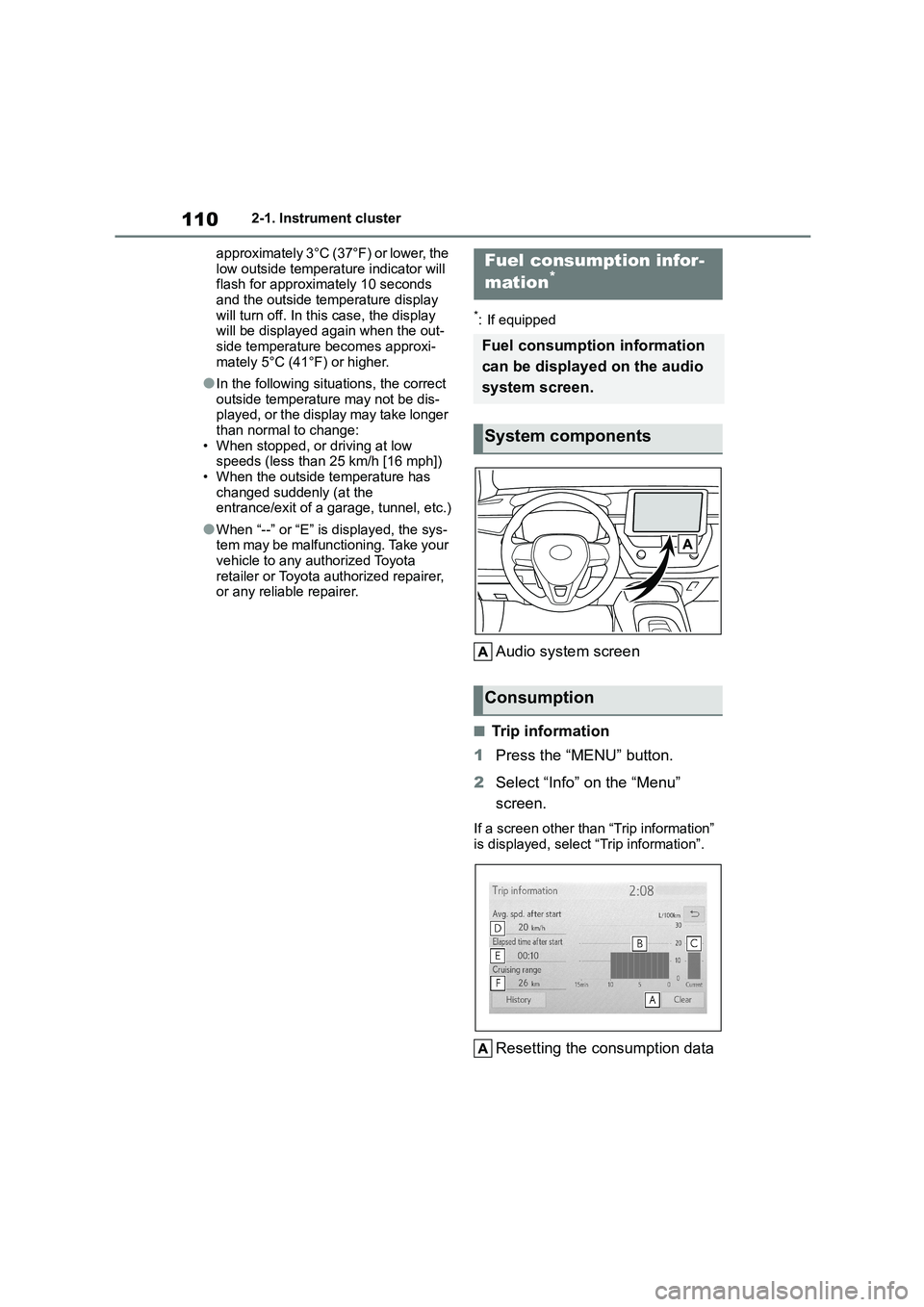
*: If equipped
Audio system screen
■Trip information
1 Press the “MENU” button.
2 Select “Info” on the “Menu”
screen.
If a screen other than “Trip information”
is displayed, select “Trip information”.
Resetting the consumption data
Fuel consumption infor-
mation*
Fuel consumption information
can be displayed on the audio
system screen.
System components
Consumption
Page 113 of 758
111
2
2-1. Instrument cluster
Vehicle status information and indicators
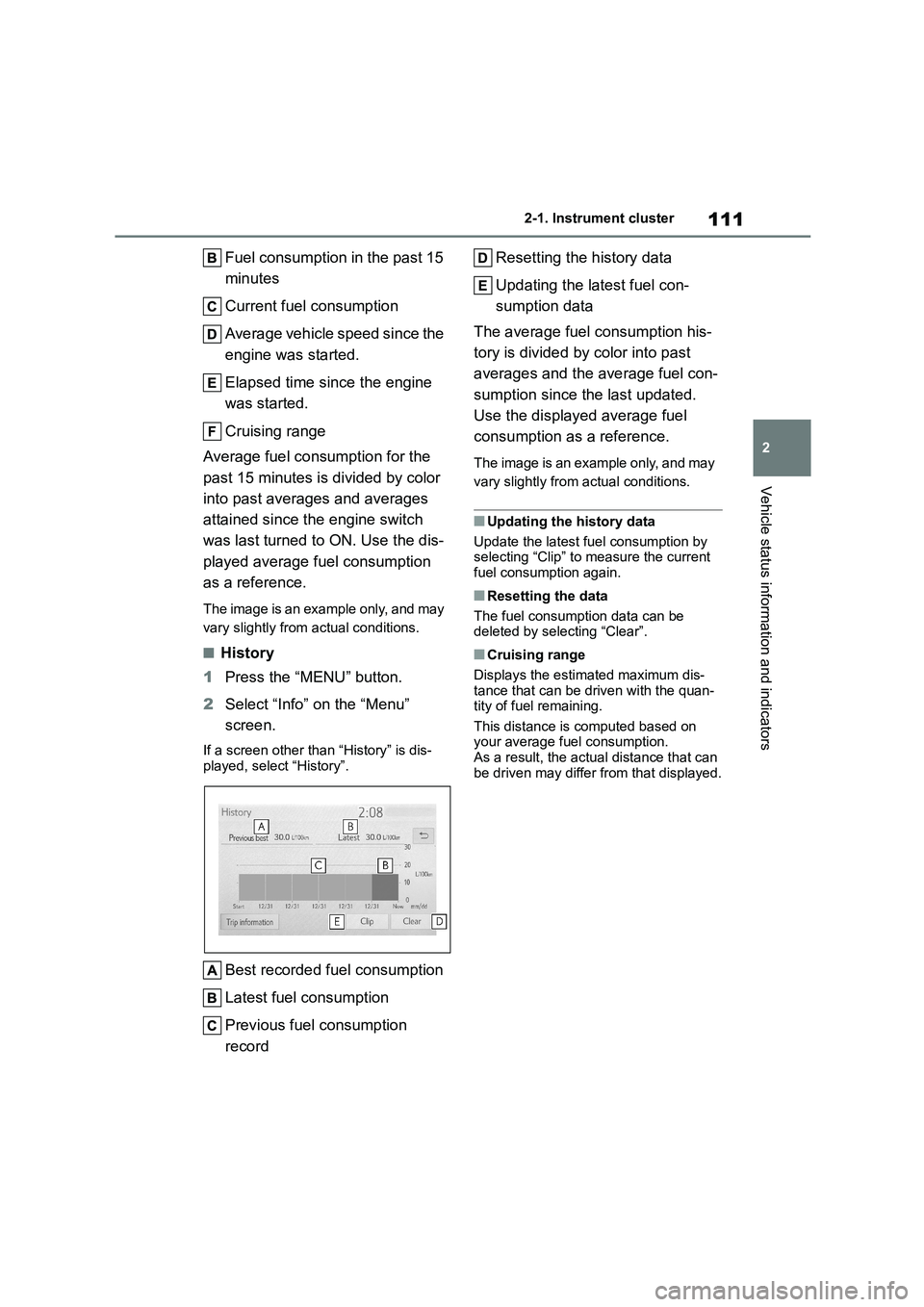
Fuel consumption in the past 15
minutes
Current fuel consumption
Average vehicle speed since the
engine was started.
Elapsed time since the engine
was started.
Cruising range
Average fuel consumption for the
past 15 minutes is divided by color
into past averages and averages
attained since the engine switch
was last turned to ON. Use the dis-
played average fuel consumption
as a reference.
The image is an example only, and may
vary slightly from actual conditions.
■History
1 Press the “MENU” button.
2 Select “Info” on the “Menu”
screen.
If a screen other than “History” is dis-
played, select “History”.
Best recorded fuel consumption
Latest fuel consumption
Previous fuel consumption
record
Resetting the history data
Updating the latest fuel con-
sumption data
The average fuel consumption his-
tory is divided by color into past
averages and the average fuel con-
sumption since the last updated.
Use the displayed average fuel
consumption as a reference.
The image is an example only, and may
vary slightly from actual conditions.
■Updating the history data
Update the latest fuel consumption by
selecting “Clip” to measure the current
fuel consumption again.
■Resetting the data
The fuel consumption data can be deleted by selecting “Clear”.
■Cruising range
Displays the estimated maximum dis-
tance that can be driven with the quan- tity of fuel remaining.
This distance is computed based on
your average fuel consumption. As a result, the actual distance that can
be driven may differ from that displayed.