ad blue TOYOTA COROLLA HYBRID 2020 Accessories, Audio & Navigation (in English)
[x] Cancel search | Manufacturer: TOYOTA, Model Year: 2020, Model line: COROLLA HYBRID, Model: TOYOTA COROLLA HYBRID 2020Pages: 250, PDF Size: 8.94 MB
Page 208 of 250

2088-3. What to do if...
COROLLA_COROLLA
HV(TMMMS)_Navi_(U)
http://www.toyota.com/Entune/
in the United States,
http://www.toyota.ca/entune
in
Canada, and
http://www.toyotapr.com/entune
in Puerto Rico
■Automatic contact transfer
function on this system is
set to off.
Set automatic contact transfer
function on this system to on.
( P.199)
■Passcode has not been
entered on the cellular
phone.
Enter the passcode on the cellu-
lar phone if requested (default
passcode: 1234).
■Transfer operation on the
cellular phone has not com-
pleted.
Complete transfer operation on
the cellular phone (approve
transfer operation on the
phone).
■Automatic contact transfer
function on this system is
set to on.
Set automatic contact transfer
function on this system to off.
( P.199)
■Message transfer is not
enabled on the cellular
phone.
Enable message transfer on the
cellular phone (approve mes-
sage transfer on the phone).
■Automatic transfer func-
tion on this system is set to
off.
Set automatic transfer function
on this system to on. ( P.199)
■Notification of
SMS/MMS/E-mail reception
on this system is set to off.
Set notification of
SMS/MMS/E-mail reception on
this system to on. ( P.197)
■Automatic message trans-
fer function is not enabled
on the cellular phone.
Enable automatic transfer func-
tion on the cellular phone.
Phonebook data cannot be
edited.
When using the Blue-
tooth
® message function
Messages cannot be viewed.
New message notifications
are not displayed.
Page 209 of 250
2098-3. What to do if...
COROLLA_COROLLA
HV(TMMMS)_Navi_(U)
8
Phone
■Connection confirmation
display on this system is
set to on.
To turn off the display, set con-
nection confirmation display on
this system to off. ( P.46)
*: The engine switch
■The cellular phone is not
close enough to this sys-
tem.
Bring the cellular phone closer
to this system.
■Radio interference has
occurred.
Turn off Wi-Fi
® devices or other
devices that may emit radio
waves.
■The cellular phone is the
most likely cause of the
symptom.
Turn the cellular phone off,
remove and reinstall the battery
pack, and then restart the cellu-
lar phone. Enable the cellular phone’s
Bluetooth
® connection.
Disable the Wi-Fi
® connection of
the cellular phone.
Stop the cellular phone’s secu-
rity software and close all appli-
cations.
Before using an application
installed on the cellular phone,
carefully check its source and
how its operation might affect
this system.
●For details, refer to the owner’s
manual that came with the cellular
phone.
In other situations
The Bluetooth
® connection
status is displayed at the top
of the screen each time the
system is activated
*.
Even though all conceivable
measures have been taken,
the symptom status does not
change.
Page 214 of 250
2149-1. Toyota Entune overview
COROLLA_COROLLA
HV(TMMMS)_Navi_(U)
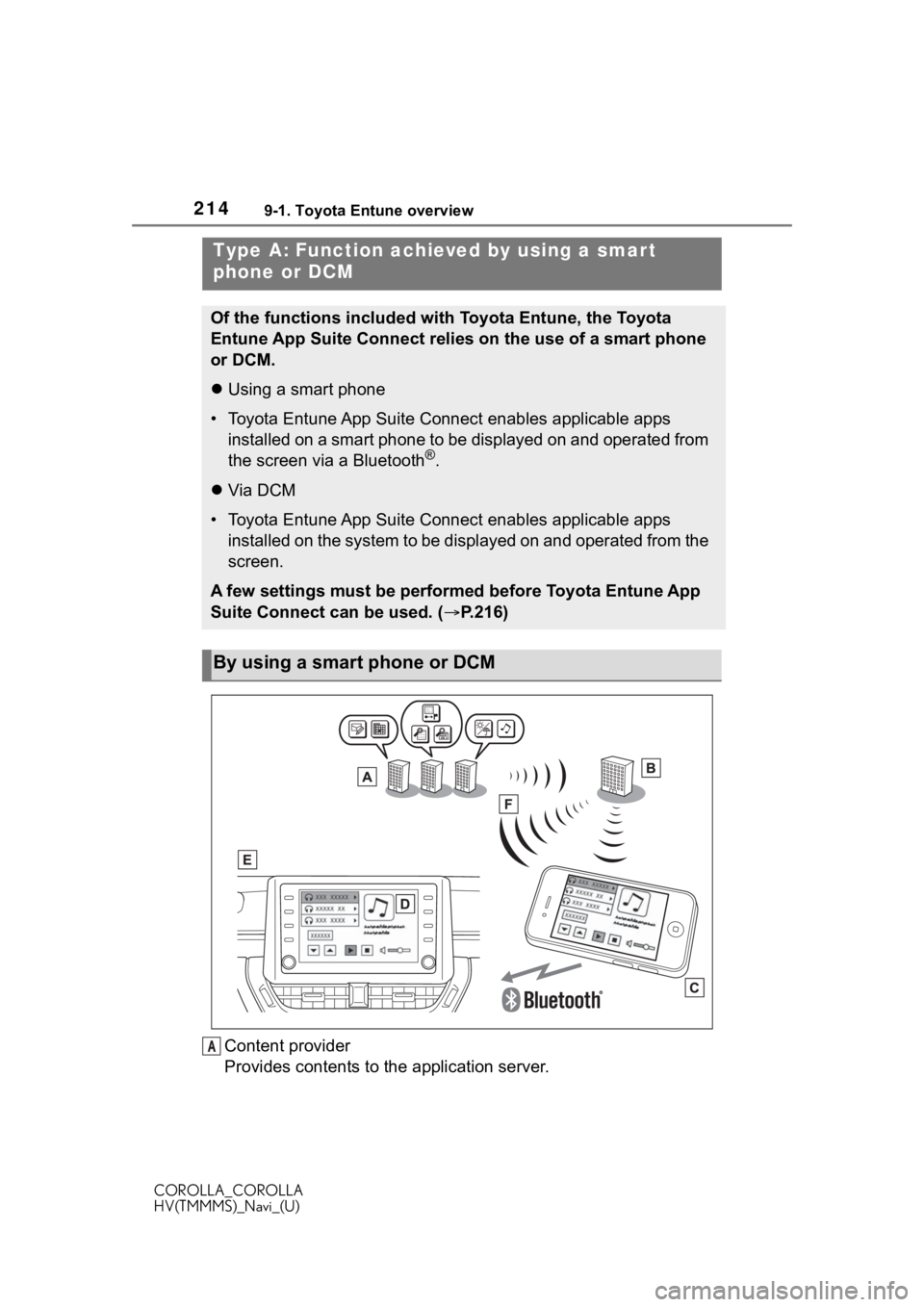
Content provider
Provides contents to the application server.
Type A: Function achieved by using a smar t
phone or DCM
Of the functions included with Toyota Entune, the Toyota
Entune App Suite Connect relies on the use of a smart phone
or DCM.
Using a smart phone
• Toyota Entune App Suite Connect enables applicable apps
installed on a smart phone to be displayed on and operated from
the screen via a Bluetooth
®.
Via DCM
• Toyota Entune App Suite Connect enables applicable apps
installed on the system to be displayed on and operated from th e
screen.
A few settings must be performed before Toyota Entune App
Suite Connect can be used. ( P.216)
By using a smart phone or DCM
A
Page 216 of 250
2169-1. Toyota Entune overview
COROLLA_COROLLA
HV(TMMMS)_Navi_(U)
Toyota Entune App Suite
Connect is not available in the
United States Virgin Islands.
●Data usage fees may apply while
using Toyota Entune App Suite
Connect function. Confirm data
usage fees before using this func-
tion.
●For details regarding operation of
the Toyota Entune App Suite Con-
nect and the applications, refer to
http://www.toyota.com/Entune/
in the United States,
http://www.toyota.ca/entune
in Canada, and
http://www.toyo tapr.com/entune
in Puerto Rico.
●These functions are not made
available in some countries or
areas. Availability of functions of
the Toyota Entune App Suite Con-
nect service is dependent on net-
work reception level.
■Initializing personal data
The personal data used in appli-
cations can be reset. ( P.59)
The following personal data
can be deleted and returned
to their default settings:
• Downloaded contents
• Radio stations that were listened
to
●Once initialized, the data and set-
tings will be erased. Pay much
attention when initializing the data.
■Settings required to use
Toyota Entune App Suite
Connect
Perform the settings in the fol-
lowing order.
1 Download the Toyota Entune
App Suite Connect applica-
tion to your smart phone or
the system.
2 Register a Bluetooth
® phone
with the hands-free system.
( P.36)
●Applications can only be used
when the Toyota Entune App
Suite Connect application has
been downloaded to your smart
phone or the system, and the
application is running.
●Toyota Entune App Suite Connect
operational procedures can also
be confirmed by visiting
http://www.toyota.com/Entune/
in the United States,
http://www.toyota.ca/entune
in Canada, and
http://www.toyotapr.com/entune
in Puerto Rico.
●If a Toyota Entune App Suite Con-
nect application is used while iPod
audio/video is being played back,
system operation may become
unstable.
Preparation before using
Toyota Entune App Suite
Connect
Page 224 of 250
2249-2. Toyota Entune operation
COROLLA_COROLLA
HV(TMMMS)_Navi_(U)
“Update” can be selected.
1Select “Update” on the appli-
cation screen. ( P.223)
2 Check that downloading
starts.
“Download in Background”: Select
to operate other functions while
downloading.
“Cancel”: Select to cancel updating.
3Check that downloading is
complete.
“Later”: Select to install later. When
this screen button is selected, the
screen will re turn to the last dis-
played screen. To install the update
data: ( P.224)
“See Detail”: Select to display
detailed information on the update
data.
“Install”: Select to install the update
data. Follow the steps “Installing
the update data” from step 2.
( P.224)
■Installing the update data
After the downloading is com-
plete, “Update” will be changed
to “Install”.
1 Select “Install” on the appli-
cation screen. ( P.223)
2 Select “Continue”.
“Later”: Select to postpone the
installation of the update data and
go back to the previous screen.
3Check that installing is
started.
“Install in Background”: Select to
operate other functions while
installing.
4Select “OK” after the install-
ing is complete.
●The Toyota Entune App Suite
Connect function cannot be oper-
ated while installing.
Order of the applications can be
changed.
1Display the application
screen. ( P.223)
2 Select “App Catalog”.
3 Select the desired application
to be moved.
4 Select “<<” or “>>” to move
the application, and then
select the done button.
When problems occur with start-
ing the application player, a
message will appear on the
screen. Referring to the follow-
ing items, identify the problem
and take the suggested correc-
tive action.
“When it is safe and legal to
do so, please ensure your
Entune App Suite application
is running and logged in on
your phone.”
The Toyota Entune App Suite Con-
nect application cannot be con-
nected to Bluetooth
® SPP.
Refer to
http://www.toyota.com/Entune/
in the United States,
Reordering the applica-
tions
If a message appears on
the screen
Page 225 of 250

2259-2. Toyota Entune operation
COROLLA_COROLLA
HV(TMMMS)_Navi_(U)
9
Toyota Entune
http://www.toyota.ca/entune
in Canada, and
http://www.toyotapr.com/entune
in Puerto Rico, to confirm if the
phone is Bluetooth
® SPP compati-
ble or not, and then activate the
Toyota Entune App Suite Connect
application.
“Installation failed, please try
again”
Installation can be attempted again
by changing to the application
screen and pressing the “Install”
switch.
“Application download error.
Please try again later.”
Downloading can be attempted
again by checking the communica-
tion status, chang ing to the applica-
tion screen and pressing the
“Download” switch again.
“Download error, some
Entune App Suite functions
may not work as expected.
Please reinitiate the download
process.”
The Toyota Entune App Suite Con-
nect application cannot be con-
nected to Bluetooth
® SPP.
Refer to
http://www.toyota.com/Entune/
in the United States,
http://www.toyota.ca/entune
in Canada, and
http://www.toyotapr.com/entune
in Puerto Rico, to confirm if the
phone is Bluetooth
® SPP compati-
ble or not, and then activate the
Toyota Entune App Suite Connect
application.
Please ensure your Toyota Entune App Suite Connec
t application is
running and logged in on your
phone while vehicle is not moving.
“To use the services, Entune
APP Suite Connect applica-
tion needs to be running on
your phone. For more infor-
mation, please visit
toyota.com or call
1-800-331-4331 in the United
States, 1-888-869-6828 in
Canada, and 1-877-855-8377
in Puerto Rico.”
The Toyota Entune App Suite Con-
nect application cannot be con-
nected to Bluetooth
® SPP.
Refer to
http://www.toyota.com/Entune/
in the United States,
http://www.toyota.ca/entune
in Canada, and
http://www.toyotapr.com/entune
in Puerto Rico, to confirm if the
phone is Bluetooth
® SPP compati-
ble or not, and then activate the
Toyota Entune App Suite Connect
application.
“Communication unsuccess-
ful. Please try again.”
Communication was disconnected.
After a few moments, retry the
operation.
A keyword can be entered to an
application by the software key-
board or voice recognition func-
tion. For details about the
Entering keyword opera-
tion
Page 232 of 250
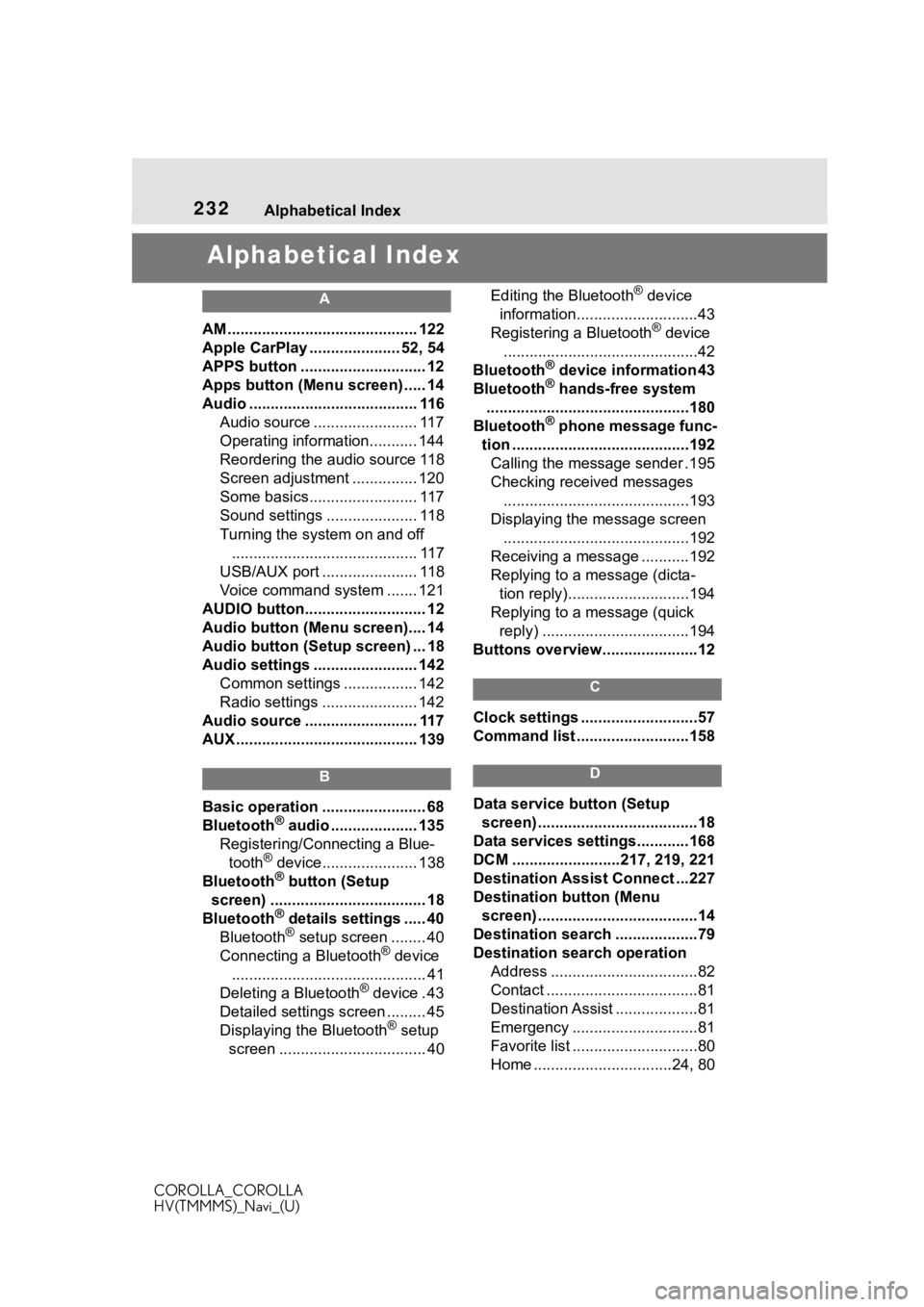
232Alphabetical Index
COROLLA_COROLLA
HV(TMMMS)_Navi_(U)
Alphabetical Index
A
AM ............................................ 122
Apple CarPlay ..................... 52, 54
APPS button ........... .................. 12
Apps button (Menu screen) ..... 14
Audio ....................................... 116 Audio source ........................ 117
Operating information........... 144
Reordering the audio source 118
Screen adjustment ............... 120
Some basics......................... 117
Sound settings ..................... 118
Turning the system on and off........................................... 117
USB/AUX port ...................... 118
Voice command system ....... 121
AUDIO button............................ 12
Audio button (Menu screen).... 14
Audio button (Setup screen) ... 18
Audio settings ........................ 142 Common settings ................. 142
Radio settings ...................... 142
Audio source .......................... 117
AUX .......................................... 139
B
Basic operation ........................ 68
Bluetooth® audio .................... 135
Registering/Conn ecting a Blue-
tooth
® device...................... 138
Bluetooth® button (Setup
screen) .................................... 18
Bluetooth
® details settings ..... 40
Bluetooth® setup screen ........ 40
Connecting a Bluetooth® device
............................................. 41
Deleting a Bluetooth
® device . 43
Detailed settings screen ......... 45
Displaying the Bluetooth
® setup
screen .................................. 40 Editing the Bluetooth
® device
information............................43
Registering a Bluetooth
® device
.............................................42
Bluetooth
® device information 43
Bluetooth® hands-free system
...............................................180
Bluetooth
® phone message func-
tion .........................................192 Calling the message sender .195
Checking received messages ...........................................193
Displaying the message screen ...........................................192
Receiving a mess age ...........192
Replying to a message (dicta- tion reply)............................194
Replying to a message (quick reply) ..................................194
Buttons overview......................12
C
Clock settings ...........................57
Command list ..........................158
D
Data service button (Setup screen) .....................................18
Data services settings............168
DCM .........................217, 219, 221
Destination Assist Connect ...227
Destination button (Menu screen) .....................................14
Destination search ...................79
Destination search operation Address ..................................82
Contact ...................................81
Destination Assist ...................81
Emergency .............................81
Favorite list .............................80
Home ................................24, 80
Page 234 of 250
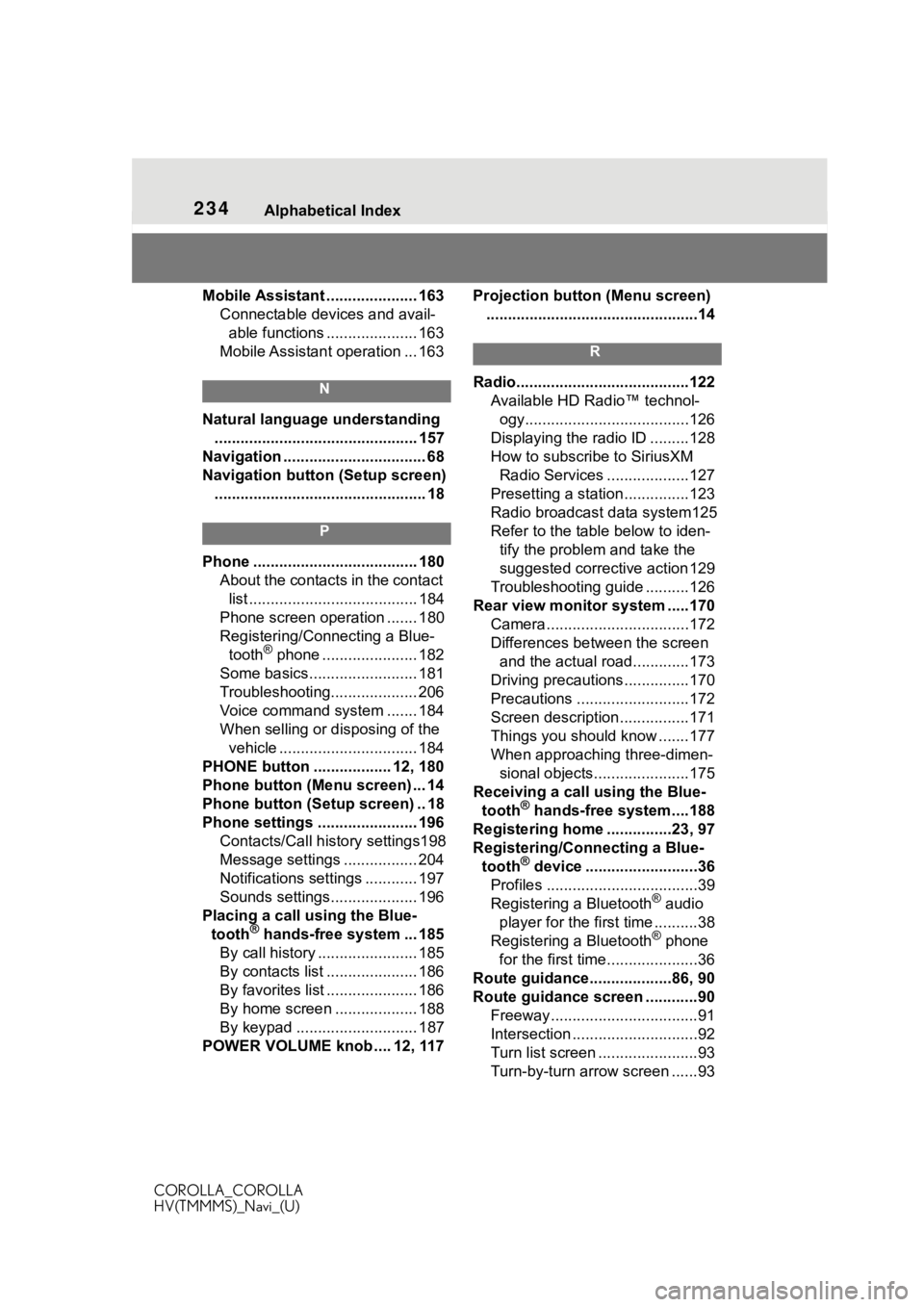
234Alphabetical Index
COROLLA_COROLLA
HV(TMMMS)_Navi_(U)
Mobile Assistant ..................... 163 Connectable devices and avail-able functions ..................... 163
Mobile Assistant operation ... 163
N
Natural language understanding ............................................... 157
Navigation ................................. 68
Navigation button (Setup screen) ................................................. 18
P
Phone ...................................... 180 About the contacts in the contact list ....................................... 184
Phone screen operation ....... 180
Registering/Conn ecting a Blue-
tooth
® phone ...................... 182
Some basics......................... 181
Troubleshooting.................... 206
Voice command system ....... 184
When selling or disposing of the vehicle ................................ 184
PHONE button .................. 12, 180
Phone button (Menu screen) ... 14
Phone button (Setup screen) .. 18
Phone settings ....................... 196 Contacts/Call history settings198
Message settings ................. 204
Notifications settings ............ 197
Sounds settings.................... 196
Placing a call u sing the Blue-
tooth
® hands-free system ... 185
By call history ....................... 185
By contacts list ..................... 186
By favorites list ..................... 186
By home screen ................... 188
By keypad ............................ 187
POWER VOLUME knob .... 12, 117 Projection button (Menu screen)
.................................................14
R
Radio........................................122 Available HD Radio™ technol-ogy......................................126
Displaying the radi o ID .........128
How to subscribe to SiriusXM Radio Services ...................127
Presetting a station ...............123
Radio broadcast data system125
Refer to the tabl e below to iden-
tify the problem and take the
suggested corrective action 129
Troubleshooting guide ..........126
Rear view monitor system .....170 Camera.................................172
Differences between the screen and the actual roa d.............173
Driving precautions ...............170
Precautions ..........................172
Screen description................171
Things you should know .......177
When approaching three-dimen- sional objects......................175
Receiving a cal l using the Blue-
tooth
® hands-free system....188
Registering home ...............23, 97
Registering/Connecting a Blue- tooth
® device ..........................36
Profiles ...................................39
Registering a Bluetooth
® audio
player for the first time ..........38
Registering a Bluetooth
® phone
for the first time.....................36
Route guidance...................86, 90
Route guidance screen ............90 Freeway..................................91
Intersection .............................92
Turn list screen .......................93
Turn-by-turn arrow screen ......93
Page 235 of 250
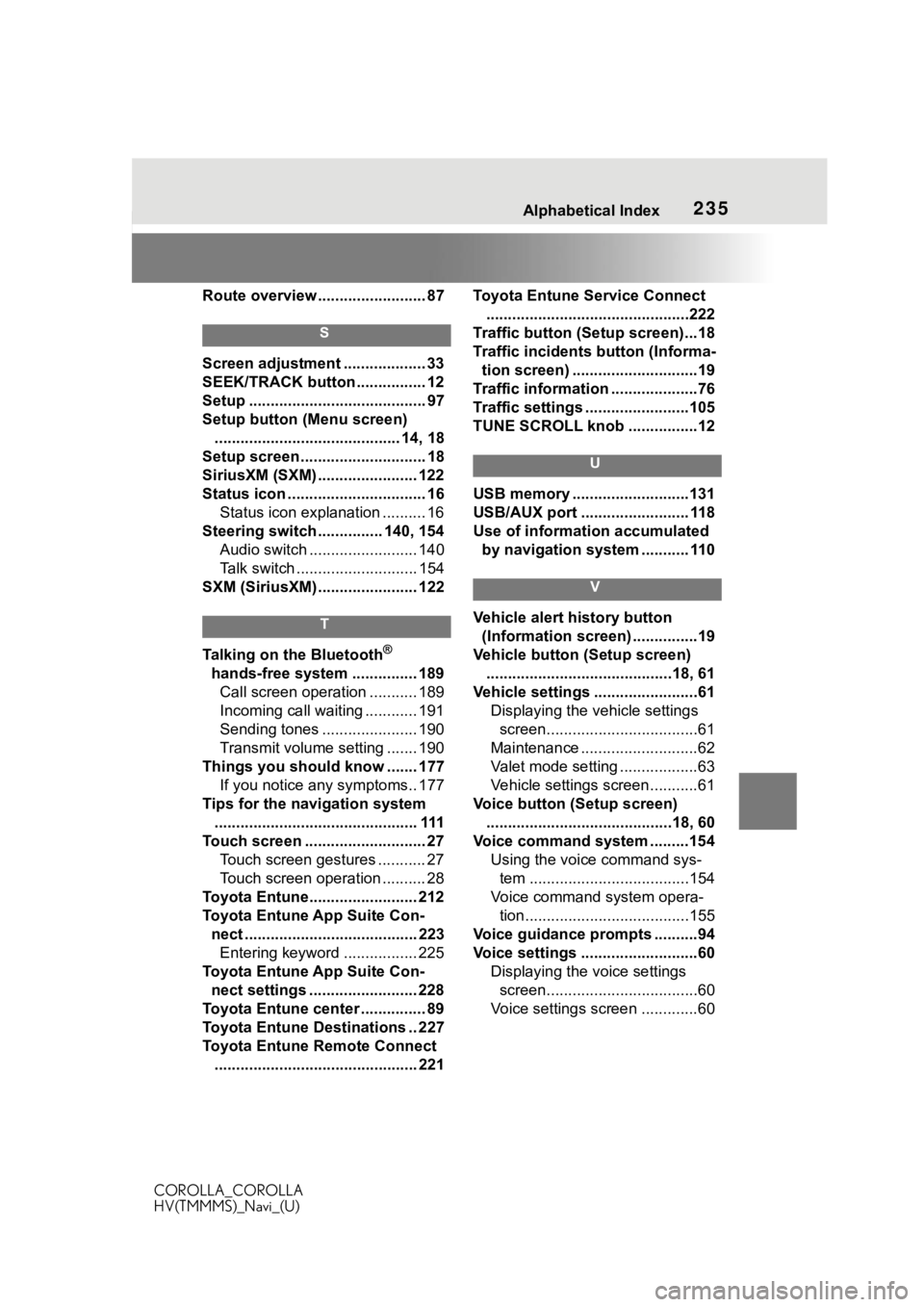
235Alphabetical Index
COROLLA_COROLLA
HV(TMMMS)_Navi_(U)
Route overview ......................... 87
S
Screen adjustment ................... 33
SEEK/TRACK button ................ 12
Setup ......................................... 97
Setup button (Menu screen) ........................................... 14, 18
Setup screen ............................. 18
SiriusXM (SXM) ....................... 122
Status icon ................................ 16 Status icon explanation .......... 16
Steering switch ............... 140, 154 Audio switch ......................... 140
Talk switch ............................ 154
SXM (SiriusXM) ....................... 122
T
Talking on the Bluetooth®
hands-free system ............... 189 Call screen operation ........... 189
Incoming call waiting ............ 191
Sending tones ...................... 190
Transmit volume setting ....... 190
Things you should know ....... 177 If you notice any symptoms.. 177
Tips for the navigation system ............................................... 111
Touch screen ............................ 27 Touch screen gestures ........... 27
Touch screen operation .......... 28
Toyota Entune......................... 212
Toyota Entune App Suite Con- nect ........................................ 223Entering keyword ................. 225
Toyota Entune App Suite Con- nect settings ......................... 228
Toyota Entune center ............... 89
Toyota Entune Destinations .. 227
Toyota Entune Remote Connect ............................................... 221 Toyota Entune Service Connect
...............................................222
Traffic button (Setup screen)...18
Traffic incidents button (Informa- tion screen) .............................19
Traffic information ....................76
Traffic settings ........................105
TUNE SCROLL knob ................12
U
USB memory ...........................131
USB/AUX port ......................... 118
Use of information accumulated by navigation system ........... 110
V
Vehicle alert history button (Information screen) ...............19
Vehicle button (Setup screen) ...........................................18, 61
Vehicle settings ........................61 Displaying the vehicle settings screen...................................61
Maintenance ...........................62
Valet mode setting ..................63
Vehicle settings screen...........61
Voice button (Setup screen) ...........................................18, 60
Voice command system .........154 Using the voice command sys-tem .....................................154
Voice command system opera- tion......................................155
Voice guidance prompts ..........94
Voice settings ...........................60 Displaying the voice settings screen...................................60
Voice settings screen .............60