USB TOYOTA FJ CRUISER 2014 1.G Owners Manual
[x] Cancel search | Manufacturer: TOYOTA, Model Year: 2014, Model line: FJ CRUISER, Model: TOYOTA FJ CRUISER 2014 1.GPages: 572, PDF Size: 9.45 MB
Page 3 of 572

1
2
3
4
5
6
7
3
2-3. Operating the lights and wipers
Headlight switch .................. 148
Windshield wipers and washer .............................. 151
Rear window wiper and washer .............................. 153
2-4. Using other driving systems Cruise control ...................... 154
Intuitive parking assist......... 158
Rear view monitor system... 163
Four-wheel drive system (4WD models with a
manual transmission)........ 176
Four-wheel drive system (4WD models with an
automatic transmission) .... 179
Active traction control system .............................. 182
AUTO LSD system (2WD models) ................... 185
Rear differential lock system .............................. 187
Clutch start cancel switch (vehicles with a manual
transmission) .................... 191
Crawl Control ...................... 192
Driving assist systems ........ 196
2-5. Driving information Off-road precautions ........... 201
Cargo and luggage ............. 206
Vehicle load limits ............... 210
Winter driving tips ............... 211
Trailer towing ...................... 214
Dinghy towing ..................... 232 3-1. Using the air conditioning
system and defogger
Air conditioning system ...... 236
Rear window defogger ....... 243
3-2. Using the audio system Audio system ...................... 244
Using the radio ................... 248
Using the CD player ........... 255
Playing MP3 and WMA discs ....................... 263
Operating an iPod .............. 270
Operating a USB memory ............................ 278
Optimal use of the audio system .............................. 286
Using the AUX port/ USB port........................... 289
Using the steering wheel audio switches.................. 290
Antenna .............................. 293
3-3. Using the Bluetooth
®
audio system
Bluetooth
® audio system .... 296
Using the Bluetooth®
audio system .................... 300
Operating a Bluetooth
®
enabled portable player.... 305
Setting up a Bluetooth
®
enabled portable player.... 307
Bluetooth
® audio system
setup ................................ 312
3Interior features
Page 16 of 572
16
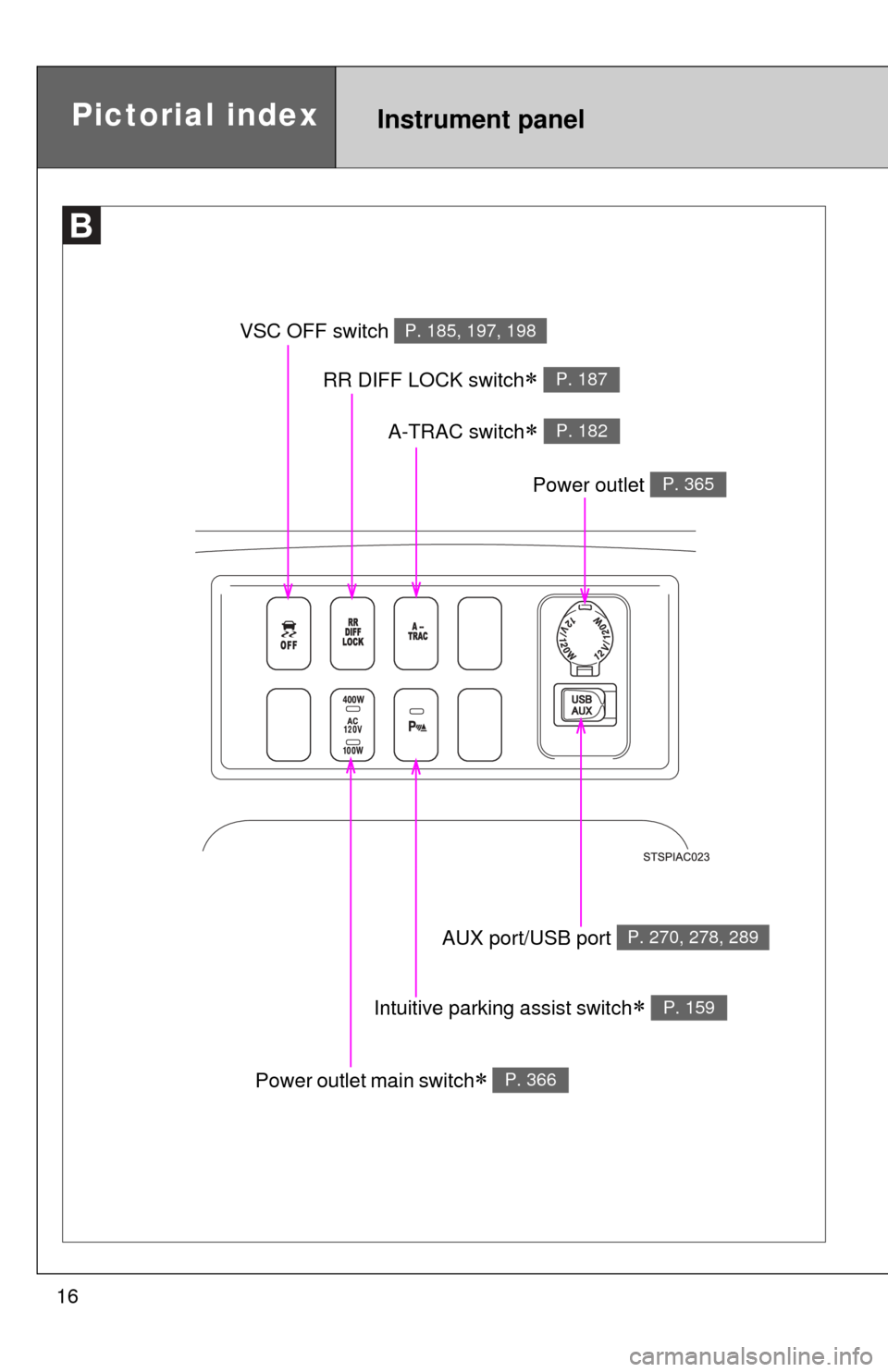
VSC OFF switch P. 185, 197, 198
RR DIFF LOCK switch P. 187
A-TRAC switch P. 182
Power outlet main switch P. 366
Intuitive parking assist switch P. 159
AUX port/USB port P. 270, 278, 289
Power outlet P. 365
Pictorial indexInstrument panel
Page 234 of 572
234
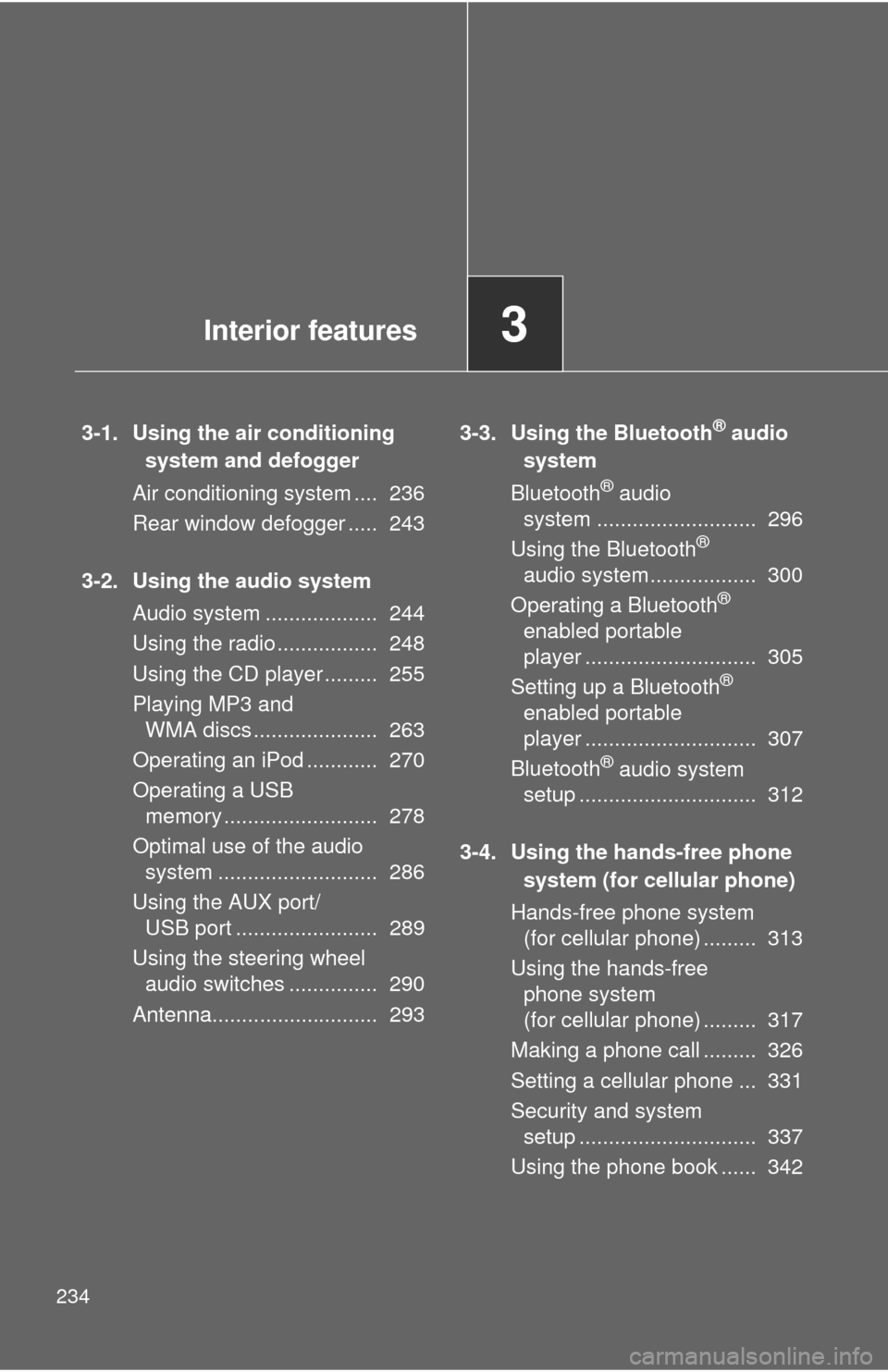
3-1. Using the air conditioning system and defogger
Air conditioning system .... 236
Rear window defogger ..... 243
3-2. Using the audio system Audio system ................... 244
Using the radio ................. 248
Using the CD player ......... 255
Playing MP3 and WMA discs ..................... 263
Operating an iPod ............ 270
Operating a USB memory .......................... 278
Optimal use of the audio system ........................... 286
Using the AUX port/ USB port ........................ 289
Using the steering wheel audio switches ............... 290
Antenna............................ 293 3-3. Using the Bluetooth® audio
system
Bluetooth
® audio
system ........................... 296
Using the Bluetooth
®
audio system.................. 300
Operating a Bluetooth
®
enabled portable
player ............................. 305
Setting up a Bluetooth
®
enabled portable
player ............................. 307
Bluetooth
® audio system
setup .............................. 312
3-4. Using the hands-free phone system (for cellular phone)
Hands-free phone system (for cellular phone) ......... 313
Using the hands-free phone system
(for cellular phone) ......... 317
Making a phone call ......... 326
Setting a cellular phone ... 331
Security and system setup .............................. 337
Using the phone book ...... 342
Interior features3
Page 245 of 572
245
3-2. Using the audio system
3
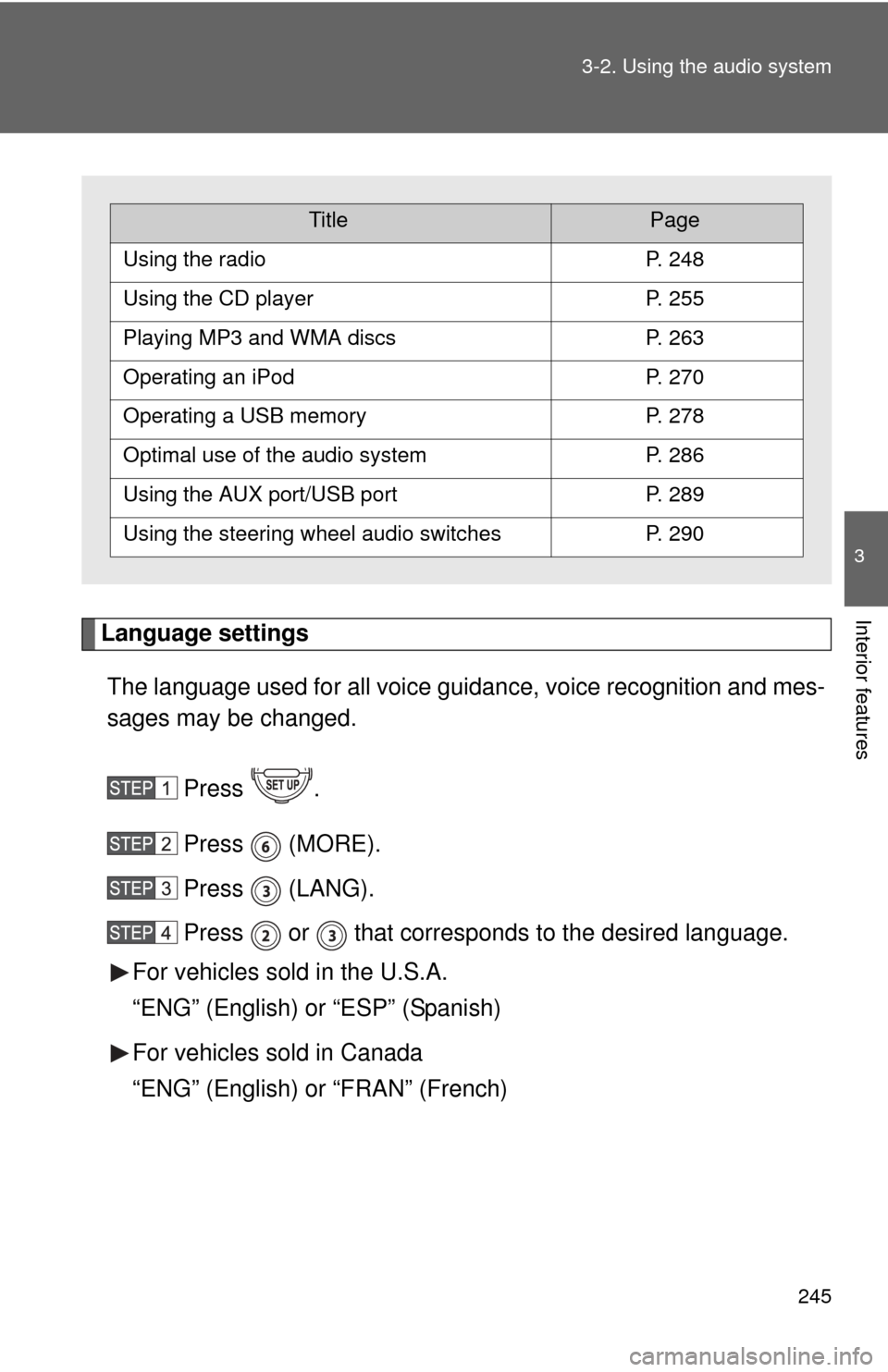
Interior featuresLanguage settings
The language used for all voice guidance, voice recognition and mes-
sages may be changed.
Press .
Press (MORE).
Press (LANG).
Press or that corresponds to the desired language.
For vehicles sold in the U.S.A.
“ENG” (English) or “ESP” (Spanish)
For vehicles sold in Canada
“ENG” (English) or “FRAN” (French)
TitlePage
Using the radioP. 248
Using the CD playerP. 255
Playing MP3 and WMA discsP. 263
Operating an iPodP. 270
Operating a USB memoryP. 278
Optimal use of the audio systemP. 286
Using the AUX port/USB portP. 289
Using the steering wheel audio switchesP. 290
Page 275 of 572
275
3-2. Using the audio system
3
Interior features
■
About iPod
●Apple is not responsible for the operation of this device or its compliance
with safety and regulatory standards.
● iPod is a trademark of Apple Inc., registered in the U.S. and other coun-
tries.
■ iPod functions
●When an iPod is connected and the audio source is changed to iPod
mode, the iPod will resume play from the same point at which it was last
used.
● Depending on the iPod that is connected to the system, certain functions
may not be available. Disconnecting the device and reconnecting it once
again may resolve some malfunctions.
■ iPod problems
To resolve most problems encountered when using your iPod, disconnect
your iPod from the vehicle iPod connection and reset it.
For instructions on how to reset your iPod, refer to your iPod Owner’s Man-
ual.
■ Error messages
“iPod ERROR”: This indicates a problem in the iPod, inside the USB box or
the connection between them.
“NO SONGS”: This indicates that there is no music data in the iPod.
“UPDATE YOUR iPod”: This indicates that the version of the iPod is not compatible.
Page 278 of 572
278
3-2. Using the audio system
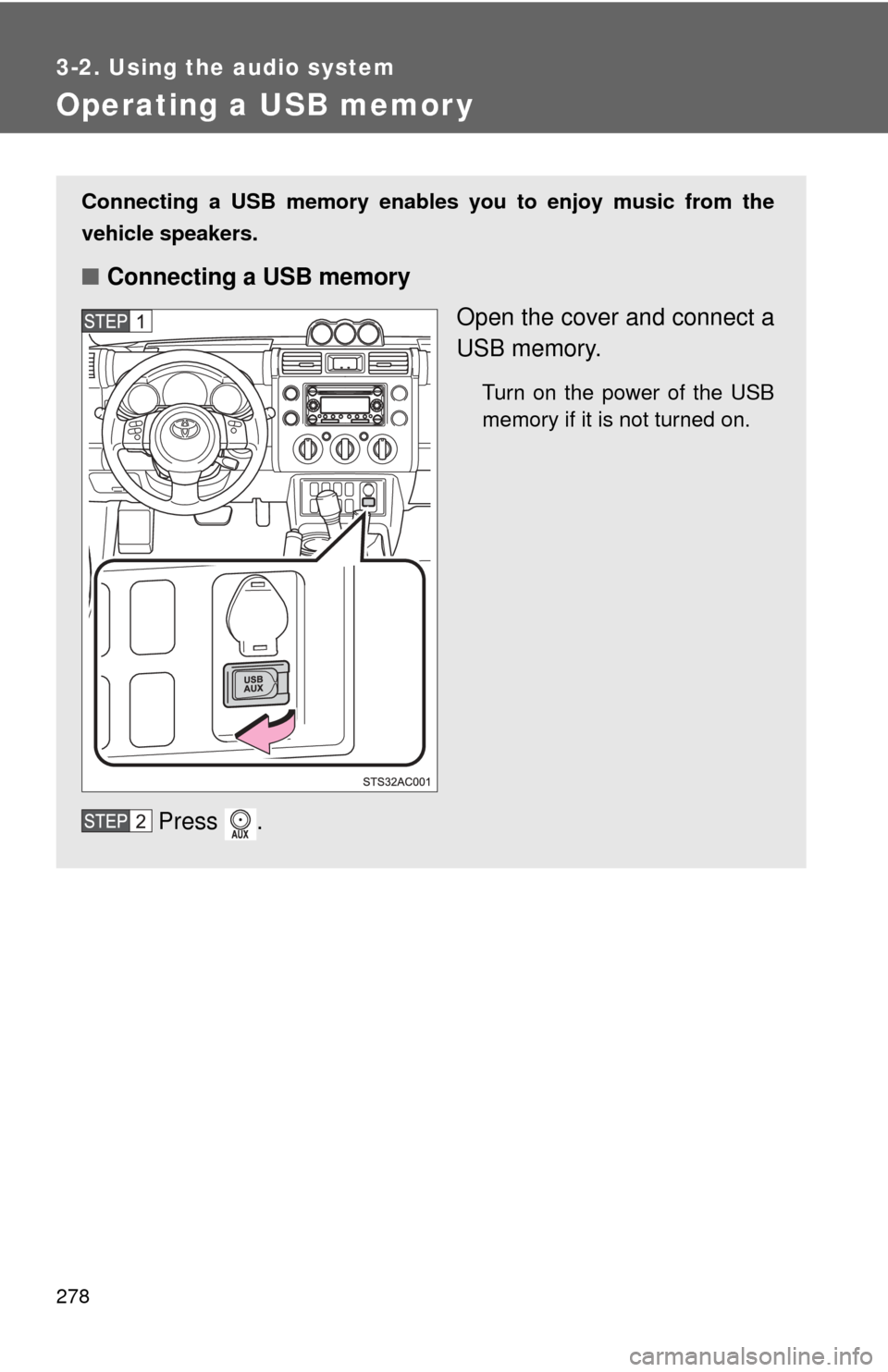
Operating a USB memor y
Connecting a USB memory enables you to enjoy music from the
vehicle speakers.
■Connecting a USB memory
Open the cover and connect a
USB memory.
Turn on the power of the USB
memory if it is not turned on.
Press .
Page 281 of 572
281
3-2. Using the audio system
3
Interior features
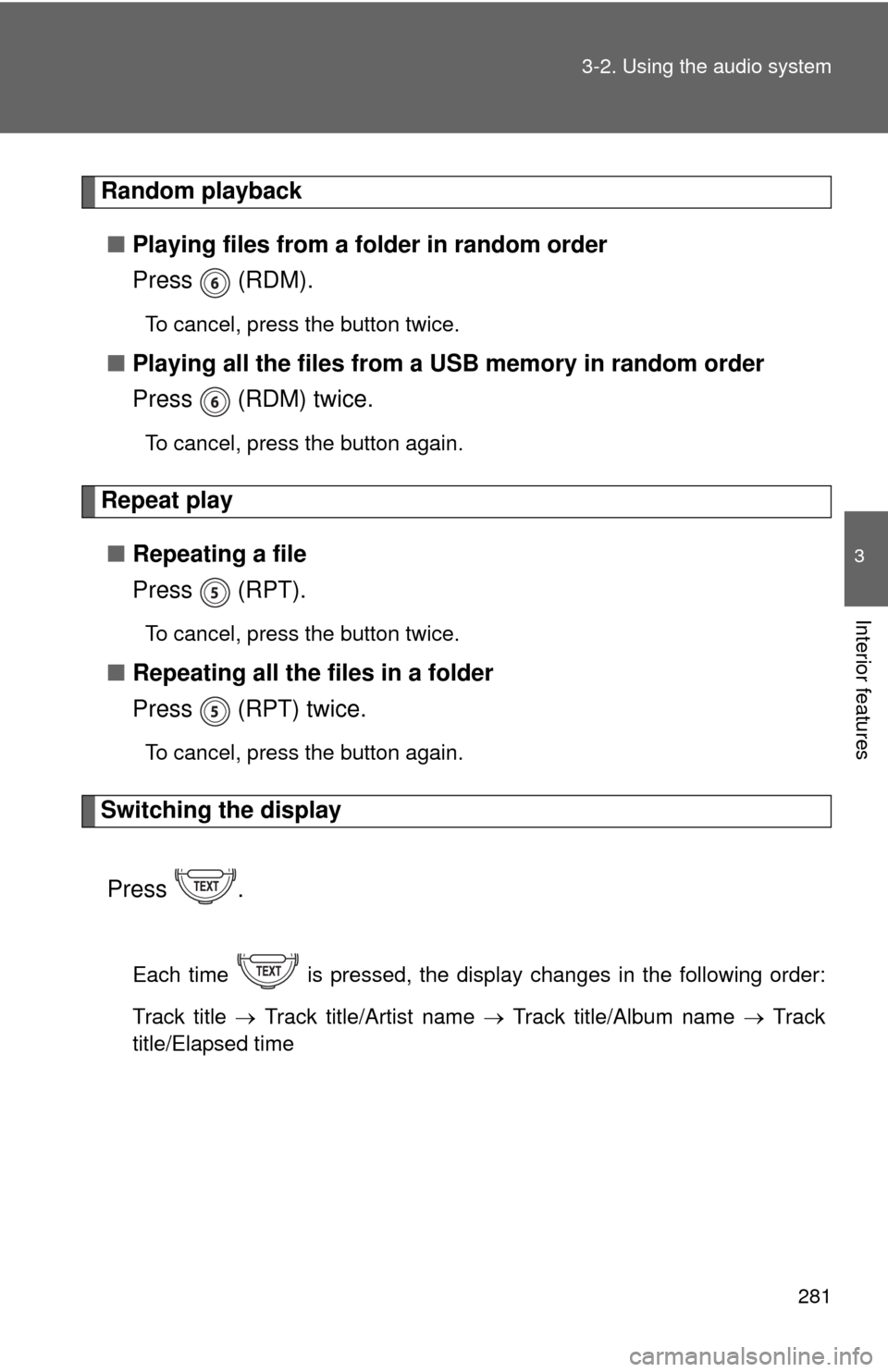
Random playback
■ Playing files from a folder in random order
Press (RDM).
To cancel, press the button twice.
■Playing all the files from a USB memory in random order
Press (RDM) twice.
To cancel, press the button again.
Repeat play
■ Repeating a file
Press (RPT).
To cancel, press the button twice.
■Repeating all the files in a folder
Press (RPT) twice.
To cancel, press the button again.
Switching the display
Press .
Each time is pressed, the display changes in the following order:
Track title Track title/Artist name Track title/Album name Track
title/Elapsed time
Page 282 of 572

282 3-2. Using the audio system
■USB memory functions
Depending on the USB memory that is connected to the system, certain
functions may not be available. Disconnecting the device and reconnecting it
once again may resolve some malfunctions.
■ Error messages
“USB ERROR”:This indicates a problem in the USB memory, in the USB box
or connection between them.
“NO SUPPORT”:This indicates that no MP3/WMA files are included in the USB memory.
■ USB memory
●Compatible device
USB memory that can be used for MP3 and WMA playback.
Depending on the type of USB device, playback may not be possible.
● Compatible device formats
The following device formats can be used:
• USB communication formats: USB2.0 FS (12 mbps)
• File formats: FAT16/32 (Windows)
• Correspondence class: Mass storage class
MP3 and WMA files written in any format other than those listed above
may not play correctly, and their file names and folder names may not
be displayed correctly.
Items related to standards and limitations are as follows:
• Maximum directory hierarchy: 8 levels
• Maximum number of folder in device: 999 (including the root)
• Maximum number of files in device: 65025
• Maximum number of files per folder: 255
Page 284 of 572

284 3-2. Using the audio system
●File names
The only files that can be recognized as MP3/WMA and played are those
with the extension .mp3 or .wma.
● ID3 and WMA tags
ID3 tags can be added to MP3 files, making it possible to record the track
title, artist name, etc.
The system is compatible with ID3 Ver. 1.0, 1.1, and Ver. 2.2, 2.3, 2.4 ID3
tags. (The number of characters is based on ID3 Ver. 1.0 and 1.1.)
WMA tags can be added to WMA files, making it possible to record the
track title and artist name in the same way as with ID3 tags.
● MP3 and WMA playback
When a device containing MP3 or WMA files is plugged, all files in the
USB memory device are first checked. Once the file check is finished, the
first MP3 or WMA file is played. To make the file check finish more quickly,
we recommend you do not write in any files other than MP3 or WMA files
or create any unnecessary folders.
● Extensions
If the file extensions .mp3 and .wma are used for files other than MP3 and
WMA files, they will be mistakenly recognized and played as MP3 and
WMA files. This may result in large amounts of interference and damage
to the speakers.
● Playback
• To play MP3 files with steady sound quality, we recommend a fixed bit
rate of at least 128 kbps and a sampling frequency of 44.1 kHz.
• There is a wide variety of freeware and other encoding software for MP3 and WMA files on the market, and depending on the status of the
encoding and the file format, poor sound quality or noise at the start of
playback may result. In some cases, playback may not be possible at
all.
• Microsoft, Windows, and Windows Media are the registered trade- marks of Microsoft Corporation in the U.S.A. and other countries.
Page 285 of 572
285
3-2. Using the audio system
3
Interior features
CAUTION
■
Caution while driving
Do not connect a USB memory or operate the controls.
NOTICE
■To prevent damage to a USB memory
●Do not leave a USB memory in the vehicle. The temperature inside the
vehicle may become high, resulting in damage to the player.
● Do not push down on or apply unnecessary pressure to the USB memory
while it is connected as this may damage the USB memory or its terminal.
● Do not insert foreign objects into the port as this may damage the USB
memory or its terminal.