ESP TOYOTA GR SUPRA 2022 User Guide
[x] Cancel search | Manufacturer: TOYOTA, Model Year: 2022, Model line: GR SUPRA, Model: TOYOTA GR SUPRA 2022Pages: 356, PDF Size: 39.14 MB
Page 62 of 356
623-1. CONTROLS
For some functions, popup win-
dows are displayed automati-
cally on the Control Display.
Some of these popup windows
can be activated or deactivated.
Via Toyota Supra Command:
1"My Vehicle"
2 "System settings"
3 "Pop-ups"
4 Select the desired setting.
Via Toyota Supra Command:
1 "My Vehicle"
2 "System settings"
3 "Displays"
4 "Control display"
5 "Brightness at night"
6 Turn the Controller until the
desired brightness is set.
7 Press the Controller.
Depending on the light condi-
tions, the brightness settings
may not be clearly visible.
For some menu items of the
main menu, the displayed con- tents can be selected.
1
Press button.
2 "Contents of main menu"
3 Select the desired menu and
the desired content.
The menu centrally displays all
messages arriving in the vehicle
in list form.
The following messages can be
displayed:
• Traffic messages.
• Vehicle messages.
• Communication messages, for example emails, SMS text
messages or reminders.
• Service notification mes- sages.
Messages are additionally dis-
played in the status field.
Via Toyota Supra Command:
1 "My Vehicle"
2 "System settings"
3 "Notifications"
4 Select the desired message.
The respective menu is opened,
where the message is dis-
Activating/deactivating
popup windows
Control Display
Brightness
Selecting the contents of
the main menu
Messages
Concept
General information
Retrieving messages
Page 63 of 356
633-1. CONTROLS
3
CONTROLS
played.
All messages, except vehicle
messages, can be deleted from
the list. Vehicle messages are
displayed as long as they are
relevant.
Via Toyota Supra Command:
1 "Notifications"
2 Select the desired message.
3 Press button.
4 "Delete this notification" or
"Delete all notifications"
The following settings can be
adjusted:
• Select the applications, from which messages will be per-
mitted.
• Sort the messages according to date or priority.
Via Toyota Supra Command:
1 "My Vehicle"
2 "System settings"
3 "Notifications"
4 Select the desired setting. This chapter describes all stan-
dard, country-specific and
optional features offered with
the series. It also describes fea-
tures that are not necessarily
available in your vehicle, for
instance, due to the selected
options or country versions. This
also applies to safety-related
functions and systems. When
using these functions and sys-
tems, the applicable laws and
regulations must be observed.
The vehicle offers different func-
tions, whose use requires a data
transfer to Toyota or a service
provider. The data transfer can
be deactivated for some func-
tions.
With data transfer deactivated,
the respective function cannot
be used.
Only make these settings while
stationary.
Deleting messages
AdjustingPersonal settings
Vehicle features and
options
Data protection
Data transfer
Concept
General information
Page 71 of 356
713-1. CONTROLS
3
CONTROLS
The device is connected and dis-
played in the device list, refer to
page 75.
All requirements are met and all
required steps were completed
in the specified order. Despite
that, the mobile device does not
function as expected.
In this case, the following expla-
nations can help:
Why could the mobile phone not
be paired or connected?
• There are too many Bluetooth devices connected to the
mobile phone or vehicle.
In the vehicle, delete Bluetooth
connections with other devices.
Delete all known Bluetooth connec-
tions from the device list on the
mobile phone and start a new
device search.
• The mobile phone is in power-save mode or has only
a limited remaining battery
life.
Charge mobile phone.
Why does the mobile phone no
longer react?
• The applications on the mobile phone do not function
anymore.
Switch the mobile phone off and on
again.
• Too high or too low ambient temperature for mobile phone
operation.
Do not subject the mobile phone to
extreme ambient temperatures.
Why can phone functions not be
used via Toyota Supra Com-
mand?
• The mobile phone may not be properly configured, for
instance as Bluetooth audio
device.
Connect the mobile phone with the
telephone or additional phone func-
tion.
Why are no or not all phone
book entries displayed or why
are they incomplete?
• Transmission of the phone book entries is not yet com-
plete.
• It is possible that only the phone book entries of the
mobile phone or the SIM card
are transmitted.
• It may not be possible to dis- play phone book entries with
special characters.
• It may not be possible to transmit contacts from social
networks.
• The number of phone book entries to be stored is too
high.
• Data volume of the contact too large, for instance due to
stored information such as
notes.
Reduce the data volume of the con-
tact.
• A mobile phone can only be connected as audio source or
as telephone.
Frequently asked ques-
tions
Page 73 of 356
733-1. CONTROLS
3
CONTROLS
settings may be required on
the USB storage device, refer
to the owner's manual of the
device.
Not compatible USB media:
• USB hard drives.
• USB hubs.
• USB memory card readers with multiple inserts.
• HFS-formatted USB media.
• Devices such as fans or lamps.
Compatible device with USB
port.
The USB storage device is dis-
played in the device list, refer to
page 75.
*: if equipped
CarPlay allows certain func-
tions of a compatible Apple
iPhone to be used via Siri voice
operation and Toyota Supra
Command.
• Compatible iPhone.
iPhone 5 or later with iOS 7.1 or
later.
• Corresponding mobile wire- less contract.
• Bluetooth, Wi-Fi, and Siri voice operation are activated
on the iPhone.
• Booking the Toyota Supra Connect service: Apple Car-
Play preparation.
Via Toyota Supra Command:
1 "My Vehicle"
2 "System settings"
3 "Mobile devices"
4 "Settings"
5 Select the following settings:
• "Bluetooth®"
• "Apple CarPlay"
Pair the iPhone with the vehicle
via Bluetooth, refer to page 69.
Select CarPlay as the function:
"Apple CarPlay"
The iPhone is connected to the
vehicle and displayed in the
device list, refer to page 75.
For more information, refer to
the NAVIGATION SYSTEM
OWNER'S MANUAL.
Functional requirement
Connecting the device
Apple CarPlay prepara-
tion*
Concept
Functional requirements
Switching on Bluetooth
and CarPlay
Pairing iPhone with Car-
Play
Operation
Page 74 of 356
743-1. CONTROLS
All requirements are met and all
required steps were completed
in the specified order. Despite
that, the mobile device does not
function as expected.
In this case, the following expla-
nations can help:
The iPhone has already been
paired with Apple CarPlay.
When a new connection is
established, CarPlay can no lon-
ger be selected.
• Delete the iPhone concerned from the device list.
• On the iPhone, delete the vehicle concerned from the
list of stored vehicles under
Bluetooth and under Wi-Fi.
• Pair the iPhone as a new device.
If the steps listed have been car-
ried out and the required func-
tion is still not available: contact
the Toyota dealer.
Screen Mirroring enables mirror-
ing (outputting) of the smart-
phone display on the Control
Display. • Compatible smartphone with
Screen Mirroring interface.
• Screen Mirroring is switched on on the smartphone.
• Wi-Fi is switched on in the vehicle.
Via Toyota Supra Command:
1 "My Vehicle"
2 "System settings"
3 "Mobile devices"
4 "Settings"
5 "Vehicle Wi-Fi®"
Via Toyota Supra Command:
1 "My Vehicle"
2 "System settings"
3 "Mobile devices"
4 "Connect new device"
5 "Screen Mirroring"
The Wi-Fi name of the vehicle is
displayed on the Control Display.
6Search for Wi-Fi devices in
the surroundings of the
smartphone.
The Wi-Fi name of the vehicle
appears on the device display.
Select the Wi-Fi name of the vehi-
cle.
7Confirm the connection via
Toyota Supra Command.
Frequently asked ques-
tions
Screen Mirroring
General information
Functional requirements
Activating Wi-Fi
Pairing a smartphone with
Screen Mirroring
Page 93 of 356
933-1. CONTROLS
3
CONTROLS
gerous situation.
To switch off the alarm: press
any button.
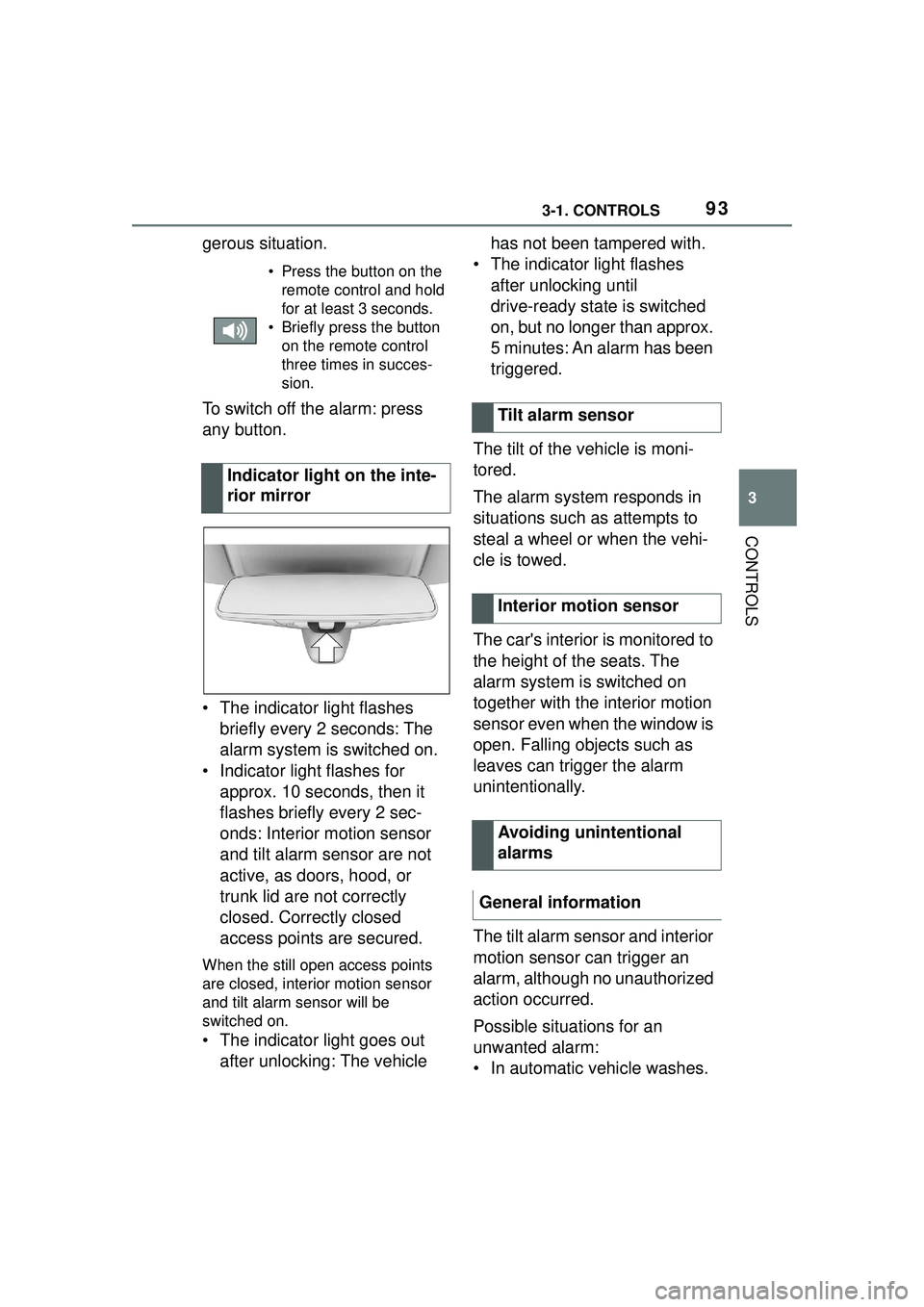
• The indicator light flashes briefly every 2 seconds: The
alarm system is switched on.
• Indicator light flashes for approx. 10 seconds, then it
flashes briefly every 2 sec-
onds: Interior motion sensor
and tilt alarm sensor are not
active, as doors, hood, or
trunk lid are not correctly
closed. Correctly closed
access points are secured.
When the still open access points
are closed, interior motion sensor
and tilt alarm sensor will be
switched on.
• The indicator light goes out
after unlocking: The vehicle has not been tampered with.
• The indicator light flashes after unlocking until
drive-ready state is switched
on, but no longer than approx.
5 minutes: An alarm has been
triggered.
The tilt of the vehicle is moni-
tored.
The alarm system responds in
situations such as attempts to
steal a wheel or when the vehi-
cle is towed.
The car's interior is monitored to
the height of the seats. The
alarm system is switched on
together with the interior motion
sensor even when the window is
open. Falling objects such as
leaves can trigger the alarm
unintentionally.
The tilt alarm sensor and interior
motion sensor can trigger an
alarm, although no unauthorized
action occurred.
Possible situations for an
unwanted alarm:
• In automatic vehicle washes.
• Press the button on the remote control and hold
for at least 3 seconds.
• Briefly press the button on the remote control
three times in succes-
sion.
Indicator light on the inte-
rior mirror
Tilt alarm sensor
Interior motion sensor
Avoiding unintentional
alarms
General information
Page 111 of 356
1113-1. CONTROLS
3
CONTROLS
After using a child restraint sys-
tem on the front passenger seat,
ensure that the front, knee, and
side airbags on the front pas-
senger side are deactivated. For
automatic deactivation of front-
seat passenger airbags, refer to
page 170.
The right place for chil-
dren
Safety information
WARNING
Unattended children or animals in
the vehicle can cause the vehicle
to move and endanger them-
selves and traffic, for instance due
to the following actions:
●Pressing the Start/Stop button.
●Releasing the parking brake.
●Opening and closing the doors
or windows.
●Engaging selector lever position
N.
●Using vehicle equipment.
There is a risk of accidents or inju-
ries. Do not leave children or ani-
mals unattended in the vehicle.
Take the remote control with you
when exiting and lock the vehicle.
WARNING
A heated vehicle may result in
death to persons, especially chil-
dren and animals. There is a risk
of injuries or danger to life. Do not
leave persons, especially chil-
dren and animals unattended in
the vehicle.
WARNING
Exposure to intense sunlight can
cause child restraint systems and
their components to become very
hot. Persons may sustain burn
injuries when touching the hot
components. There is a risk of
injury. Do not expose the child
restraint system to direct sunlight
or cover where necessary. If nec-
essary, let the child restraint sys-
tem cool down before transporting
a child. Do not leave children
unattended in the vehicle.
Children on the front pas-
senger seat
General information
Safety information
WARNING
Active front-seat passenger air-
bags can injure a child in a child
restraint system when the airbags
are activated. There is a risk of
injury. Make sure that the
front-seat passenger airbags are
deactivated and that the PAS-
SENGER AIRBAG OFF indicator
light lights up.
Page 114 of 356
1143-1. CONTROLS
1Unbuckle the safety belt
buckle.
2 Remove the child restraint
system.
3 Allow the belt strap to be
pulled in completely.
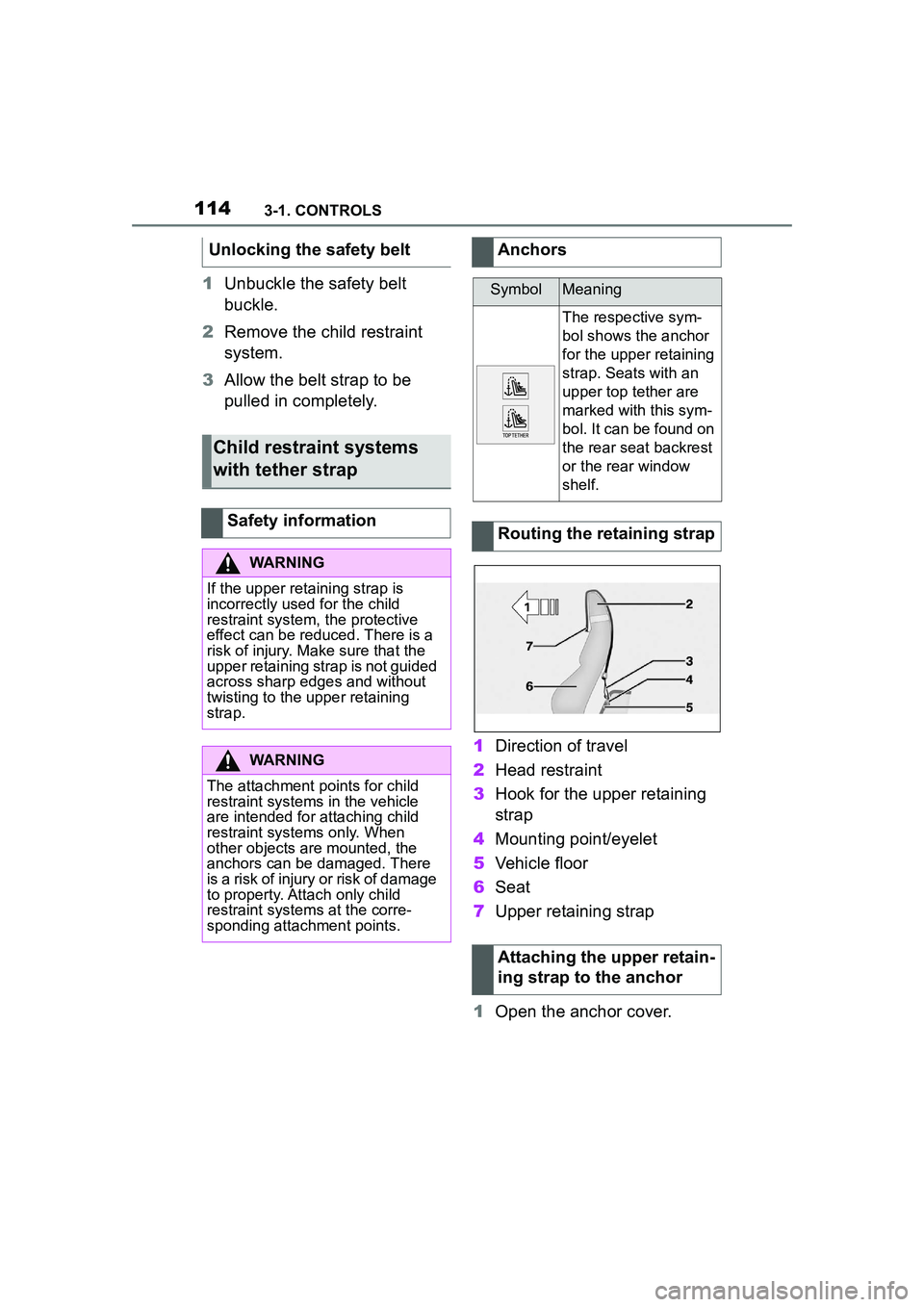
1Direction of travel
2 Head restraint
3 Hook for the upper retaining
strap
4 Mounting point/eyelet
5 Vehicle floor
6 Seat
7 Upper retaining strap
1 Open the anchor cover.
Unlocking the safety belt
Child restraint systems
with tether strap
Safety information
WARNING
If the upper retaining strap is
incorrectly used for the child
restraint system,
the protective
effect can be reduced. There is a
risk of injury. Make sure that the
upper retaining strap is not guided
across sharp edges and without
twisting to the upper retaining
strap.
WARNING
The attachment points for child
restraint systems in the vehicle
are intended for attaching child
restraint systems only. When
other objects are mounted, the
anchors can be damaged. There
is a risk of injury or risk of damage
to property. Attach only child
restraint systems at the corre-
sponding attachment points.
Anchors
SymbolMeaning
The respective sym-
bol shows the anchor
for the upper retaining
strap. Seats with an
upper top tether are
marked with this sym-
bol. It can be found on
the rear seat backrest
or the rear window
shelf.
Routing the retaining strap
Attaching the upper retain-
ing strap to the anchor
Page 128 of 356
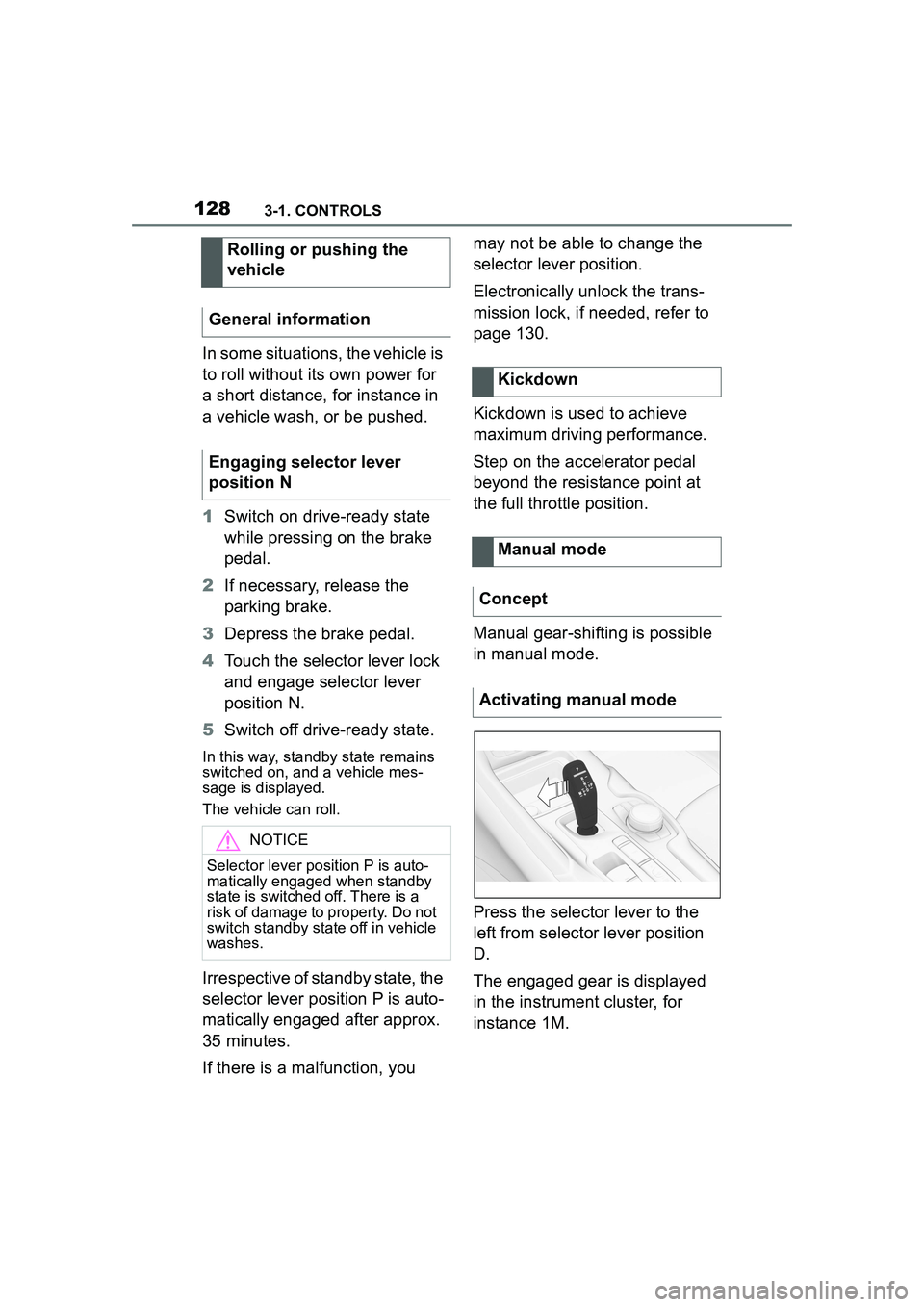
1283-1. CONTROLS
In some situations, the vehicle is
to roll without its own power for
a short distance, for instance in
a vehicle wash, or be pushed.
1Switch on drive-ready state
while pressing on the brake
pedal.
2 If necessary, release the
parking brake.
3 Depress the brake pedal.
4 Touch the selector lever lock
and engage selector lever
position N.
5 Switch off drive-ready state.
In this way, standby state remains
switched on, and a vehicle mes-
sage is displayed.
The vehicle can roll.
Irrespective of standby state, the
selector lever position P is auto-
matically engaged after approx.
35 minutes.
If there is a malfunction, you may not be able to change the
selector lever position.
Electronically unlock the trans-
mission lock, if needed, refer to
page 130.
Kickdown is used to achieve
maximum driving performance.
Step on the accelerator pedal
beyond the resistance point at
the full throttle position.
Manual gear-shifting is possible
in manual mode.
Press the selector lever to the
left from selector lever position
D.
The engaged gear is displayed
in the instrument cluster, for
instance 1M.
Rolling or pushing the
vehicle
General information
Engaging selector lever
position N
NOTICE
Selector lever pos ition P is auto-
matically engaged when standby
state is switched off. There is a
risk of damage to property. Do not
switch standby state off in vehicle
washes.
Kickdown
Manual mode
Concept
Activating manual mode
Page 145 of 356

1453-1. CONTROLS
3
CONTROLS
When passing buses or trucks
with traffic signs applied to
them.
If the traffic signs are
non-conforming.
When signs that are valid for
a parallel road are detected.
In the presence of coun-
try-specific signs and road
configurations.
The display can be operated
when necessary.
Entertainment source.
Current audio source.
List of most recent telephone
calls.
If necessary, the corresponding
menu will open on the Control
Display.
Items displayed may differ
depending on the specifications
of the vehicle.
The lists can be displayed and
operated using the buttons on
the steering wheel. The Onboard Computer dis-
plays different vehicle data in
the instrument cluster, such as
average values.
Selection lists
Concept
Display
Displaying and using the
list
ButtonFunction
Change the entertain-
ment source.
Pressing the button
again will close the cur-
rently displayed list.
Show list of most
recent telephone calls.
Turn the thumbwheel:
select entertainment
source or list entry.
Press the thumbwheel
to confirm the setting.
The currently selected
list can be displayed
again in the instrument
cluster by turning the
thumbwheel.
Onboard Computer in the
instrument cluster
Concept
Calling up information