mirror TOYOTA GR SUPRA 2022 User Guide
[x] Cancel search | Manufacturer: TOYOTA, Model Year: 2022, Model line: GR SUPRA, Model: TOYOTA GR SUPRA 2022Pages: 356, PDF Size: 39.14 MB
Page 69 of 356
693-1. CONTROLS
3
CONTROLS
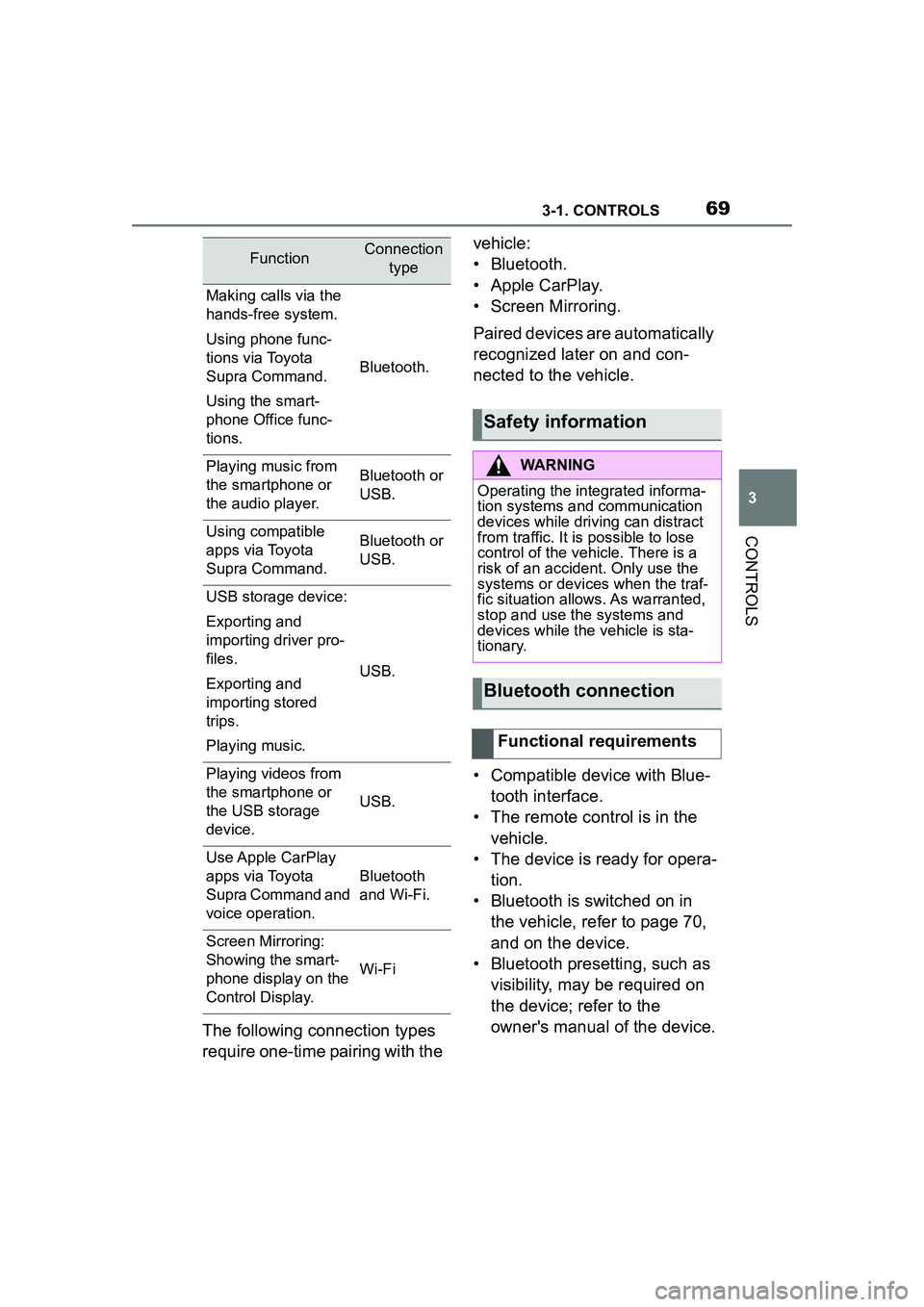
The following connection types
require one-time pairing with the vehicle:
• Bluetooth.
• Apple CarPlay.
• Screen Mirroring.
Paired devices are automatically
recognized later on and con-
nected to the vehicle.
• Compatible device with Blue-
tooth interface.
• The remote control is in the vehicle.
• The device is ready for opera- tion.
• Bluetooth is switched on in the vehicle, refer to page 70,
and on the device.
• Bluetooth presetting, such as visibility, may be required on
the device; refer to the
owner's manual of the device.
FunctionConnection type
Making calls via the
hands-free system.
Using phone func-
tions via Toyota
Supra Command.
Using the smart-
phone Office func-
tions.
Bluetooth.
Playing music from
the smartphone or
the audio player.Bluetooth or
USB.
Using compatible
apps via Toyota
Supra Command.Bluetooth or
USB.
USB storage device:
Exporting and
importing driver pro-
files.
Exporting and
importing stored
trips.
Playing music.
USB.
Playing videos from
the smartphone or
the USB storage
device.
USB.
Use Apple CarPlay
apps via Toyota
Supra Command and
voice operation.
Bluetooth
and Wi-Fi.
Screen Mirroring:
Showing the smart-
phone display on the
Control Display.
Wi-Fi
Safety information
WARNING
Operating the integrated informa-
tion systems and communication
devices while driving can distract
from traffic. It is possible to lose
control of the vehicle. There is a
risk of an accident. Only use the
systems or devices when the traf-
fic situation allows. As warranted,
stop and use the systems and
devices while the vehicle is sta-
tionary.
Bluetooth connection
Functional requirements
Page 70 of 356
703-1. CONTROLS
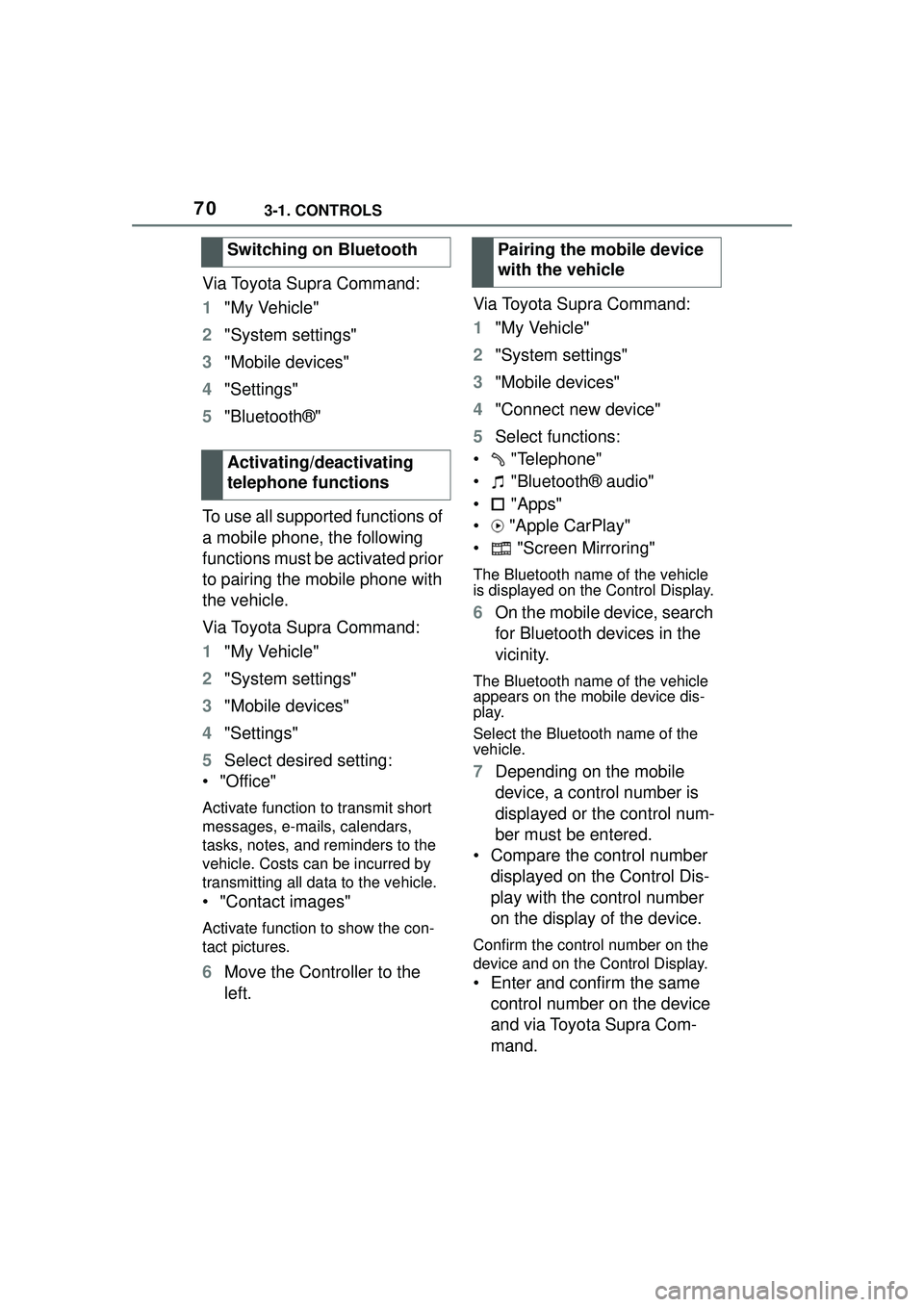
Via Toyota Supra Command:
1"My Vehicle"
2 "System settings"
3 "Mobile devices"
4 "Settings"
5 "Bluetooth®"
To use all supported functions of
a mobile phone, the following
functions must be activated prior
to pairing the mobile phone with
the vehicle.
Via Toyota Supra Command:
1 "My Vehicle"
2 "System settings"
3 "Mobile devices"
4 "Settings"
5 Select desired setting:
•"Office"
Activate function to transmit short
messages, e-mails, calendars,
tasks, notes, and reminders to the
vehicle. Costs can be incurred by
transmitting all data to the vehicle.
• "Contact images"
Activate function to show the con-
tact pictures.
6 Move the Controller to the
left. Via Toyota Supra Command:
1
"My Vehicle"
2 "System settings"
3 "Mobile devices"
4 "Connect new device"
5 Select functions:
• "Telephone"
• "Bluetooth® audio"
• "Apps"
• "Apple CarPlay"
• "Screen Mirroring"
The Bluetooth name of the vehicle
is displayed on the Control Display.
6 On the mobile device, search
for Bluetooth devices in the
vicinity.
The Bluetooth name of the vehicle
appears on the mobile device dis-
play.
Select the Bluetooth name of the
vehicle.
7Depending on the mobile
device, a control number is
displayed or the control num-
ber must be entered.
• Compare the control number displayed on the Control Dis-
play with the control number
on the display of the device.
Confirm the control number on the
device and on the Control Display.
• Enter and confirm the same control number on the device
and via Toyota Supra Com-
mand.
Switching on Bluetooth
Activating/deactivating
telephone functions
Pairing the mobile device
with the vehicle
Page 74 of 356
743-1. CONTROLS
All requirements are met and all
required steps were completed
in the specified order. Despite
that, the mobile device does not
function as expected.
In this case, the following expla-
nations can help:
The iPhone has already been
paired with Apple CarPlay.
When a new connection is
established, CarPlay can no lon-
ger be selected.
• Delete the iPhone concerned from the device list.
• On the iPhone, delete the vehicle concerned from the
list of stored vehicles under
Bluetooth and under Wi-Fi.
• Pair the iPhone as a new device.
If the steps listed have been car-
ried out and the required func-
tion is still not available: contact
the Toyota dealer.
Screen Mirroring enables mirror-
ing (outputting) of the smart-
phone display on the Control
Display. • Compatible smartphone with
Screen Mirroring interface.
• Screen Mirroring is switched on on the smartphone.
• Wi-Fi is switched on in the vehicle.
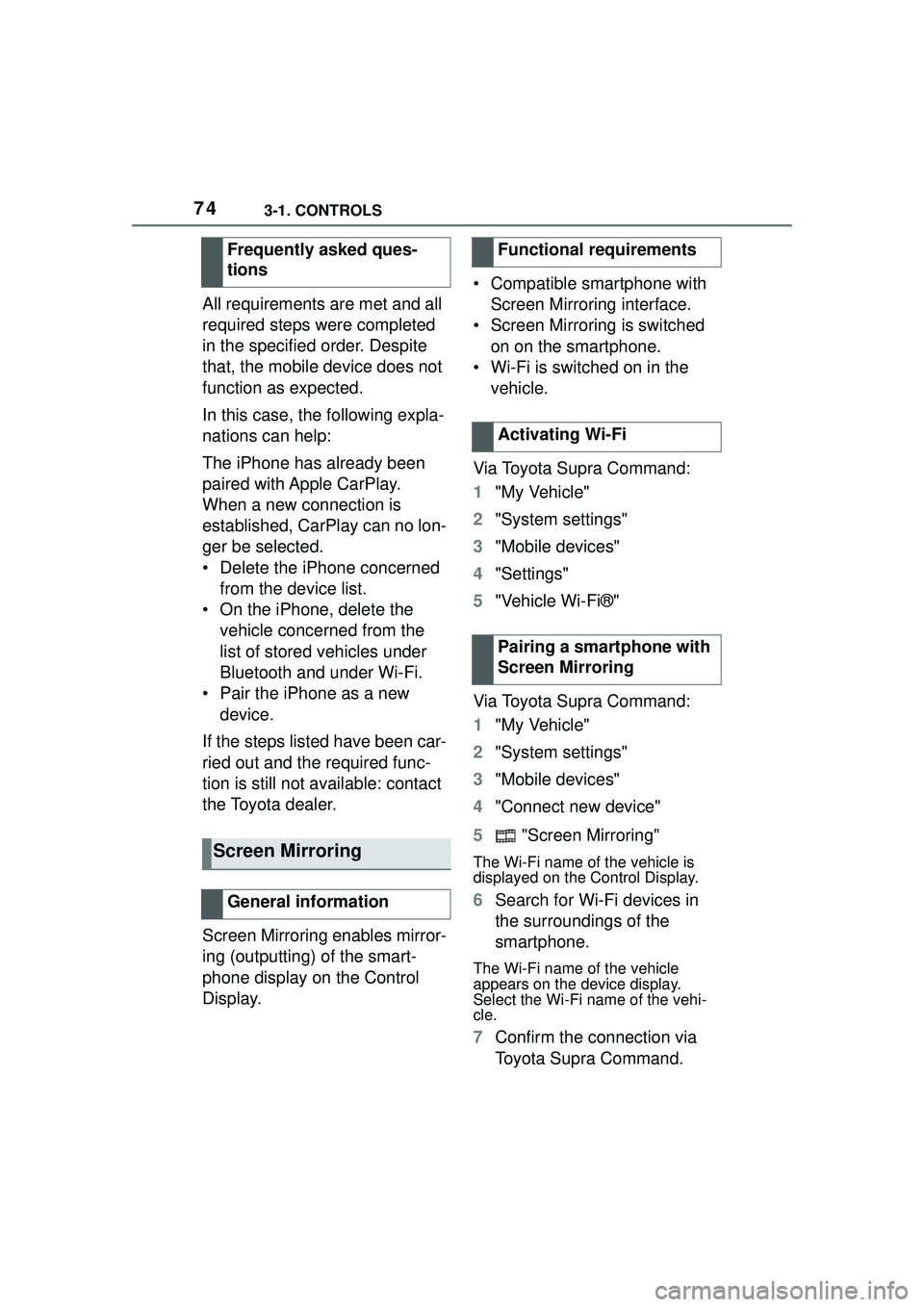
Via Toyota Supra Command:
1 "My Vehicle"
2 "System settings"
3 "Mobile devices"
4 "Settings"
5 "Vehicle Wi-Fi®"
Via Toyota Supra Command:
1 "My Vehicle"
2 "System settings"
3 "Mobile devices"
4 "Connect new device"
5 "Screen Mirroring"
The Wi-Fi name of the vehicle is
displayed on the Control Display.
6Search for Wi-Fi devices in
the surroundings of the
smartphone.
The Wi-Fi name of the vehicle
appears on the device display.
Select the Wi-Fi name of the vehi-
cle.
7Confirm the connection via
Toyota Supra Command.
Frequently asked ques-
tions
Screen Mirroring
General information
Functional requirements
Activating Wi-Fi
Pairing a smartphone with
Screen Mirroring
Page 75 of 356
753-1. CONTROLS
3
CONTROLS
The device is connected and
displayed in the device list, refer
to page 75.
• After one-time pairing, the devices are automatically rec-
ognized and reconnected
when standby state is
switched on.
• The data stored on the SIM card or in the mobile phone
are transferred to the vehicle
after recognition.
• For some devices, certain set- tings are necessary, for
instance authorization; see
the owner's manual of the
device.
All devices paired with or con-
nected to the vehicle are dis-
played in the device list.
Via Toyota Supra Command:
1 "My Vehicle"
2 "System settings"
3 "Mobile devices"
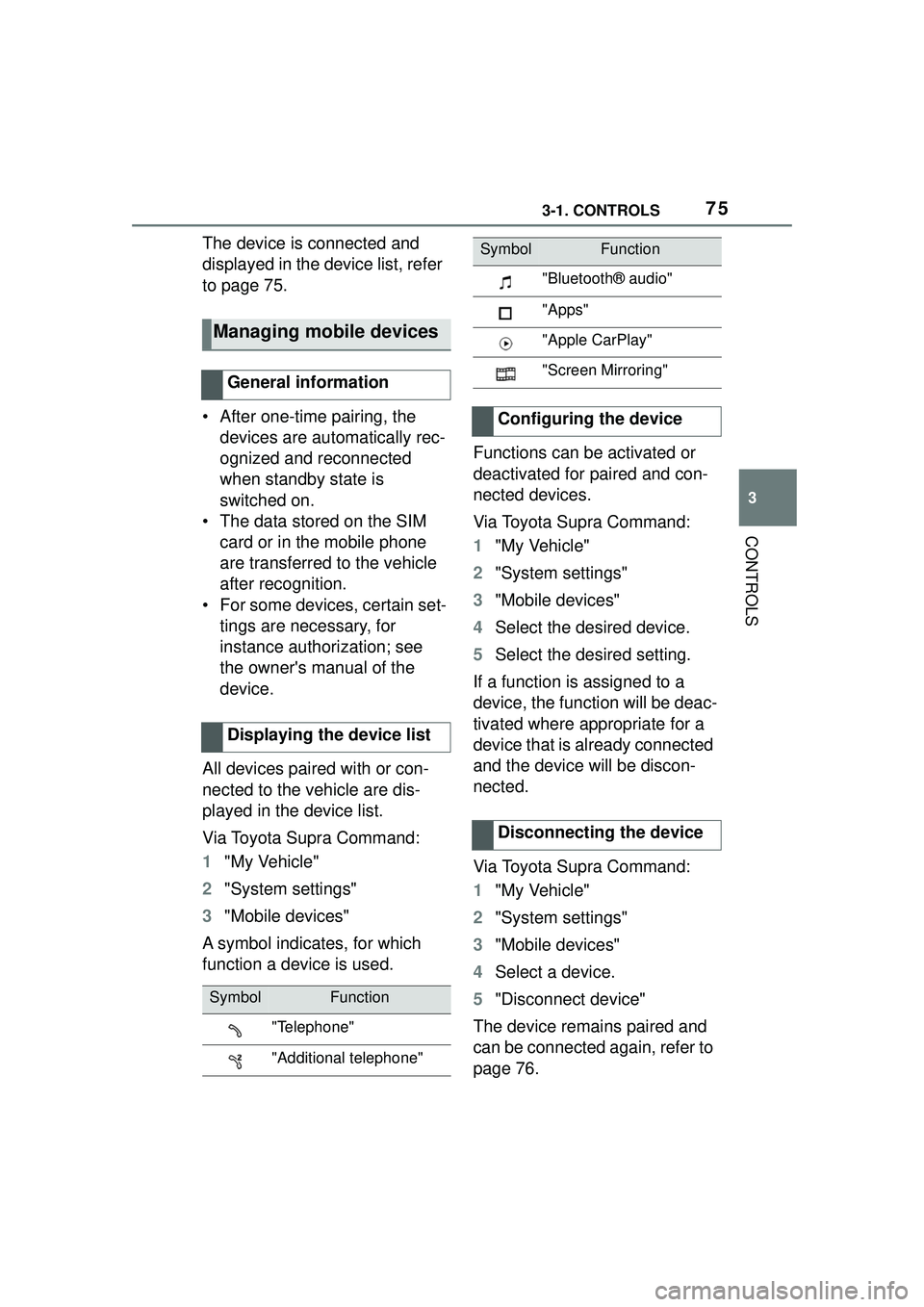
A symbol indicates, for which
function a device is used. Functions can be activated or
deactivated for paired and con-
nected devices.
Via Toyota Supra Command:
1
"My Vehicle"
2 "System settings"
3 "Mobile devices"
4 Select the desired device.
5 Select the desired setting.
If a function is assigned to a
device, the function will be deac-
tivated where appropriate for a
device that is already connected
and the device will be discon-
nected.
Via Toyota Supra Command:
1 "My Vehicle"
2 "System settings"
3 "Mobile devices"
4 Select a device.
5 "Disconnect device"
The device remains paired and
can be connected again, refer to
page 76.
Managing mobile devices
General information
Displaying the device list
SymbolFunction
"Telephone"
"Additional telephone"
"Bluetooth® audio"
"Apps"
"Apple CarPlay"
"Screen Mirroring"
Configuring the device
Disconnecting the device
SymbolFunction
Page 78 of 356
783-1. CONTROLS
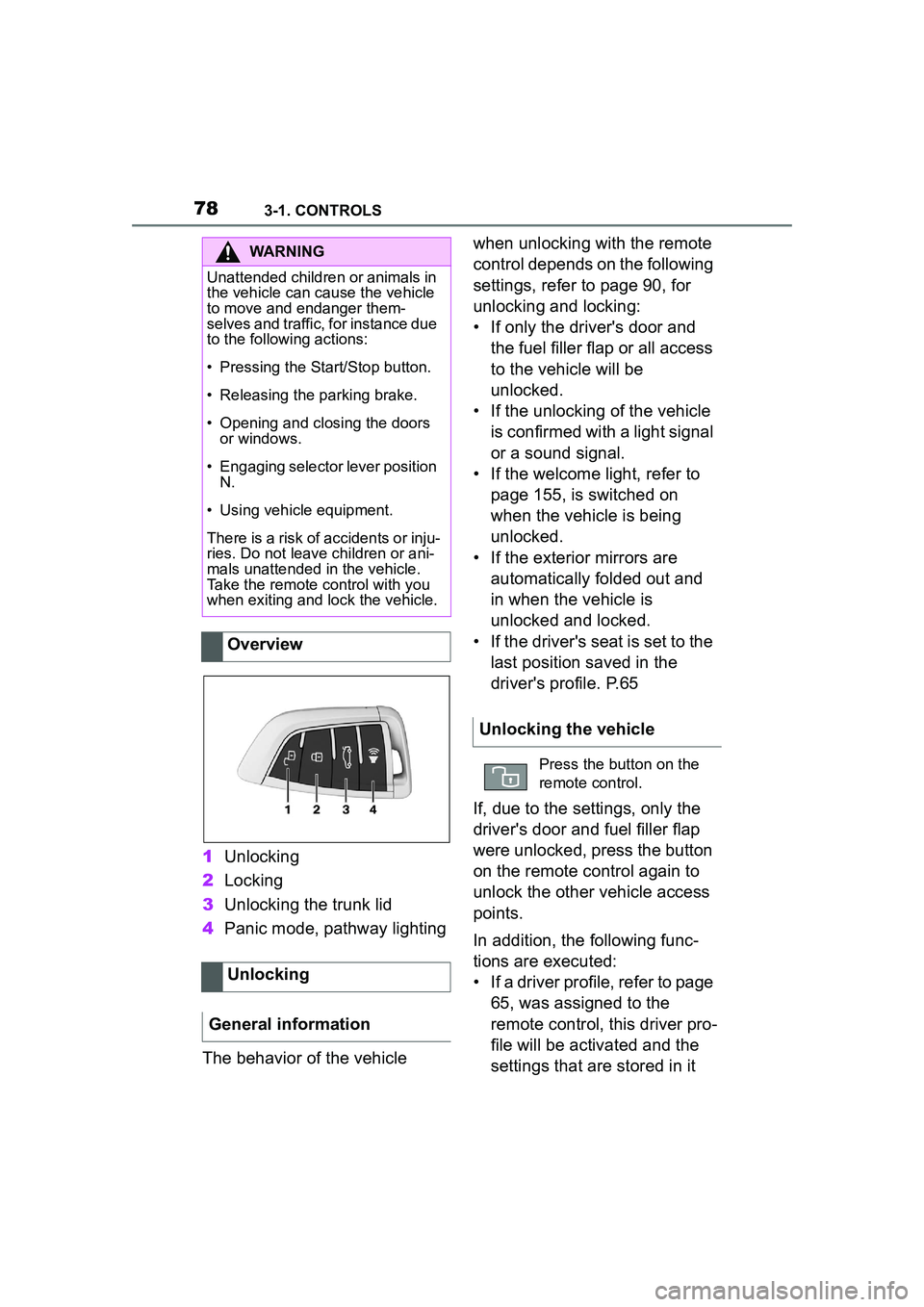
1Unlocking
2 Locking
3 Unlocking the trunk lid
4 Panic mode, pathway lighting
The behavior of the vehicle when unlocking with the remote
control depends on the following
settings, refer to page 90, for
unlocking and locking:
• If only the driver's door and
the fuel filler flap or all access
to the vehicle will be
unlocked.
• If the unlocking of the vehicle is confirmed with a light signal
or a sound signal.
• If the welcome light, refer to page 155, is switched on
when the vehicle is being
unlocked.
• If the exterior mirrors are automatically folded out and
in when the vehicle is
unlocked and locked.
• If the driver's seat is set to the last position saved in the
driver's profile. P.65
If, due to the settings, only the
driver's door and fuel filler flap
were unlocked, press the button
on the remote control again to
unlock the other vehicle access
points.
In addition, the following func-
tions are executed:
• If a driver profile, refer to page 65, was assigned to the
remote control, this driver pro-
file will be activated and the
settings that are stored in it
WARNING
Unattended children or animals in
the vehicle can cause the vehicle
to move and endanger them-
selves and traffic, for instance due
to the following actions:
• Pressing the Start/Stop button.
• Releasing the parking brake.
• Opening and closing the doors or windows.
• Engaging selector lever position
N.
• Using vehicle equipment.
There is a risk of accidents or inju-
ries. Do not leave children or ani-
mals unattended in the vehicle.
Take the remote control with you
when exiting and lock the vehicle.
Overview
Unlocking
General information
Unlocking the vehicle
Press the button on the
remote control.
Page 79 of 356
793-1. CONTROLS
3
CONTROLS
will be applied.
• The interior lights are switched on, unless they were
manually switched off. For
switching the interior lights
on/off manually, refer to page
158.
• Folded in exterior mirrors are folded out.
If the exterior mirrors were folded in
via the button in the car’s interior,
they will not be folded out when
unlocking.
• With alarm system: The alarm
system, refer to page , will be
switched off.
After opening one of the front
doors, the vehicle is ready for
operation, refer to page 44.
The light functions may depend
on the ambient brightness.
The windows are opened, as
long as the button on the remote
control is pressed.
The behavior of the vehicle
during locking with the remote
control depends on the following settings, refer to page 90:
• If the locking of the vehicle is
confirmed with a light signal
or a sound signal.
• If the exterior mirrors are automatically folded in when
the vehicle is locked. The
exterior mirrors are not folded
in when the hazard warning
flashers are switched on.
• If the headlight courtesy delay feature is activated during
locking.
1 Close the driver's door.
2 Press the button on the
remote control.
The following functions are exe-
cuted:
• All doors, the trunk lid, and the fuel filler flap are locked.
• With alarm system: The alarm system will be switched on.
If the drive-ready state is still
switched on when you lock the
vehicle, the vehicle horn honks
twice. In this case, the
drive-ready state must be
switched off by means of the
Start/Stop button.
Convenient opening
Opening
Press and hold the button
on the remote control.
Locking
General information
Locking the vehicle
Page 87 of 356
873-1. CONTROLS
3
CONTROLS
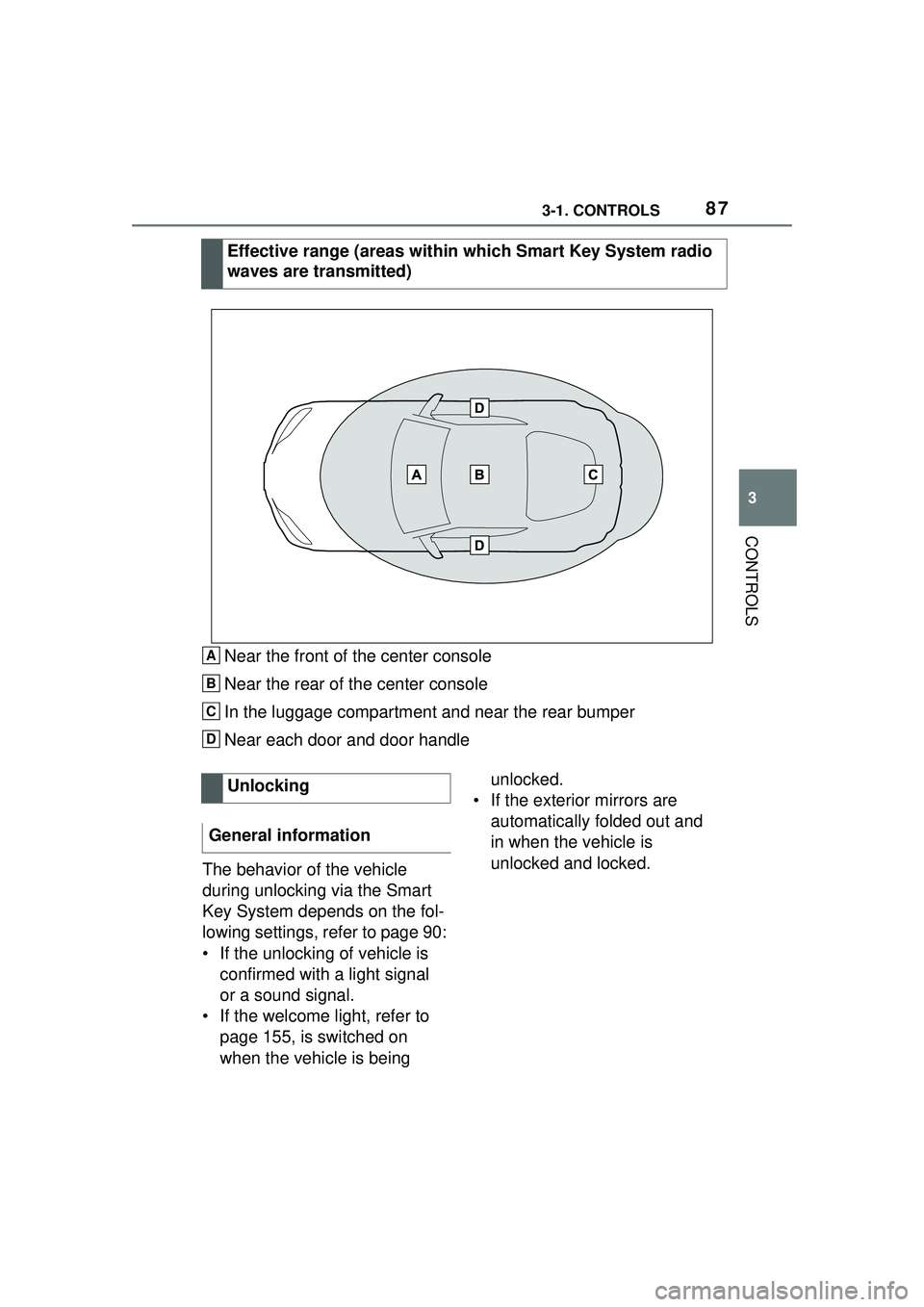
Near the front of the center console
Near the rear of the center console
In the luggage compartment and near the rear bumper
Near each door and door handle
The behavior of the vehicle
during unlocking via the Smart
Key System depends on the fol-
lowing settings, refer to page 90:
• If the unlocking of vehicle is confirmed with a light signal
or a sound signal.
• If the welcome light, refer to page 155, is switched on
when the vehicle is being unlocked.
• If the exterior mirrors are automatically folded out and
in when the vehicle is
unlocked and locked.
Effective range (areas within which Smart Key System radio
waves are transmitted)A
B
C
D
Unlocking
General information
Page 88 of 356
883-1. CONTROLS
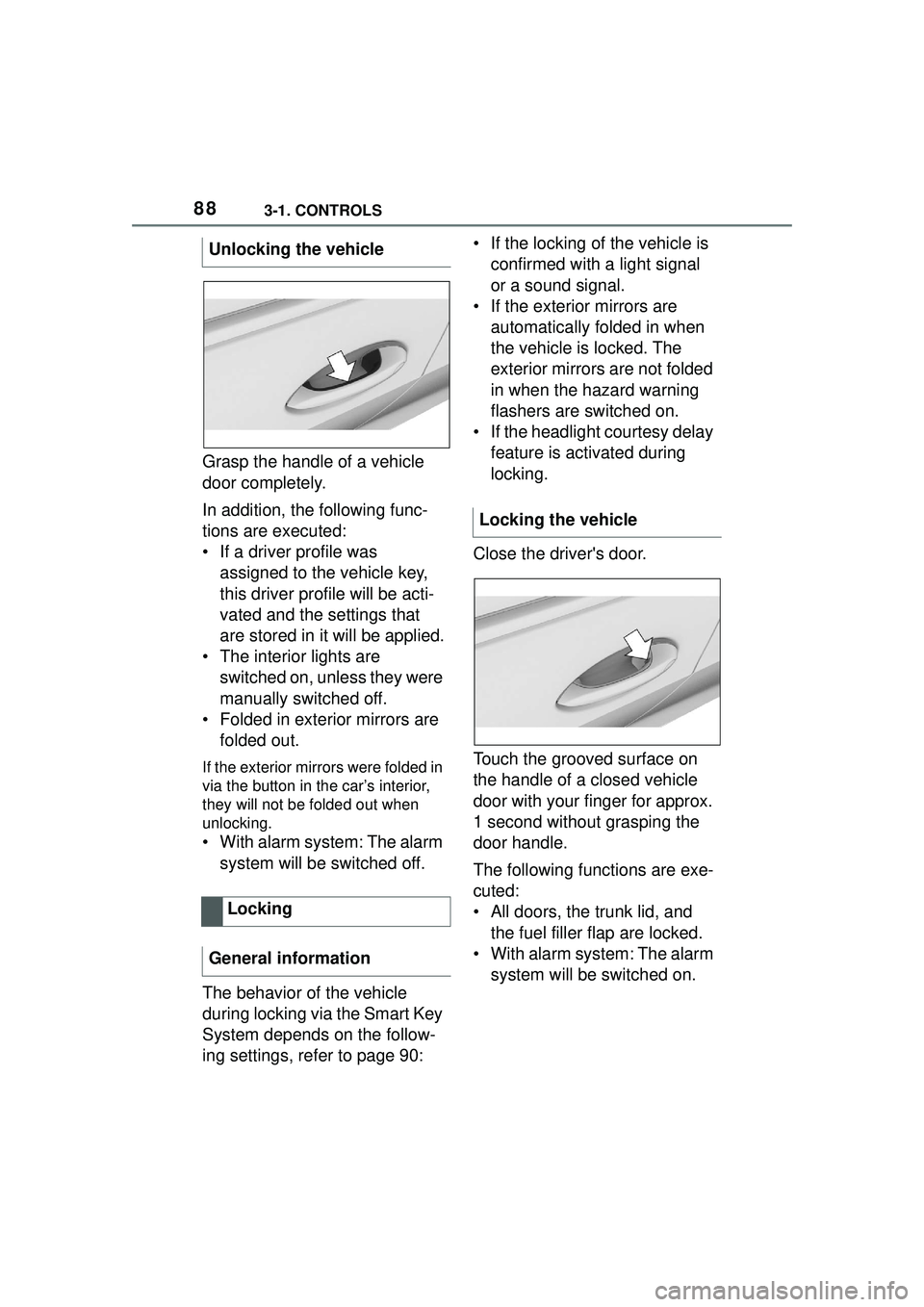
Grasp the handle of a vehicle
door completely.
In addition, the following func-
tions are executed:
• If a driver profile was assigned to the vehicle key,
this driver profile will be acti-
vated and the settings that
are stored in it will be applied.
• The interior lights are switched on, unless they were
manually switched off.
• Folded in exterior mirrors are folded out.
If the exterior mirrors were folded in
via the button in the car’s interior,
they will not be folded out when
unlocking.
• With alarm system: The alarm
system will be switched off.
The behavior of the vehicle
during locking via the Smart Key
System depends on the follow-
ing settings, refer to page 90: • If the locking of the vehicle is
confirmed with a light signal
or a sound signal.
• If the exterior mirrors are automatically folded in when
the vehicle is locked. The
exterior mirrors are not folded
in when the hazard warning
flashers are switched on.
• If the headlight courtesy delay feature is activated during
locking.
Close the driver's door.
Touch the grooved surface on
the handle of a closed vehicle
door with your finger for approx.
1 second without grasping the
door handle.
The following functions are exe-
cuted:
• All doors, the trunk lid, and the fuel filler flap are locked.
• With alarm system: The alarm system will be switched on.
Unlocking the vehicle
Locking
General information
Locking the vehicle
Page 91 of 356
913-1. CONTROLS
3
CONTROLS
Via Toyota Supra Command:
1"My Vehicle"
2 "Driver profiles"
3 Select driver profile.
The setting can be made for the
driver profile marked with this sym-
bol.
4 "Last seat position automatic"
When the vehicle is unlocked,
the driver's seat and exterior
mirrors resume their last set
positions.
The most recent position is inde-
pendent of the positions saved
via the seat memory.
Via Toyota Supra Command:
1 "My Vehicle"
2 "Vehicle settings"
3 "Doors/Key"
4 Deactivate or activate the
desired confirmation signals:
• "Flash for lock/unlock"
Unlocking is signaled by two
flashes, locking by one.
Via Toyota Supra Command:
1 "My Vehicle"
2 "Vehicle settings" 3
"Doors/Key"
4 "Lock automatically"
The vehicle locks automatically
after a short period of time if no
door is opened after unlocking.
Via Toyota Supra Command:
1"My Vehicle"
2 "Vehicle settings"
3 "Doors/Key"
4 Select the desired setting:
• "Unlock doors when in Park"
• "Unlock at end of trip"
After drive-ready state is switched
off by pressing the Start/Stop but-
ton, the locked vehicle is automati-
cally unlocked.
Via Toyota Supra Command:
1 "My Vehicle"
2 "Vehicle settings"
3 "Doors/Key"
4 "Fold mirrors in when locked"
The exterior mirrors are automati-
cally folded in during locking.
Via Toyota Supra Command:
1"My Vehicle"
2 "Vehicle settings"
Adjusting the last seat and
mirror position
Confirmation signals from
the vehicle
Automatic locking
Automatic unlocking
Folding mirrors automati-
cally
Establishing idle state
after opening the front
doors
Page 93 of 356
933-1. CONTROLS
3
CONTROLS
gerous situation.
To switch off the alarm: press
any button.
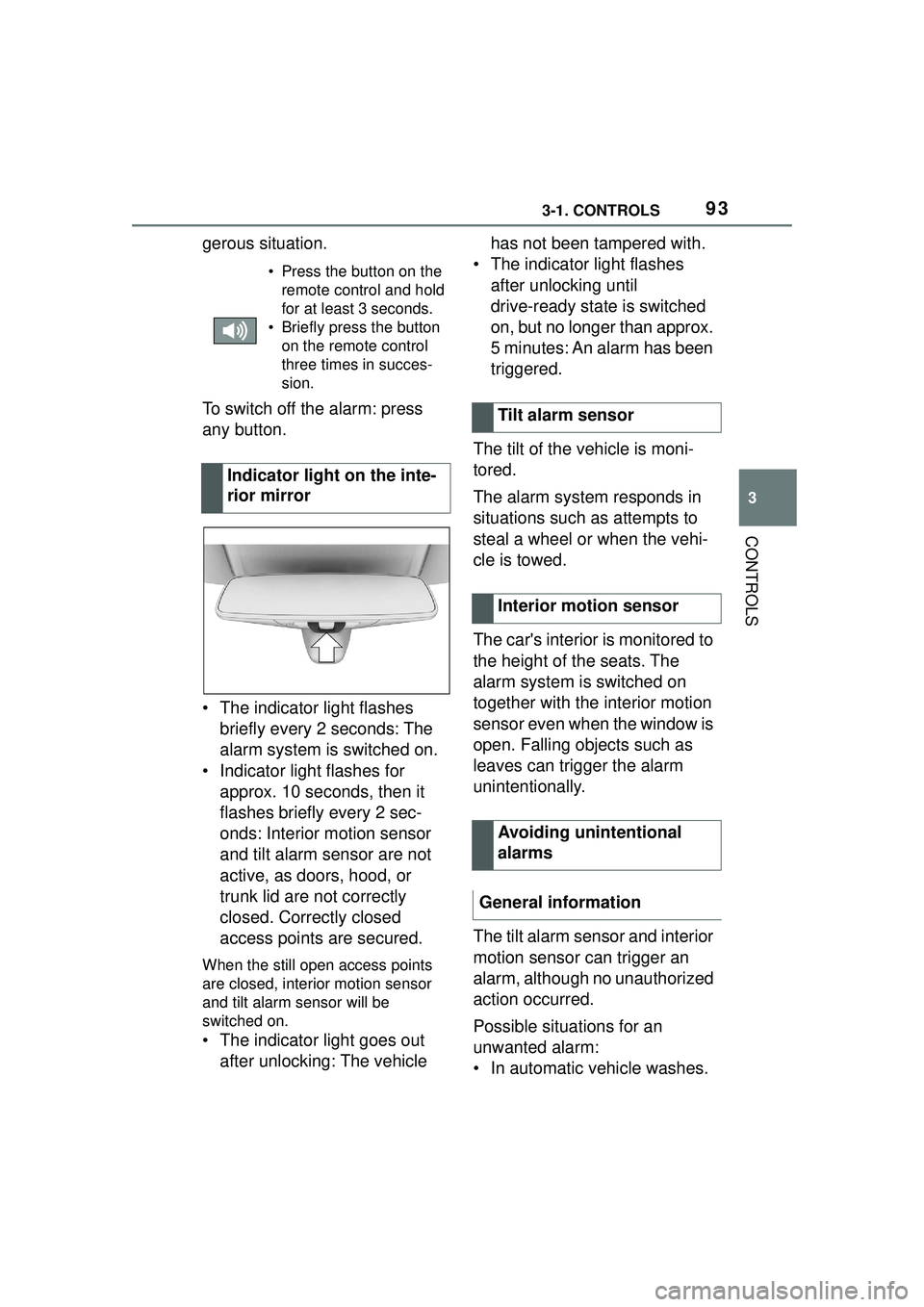
• The indicator light flashes briefly every 2 seconds: The
alarm system is switched on.
• Indicator light flashes for approx. 10 seconds, then it
flashes briefly every 2 sec-
onds: Interior motion sensor
and tilt alarm sensor are not
active, as doors, hood, or
trunk lid are not correctly
closed. Correctly closed
access points are secured.
When the still open access points
are closed, interior motion sensor
and tilt alarm sensor will be
switched on.
• The indicator light goes out
after unlocking: The vehicle has not been tampered with.
• The indicator light flashes after unlocking until
drive-ready state is switched
on, but no longer than approx.
5 minutes: An alarm has been
triggered.
The tilt of the vehicle is moni-
tored.
The alarm system responds in
situations such as attempts to
steal a wheel or when the vehi-
cle is towed.
The car's interior is monitored to
the height of the seats. The
alarm system is switched on
together with the interior motion
sensor even when the window is
open. Falling objects such as
leaves can trigger the alarm
unintentionally.
The tilt alarm sensor and interior
motion sensor can trigger an
alarm, although no unauthorized
action occurred.
Possible situations for an
unwanted alarm:
• In automatic vehicle washes.
• Press the button on the remote control and hold
for at least 3 seconds.
• Briefly press the button on the remote control
three times in succes-
sion.
Indicator light on the inte-
rior mirror
Tilt alarm sensor
Interior motion sensor
Avoiding unintentional
alarms
General information