mirror TOYOTA GR SUPRA 2022 Owners Manual
[x] Cancel search | Manufacturer: TOYOTA, Model Year: 2022, Model line: GR SUPRA, Model: TOYOTA GR SUPRA 2022Pages: 356, PDF Size: 39.14 MB
Page 2 of 356
2TABLE OF CONTENTS
1-1. NOTESInformation .............................. 4
2-1. QUICK REFERENCE Entering ................................. 16
Set-up and use ...................... 22
In transit ................................ 25
3-1. CONTROLS Cockpit .................................. 36
Sensors of the vehicle ........... 40
Operating state of the vehicle ............................................ 43
Toyota Supra Command ....... 46
General settings .................... 60
Personal settings .................. 63
Connections .......................... 68
Opening and closing ............. 77
Seats, mirrors, and steering wheel................................... 96
Transporting children safely ......................................... 109
Driving ................................ 115
Displays ............................. 133
Lights ................................. 152
Safety ................................. 159
Driving stability control systems ......................................... 194
Driver assistance systems . 199
Driving comfort ................... 224
Climate control ................... 225
Interior equipment .............. 234
Storage compartments ....... 244Cargo area .........................
246
4-1. DRIVING TIPS Things to remember when driv-ing .................................... 252
Saving fuel ......................... 257
5-1. MOBILITY Refueling ............................ 262
Wheels and tires ................ 264
Engine compartment .......... 290
Operating materials............ 293
Maintenance ...................... 301
Replacing components ...... 303
Breakdown assistance ....... 313
Care ................................... 322
6-1. REFERENCE Technical data .................... 330
Certification ........................ 333
Alphabetical Index.............. 344
1NOTES
2QUICK REFERENCE
3CONTROLS
4DRIVING TIPS
5MOBILITY
6REFERENCE
Index
Page 13 of 356
131-1. NOTES
1
NOTES
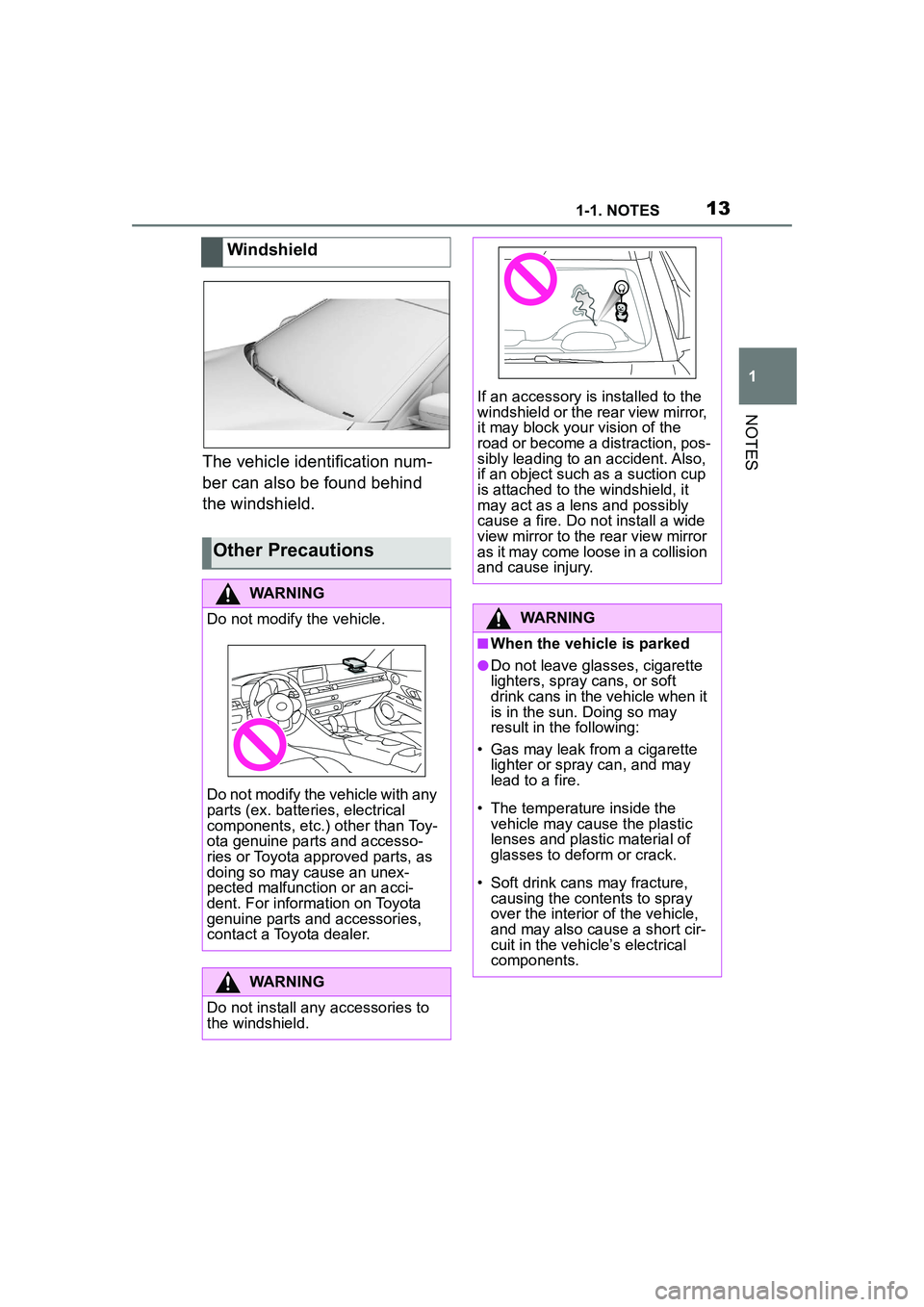
The vehicle identification num-
ber can also be found behind
the windshield.Windshield
Other Precautions
WARNING
Do not modify the vehicle.
Do not modify the vehicle with any
parts (ex. batteries, electrical
components, etc.) other than Toy-
ota genuine parts and accesso-
ries or Toyota approved parts, as
doing so may cause an unex-
pected malfunction or an acci-
dent. For information on Toyota
genuine parts and accessories,
contact a Toyota dealer.
WARNING
Do not install any accessories to
the windshield.
If an accessory is installed to the
windshield or the rear view mirror,
it may block your vision of the
road or become a distraction, pos-
sibly leading to an accident. Also,
if an object such as a suction cup
is attached to the windshield, it
may act as a lens and possibly
cause a fire. Do not install a wide
view mirror to the rear view mirror
as it may come loose in a collision
and cause injury.
WARNING
■When the vehicle is parked
●Do not leave glasses, cigarette
lighters, spray cans, or soft
drink cans in the vehicle when it
is in the sun. Doing so may
result in the following:
• Gas may leak from a cigarette lighter or spray can, and may
lead to a fire.
• The temperature inside the vehicle may cause the plastic
lenses and plastic material of
glasses to deform or crack.
• Soft drink cans may fracture, causing the contents to spray
over the interior of the vehicle,
and may also cause a short cir-
cuit in the vehicle’s electrical
components.
Page 20 of 356
202-1. QUICK REFERENCE
Close the trunk lid manually.
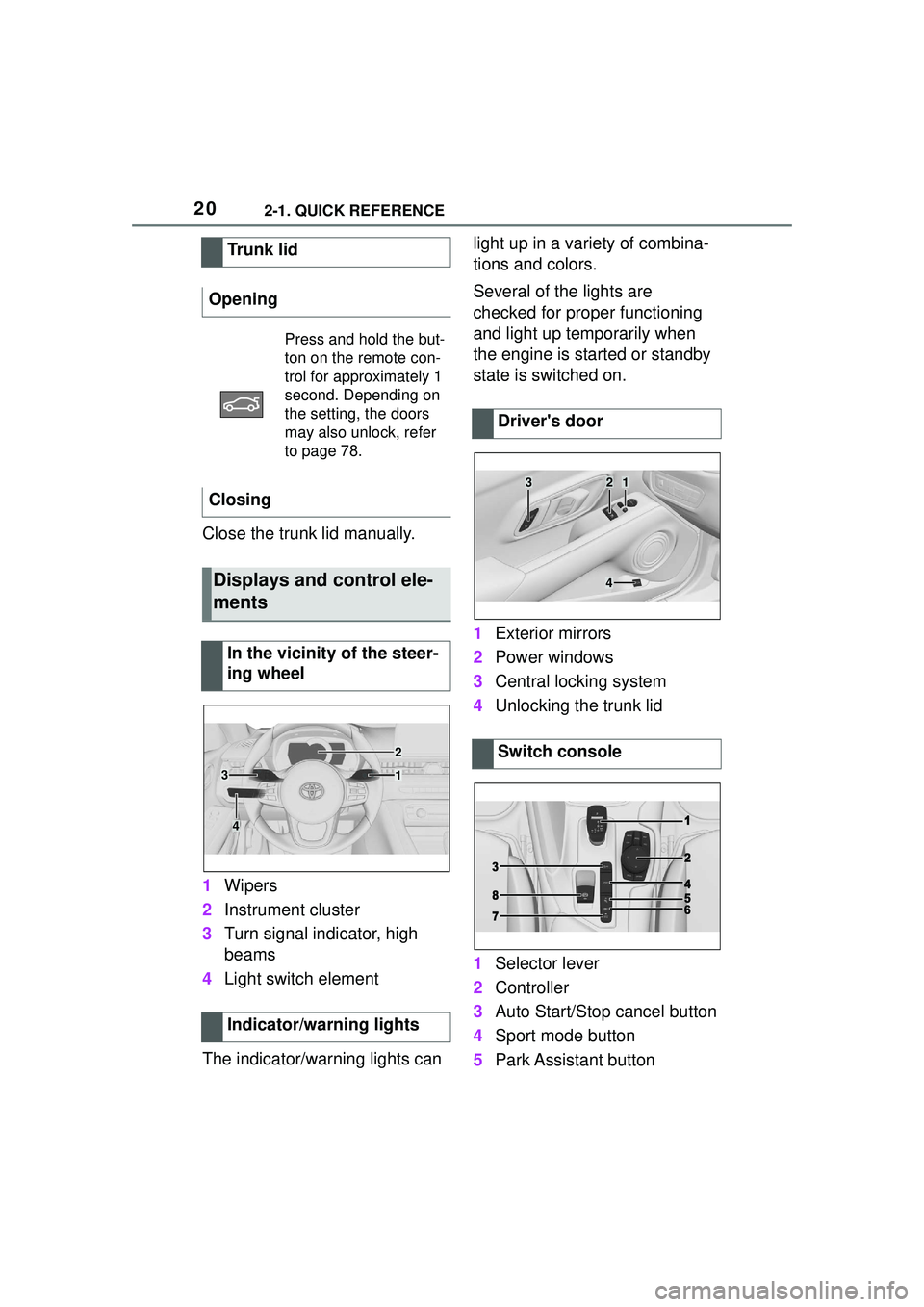
1Wipers
2 Instrument cluster
3 Turn signal indicator, high
beams
4 Light switch element
The indicator/warning lights can light up in a variety of combina-
tions and colors.
Several of the lights are
checked for proper functioning
and light up temporarily when
the engine is started or standby
state is switched on.
1
Exterior mirrors
2 Power windows
3 Central locking system
4 Unlocking the trunk lid
1 Selector lever
2 Controller
3 Auto Start/Stop cancel button
4 Sport mode button
5 Park Assistant button
Trunk lid
Opening
Press and hold the but-
ton on the remote con-
trol for approximately 1
second. Depending on
the setting, the doors
may also unlock, refer
to page 78.
Closing
Displays and control ele-
ments
In the vicinity of the steer-
ing wheel
Indicator/warning lights
1
2
3
4
Driver's door
Switch console
321
4
Page 22 of 356
222-1. QUICK REFERENCE
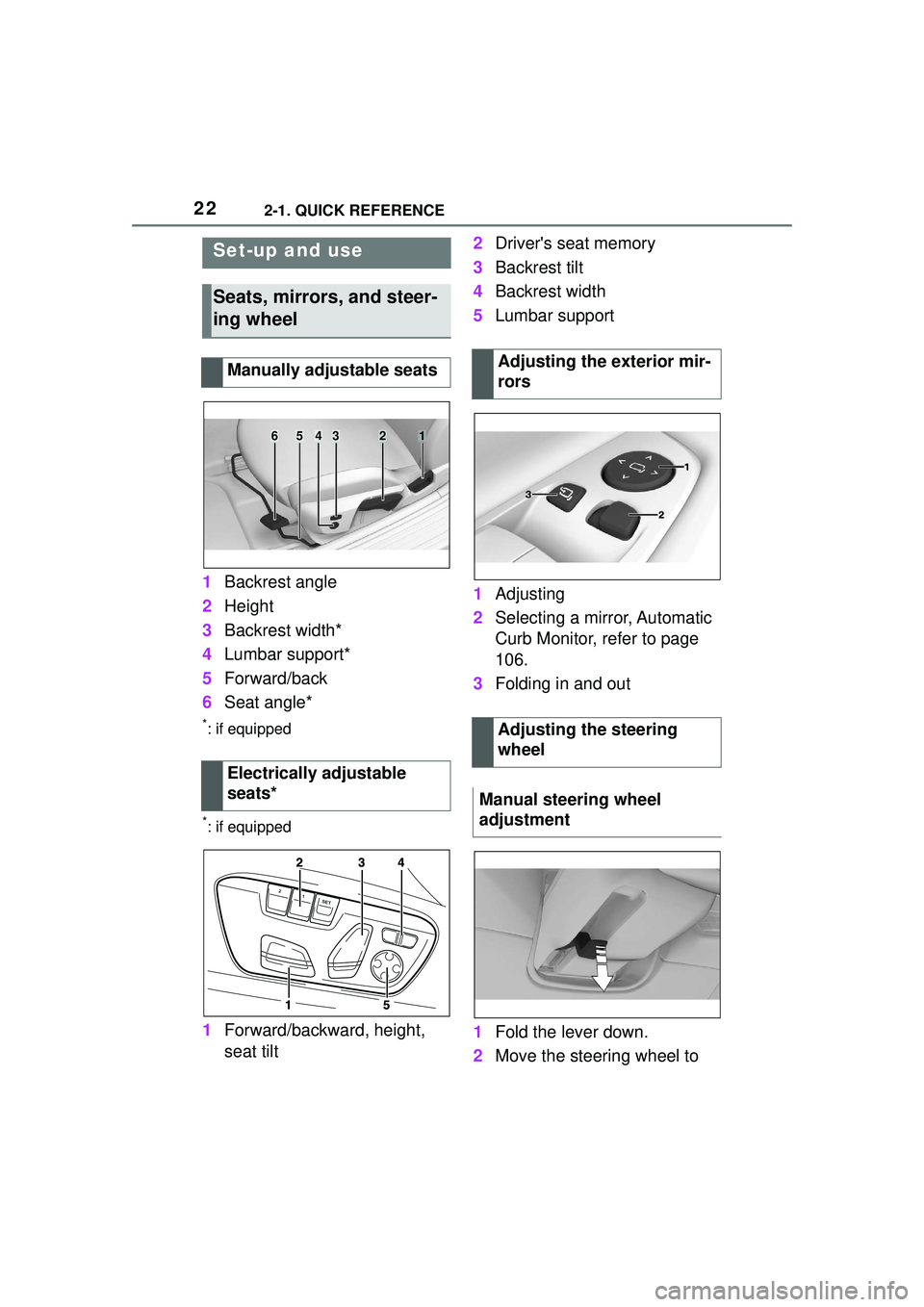
1Backrest angle
2 Height
3 Backrest width*
4 Lumbar support*
5 Forward/back
6 Seat angle*
*: if equipped
*: if equipped
1Forward/backward, height,
seat tilt 2
Driver's seat memory
3 Backrest tilt
4 Backrest width
5 Lumbar support
1 Adjusting
2 Selecting a mirror, Automatic
Curb Monitor, refer to page
106.
3 Folding in and out
1 Fold the lever down.
2 Move the steering wheel to
Set-up and use
Seats, mirrors, and steer-
ing wheel
Manually adjustable seats
Electrically adjustable
seats*
654321
Adjusting the exterior mir-
rors
Adjusting the steering
wheel
Manual steering wheel
adjustment
Page 23 of 356
232-1. QUICK REFERENCE
2
QUICK REFERENCE
the preferred height and
angle to suit your seating
position.
3 Fold the lever back up.
The following settings can be
stored and, if necessary,
retrieved using the memory
function:
• Seat position.
• Exterior mirror position.
• Height of the Head-up Dis- play.
1 Set the desired position.
2 Press button on the
driver's seat. The writing on
the button lights up.
3 Press the desired button 1 or
2 at the door while the writing
is lit. A signal sounds.
Press the desired button 1 or 2. 1
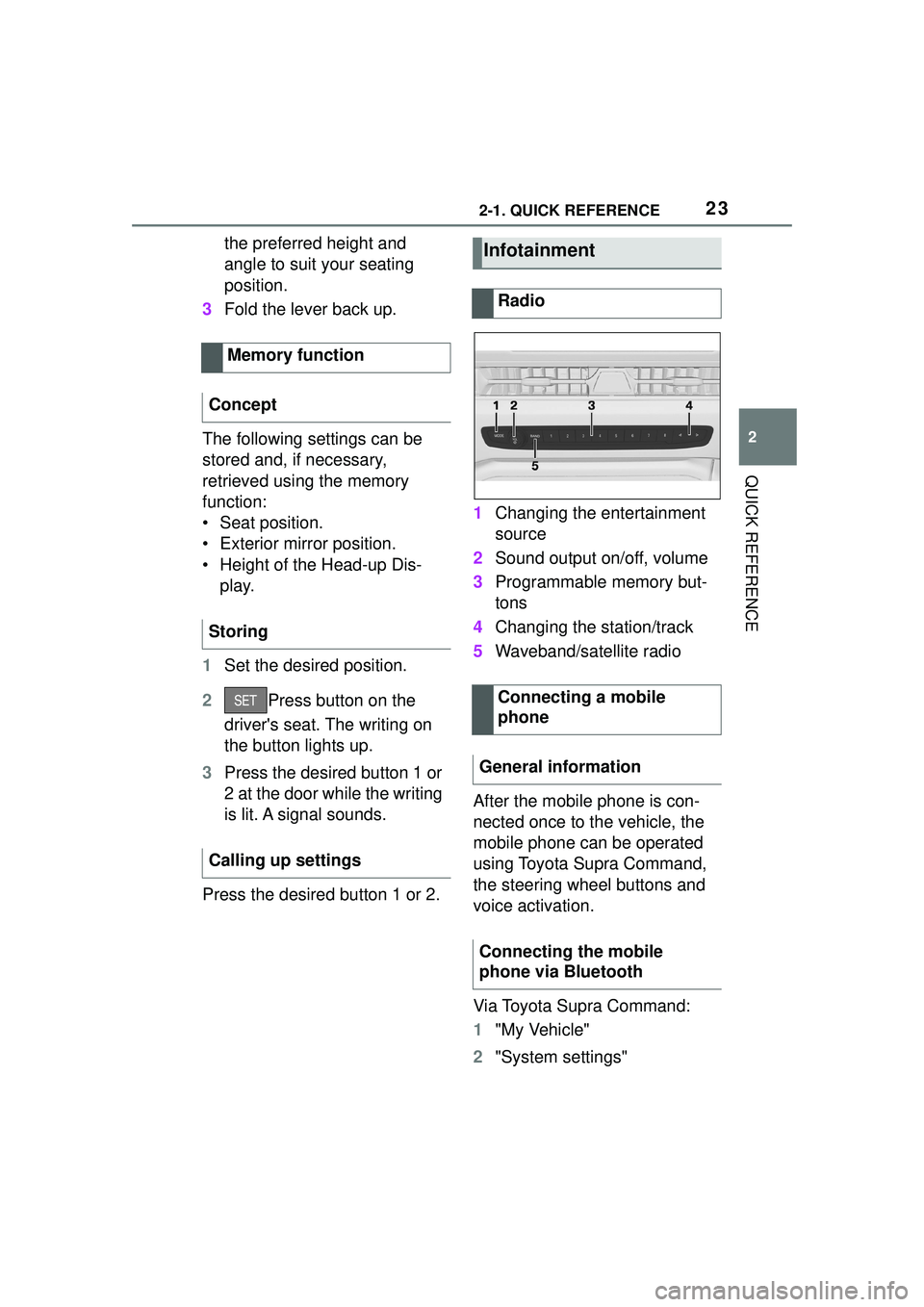
Changing the entertainment
source
2 Sound output on/off, volume
3 Programmable memory but-
tons
4 Changing the station/track
5 Waveband/satellite radio
After the mobile phone is con-
nected once to the vehicle, the
mobile phone can be operated
using Toyota Supra Command,
the steering wheel buttons and
voice activation.
Via Toyota Supra Command:
1 "My Vehicle"
2 "System settings"
Memory function
Concept
Storing
Calling up settingsInfotainment
Radio
Connecting a mobile
phone
General information
Connecting the mobile
phone via Bluetooth
Page 35 of 356
35
3
3
CONTROLS
CONTROLS
.3-1. CONTROLSCockpit ........................... 36
Sensors of the vehicle.... 40
Operating state of the vehi- cle................................. 43
Toyota Supra Command ..................................... 46
General settings ............. 60
Personal settings ........... 63
Connections ................... 68
Opening and closing ...... 77
Seats, mirrors, and steering wheel ............................ 96
Transporting children safely .................................. 109
Driving ......................... 115
Displays ...................... 133
Lights .......................... 152
Safety .......................... 159
Driving stability control sys- tems .......................... 194
Driver assistance systems .................................. 199
Driving comfort ............ 224
Climate control ............ 225
Interior equipment ....... 234
Storage compartments .................................. 244
Cargo area .................. 246
Page 36 of 356
363-1. CONTROLS
3-1.CONTROLS
This chapter describes all stan-
dard, country-specific and
optional features offered with
the series. It also describes fea-
tures and functions that are not
necessarily available in your
vehicle, e.g., due to the selected options or country versions. This
also applies to safety-related
functions and systems. When
using these functions and sys-
tems, the applicable laws and
regulations must be observed.
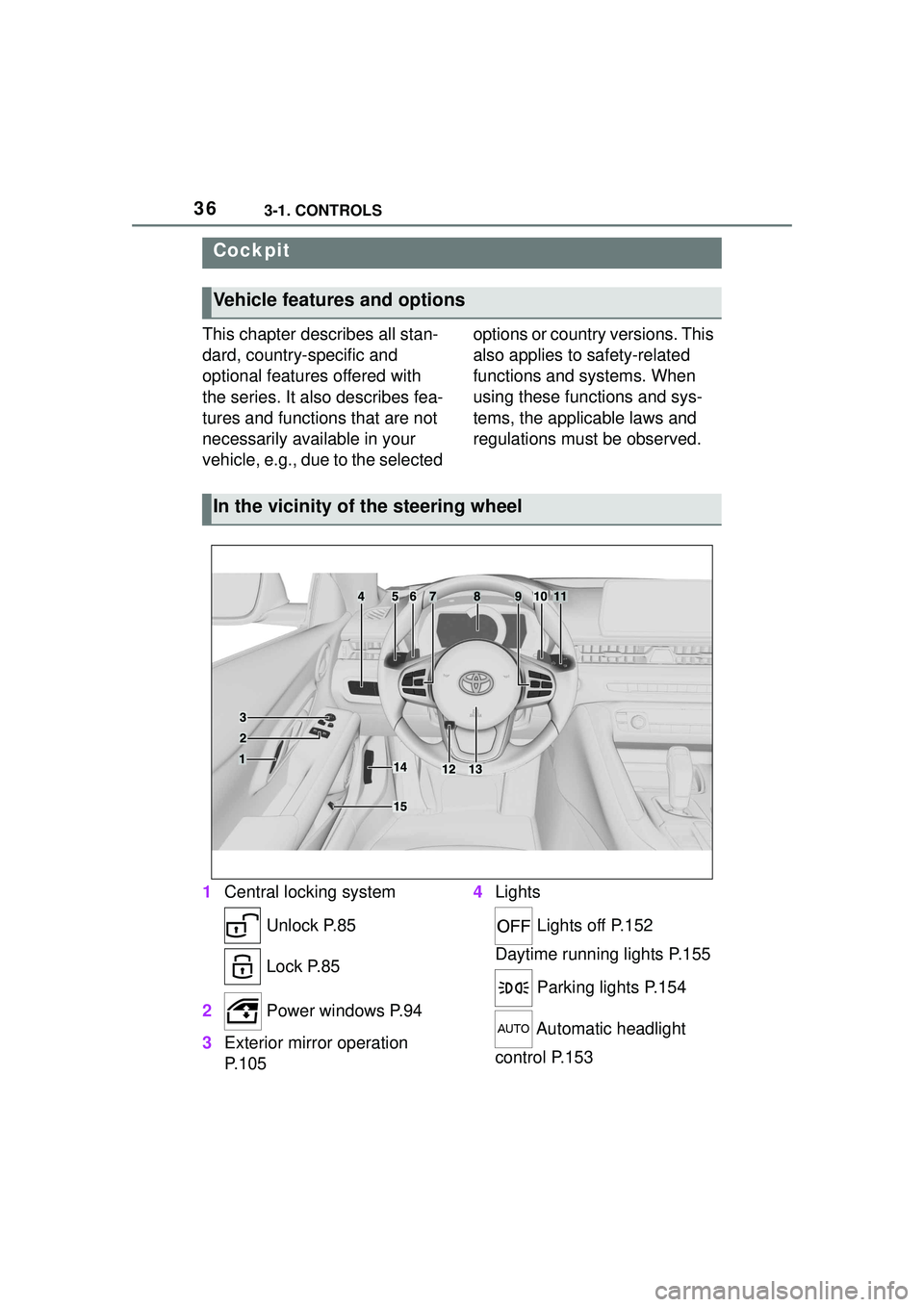
1 Central locking system
Unlock P.85
Lock P.85
2 Power windows P.94
3 Exterior mirror operation
P.105 4
Lights
Lights off P.152
Daytime running lights P.155
Parking lights P.154
Automatic headlight
control P.153
Cockpit
Vehicle features and options
In the vicinity of the steering wheel
Page 40 of 356
403-1. CONTROLS
This chapter describes all stan-
dard, country-specific and
optional features offered with
the series. It also describes fea-
tures and functions that are not
necessarily available in your
vehicle, e.g., due to the selected
options or country versions. This
also applies to safety-related
functions and systems. When
using these functions and sys-
tems, the applicable laws and
regulations must be observed.
Depending on the equipment,
the following cameras and sen-
sors are installed in the vehicle:
• Cameras behind the wind-shield.
• Rearview camera.
• Front radar sensor.
• Radar sensors, side, rear.
• Ultrasound sensors in the bumpers.
Keep the vehicle cameras and
sensors, as well as surrounding
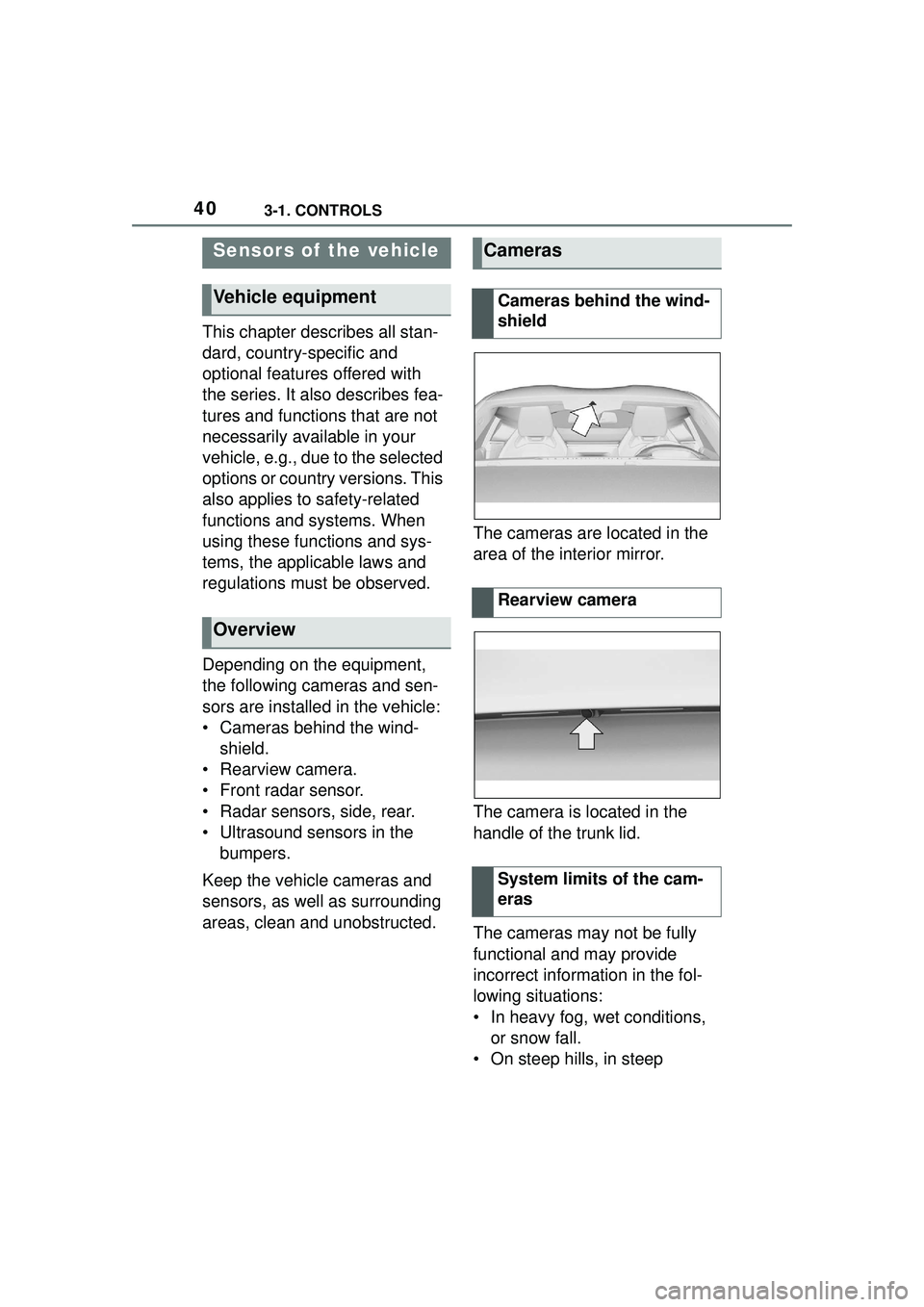
areas, clean and unobstructed. The cameras are located in the
area of the interior mirror.
The camera is located in the
handle of the trunk lid.
The cameras may not be fully
functional and may provide
incorrect information in the fol-
lowing situations:
• In heavy fog, wet conditions,
or snow fall.
• On steep hills, in steep
Sensors of the vehicle
Vehicle equipment
Overview
Cameras
Cameras behind the wind-
shield
Rearview camera
System limits of the cam-
eras
Page 58 of 356
583-1. CONTROLS
can also be spoken.
You may select list entries such
as phone list entries via voice
activation. Read these list
entries out loud exactly as they
are shown in the respective list.
The following is displayed in the
top area of the Control Display:
• Some possible commands for the current menu.
• Some possible commands from other menus.
• Status of the voice recogni- tion.
• Encrypted connection is not available.
• To have the available spoken instructions read out loud:
›Voice commands‹.
• To have information on the operating principle of the
voice activation system read
out loud: ›General information
on voice control‹.
• To have help for the current menu read out loud: ›Help‹.
Do not use the voice activation
system to initiate an Emergency Request. In stressful situations,
the voice and vocal pitch can
change. This can unnecessarily
delay the establishment of a
phone connection.
Instead, use the SOS button,
refer to page 316, close to the
interior mirror.
You can set the system to use
standard dialog or a short ver-
sion.
The short version of the voice
dialog plays back short mes-
sages in abbreviated form.
Via Toyota Supra Command:
1
"My Vehicle"
2 "System settings"
3 "Language"
4 "Speech mode:"
5 Select the desired setting.
It is possible to answer during
inquiries of the voice activation
system. The function can be
deactivated if inquiries are often
undesirably interrupted, for
instance due to background
noise or talking.
Via Toyota Supra Command:
Displaying possible com-
mands
Help on the voice activation
system
Information for Emergency
Requests
Adjusting
Setting the voice dialog
Speaking during voice out-
put
Page 66 of 356
663-1. CONTROLS
The settings for the following
systems and functions are
stored in the active driver profile.
The scope of storable settings
depends on country and equip-
ment.
• Unlocking and locking.
• Lights.
• Climate control.
•Radio.
• Instrument cluster.
• Programmable memory but-tons.
• Volumes, tone.
• Control Display.
•TV.
• Parking Sensors.
• Rearview camera.
• Head-up Display.
• Sport mode switch.
• Seat position, exterior mirror position.
Both the positions saved via the
seat memory and the last position
set are saved.
• Toyota Supra Safety.
Regardless of the remote con-
trol in use, a different driver pro-
file may be activated. This
allows you to call up personal
vehicle settings, even if you did
not unlock the vehicle with your
own remote control. Via Toyota Supra Command:
1
"My Vehicle"
2 "Driver profiles"
3 Select driver profile.
4 "OK"
• All settings stored in the called-up driver profile are
automatically applied.
• The called-up driver profile is assigned to the remote con-
trol being used at the time.
• If the driver profile is already assigned to a different remote
control, this driver profile will
apply to both remote controls.
The guest profile is for individual
settings that are stored in none
of the three personal driver pro-
files.
Via Toyota Supra Command:
1 "My Vehicle"
2 "Driver profiles"
3 "Drive off (guest)"
4 "OK"
The guest profile cannot be
renamed. It is not assigned to
the current remote control.
A personal name can be
assigned to the active driver
profile to avoid confusion
between the driver profiles.
Adjusting
Profile management
Selecting a driver profile
Guest profile
Renaming a driver profile