phone TOYOTA HIGHLANDER 2014 XU50 / 3.G Navigation Manual
[x] Cancel search | Manufacturer: TOYOTA, Model Year: 2014, Model line: HIGHLANDER, Model: TOYOTA HIGHLANDER 2014 XU50 / 3.GPages: 356, PDF Size: 28.61 MB
Page 43 of 356
43
2
BASIC FUNCTION
2. Bluetooth® SETTINGS
1. REGISTERING/CONNECTING Bluetooth® DEVICE
1Turn the Bluetooth® connection setting
of your cellular phone on.
This function is not available when
Bluetooth® connection setting of your cel-
lular phone is set to off.
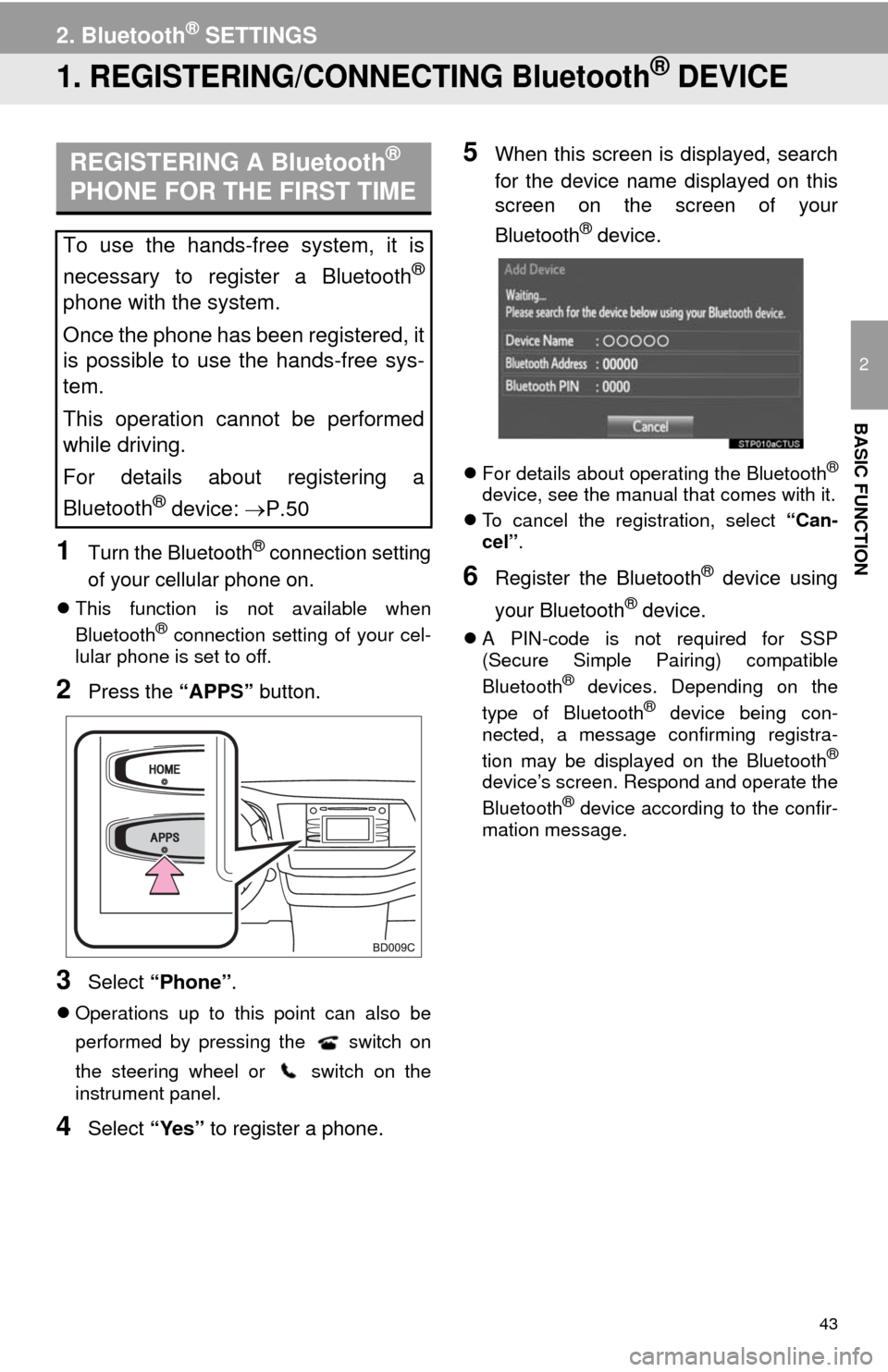
2Press the “APPS” button.
3Select “Phone”.
Operations up to this point can also be
performed by pressing the switch on
the steering wheel or switch on the
instrument panel.
4Select “Yes” to register a phone.
5When this screen is displayed, search
for the device name displayed on this
screen on the screen of your
Bluetooth
® device.
For details about operating the Bluetooth®
device, see the manual that comes with it.
To cancel the registration, select “Can-
cel”.
6Register the Bluetooth® device using
your Bluetooth
® device.
A PIN-code is not required for SSP
(Secure Simple Pairing) compatible
Bluetooth
® devices. Depending on the
type of Bluetooth® device being con-
nected, a message confirming registra-
tion may be displayed on the Bluetooth
®
device’s screen. Respond and operate the
Bluetooth® device according to the confir-
mation message.
REGISTERING A Bluetooth®
PHONE FOR THE FIRST TIME
To use the hands-free system, it is
necessary to register a Bluetooth
®
phone with the system.
Once the phone has been registered, it
is possible to use the hands-free sys-
tem.
This operation cannot be performed
while driving.
For details about registering a
Bluetooth
® device: P.50
Page 45 of 356
45
2. Bluetooth® SETTINGS
2
BASIC FUNCTION
Bluetooth is a registered trademark of Bluetooth SIG, Inc.
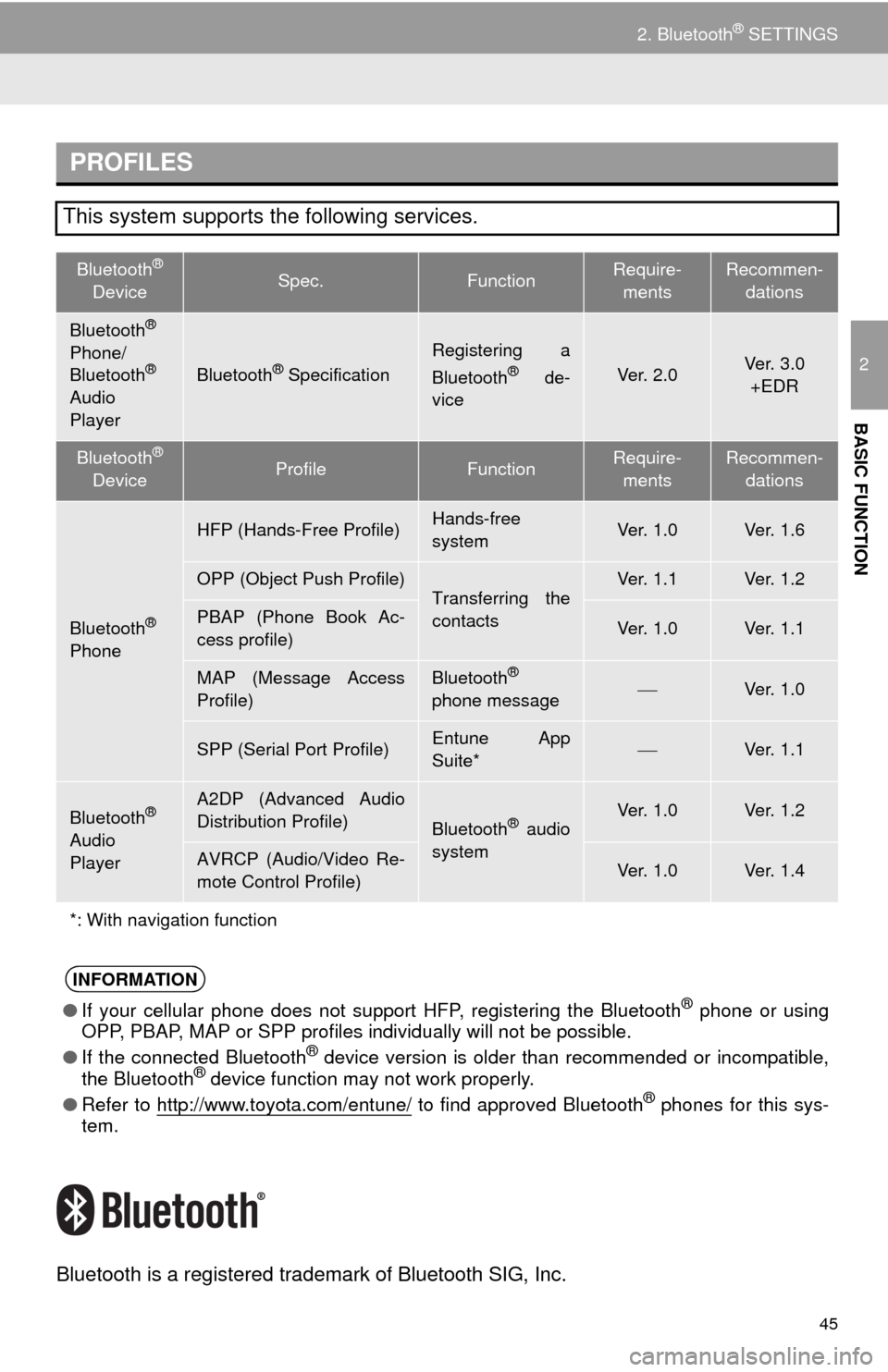
PROFILES
This system supports the following services.
Bluetooth®
DeviceSpec.FunctionRequire-
mentsRecommen-
dations
Bluetooth®
Phone/
Bluetooth®
Audio
PlayerBluetooth® Specification
Registering a
Bluetooth® de-
viceVe r. 2 . 0Ver. 3.0
+EDR
Bluetooth®
DeviceProfileFunctionRequire-
mentsRecommen-
dations
Bluetooth®
Phone
HFP (Hands-Free Profile)Hands-free
systemVe r. 1 . 0Ve r. 1 . 6
OPP (Object Push Profile)Transferring the
contactsVe r. 1 . 1Ve r. 1 . 2
PBAP (Phone Book Ac-
cess profile)Ve r. 1 . 0Ve r. 1 . 1
MAP (Message Access
Profile)Bluetooth®
phone messageVe r. 1 . 0
SPP (Serial Port Profile)Entune App
Suite*Ve r. 1 . 1
Bluetooth®
Audio
Player
A2DP (Advanced Audio
Distribution Profile)
Bluetooth® audio
systemVe r. 1 . 0Ve r. 1 . 2
AVRCP (Audio/Video Re-
mote Control Profile)Ve r. 1 . 0Ve r. 1 . 4
*: With navigation function
INFORMATION
●If your cellular phone does not support HFP, registering the Bluetooth® phone or using
OPP, PBAP, MAP or SPP profiles individually will not be possible.
●If the connected Bluetooth
® device version is older than recommended or incompatible,
the Bluetooth® device function may not work properly.
●Refer to http://www.toyota.com/entune/
to find approved Bluetooth® phones for this sys-
tem.
Page 50 of 356
50
2. Bluetooth® SETTINGS
From the phone/message settings
screen
1Press the “APPS” button.
2Select “Setup”.
3Select “Phone”.
4Select “Connect Phone”.
From the status display
1Select status display area on the
screen.
1Display the “Bluetooth* Setup” screen.
(P.49)
2Select “Add”.
When another Bluetooth
® device is con-
nected
To disconnect the Bluetooth® device,
select “Yes”.
When 5 Bluetooth® devices have al-
ready been registered
A registered device needs to be replaced.
Select “Yes”, and select the device to be
replaced.
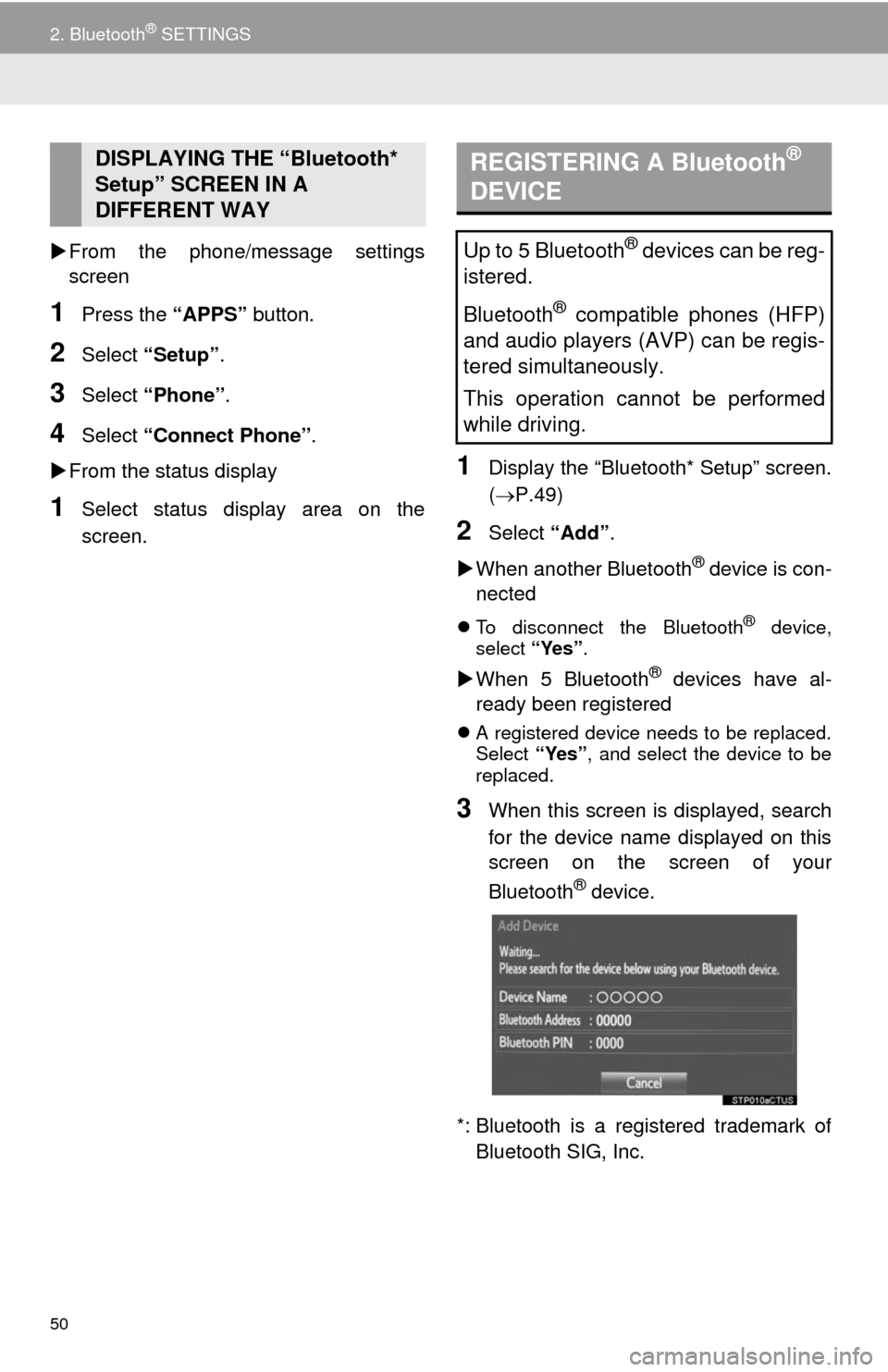
3When this screen is displayed, search
for the device name displayed on this
screen on the screen of your
Bluetooth
® device.
*: Bluetooth is a registered trademark of
Bluetooth SIG, Inc.
DISPLAYING THE “Bluetooth*
Setup” SCREEN IN A
DIFFERENT WAY REGISTERING A Bluetooth®
DEVICE
Up to 5 Bluetooth® devices can be reg-
istered.
Bluetooth
® compatible phones (HFP)
and audio players (AVP) can be regis-
tered simultaneously.
This operation cannot be performed
while driving.
Page 51 of 356
51
2. Bluetooth® SETTINGS
2
BASIC FUNCTION
For details about operating the Bluetooth®
device, see the manual that comes with it.
To cancel the registration, select “Can-
cel”.
4Register the Bluetooth® device using
your Bluetooth
® device.
A PIN-code is not required for SSP
(Secure Simple Pairing) compatible
Bluetooth
® devices. Depending on the
type of Bluetooth® device being con-
nected, a message confirming registra-
tion may be displayed on the Bluetooth
®
device’s screen. Respond and operate the
Bluetooth® device according to the confir-
mation message.
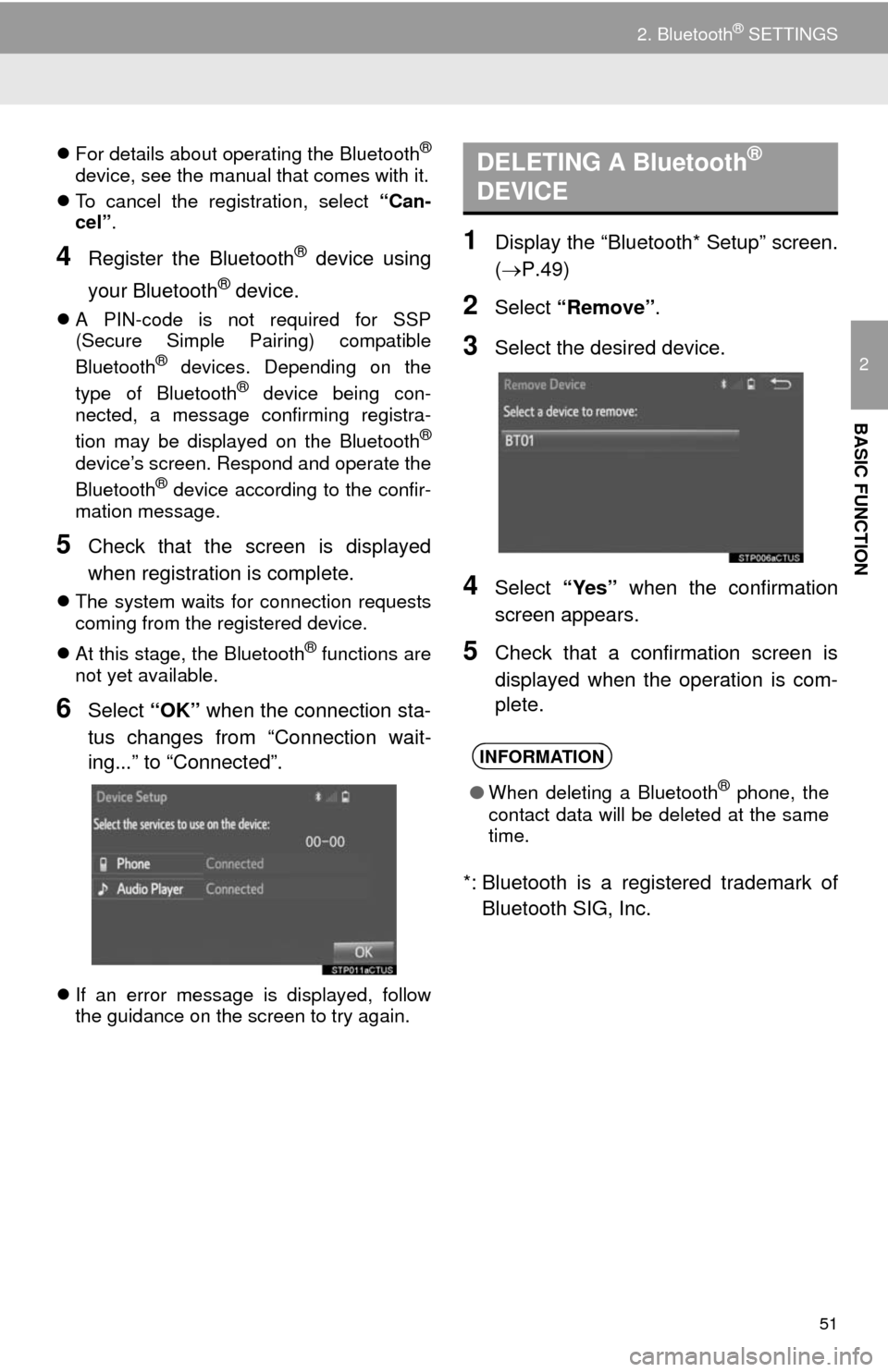
5Check that the screen is displayed
when registration is complete.
The system waits for connection requests
coming from the registered device.
At this stage, the Bluetooth
® functions are
not yet available.
6Select “OK” when the connection sta-
tus changes from “Connection wait-
ing...” to “Connected”.
If an error message is displayed, follow
the guidance on the screen to try again.
1Display the “Bluetooth* Setup” screen.
(P.49)
2Select “Remove”.
3Select the desired device.
4Select “Yes” when the confirmation
screen appears.
5Check that a confirmation screen is
displayed when the operation is com-
plete.
*: Bluetooth is a registered trademark of
Bluetooth SIG, Inc.
DELETING A Bluetooth®
DEVICE
INFORMATION
●When deleting a Bluetooth® phone, the
contact data will be deleted at the same
time.
Page 52 of 356
52
2. Bluetooth® SETTINGS
1Display the “Bluetooth* Setup” screen.
(P.49)
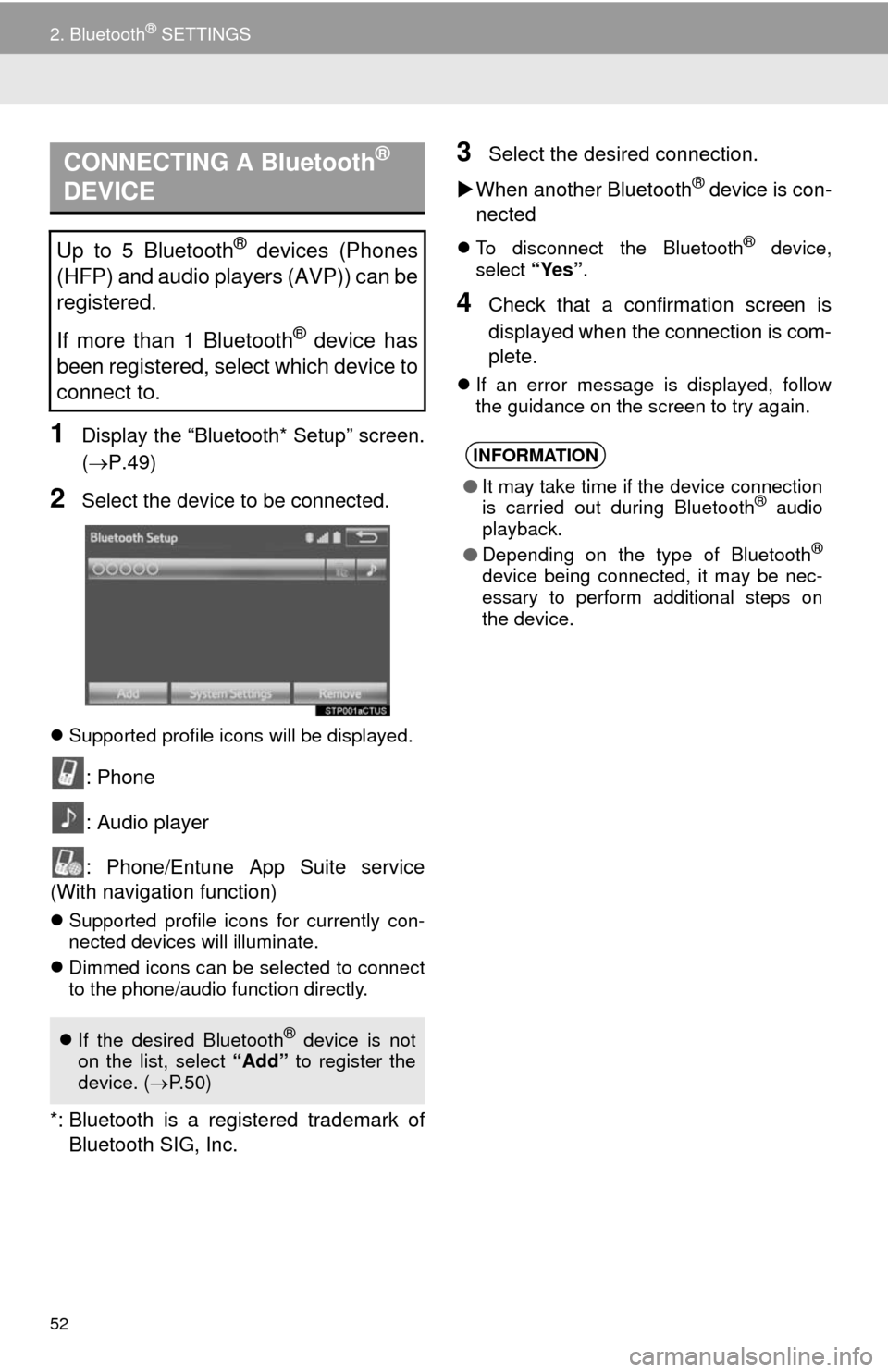
2Select the device to be connected.
Supported profile icons will be displayed.
: Phone
: Audio player
: Phone/Entune App Suite service
(With navigation function)
Supported profile icons for currently con-
nected devices will illuminate.
Dimmed icons can be selected to connect
to the phone/audio function directly.
*: Bluetooth is a registered trademark of
Bluetooth SIG, Inc.
3Select the desired connection.
When another Bluetooth
® device is con-
nected
To disconnect the Bluetooth® device,
select “Yes”.
4Check that a confirmation screen is
displayed when the connection is com-
plete.
If an error message is displayed, follow
the guidance on the screen to try again.
CONNECTING A Bluetooth®
DEVICE
Up to 5 Bluetooth® devices (Phones
(HFP) and audio players (AVP)) can be
registered.
If more than 1 Bluetooth
® device has
been registered, select which device to
connect to.
If the desired Bluetooth® device is not
on the list, select “Add” to register the
device. (P. 5 0 )
INFORMATION
●It may take time if the device connection
is carried out during Bluetooth® audio
playback.
●Depending on the type of Bluetooth
®
device being connected, it may be nec-
essary to perform additional steps on
the device.
Page 53 of 356

53
2. Bluetooth® SETTINGS
2
BASIC FUNCTION
■AUTO CONNECTION MODE
Vehicles without a smart key system
When the engine switch is in the “ACC” or
“ON” position, the system searches for a
nearby registered device.
The system will connect with the regis-
tered device that was last connected, if it
is nearby.
Vehicles with a smart key system
When the engine
ACCESSORY or IGNITION ON
mode, the system searches for a nearby
registered device.
The system will connect with the regis-
tered device that was last connected, if it
is nearby.
■CONNECTING MANUALLY
1Press the “APPS” button and select
“Setup”.
2Select “Bluetooth*”.
3Follow the steps in “CONNECTING A
Bluetooth
® DEVICE” from “STEP 2”.
(P.52)
*: Bluetooth is a registered trademark of
Bluetooth SIG, Inc.
■RECONNECTING THE Bluetooth®
PHONE
If a Bluetooth® phone is disconnected on
purpose, such as turning it off, this does
not happen. Reconnect the Bluetooth
®
phone manually.
To turn auto connection mode on, set
“Bluetooth* Power” to on. (P.55)
Leave the Bluetooth
® device in a loca-
tion where the connection can be es-
tablished.
When the auto connection has failed or
“Bluetooth* Power” is turned off, it is
necessary to connect Bluetooth
® man-
ually.
If a Bluetooth® phone is disconnected
due to poor reception from the
Bluetooth
® network when the engine
system automatically reconnect the
Bluetooth
® phone.
Vehicles without a smart key system
The engine switch is turned to the
“ACC” or “ON” position.
Vehicles with a smart key system
The engine
to ACCESSORY or IGNITION ON
Page 54 of 356
54
2. Bluetooth® SETTINGS
1Display the “Bluetooth* Setup” screen.
(P.49)
2Select the desired device to be edited.
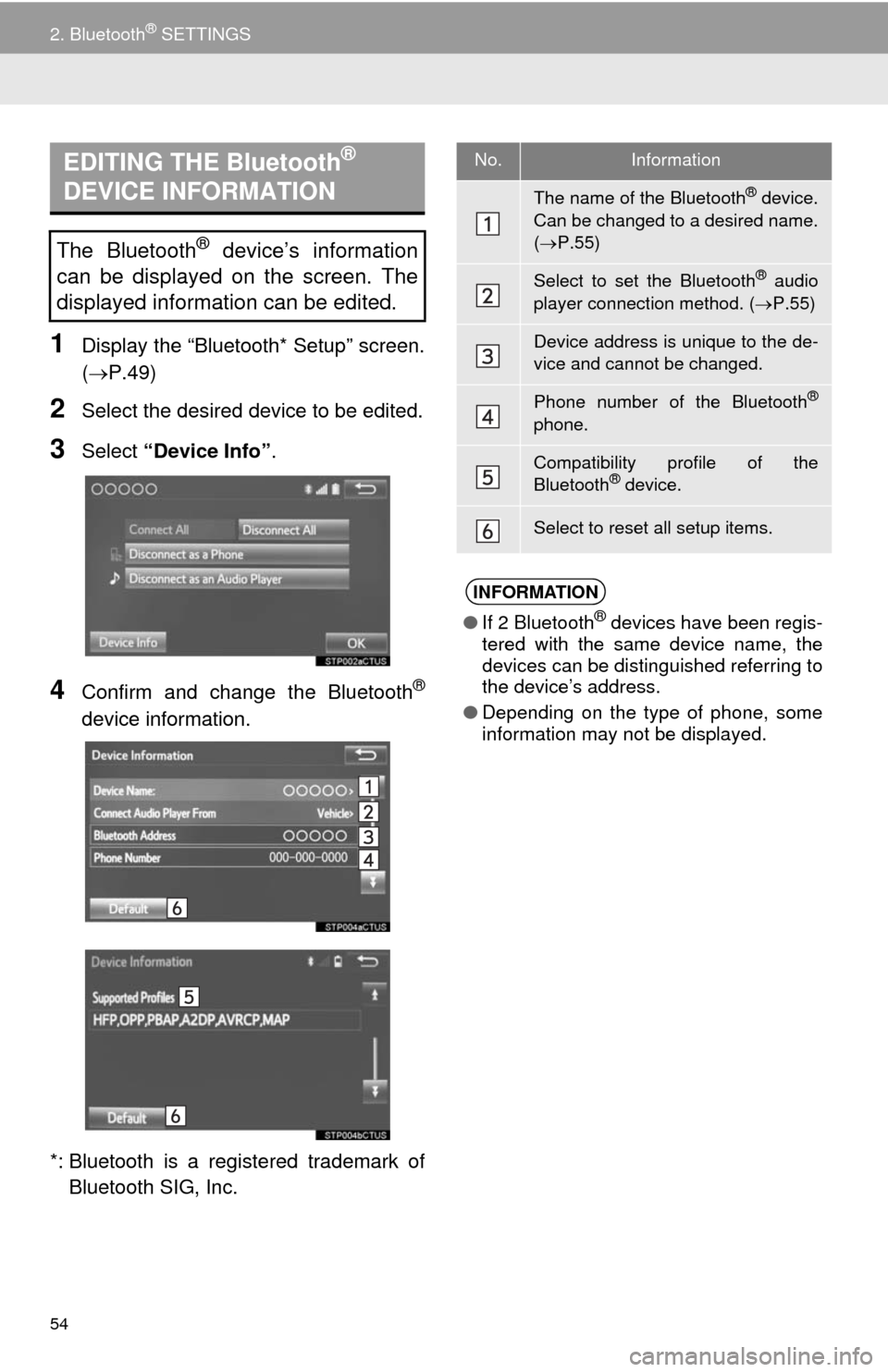
3Select “Device Info”.
4Confirm and change the Bluetooth®
device information.
*: Bluetooth is a registered trademark of
Bluetooth SIG, Inc.
EDITING THE Bluetooth®
DEVICE INFORMATION
The Bluetooth® device’s information
can be displayed on the screen. The
displayed information can be edited.
No.Information
The name of the Bluetooth® device.
Can be changed to a desired name.
(P.55)
Select to set the Bluetooth® audio
player connection method. (P.55)
Device address is unique to the de-
vice and cannot be changed.
Phone number of the Bluetooth®
phone.
Compatibility profile of the
Bluetooth® device.
Select to reset all setup items.
INFORMATION
●If 2 Bluetooth® devices have been regis-
tered with the same device name, the
devices can be distinguished referring to
the device’s address.
●Depending on the type of phone, some
information may not be displayed.
Page 56 of 356
56
2. Bluetooth® SETTINGS
1Select “Bluetooth* Power”.
When “Bluetooth* Power” is on:
Vehicles without a smart key system
The Bluetooth
® device is automatically
connected when the engine switch is
turned to the “ACC” or “ON” position.
Vehicles with a smart key system
The Bluetooth
® device is automatically
connected when the engine
switch is turned to ACCESSORY or IG-
NITION ON
When “Bluetooth* Power” is off:
The Bluetooth
® device is disconnected,
and the system will not connect to it next
time.
1Select “Bluetooth* Name”.
2Enter a name and select “OK”.
1Select “Bluetooth* PIN”.
2Enter a PIN-code and select “OK”.
*: Bluetooth is a registered trademark of
Bluetooth SIG, Inc.
No.InformationPage
Select to set Bluetooth®
connection on/off.56
Displays system name.
Can be changed to a de-
sired name.
56
PIN-code used when the
Bluetooth® device was reg-
istered. Can be changed to
a desired code.56
Device address is unique
to the device and cannot be
changed.
Select to set the phone
connection status display
on/off.
Select to set the connec-
tion status display of the
audio player on/off.
Compatibility profile of the
system device.
Select to reset all setup
items.
CHANGING “Bluetooth*
Power”
INFORMATION
●While driving, the auto connection state
can be changed from off to on, but can-
not be changed from on to off.
EDITING THE Bluetooth* NAME
EDITING THE PIN-CODE
Page 62 of 356
62
3. OTHER SETTINGS
■DELETING TRANSFERRED IMAG-
ES
1Display the “General Settings” screen.
(P.57)
2Select “Customize Startup Image” or
“Customize Screen Off Image”.
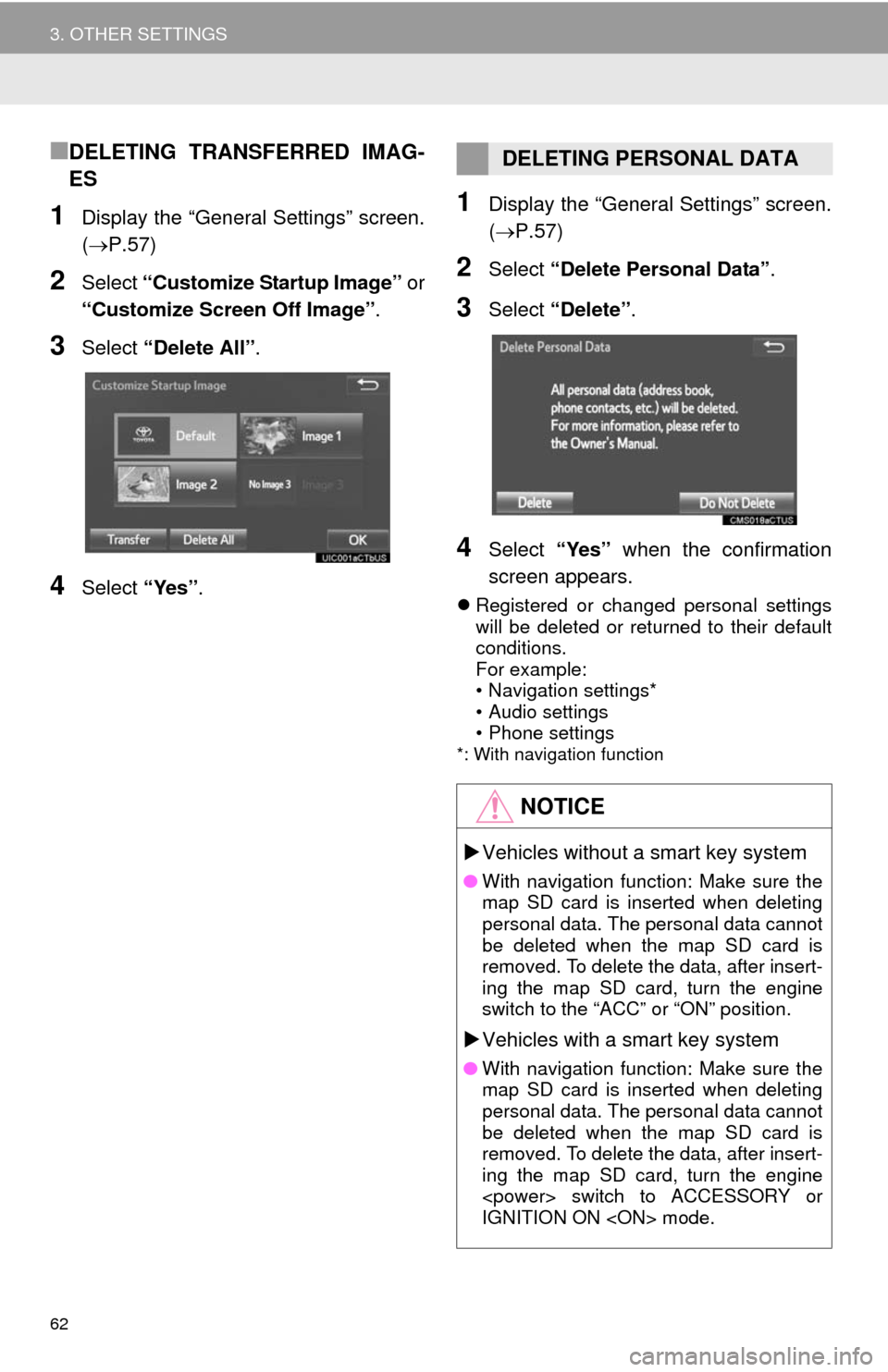
3Select “Delete All”.
4Select “Yes”.
1Display the “General Settings” screen.
(P.57)
2Select “Delete Personal Data”.
3Select “Delete”.
4Select “Yes” when the confirmation
screen appears.
Registered or changed personal settings
will be deleted or returned to their default
conditions.
For example:
• Navigation settings*
• Audio settings
• Phone settings
*: With navigation function
DELETING PERSONAL DATA
NOTICE
Vehicles without a smart key system
●With navigation function: Make sure the
map SD card is inserted when deleting
personal data. The personal data cannot
be deleted when the map SD card is
removed. To delete the data, after insert-
ing the map SD card, turn the engine
switch to the “ACC” or “ON” position.
Vehicles with a smart key system
●With navigation function: Make sure the
map SD card is inserted when deleting
personal data. The personal data cannot
be deleted when the map SD card is
removed. To delete the data, after insert-
ing the map SD card, turn the engine
IGNITION ON
Page 64 of 356
64
3. OTHER SETTINGS
3. DRIVER SETTINGS
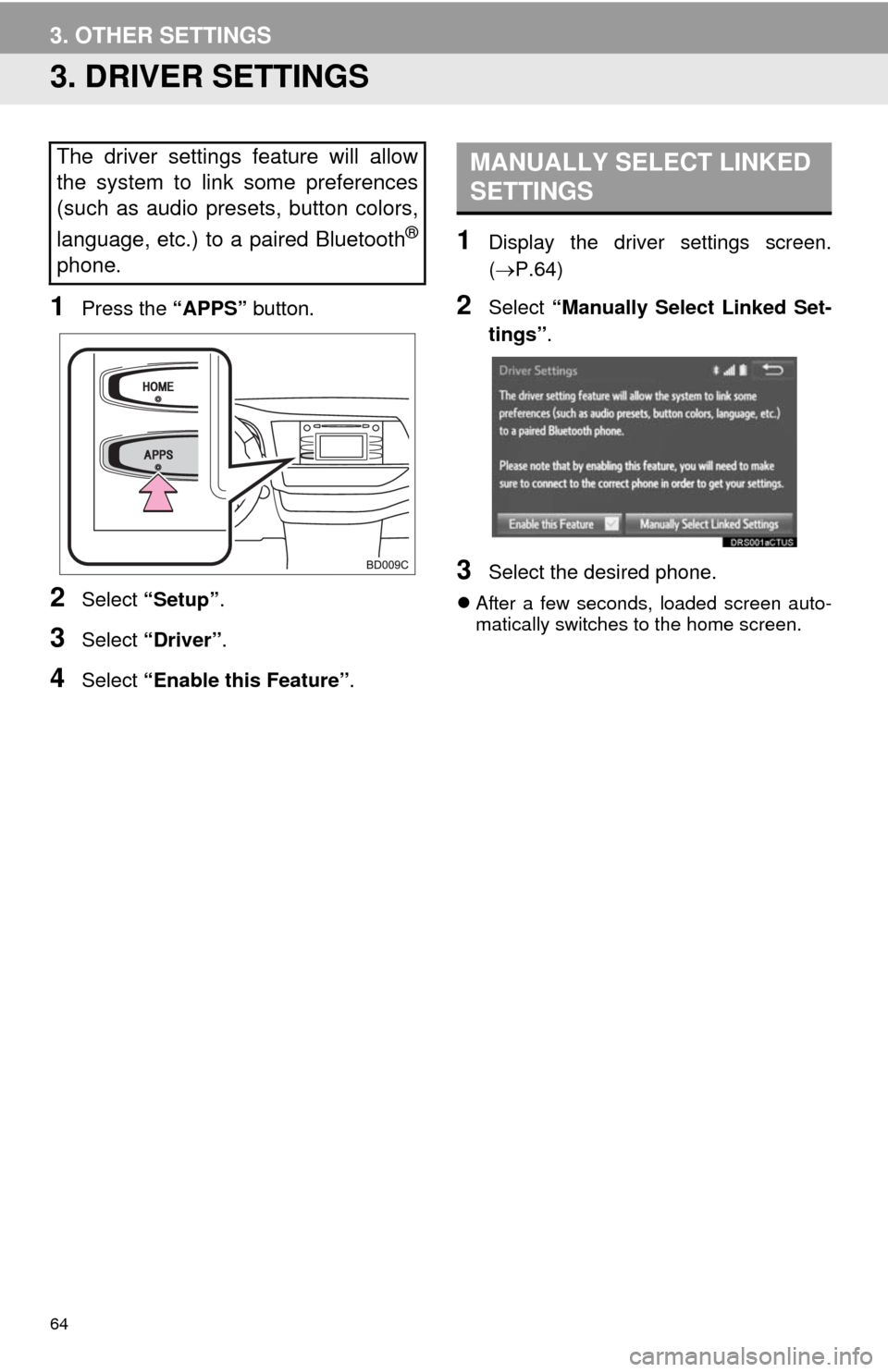
1Press the “APPS” button.
2Select “Setup”.
3Select “Driver”.
4Select “Enable this Feature”.
1Display the driver settings screen.
(P.64)
2Select “Manually Select Linked Set-
tings”.
3Select the desired phone.
After a few seconds, loaded screen auto-
matically switches to the home screen.
The driver settings feature will allow
the system to link some preferences
(such as audio presets, button colors,
language, etc.) to a paired Bluetooth
®
phone.
MANUALLY SELECT LINKED
SETTINGS