navigation system TOYOTA HIGHLANDER 2018 Accessories, Audio & Navigation (in English)
[x] Cancel search | Manufacturer: TOYOTA, Model Year: 2018, Model line: HIGHLANDER, Model: TOYOTA HIGHLANDER 2018Pages: 392, PDF Size: 7.19 MB
Page 341 of 392
341
3. ROUTE GUIDANCE
HIGHLANDER_Navi_U
NAVIGATION SYSTEM
8
1Display the “Edit Route” screen.
(→P.339)
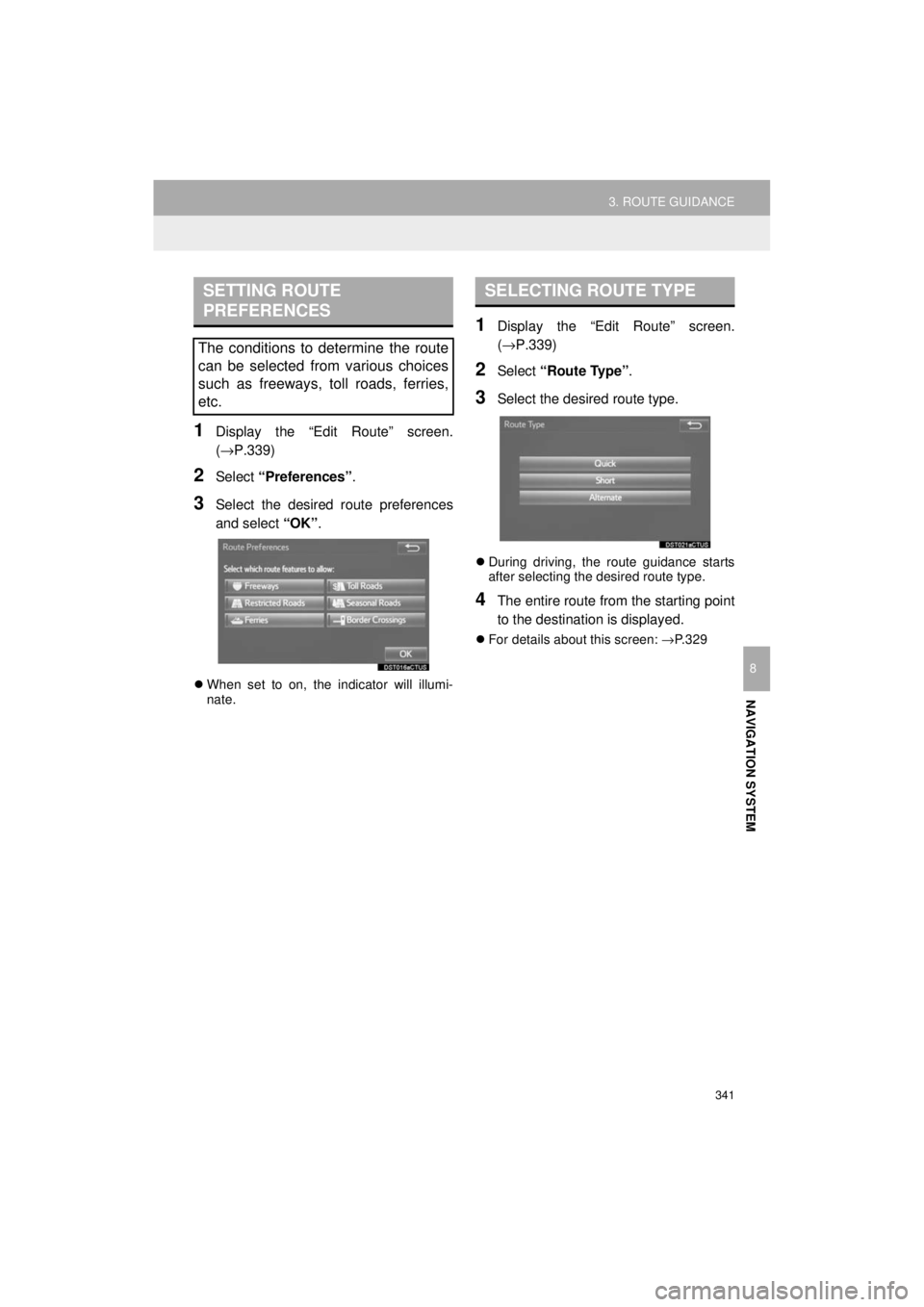
2Select “Preferences” .
3Select the desired route preferences
and select “OK”.
When set to on, the indicator will illumi-
nate.
1Display the “Edit Route” screen.
(→P.339)
2Select “Route Type” .
3Select the desired route type.
During driving, the route guidance starts
after selecting the desired route type.
4The entire route from the starting point
to the destination is displayed.
For details about this screen: →P.329
SETTING ROUTE
PREFERENCES
The conditions to determine the route
can be selected from various choices
such as freeways, toll roads, ferries,
etc.
SELECTING ROUTE TYPE
Page 343 of 392
343
3. ROUTE GUIDANCE
HIGHLANDER_Navi_U
NAVIGATION SYSTEM
8
INFORMATION
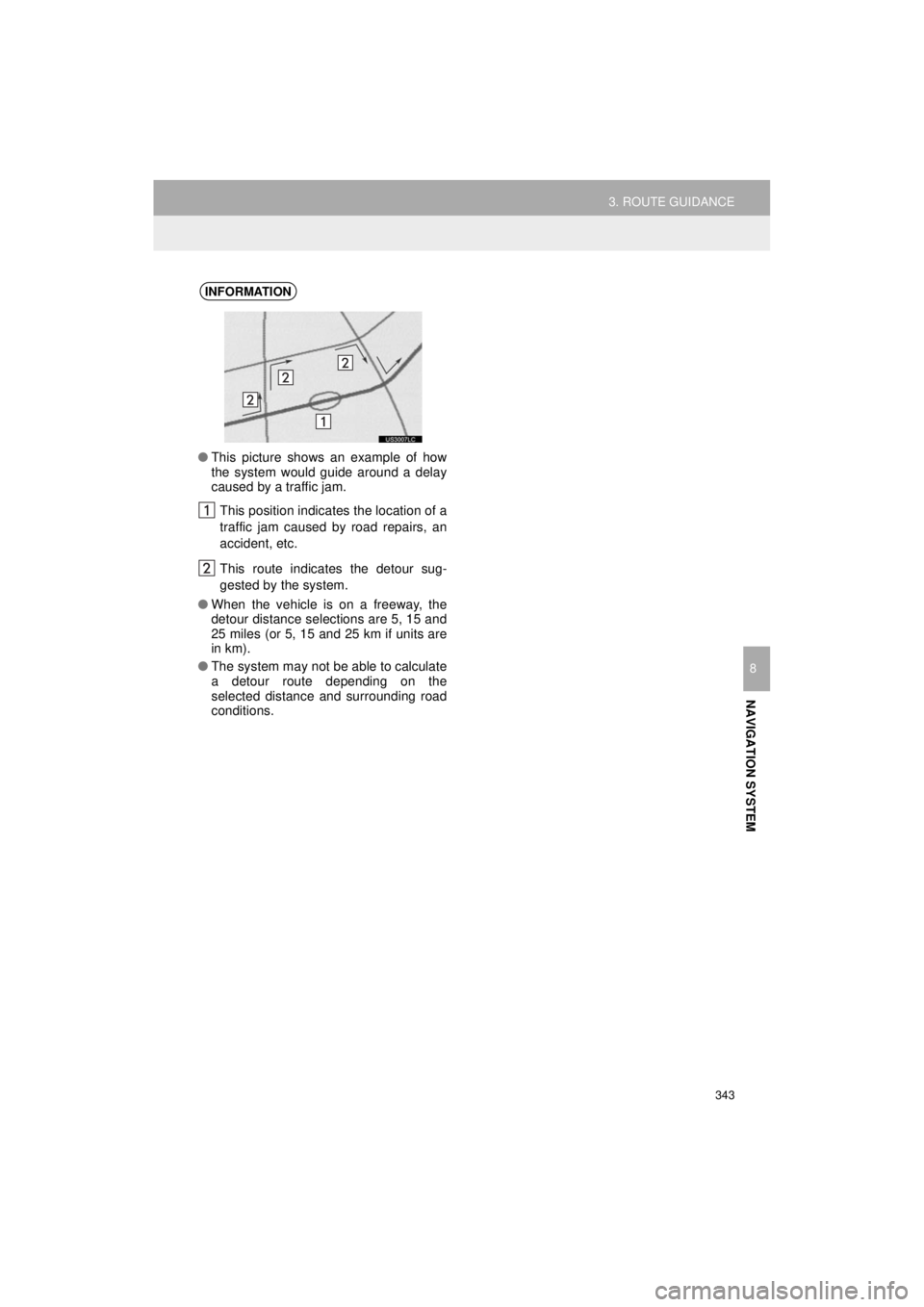
●This picture shows an example of how
the system would guide around a delay
caused by a traffic jam.
This position indicates the location of a
traffic jam caused by road repairs, an
accident, etc.
This route indicates the detour sug-
gested by the system.
● When the vehicle is on a freeway, the
detour distance selections are 5, 15 and
25 miles (or 5, 15 and 25 km if units are
in km).
● The system may not be able to calculate
a detour route depending on the
selected distance and surrounding road
conditions.
Page 344 of 392
344
HIGHLANDER_Navi_U
4. MEMORY POINTS
1. MEMORY POINTS SETTINGS
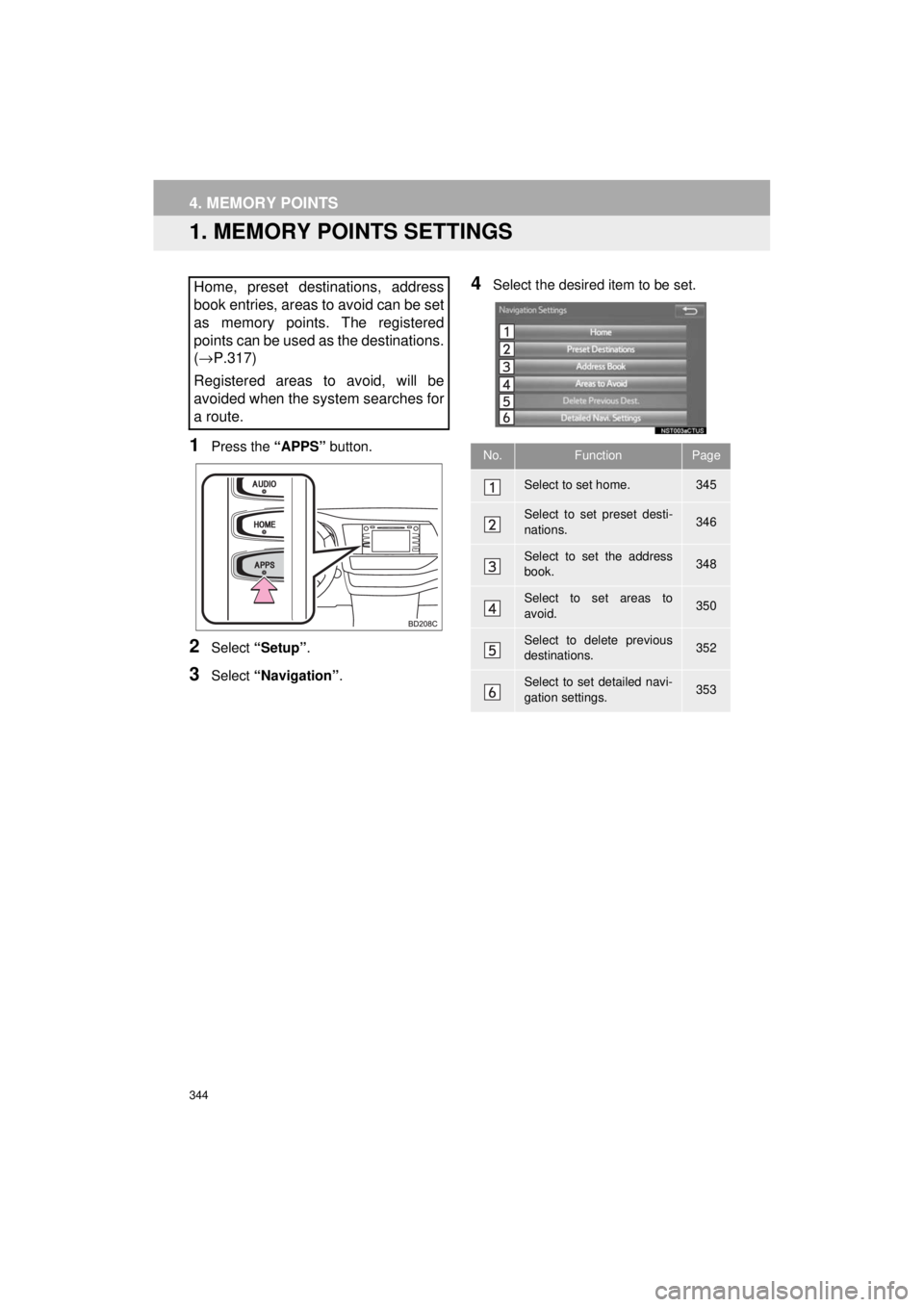
1Press the “APPS” button.
2Select “Setup” .
3Select “Navigation” .
4Select the desired item to be set.Home, preset destinations, address
book entries, areas to avoid can be set
as memory points. The registered
points can be used as the destinations.
(→ P.317)
Registered areas to avoid, will be
avoided when the system searches for
a route.
No.FunctionPage
Select to set home.345
Select to set preset desti-
nations.346
Select to set the address
book.348
Select to set areas to
avoid.350
Select to delete previous
destinations.352
Select to set detailed navi-
gation settings.353
Page 345 of 392
345
4. MEMORY POINTS
HIGHLANDER_Navi_U
NAVIGATION SYSTEM
8
1Display the “Navigation Settings”
screen. (→P.344)
2Select “Home” .
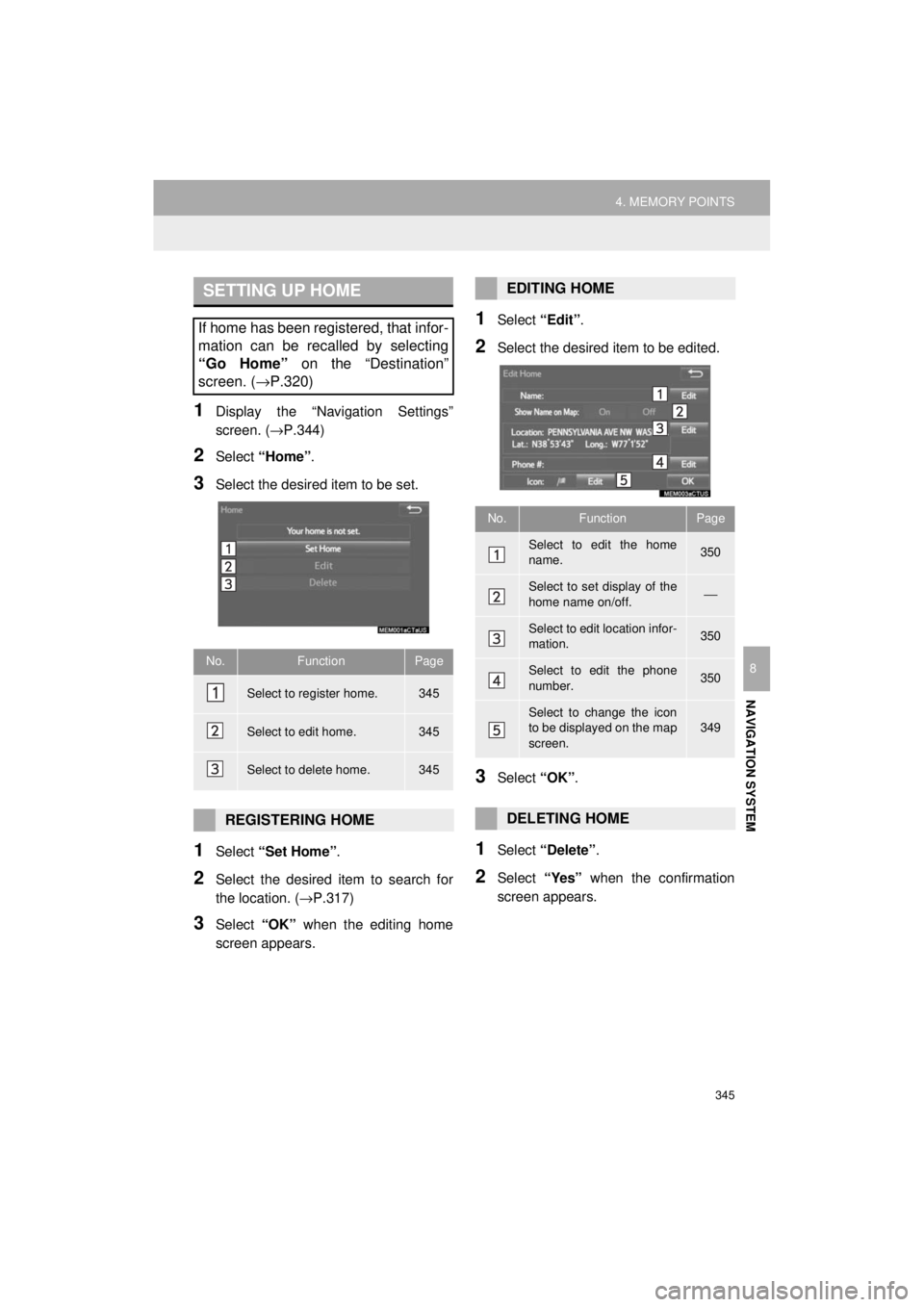
3Select the desired item to be set.
1Select “Set Home” .
2Select the desired item to search for
the location. ( →P.317)
3Select “OK” when the editing home
screen appears.
1Select “Edit”.
2Select the desired item to be edited.
3Select “OK”.
1Select “Delete” .
2Select “Yes” when the confirmation
screen appears.
SETTING UP HOME
If home has been registered, that infor-
mation can be recalled by selecting
“Go Home” on the “Destination”
screen. ( →P.320)
No.FunctionPage
Select to register home.345
Select to edit home.345
Select to delete home.345
REGISTERING HOME
EDITING HOME
No.FunctionPage
Select to edit the home
name.350
Select to set display of the
home name on/off.⎯
Select to edit location infor-
mation.350
Select to edit the phone
number.350
Select to change the icon
to be displayed on the map
screen.349
DELETING HOME
Page 347 of 392
347
4. MEMORY POINTS
HIGHLANDER_Navi_U
NAVIGATION SYSTEM
8
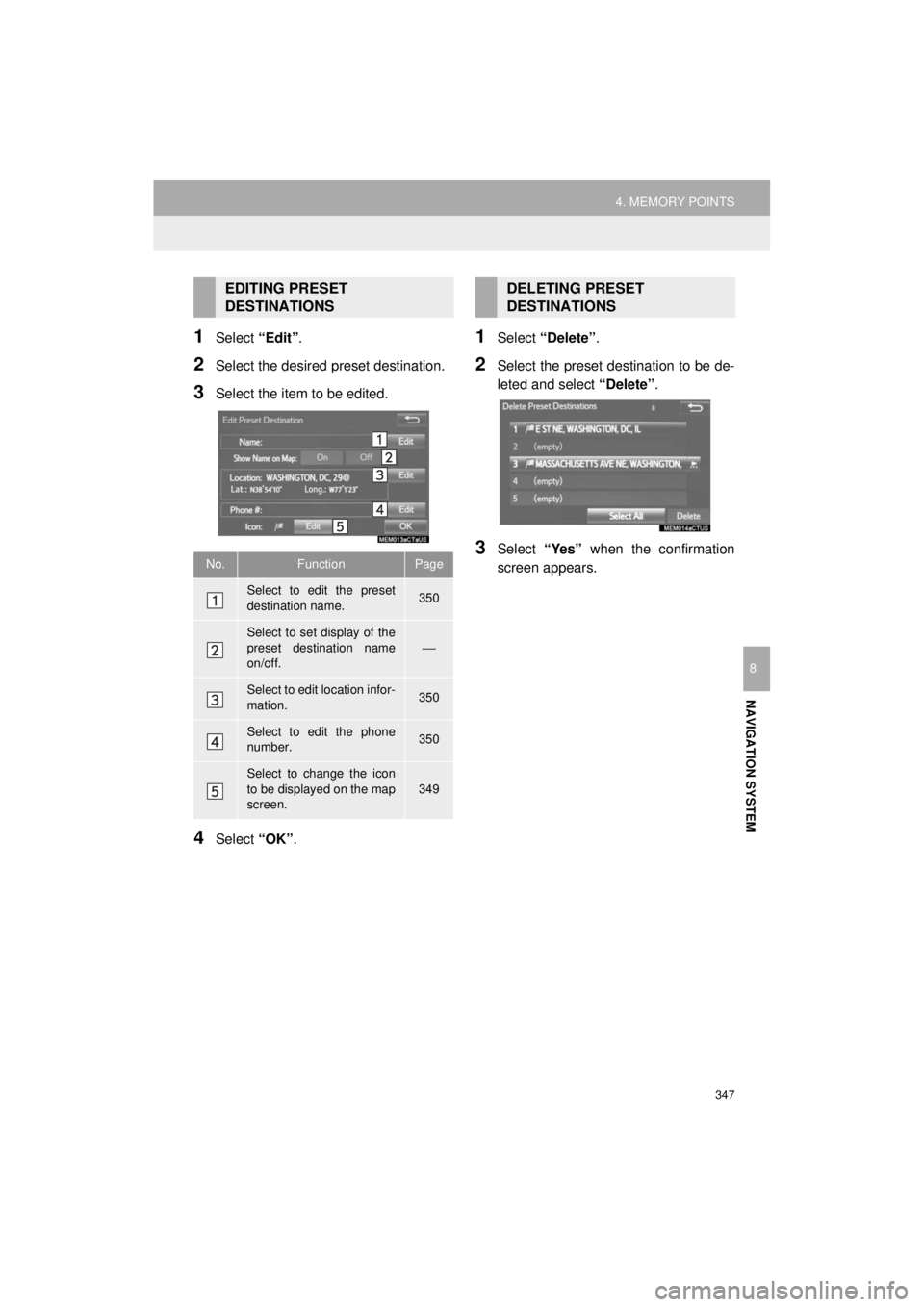
1Select “Edit”.
2Select the desired preset destination.
3Select the item to be edited.
4Select “OK”.
1Select “Delete” .
2Select the preset destination to be de-
leted and select “Delete”.
3Select “Yes” when the confirmation
screen appears.
EDITING PRESET
DESTINATIONS
No.FunctionPage
Select to edit the preset
destination name.350
Select to set display of the
preset destination name
on/off.
⎯
Select to edit location infor-
mation.350
Select to edit the phone
number.350
Select to change the icon
to be displayed on the map
screen.
349
DELETING PRESET
DESTINATIONS
Page 349 of 392
349
4. MEMORY POINTS
HIGHLANDER_Navi_U
NAVIGATION SYSTEM
8
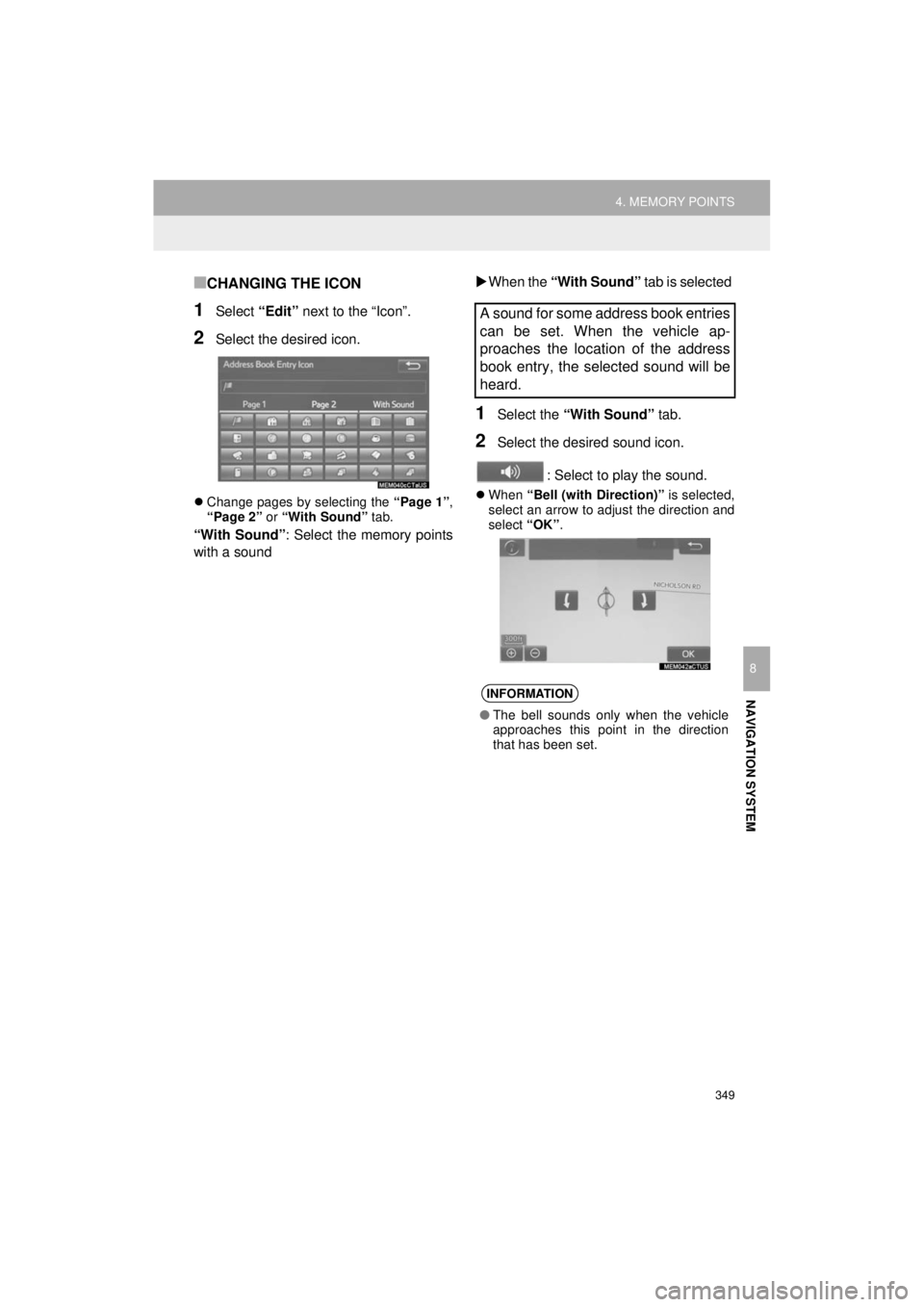
■CHANGING THE ICON
1Select “Edit” next to the “Icon”.
2Select the desired icon.
Change pages by selecting the “Page 1”,
“Page 2” or “With Sound” tab.
“With Sound” : Select the memory points
with a sound
When the “With Sound” tab is selected
1Select the “With Sound” tab.
2Select the desired sound icon.
: Select to play the sound.
When “Bell (with Direction)” is selected,
select an arrow to adjust the direction and
select “OK”.
A sound for some address book entries
can be set. When the vehicle ap-
proaches the location of the address
book entry, the selected sound will be
heard.
INFORMATION
●The bell sounds only when the vehicle
approaches this point in the direction
that has been set.
Page 351 of 392
351
4. MEMORY POINTS
HIGHLANDER_Navi_U
NAVIGATION SYSTEM
8
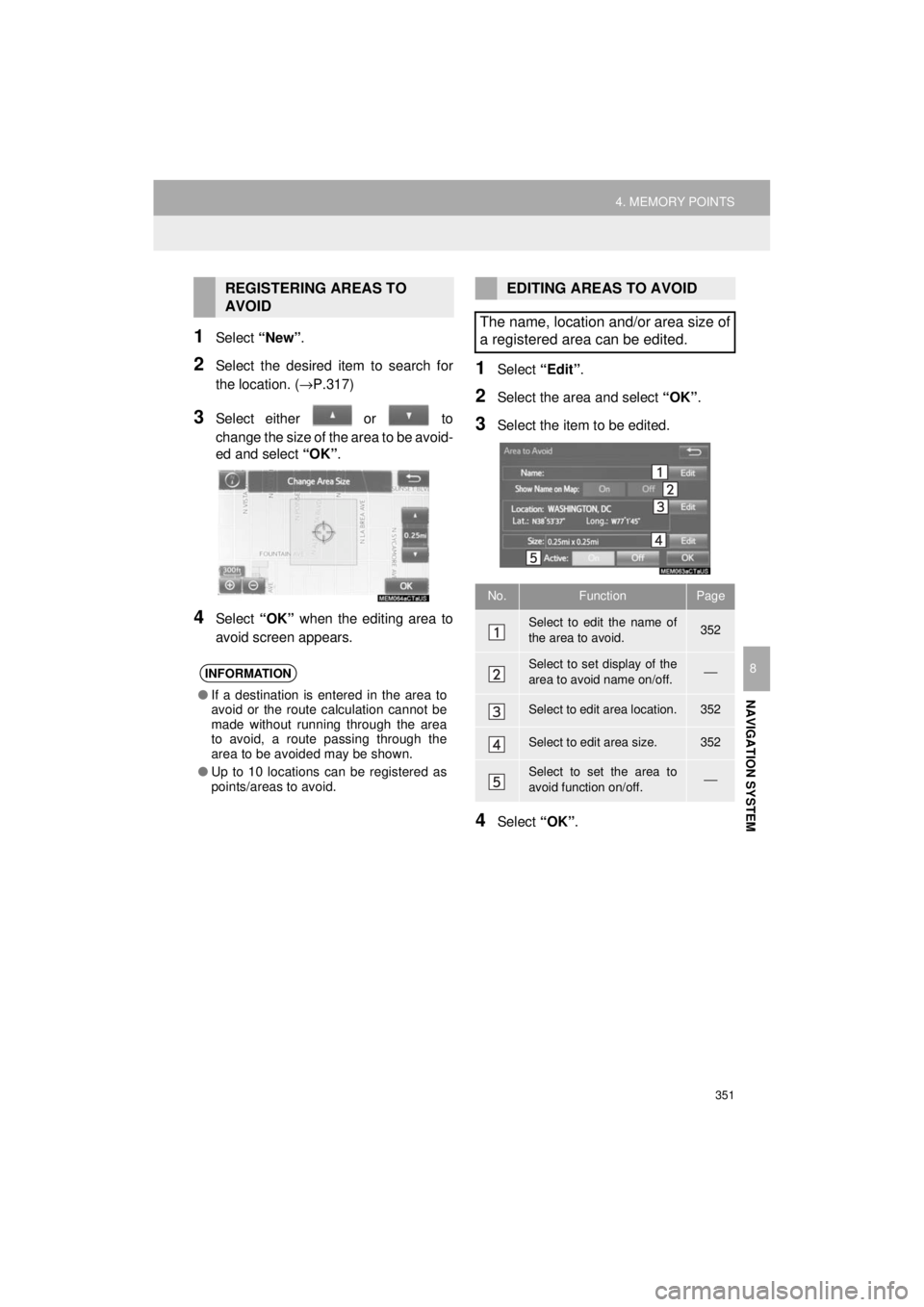
1Select “New”.
2Select the desired item to search for
the location. ( →P.317)
3Select either or to
change the size of the area to be avoid-
ed and select “OK”.
4Select “OK” when the editing area to
avoid screen appears.
1Select “Edit”.
2Select the area and select “OK”.
3Select the item to be edited.
4Select “OK”.
REGISTERING AREAS TO
AVOID
INFORMATION
●If a destination is entered in the area to
avoid or the route calculation cannot be
made without running through the area
to avoid, a route passing through the
area to be avoided may be shown.
● Up to 10 locations can be registered as
points/areas to avoid.
EDITING AREAS TO AVOID
The name, location and/or area size of
a registered area can be edited.
No.FunctionPage
Select to edit the name of
the area to avoid.352
Select to set display of the
area to avoid name on/off.⎯
Select to edit area location.352
Select to edit area size.352
Select to set the area to
avoid function on/off.⎯
Page 353 of 392
353
HIGHLANDER_Navi_U
NAVIGATION SYSTEM
8
5. SETUP
1. DETAILED NAVIGATION SETTINGS
1Press the “APPS” button.
2Select “Setup” .
3Select “Navigation” .
4Select “Detailed Navi. Settings” .
5Select the items to be set.
6Select “OK”.
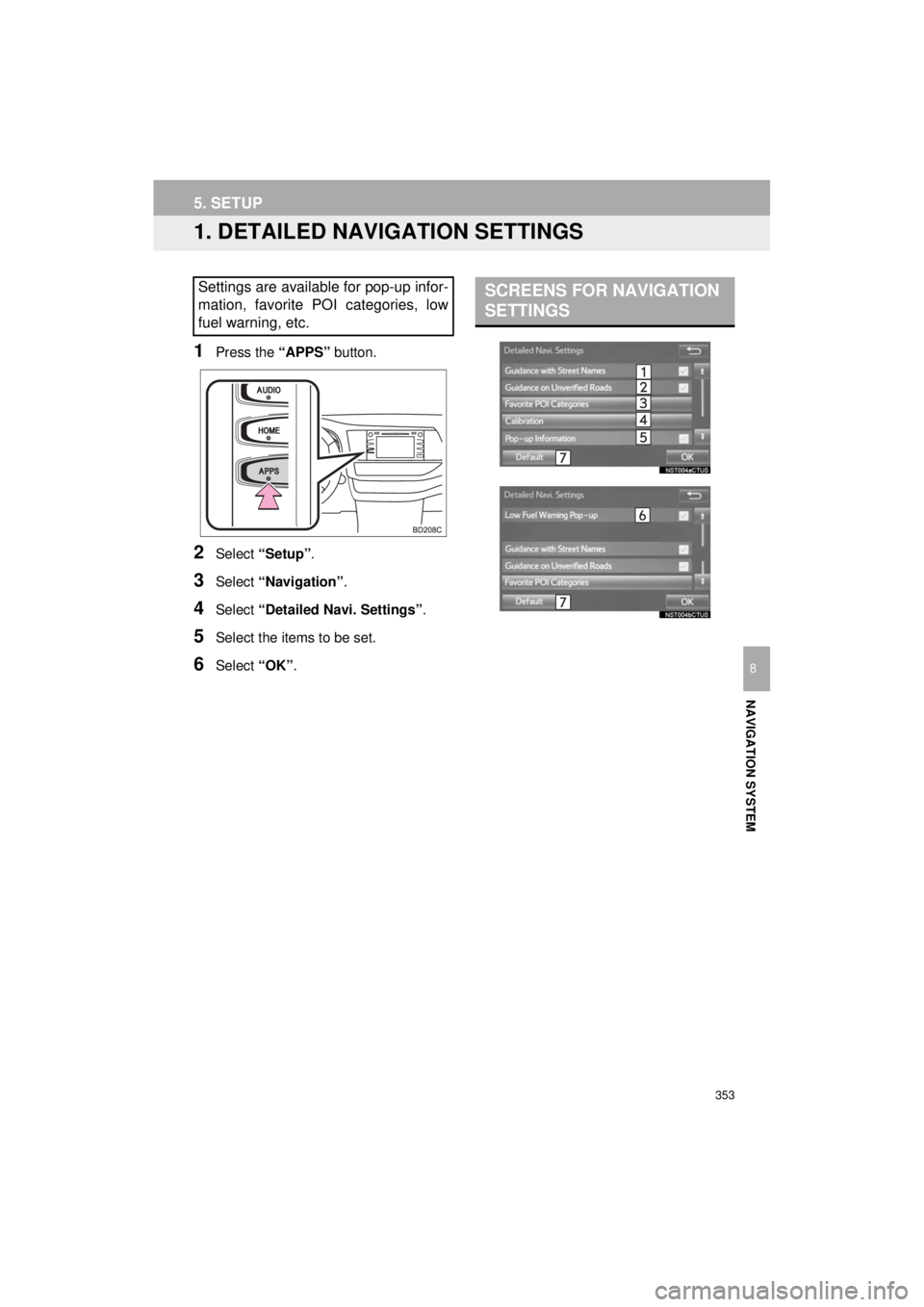
Settings are available for pop-up infor-
mation, favorite POI categories, low
fuel warning, etc.SCREENS FOR NAVIGATION
SETTINGS
Page 355 of 392
355
5. SETUP
HIGHLANDER_Navi_U
NAVIGATION SYSTEM
8
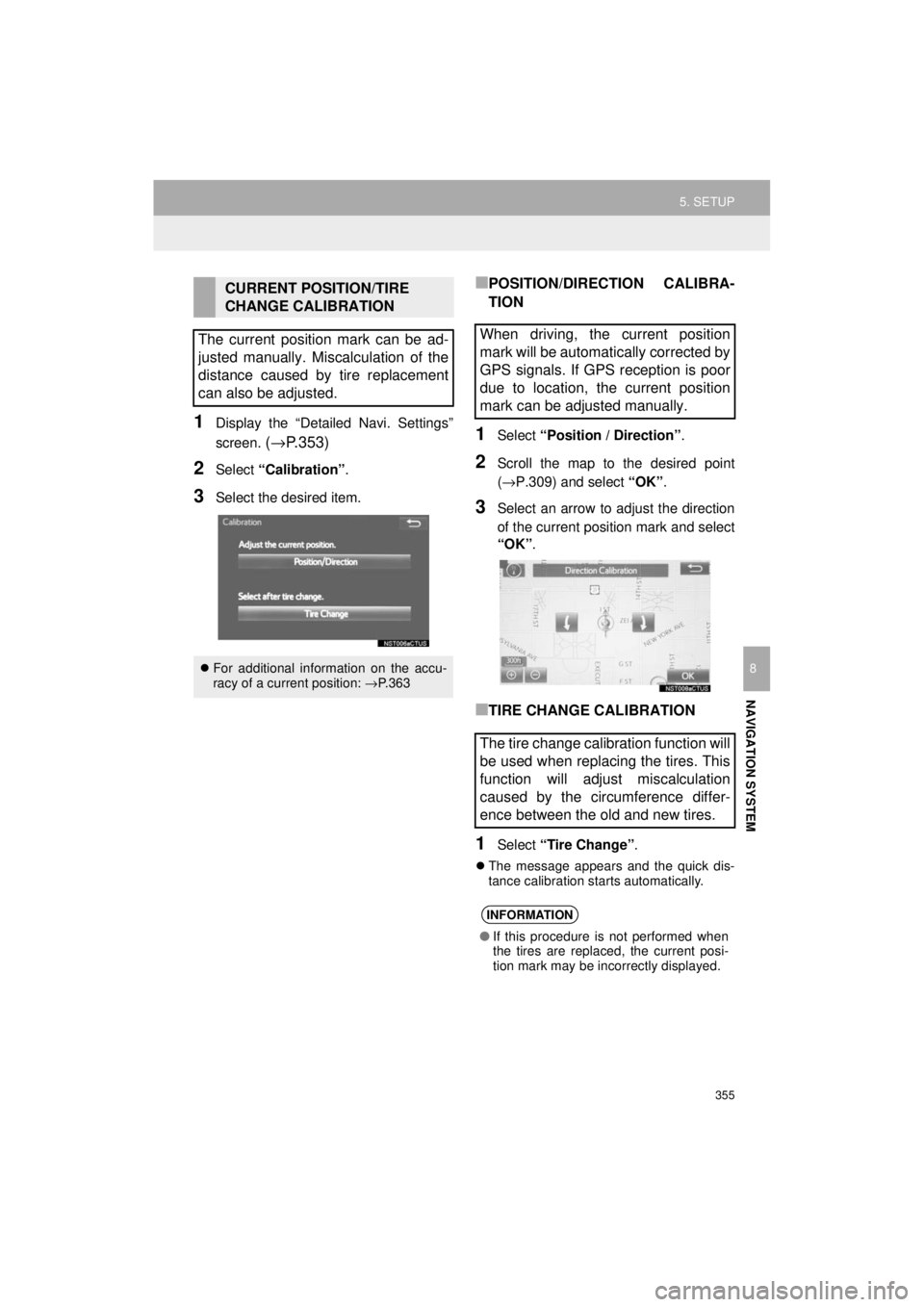
1Display the “Detailed Navi. Settings”
screen.
(→ P.353)
2Select “Calibration” .
3Select the desired item.
■POSITION/DIRECTION CALIBRA-
TION
1Select “Position / Direction” .
2Scroll the map to the desired point
(→P.309) and select “OK”.
3Select an arrow to adjust the direction
of the current position mark and select
“OK”.
■TIRE CHANGE CALIBRATION
1Select “Tire Change” .
The message appears and the quick dis-
tance calibration starts automatically.
CURRENT POSITION/TIRE
CHANGE CALIBRATION
The current position mark can be ad-
justed manually. Miscalculation of the
distance caused by tire replacement
can also be adjusted.
For additional information on the accu-
racy of a current position: →P. 3 6 3
When driving, the current position
mark will be automatically corrected by
GPS signals. If GPS reception is poor
due to location, the current position
mark can be adjusted manually.
The tire change calibration function will
be used when replacing the tires. This
function will adjust miscalculation
caused by the circumference differ-
ence between the old and new tires.
INFORMATION
● If this procedure is not performed when
the tires are replaced, the current posi-
tion mark may be incorrectly displayed.
Page 357 of 392
357
5. SETUP
HIGHLANDER_Navi_U
NAVIGATION SYSTEM
8
2. TRAFFIC SETTINGS
1Press the “APPS” button.
2Select “Setup” .
3Select “Traffic” .
4Select the items to be set.
5Select “OK”.
Traffic information such as traffic con-
gestion or traffic incident warnings can
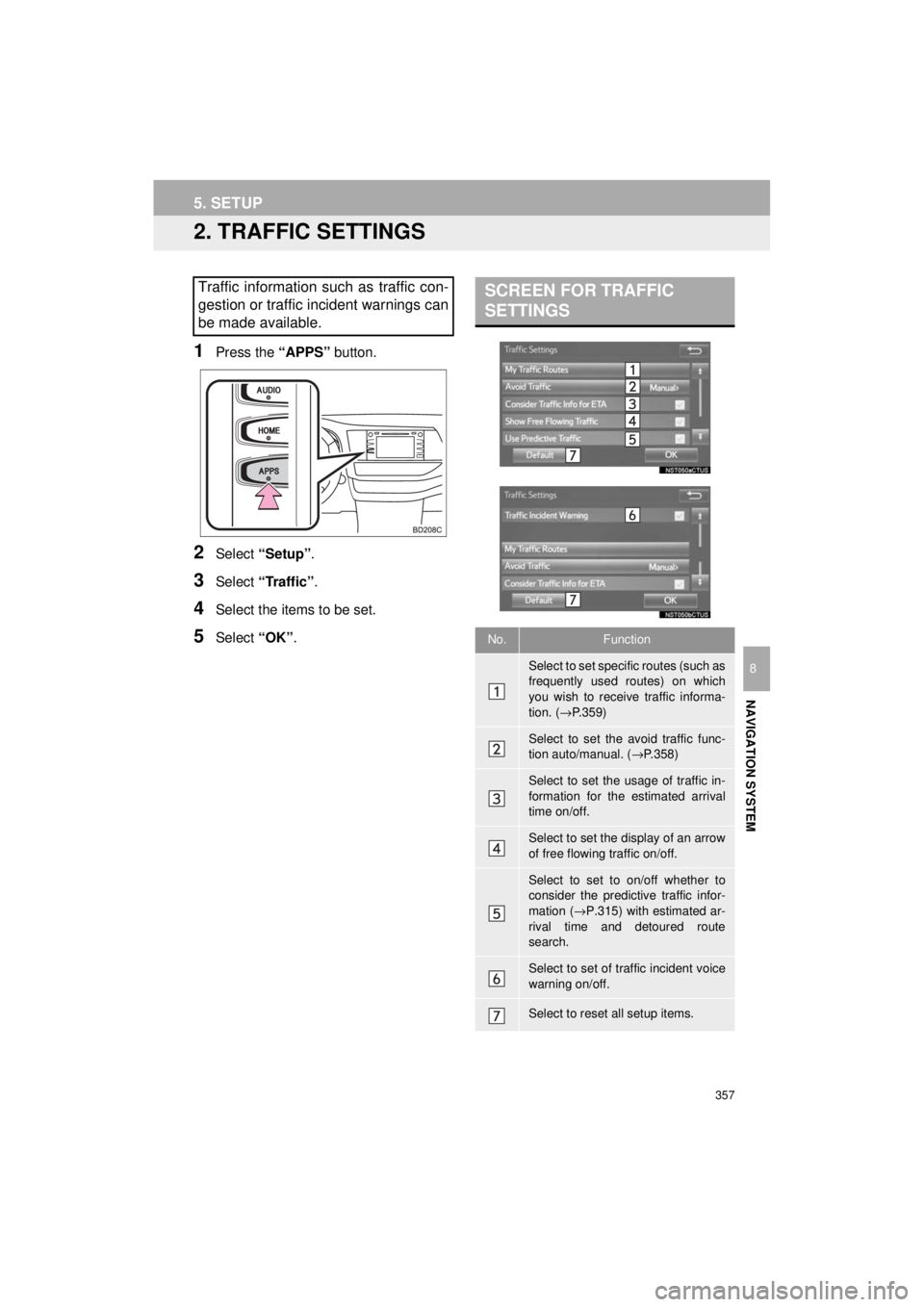
be made available. SCREEN FOR TRAFFIC
SETTINGS
No.Function
Select to set specific routes (such as
frequently used routes) on which
you wish to receive traffic informa-
tion. ( →P.359)
Select to set the avoid traffic func-
tion auto/manual. ( →P.358)
Select to set the usage of traffic in-
formation for the estimated arrival
time on/off.
Select to set the display of an arrow
of free flowing traffic on/off.
Select to set to on/off whether to
consider the predictive traffic infor-
mation ( →P.315) with estimated ar-
rival time and detoured route
search.
Select to set of traffic incident voice
warning on/off.
Select to reset all setup items.