display TOYOTA HIGHLANDER 2020 (in English) Owner's Guide
[x] Cancel search | Manufacturer: TOYOTA, Model Year: 2020, Model line: HIGHLANDER, Model: TOYOTA HIGHLANDER 2020Pages: 72, PDF Size: 11.32 MB
Page 58 of 72
56
TOYOTA SAFETY SENSE™
ADJUSTING DISTANCE (CONTINUED)
Note: When your vehicle is too close to a vehicle ahead, and sufficient automatic
deceleration via the cruise control is not possible, the display will flash and the
buzzer will sound to alert the driver. An example of this would be if another driver
cuts in front of you while you are following a vehicle. Depress the brake pedal to
ensure an appropriate vehicle-to-vehicle distance.
(3) Acceleration when there are no longer any preceding vehicles driving
slower than the set speed The system accelerates until the set speed is reached. The system then
returns to constant speed cruising.
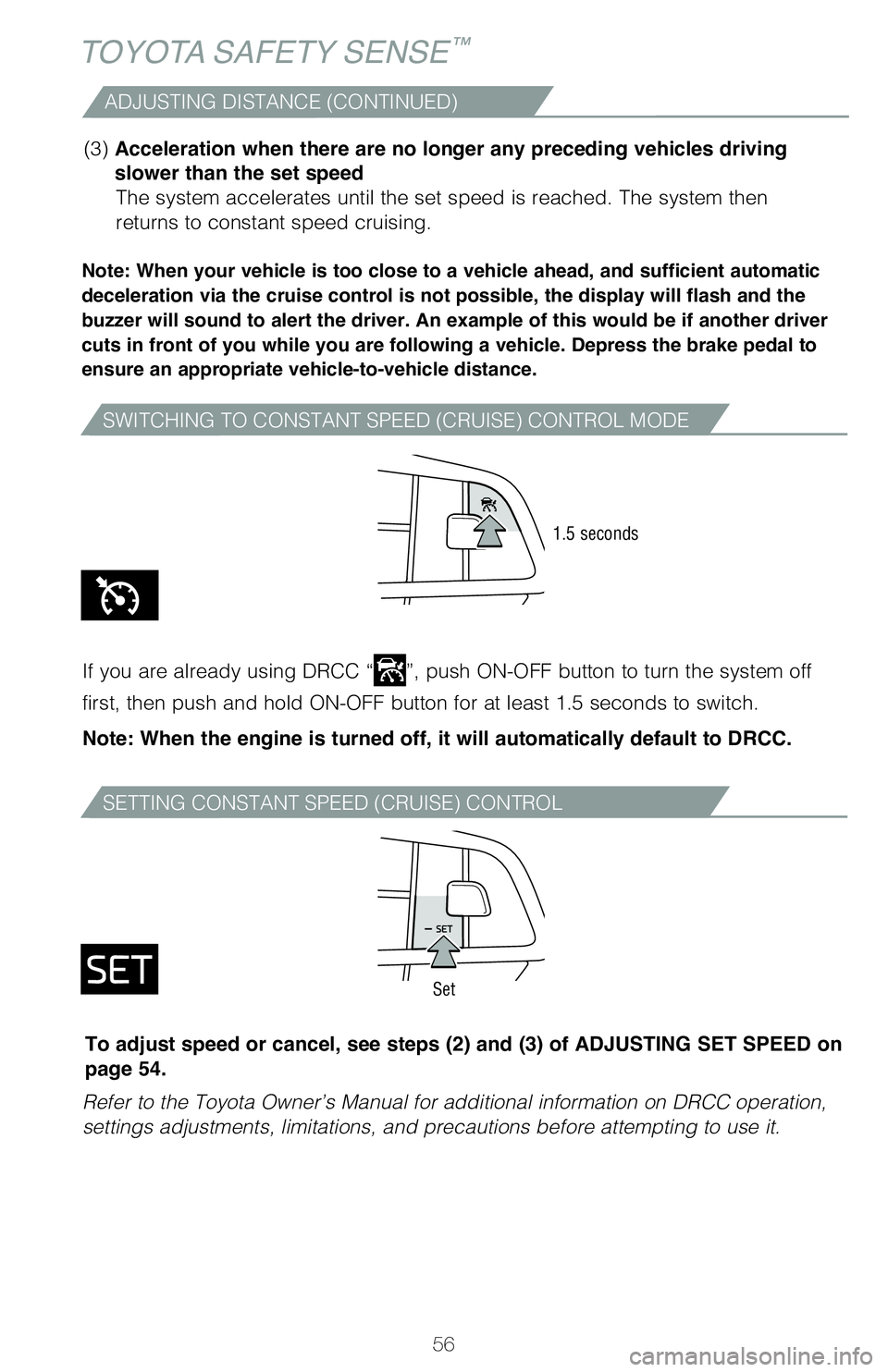
SWITCHING TO CONSTANT SPEED (CRUISE) CONTROL MODE
SETTING CONSTANT SPEED (CRUISE) CONTROL
If you are already using DRCC “”, push ON-OFF button to turn the system off
first, then push and hold ON-OFF button for at least 1.5 seconds to switch.
Note: When the engine is turned off, it will automatically default to DRCC.
Refer to the Toyota Owner’s Manual for additional information on DRCC operation,
settings adjustments, limitations, and precautions before attempting to use it.
1.5 seconds
Set
To adjust speed or cancel, see steps (2) and (3) of ADJUSTING SET SPEED on
page 54.
63195a_MY20 Highlander.indd 5611/18/19 8:13 AM
Page 60 of 72
58
TOYOTA SAFETY SENSE™
Road Sign Assist (RSA)
Road Sign Assist is designed to help ensure drivers are kept informed. The RSA
system recognizes specific road signs using a forward-facing intelligent camera to
provide information to the driver via a Multi-information Display (MID). If the system
judges that the vehicle is being driven over the speed limit, or performing actions
prohibited by other support types of road signs, it alerts the driver using a warning
display and may sound a warning buzzer.
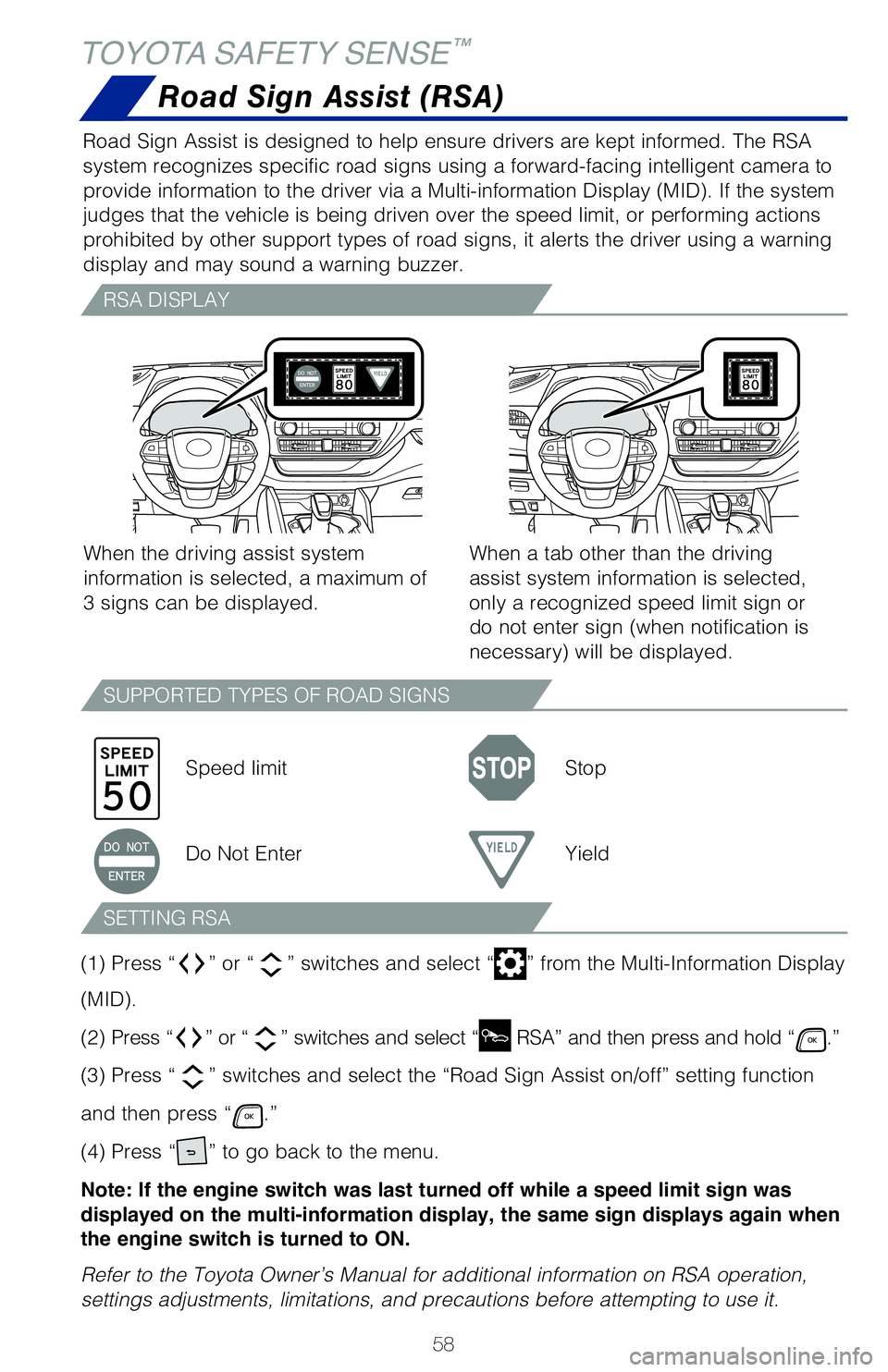
RSA DISPLAY
SUPPORTED TYPES OF ROAD SIGNS
SETTING RSA
When the driving assist system
information is selected, a maximum of
3 signs can be displayed.
Speed limit Stop
Do Not Enter Yield
When a tab other than the driving
assist system information is selected,
only a recognized speed limit sign or
do not enter sign (when notification is
necessary) will be displayed.
(1) Press “
” or “” switches and select “” from the Multi-Information Display
(MID).
(2) Press “
” or “” switches and select “ RSA” and then press and hold “.”
(3) Press “
” switches and select the “Road Sign Assist on/off” setting function
and then press “
.”
(4) Press “
” to go back to the menu.
Note: If the engine switch was last turned off while a speed limit sign was
displayed on the multi-information display, the same sign displays again when
the engine switch is turned to ON.
Refer to the Toyota Owner’s Manual for additional information on RSA operation,
settings adjustments, limitations, and precautions before attempting to use it.
63195a_MY20 Highlander.indd 5811/18/19 8:13 AM
Page 62 of 72
 Owners Guide 60
SAFETY AND EMERGENCY FEATURES
Unlock
Lock
Rear door child safety locks
Tire Pressure Monitoring (warning) System (TPMS)
Moving the lever to the lock position will allow the door to be opened o\
nly")
60
SAFETY AND EMERGENCY FEATURES
Unlock
Lock
Rear door child safety locks
Tire Pressure Monitoring (warning) System (TPMS)
Moving the lever to the lock position will allow the door to be opened o\
nly from the
outside.
Rear door
Refer to the load label on the door jamb or the Owner’s Manual for tire inflation
specifications.
If the tire pressure indicator flashes for more than 60 seconds and then\
remains on,
take the vehicle to your local Toyota dealer.
NOTE: The warning light may come on due to temperature changes or
changes in tire pressure from natural air leakage. If the system has not been
initialized recently, setting the tire pressures to factory specifications should
turn off the light.
Park the vehicle in a safe place and turn the engine switch off. (Initi\
alization cannot
be performed while the vehicle is moving.) Adjust the tire inflation pr\
essure to the
specified cold tire inflation pressure level then turn the engine switch\
to ON.
System rest initialization
(1) Press “” or “” switches and select “” from the Multi-information
Display (MID).
(2) Press “
” or “” switches and select “” and then press and hold “.”
(3) Select “TPWS” and then push “
.”
(4) Select “Set Pressure” and then push and hold “
.”
“Setting Tire Pressure Warning System” will be displayed on the mu\
lti-information
display (MID) and the tire pressure warning light will blink 3 times.
When the message disappears, initialization is complete.
4.2-inch display 7-inch display
63195a_MY20 Highlander Txt.indd 6011/21/19 8:53 AM
Page 69 of 72
67
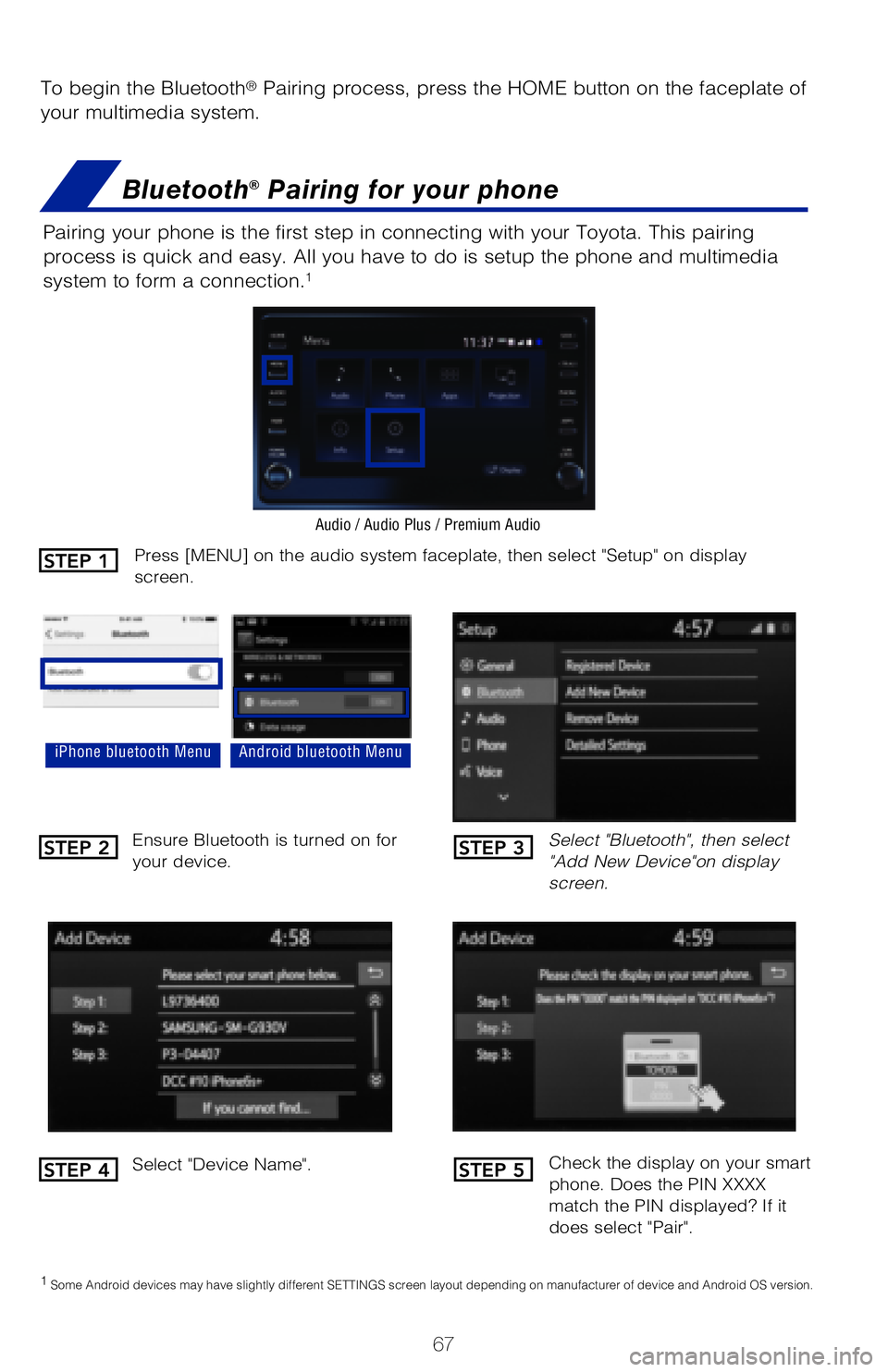
To begin the Bluetooth® Pairing process, press the HOME button on the faceplate of
your multimedia system.
Bluetooth® Pairing for your phone
Pairing your phone is the first step in connecting with your Toyota. This pairing
process is quick and easy. All you have to do is setup the phone and multimedia
system to form a connection.
1
Select "Bluetooth", then select
"Add New Device"on display
screen.
Ensure Bluetooth is turned on for
your device.
Select "Device Name".
iPhone bluetooth MenuAndroid bluetooth Menu
1 Some Android devices may have slightly different SETTINGS screen layout depending on manufacturer of device and Android OS version.
Check the display on your smart
phone. Does the PIN XXXX
match the PIN displayed? If it
does select "Pair".
Press [MENU] on the audio system faceplate, then select "Setup" on display
screen.
Audio / Audio Plus / Premium Audio
STEP 1
STEP 2
STEP 4
STEP 3
STEP 5
63195a_MY20 Highlander.indd 6711/18/19 8:13 AM
Page 70 of 72
68
BLUETOOTH® DEVICE PAIRING
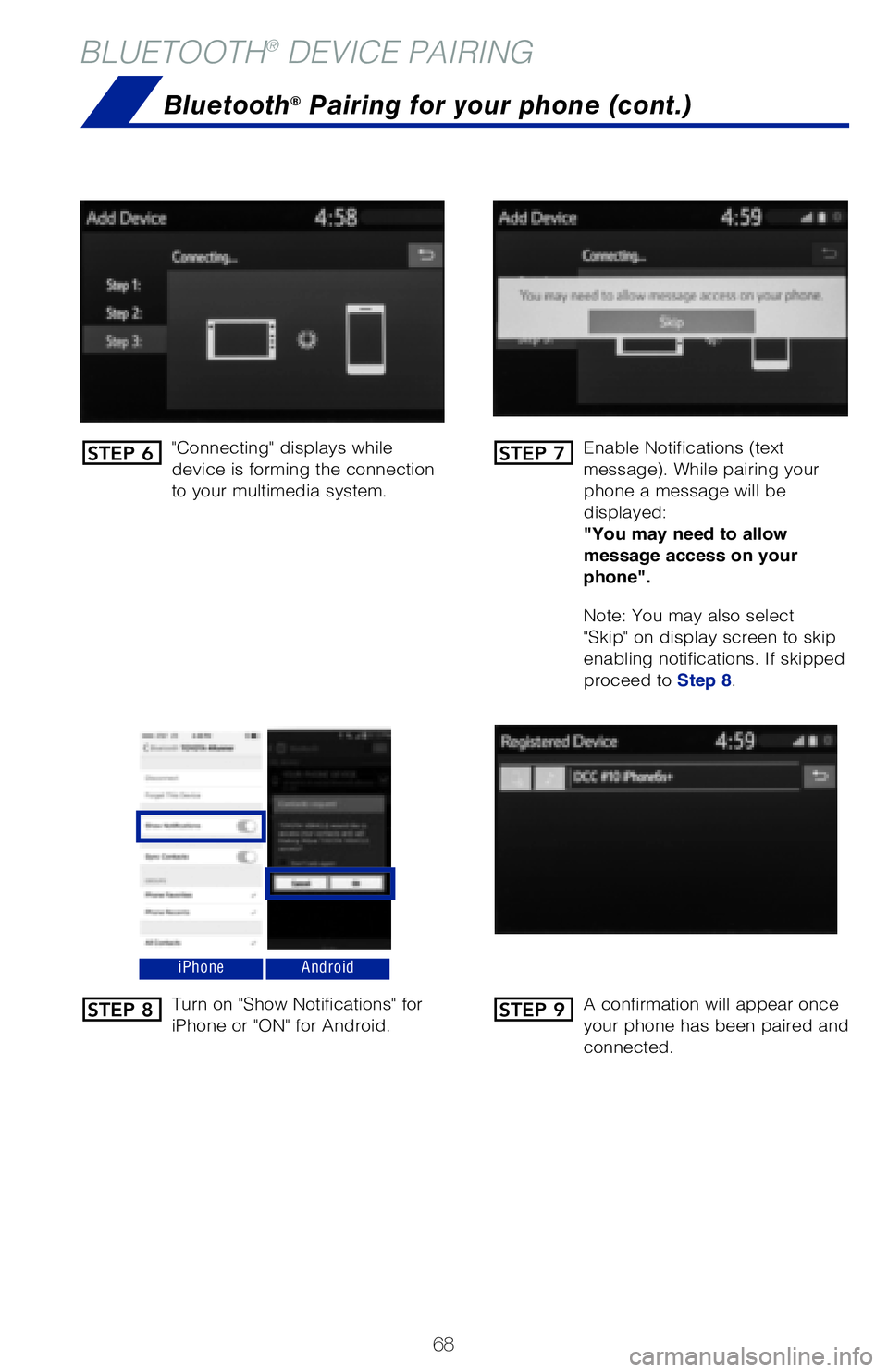
"Connecting" displays while
device is forming the connection
to your multimedia system. Enable Notifications (text
message). While pairing your
phone a message will be
displayed:
"You may need to allow
message access on your
phone".
Note: You may also select
"Skip" on display screen to skip
enabling notifications. If skipped
proceed to Step 8.
Turn on "Show Notifications" for
iPhone or "ON" for Android. A confirmation will appear once
your phone has been paired and
connected.
iPhoneAndroid
Bluetooth® Pairing for your phone (cont.)
STEP 6
STEP 8
STEP 7
STEP 9
63195a_MY20 Highlander.indd 6811/18/19 8:13 AM