phone TOYOTA HILUX 2013 (in English) Workshop Manual
[x] Cancel search | Manufacturer: TOYOTA, Model Year: 2013, Model line: HILUX, Model: TOYOTA HILUX 2013Pages: 644, PDF Size: 34.35 MB
Page 423 of 644
423 3-3. Using the “touch screen”
3
Interior features
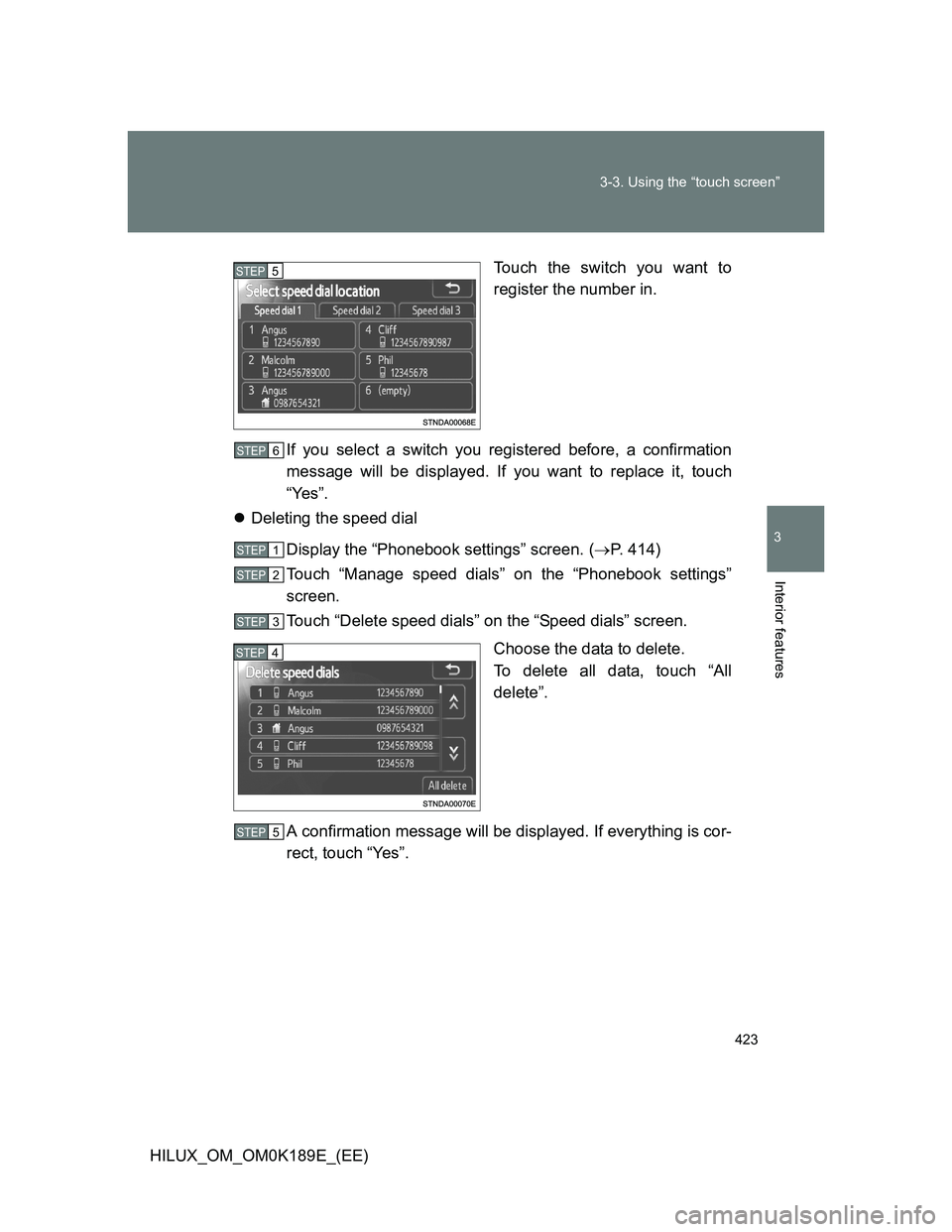
HILUX_OM_OM0K189E_(EE)Touch the switch you want to
register the number in.
If you select a switch you registered before, a confirmation
message will be displayed. If you want to replace it, touch
“Yes”.
Deleting the speed dial
Display the “Phonebook settings” screen. (P. 414)
Touch “Manage speed dials” on the “Phonebook settings”
screen.
Touch “Delete speed dials” on the “Speed dials” screen.
Choose the data to delete.
To delete all data, touch “All
delete”.
A confirmation message will be displayed. If everything is cor-
rect, touch “Yes”.
STEP5
STEP6
STEP1
STEP2
STEP3
STEP4
STEP5
Page 424 of 644
424 3-3. Using the “touch screen”
HILUX_OM_OM0K189E_(EE)
Setting the speed dials in a different way (From “Speed dial” screen)
Display the “Telephone” screen. (P. 395)
Touch “Speed dials” on the “Telephone” screen.
Touch “Options” on the “Speed dial” screen.
Setting the speed dials in a different way (From “Contacts” screen)
Display the “Telephone” screen. (P. 395)
Touch “Contacts” on the “Telephone” screen.
Touch “Options” on the “Contacts” screen.
Touch “Manage speed dials” on the “Phonebook settings” screen.
Registering the speed dial in a different way (From “Speed dial”
screen)
Display the “Telephone” screen. (P. 395)
Touch “Speed dials” on the “Telephone” screen.
Touch “(add new)” on the “Speed dial” screen.
Touch “Contacts” or “History” to set new speed dial.
Touch “Cancel” to cancel it.
Choose the desired data from the list.
Touch the desired phone number.
Follow the steps “Registering the speed dial from contacts” from
“STEP6” (P. 420) or “Registering the speed dial from call history”
from “STEP5”. (P. 422)
STEP1
STEP2
STEP3
STEP1
STEP2
STEP3
STEP4
STEP1
STEP2
STEP3
STEP4
STEP5
STEP6
STEP7
Page 425 of 644
425 3-3. Using the “touch screen”
3
Interior features
HILUX_OM_OM0K189E_(EE)
Registering the speed dial in a different way (From “Contact” screen)
Display the “Telephone” screen. (P. 395)
Touch “Contacts” on the “Telephone” screen.
Choose the desired data from the list.
Touch “Options” on the “Contact” screen.
Touch “Set speed dial” on the “Contact data” screen.
Touch the desired telephone number.
Follow the steps “Registering the speed dial from contacts” from
“STEP6” (P. 420) or “Registering the speed dial from call history”
from “STEP5”. (P. 422)
Registering the speed dial in a different way (From “Call history”
screen)
Display the “Telephone” screen. (P. 395)
Touch “Call history” on the “Telephone” screen.
Choose the desired data from the list.
Touch “Add speed dial” on the “Call history” screen.
Follow the steps “Registering the speed dial from contacts” from
“STEP6” (P. 420) or “Registering the speed dial from call history”
from “STEP5”. (P. 422)
STEP1
STEP2
STEP3
STEP4
STEP5
STEP6
STEP7
STEP1
STEP2
STEP3
STEP4
STEP5
Page 426 of 644
426 3-3. Using the “touch screen”
HILUX_OM_OM0K189E_(EE)Deleting the call history
Display the “Phonebook settings” screen. (P. 414)
Touch “Delete call history” on the “Phonebook settings”
screen.
If your phone supports PBAP service, the “Automatic phonebook
download” setting needs to be set to “Off”. (P. 415)
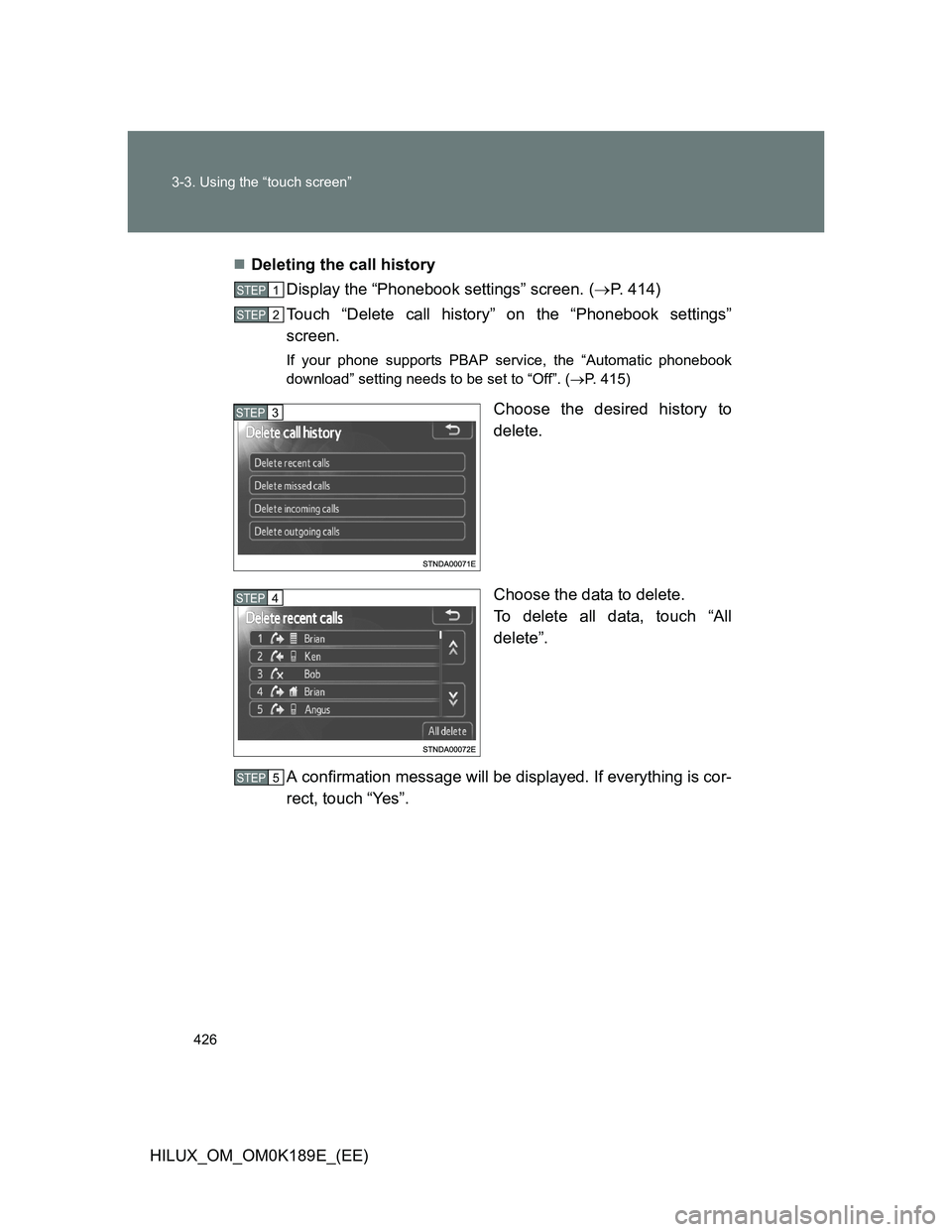
Choose the desired history to
delete.
Choose the data to delete.
To delete all data, touch “All
delete”.
A confirmation message will be displayed. If everything is cor-
rect, touch “Yes”.
STEP1
STEP2
STEP3
STEP4
STEP5
Page 427 of 644
427 3-3. Using the “touch screen”
3
Interior features
HILUX_OM_OM0K189E_(EE)
Deleting call history in a different way
Display the “Telephone” screen. (P. 395)
Touch “Call history” on the “Telephone” screen.
Touch “Delete” on the “Call history” screen.
Follow the steps “Deleting the call history” from “STEP4”. (P. 426)
STEP1
STEP2
STEP3
STEP4
Page 428 of 644
428
3-3. Using the “touch screen”
HILUX_OM_OM0K189E_(EE)
Bluetooth® settings
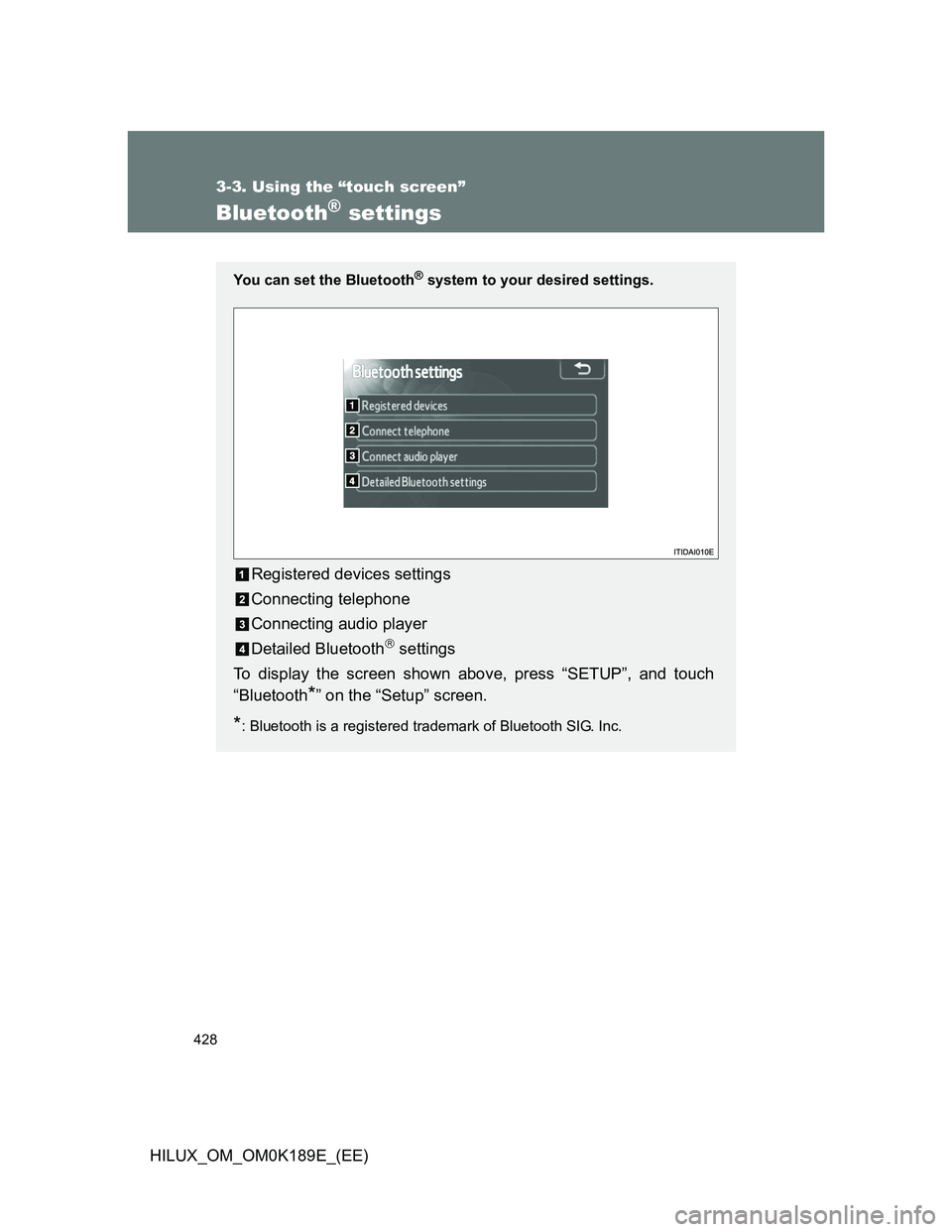
You can set the Bluetooth® system to your desired settings.
Registered devices settings
Connecting telephone
Connecting audio player
Detailed Bluetooth
settings
To display the screen shown above, press “SETUP”, and touch
“Bluetooth
*” on the “Setup” screen.
*: Bluetooth is a registered trademark of Bluetooth SIG. Inc.
Page 429 of 644
429 3-3. Using the “touch screen”
3
Interior features
HILUX_OM_OM0K189E_(EE)
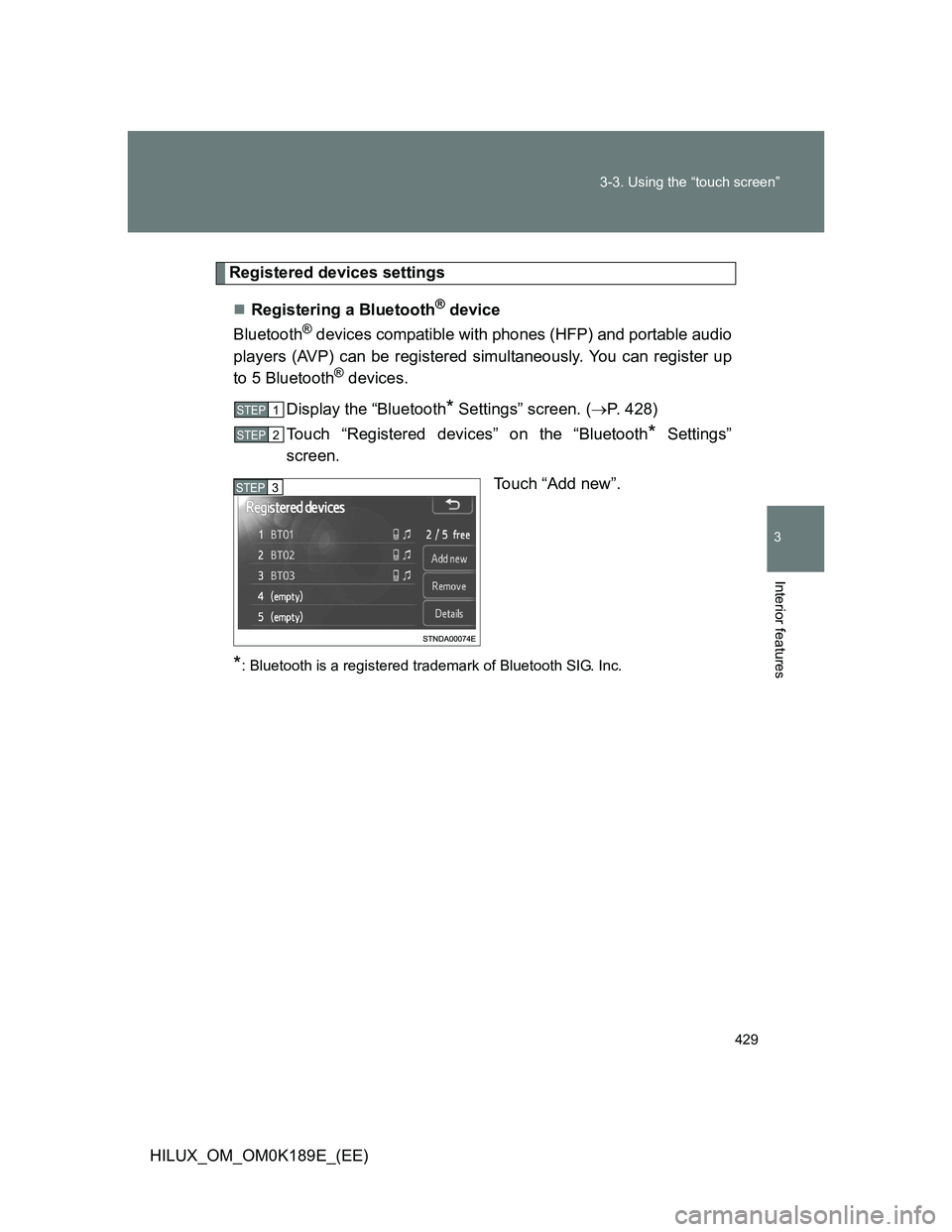
Registered devices settings
Registering a Bluetooth
® device
Bluetooth
® devices compatible with phones (HFP) and portable audio
players (AVP) can be registered simultaneously. You can register up
to 5 Bluetooth
® devices.
Display the “Bluetooth
* Settings” screen. (P. 428)
Touch “Registered devices” on the “Bluetooth
* Settings”
screen.
Touch “Add new”.
*: Bluetooth is a registered trademark of Bluetooth SIG. Inc.
STEP1
STEP2
STEP3
Page 430 of 644
430 3-3. Using the “touch screen”
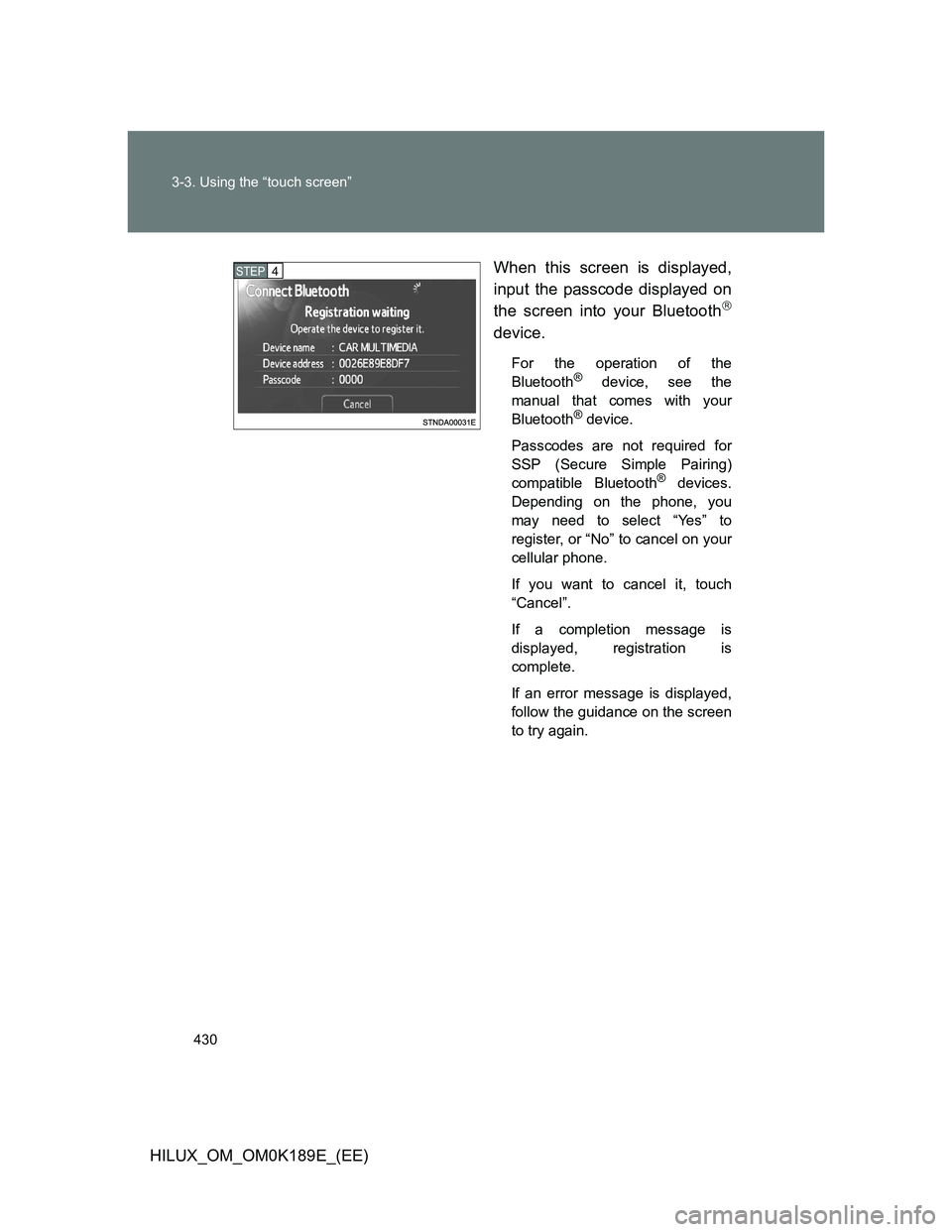
HILUX_OM_OM0K189E_(EE)When this screen is displayed,
input the passcode displayed on
the screen into your Bluetooth
device.
For the operation of the
Bluetooth® device, see the
manual that comes with your
Bluetooth
® device.
Passcodes are not required for
SSP (Secure Simple Pairing)
compatible Bluetooth
® devices.
Depending on the phone, you
may need to select “Yes” to
register, or “No” to cancel on your
cellular phone.
If you want to cancel it, touch
“Cancel”.
If a completion message is
displayed, registration is
complete.
If an error message is displayed,
follow the guidance on the screen
to try again.
STEP4
Page 433 of 644
433 3-3. Using the “touch screen”
3
Interior features
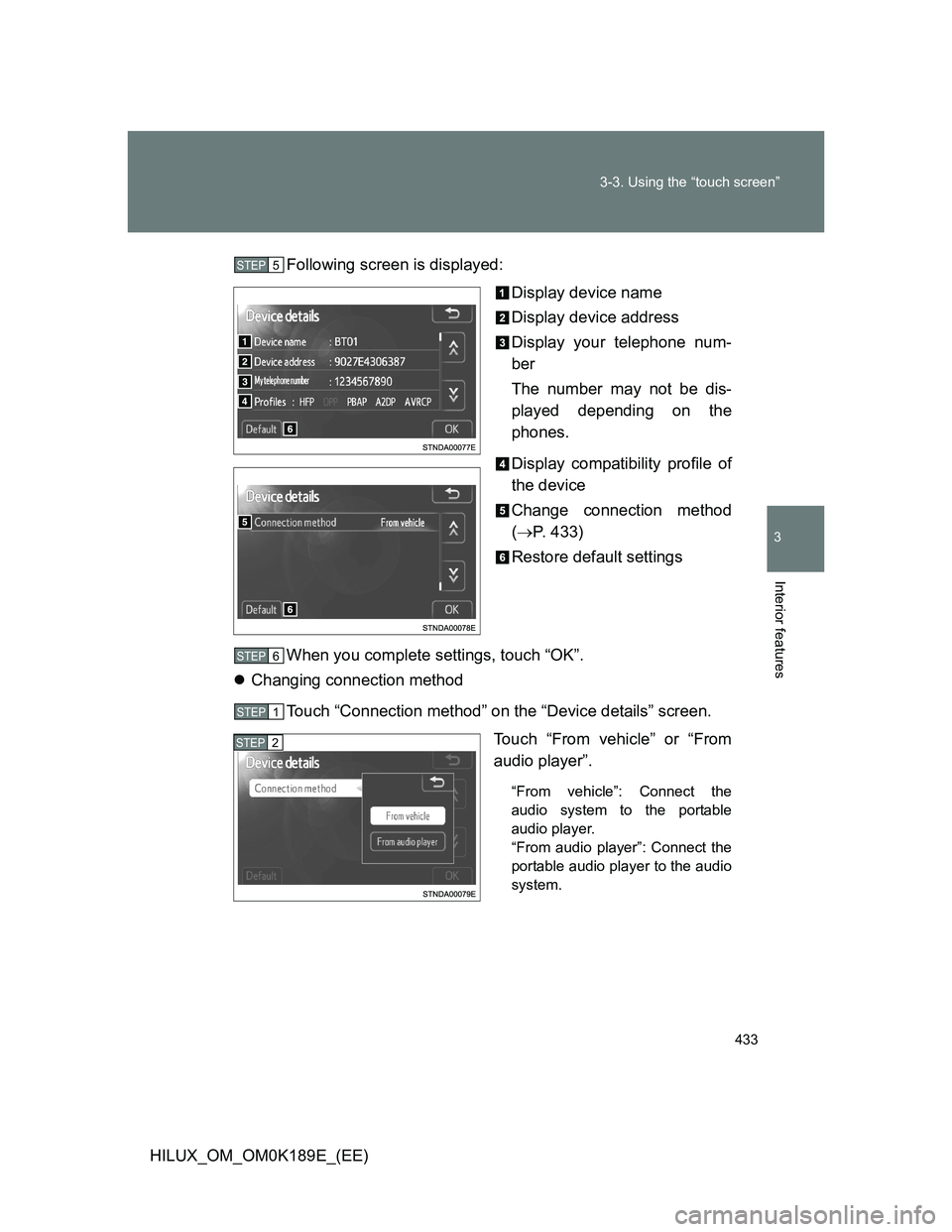
HILUX_OM_OM0K189E_(EE)Following screen is displayed:
Display device name
Display device address
Display your telephone num-
ber
The number may not be dis-
played depending on the
phones.
Display compatibility profile of
the device
Change connection method
(P. 433)
Restore default settings
When you complete settings, touch “OK”.
Changing connection method
Touch “Connection method” on the “Device details” screen.
Touch “From vehicle” or “From
audio player”.
“From vehicle”: Connect the
audio system to the portable
audio player.
“From audio player”: Connect the
portable audio player to the audio
system.
STEP5
STEP6
STEP1
STEP2
Page 434 of 644
434 3-3. Using the “touch screen”
HILUX_OM_OM0K189E_(EE)
Selecting the Bluetooth® phone
If multiple Bluetooth
® devices are registered, follow the procedure
below to select the Bluetooth® device to be used. You may only use
one device at a time.
Display the “Bluetooth
* Settings” screen. (P. 428)
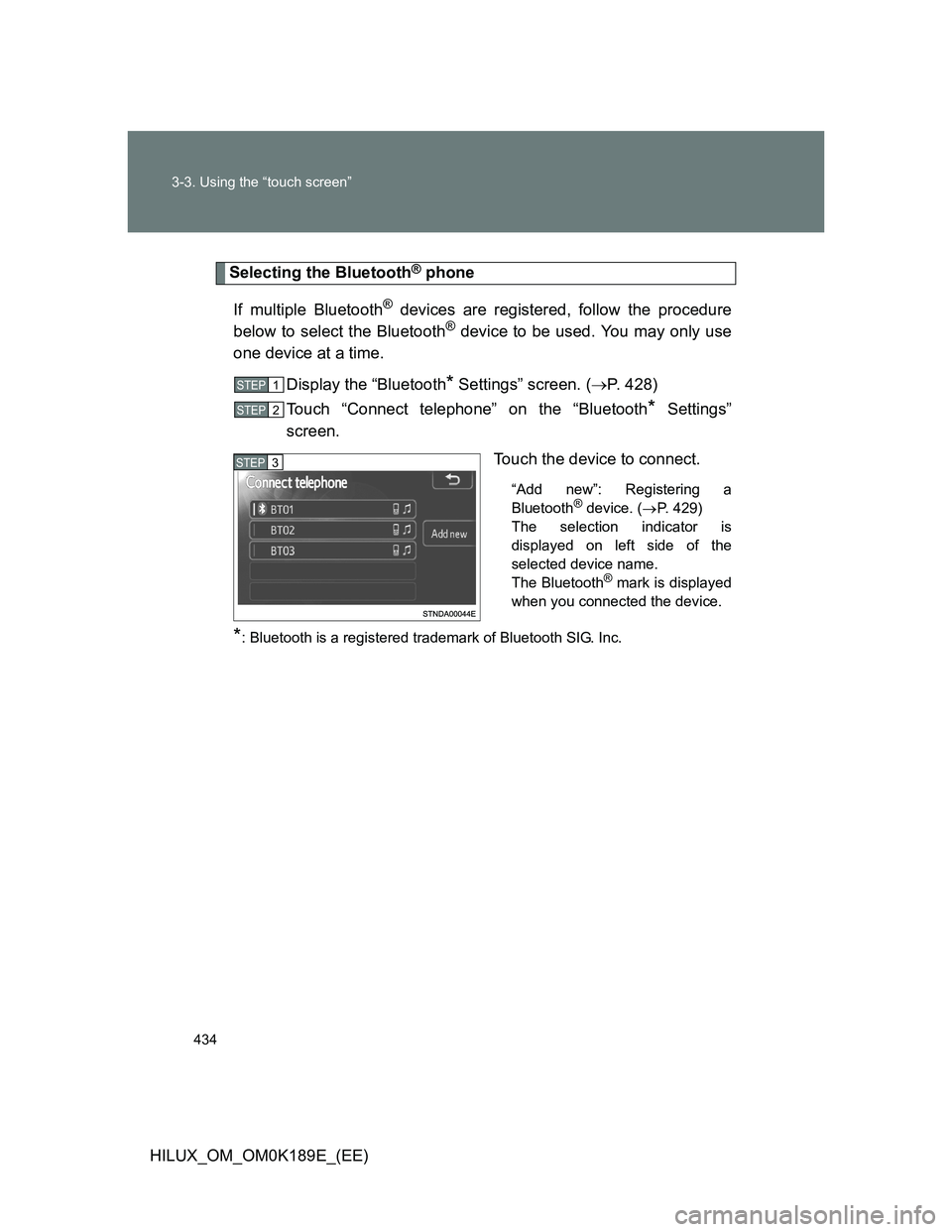
Touch “Connect telephone” on the “Bluetooth
* Settings”
screen.
Touch the device to connect.
“Add new”: Registering a
Bluetooth® device. (P. 429)
The selection indicator is
displayed on left side of the
selected device name.
The Bluetooth
® mark is displayed
when you connected the device.
*: Bluetooth is a registered trademark of Bluetooth SIG. Inc.
STEP1
STEP2
STEP3