display TOYOTA HILUX 2013 (in English) Owner's Guide
[x] Cancel search | Manufacturer: TOYOTA, Model Year: 2013, Model line: HILUX, Model: TOYOTA HILUX 2013Pages: 644, PDF Size: 34.35 MB
Page 287 of 644
287 3-2. Using the audio system
3
Interior features
HILUX_OM_OM0K134E_(EE)
WMA file compatibility
• Compatible standards
WMA Ver. 7, 8, 9
• Compatible sampling frequencies
32, 44.1, 48 (kHz)
• Compatible bit rates (only compatible with 2-channel playback)
Ver. 7, 8: CBR 48, 64, 80, 96, 128, 160, 192 (kbps)
Ver. 9: CBR 48, 64, 80, 96, 128, 160, 192, 256, 320 (kbps)
*Only compatible with 2-channel playback
Compatible media
Media that can be used for MP3 and WMA playback are CD-Rs and CD-
RWs.
Playback in some instances may not be possible if the CD-R or CD-RW is
not finalized. Playback may not be possible or the audio may jump if the
disc is scratched or marked with fingerprints.
Compatible disc formats
The following disc formats can be used:
• Disc formats: CD-ROM Mode 1 and Mode 2
CD-ROM XA Mode 2, Form 1 and Form 2
• File formats: ISO9660 Level 1, Level 2, (Romeo, Joliet)
MP3 and WMA files written in any format other than those listed above
may not play correctly, and their file names and folder names may not
be displayed correctly.
Items related to standards and limitations are as follows:
• Maximum directory hierarchy: 8 levels
• Maximum length of folder names/file names: 32 characters
• Maximum number of folders: 192 (including the root)
• Maximum number of files per disc: 255
Page 291 of 644
291 3-2. Using the audio system
3
Interior features
HILUX_OM_OM0K134E_(EE)
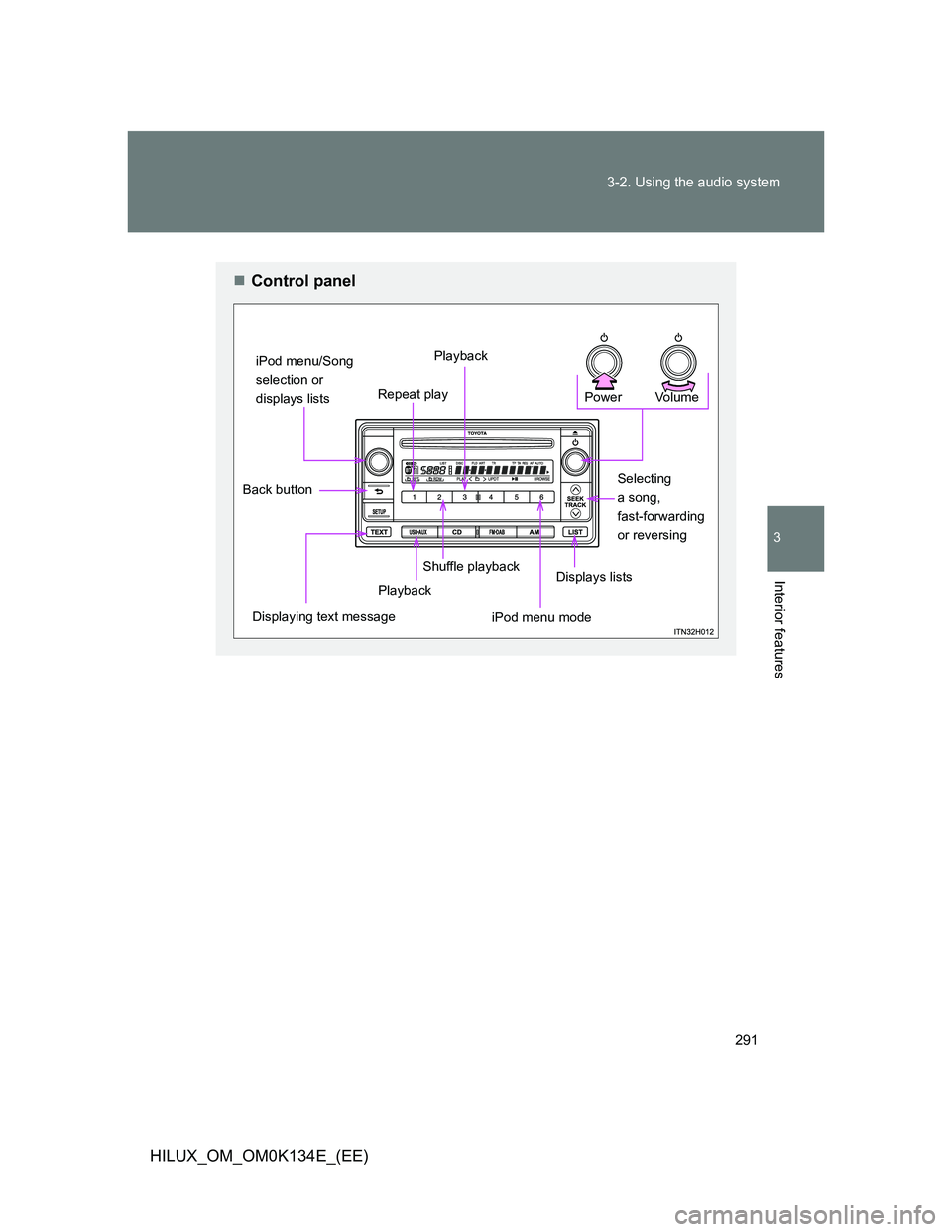
Control panel
Vol u m e Power
Selecting
a song,
fast-forwarding
or reversing
iPod menu mode Shuffle playback
PlaybackDisplaying text message
iPod menu/Song
selection or
displays listsRepeat play
Displays lists
Back button
Playback
Page 293 of 644
293 3-2. Using the audio system
3
Interior features
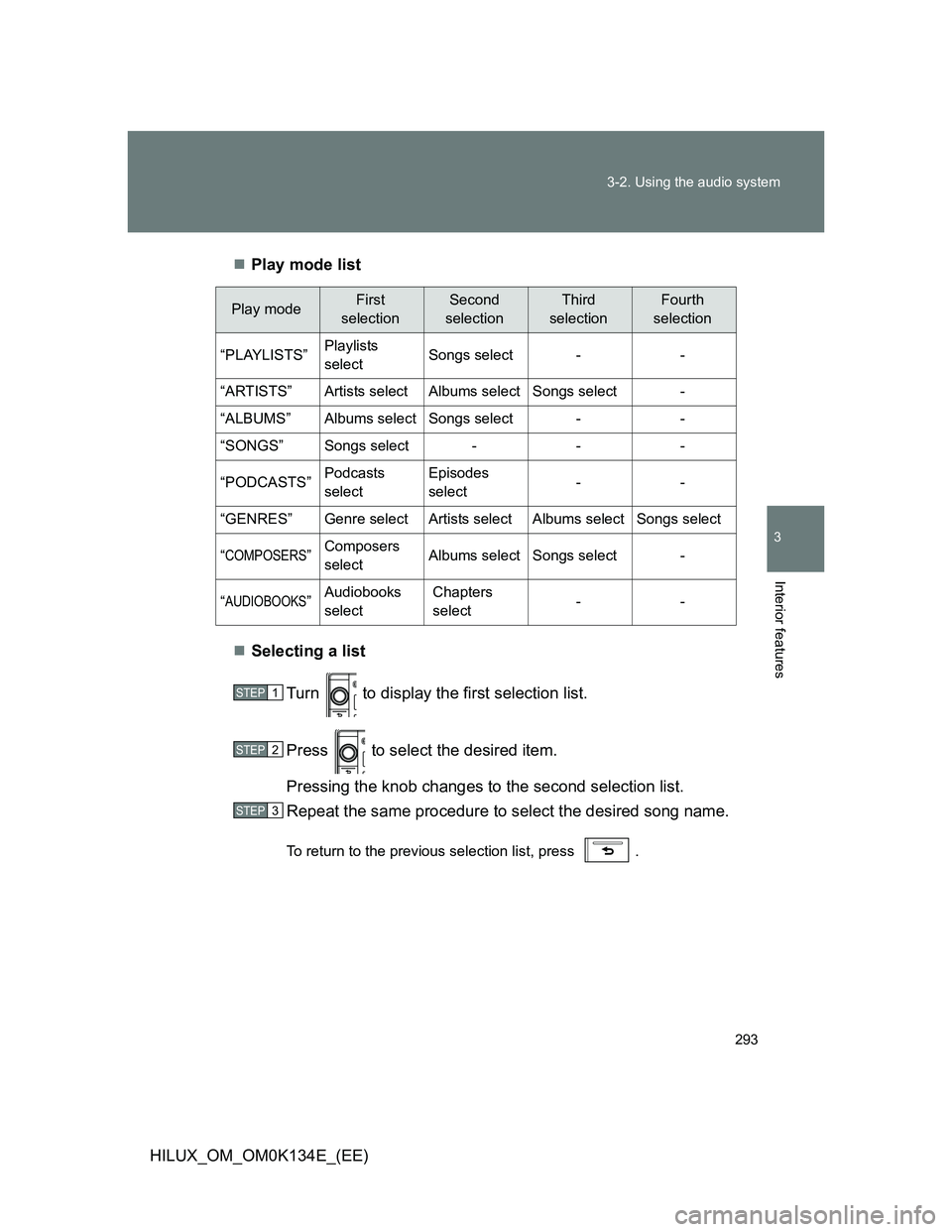
HILUX_OM_OM0K134E_(EE)Play mode list
Selecting a list
Turn to display the first selection list.
Press to select the desired item.
Pressing the knob changes to the second selection list.
Repeat the same procedure to select the desired song name.
To return to the previous selection list, press .
Play modeFirst
selectionSecond
selectionThird
selectionFourth
selection
“PLAYLISTS”Playlists
selectSongs select--
“ARTISTS”Artists selectAlbums selectSongs select-
“ALBUMS”Albums selectSongs select--
“SONGS”Songs select---
“PODCASTS”Podcasts
selectEpisodes
select--
“GENRES”Genre selectArtists selectAlbums selectSongs select
“COMPOSERS”Composers
selectAlbums selectSongs select-
“AUDIOBOOKS”Audiobooks
selectChapters
select--
STEP1
STEP2
STEP3
Page 294 of 644
294 3-2. Using the audio system
HILUX_OM_OM0K134E_(EE)
Selecting songs
Turn , or press “” or “” on the “SEEK/TRACK” button to select
the desired song.
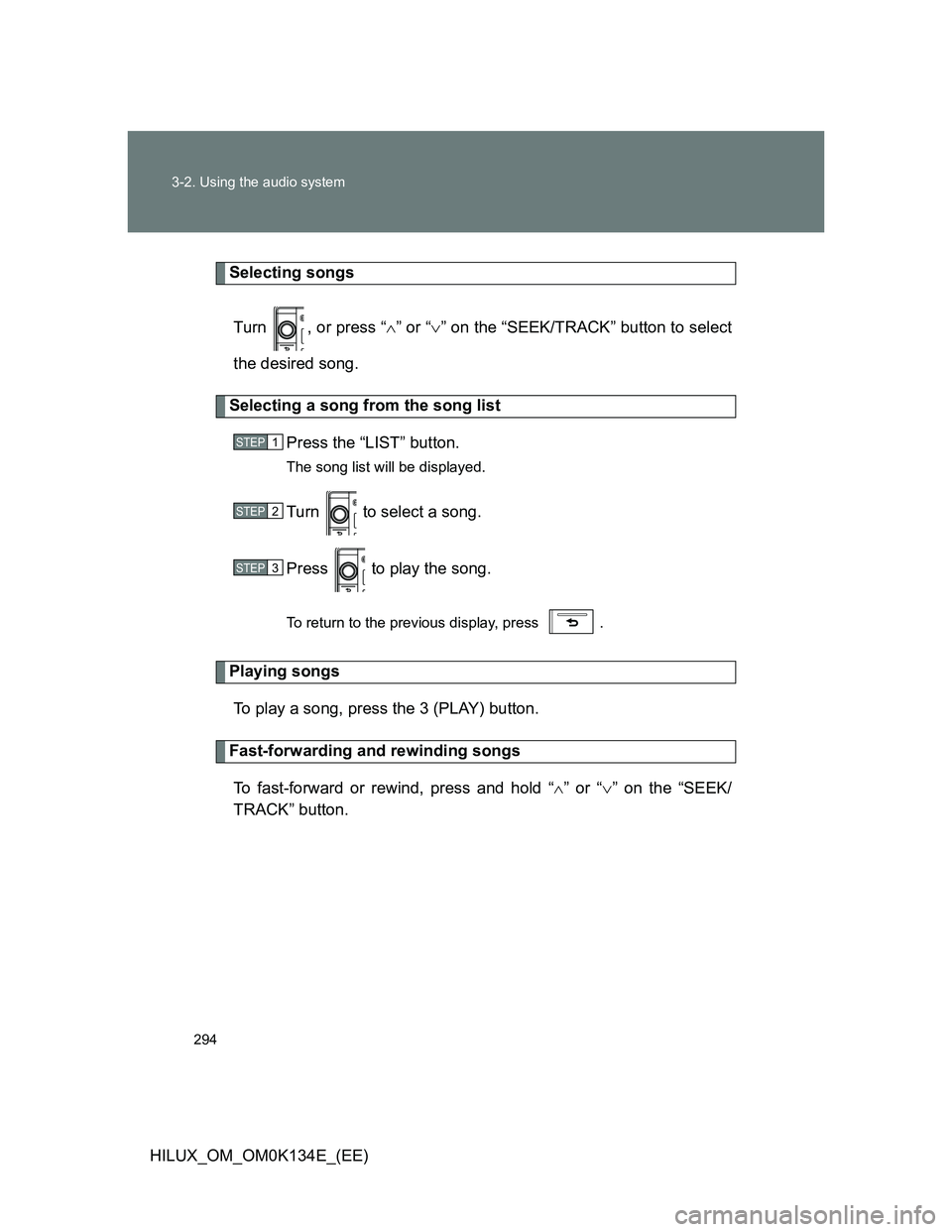
Selecting a song from the song list
Press the “LIST” button.
The song list will be displayed.
Turn to select a song.
Press to play the song.
To return to the previous display, press .
Playing songs
To play a song, press the 3 (PLAY) button.
Fast-forwarding and rewinding songs
To fast-forward or rewind, press and hold “” or “” on the “SEEK/
TRACK” button.
STEP1
STEP2
STEP3
Page 295 of 644
295 3-2. Using the audio system
3
Interior features
HILUX_OM_OM0K134E_(EE)
Shuffle playback
Pressing the 2 (RDM) button changes modes in the following order:
Track shuffle Album shuffle Off.
Repeat play
Press the 1 (RPT) button.
To cancel, press the 1 (RPT) button again.
Switching the display
Press the “TEXT” button.
Each time the button is pressed, the display changes in the following
order: Track no./Elapsed time Album title Track title Artist name
Adjusting sound quality and volume balance
Press the “SETUP” button to enter iPod menu mode.
Turning changes sound modes. (P. 309)
STEP1
STEP2
Page 297 of 644
297 3-2. Using the audio system
3
Interior features
HILUX_OM_OM0K134E_(EE)
Display
P. 278
Error messages
“ERROR 1”: This indicates that the data in the iPod cannot be read.
“ERROR 3”: This indicates that the iPod may be malfunctioning.
“ERROR 4”: This indicates that an over current error has occurred.
“ERROR 5”: This indicates that an iPod communication error has
occurred.
“ERROR 6”: This indicates that an authentication error has occurred.
“NO SONGS”: This indicates that there is no music data in the iPod.
“NO PLAYLISTS”: This indicates that some available songs are not found in
a selected playlist.
“UPDATE”: This indicates that the version of the iPod is not compati-
ble. Upgrade your iPod software to the latest version.
Page 301 of 644
301 3-2. Using the audio system
3
Interior features
HILUX_OM_OM0K134E_(EE)
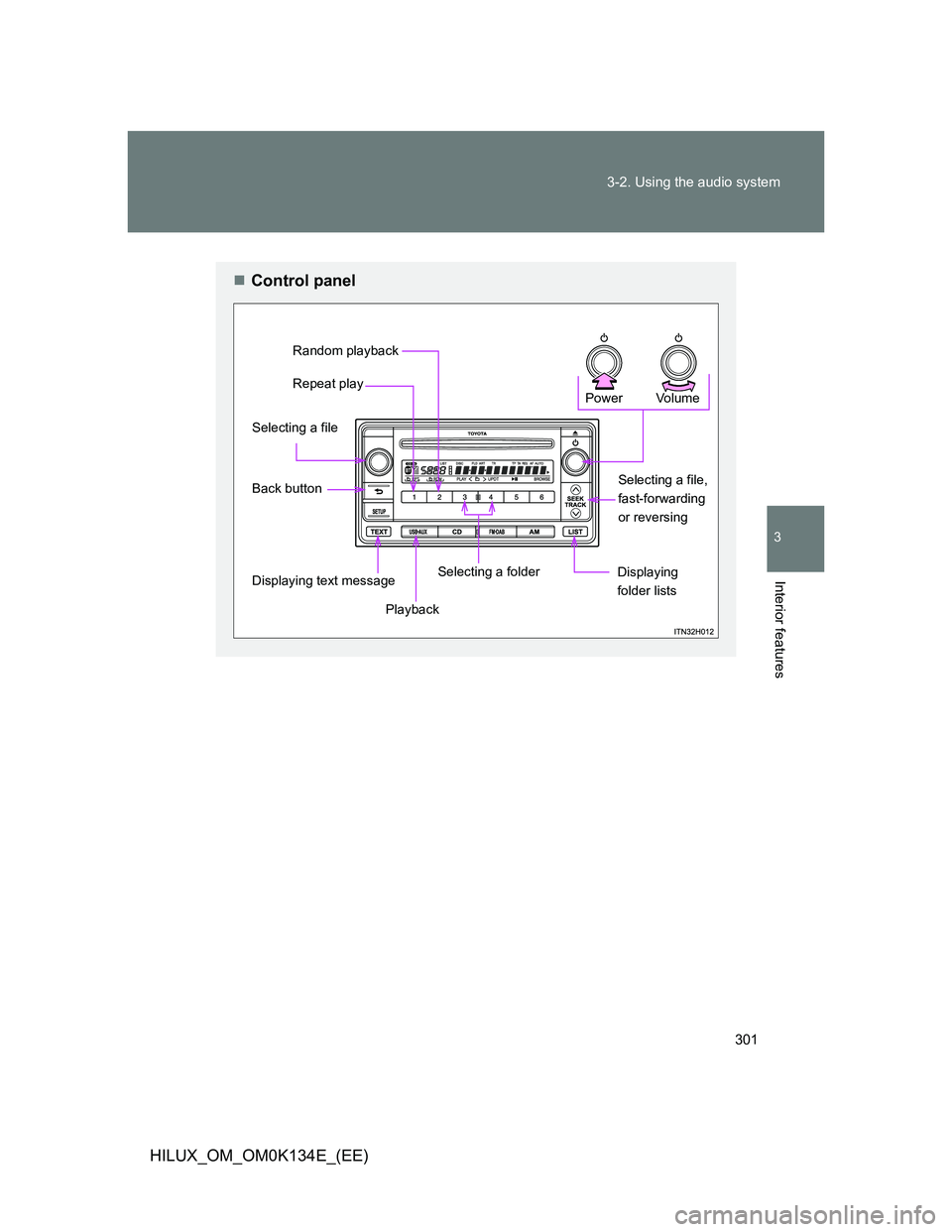
Control panel
Vo lu m e Power
Displaying
folder lists
Playback
Displaying text message
Back button Selecting a file
Repeat play Random playback
Selecting a file,
fast-forwarding
or reversing
Selecting a folder
Page 302 of 644
302 3-2. Using the audio system
HILUX_OM_OM0K134E_(EE)
Selecting a folder
Selecting folders one at a time
Press the 3 ( ) or 4 ( ) button to select the desired folder.
Selecting a folder and a file from folder lists
Press the “LIST” button.
The folder list will be displayed.
Turn and press to select a folder and a file.
To return to the previous display, press the .
Returning to the first folder
Press and hold the 3 ( ) button until you hear a beep.
STEP1
STEP2
Page 304 of 644
304 3-2. Using the audio system
HILUX_OM_OM0K134E_(EE)
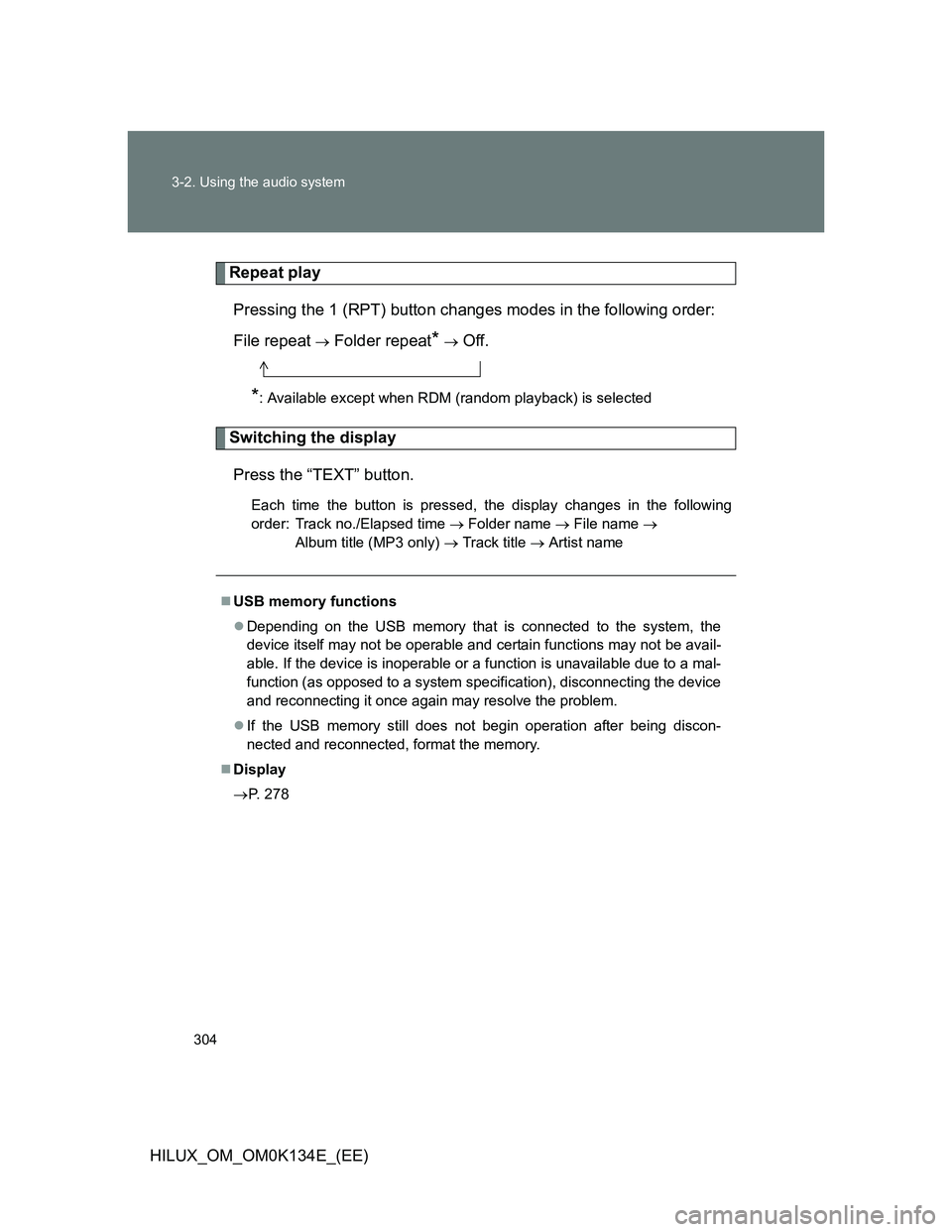
Repeat play
Pressing the 1 (RPT) button changes modes in the following order:
File repeat
Folder repeat* Off.
*: Available except when RDM (random playback) is selected
Switching the display
Press the “TEXT” button.
Each time the button is pressed, the display changes in the following
order: Track no./Elapsed time Folder name File name
Album title (MP3 only) Track title Artist name
USB memory functions
Depending on the USB memory that is connected to the system, the
device itself may not be operable and certain functions may not be avail-
able. If the device is inoperable or a function is unavailable due to a mal-
function (as opposed to a system specification), disconnecting the device
and reconnecting it once again may resolve the problem.
If the USB memory still does not begin operation after being discon-
nected and reconnected, format the memory.
Display
P. 278
Page 305 of 644
305 3-2. Using the audio system
3
Interior features
HILUX_OM_OM0K134E_(EE)
Error messages
“ERROR”: This indicates a problem in the USB memory or its connection.
“NO MUSIC”: This indicates that no MP3/WMA files are included in the USB
memory.
USB memory
Compatible devices
USB memory that can be used for MP3 and WMA playback
Compatible device formats
The following device formats can be used:
• USB communication formats: USB2.0 FS (12mbps)
• File formats: FAT12/16/32 (Windows)
• Correspondence class: Mass storage class
MP3 and WMA files written in any format other than those listed above
may not play correctly, and their file names and folder names may not be
displayed correctly.
Items related to standards and limitations are as follows:
• Maximum directory hierarchy: 8 levels
• Maximum number of folders in a device: 999 (including the root)
• Maximum number of files in a device: 9999
• Maximum number of files per folder: 255
MP3 and WMA files
MP3 (MPEG Audio LAYER 3) is a standard audio compression format.
Files can be compressed to approximately 1/10 of their original size using
MP3 compression.
WMA (Windows Media Audio) is a Microsoft audio compression format.
This format compresses audio data to a size smaller than that of the MP3
format.
There is a limit to the MP3 and WMA file standards that can be used and
to the media/formats on which the files are recorded.