wheel TOYOTA LAND CRUISER 2014 J200 Navigation Manual
[x] Cancel search | Manufacturer: TOYOTA, Model Year: 2014, Model line: LAND CRUISER, Model: TOYOTA LAND CRUISER 2014 J200Pages: 427, PDF Size: 25.75 MB
Page 165 of 427
165
2. SETUP
4
PHONE
L/C200_Navi_OM60L27U_(U)
13.06.03 19:43
■DELETING THE PHONEBOOK
DATA
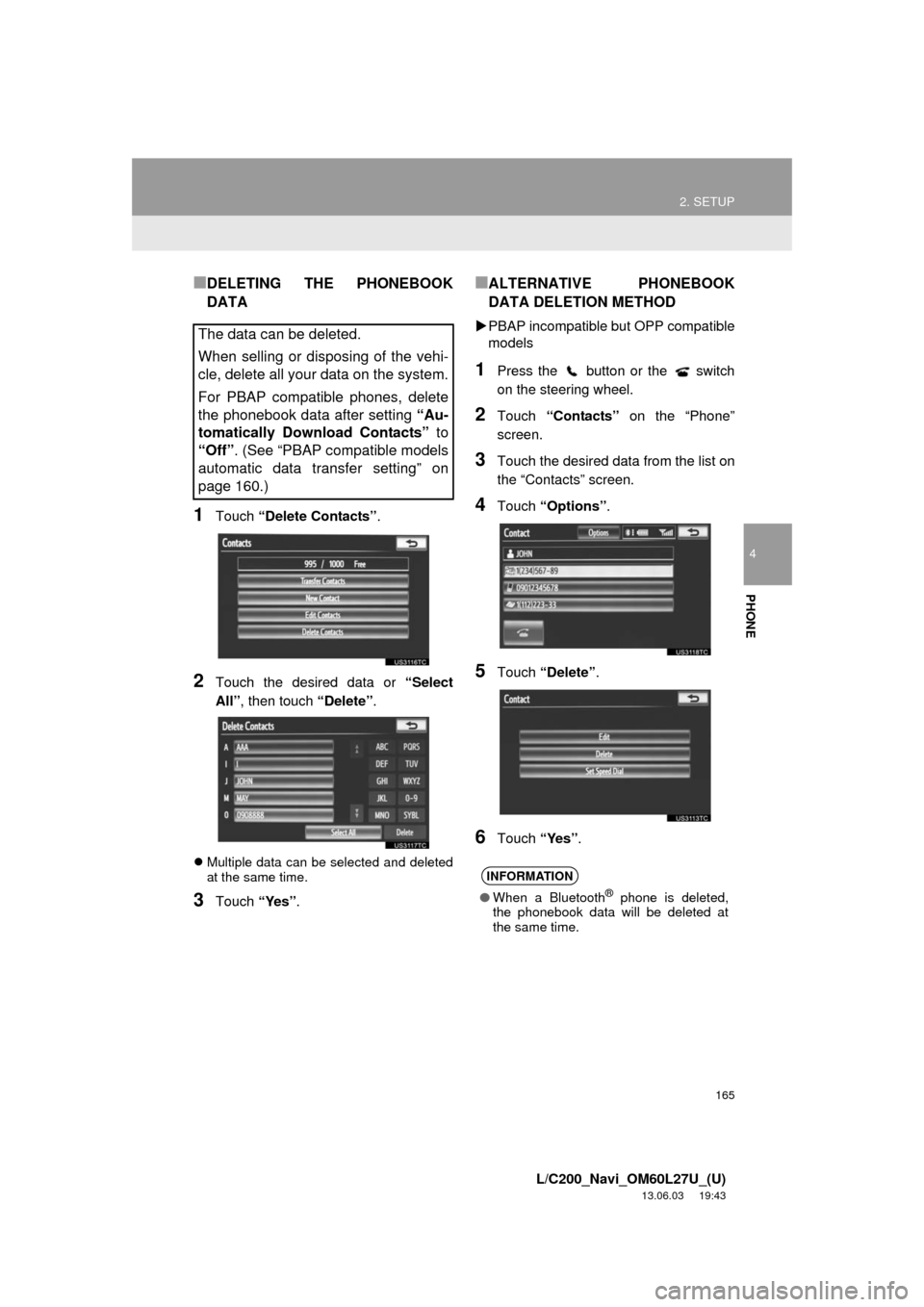
1Touch “Delete Contacts”.
2Touch the desired data or “Select
All”, then touch “Delete”.
Multiple data can be selected and deleted
at the same time.
3Touch “Yes”.
■ALTERNATIVE PHONEBOOK
DATA DELETION METHOD
PBAP incompatible but OPP compatible
models
1Press the button or the switch
on the steering wheel.
2Touch “Contacts” on the “Phone”
screen.
3Touch the desired data from the list on
the “Contacts” screen.
4Touch “Options”.
5Touch “Delete”.
6Touch “Yes”.
The data can be deleted.
When selling or disposing of the vehi-
cle, delete all your data on the system.
For PBAP compatible phones, delete
the phonebook data after setting “Au-
tomatically Download Contacts” to
“Off”. (See “PBAP compatible models
automatic data transfer setting” on
page 160.)
INFORMATION
●When a Bluetooth® phone is deleted,
the phonebook data will be deleted at
the same time.
Page 166 of 427
166
2. SETUP
L/C200_Navi_OM60L27U_(U)
13.06.03 19:43
1Press the “SETUP” button.
2Touch “Phone” on the “Setup” screen.
3Touch “Phonebook” on the “Phone
Settings” screen.
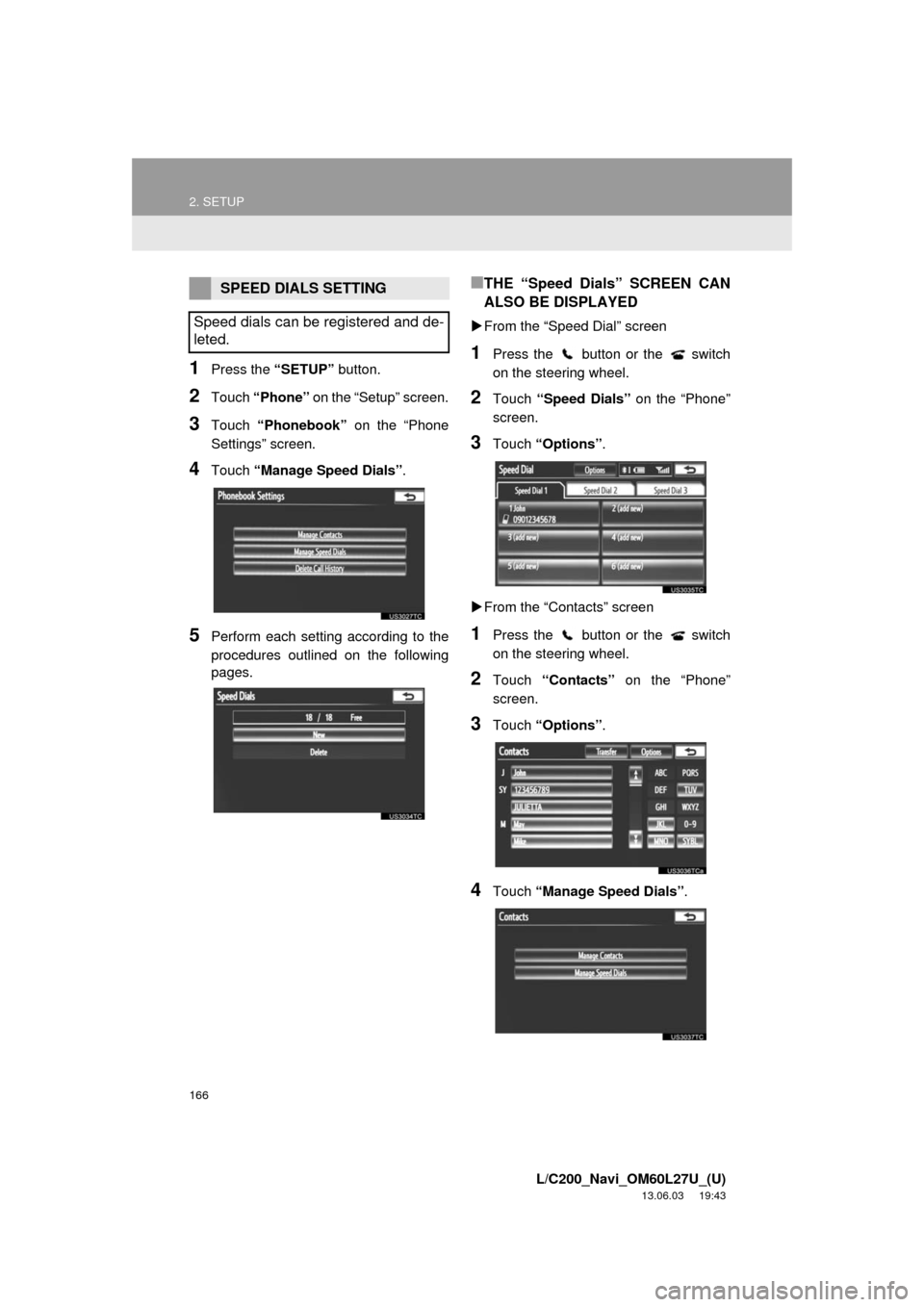
4Touch “Manage Speed Dials”.
5Perform each setting according to the
procedures outlined on the following
pages.
■THE “Speed Dials” SCREEN CAN
ALSO BE DISPLAYED
From the “Speed Dial” screen
1Press the button or the switch
on the steering wheel.
2Touch “Speed Dials” on the “Phone”
screen.
3Touch “Options”.
From the “Contacts” screen
1Press the button or the switch
on the steering wheel.
2Touch “Contacts” on the “Phone”
screen.
3Touch “Options”.
4Touch “Manage Speed Dials”.
SPEED DIALS SETTING
Speed dials can be registered and de-
leted.
Page 168 of 427
168
2. SETUP
L/C200_Navi_OM60L27U_(U)
13.06.03 19:43
■THE SPEED DIAL CAN ALSO BE
REGISTERED
From the “Speed Dial” screen
1Press the button or the switch
on the steering wheel.
2Touch “Speed Dials” on the “Phone”
screen.
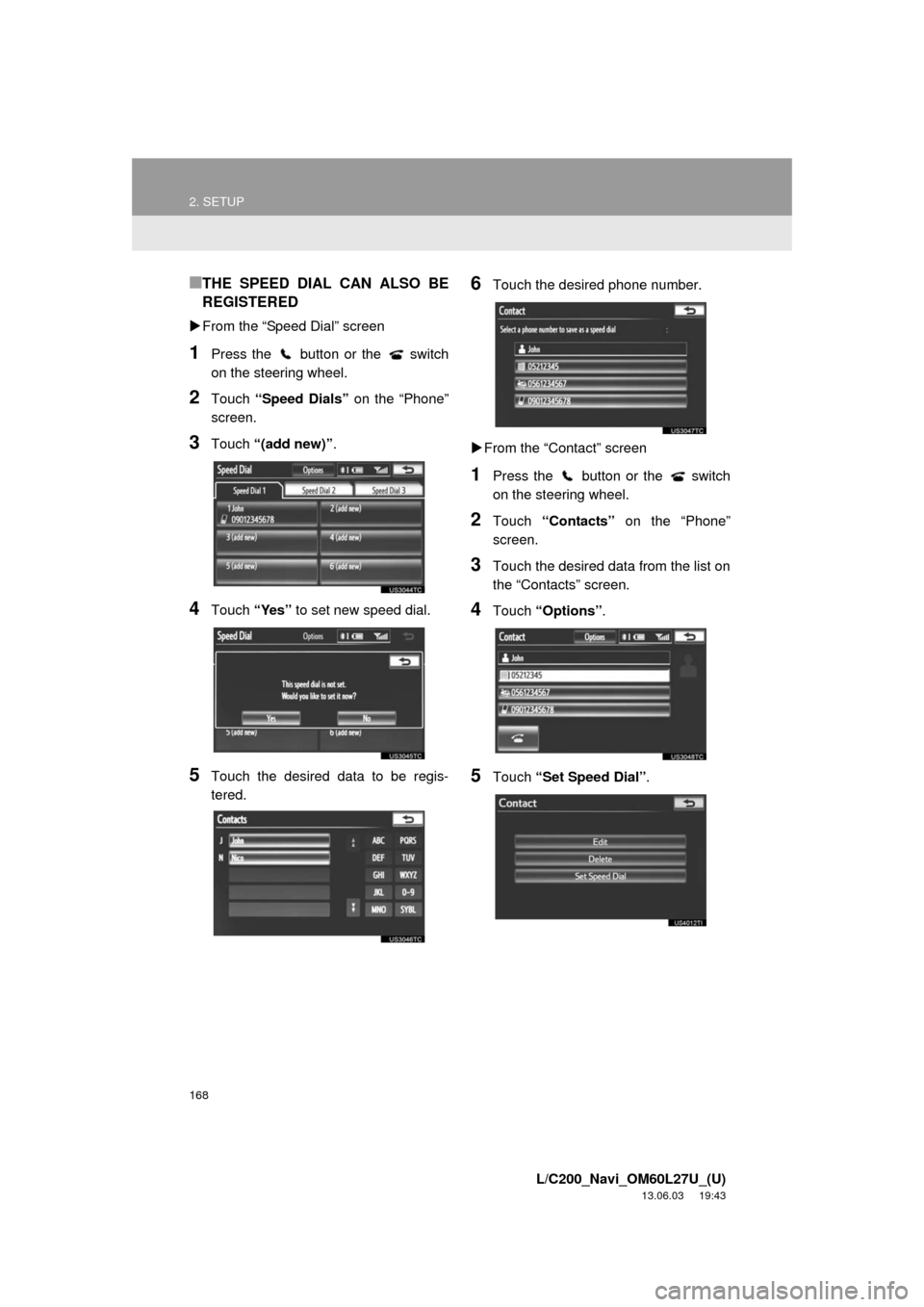
3Touch “(add new)”.
4Touch “Yes” to set new speed dial.
5Touch the desired data to be regis-
tered.
6Touch the desired phone number.
From the “Contact” screen
1Press the button or the switch
on the steering wheel.
2Touch “Contacts” on the “Phone”
screen.
3Touch the desired data from the list on
the “Contacts” screen.
4Touch “Options”.
5Touch “Set Speed Dial”.
Page 170 of 427
170
2. SETUP
L/C200_Navi_OM60L27U_(U)
13.06.03 19:43
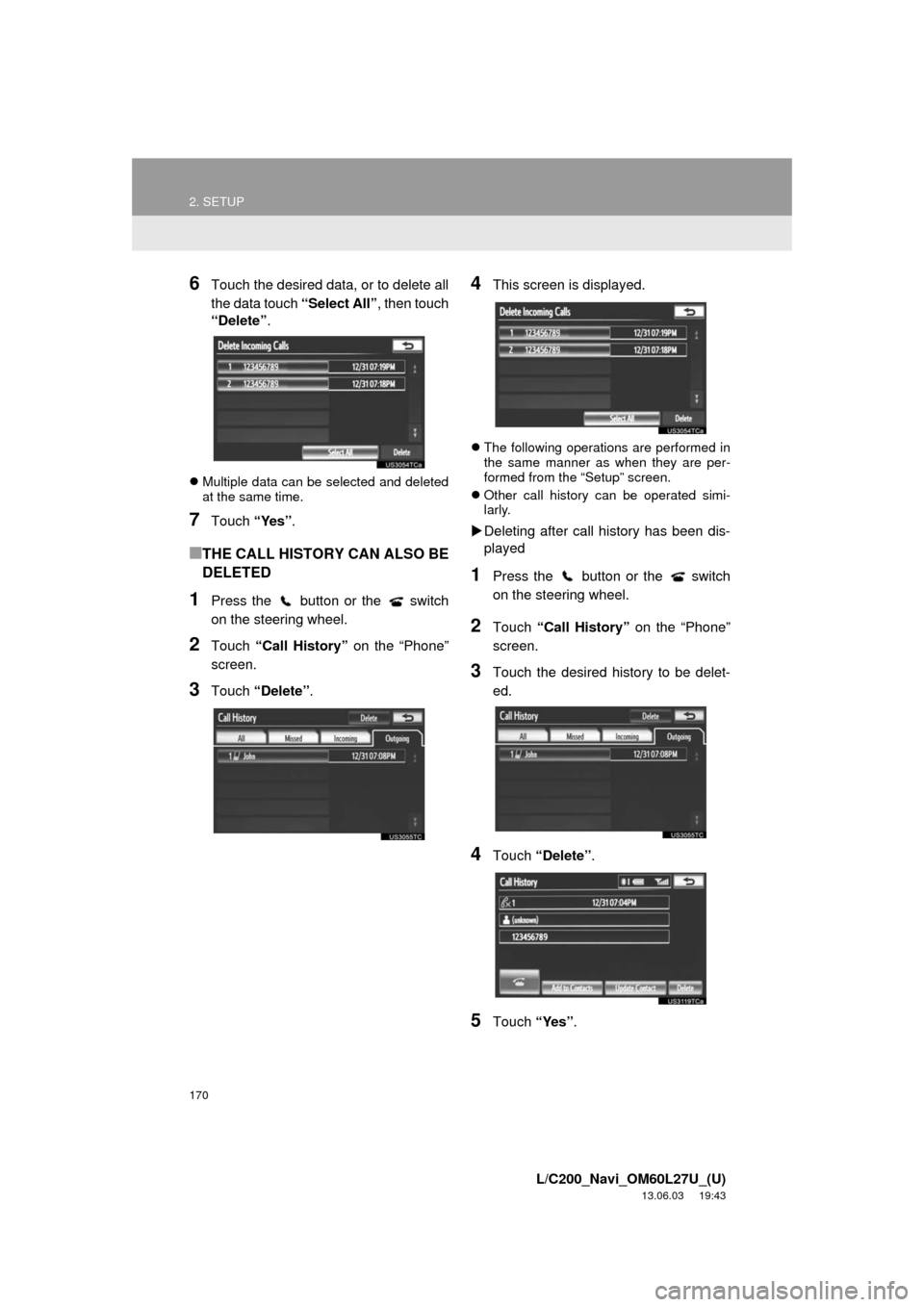
6Touch the desired data, or to delete all
the data touch “Select All”, then touch
“Delete”.
Multiple data can be selected and deleted
at the same time.
7Touch “Yes”.
■THE CALL HISTORY CAN ALSO BE
DELETED
1Press the button or the switch
on the steering wheel.
2Touch “Call History” on the “Phone”
screen.
3Touch “Delete”.
4This screen is displayed.
The following operations are performed in
the same manner as when they are per-
formed from the “Setup” screen.
Other call history can be operated simi-
larly.
Deleting after call history has been dis-
played
1Press the button or the switch
on the steering wheel.
2Touch “Call History” on the “Phone”
screen.
3Touch the desired history to be delet-
ed.
4Touch “Delete”.
5Touch “Yes”.
Page 171 of 427
171
2. SETUP
4
PHONE
L/C200_Navi_OM60L27U_(U)
13.06.03 19:43
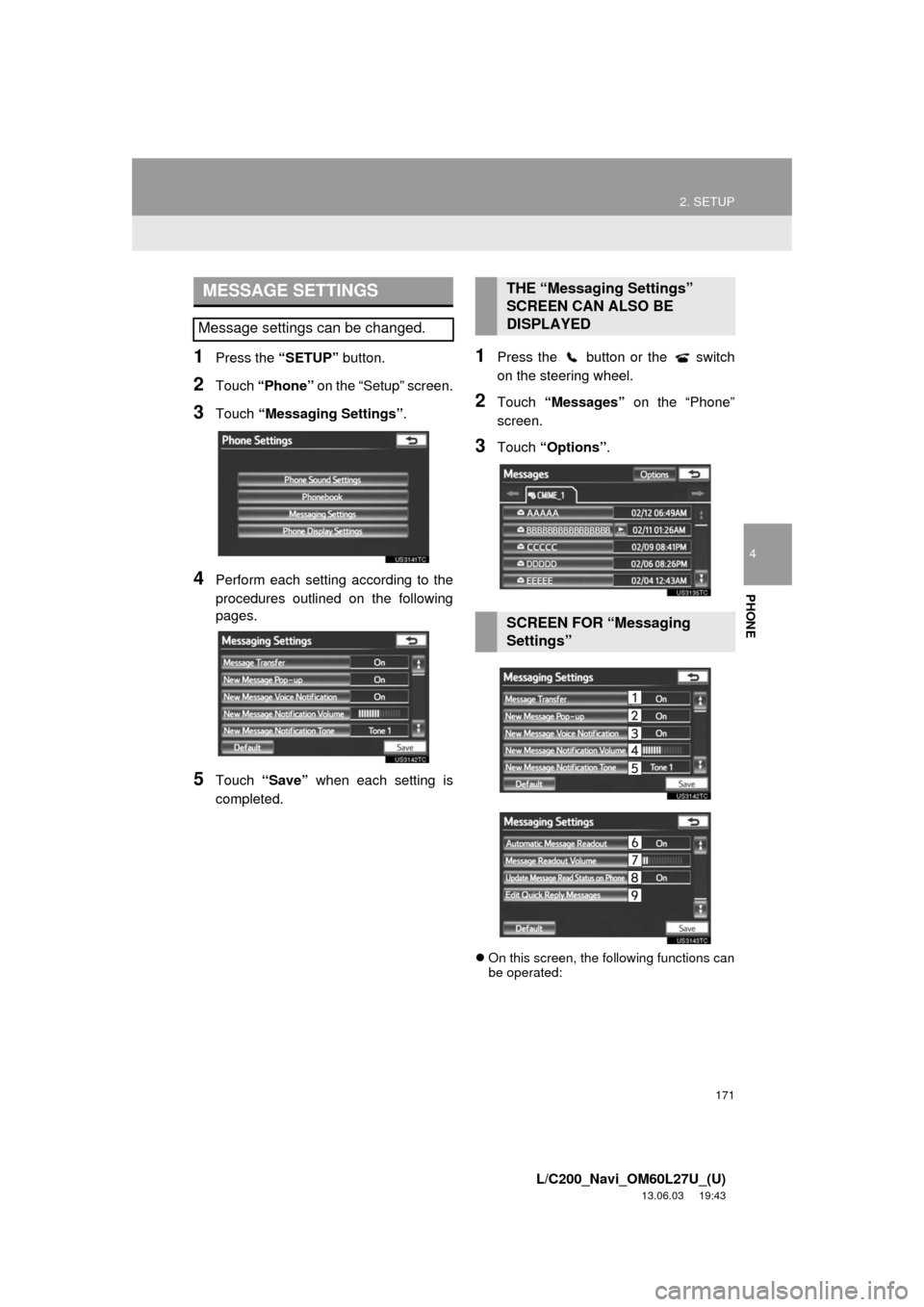
1Press the “SETUP” button.
2Touch “Phone” on the “Setup” screen.
3Touch “Messaging Settings”.
4Perform each setting according to the
procedures outlined on the following
pages.
5Touch “Save” when each setting is
completed.
1Press the button or the switch
on the steering wheel.
2Touch “Messages” on the “Phone”
screen.
3Touch “Options”.
On this screen, the following functions can
be operated:
MESSAGE SETTINGS
Message settings can be changed.
THE “Messaging Settings”
SCREEN CAN ALSO BE
DISPLAYED
SCREEN FOR “Messaging
Settings”
Page 176 of 427
176
2. SETUP
L/C200_Navi_OM60L27U_(U)
13.06.03 19:43
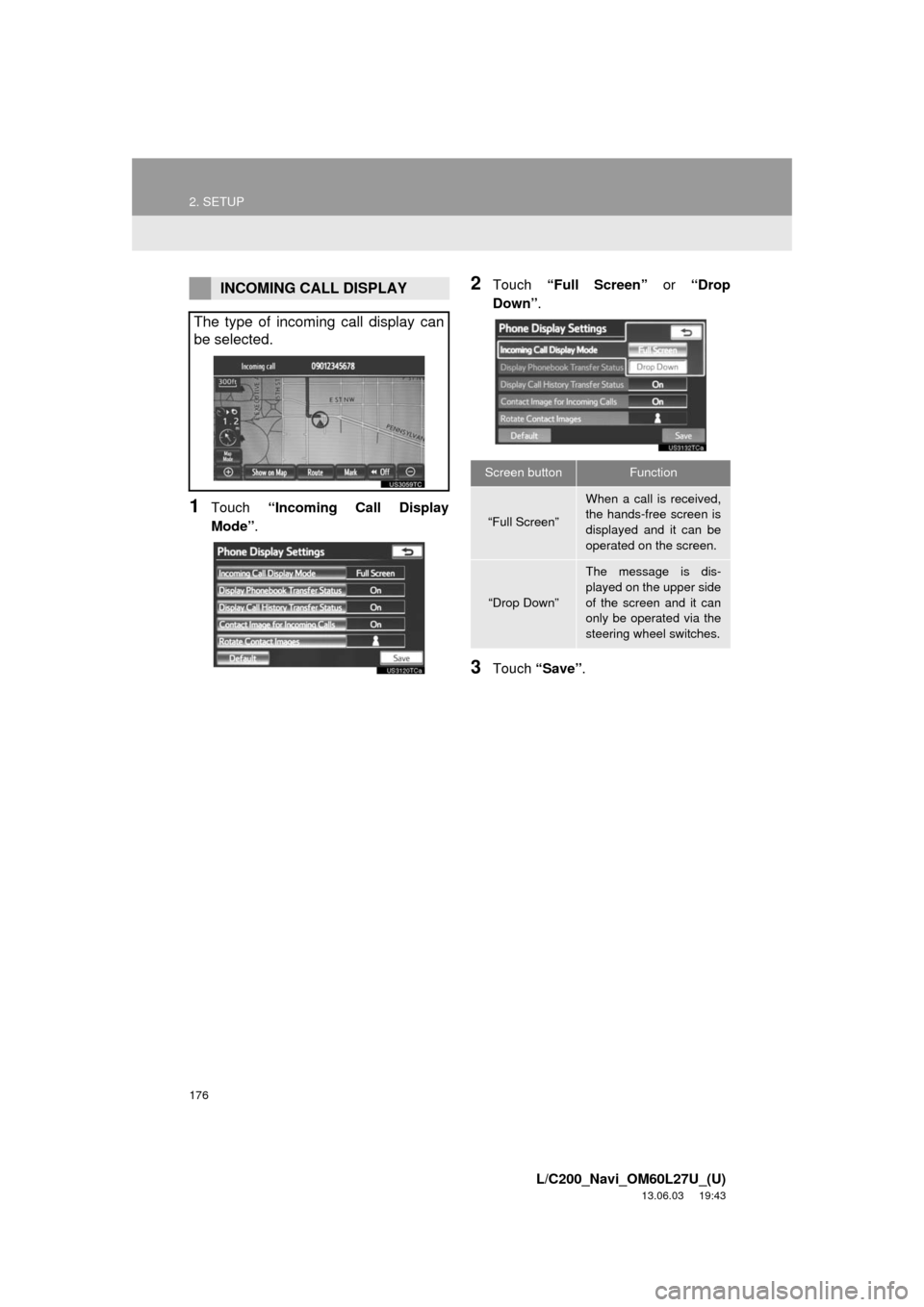
1Touch “Incoming Call Display
Mode”.
2Touch “Full Screen” or “Drop
Down”.
3Touch “Save”.
INCOMING CALL DISPLAY
The type of incoming call display can
be selected.
Screen buttonFunction
“Full Screen”
When a call is received,
the hands-free screen is
displayed and it can be
operated on the screen.
“Drop Down”
The message is dis-
played on the upper side
of the screen and it can
only be operated via the
steering wheel switches.
Page 214 of 427
214
1. AUDIO/VIDEO SYSTEM OPERATION
L/C200_Navi_OM60L27U_(U)
13.06.03 19:41
6. RADIO OPERATION (INTERNET RADIO BROADCAST)
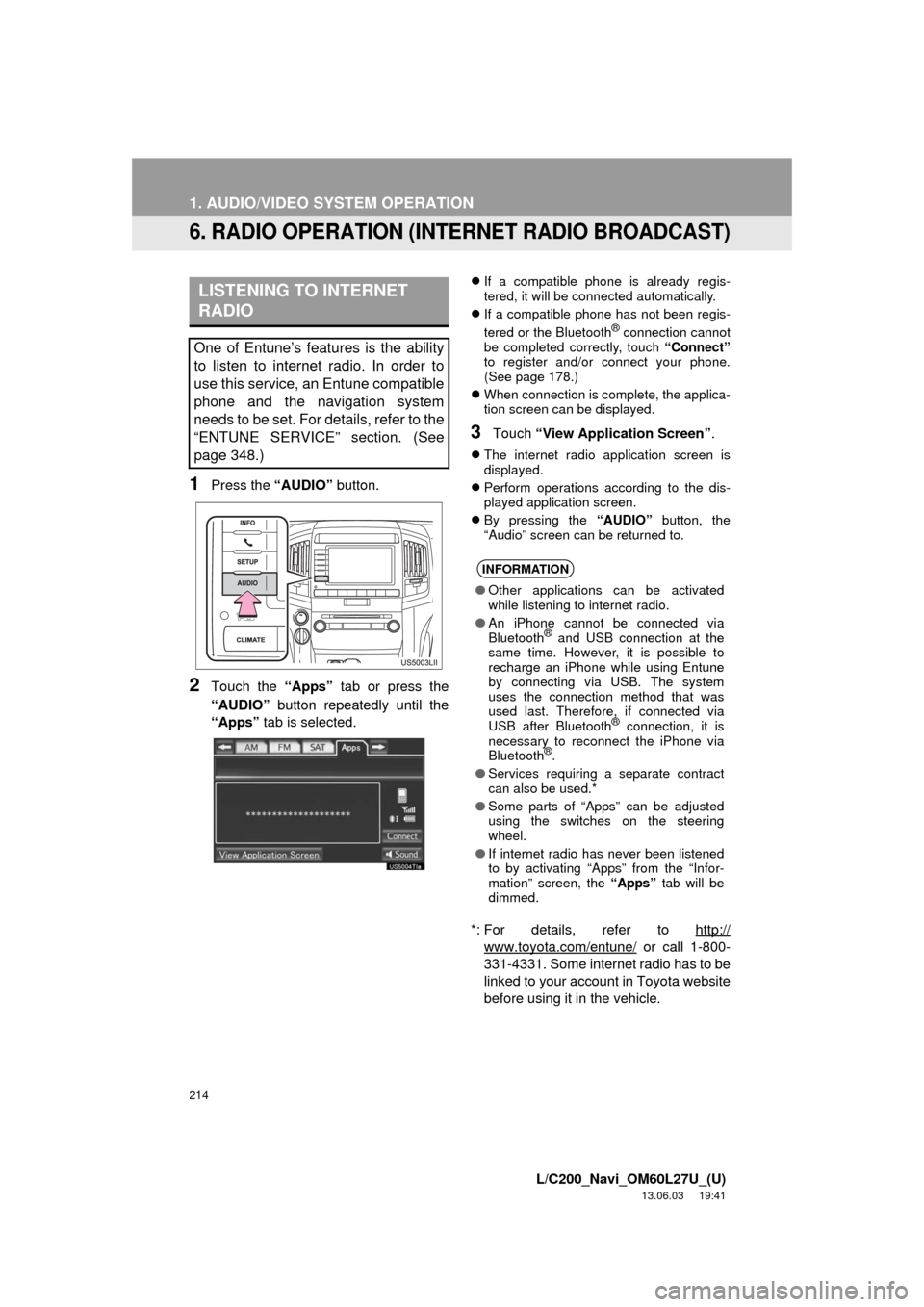
1Press the “AUDIO” button.
2Touch the “Apps” tab or press the
“AUDIO” button repeatedly until the
“Apps” tab is selected.
If a compatible phone is already regis-
tered, it will be connected automatically.
If a compatible phone has not been regis-
tered or the Bluetooth
® connection cannot
be completed correctly, touch “Connect”
to register and/or connect your phone.
(See page 178.)
When connection is complete, the applica-
tion screen can be displayed.
3Touch “View Application Screen”.
The internet radio application screen is
displayed.
Perform operations according to the dis-
played application screen.
By pressing the “AUDIO” button, the
“Audio” screen can be returned to.
*: For details, refer to http://
www.toyota.com/entune/ or call 1-800-
331-4331. Some internet radio has to be
linked to your account in Toyota website
before using it in the vehicle.
LISTENING TO INTERNET
RADIO
One of Entune’s features is the ability
to listen to internet radio. In order to
use this service, an Entune compatible
phone and the navigation system
needs to be set. For details, refer to the
“ENTUNE SERVICE” section. (See
page 348.)
INFORMATION
●Other applications can be activated
while listening to internet radio.
●An iPhone cannot be connected via
Bluetooth
® and USB connection at the
same time. However, it is possible to
recharge an iPhone while using Entune
by connecting via USB. The system
uses the connection method that was
used last. Therefore, if connected via
USB after Bluetooth
® connection, it is
necessary to reconnect the iPhone via
Bluetooth
®.
●Services requiring a separate contract
can also be used.*
●Some parts of “Apps” can be adjusted
using the switches on the steering
wheel.
●If internet radio has never been listened
to by activating “Apps” from the “Infor-
mation” screen, the “Apps” tab will be
dimmed.
Page 281 of 427
281
1. AUDIO/VIDEO SYSTEM OPERATION
5
AUDIO/VIDEO SYSTEM
L/C200_Navi_OM60L27U_(U)
13.06.03 19:41
13. AUDIO/VIDEO REMOTE CONTROLS (STEERING SWITCHES)
Volume control switch
Press the “+” side to increase the volume.
The volume continues to increase while
the switch is being pressed.
Press the “-” side to decrease the vol-
ume. The volume continues to decrease
while the switch is being pressed.“ ” switch
Radio
To select a preset station/channel:
Quickly press and release the “” or “”
switch. Repeat this to select the next pre-
set station/channel.
To seek a station/channel: Press and
hold the “” or “” switch until a beep is
heard. Repeat this to find the next station/
channel. If either switch is pressed during
seek mode, seeking will be canceled.
To seek up or down the frequency, press
and hold the switch until a beep is heard.
When you release the switch, the radio
will begin seeking up or down for a station/
channel. Repeat to find the next station/
channel.
DVD player
Use the “” or “” switch to skip up or
down to a different track, file or chapter in
either direction.
To select a desired track, file or chapter:
Quickly press and release the “” or “”
switch until the desired track, file or chap-
ter to play is selected. To return to the be-
ginning of the current track, file or chapter,
press the “” switch once quickly.
To select a desired folder: Press and
hold the “” or “” switch until a beep is
heard to change to the next or the previous
folder. Repeat it until the desired folder is
selected.
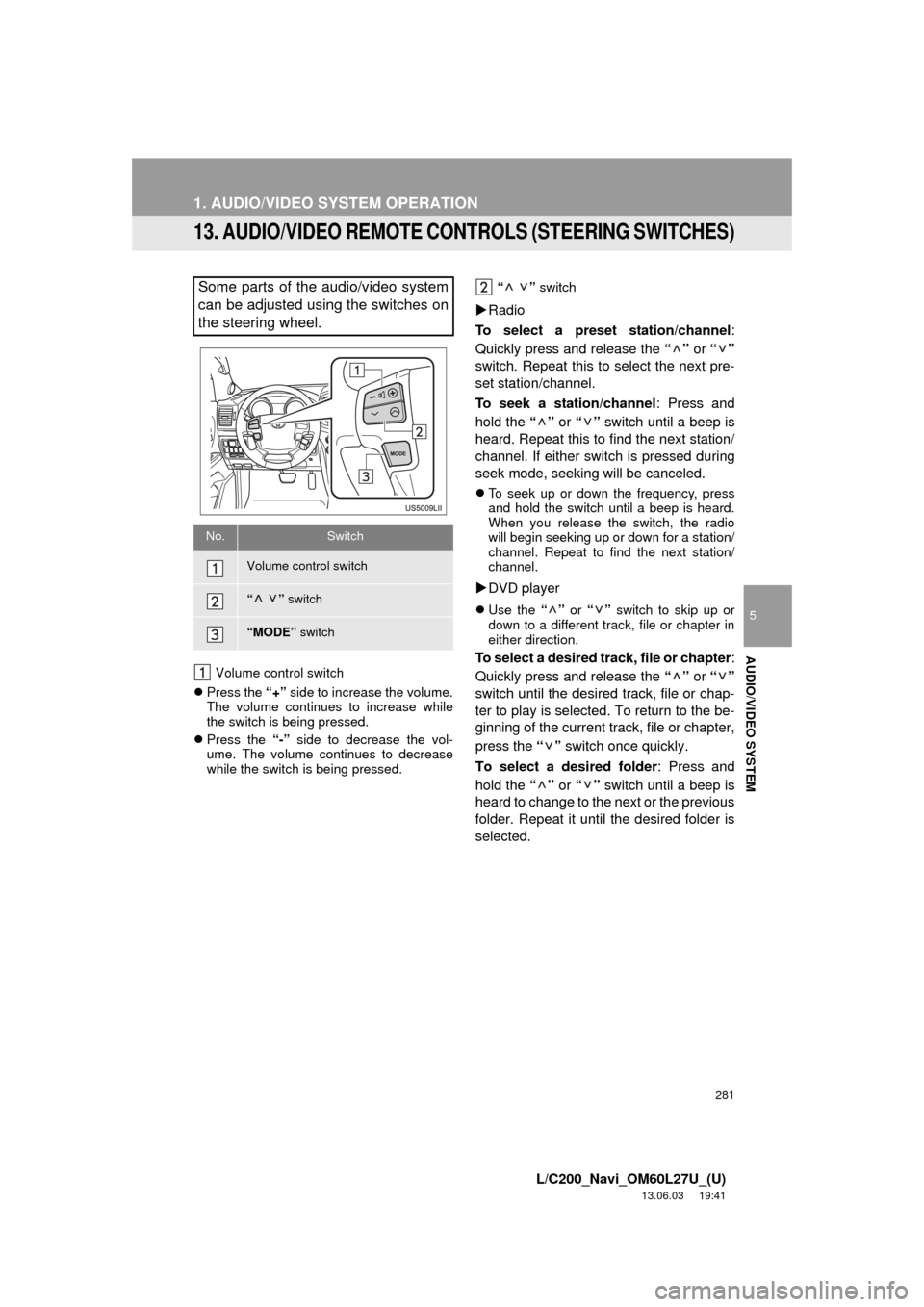
Some parts of the audio/video system
can be adjusted using the switches on
the steering wheel.
No.Switch
Volume control switch
“” switch
“MODE” switch
Page 324 of 427
324
L/C200_Navi_OM60L27U_(U)
13.02.20 14:56
1. INFORMATION DISPLAY
1. FUEL CONSUMPTION
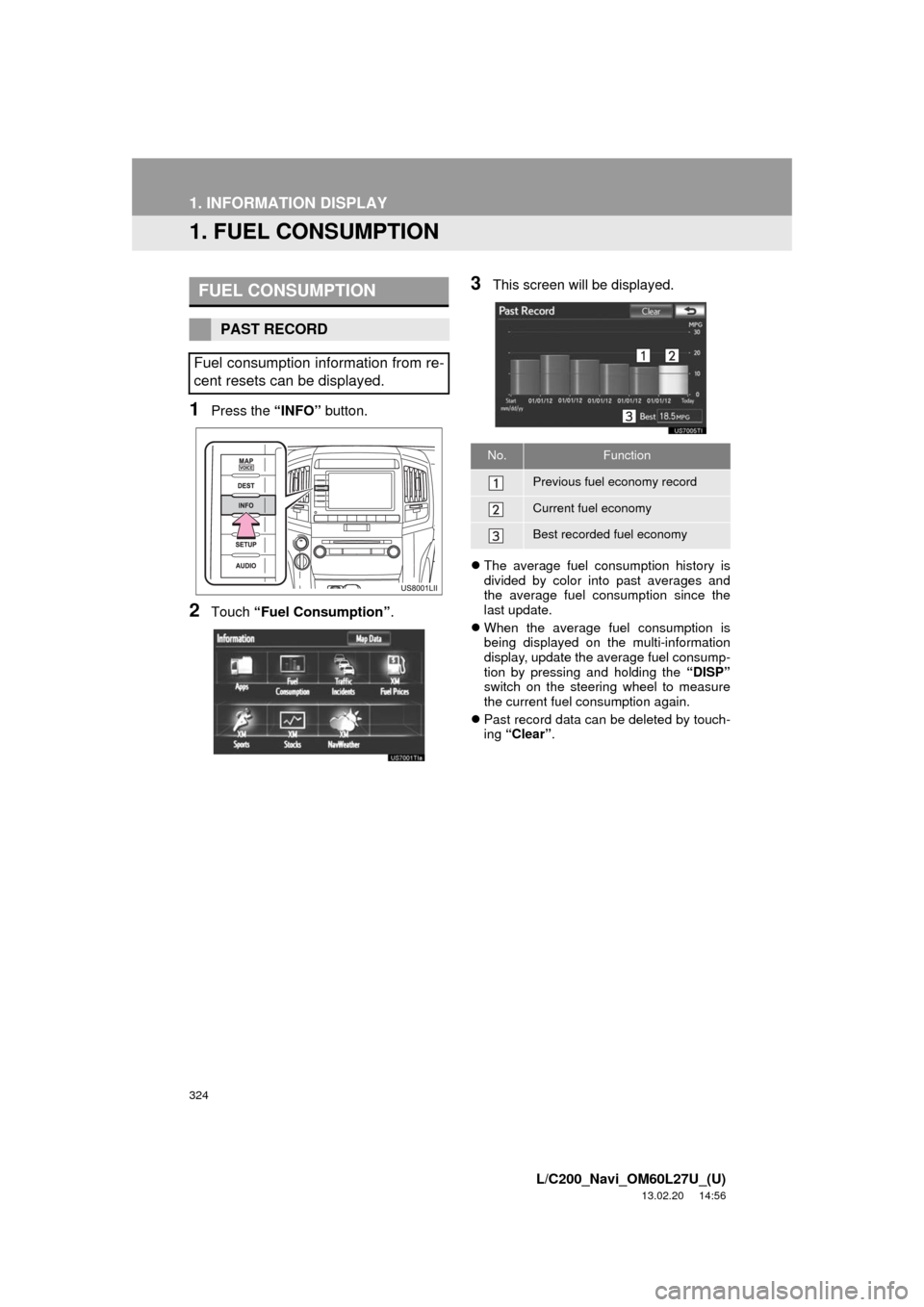
1Press the “INFO” button.
2Touch “Fuel Consumption”.
3This screen will be displayed.
The average fuel consumption history is
divided by color into past averages and
the average fuel consumption since the
last update.
When the average fuel consumption is
being displayed on the multi-information
display, update the average fuel consump-
tion by pressing and holding the “DISP”
switch on the steering wheel to measure
the current fuel consumption again.
Past record data can be deleted by touch-
ing “Clear”.
FUEL CONSUMPTION
PAST RECORD
Fuel consumption information from re-
cent resets can be displayed.
No.Function
Previous fuel economy record
Current fuel economy
Best recorded fuel economy
Page 355 of 427
355
2. ENTUNE OPERATION
9
APPS
L/C200_Navi_OM60L27U_(U)
13.06.03 19:43
2. LINKING “APPS” AND NAVIGATION LOCAL FUNCTION
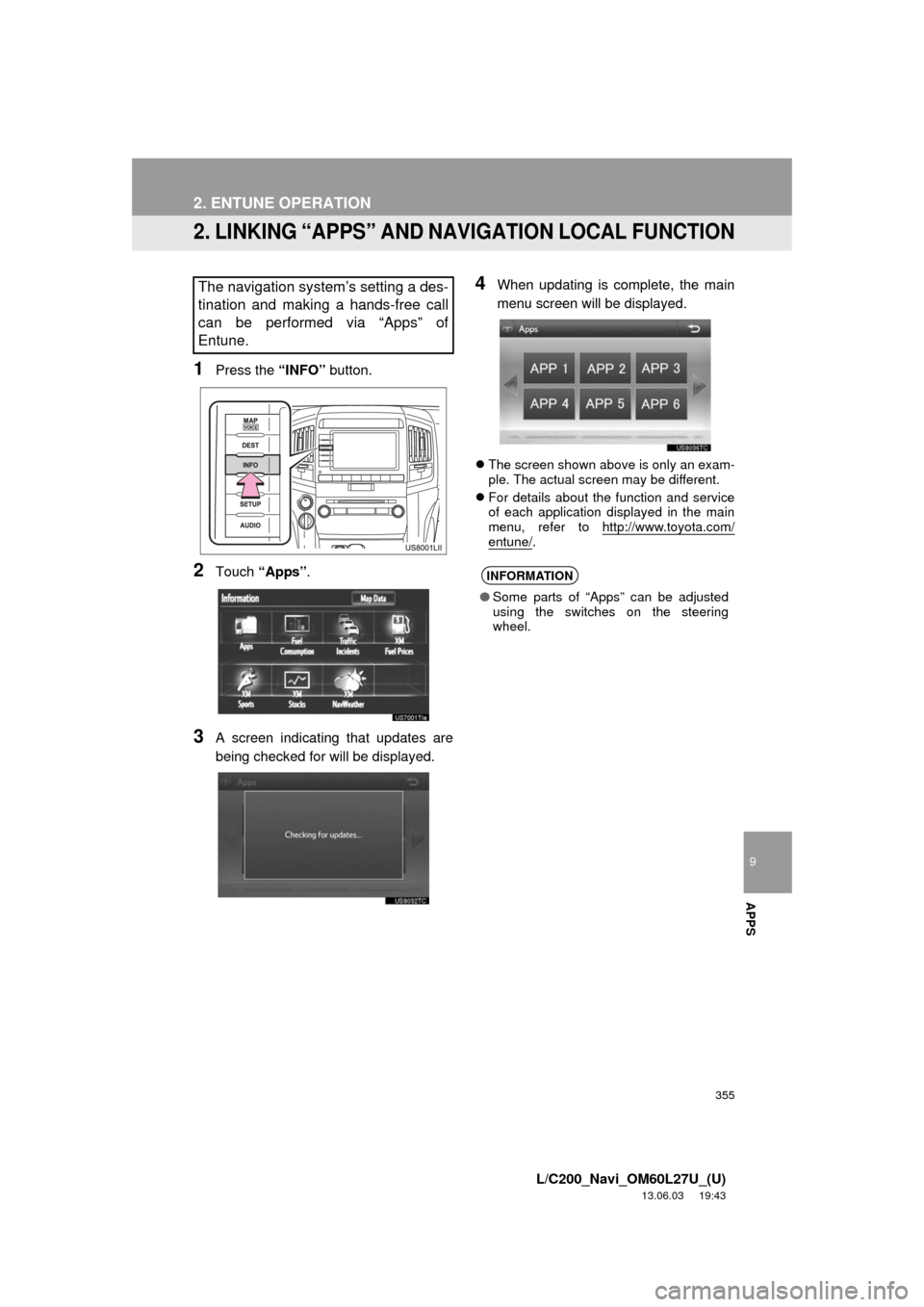
1Press the “INFO” button.
2Touch “Apps”.
3A screen indicating that updates are
being checked for will be displayed.
4When updating is complete, the main
menu screen will be displayed.
The screen shown above is only an exam-
ple. The actual screen may be different.
For details about the function and service
of each application displayed in the main
menu, refer to http://www.toyota.com/
entune/.
The navigation system’s setting a des-
tination and making a hands-free call
can be performed via “Apps” of
Entune.
INFORMATION
●Some parts of “Apps” can be adjusted
using the switches on the steering
wheel.