service TOYOTA LAND CRUISER 2018 Accessories, Audio & Navigation (in English)
[x] Cancel search | Manufacturer: TOYOTA, Model Year: 2018, Model line: LAND CRUISER, Model: TOYOTA LAND CRUISER 2018Pages: 276, PDF Size: 7.11 MB
Page 130 of 276
LC200_Navi_OM60Q52U_(U)
17.06.09 10:34
1302. Radio operation
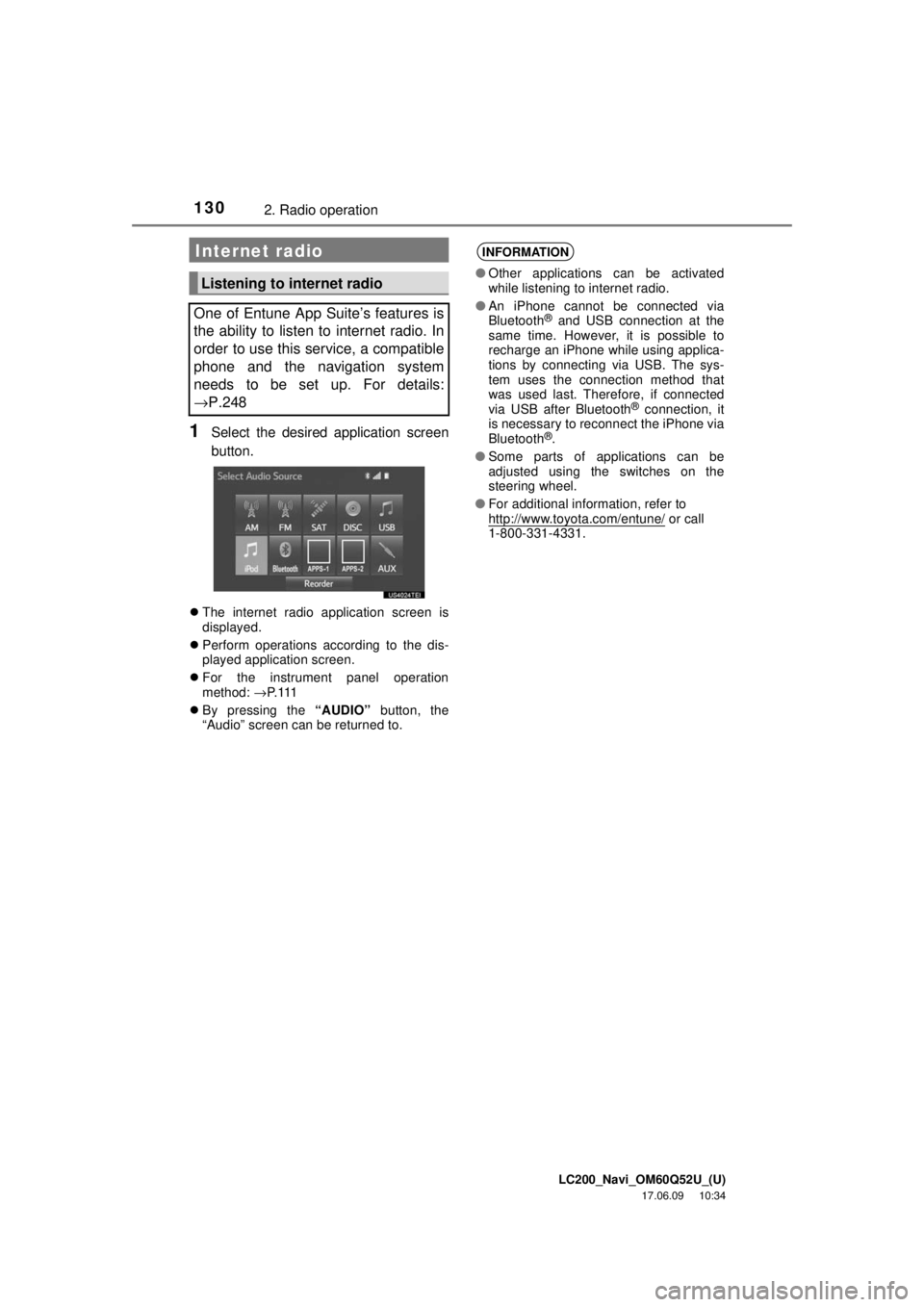
1Select the desired application screen
button.
The internet radio application screen is
displayed.
Perform operations according to the dis-
played application screen.
For the instrument panel operation
method: →P. 11 1
By pressing the “AUDIO” button, the
“Audio” screen can be returned to.
Internet radio
Listening to internet radio
One of Entune App Suite’s features is
the ability to listen to internet radio. In
order to use this service, a compatible
phone and the navigation system
needs to be set up. For details:
→P.248
INFORMATION
● Other applications can be activated
while listening to internet radio.
● An iPhone cannot be connected via
Bluetooth
® and USB connection at the
same time. However, it is possible to
recharge an iPhone while using applica-
tions by connecting via USB. The sys-
tem uses the connection method that
was used last. Therefore, if connected
via USB after Bluetooth
® connection, it
is necessary to reconnect the iPhone via
Bluetooth
®.
● Some parts of applications can be
adjusted using the switches on the
steering wheel.
● For additional information, refer to
http://www.toyota.com/entune/
or call
1-800-331-4331.
Page 159 of 276
LC200_Navi_OM60Q52U_(U)
17.06.09 10:34
Audio/visual system
4
1594. Rear seat entertainment system operation
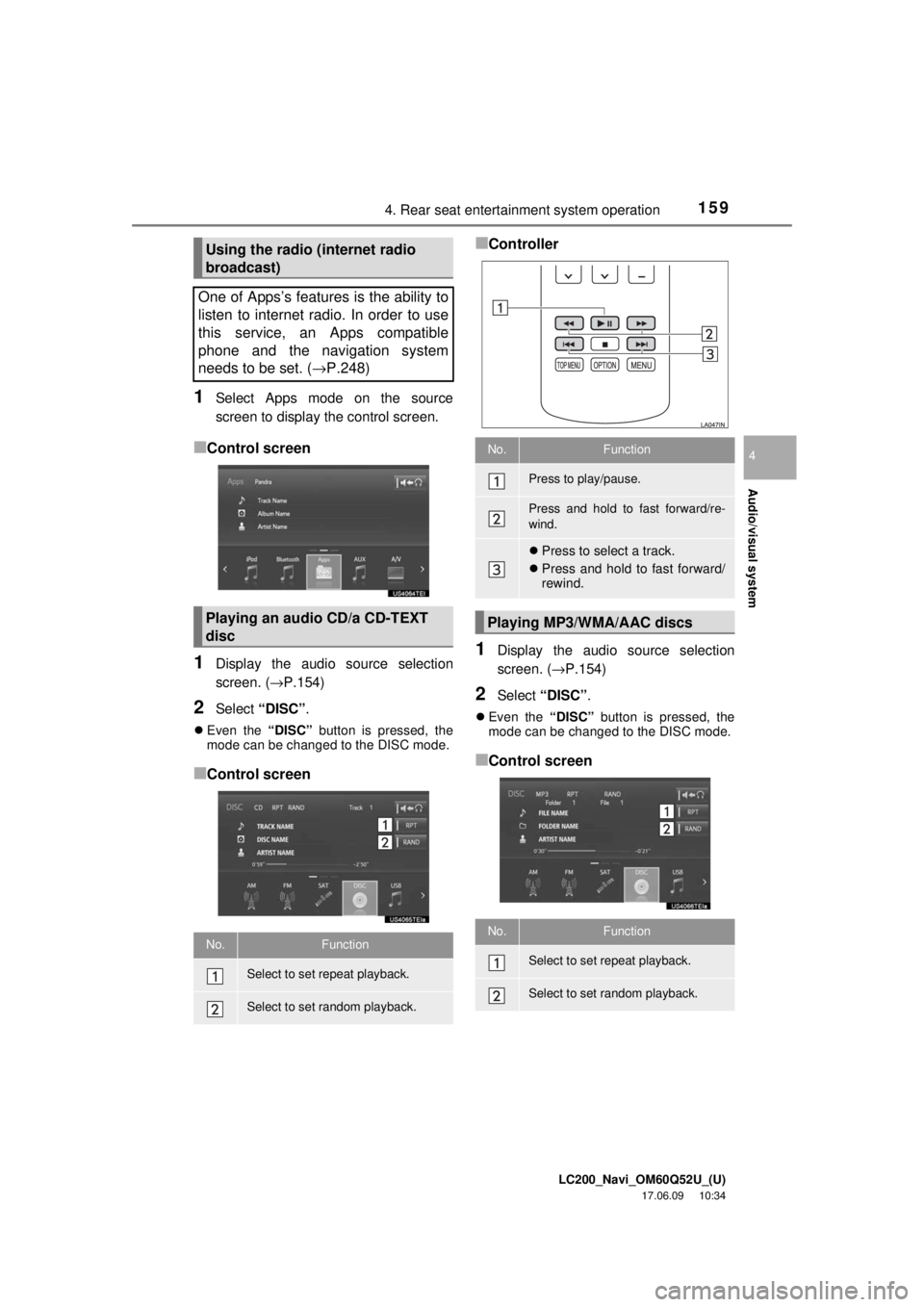
1Select Apps mode on the source
screen to display the control screen.
■Control screen
1Display the audio source selection
screen. (→P.154)
2Select “DISC” .
Even the “DISC” button is pressed, the
mode can be changed to the DISC mode.
■Control screen
■Controller
1Display the audio source selection
screen. ( →P.154)
2Select “DISC” .
Even the “DISC” button is pressed, the
mode can be changed to the DISC mode.
■Control screen
Using the radio (internet radio
broadcast)
One of Apps’s features is the ability to
listen to internet radio. In order to use
this service, an Apps compatible
phone and the navigation system
needs to be set. ( →P.248)
Playing an audio CD/a CD-TEXT
disc
No.Function
Select to set repeat playback.
Select to set random playback.
No.Function
Press to play/pause.
Press and hold to fast forward/re-
wind.
Press to select a track.
Press and hold to fast forward/
rewind.
Playing MP3/WMA/AAC discs
No.Function
Select to set repeat playback.
Select to set random playback.
Page 207 of 276

LC200_Navi_OM60Q52U_(U)
17.06.09 10:34
207
6
1. Information display
Receiving doppler weather information ............................ 208
Displaying doppler weather
information .............................. 208
Data services settings ............. 210
Setting download methods........ 210
Information
Page 210 of 276
LC200_Navi_OM60Q52U_(U)
17.06.09 10:34
2101. Information display
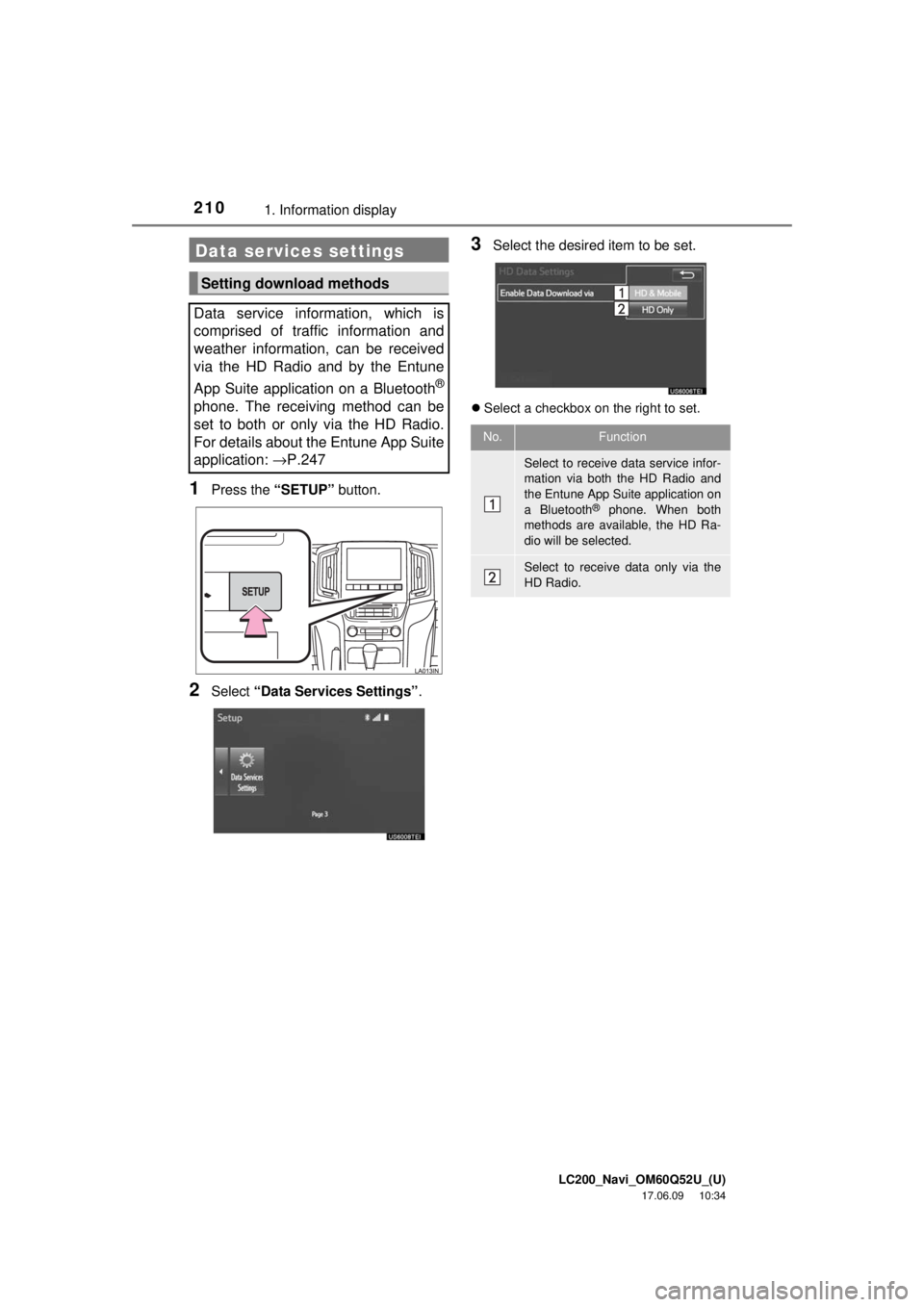
1Press the “SETUP” button.
2Select “Data Services Settings” .
3Select the desired item to be set.
Select a checkbox on the right to set.
Data services settings
Setting download methods
Data service information, which is
comprised of traffic information and
weather information, can be received
via the HD Radio and by the Entune
App Suite application on a Bluetooth
®
phone. The receiving method can be
set to both or only via the HD Radio.
For details about the Entune App Suite
application: →P.247
No.Function
Select to receive data service infor-
mation via both the HD Radio and
the Entune App Suite application on
a Bluetooth
® phone. When both
methods are available, the HD Ra-
dio will be selected.
Select to receive data only via the
HD Radio.
Page 221 of 276
LC200_Navi_OM60Q52U_(U)
17.06.09 10:34
2211. Phone operation (Hands-free system for cellular phones)
Phone
7
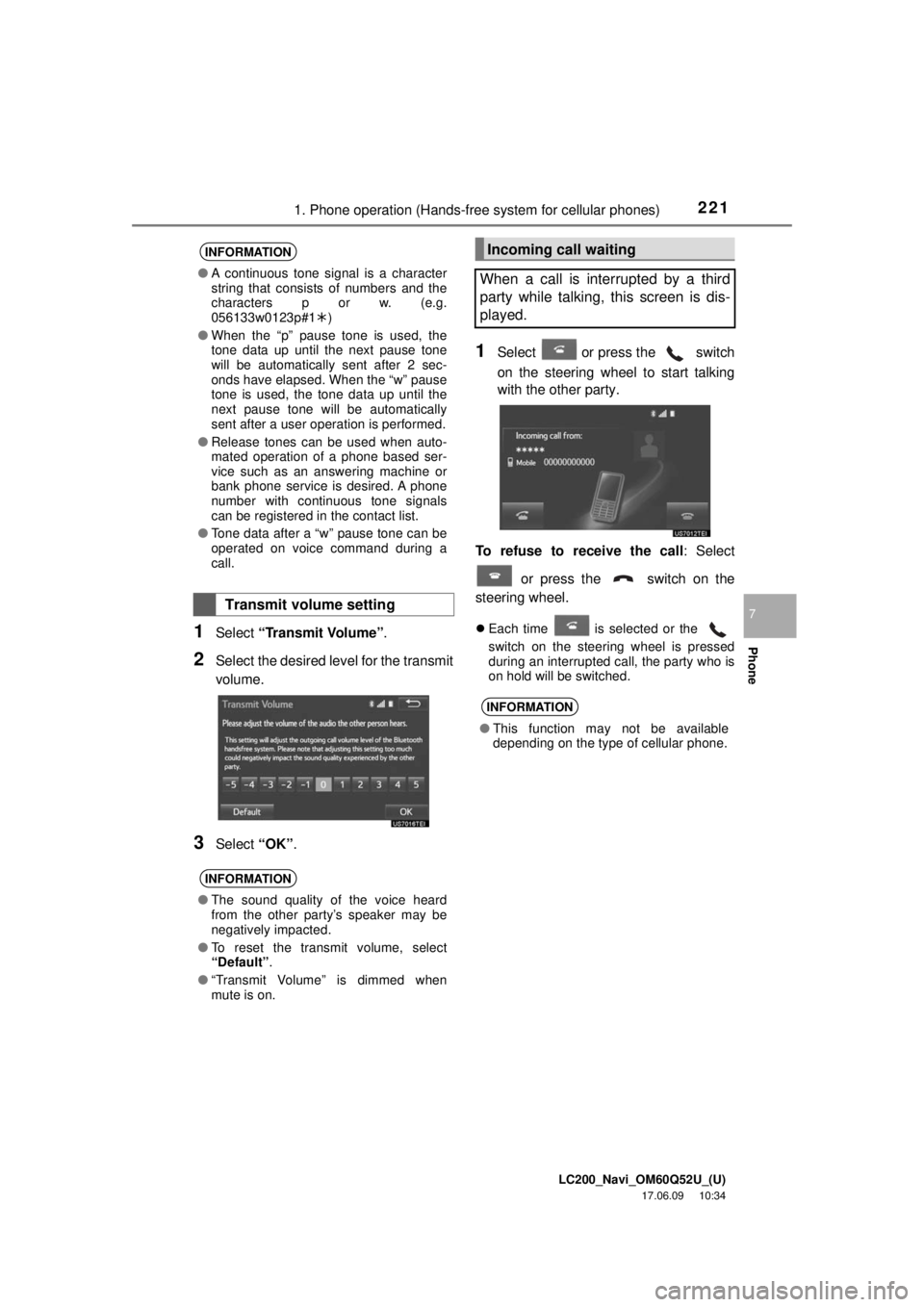
1Select “Transmit Volume” .
2Select the desired level for the transmit
volume.
3Select “OK”.
1Select or press the switch
on the steering wheel to start talking
with the other party.
To refuse to receive the call : Select
or press the switch on the
steering wheel.
Each time is selected or the
switch on the steering wheel is pressed
during an interrupted call, the party who is
on hold will be switched.
INFORMATION
● A continuous tone signal is a character
string that consists of numbers and the
characters p or w. (e.g.
056133w0123p#1 )
● When the “p” pause tone is used, the
tone data up until the next pause tone
will be automatically sent after 2 sec-
onds have elapsed. When the “w” pause
tone is used, the tone data up until the
next pause tone will be automatically
sent after a user operation is performed.
● Release tones can be used when auto-
mated operation of a phone based ser-
vice such as an answering machine or
bank phone service is desired. A phone
number with continuous tone signals
can be registered in the contact list.
● Tone data after a “w” pause tone can be
operated on voice command during a
call.
Transmit volume setting
INFORMATION
●The sound quality of the voice heard
from the other party’s speaker may be
negatively impacted.
● To reset the transmit volume, select
“Default” .
● “Transmit Volume” is dimmed when
mute is on.
Incoming call waiting
When a call is interrupted by a third
party while talking, this screen is dis-
played.
INFORMATION
● This function may not be available
depending on the type of cellular phone.
Page 239 of 276
LC200_Navi_OM60Q52U_(U)
17.06.09 10:34
2393. What to do if...
Phone
7
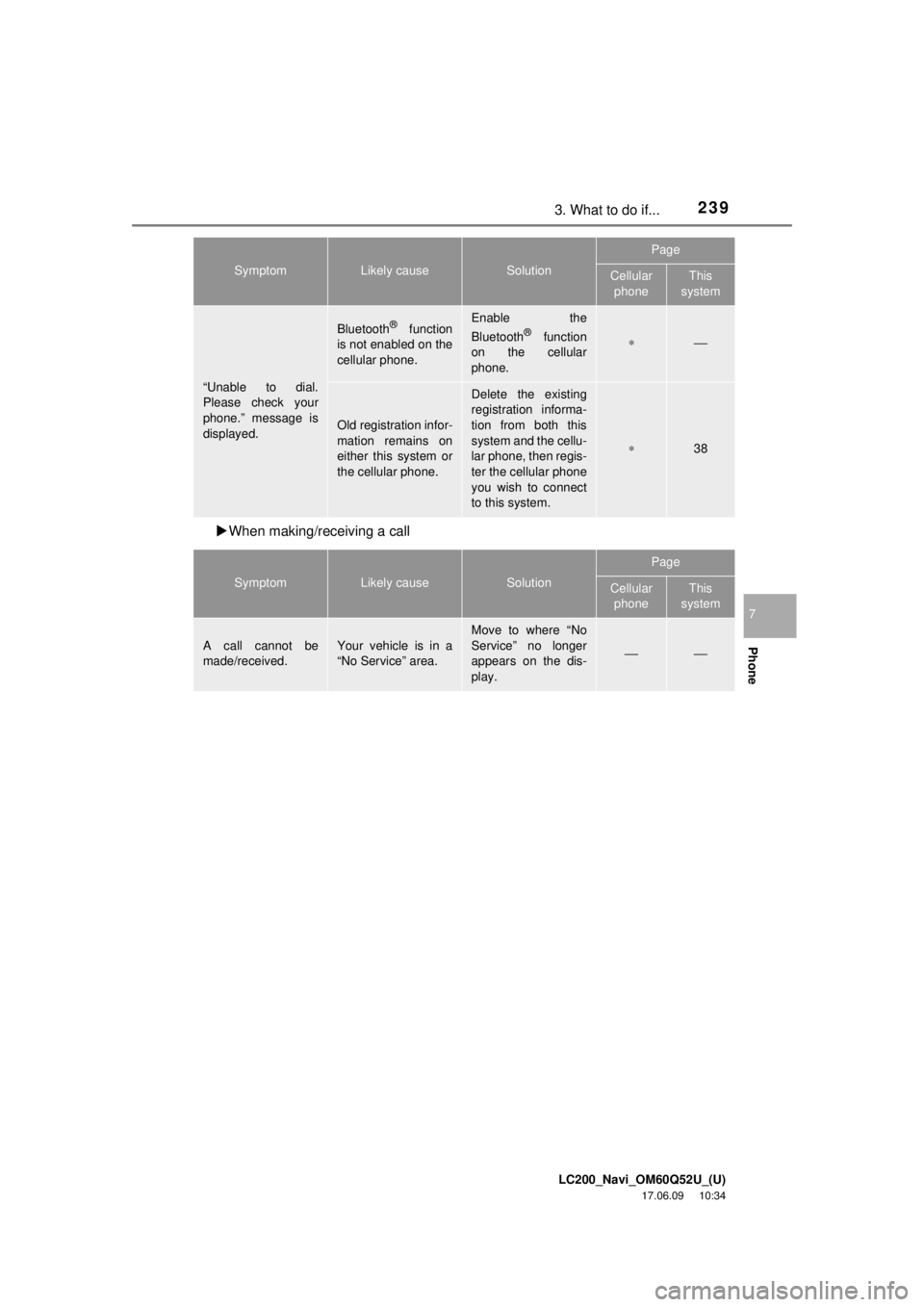
When making/receiving a call
“Unable to dial.
Please check your
phone.” message is
displayed.
Bluetooth® function
is not enabled on the
cellular phone.Enable the
Bluetooth® function
on the cellular
phone.∗⎯
Old registration infor-
mation remains on
either this system or
the cellular phone.
Delete the existing
registration informa-
tion from both this
system and the cellu-
lar phone, then regis-
ter the cellular phone
you wish to connect
to this system.
∗38
SymptomLikely causeSolution
Page
Cellular phoneThis
system
A call cannot be
made/received.Your vehicle is in a
“No Service” area.Move to where “No
Service” no longer
appears on the dis-
play.
⎯⎯
SymptomLikely causeSolution
Page
Cellular
phoneThis
system
Page 243 of 276

LC200_Navi_OM60Q52U_(U)
17.06.09 10:34
243
8
1. Entune App Suite overview
Entune App Suite service ........ 244
Before using the function .......... 246
Preparation before using
Entune App Suite ................... 246
2. Entune App Suite operation
Entune App Suite .................... 248
Using Entune App Suite ............ 248
Linking Entune App Suite and
navigation function ................. 252
Entune App Suite keyword operation ................................ 253
3. Setup
Entune App Suite settings ....... 255
Screen for Entune App Suite
settings ................................... 255
Entune App Suite
Page 244 of 276
LC200_Navi_OM60Q52U_(U)
17.06.09 10:34
2441. Entune App Suite overview
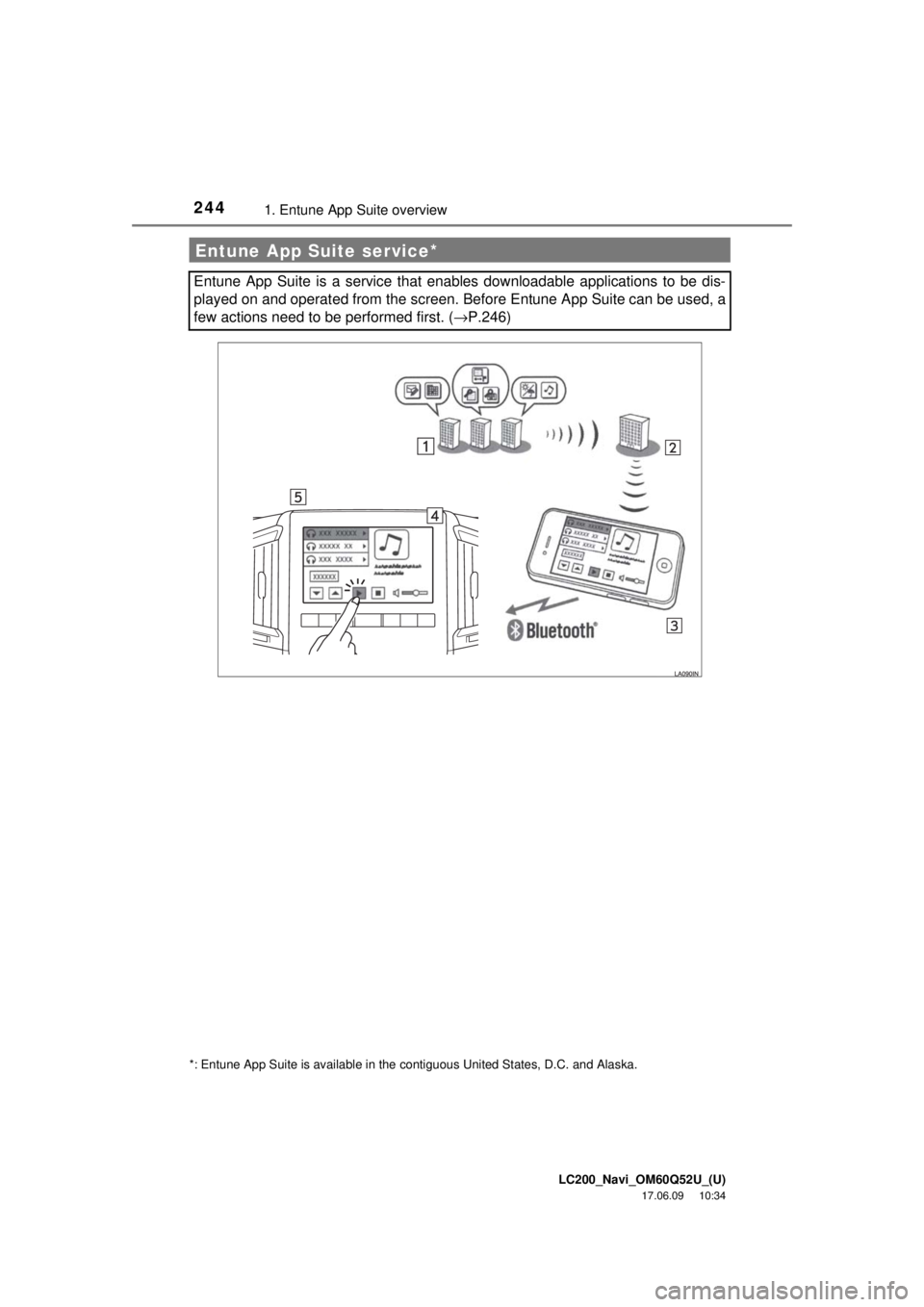
Entune App Suite service*
Entune App Suite is a service that enables downloadable applications to be dis-
played on and operated from the screen. Before Entune App Suite can be used, a
few actions need to be performed first. (→P.246)
*: Entune App Suite is available in the contiguous United States, D.C. and Alaska.
Page 245 of 276
LC200_Navi_OM60Q52U_(U)
17.06.09 10:34
2451. Entune App Suite overview
Entune App Suite
8
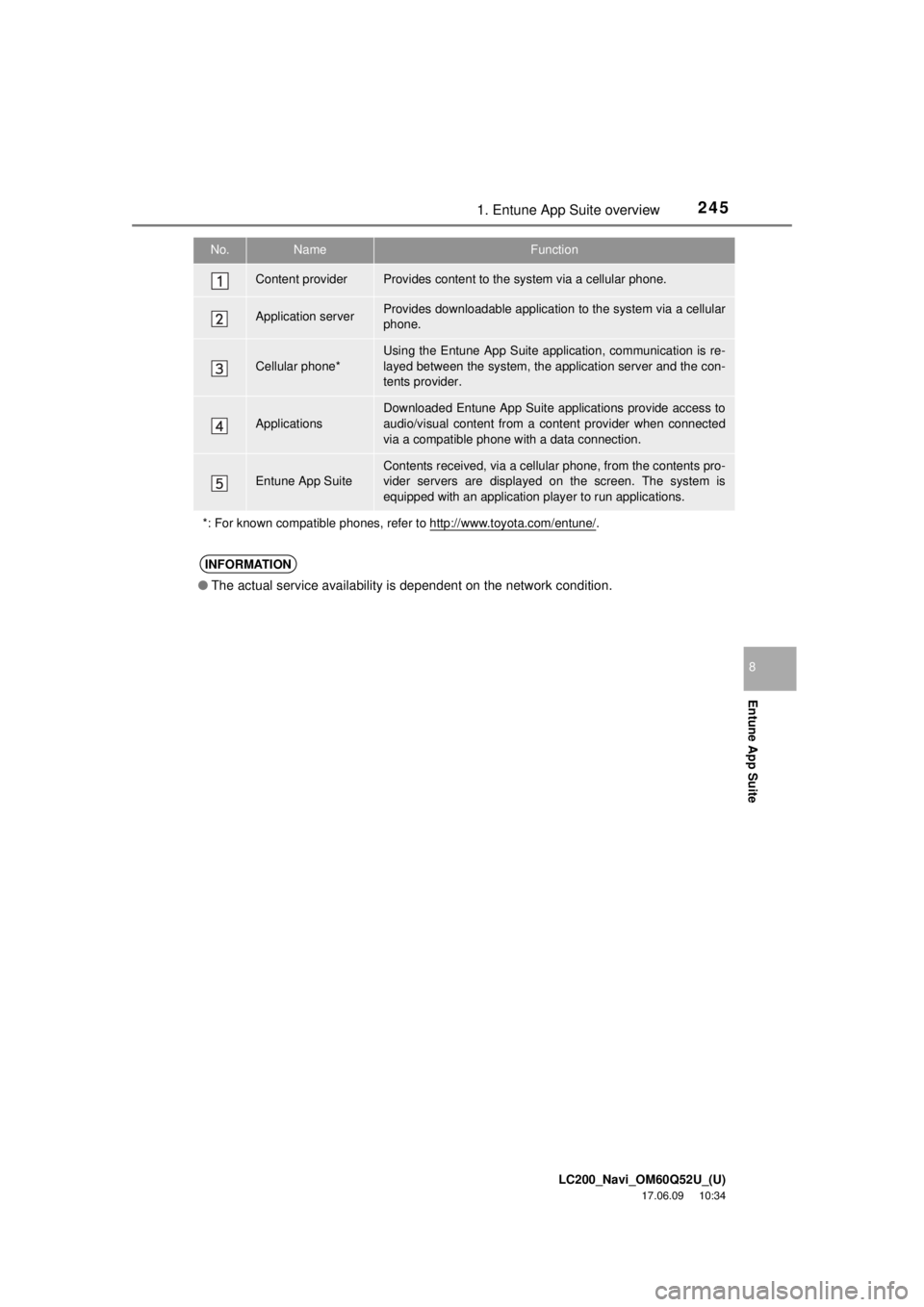
No.NameFunction
Content providerProvides content to the system via a cellular phone.
Application serverProvides downloadable application to the system via a cellular
phone.
Cellular phone*
Using the Entune App Suite application, communication is re-
layed between the system, the application server and the con-
tents provider.
ApplicationsDownloaded Entune App Suite applications provide access to
audio/visual content from a c ontent provider when connected
via a compatible phone with a data connection.
Entune App SuiteContents received, via a cellular phone, from the contents pro-
vider servers are displayed on the screen. The system is
equipped with an application play er to run applications.
*: For known compatible phones, refer to http://www.toyota.com/entune/
.
INFORMATION
● The actual service availability is dependent on the network condition.
Page 246 of 276
LC200_Navi_OM60Q52U_(U)
17.06.09 10:34
2461. Entune App Suite overview
User registration is required to start using
the Entune App Suite service.
Entune App suite does not require an acti-
vation fee or monthly recurring fees.
Services requiring a separate contract can
also be used.*
*: For details, refer to
http://www.toyota.com/entune/
or call
1-800-331-4331.
Entune App Suite is available in the con-
tiguous United States, D.C. and Alaska.
The following personal data can be
deleted from the system and returned to
their default settings:
• Downloaded applications
• Downloaded application content
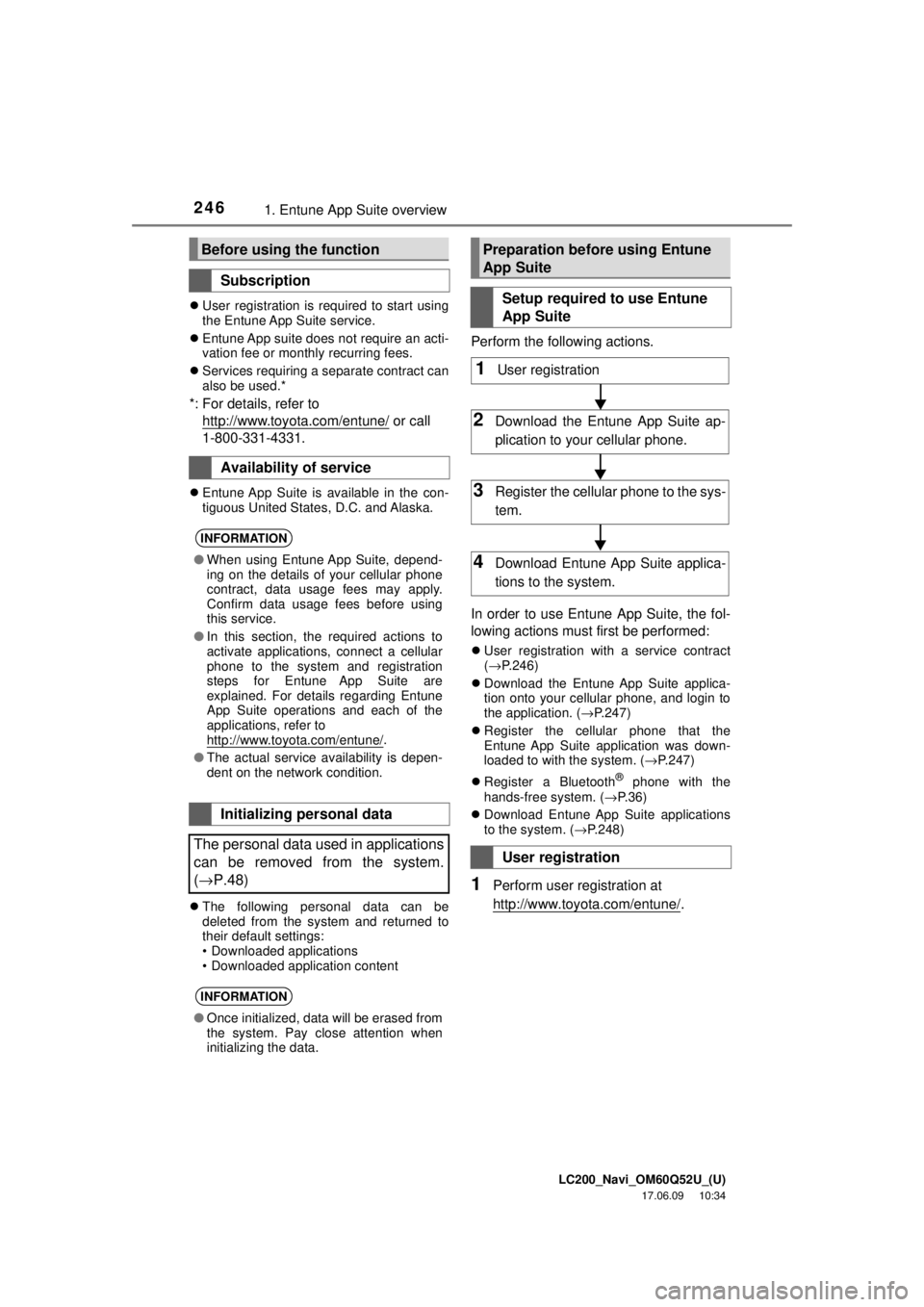
Perform the following actions.
In order to use Entune App Suite, the fol-
lowing actions must first be performed:
User registration with a service contract
(→ P.246)
Download the Entune App Suite applica-
tion onto your cellular phone, and login to
the application. ( →P.247)
Register the cellular phone that the
Entune App Suite application was down-
loaded to with the system. ( →P.247)
Register a Bluetooth
® phone with the
hands-free system. ( →P. 3 6 )
Download Entune App Suite applications
to the system. ( →P.248)
1Perform user registration at
http://www.toyota.com/entune/
.
Before using the function
Subscription
Availability of service
INFORMATION
● When using Entune App Suite, depend-
ing on the details of your cellular phone
contract, data usage fees may apply.
Confirm data usage fees before using
this service.
● In this section, the required actions to
activate applications, connect a cellular
phone to the system and registration
steps for Entune App Suite are
explained. For details regarding Entune
App Suite operations and each of the
applications, refer to
http://www.toyota.com/entune/
.
● The actual service availability is depen-
dent on the network condition.
Initializing personal data
The personal data used in applications
can be removed from the system.
( → P.48)
INFORMATION
● Once initialized, data will be erased from
the system. Pay close attention when
initializing the data.
Preparation before using Entune
App Suite
Setup required to use Entune
App Suite
User registration
1User registration
2Download the Entune App Suite ap-
plication to your cellular phone.
3Register the cellul ar phone to the sys-
tem.
4Download Entune App Suite applica-
tions to the system.