service TOYOTA LAND CRUISER 2018 Accessories, Audio & Navigation (in English)
[x] Cancel search | Manufacturer: TOYOTA, Model Year: 2018, Model line: LAND CRUISER, Model: TOYOTA LAND CRUISER 2018Pages: 276, PDF Size: 7.11 MB
Page 248 of 276
LC200_Navi_OM60Q52U_(U)
17.06.09 10:34
2482. Entune App Suite operation
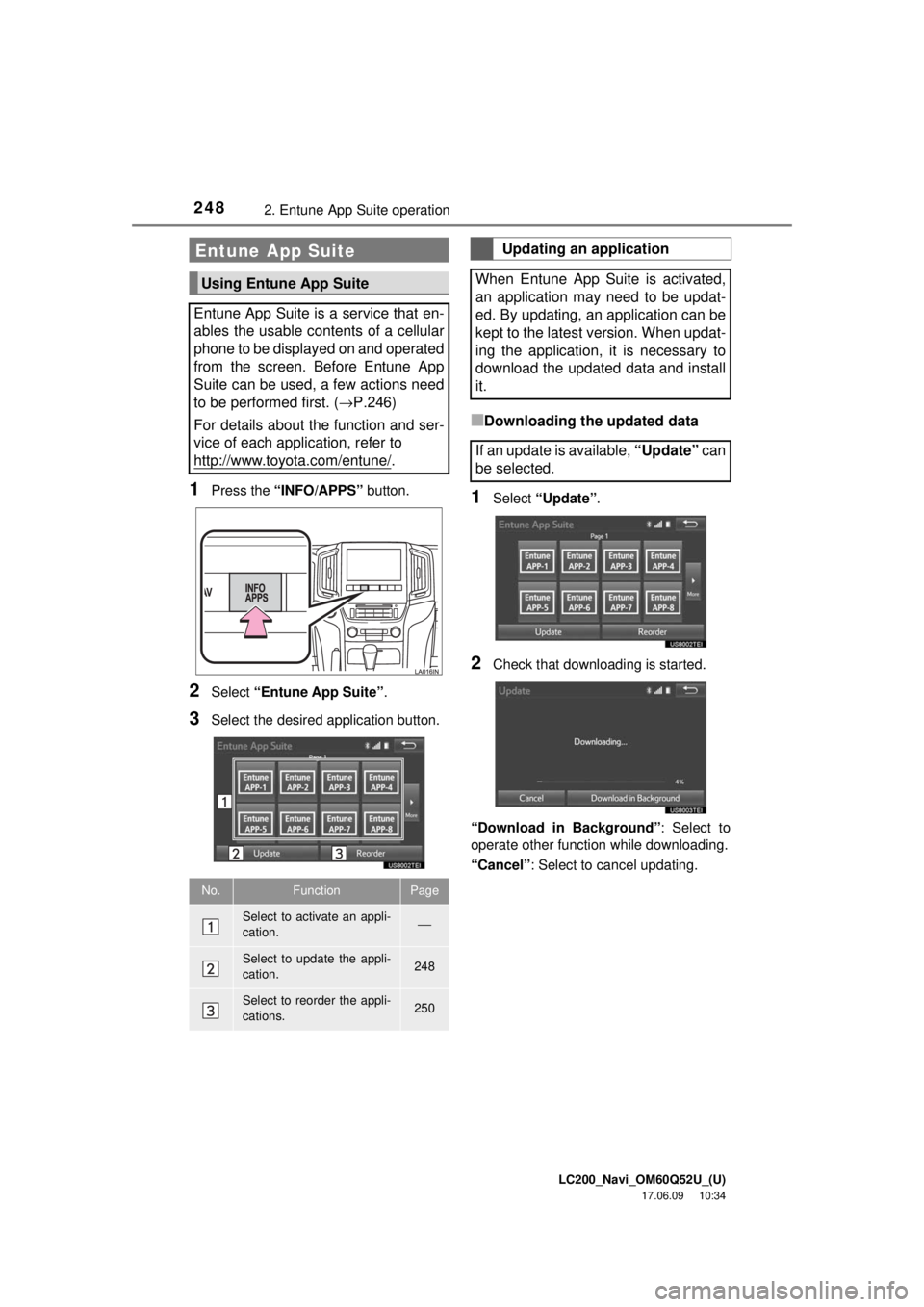
1Press the “INFO/APPS” button.
2Select “Entune App Suite” .
3Select the desired application button.
■Downloading the updated data
1Select “Update” .
2Check that downloading is started.
“Download in Background” : Select to
operate other function while downloading.
“Cancel” : Select to cancel updating.
Entune App Suite
Using Entune App Suite
Entune App Suite is a service that en-
ables the usable contents of a cellular
phone to be displayed on and operated
from the screen. Before Entune App
Suite can be used, a few actions need
to be performed first. ( →P.246)
For details about the function and ser-
vice of each application, refer to
http://www.toyota.com/entune/
.
No.FunctionPage
Select to activate an appli-
cation.⎯
Select to update the appli-
cation.248
Select to reorder the appli-
cations.250
Updating an application
When Entune App Suite is activated,
an application may need to be updat-
ed. By updating, an application can be
kept to the latest version. When updat-
ing the application, it is necessary to
download the updated data and install
it.
If an update is available, “Update” can
be selected.
Page 251 of 276
LC200_Navi_OM60Q52U_(U)
17.06.09 10:34
2512. Entune App Suite operation
Entune App Suite
8
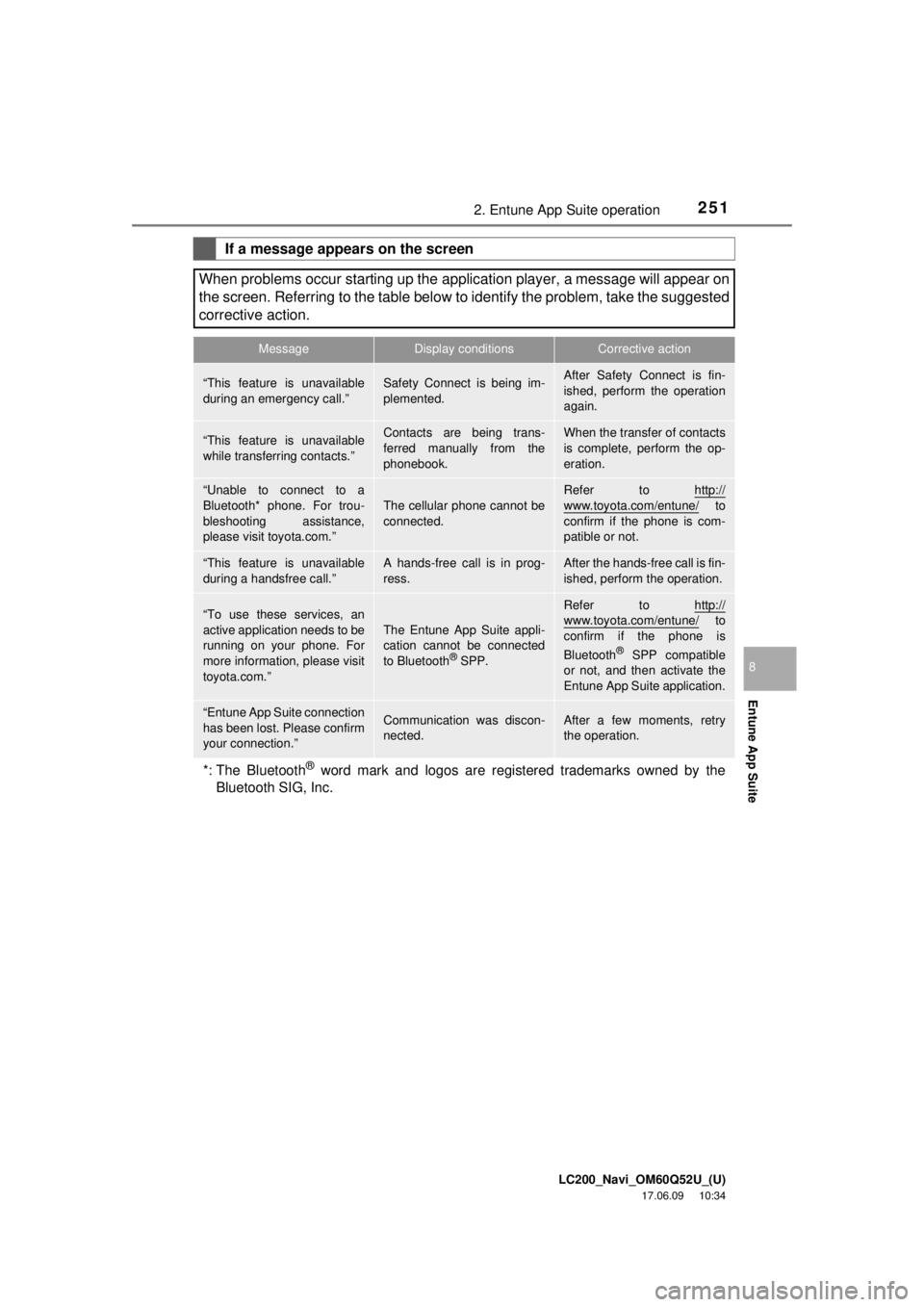
If a message appears on the screen
When problems occur starting up the application player, a message will appear on
the screen. Referring to the table below to identify the problem, take the suggested
corrective action.
MessageDisplay conditionsCorrective action
“This feature is unavailable
during an emergency call.”Safety Connect is being im-
plemented.After Safety Connect is fin-
ished, perform the operation
again.
“This feature is unavailable
while transferring contacts.”Contacts are being trans-
ferred manually from the
phonebook.When the transfer of contacts
is complete, perform the op-
eration.
“Unable to connect to a
Bluetooth* phone. For trou-
bleshooting assistance,
please visit toyota.com.”
The cellular phone cannot be
connected.
Refer to http://
www.toyota.com/entune/ to
confirm if the phone is com-
patible or not.
“This feature is unavailable
during a handsfree call.”A hands-free call is in prog-
ress.After the hands-free call is fin-
ished, perform the operation.
“To use these services, an
active application needs to be
running on your phone. For
more information, please visit
toyota.com.”
The Entune App Suite appli-
cation cannot be connected
to Bluetooth
® SPP.
Refer to http://www.toyota.com/entune/ to
confirm if the phone is
Bluetooth
® SPP compatible
or not, and then activate the
Entune App Suite application.
“Entune App Suite connection
has been lost. Please confirm
your connection.”Communication was discon-
nected.After a few moments, retry
the operation.
*: The Bluetooth® word mark and logos are registered trademarks owned by the
Bluetooth SIG, Inc.
Page 252 of 276
LC200_Navi_OM60Q52U_(U)
17.06.09 10:34
2522. Entune App Suite operation
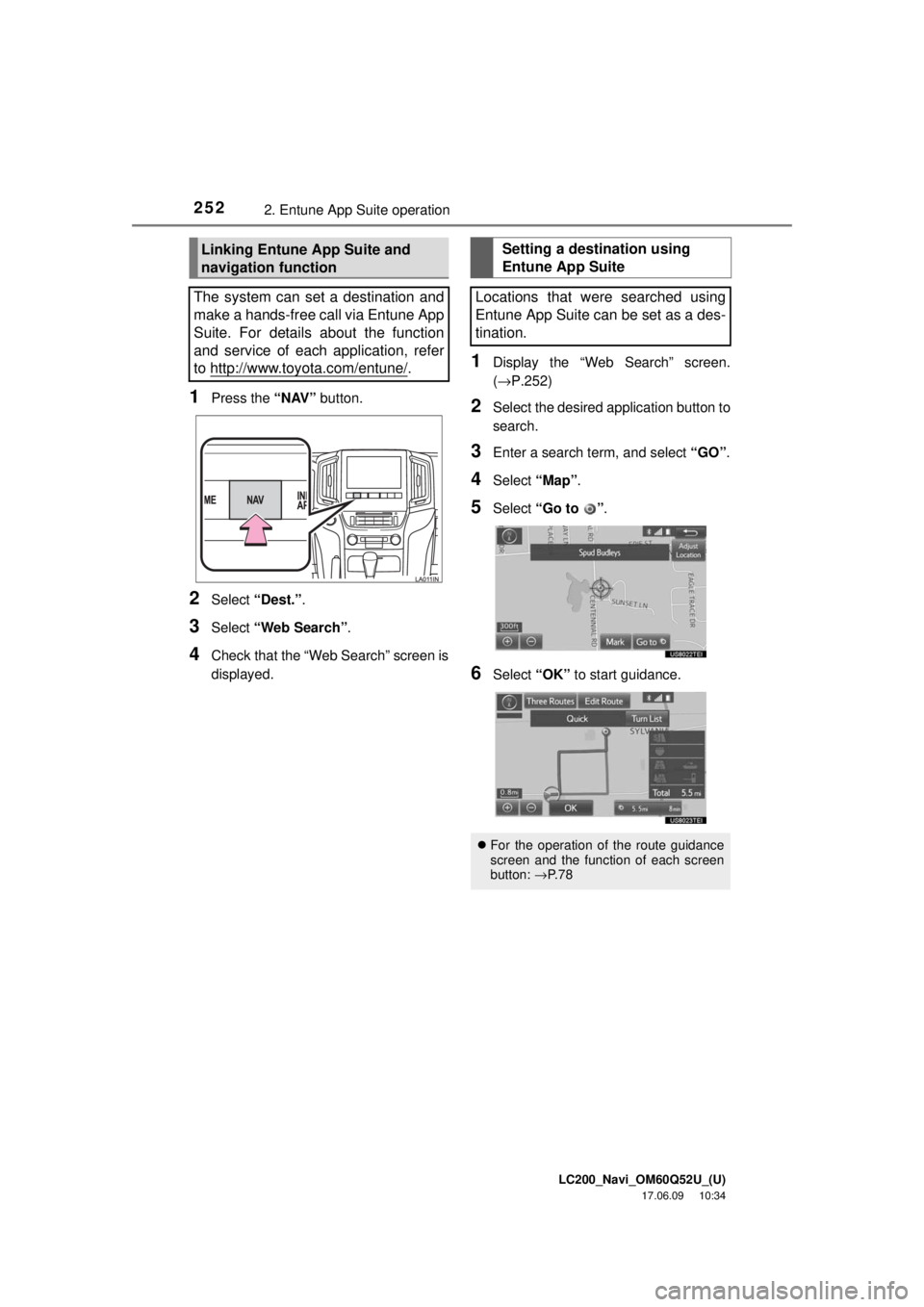
1Press the “NAV” button.
2Select “Dest.” .
3Select “Web Search” .
4Check that the “Web Search” screen is
displayed.
1Display the “Web Search” screen.
(→P.252)
2Select the desired application button to
search.
3Enter a search term, and select “GO”.
4Select “Map”.
5Select “Go to ” .
6Select “OK” to start guidance.
Linking Entune App Suite and
navigation function
The system can set a destination and
make a hands-free call via Entune App
Suite. For details about the function
and service of each application, refer
to http://www.toyota.com/entune/
.
Setting a destination using
Entune App Suite
Locations that were searched using
Entune App Suite can be set as a des-
tination.
For the operation of the route guidance
screen and the function of each screen
button: →P. 7 8
Page 253 of 276
LC200_Navi_OM60Q52U_(U)
17.06.09 10:34
2532. Entune App Suite operation
Entune App Suite
8
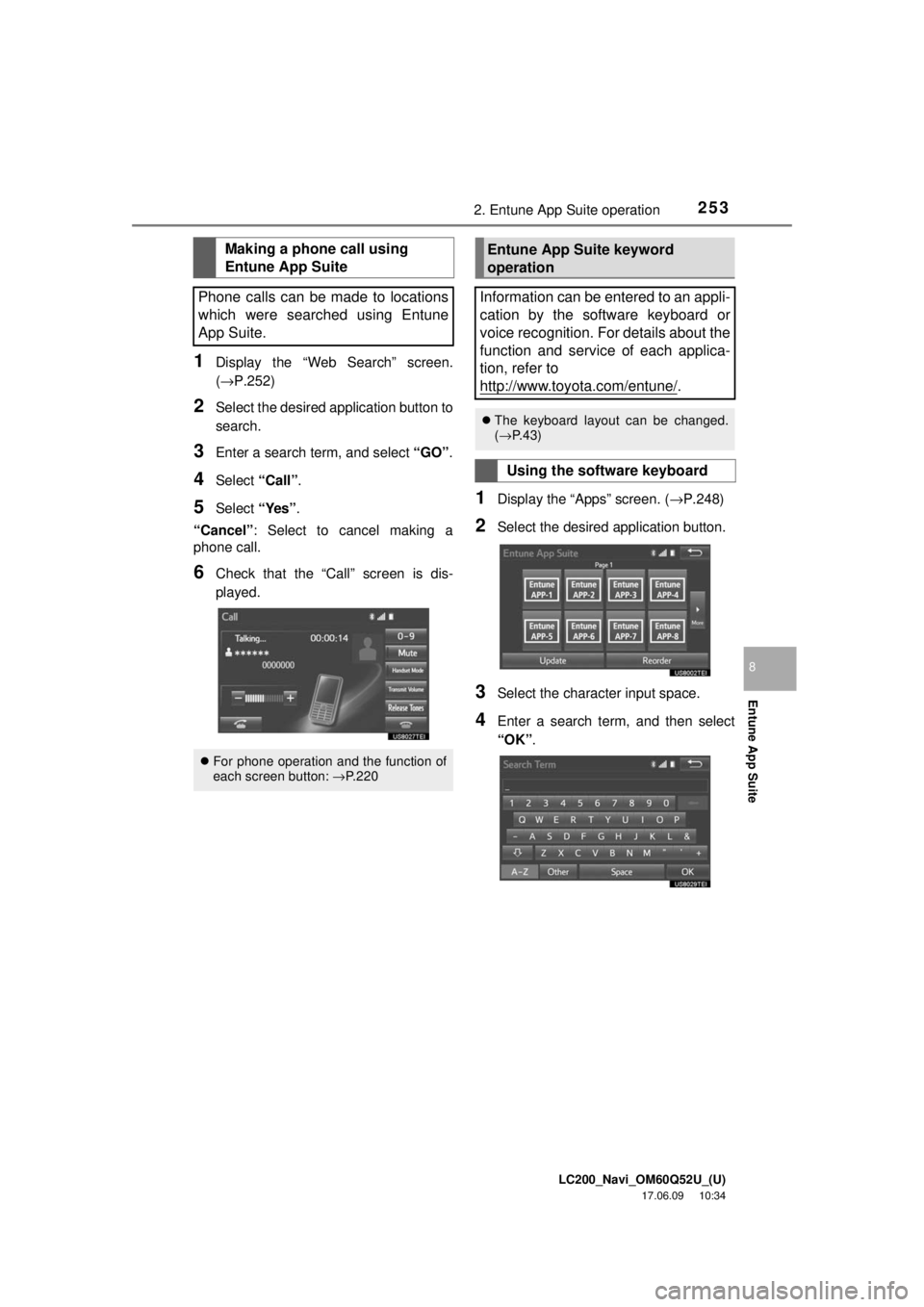
1Display the “Web Search” screen.
(→P.252)
2Select the desired application button to
search.
3Enter a search term, and select “GO”.
4Select “Call”.
5Select “Yes”.
“Cancel” : Select to cancel making a
phone call.
6Check that the “Call” screen is dis-
played.
1Display the “Apps” screen. ( →P.248)
2Select the desired application button.
3Select the character input space.
4Enter a search term, and then select
“OK”.
Making a phone call using
Entune App Suite
Phone calls can be made to locations
which were searched using Entune
App Suite.
For phone operation and the function of
each screen button: →P.220
Entune App Suite keyword
operation
Information can be entered to an appli-
cation by the software keyboard or
voice recognition. For details about the
function and service of each applica-
tion, refer to
http://www.toyota.com/entune/
.
The keyboard layout can be changed.
(→ P. 4 3 )
Using the software keyboard
Page 259 of 276
LC200_Navi_OM60Q52U_(U)
17.06.09 10:34
259Alphabetical index
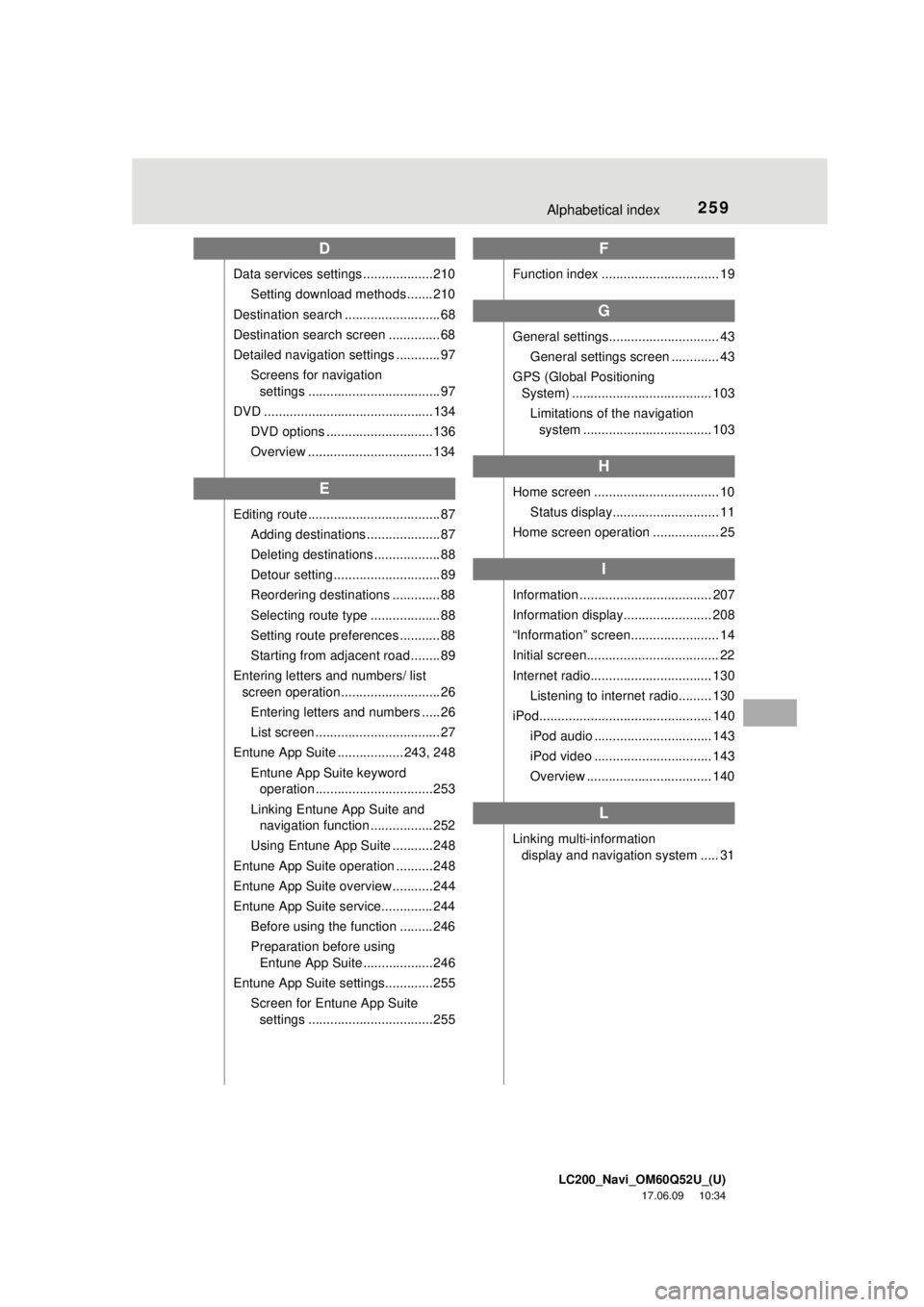
D
Data services settings ...................210Setting download methods ....... 210
Destination search .......................... 68
Destination search screen .............. 68
Detailed navigation settings ............ 97 Screens for navigation settings .................................... 97
DVD .............................................. 134 DVD options ............................. 136
Overview .................................. 134
E
Editing route .................................... 87Adding destinations .................... 87
Deleting destinations .................. 88
Detour setting ............................. 89
Reordering destinations ............. 88
Selecting route type ................... 88
Setting route preferences ........... 88
Starting from adjacent road ........ 89
Entering letters and numbers/ list screen operation ........................... 26
Entering letters and numbers ..... 26
List screen .................................. 27
Entune App Suite .................. 243, 248
Entune App Suite keyword operation ................................ 253
Linking Entune App Suite and navigation function ................. 252
Using Entune App Suite ........... 248
Entune App Suite operation .......... 248
Entune App Suite overview ........... 244
Entune App Suite service.............. 244 Before using the function ......... 246
Preparation before using Entune App Suite ...................246
Entune App Suite settings............. 255
Screen for Entune App Suite settings .................................. 255
F
Function index ................................ 19
G
General settings.............................. 43
General settings screen ............. 43
GPS (Global Positioning System) ...................................... 103
Limitations of the navigation system ................................... 103
H
Home screen .................................. 10
Status display............................. 11
Home screen operation .................. 25
I
Information .................................... 207
Information display........................ 208
“Information” screen........................ 14
Initial screen.................................... 22
Internet radio................................. 130 Listening to internet radio......... 130
iPod............................................... 140 iPod audio ................................ 143
iPod video ................................ 143
Overview .................................. 140
L
Linking multi-information display and navigation system ..... 31