rear entertainment TOYOTA LAND CRUISER 2018 Accessories, Audio & Navigation (in English)
[x] Cancel search | Manufacturer: TOYOTA, Model Year: 2018, Model line: LAND CRUISER, Model: TOYOTA LAND CRUISER 2018Pages: 276, PDF Size: 7.11 MB
Page 166 of 276
LC200_Navi_OM60Q52U_(U)
17.06.09 10:34
1664. Rear seat entertainment system operation
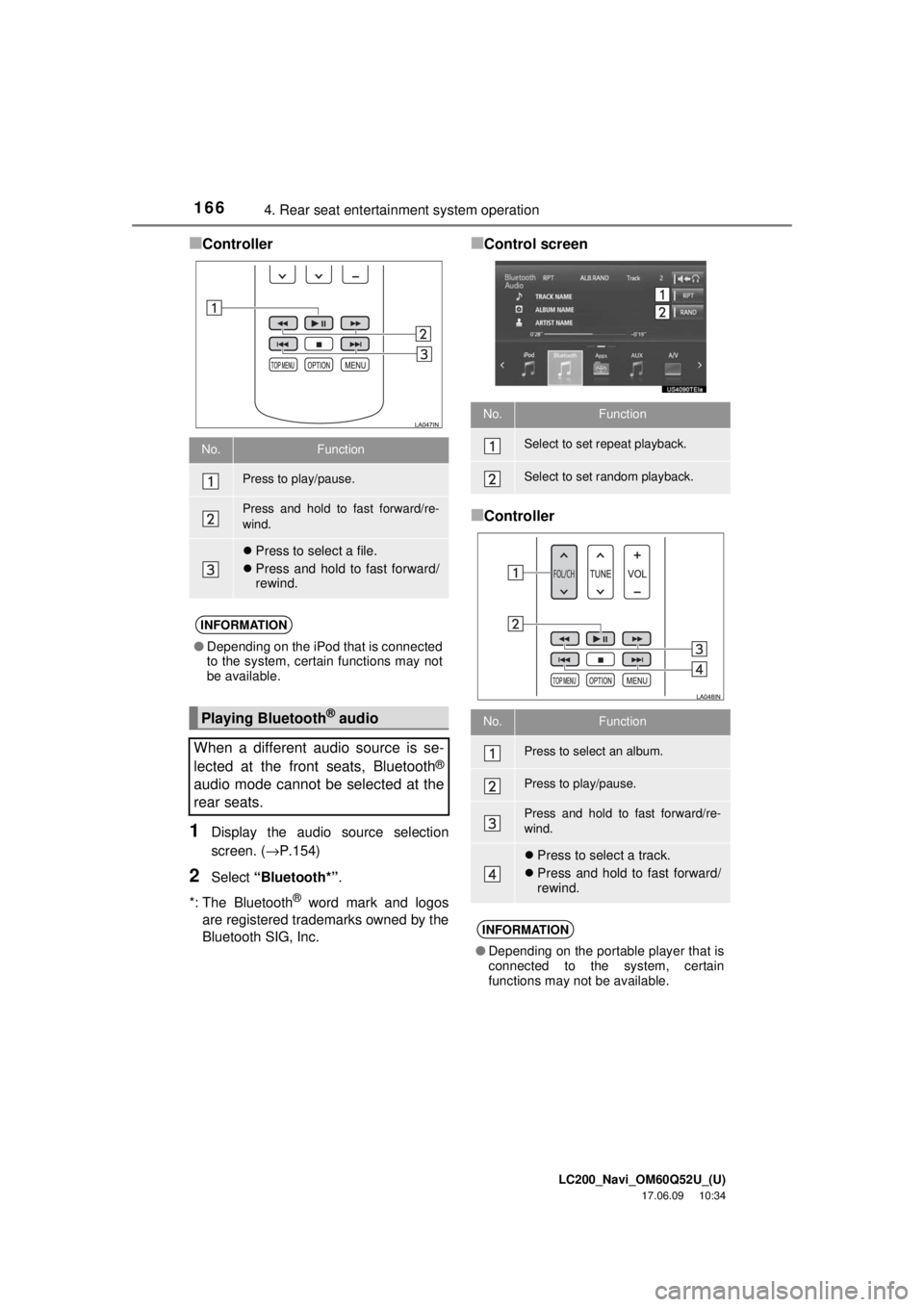
■Controller
1Display the audio source selection
screen. (→P.154)
2Select “Bluetooth*” .
*: The Bluetooth
® word mark and logos
are registered trademarks owned by the
Bluetooth SIG, Inc.
■Control screen
■Controller
No.Function
Press to play/pause.
Press and hold to fast forward/re-
wind.
Press to select a file.
Press and hold to fast forward/
rewind.
INFORMATION
●Depending on the iPod that is connected
to the system, certain functions may not
be available.
Playing Bluetooth® audio
When a different audio source is se-
lected at the front seats, Bluetooth
®
audio mode cannot be selected at the
rear seats.
No.Function
Select to set repeat playback.
Select to set random playback.
No.Function
Press to select an album.
Press to play/pause.
Press and hold to fast forward/re-
wind.
Press to select a track.
Press and hold to fast forward/
rewind.
INFORMATION
●Depending on the portable player that is
connected to the system, certain
functions may not be available.
Page 167 of 276
LC200_Navi_OM60Q52U_(U)
17.06.09 10:34
Audio/visual system
4
1674. Rear seat entertainment system operation
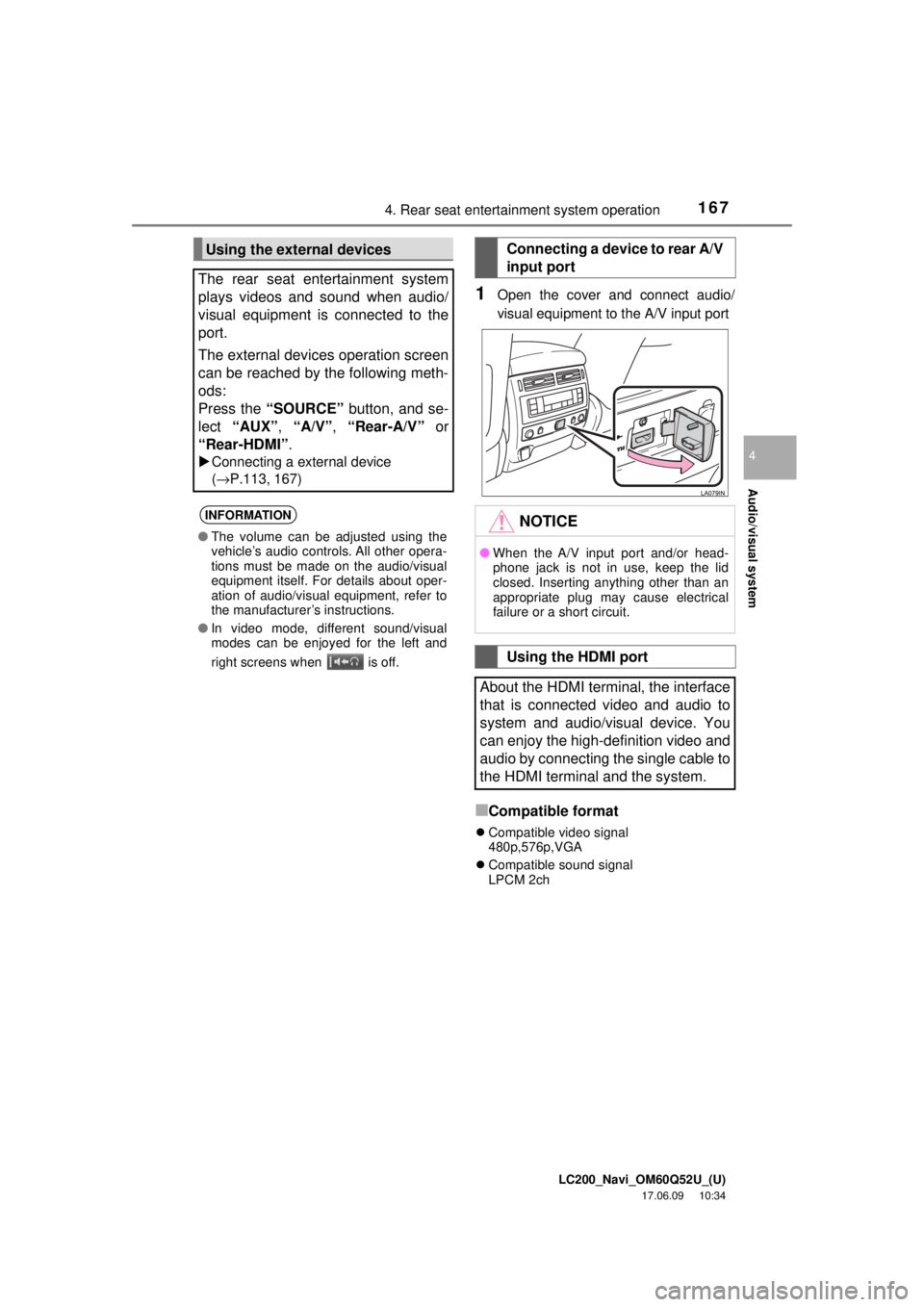
1Open the cover and connect audio/
visual equipment to the A/V input port
■Compatible format
Compatible video signal
480p,576p,VGA
Compatible sound signal
LPCM 2ch
Using the external devices
The rear seat entertainment system
plays videos and sound when audio/
visual equipment is connected to the
port.
The external devices operation screen
can be reached by the following meth-
ods:
Press the “SOURCE” button, and se-
lect “AUX”, “A/V”, “Rear-A/V” or
“Rear-HDMI” .
Connecting a external device
(→ P.113, 167)
INFORMATION
●The volume can be adjusted using the
vehicle’s audio controls. All other opera-
tions must be made on the audio/visual
equipment itself. For details about oper-
ation of audio/visual equipment, refer to
the manufacturer’s instructions.
● In video mode, different sound/visual
modes can be enjoyed for the left and
right screens when is off.
Connecting a device to rear A/V
input port
NOTICE
●When the A/V input port and/or head-
phone jack is not in use, keep the lid
closed. Inserting anything other than an
appropriate plug may cause electrical
failure or a short circuit.
Using the HDMI port
About the HDMI terminal, the interface
that is connected video and audio to
system and audio/visual device. You
can enjoy the high-definition video and
audio by connecting the single cable to
the HDMI terminal and the system.
Page 168 of 276
LC200_Navi_OM60Q52U_(U)
17.06.09 10:34
1684. Rear seat entertainment system operation
■Certification
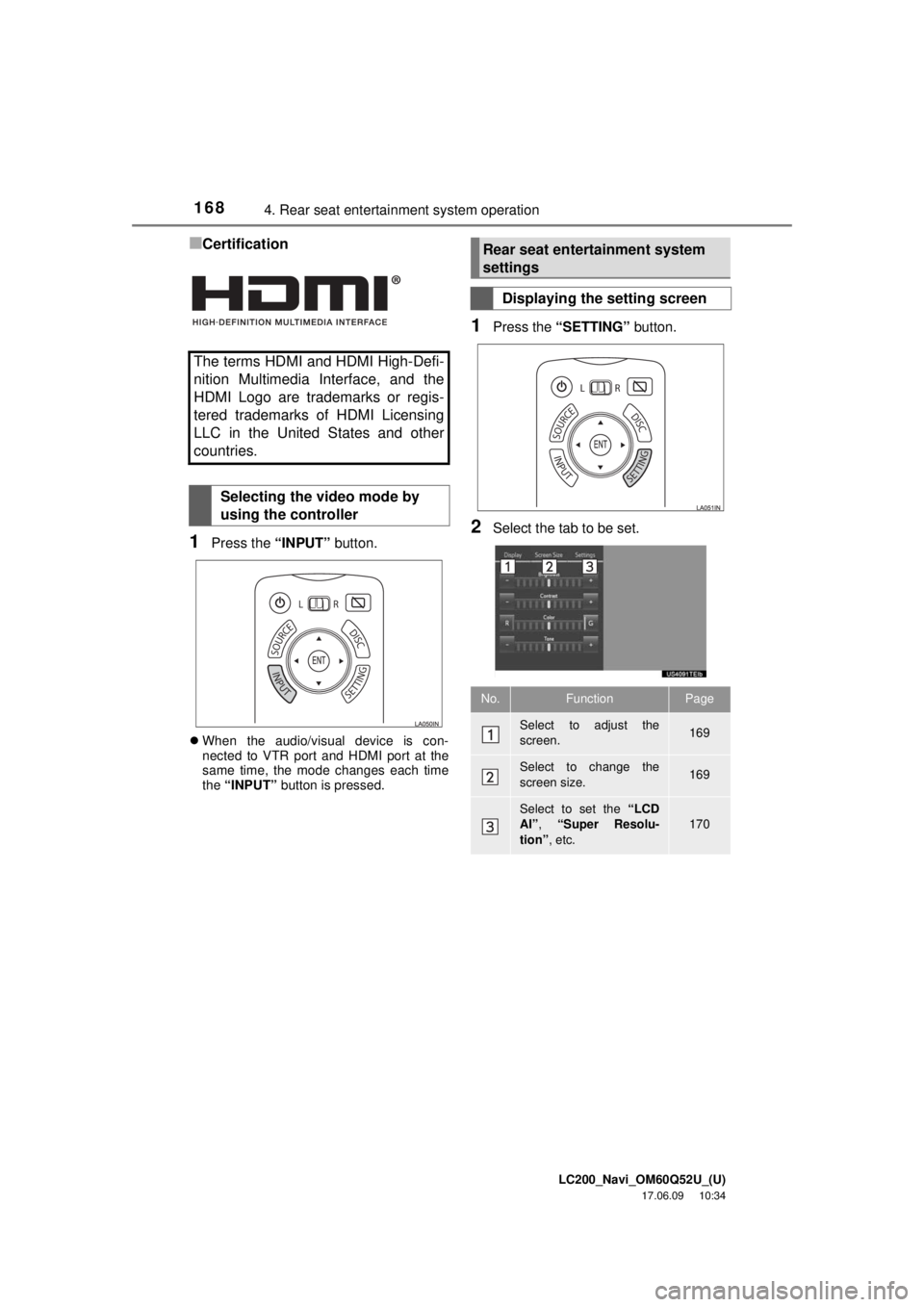
1Press the “INPUT” button.
When the audio/visual device is con-
nected to VTR port and HDMI port at the
same time, the mode changes each time
the “INPUT” button is pressed.
1Press the “SETTING” button.
2Select the tab to be set.
The terms HDMI and HDMI High-Defi-
nition Multimedia Interface, and the
HDMI Logo are trademarks or regis-
tered trademarks of HDMI Licensing
LLC in the United States and other
countries.
Selecting the video mode by
using the controller
Rear seat entertainment system
settings
Displaying the setting screen
No.FunctionPage
Select to adjust the
screen.169
Select to change the
screen size.169
Select to set the “LCD
AI”, “Super Resolu-
tion” , etc.
170
Page 169 of 276
LC200_Navi_OM60Q52U_(U)
17.06.09 10:34
Audio/visual system
4
1694. Rear seat entertainment system operation
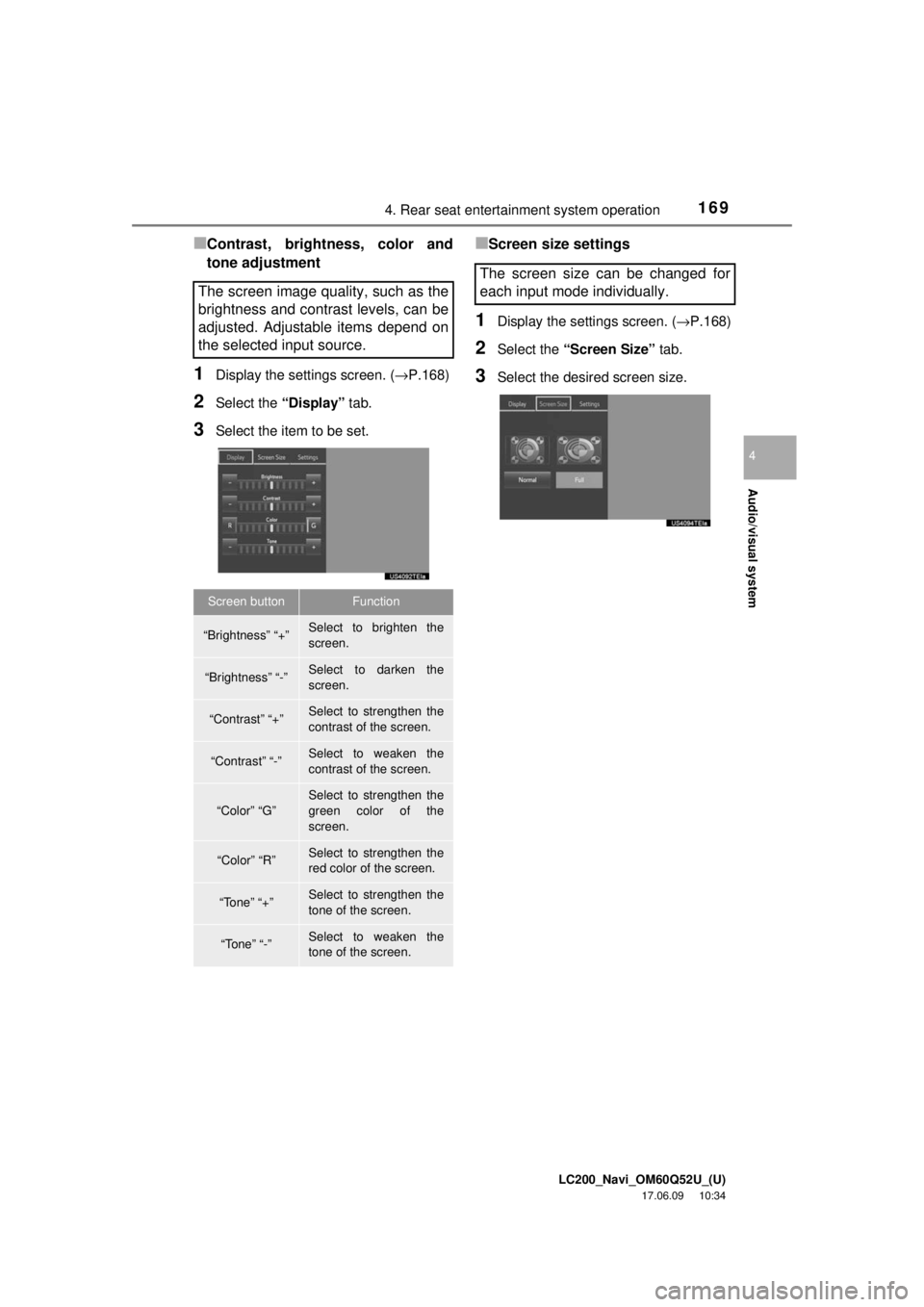
■Contrast, brightness, color and
tone adjustment
1Display the settings screen. (→P.168)
2Select the “Display” tab.
3Select the item to be set.
■Screen size settings
1Display the settings screen. ( →P.168)
2Select the “Screen Size” tab.
3Select the desired screen size.
The screen image quality, such as the
brightness and contrast levels, can be
adjusted. Adjustable items depend on
the selected input source.
Screen buttonFunction
“Brightness” “+”Select to brighten the
screen.
“Brightness” “-”Select to darken the
screen.
“Contrast” “+”Select to strengthen the
contrast of the screen.
“Contrast” “-”Select to weaken the
contrast of the screen.
“Color” “G”
Select to strengthen the
green color of the
screen.
“Color” “R”Select to strengthen the
red color of the screen.
“Tone” “+”Select to strengthen the
tone of the screen.
“Tone” “-”Select to weaken the
tone of the screen.
The screen size can be changed for
each input mode individually.
Page 170 of 276
LC200_Navi_OM60Q52U_(U)
17.06.09 10:34
1704. Rear seat entertainment system operation
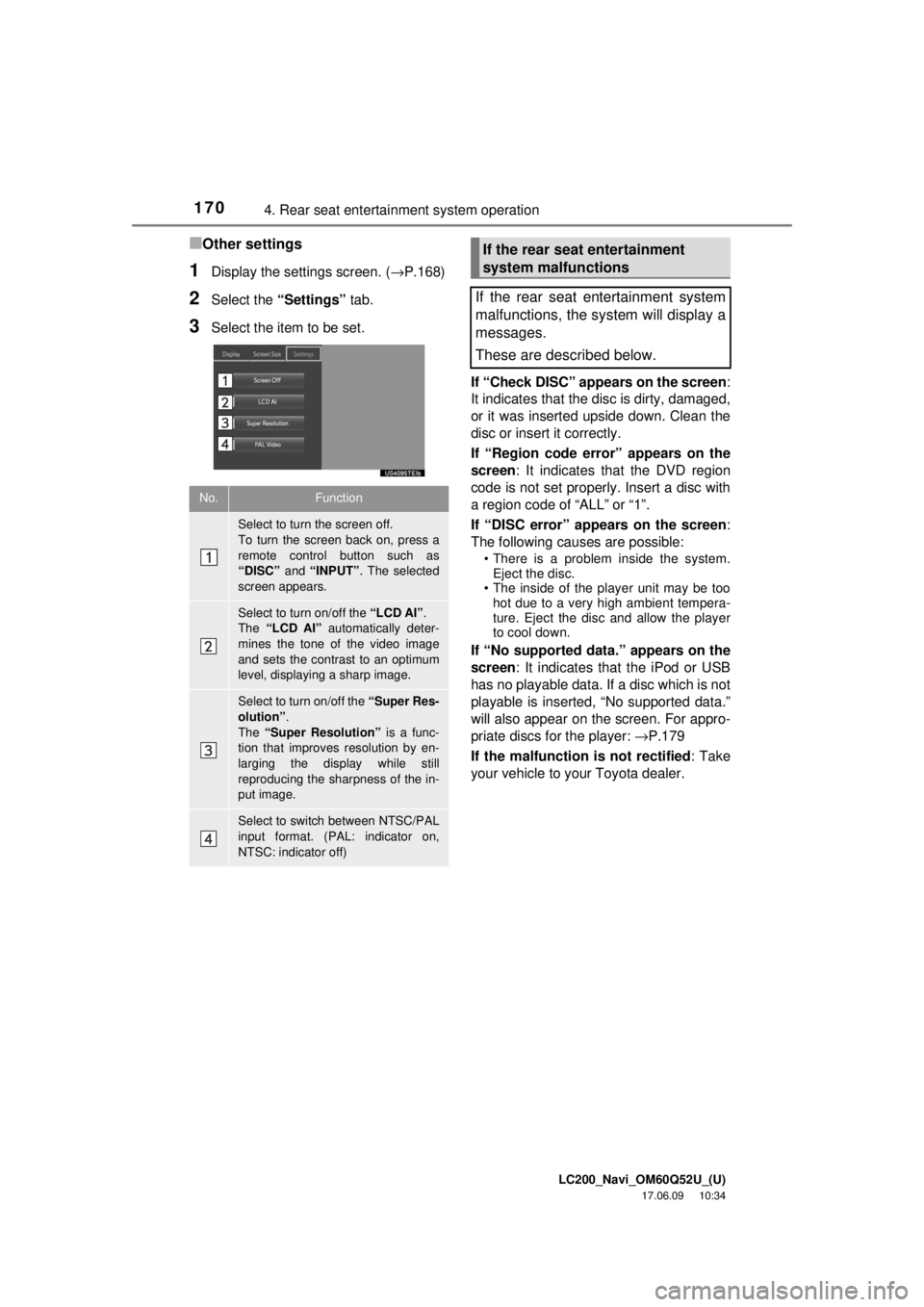
■Other settings
1Display the settings screen. ( →P.168)
2Select the “Settings” tab.
3Select the item to be set.
If “Check DISC” appears on the screen:
It indicates that the disc is dirty, damaged,
or it was inserted upside down. Clean the
disc or insert it correctly.
If “Region code error” appears on the
screen : It indicates that the DVD region
code is not set properly. Insert a disc with
a region code of “ALL” or “1”.
If “DISC error” appears on the screen :
The following causes are possible:
• There is a problem inside the system. Eject the disc.
• The inside of the player unit may be too hot due to a very high ambient tempera-
ture. Eject the disc and allow the player
to cool down.
If “No supported data.” appears on the
screen : It indicates that the iPod or USB
has no playable data. If a disc which is not
playable is inserted, “No supported data.”
will also appear on the screen. For appro-
priate discs for the player: →P.179
If the malfunction is not rectified : Take
your vehicle to your Toyota dealer.
No.Function
Select to turn the screen off.
To turn the screen back on, press a
remote control button such as
“DISC” and “INPUT” . The selected
screen appears.
Select to turn on/off the “LCD AI” .
The “LCD AI” automatically deter-
mines the tone of the video image
and sets the contrast to an optimum
level, displaying a sharp image.
Select to turn on/off the “Super Res-
olution” .
The “Super Resolution” is a func-
tion that improves resolution by en-
larging the display while still
reproducing the sharpness of the in-
put image.
Select to switch between NTSC/PAL
input format. (PAL: indicator on,
NTSC: indicator off)
If the rear seat entertainment
system malfunctions
If the rear seat entertainment system
malfunctions, the system will display a
messages.
These are described below.
Page 261 of 276
LC200_Navi_OM60Q52U_(U)
17.06.09 10:34
261Alphabetical index
R
Radio operation............................. 117
Rear seat entertainment system features .......................... 150
Caution screen ......................... 154
Changing the display to be operated................................. 154
Changing the source ................ 154
Changing the speaker output ..................................... 155
Display ..................................... 151
Headphone jacks ..................... 153
Headphones ............................. 153
If the rear seat entertainment system malfunctions .............. 170
Operation from the front seats ...................................... 157
Playing a USB memory ............ 164
Playing an audio CD/a CD-TEXT disc............... 159
Playing Bluetooth
® audio ......... 166
Playing DVD video ...................160
Playing iPod ............................. 165
Playing MP3/WMA/ AAC discs .............................. 159
Rear seat entertainment system controller.................... 152
Rear seat entertainment system settings ...................... 168
Turning on/off the display ......... 154
Turning the rear display on/off ...................................... 154
Using the external devices ....... 167
Using the radio ......................... 157
Using the radio (Internet radio broadcast) .............................. 159 Rear seat ente
rtainment system
operation .................................... 150
Receiving doppler weather information.................................. 208
Displaying doppler weather information ............................. 208
Receiving on the Bluetooth
®
phone ......................................... 219
Incoming calls .......................... 219
Registering home............................ 15
Registering preset destinations ...... 16
Registering/connecting Bluetooth
® device......................... 32
Profiles ....................................... 34
Registering a Bluetooth
® audio
player for the first time ............. 33
Registering a Bluetooth
® phone
for the first time ........................ 32
Route guidance............................... 81
Route guidance screen ................... 81 During freeway driving ............... 83
Route overview .......................... 82
Screen for route guidance.......... 81
Turn list screen .......................... 85
Turn-by-turn arrow screen ......... 86
When approaching intersection .............................. 85