radio TOYOTA LAND CRUISER 2020 Accessories, Audio & Navigation (in English)
[x] Cancel search | Manufacturer: TOYOTA, Model Year: 2020, Model line: LAND CRUISER, Model: TOYOTA LAND CRUISER 2020Pages: 277, PDF Size: 8.4 MB
Page 131 of 277
LC200_Navi_OM60R69U_(U)
19.03.06 15:36
Audio/visual system
4
1312. Radio operation
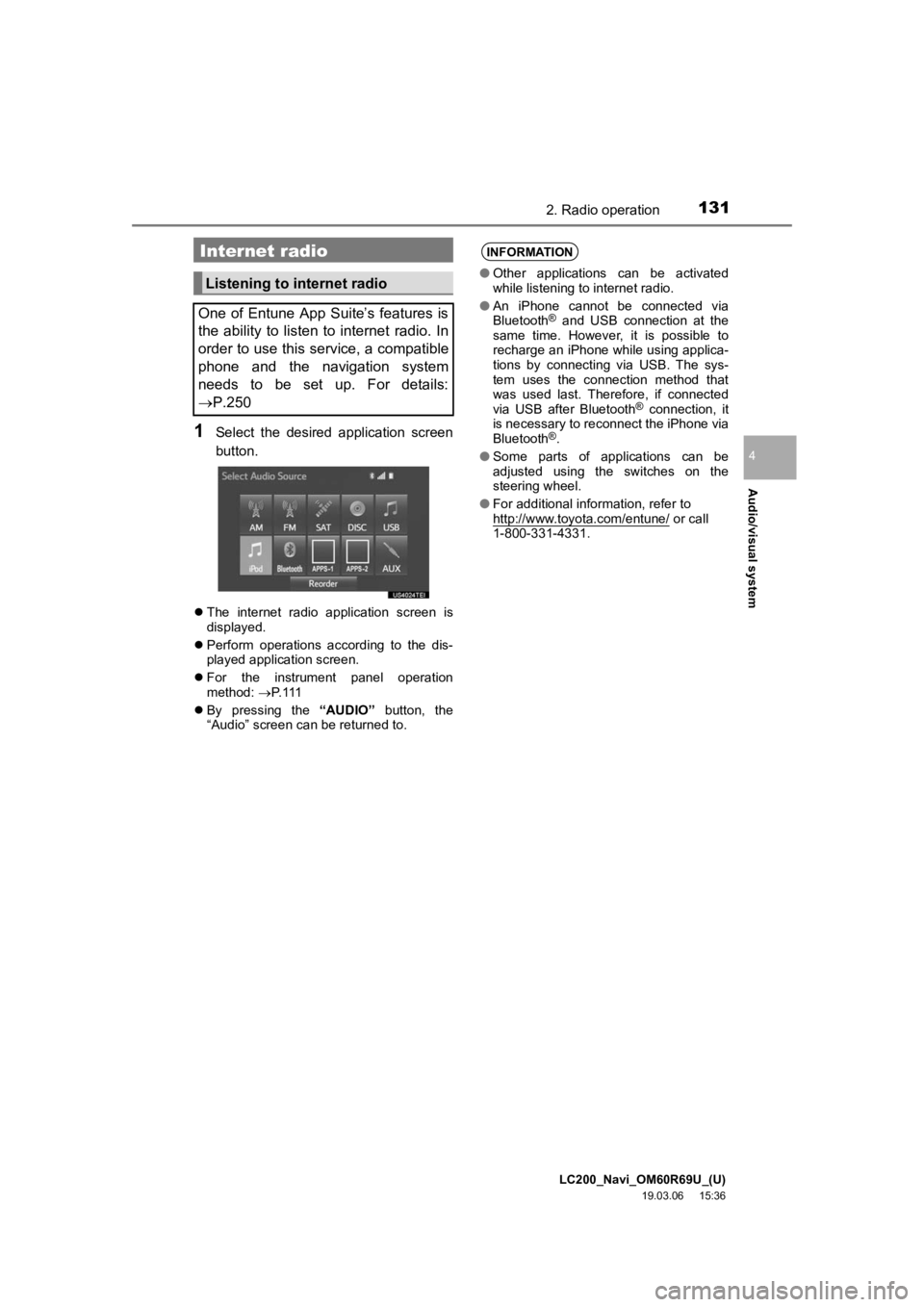
1Select the desired application screen
button.
The internet radio application screen is
displayed.
Perform operations according to the dis-
played application screen.
For the instrument panel operation
method: P. 1 1 1
By pressing the “AUDIO” button, the
“Audio” screen can be returned to.
Internet radio
Listening to internet radio
One of Entune App Suite’s features is
the ability to listen to internet radio. In
order to use this service, a compatible
phone and the navigation system
needs to be set up. For details:
P.250
INFORMATION
● Other applications can be activated
while listening to internet radio.
● An iPhone cannot be connected via
Bluetooth
® and USB connection at the
same time. However, it is possible to
recharge an iPhone while using applica-
tions by connecting via USB. The sys-
tem uses the connection method that
was used last. Therefore, if connected
via USB after Bluetooth
® connection, it
is necessary to reconnect the iPhone via
Bluetooth
®.
● Some parts of applications can be
adjusted using the switches on the
steering wheel.
● For additional information, refer to
http://www.toyota.com/entune/
or call
1-800-331-4331.
Page 146 of 277

LC200_Navi_OM60R69U_(U)
19.03.06 15:36
1463. Media operation
Select to set random playback.
Select to set repeat playback.
Shows progress
Select to play.
Select to pause.
Turn to select a track.
Turn to move up/down the list.
Also, the knob can be used to
enter selections on the list screens
by pressing it.
Press to select a track.
Press and hold to fast forward/
rewind.
Turn to adjust volume.
Press to turn the audio system on/
off.
Press and hold to restart the audio
system.
Press to play/pause.
No.FunctionWARNING
● Do not operate the player’s controls or
connect to the Bluetooth® audio system
while driving.
● Your audio unit is fitted with Bluetooth
®
antennas. People with implantable car-
diac pacemakers, cardiac resynchroni-
zation therapy-pacemakers or
implantable cardioverter defibrillators
should maintain a reasonable distance
between themselves and the Bluetooth
®
antennas. The radio waves may affect
the operation of such devices.
● Before using Bluetooth
® devices, users
of any electrical medical device other
than implantable cardiac pacemakers,
cardiac resynchronization therapy-pace-
makers or implantable cardioverter
defibrillators should consult the manu-
facturer of the device for information
about its operation under the influence
of radio waves. Radio waves could have
unexpected effects on the operation of
such medical devices.
NOTICE
● Do not leave your portable player in the
vehicle. In particular, high temperatures
inside the vehicle may damage the por-
table player.
Page 158 of 277
LC200_Navi_OM60R69U_(U)
19.05.29 15:08
1584. Rear seat entertainment system operation
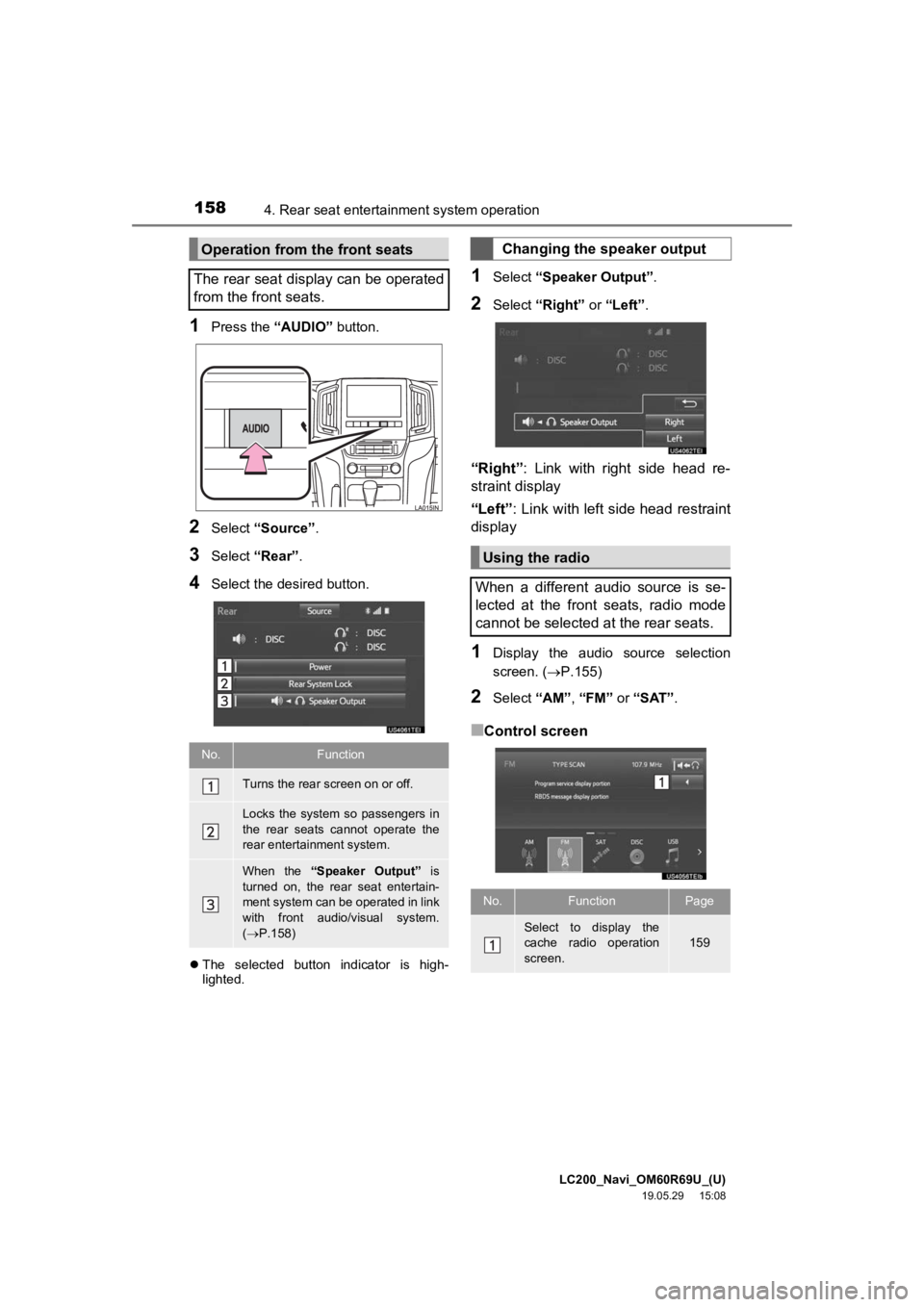
1Press the “AUDIO” button.
2Select “Source” .
3Select “Rear” .
4Select the desired button.
The selected button indicator is high-
lighted.
1Select “Speaker Output” .
2Select “Right” or “Left”.
“Right” : Link with right side head re-
straint display
“Left” : Link with left side head restraint
display
1Display the audio source selection
screen. ( P.155)
2Select “AM”, “FM” or “SAT”.
■Control screen
Operation from the front seats
The rear seat display can be operated
from the front seats.
No.Function
Turns the rear screen on or off.
Locks the system so passengers in
the rear seats cannot operate the
rear entertainment system.
When the “Speaker Output” is
turned on, the rear seat entertain-
ment system can be operated in link
with front audio/visual system.
( P.158)
Changing the speaker output
Using the radio
When a different audio source is se-
lected at the front seats, radio mode
cannot be selected at the rear seats.
No.FunctionPage
Select to display the
cache radio operation
screen.159
Page 159 of 277

LC200_Navi_OM60R69U_(U)
19.05.29 15:08
Audio/visual system
4
1594. Rear seat entertainment system operation
■Controller
1Select “” on the radio control
screen.
2Select the desired cache radio opera-
tion button.
■Controller
No.Function
Press to select a preset station/
channel.
Press to select a station/chan-
nel.
Press and hold to seek for a
station/channel.
Press to select a station/chan-
nel.
Press and hold to seek for a
station/channel.
Caching a radio program
No.Function
Hides the cache operation buttons
Returns to the live radio broadcast
White dot: Shows what portion of the
cached broadcast is currently play-
ing.
White bar: Shows time in which
cache writing is in progress
No.Function
Press and hold fast rewinds continu-
ously
Pauses the playback (To restart, se-
lect “” )
Press and hold fast forwards contin-
uously
Page 160 of 277
LC200_Navi_OM60R69U_(U)
19.05.29 15:08
1604. Rear seat entertainment system operation
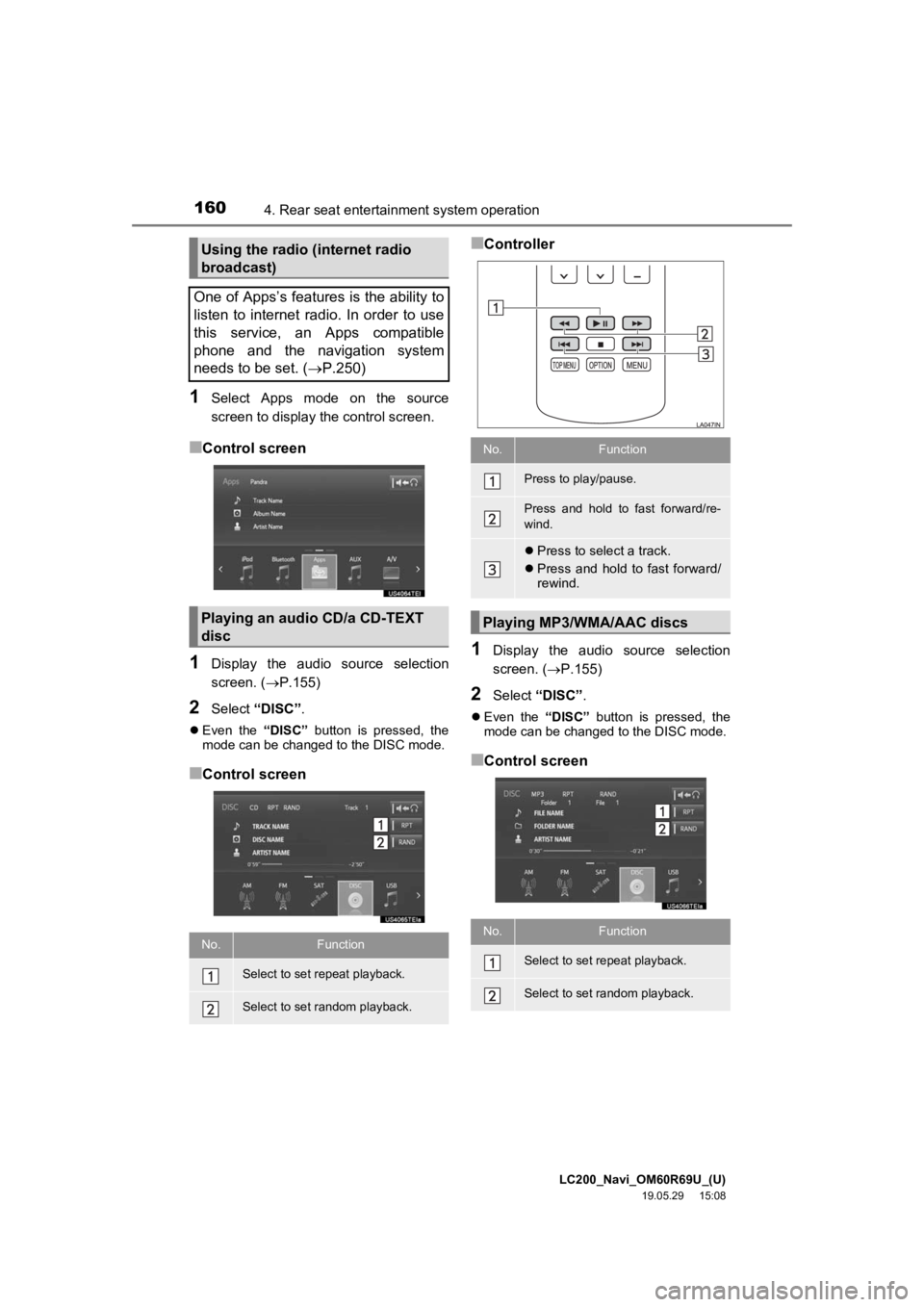
1Select Apps mode on the source
screen to display the control screen.
■Control screen
1Display the audio source selection
screen. (P.155)
2Select “DISC” .
Even the “DISC” button is pressed, the
mode can be changed to the DISC mode.
■Control screen
■Controller
1Display the audio source selection
screen. ( P.155)
2Select “DISC” .
Even the “DISC” button is pressed, the
mode can be changed to the DISC mode.
■Control screen
Using the radio (internet radio
broadcast)
One of Apps’s features is the ability to
listen to internet radio. In order to use
this service, an Apps compatible
phone and the navigation system
needs to be set. ( P.250)
Playing an audio CD/a CD-TEXT
disc
No.Function
Select to set repeat playback.
Select to set random playback.
No.Function
Press to play/pause.
Press and hold to fast forward/re-
wind.
Press to select a track.
Press and hold to fast forward/
rewind.
Playing MP3/WMA/AAC discs
No.Function
Select to set repeat playback.
Select to set random playback.
Page 172 of 277

LC200_Navi_OM60R69U_(U)
19.03.06 15:36
1725. Audio/visual remote controls
“ ” switch
Steering switches
Some parts of the audio/visual system
can be adjusted using the switches on
the steering wheel.
No.Switch
“ ” switch
Volume control switch
“MODE” switch
Mode
OperationFunction
AM/FM Radio
PressPreset station up/
down
Press and hold
(0.8 sec. or
more)Seek up/down contin-
uously while the
switch is being
pressed
S AT
PressPreset channel up/
down
Press and hold
(0.8 sec. or
more)Type seek up/down
Press and hold
(1.5 sec. or
more)
Fast up/down
CD
PressTrack up/down
Press and hold
(0.8 sec. or
more)
Fast forward/rewind
MP3/WMA/AAC disc
PressFile up/down
Press and hold
(0.8 sec. or
more)
Fast forward/rewind
DVD
PressChapter up/down
USB
PressFile/Track up/down
Press and hold
(0.8 sec. or
more)
Fast forward/rewind
iPod
PressTrack/File up/down
Page 174 of 277
LC200_Navi_OM60R69U_(U)
19.03.06 15:36
1746. Setup
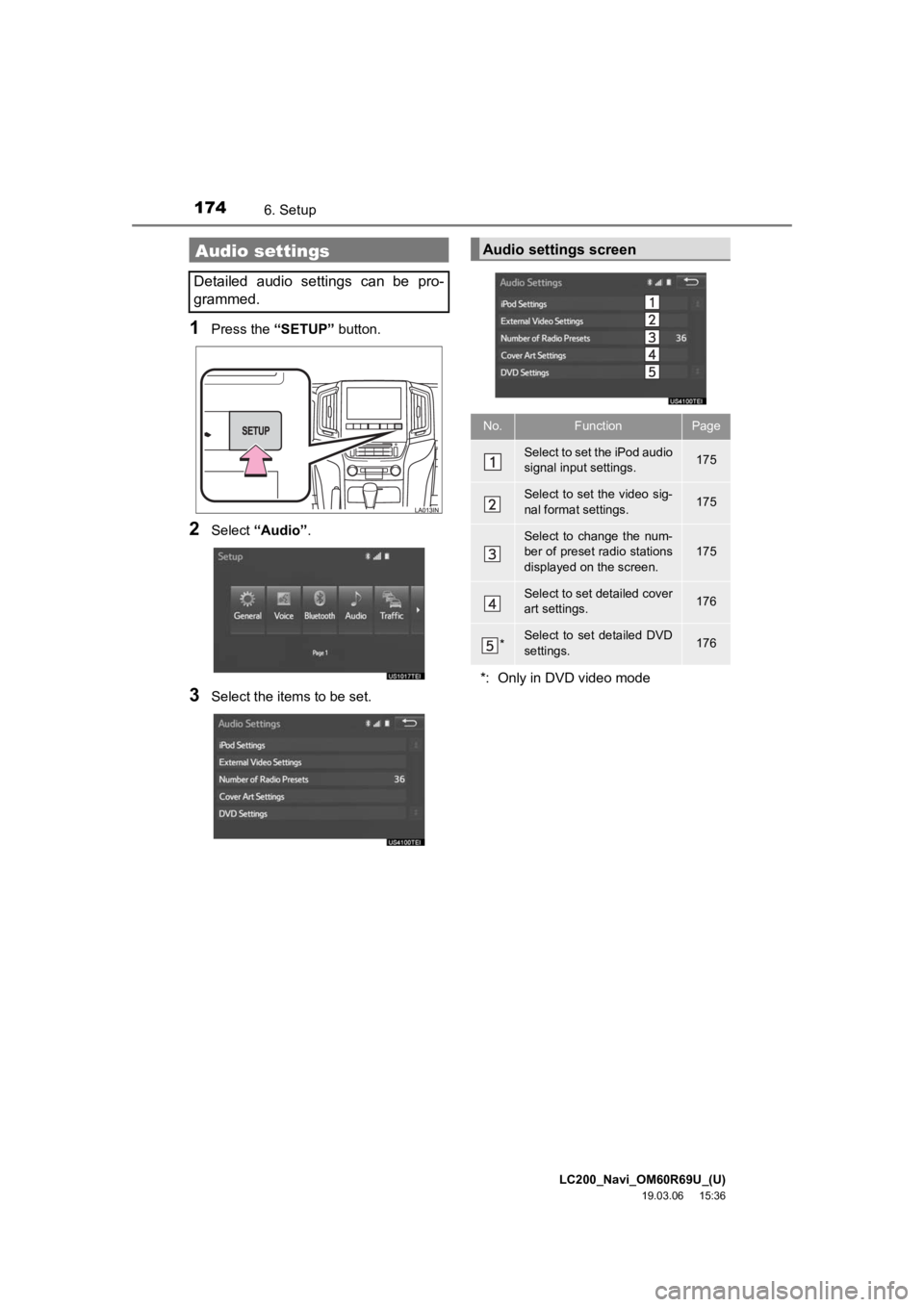
1Press the “SETUP” button.
2Select “Audio” .
3Select the items to be set.
Audio settings
Detailed audio settings can be pro-
grammed.
Audio settings screen
No.FunctionPage
Select to set the iPod audio
signal input settings.175
Select to set the video sig-
nal format settings.175
Select to change the num-
ber of preset radio stations
displayed on the screen.175
Select to set detailed cover
art settings.176
*Select to set detailed DVD
settings.176
*: Only in DVD video mode
Page 175 of 277
LC200_Navi_OM60R69U_(U)
19.03.06 15:36
Audio/visual system
4
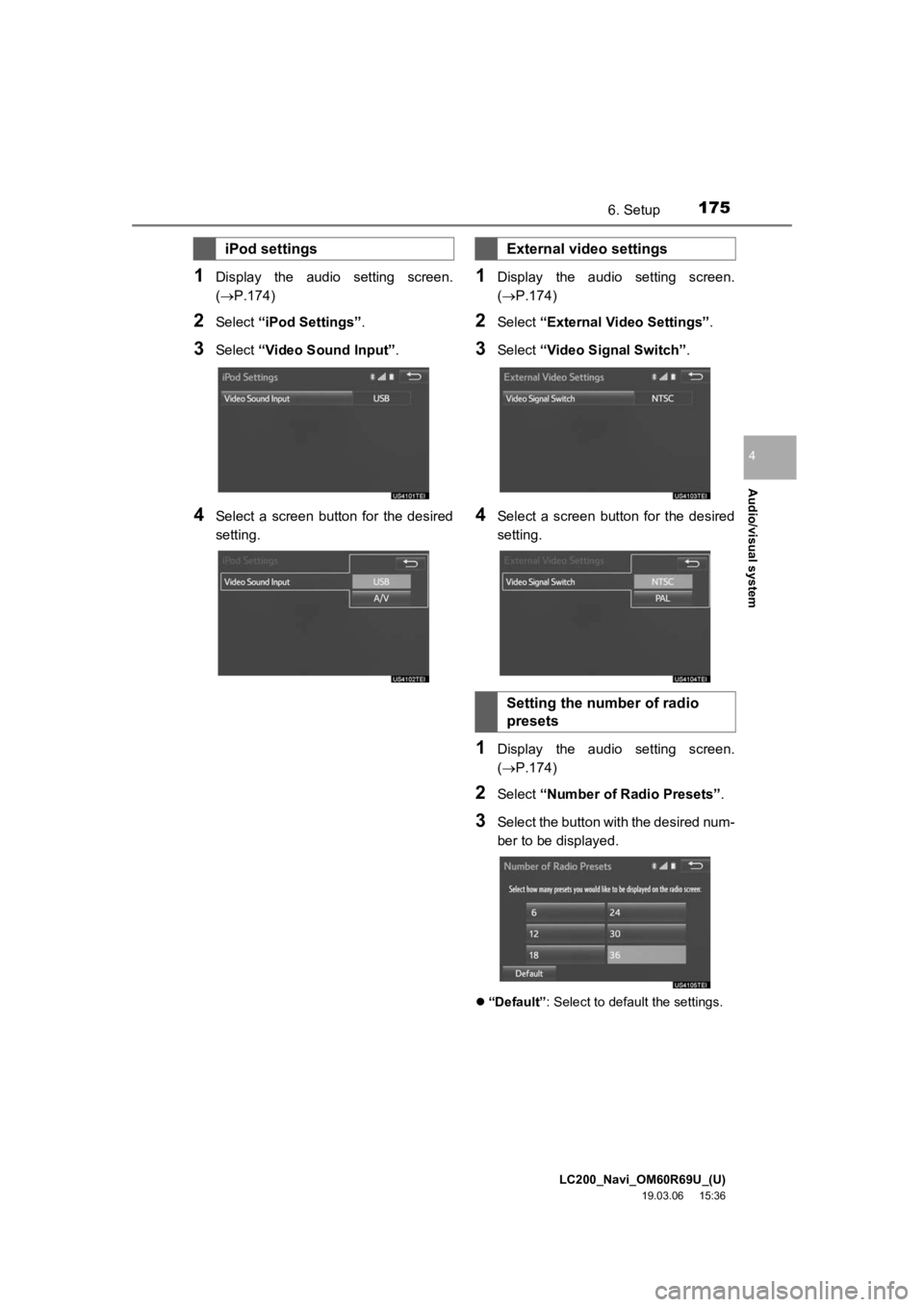
1756. Setup
1Display the audio setting screen.
(P.174)
2Select “iPod Settings” .
3Select “Video Sound Input” .
4Select a screen button for the desired
setting.
1Display the audio setting screen.
(P.174)
2Select “External Video Settings” .
3Select “Video Signal Switch” .
4Select a screen button for the desired
setting.
1Display the audio setting screen.
(P.174)
2Select “Number of Radio Presets” .
3Select the button with the desired num-
ber to be displayed.
“Default”: Select to default the settings.
iPod settingsExternal video settings
Setting the number of radio
presets
Page 179 of 277

LC200_Navi_OM60R69U_(U)
19.04.17 11:23
Audio/visual system
4
1797. Tips for operating the audio/visual systemFading and drifting stations: Generally, the
effective range of FM is about 25 miles (40
km). Once outside this range, you may no-
tice fading and drifti ng, which increase with
the distance from the radio transmitter.
They are often accompanied by distortion.
Multi-path: FM signals are reflective, mak-
ing it possible for 2 signals to reach the ve-
hicle’s antenna at the same time. If this
happens, the signals will cancel each other
out, causing a momentar y flutter or loss of
reception.
Static and fluttering: These occur when
signals are blocked by buildings, trees or
other large objects. Increasing the bass
level may reduce static and fluttering.
Station swapping: If the FM signal being
listened to is interrupted or weakened, and
there is another strong station nearby on
the FM band, the radio may tune in the
second station until the original signal can
be picked up again.
Operating information
NOTICE
● To avoid damage to the audio/visual
system:
• Be careful not to spill beverages over
the audio/visual system.
• Do not put anything other than an appropriate disc into the disc slot.
INFORMATION
● The use of a cellular phone inside or
near the vehicle may cause a noise from
the speakers of the audio/visual system
which you are listening to. However, this
does not indicate a malfunction.
Radio
Usually, a problem with radio reception
does not mean there is a problem with
the radio — it is just the normal result
of conditions outside the vehicle.
For example, nearby buildings and ter-
rain can interfere with FM reception.
Power lines or phone wires can inter-
fere with AM signals. And of course, ra-
dio signals have a limited range. The
farther the vehicle is from a station, the
weaker its signal will be. In addition, re-
ception conditions change constantly
as the vehicle moves.
Here, some common reception prob-
lems that probably do not indicate a
problem with the radio are described.
FM
Page 180 of 277

LC200_Navi_OM60R69U_(U)
19.04.17 11:23
1807. Tips for operating the audio/visual system
Fading: AM broadcasts are reflected by
the upper atmosphere — especially at
night. These reflected signals can interfere
with those received directly from the radio
station, causing the radio station to sound
alternately strong and weak.
Station interference: When a reflected sig-
nal and a signal received directly from a ra-
dio station are very nearly the same
frequency, they can interfere with each
other, making it difficult to hear the broad-
cast.
Static: AM is easily affected by external
sources of electrical noise, such as high
tension power lines, lightening or electrical
motors. This results in static.
Cargo loaded on the roof luggage carrier,
especially metal objects, may adversely
affect the reception of XM Satellite Radio.
Alternation or modifications carried out
without appropriate authorization may
invalidate the user’s right to operate the
equipment.
This DVD player is intended for use with
4.7 in. (12 cm). discs only.
Extremely high temperatures can keep the
DVD player from working. On hot days,
use the air conditioning system to cool the
inside of the vehicle before using the
player.
Bumpy roads or other vibrations may
make the DVD player skip.
If moisture gets into the DVD player, the
discs may not be able to be played.
Remove the discs from the player and
wait until it dries.
AMXM
DVD player and disc
WA R N I N G
●DVD players use an invisible laser beam
which could cause hazardous radiation
exposure if directed outside the unit. Be
sure to operate the player correctly.