park assist TOYOTA LAND CRUISER 2021 (in English) User Guide
[x] Cancel search | Manufacturer: TOYOTA, Model Year: 2021, Model line: LAND CRUISER, Model: TOYOTA LAND CRUISER 2021Pages: 632, PDF Size: 13.87 MB
Page 298 of 632

298
LC200_OM_OM60T03U_(U)
4-5. Using the driving support systems
●The shape of the obstacle may prevent a sensor from detecting i t. Pay par-
ticular attention to the following obstacles:
• Wires, fences, ropes, etc.
• Cotton, snow and other materials that absorb sound waves
• Sharply-angled objects
• Low obstacles
• Tall obstacles with upper sections projecting outwards in the direction of your vehicle
● The following situations may occur during use.
• Depending on the shape of the obstacle and other factors, the detection
distance may shorten, or detection may be impossible.
• Obstacles may not be detected if they are too close to the sen sor.
• There will be a short delay between obstacle detection and dis play. Even
at slow speeds, there is a possibility that the obstacle will c ome within the
sensor’s detection areas before the display is shown and the bu zzer
sounds.
• Thin posts or objects lower than the sensor may not be detecte d when
approached, even if they have been detected once.
• It might be difficult to hear beeps due to the volume of audio system or air
flow noise of the air conditioning system.
■ If “Clean Parking Assist Sensor” is displayed on the multi-information
display
A sensor may be dirty or covered with snow or ice. In such case s, if it is
removed from the sensor, the system should return to normal.
Also, due to the sensor being frozen at low temperatures, a mal function dis-
play may appear or an obstacle may not be detected. If the sens or thaws out,
the system should return to normal.
■ If “Parking Assist Malfunction” is displayed on the multi-information dis-
play
Depending on the malfunction of the sensor, the device may not be working
normally. Have the vehicle inspected by your Toyota dealer.
■ Customization
Settings (e.g. buzzer sounds volume) can be changed.
(Customizable features: P. 594)
Page 299 of 632
LC200_OM_OM60T03U_(U)
2994-5. Using the driving support systems
4
Driving
WARNING
■When using the intuitive parking assist
Observe the following precautions.
Failing to do so may result in the vehicle being unable to be d riven safely
and possibly cause an accident.
● Do not use the sensor at speeds in excess of 6 mph (10 km/h).
● The sensors’ detection areas and reaction times are limited. When moving
forward or reversing, check the areas surrounding the vehicle ( especially
the sides of the vehicle) for safety, and drive slowly, using t he brake to
control the vehicle’s speed.
● Do not install accessories within the sensors’ detection areas.
NOTICE
■When using intuitive parking assist
In the following situations, the system may not function correctly due to a
sensor malfunction etc. Have the vehicle checked by your Toyota dealer.
● A buzzer does not sound when you turn the intuitive parking ass ist on.
● The intuitive parking assist operation display flashes, and a buzzer sounds
when no obstacles are detected.
● If the area around a sensor collides with something, or is subjected to
strong impact.
● If the bumper collides with something, except when the buzzer m ute
switch has been turned on.
● If the display shows continuously without a beep.
● If a display error occurs, first check the sensor.
If the error occurs even if there is no ice, snow or mud on the sensor, it is
likely that the sensor is malfunctioning.
■ Notes when washing the vehicle
Do not apply intensive bursts of water or steam to the sensor a rea.
Doing so may result in the sensor malfunctioning.
Page 313 of 632
313
LC200_OM_OM60T03U_(U)
4-5. Using the driving support systems
4
Driving
Multi-terrain Monitor
The following screens can be selected according to driving cond itions.
• Screens that can be selected vary depending on conditions such as
shift position and vehicle speed. ( P. 319)
• Depending on the displayed screen, the display can be switched from normal to wide view display.
The Multi-terrain Monitor helps the driver to check the vehicle
surroundings. It assists in det ermining the conditions around
the driver in a vari ety of situations, su ch as when judging con di-
tions during off-road driving or checking for obstacles when
parking.
WARNING
■ When using the Multi-terrain Monitor system
Observe the following precautions to avoid an accident that cou ld result in
death or serious injuries.
● Never rely solely on the Multi-terrain Monitor. As with unequip ped vehi-
cles, drive carefully while directly confirming the safety of y our surround-
ings and the area to the rear of the vehicle. Take particular c are to avoid
parked cars and other obstacles.
● Due to the characteristics of the camera lens, the actual posit ion and dis-
tance of people and other obstacles will differ from those show n on the
Multi-terrain Monitor screen. Directly confirm the safety of yo ur surround-
ings before driving.
● Do not drive while only looking at the screen. When driving, ma ke sure to
directly confirm the safety of your surroundings, such as by visually check-
ing the area and using the vehicle’s mirrors.
● In low temperatures, the screen may darken or the images may be come
faint.
Images of moving objects in particular may distort or disappear from the
screen. Therefore, make sure to drive carefully while directly visually con-
firming the safety of your surroundings.
Multi-terrain Monitor screens
Page 325 of 632
LC200_OM_OM60T03U_(U)
3254-5. Using the driving support systems
4
Driving
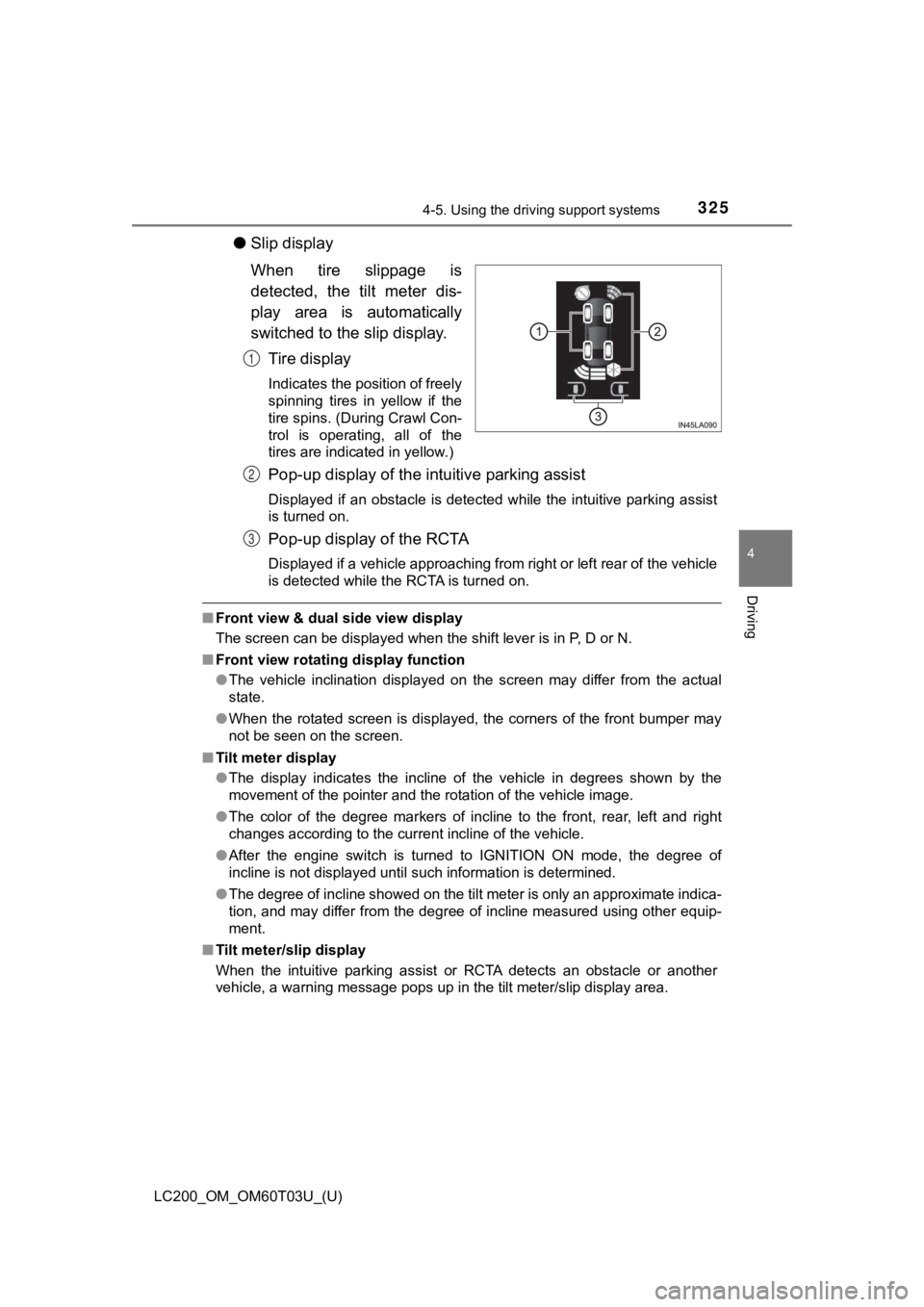
●Slip display
When tire slippage is
detected, the tilt meter dis-
play area is automatically
switched to the slip display.
Tire display
Indicates the position of freely
spinning tires in yellow if the
tire spins. (During Crawl Con-
trol is operating, all of the
tires are indicated in yellow.)
Pop-up display of the intuitive parking assist
Displayed if an obstacle is detected while the intuitive parkin g assist
is turned on.
Pop-up display of the RCTA
Displayed if a vehicle approaching from right or left rear of t he vehicle
is detected while the RCTA is turned on.
■ Front view & dual side view display
The screen can be displayed when the shift lever is in P, D or N.
■ Front view rotating display function
●The vehicle inclination displayed on the screen may differ from the actual
state.
● When the rotated screen is displayed, the corners of the front bumper may
not be seen on the screen.
■ Tilt meter display
●The display indicates the incline of the vehicle in degrees sho wn by the
movement of the pointer and the rotation of the vehicle image.
● The color of the degree markers of incline to the front, rear, left and right
changes according to the current incline of the vehicle.
● After the engine switch is turned to IGNITION ON mode, the degr ee of
incline is not displayed until such information is determined.
● The degree of incline showed on the tilt meter is only an approximate indica-
tion, and may differ from the degree of incline measured using other equip-
ment.
■ Tilt meter/slip display
When the intuitive parking assist or RCTA detects an obstacle o r another
vehicle, a warning message pops up in the tilt meter/slip displ ay area.
1
2
3
Page 328 of 632
328
LC200_OM_OM60T03U_(U)
4-5. Using the driving support systems
■Rear view & dual side view/wide rear view
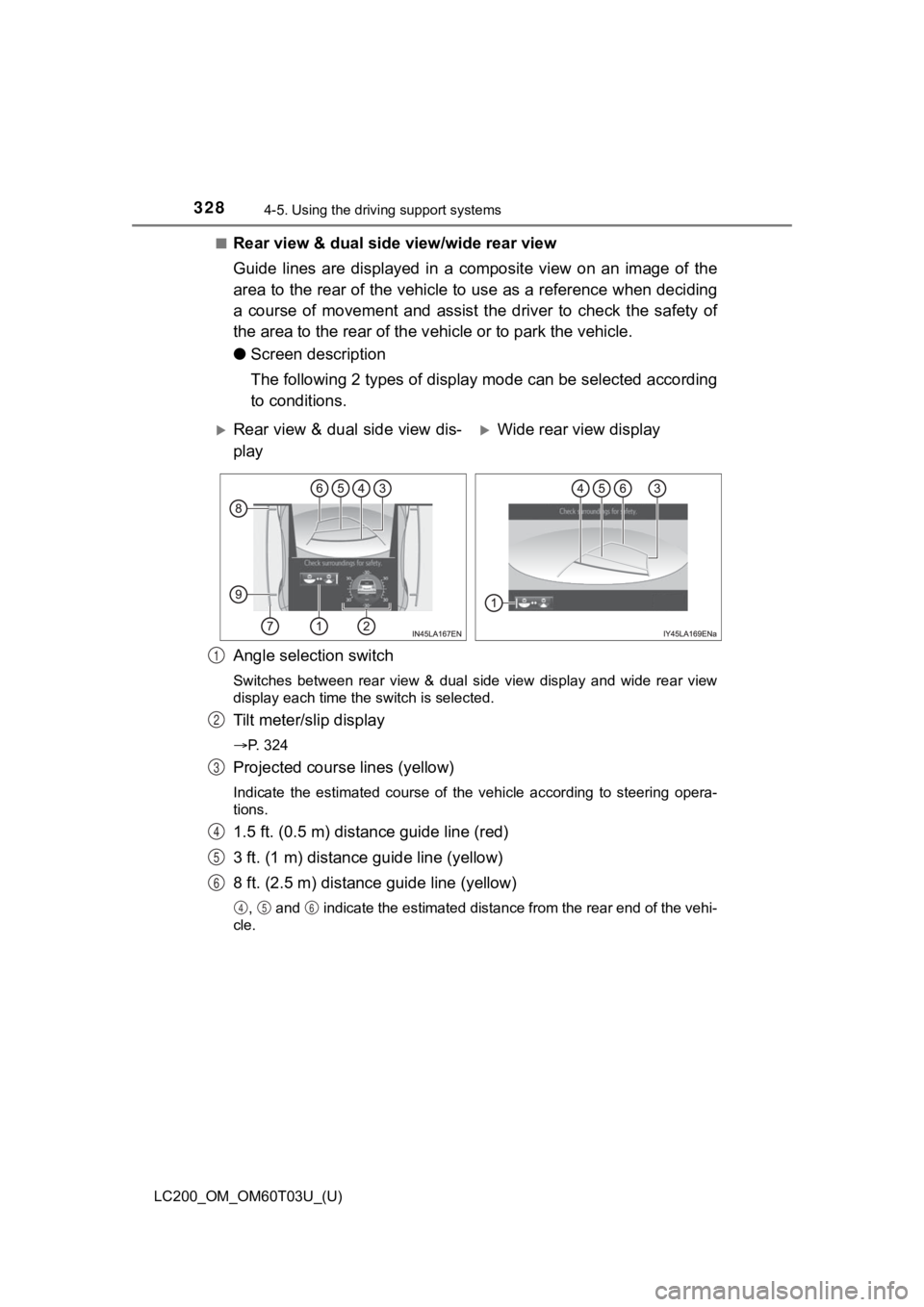
Guide lines are displayed in a c omposite view on an image of th e
area to the rear of the vehicle to use as a reference when deciding
a course of movement and assist the driver to check the safety of
the area to the rear of the v ehicle or to park the vehicle.
● Screen description
The following 2 types of display mode can be selected according
to conditions.
Angle selection switch
Switches between rear view & dual side view display and wide re ar view
display each time the switch is selected.
Tilt meter/slip display
P. 324
Projected course lines (yellow)
Indicate the estimated course of the vehicle according to steer ing opera-
tions.
1.5 ft. (0.5 m) distance guide line (red)
3 ft. (1 m) distance guide line (yellow)
8 ft. (2.5 m) distance guide line (yellow)
, and indicate the estimated distance from the rear end of th e vehi-
cle.
Rear view & dual side view dis-
playWide rear view display
1
2
3
4
5
6
456
Page 329 of 632
LC200_OM_OM60T03U_(U)
3294-5. Using the driving support systems
4
Driving
Vehicle width extens ion guide line (blue)
Indicates the estimated vehicle width including the outside rea r view mir-
rors.
Front tire contact line (blue)
Rear tire contact line (blue)
Items and indicate estimated tire positions on the image.
■ Rear view & dual side view/wide rear view
The screen can be displayed when the shift lever is in R.
■ Guide lines
If the back door is not closed, guide lines will not be display ed. If the guide
lines do not display even when the back door is closed, have th e vehicle
inspected at your Toyota dealer.
■ Intuitive parking assist pop-up display
P. 292
WARNING
■Guide lines
The tire position indicator lines and vehicle position indicator lines may differ
from actual vehicle positions depending on the number of passen gers,
cargo weight, road grade, road surface conditions, brightness o f the sur-
rounding environment, etc. Always drive the vehicle while confi rming the
safety of your surroundings.
7
8
9
89
Page 331 of 632
LC200_OM_OM60T03U_(U)
3314-5. Using the driving support systems
4
Driving
●Switching to automatic display mode
P. 3 1 8
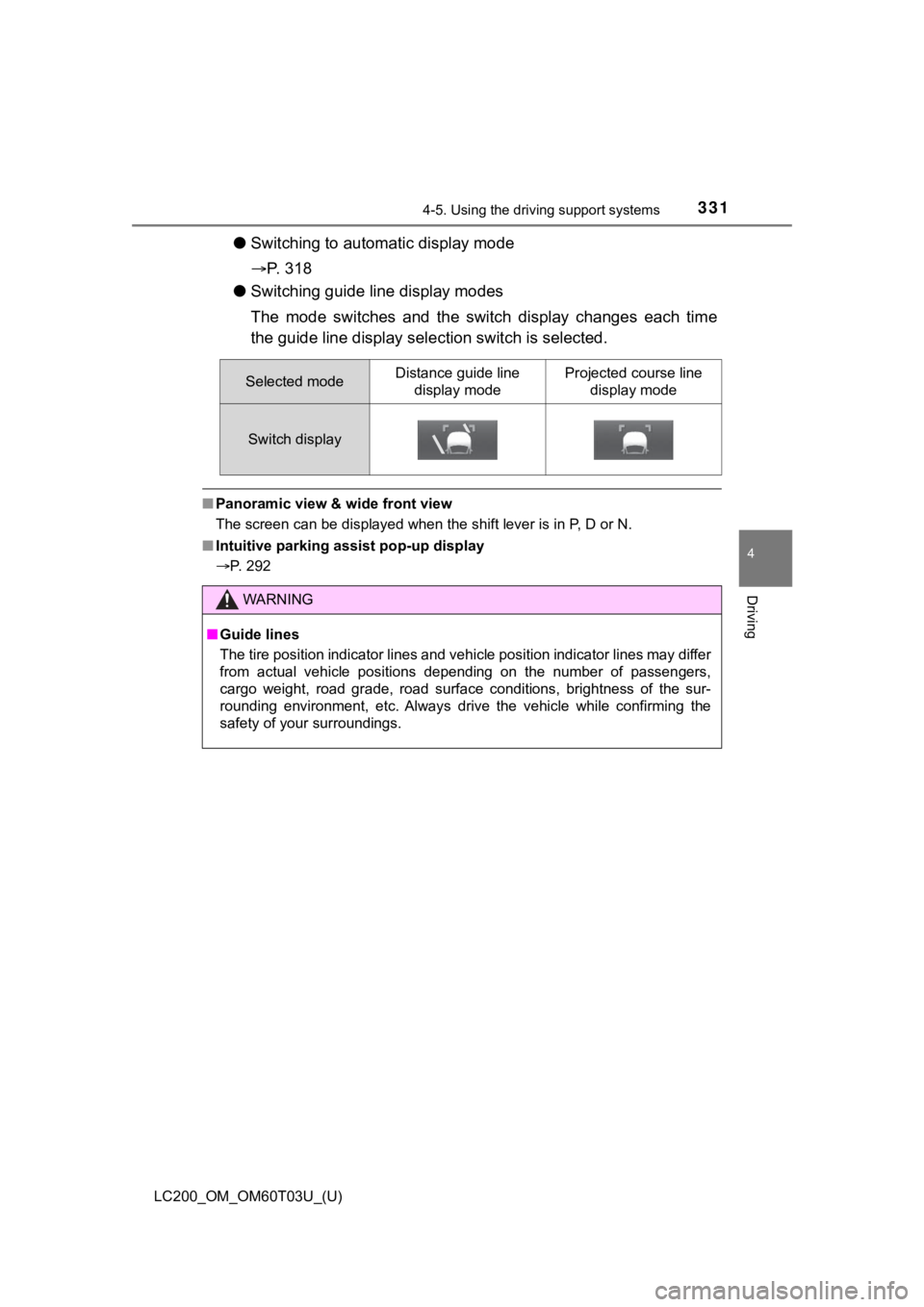
● Switching guide line display modes
The mode switches and the sw itch display changes each time
the guide line display sel ection switch is selected.
■Panoramic view & wide front view
The screen can be displayed when the shift lever is in P, D or N.
■ Intuitive parking assist pop-up display
P. 292
Selected modeDistance guide line
display modeProjected course line display mode
Switch display
WARNING
■Guide lines
The tire position indicator lines and vehicle position indicator lines may differ
from actual vehicle positions depending on the number of passen gers,
cargo weight, road grade, road surface conditions, brightness o f the sur-
rounding environment, etc. Always drive the vehicle while confi rming the
safety of your surroundings.
Page 332 of 632
332
LC200_OM_OM60T03U_(U)
4-5. Using the driving support systems
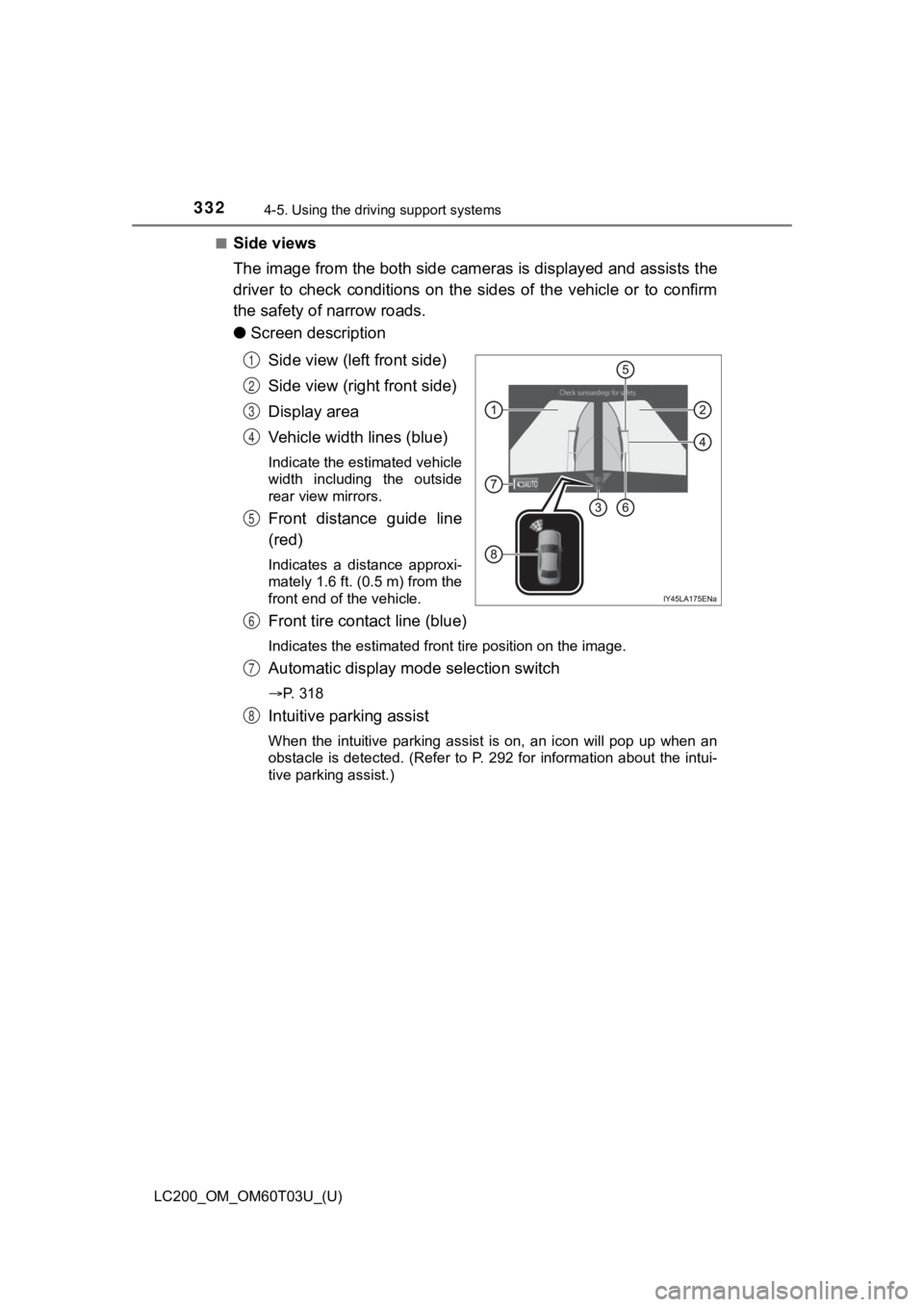
■Side views
The image from the both side cam eras is displayed and assists the
driver to check conditions on the sides of the vehicle or to co nfirm
the safety of narrow roads.
● Screen description
Side view (left front side)
Side view (right front side)
Display area
Vehicle width lines (blue)
Indicate the estimated vehicle
width including the outside
rear view mirrors.
Front distance guide line
(red)
Indicates a distance approxi-
mately 1.6 ft. (0.5 m) from the
front end of the vehicle.
Front tire contact line (blue)
Indicates the estimated front tire position on the image.
Automatic display mode selection switch
P. 318
Intuitive parking assist
When the intuitive parking assist is on, an icon will pop up wh en an
obstacle is detected. (Refer to P. 292 for information about th e intui-
tive parking assist.)
1
2
3
4
5
6
7
8
Page 334 of 632

334
LC200_OM_OM60T03U_(U)
4-5. Using the driving support systems
■Side views
●The screen can be displayed when the shift lever is in P, D or N.
● When the outside rear view mirrors are retracted, the displayed area
changes (the area on the screen that is not masked in black). ( P. 341)
■ Intuitive parking assist pop-up display
P. 292
WARNING
■Guide lines
The tire position indicator lines and vehicle position indicator lines may differ
from actual vehicle positions depending on the number of passen gers,
cargo weight, road grade, road surface conditions, brightness o f the sur-
rounding environment, etc. Always drive the vehicle while confi rming the
safety of your surroundings.
Page 335 of 632
LC200_OM_OM60T03U_(U)
3354-5. Using the driving support systems
4
Driving
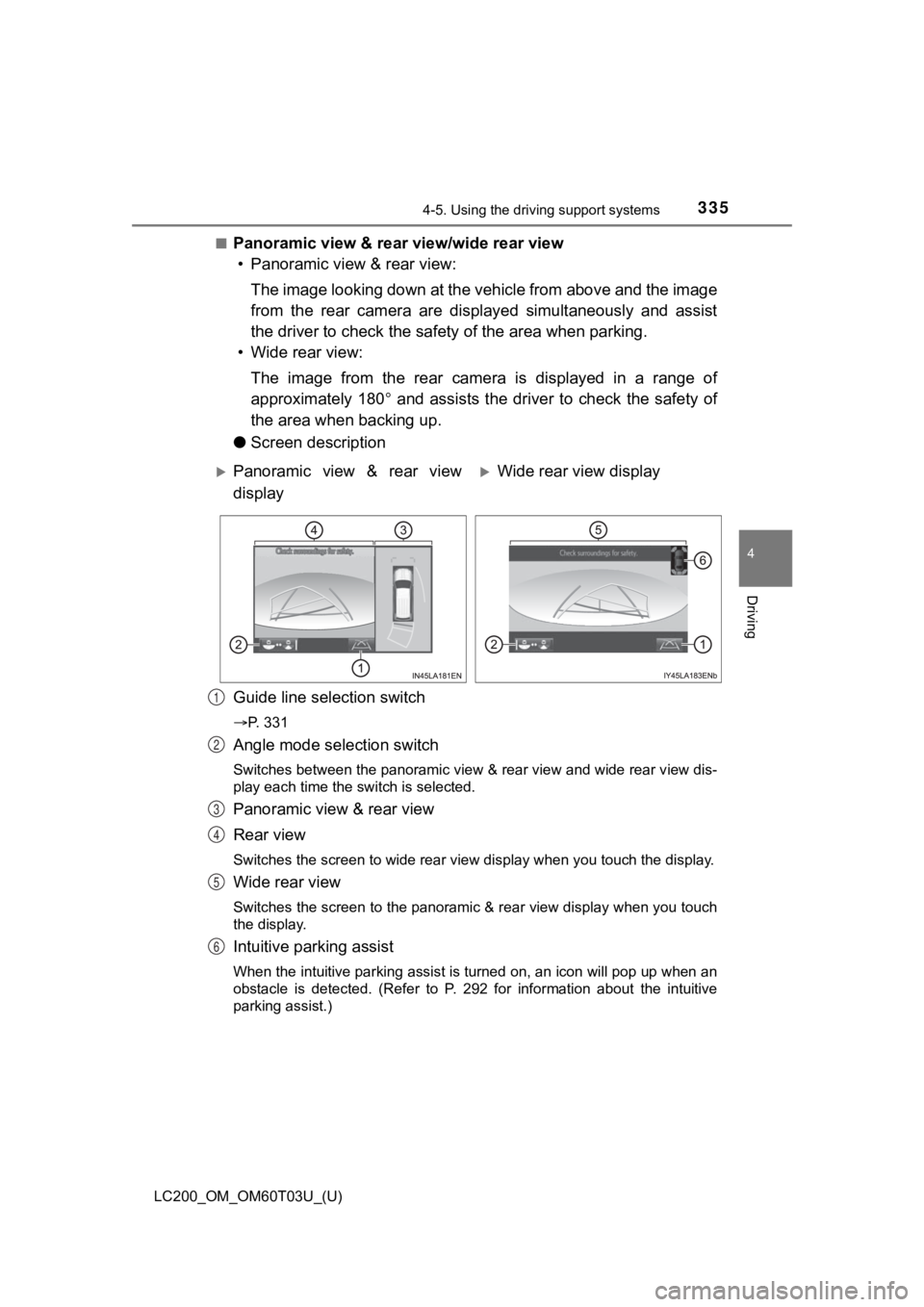
■Panoramic view & rear view/wide rear view
• Panoramic view & rear view:
The image looking down at the vehicle from above and the image
from the rear camera are displayed simultaneously and assist
the driver to check the safety of the area when parking.
• Wide rear view:
The image from the rear camera is displayed in a range of
approximately 180 and assists the driver to check the safety of
the area when backing up.
● Screen description
Guide line selection switch
P. 331
Angle mode selection switch
Switches between the panoramic view & rear view and wide rear v iew dis-
play each time the switch is selected.
Panoramic view & rear view
Rear view
Switches the screen to wide rear view display when you touch th e display.
Wide rear view
Switches the screen to the panoramic & rear view display when you touch
the display.
Intuitive parking assist
When the intuitive parking assist is turned on, an icon will pop up when an
obstacle is detected. (Refer to P. 292 for information about the intuitive
parking assist.)
Panoramic view & rear view
displayWide rear view display
1
2
3
4
5
6