change time TOYOTA MATRIX 2012 E140 / 2.G User Guide
[x] Cancel search | Manufacturer: TOYOTA, Model Year: 2012, Model line: MATRIX, Model: TOYOTA MATRIX 2012 E140 / 2.GPages: 516, PDF Size: 7.02 MB
Page 225 of 516
225
3-2. Using the audio system
3
Interior features
Switching the display
Press .
Each time is pressed, the display changes in the following order:
Track title Track title/Artist name Track title/Album name Track
title/Elapsed time
■ About iPod
●Apple is not responsible for the operation of this device or its compliance
with safety and regulatory standards.
● iPod is a trademark of Apple Inc., registered in the U.S. and other coun-
tries.
■ iPod functions
●When an iPod is connected and the audio source is changed to iPod
mode, the iPod will resume play from the same point in which it was last
used.
● Depending on the iPod that is connected to the system, certain functions
may not be available. Disconnecting the device and reconnecting it once
again may resolve some malfunctions.
■ iPod problems
To resolve most problems encountered when using your iPod, disconnect
your iPod from the vehicle iPod connection and reset it.
For instructions on how to reset your iPod, refer to your iPod Owner's Man-
ual.
■ Error messages
“iPod ERROR”: This indicates a problem in the iPod, inside the
USB box or the connection between them.
“NO SONGS”: This indicates that there is no music data in the iPod.
“UPDATE YOUR iPod”: This indicates that the version of the iPod is not compatible.
Page 230 of 516
230 3-2. Using the audio system
Fast-forwarding and rewinding filesPress and hold “
” or “ ” on .
Random playback
■ Playing files from a folder in random order
Press (RDM).
To cancel, press the button twice.
■Playing all the files from a USB memory in random order
Press (RDM) twice.
To cancel, press the button again.
Repeat play
■ Repeating a file
Press (RPT).
To cancel, press the button twice.
■Repeating all the files in a folder
Press (RPT) twice.
To cancel, press the button again.
Switching the display
Press .
Each time is pressed, the display changes in the following order:
Track title Track title/Artist name Track title/Album name Track
title/Elapsed time
Page 242 of 516
242 3-2. Using the audio system
Changing the audio sourcePress when the audio system is turned on. The audio source
changes as follows each time is pressed. Type A
FM CD CD changer (with a CD changer) AUXAM
Type B
FMSAT CDCD changer (with a CD changer)
AUX USB/iPod Bluetooth® AudioAM
Adjusting the volume
Press “+” on to increase the volume and “-” to decrease the vol-
ume.
Press and hold to continue increasing or decreasing the volume.
Selecting a radio station Press to select the radio mode.
Press to select a preset station.
To scan for receivable stations, press and hold until you hear a
beep.
STEP1
STEP2
Page 251 of 516

251
3-3. Using the Bluetooth
® audio system
3
Interior features
Input the passkey into the portable player.
Refer to the manual that comes with the portable player for the oper-
ation of the portable player.
Guidance for registration completion is heard.
If the portable player has a Bluetooth
® phone, the phone can be reg-
istered at the same time. ( P. 270)
Menu list of the Bluetooth® audio system
“BT Audio Setup” can be canceled by pressing the on-hook switch or
saying the voice command, “Cancel”.
First menuSecond menuThird menuOperation details
Setup
(Setup) BT Audio
Setup
(BT audio
setup)Pair Audio
Players (Pair
audio player)
Registering a portable player
Select Audio
Player Selecting a portable player to
be used
Change Name Changing the registered
name of a portable player
List Audio
Players Listing the registered porta-
ble players
Set Passkey Changing the passkey
Delete Audio
Player Deleting a registered porta-
ble player
System
Setup Guidance Vol-
ume
Setting voice guidance vol-
ume
Device Name Displaying the Bluetooth
®
device address and name
Reset Setting Initializing the system
STEP6
Page 254 of 516
254 3-3. Using the Bluetooth
® audio system
Fast-forwarding and reversing tracksPress and hold “
” or “ ” on .
Switching the display
Press .
Each time is pressed, the display changes in the following order:
Track title Track title/Artist name Track title/Album name Track
title/Elapsed time
Using the steering wheel audio switches
P. 2 4 1
■Bluetooth® audio system functions
Depending on the portable player that is connected to the system, certain
functions may not be available.
Page 297 of 516
297
3-5. Using the interior lights
3
Interior features
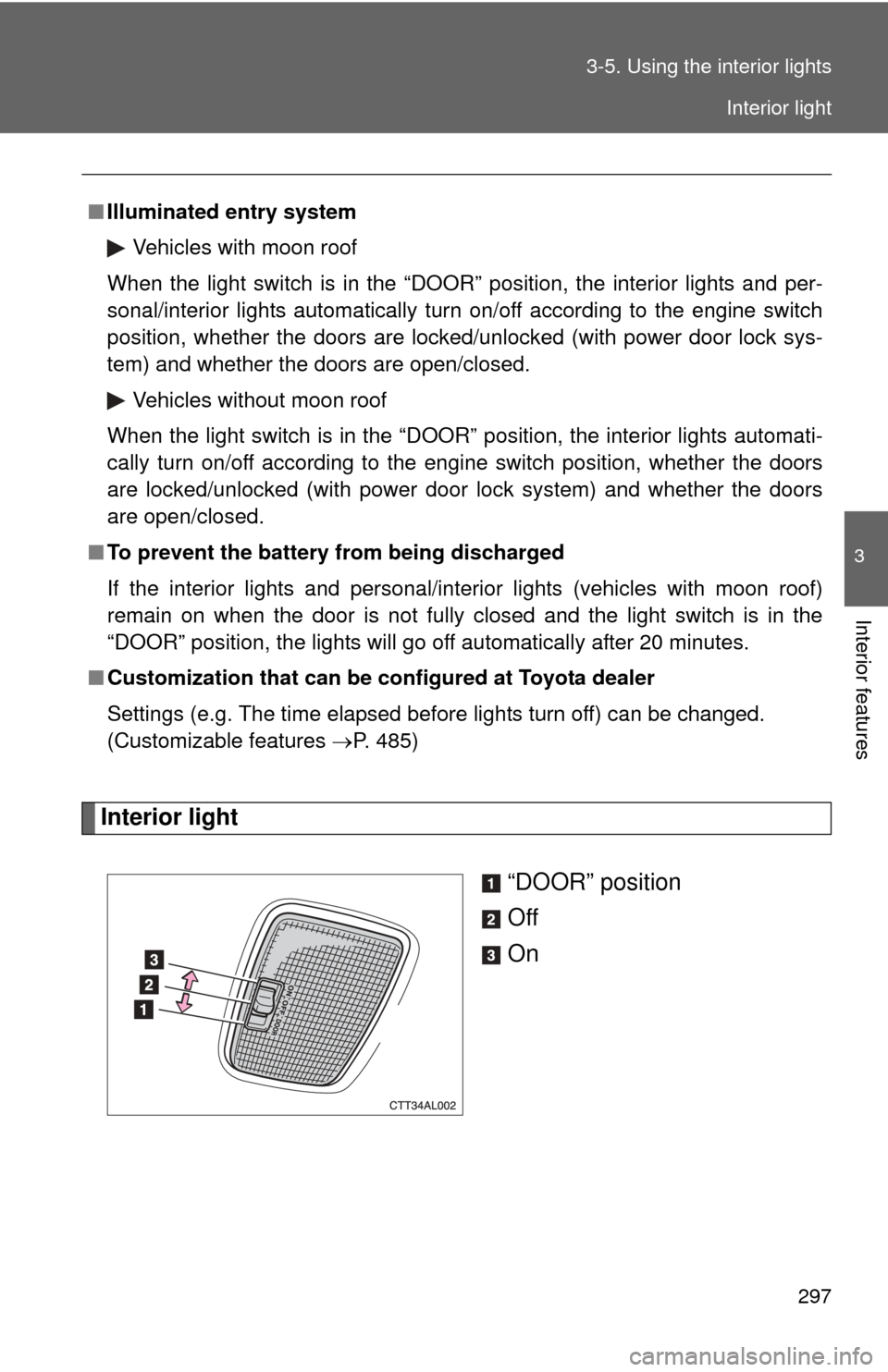
Interior light
“DOOR” position
Off
On
■Illuminated entry system
Vehicles with moon roof
When the light switch is in the “DOOR” position, the interior lights and per-
sonal/interior lights automatically turn on/off according to the engine switch
position, whether the doors are locked/unlocked (with power door lock sys-
tem) and whether the doors are open/closed.
Vehicles without moon roof
When the light switch is in the “DOOR” position, the interior lights automati-
cally turn on/off according to the engine switch position, whether the doors
are locked/unlocked (with power door lock system) and whether the doors
are open/closed.
■ To prevent the battery from being discharged
If the interior lights and personal/interior lights (vehicles with moon roof)
remain on when the door is not fully closed and the light switch is in the
“DOOR” position, the lights will go off automatically after 20 minutes.
■ Customization that can be co nfigured at Toyota dealer
Settings (e.g. The time elapsed before lights turn off) can be changed.
(Customizable features P. 485)
Interior light
Page 485 of 516
485
6
Vehicle specifications
6-2. Customization
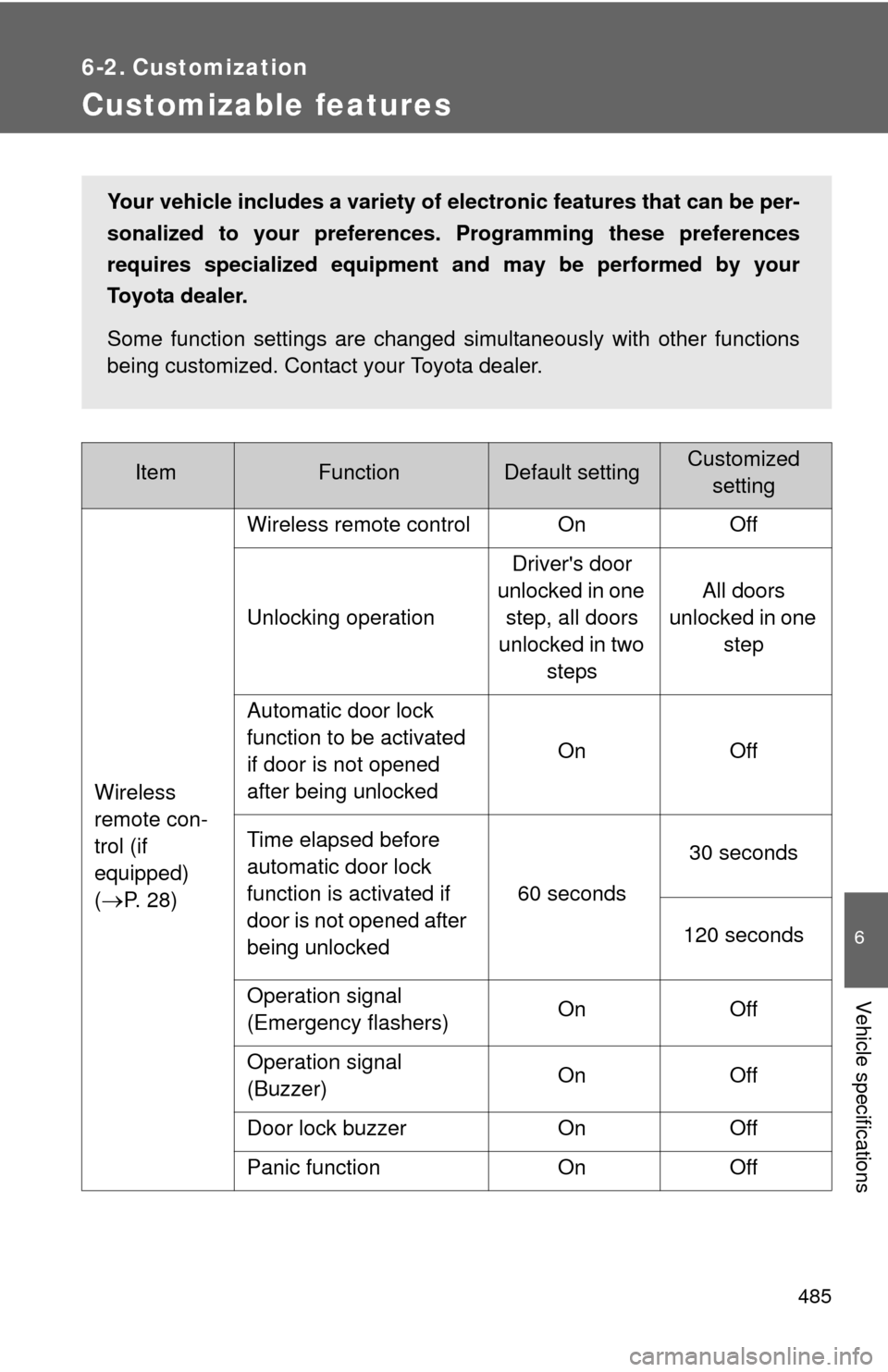
Customizable features
ItemFunctionDefault settingCustomizedsetting
Wireless
remote con-
trol (if
equipped)
(
P. 2 8 ) Wireless remote control On Off
Unlocking operation
Driver's door
unlocked in one step, all doors
unlocked in two steps All doors
unlocked in one step
Automatic door lock
function to be activated
if door is not opened
after being unlocked On Off
Time elapsed before
automatic door lock
function is activated if
door is not opened after
being unlocked 60 seconds
30 seconds
120 seconds
Operation signal
(Emergency flashers) On Off
Operation signal
(Buzzer) On Off
Door lock buzzer On Off
Panic function On Off
Your vehicle includes a variety of electronic features that can be per-
sonalized to your preferences. Programming these preferences
requires specialized equipment and may be performed by your
Toyota dealer.
Some function settings are changed simultaneously with other functions
being customized. Contact your Toyota dealer.