USB port TOYOTA MIRAI 2021 Accessories, Audio & Navigation (in English)
[x] Cancel search | Manufacturer: TOYOTA, Model Year: 2021, Model line: MIRAI, Model: TOYOTA MIRAI 2021Pages: 344, PDF Size: 12.08 MB
Page 294 of 344
2988-2. Setup
cellular phone and replace the cur-
rent one.
“Add Contact”: Select to transfer
the desired contact data from the
connected cellular phone to add to
the current one.
4Transfer the contact data to
the system using a Blue-
tooth
® phone.
This operation may be unnec-
essary depending on the type
of Bluetooth
® phone.
To cancel this function, select
“Cancel”.
5 Check that a confirmation
screen is displayed when the
operation is complete.
Backed-up contact data
(“vCard” formatted) can be
transferred from USB device or
Bluetooth
® phone to this sys-
tem.
1 Connect a USB device to the
USB port. ( P.127)
2 Select “Transfer Contacts
from Device”.
3 Select “From USB”.
4 Select “USB 1” or “USB 2”
when the multiple USB
devices are connected. If a
USB device is connected,
skip this procedure.
5 Select “Replace Contacts” or
“Add Contact”. If the contact is already registered, skip
this procedure.
“Replace Contacts”: Select to trans-
fer the contact fr
om the connected
USB device or Bluetooth
® phone
and replace the current one.
“Add Contact”: Select to transfer
the desired contact data from the
connected USB de vice or Blue-
tooth
® phone to add to the current
one.
6 Select a desired file from
vCard file list.
7 Check that a confirmation
screen is displayed when the
operation is complete.
●Depending on the type of Blue-
tooth® phone used and number of
files, it may take time to display
vCard file lists and download con-
tacts.
●Downloading may not complete
correctly in the following cases:
• If the power switch is turned off
during downloading.
• If the USB device or Bluetooth
®
phone is removed before down-
loading is complete.
New contact data can be regis-
tered.
Up to 4 numbers per person can
be registered. For PBAP com-
patible Bluetooth
® phones, this
function is available when “Auto-
matic Transfer” is set to off.
( P.295)
1 Select “New Contact”.
From USB device
Registering a new contact
to the contacts list
Page 319 of 344
3239-3. Setup
9
Connected Services
9-3.Setup
1Press the “MENU” button.
8-inch display model
12.3-inch display model
2 Select “Setup”.
3 Select “Apps” or “Entune App
Suite”.
4 Select the desired items to
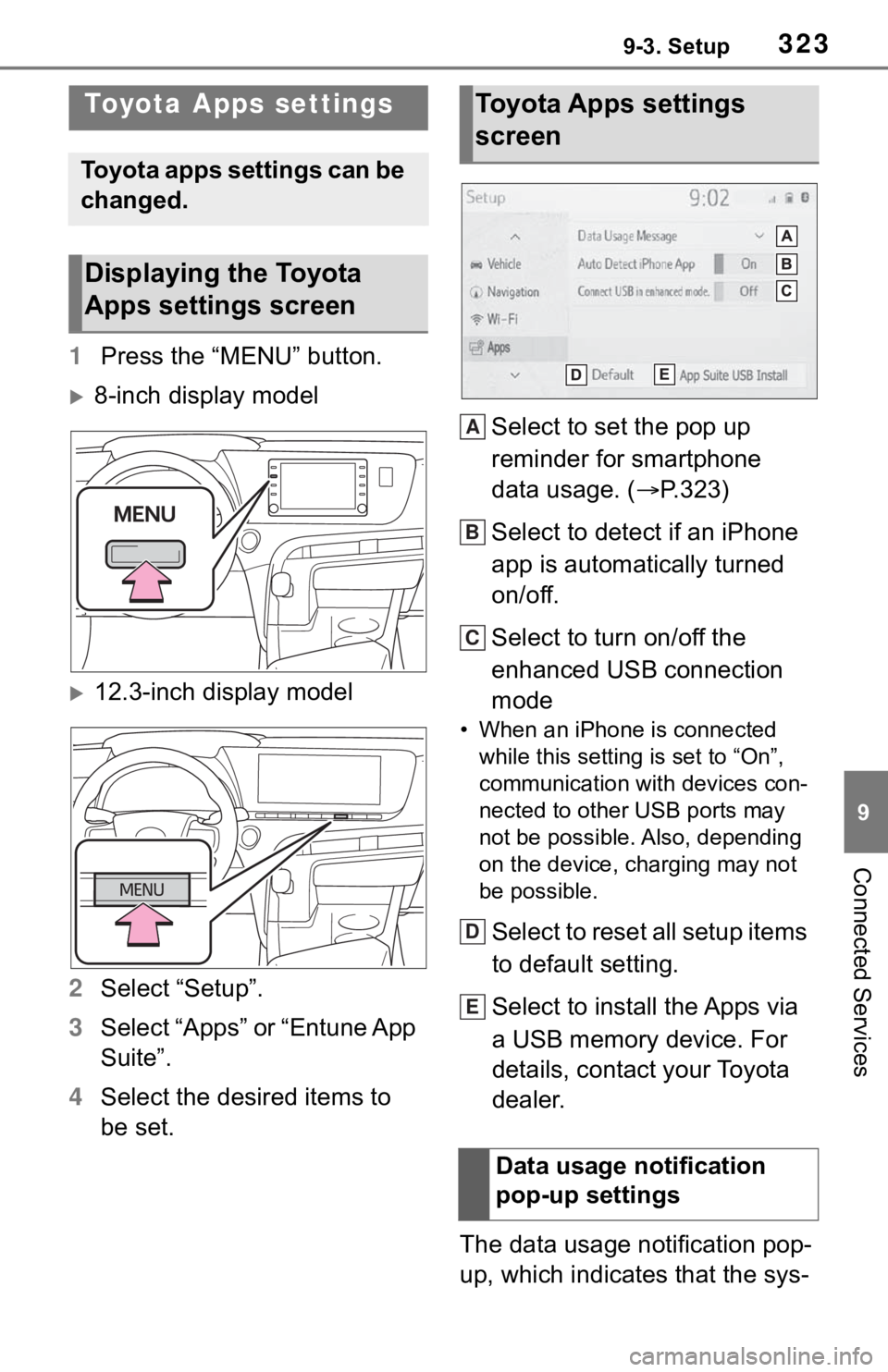
be set. Select to set the pop up
reminder for smartphone
data usage. (
P.323)
Select to detect if an iPhone
app is automatically turned
on/off.
Select to turn on/off the
enhanced USB connection
mode
• When an iPhone is connected while this setting is set to “On”,
communication with devices con-
nected to other USB ports may
not be possible. Also, depending
on the device, charging may not
be possible.
Select to reset all setup items
to default setting.
Select to install the Apps via
a USB memory device. For
details, contact your Toyota
dealer.
The data usage notification pop-
up, which indicates that the sys-
Toyota Apps settings
Toyota apps settings can be
changed.
Displaying the Toyota
Apps settings screen
Toyota Apps settings
screen
Data usage notification
pop-up settings
A
B
C
D
E
Page 328 of 344

332Alphabetical Index
S
Screen adjustment ................... 36Displaying the screen adjust-ment screen ......................... 36
“SEEK TRACK” button ............ 12
AM/FM/SiriusXM
® Satellite
Radio .................................. 131
Bluetooth
® audio .................. 147
iPod/iPhone .......................... 143
USB memory ........................ 141
Setting Bluetooth
® details ....... 43
Bluetooth
® setup screen ........ 43
Connecting a Bluetooth
® device
............................................. 43
Deleting a Bluetooth
® device . 46
“Detailed Settings” screen ...... 48
Displaying the Bluetooth
® setup
screen .................................. 43
Editing the Bluetooth
® device
information ........................... 46
Registering a Bluetooth
® device
............................................. 45
Setup ............... 105, 153, 293, 323
“Setup” button (“Menu” screen) ........................................... 15, 18
“Setup” screen ......................... 18 Some basics.......
.............126, 277
About the contacts in the contact list .......................................280
Audio screen adjustment ......129
Registering/Connecting a Blue-
tooth
® phone ......................278
Reordering the audio source 127
Selecting an audio source ....126
Sound settings......................127
Turning the sys tem on and off
...........................................126
USB port ...............................127
Using the phone switch/micro- phone .................................279
Voice command system130, 280
When selling or disposing of the vehicle ................................280
Starting route guidance ...........94 A route from the Cloud ...........97
Confirm destination screen.....94
Route overview screen ...........95
Status icon ................................16 Status icon explanation ..........16
Steering switch “MODE” switch .....................150
Phone switch ........................279
Seek switch ..........................150
Talk switch ....................166, 280
Volume control switch ...150, 279
Steering switches ...................150 Steering switch operation .....150