carplay TOYOTA MIRAI 2021 Accessories, Audio & Navigation (in English)
[x] Cancel search | Manufacturer: TOYOTA, Model Year: 2021, Model line: MIRAI, Model: TOYOTA MIRAI 2021Pages: 344, PDF Size: 12.08 MB
Page 2 of 344
2TABLE OF CONTENTS
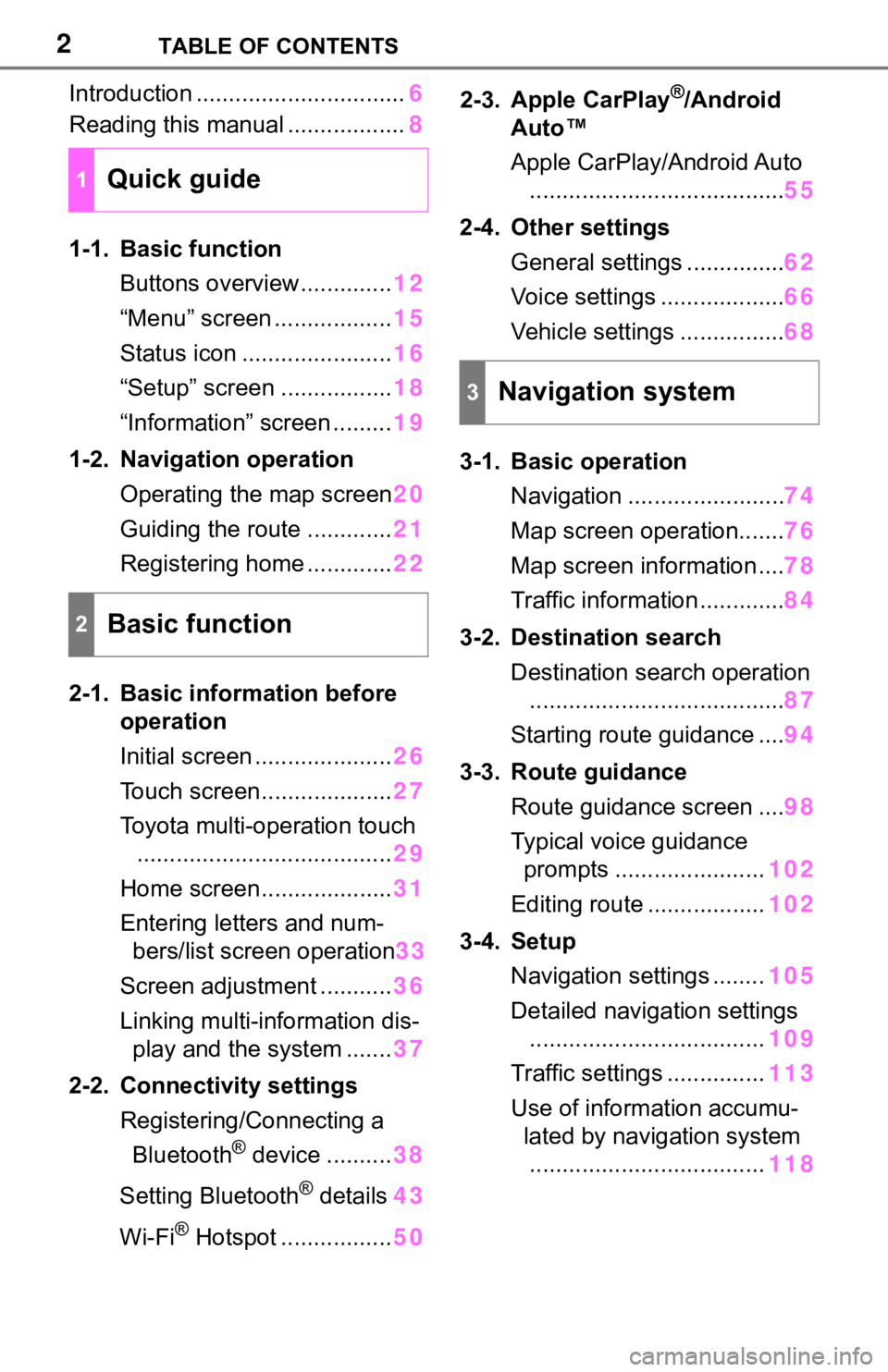
Introduction ................................6
Reading this manual .................. 8
1-1. Basic function Buttons overview.............. 12
“Menu” screen .................. 15
Status icon ....................... 16
“Setup” screen ................. 18
“Information” screen ......... 19
1-2. Navigation operation Operating the map screen 20
Guiding the route ............. 21
Registering home ............. 22
2-1. Basic information before operation
Initial screen ..................... 26
Touch screen.................... 27
Toyota multi-operation touch ....................................... 29
Home screen.................... 31
Entering letters and num- bers/list screen operation 33
Screen adjustment ........... 36
Linking multi-information dis- play and the system ....... 37
2-2. Connectivity settings Registering/Connecting a Bluetooth
® device .......... 38
Setting Bluetooth
® details 43
Wi-Fi
® Hotspot ................. 502-3. Apple CarPlay
®/Android
Auto™
Apple CarPlay/Android Auto
....................................... 55
2-4. Other settings General settings ............... 62
Voice settings ................... 66
Vehicle settings ................ 68
3-1. Basic operation Navigation ........................ 74
Map screen operation....... 76
Map screen information .... 78
Traffic information ............. 84
3-2. Destination search Destination search operation....................................... 87
Starting route guidance .... 94
3-3. Route guidance Route guidance screen .... 98
Typical voice guidance prompts ....................... 102
Editing route .................. 102
3-4. Setup Navigation settings ........ 105
Detailed navigation settings .................................... 109
Traffic settings ............... 113
Use of informa tion accumu-
lated by navigation system .................................... 118
1Quick guide
2Basic function
3Navigation system
Page 3 of 344
3TABLE OF CONTENTS
1
2
3
4
5
6
7
8
9
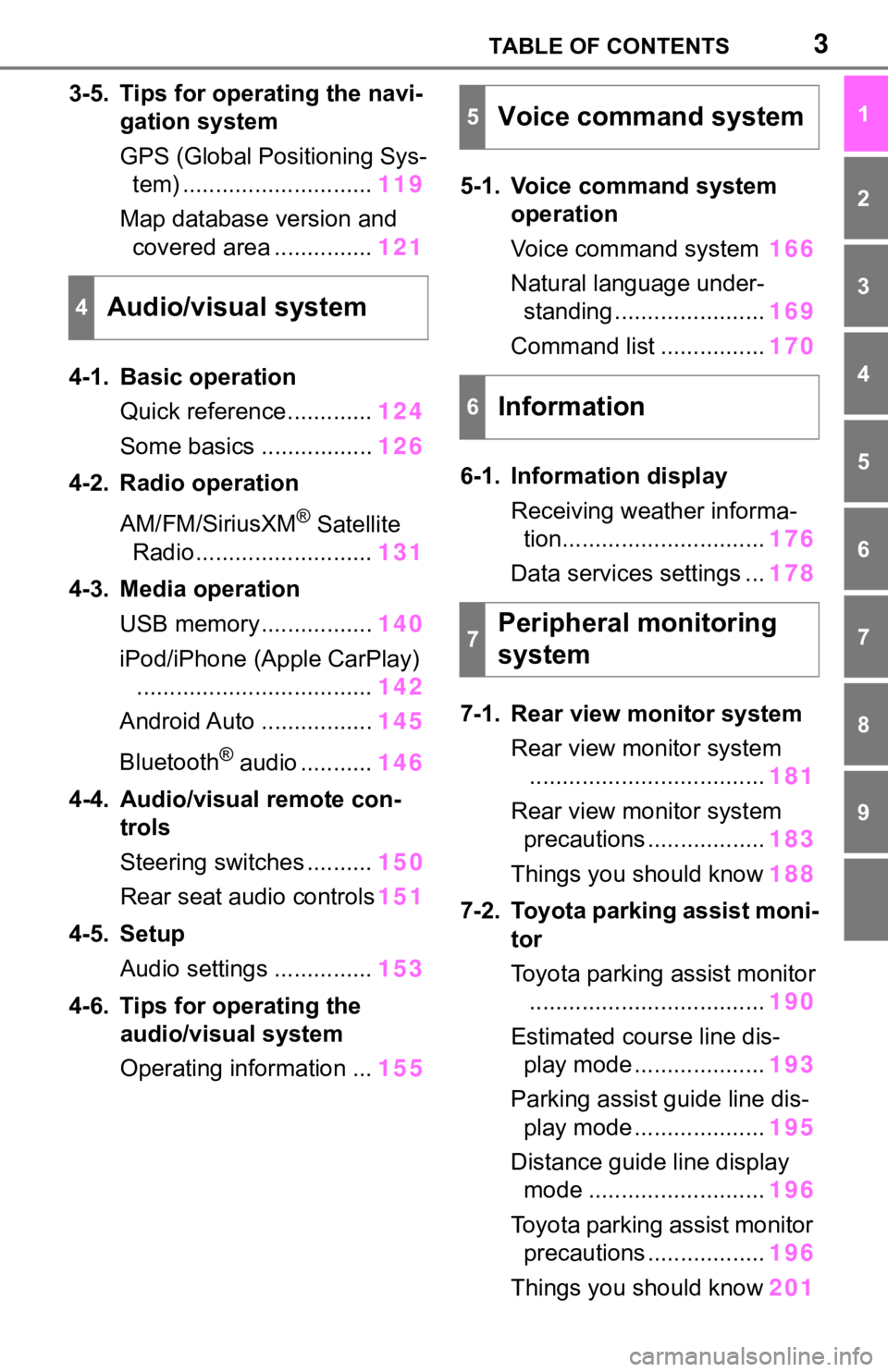
3-5. Tips for operating the navi-gation system
GPS (Global Positioning Sys-tem) ............................. 119
Map database version and covered area ............... 121
4-1. Basic operation Quick reference............. 124
Some basics ................. 126
4-2. Radio operation
AM/FM/SiriusXM
® Satellite
Radio ........................... 131
4-3. Media operation USB memory................. 140
iPod/iPhone (Apple CarPlay) .................................... 142
Android Auto ................. 145
Bluetooth
® audio ........... 146
4-4. Audio/visual remote con- trols
Steering switches .......... 150
Rear seat audio controls 151
4-5. Setup Audio settings ............... 153
4-6. Tips for operating the audio/visual system
Operating information ... 1555-1. Voice command system
operation
Voice command system 166
Natural language under- standing ....................... 169
Command list ................ 170
6-1. Information display Receiving weather informa-tion............................... 176
Data services settings ... 178
7-1. Rear view monitor system Rear view monitor system.................................... 181
Rear view monitor system precautions .................. 183
Things you should know 188
7-2. Toyota parking assist moni- tor
Toyota parking assist monitor.................................... 190
Estimated course line dis- play mode .................... 193
Parking assist guide line dis- play mode .................... 195
Distance guide line display mode ........................... 196
Toyota parking assist monitor precautions .................. 196
Things you should know 201
4Audio/visual system
5Voice command system
6Information
7Peripheral monitoring
system
Page 12 of 344
121-1. Basic function
1-1.Basic function
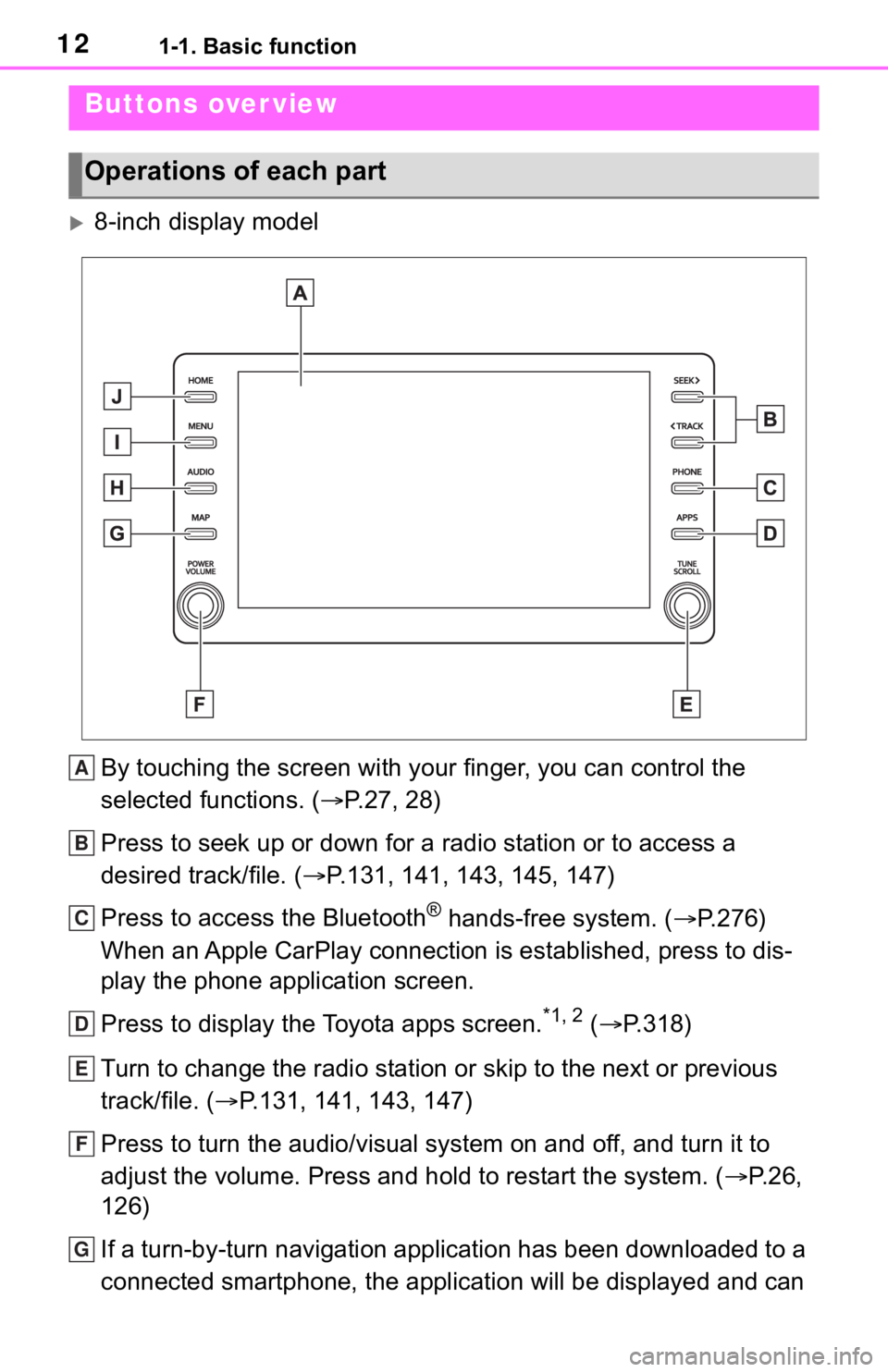
8-inch display modelBy touching the screen with y our finger, you can control the
selected functions. ( P.27, 28)
Press to seek up or down for a radio station or to access a
desired track/file. ( P.131, 141, 143, 145, 147)
Press to access the Bluetooth
® hands-free system. ( P.276)
When an Apple CarPlay connection is established, press to dis-
play the phone application screen.
Press to display the Toyota apps screen.
*1, 2 ( P.318)
Turn to change the radio station or skip to the next or previou s
track/file. ( P.131, 141, 143, 147)
Press to turn the audio/visual system on and off, and turn it t o
adjust the volume. Press and hold to restart the system. ( P. 2 6 ,
126)
If a turn-by-turn navigation application has been downloaded to a
connected smartphone, the application will be displayed and can
Buttons over view
Operations of each part
A
B
C
D
E
F
G
Page 13 of 344
131-1. Basic function
1
Quick guide
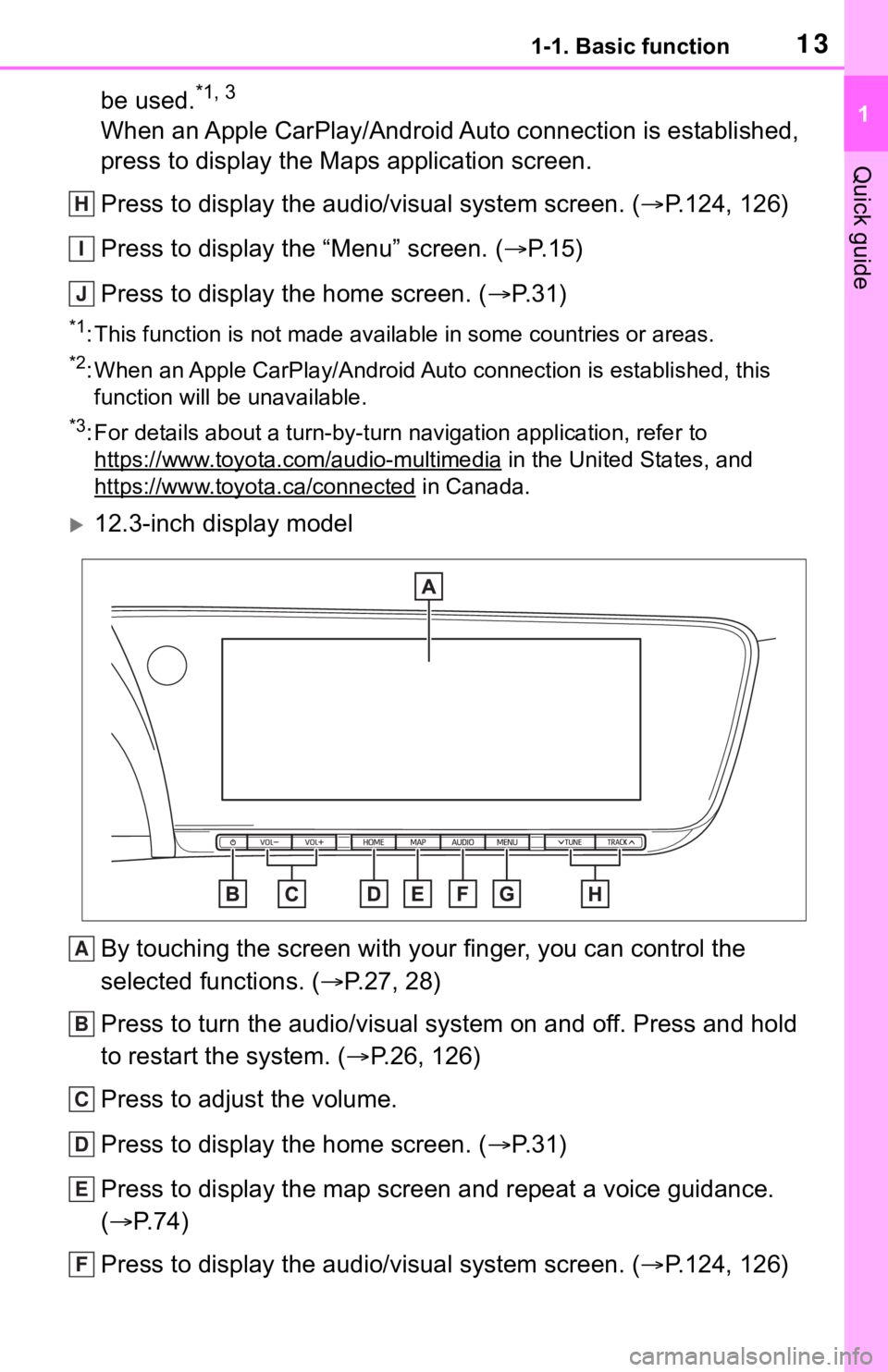
be used.*1, 3
When an Apple CarPlay/Android Auto connection is established,
press to display the Maps application screen.
Press to display the audio/visual system screen. (P.124, 126)
Press to display the “Menu” screen. ( P. 1 5 )
Press to display the home screen. ( P. 3 1 )
*1: This function is not made available in some countries or areas .
*2: When an Apple CarPlay/Android Auto connection is established, this
function will be unavailable.
*3: For details about a turn-by-turn navigation application, refer to
https://www.toyota.com/audio-multimedia
in the United States, and
https://www.toyota.ca/connected
in Canada.
12.3-inch display model
By touching the screen with y our finger, you can control the
selected functions. ( P.27, 28)
Press to turn the audio/visual system on and off. Press and hol d
to restart the system. ( P.26, 126)
Press to adjust the volume.
Press to display the home screen. ( P. 3 1 )
Press to display the map screen and repeat a voice guidance.
( P. 7 4 )
Press to display the audio/visual system screen. ( P.124, 126)
H
I
J
A
B
C
D
E
F
Page 15 of 344
151-1. Basic function
1
Quick guide
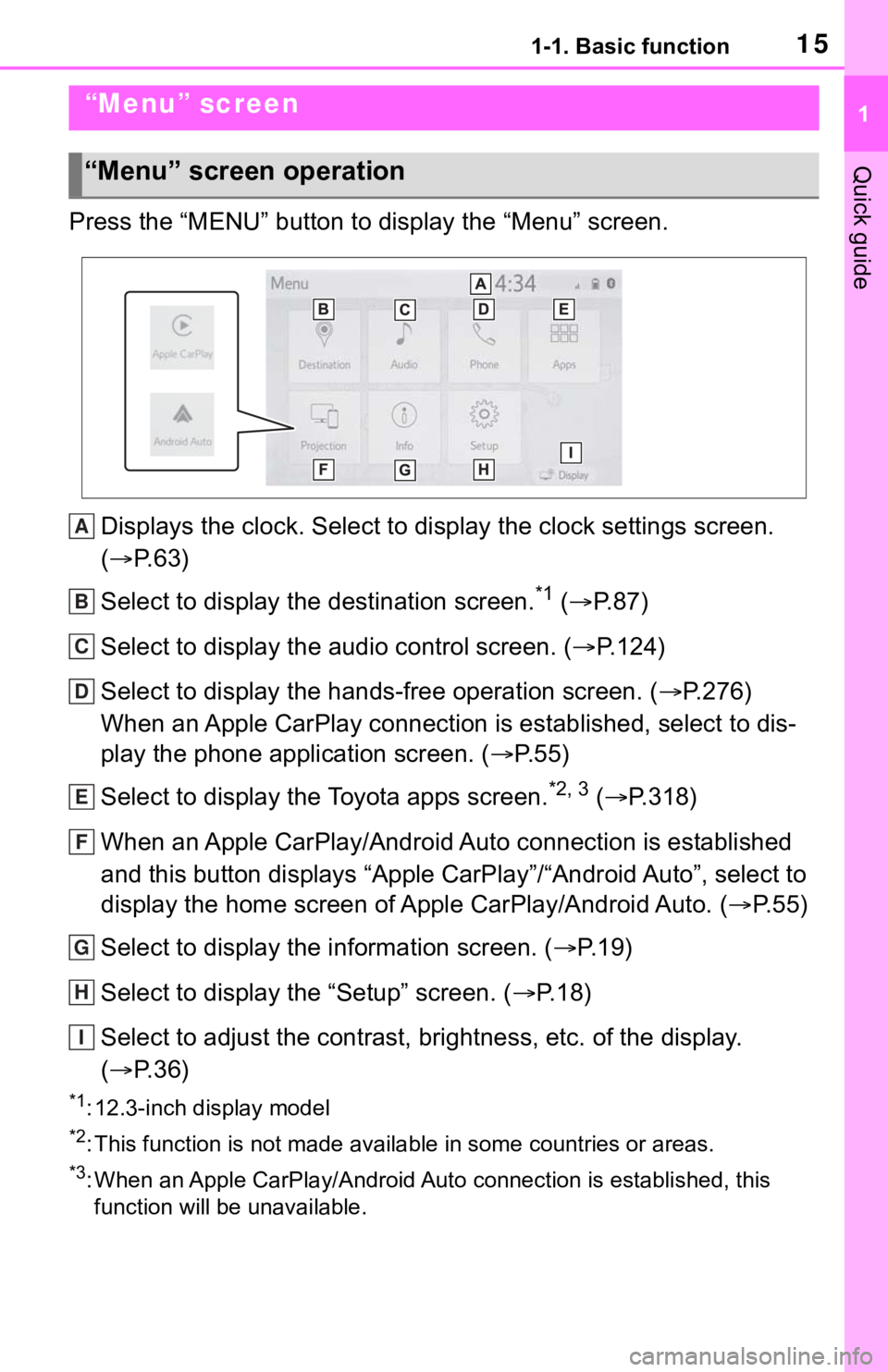
Press the “MENU” button to display the “Menu” screen.Displays the clock. Select to display the clock settings screen .
( P. 6 3 )
Select to display the destination screen.
*1 ( P. 8 7 )
Select to display the audio control screen. ( P.124)
Select to display the hands-free operation screen. ( P.276)
When an Apple CarPlay connection is established, select to dis-
play the phone application screen. ( P.55)
Select to display the Toyota apps screen.
*2, 3 ( P.318)
When an Apple CarPlay/Android Auto connection is established
and this button displays “Apple CarPlay”/“Android Auto”, select to
display the home screen of Apple CarPlay/Android Auto. ( P.55)
Select to display the information screen. ( P.19)
Select to display the “Setup” screen. ( P.18)
Select to adjust the contrast, brightness, etc. of the display.
( P. 3 6 )
*1: 12.3-inch display model
*2: This function is not made available in some countries or areas .
*3: When an Apple CarPlay/Android Auto connection is established, this
function will be unavailable.
“Menu” screen
“Menu” screen operation
A
B
C
D
E
F
G
H
I
Page 25 of 344
25
2
2
Basic function
Basic function
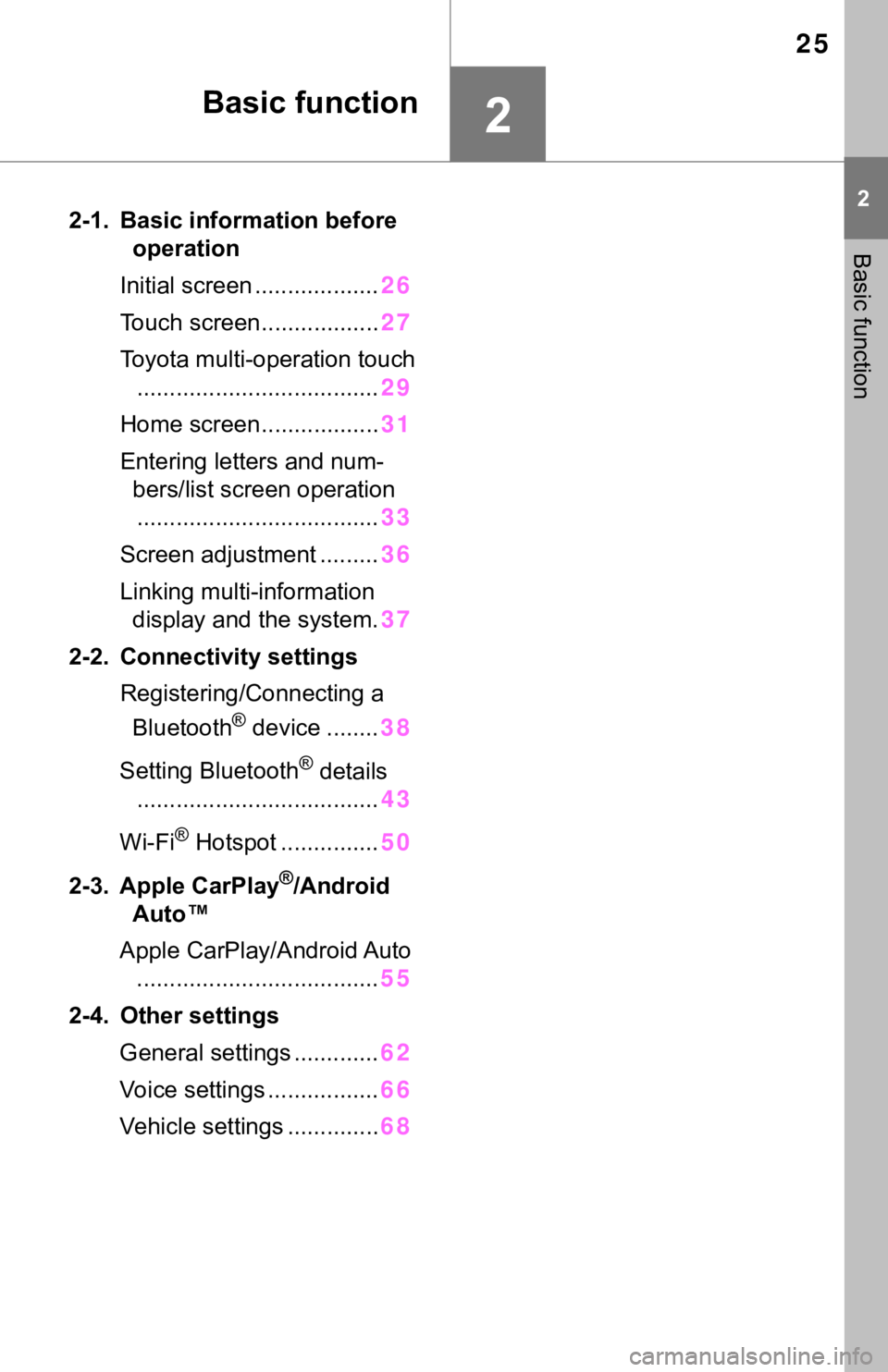
2-1. Basic information before operation
Initial screen ................... 26
Touch screen.................. 27
Toyota multi-operation touch ..................................... 29
Home screen.................. 31
Entering letters and num- bers/list screen operation..................................... 33
Screen adjustment ......... 36
Linking multi-information display and the system. 37
2-2. Connectivity settings Registering/Connecting a Bluetooth
® device ........ 38
Setting Bluetooth
® details
..................................... 43
Wi-Fi
® Hotspot ............... 50
2-3. Apple CarPlay
®/Android
Auto™
Apple CarPlay/Android Auto ..................................... 55
2-4. Other settings General settings ............. 62
Voice settings ................. 66
Vehicle settings .............. 68
Page 27 of 344
272-1. Basic information before operation
2
Basic function
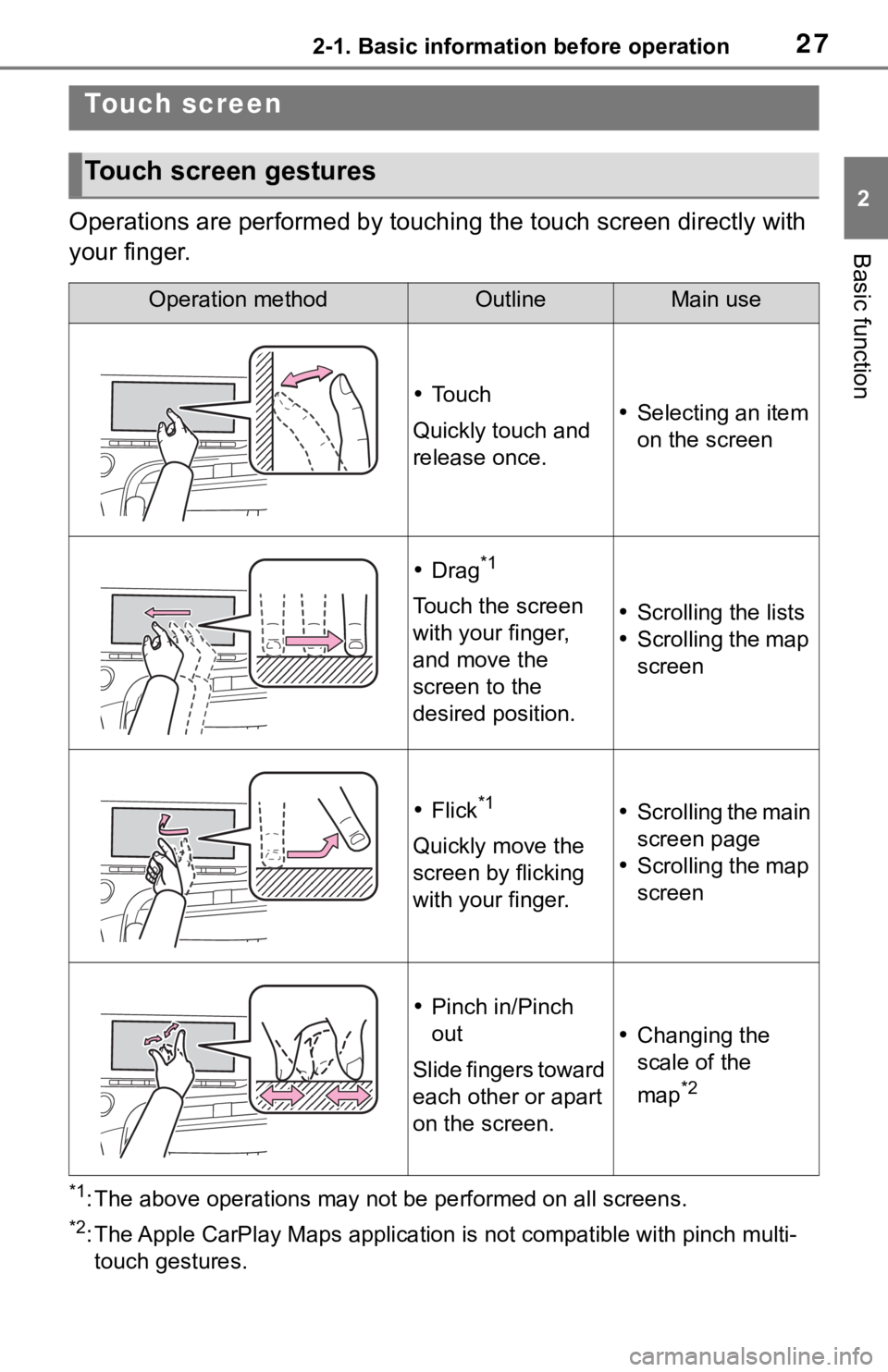
Operations are performed by touching the touch screen directly with
your finger.
*1: The above operations may not be performed on all screens.
*2: The Apple CarPlay Maps applicat ion is not compatible with pinch multi-
touch gestures.
Touch screen
Touch screen gestures
Operation methodOutlineMain use
To u c h
Quickly touch and
release once. Selecting an item
on the screen
Drag*1
Touch the screen
with your finger,
and move the
screen to the
desired position. Scrolling the lists
Scrolling the map
screen
Flick*1
Quickly move the
screen by flicking
with your finger.
Scrolling the main
screen page
Scrolling the map
screen
Pinch in/Pinch
out
Slide fingers toward
each other or apart
on the screen.
Changing the
scale of the
map
*2
Page 37 of 344
372-1. Basic information before operation
2
Basic function
even with the fuel cell system off.
The contrast and brightness of
the screen can be adjusted
according to the brightness of
your surroundings.
1Select “General” or “Cam-
era”.
2 Select the desired item.
“Display (General)” screen
only: Select “<” or “>” to select
the desired display.
• “Contrast”
“+”: Select to strengthen the con-
trast of the screen.
“-”: Select to weaken the contrast of
the screen.
• “Brightness”
“+”: Select to brighten the screen.
“-”: Select to darken the screen.
Adjusting the con-
trast/brightness
Linking multi-informa-
tion display and the
system
The following functions of
the system are linked with
the multi-information dis-
play in the instrument clus-
ter:
Navigation
Audio
Phone
*
etc.
These functions can be
operated using the multi-
information display control
switches on the steering
wheel. For details, refer to
“OWNER’S MANUAL”.
*: When an Apple CarPlay con-
nection is esta blished, this
function will be unavailable.
Page 38 of 344
382-2. Connectivity settings
2-2.Connectivity settings
■Registering from the sys-
tem
1 Turn the Bluetooth
® connec-
tion setting of your cellular
phone on.
This function is not available
when Bluetooth
® connection
setting of your cellular phone
is set to off.
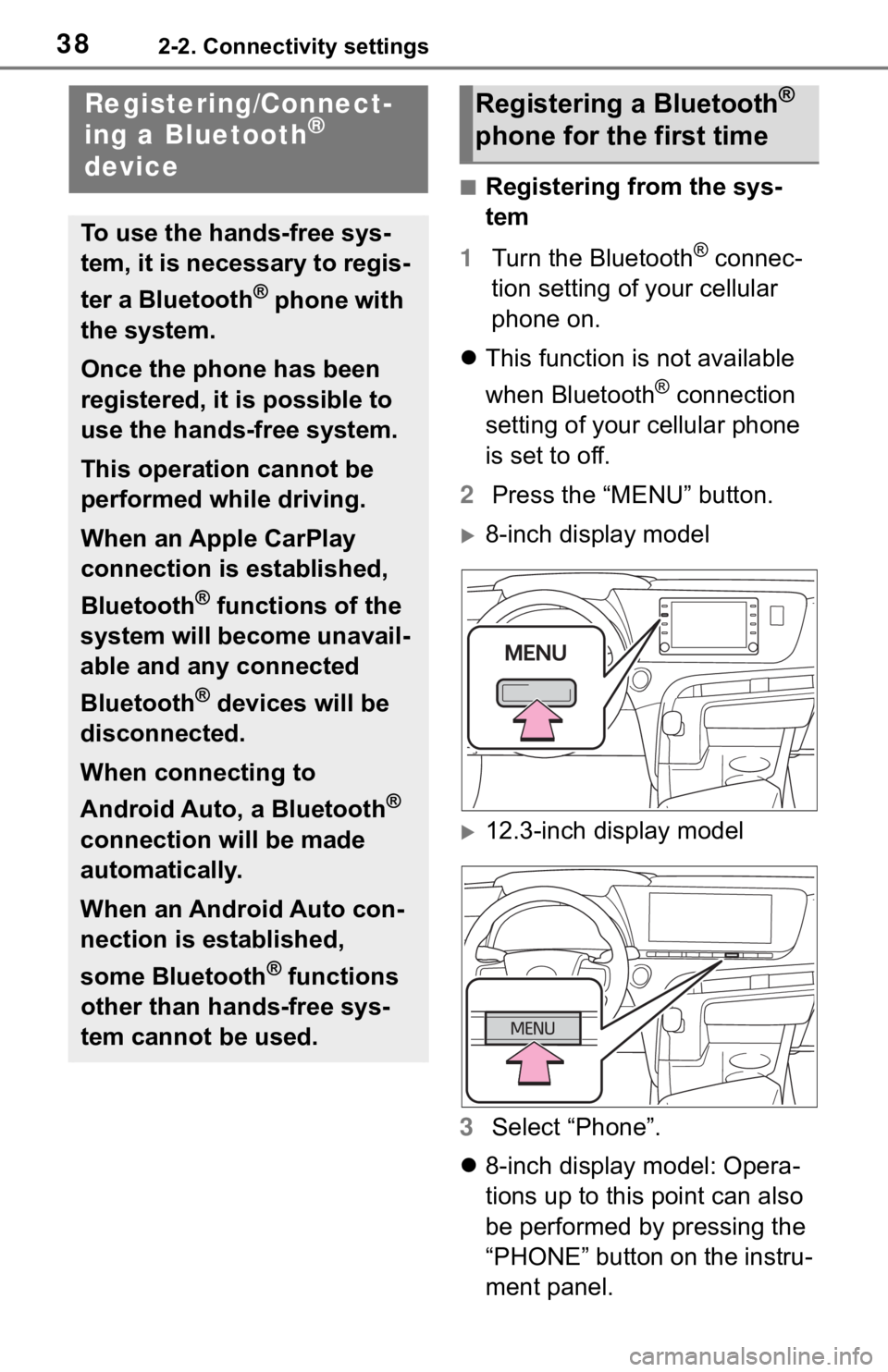
2 Press the “MENU” button.
8-inch display model
12.3-inch display model
3 Select “Phone”.
8-inch display model: Opera-
tions up to this point can also
be performed by pressing the
“PHONE” button on the instru-
ment panel.
Registering/Connect-
ing a Bluetooth®
device
To use the hands-free sys-
tem, it is necessary to regis-
ter a Bluetooth
® phone with
the system.
Once the phone has been
registered, it is possible to
use the hands-free system.
This operation cannot be
performed while driving.
When an Apple CarPlay
connection is established,
Bluetooth
® functions of the
system will become unavail-
able and any connected
Bluetooth
® devices will be
disconnected.
When connecting to
Android Auto, a Bluetooth
®
connection will be made
automatically.
When an Android Auto con-
nection is established,
some Bluetooth
® functions
other than hands-free sys-
tem cannot be used.
Registering a Bluetooth®
phone for the first time
Page 55 of 344
552-3. Apple CarPlay®/Android Auto™
2
Basic function
2-3.Apple CarPlay®/Android Auto™
1Enable Siri on the device to
be connected. 2
Connect the device to the
USB port. ( P.127)
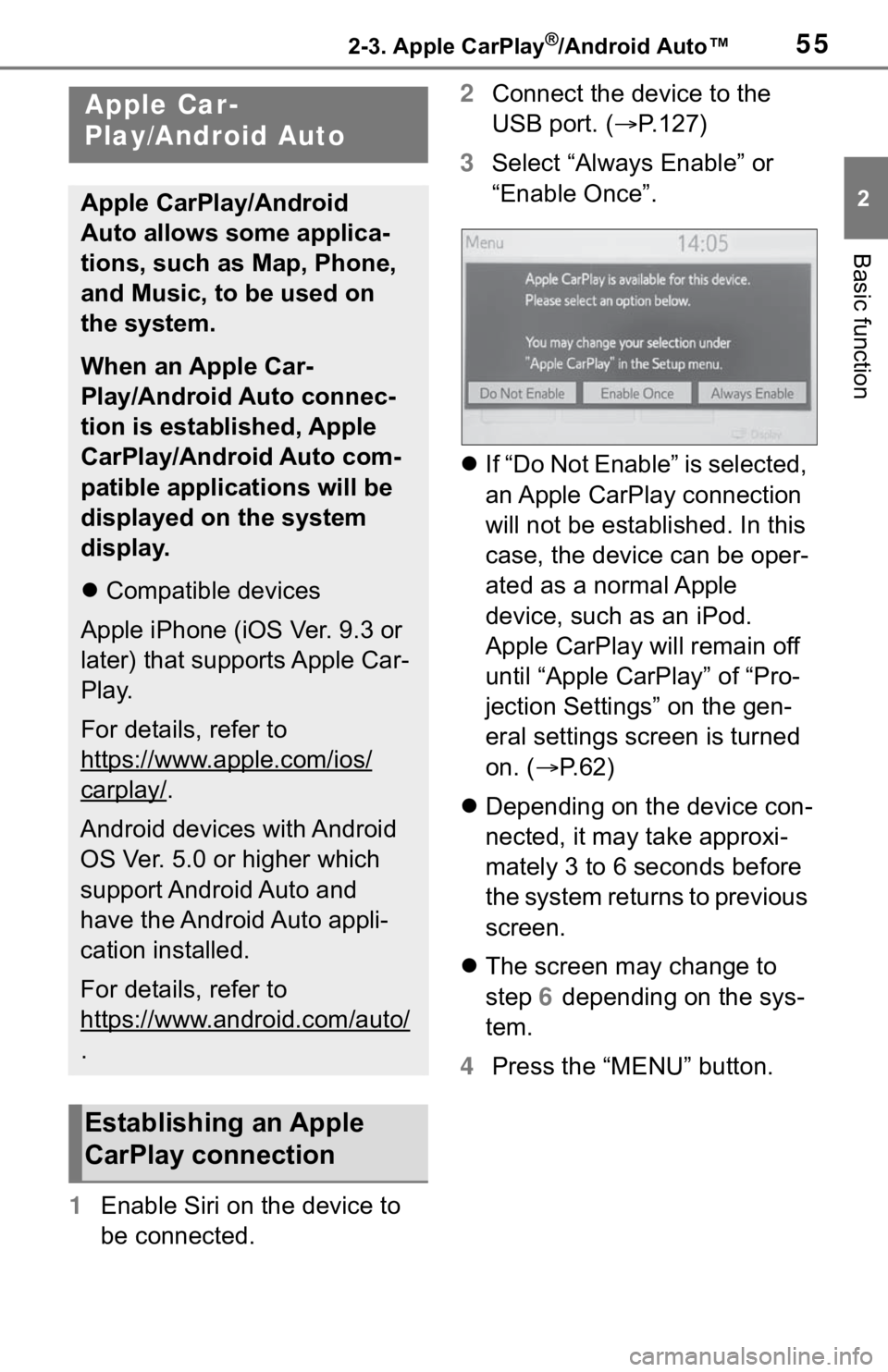
3 Select “Always Enable” or
“Enable Once”.
If “Do Not Enable” is selected,
an Apple CarPlay connection
will not be established. In this
case, the device can be oper-
ated as a normal Apple
device, such as an iPod.
Apple CarPlay will remain off
until “Apple CarPlay” of “Pro-
jection Settings” on the gen-
eral settings screen is turned
on. ( P. 6 2 )
Depending on the device con-
nected, it may take approxi-
mately 3 to 6 seconds before
the system returns to previous
screen.
The screen may change to
step 6 depending on the sys-
tem.
4 Press the “MENU” button.
Apple Car-
Play/Android Auto
Apple CarPlay/Android
Auto allows some applica-
tions, such as Map, Phone,
and Music, to be used on
the system.
When an Apple Car-
Play/Android Auto connec-
tion is established, Apple
CarPlay/Android Auto com-
patible applications will be
displayed on the system
display.
Compatible devices
Apple iPhone (iOS Ver. 9.3 or
later) that supports Apple Car-
Play.
For details, refer to
https://www.apple.com/ios/
carplay/.
Android devices with Android
OS Ver. 5.0 or higher which
support Android Auto and
have the Android Auto appli-
cation installed.
For details, refer to
https://www.android.com/auto/
.
Establishing an Apple
CarPlay connection