reset TOYOTA MIRAI 2022 Owners Manual
[x] Cancel search | Manufacturer: TOYOTA, Model Year: 2022, Model line: MIRAI, Model: TOYOTA MIRAI 2022Pages: 556, PDF Size: 17.34 MB
Page 98 of 556
983-1. Instrument cluster
Owners Manual_USA_M62084_en
■When changing driving mode
Background color of the multi-infor-
mation display is changed following
the selected driving mode. ( P.313,
314)
■Clock settings screen
If “Clock :00” is displayed when
is selected on the multi-information
display, the system may be malfunc-
tioning. Have the vehicle inspected
by your Toyota dealer.
■Outside temperature display
●In the following si tuations, the cor-
rect outside tempe rature may not
be displayed, or the display may
take longer than normal to
change.
• When stopped, or driving at low
speeds (less than 12 mph [20
km/h])
• When the outside temperature
has changed su ddenly (at the
entrance/exit of a garage, tunnel,
etc.)
●When “--” or “E” is displayed, the
system may be malfunctioning.
Take your vehicle to your Toyota
dealer.
●Displays the outside temperature
within the range of -40°F (-40°C)
to 122°F (50°C).
●When the outside temperature is
approximately 37°F (3°C) or
lower, the indicator will flash
for approximately 10 seconds,
then stay on.
■Liquid crystal display
P. 1 0 0
■Customization
Settings (e. g. meter display) can be
changed on screen of the multi-
information display. ( P.498)
■Display items
Odometer
Displays the total distance the vehi-
cle has been driven.
Trip meter A/Trip meter B
Displays the distance the vehicle
has been driven since the meter
was last reset. Trip meters A and B
can be used to record and display
different distances independently.
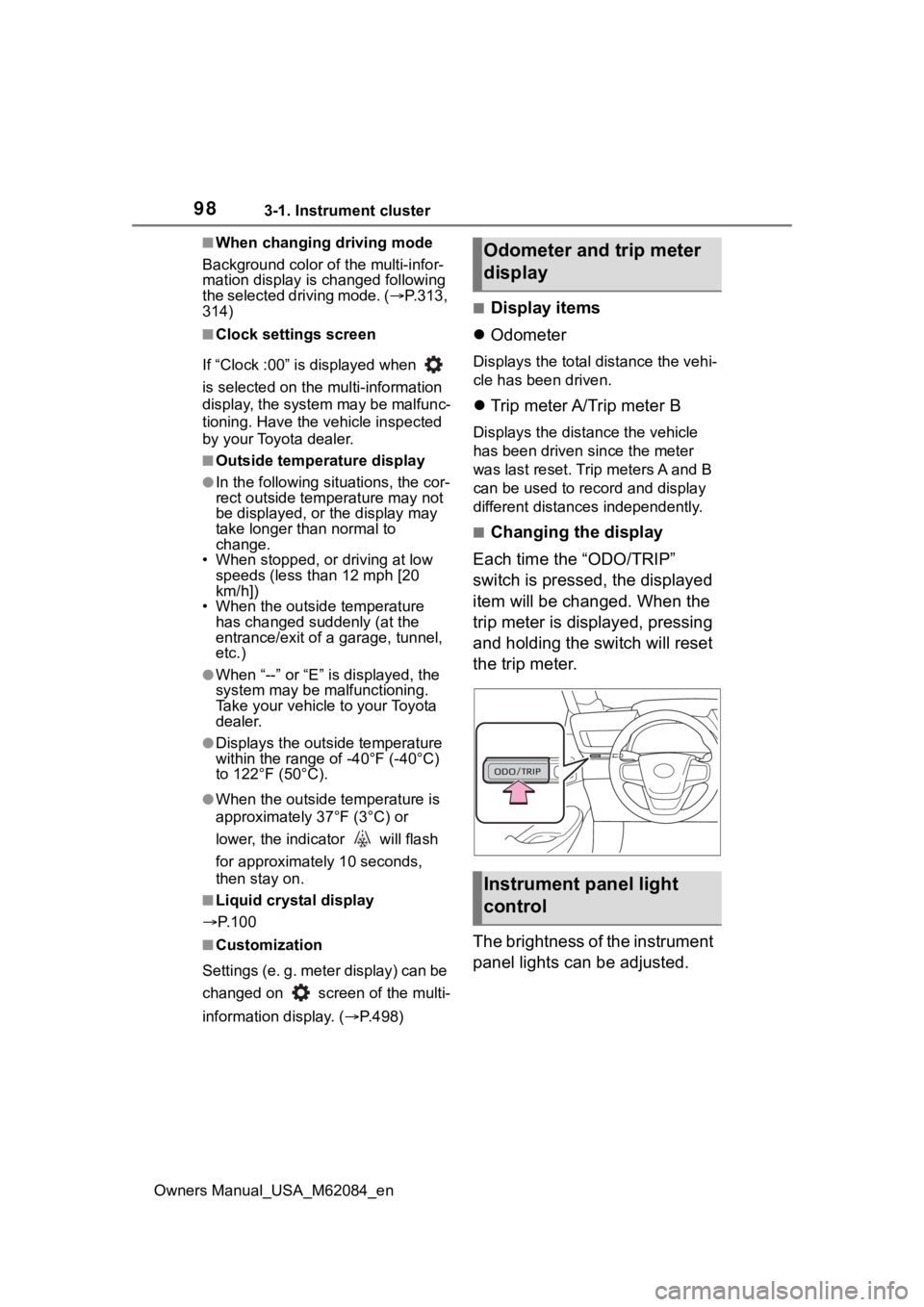
■Changing the display
Each time the “ODO/TRIP”
switch is pressed, the displayed
item will be changed. When the
trip meter is displayed, pressing
and holding the switch will reset
the trip meter.
The brightness of the instrument
panel lights can be adjusted.
Odometer and trip meter
display
Instrument panel light
control
Page 100 of 556
1003-1. Instrument cluster
Owners Manual_USA_M62084_en
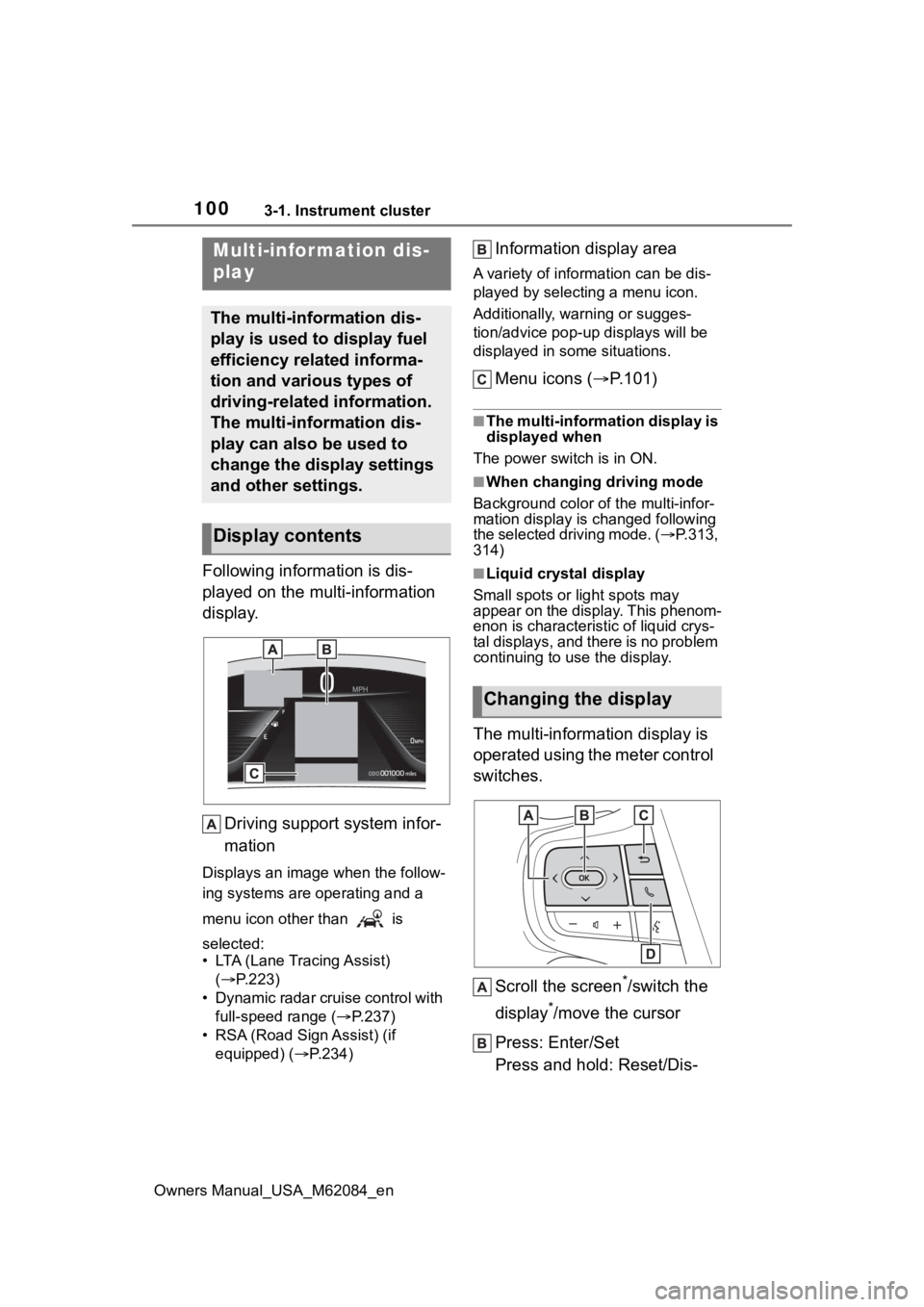
Following information is dis-
played on the multi-information
display.Driving support system infor-
mation
Displays an image when the follow-
ing systems are operating and a
menu icon other than is
selected:
• LTA (Lane Tracing Assist) ( P.223)
• Dynamic radar cruise control with full-speed range ( P.237)
• RSA (Road Sign Assist) (if equipped) ( P.234)
Information display area
A variety of information can be dis-
played by selecting a menu icon.
Additionally, warning or sugges-
tion/advice pop-up displays will be
displayed in some situations.
Menu icons ( P.101)
■The multi-information display is
displayed when
The power switch is in ON.
■When changing driving mode
Background color of the multi-infor-
mation display is changed following
the selected driving mode. ( P.313,
314)
■Liquid crystal display
Small spots or light spots may
appear on the display. This phenom-
enon is characteristic of liquid crys-
tal displays, and there is no problem
continuing to use the display.
The multi-information display is
operated using the meter control
switches.
Scroll the screen
*/switch the
display
*/move the cursor
Press: Enter/Set
Press and hold: Reset/Dis-
Multi-infor mation dis-
play
The multi-information dis-
play is used to display fuel
efficiency related informa-
tion and various types of
driving-related information.
The multi-information dis-
play can also be used to
change the display settings
and other settings.
Display contents
Changing the display
Page 102 of 556
1023-1. Instrument cluster
Owners Manual_USA_M62084_enTo reset the average fuel economy
display, press and hold the
meter control switch.
The average fuel economy dis-
play can be changed in .
(
P.105)
Average fuel economy (after
start)
Displays the average fuel con-
sumption since fuel cell system
start.
Average fuel economy (after
refuel)
Displays the average fuel con-
sumption since the vehicle was
refueled.
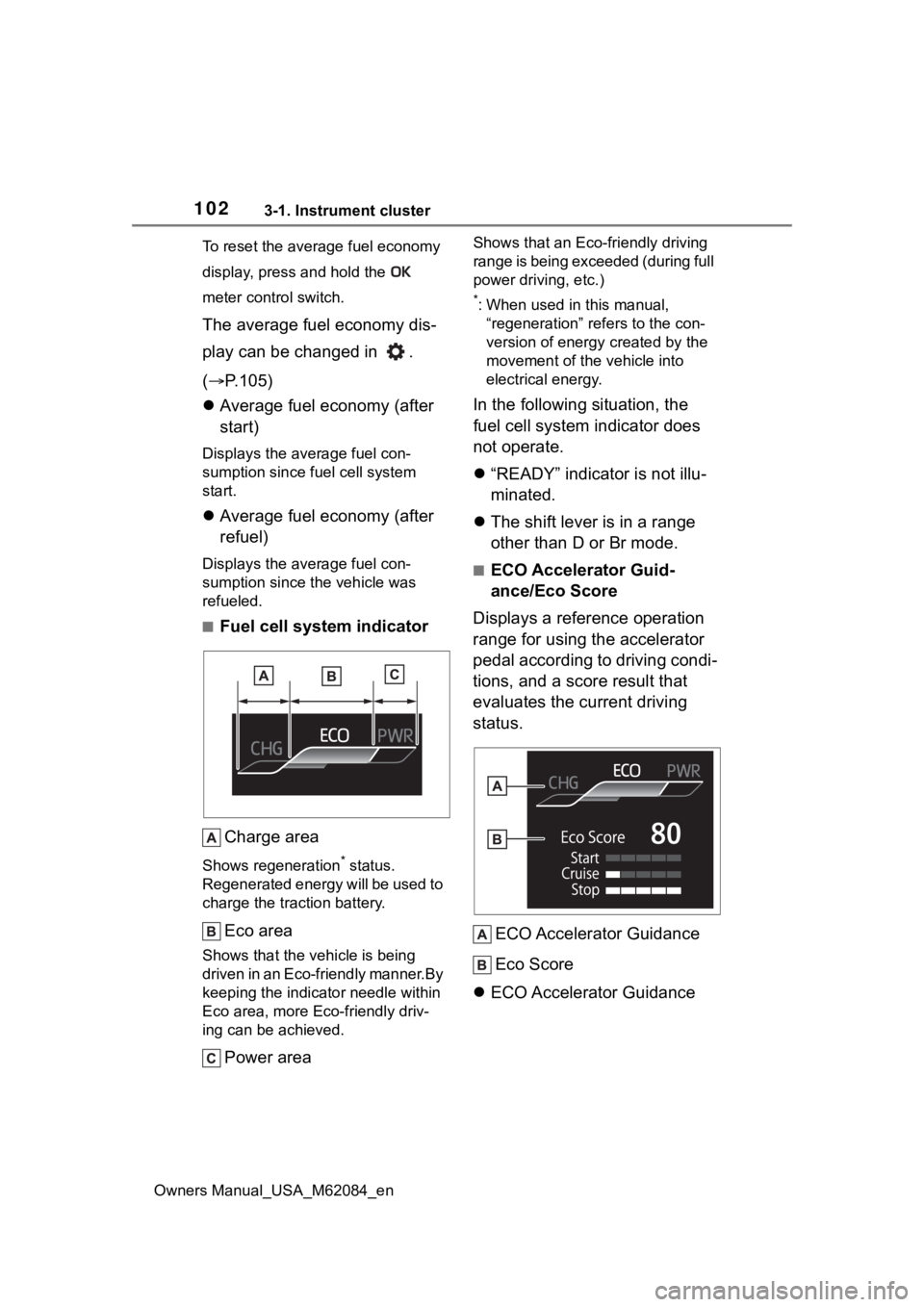
■Fuel cell system indicator
Charge area
Shows regeneration* status.
Regenerated energy will be used to
charge the traction battery.
Eco area
Shows that the vehicle is being
driven in an Eco-friendly manner.By
keeping the indicator needle within
Eco area, more Eco-friendly driv-
ing can be achieved.
Power area
Shows that an Eco-friendly driving
range is being exceeded (during full
power driving, etc.)
*: When used in this manual, “regeneration” refers to the con-
version of energy created by the
movement of the vehicle into
electrical energy.
In the following situation, the
fuel cell system indicator does
not operate.
“READY” indicator is not illu-
minated.
The shift lever is in a range
other than D or Br mode.
■ECO Accelerator Guid-
ance/Eco Score
Displays a reference operation
range for using the accelerator
pedal according to driving condi-
tions, and a score result that
evaluates the current driving
status.
ECO Accelerator Guidance
Eco Score
ECO Accelerator Guidance
Page 104 of 556
1043-1. Instrument cluster
Owners Manual_USA_M62084_en
■ECO Accelerator Guidance/Eco
Score will not operate when
The ECO Accelerator Guidance/Eco
Score will not opera te in the follow-
ing situations:
●The fuel cell system indicator is
not operating.
●The vehicle is being driven using
the dynamic radar cruise control
with full-speed range.
■Driving support system
information display
Select to display the operational
status of the following systems:
LTA (Lane Tracing Assist)
( P.223)
Dynamic radar cruise control
with full-speed range
( P.237)
■Navigation system-linked
display (if equipped)
Select to display the following
navigation system-linked infor-
mation.
Route guidance
Compass display (north-up
display/heading-up display)
Select to enable selection of an
audio source or track on the dis-
play.
■Drive information
2 items that are selected using
the “Drive Info Items” setting
(average speed, distance and
total time) can be displayed ver-
tically.
The displayed information
changes according to the “Drive
Info Type” setting (since the sys-
tem was started or between
resets). ( P.105)
Use the displayed information as a
reference only.
Following items will be displayed.
“Trip”
• “Average Speed”: Displays the
average vehicle speed since fuel
cell system start
*
• “Distance”: Displ ays the distance
driven since fuel cell system start
*
• “Total Time”: Displays the elapsed time since fuel cell system start
*
*
: These items are r eset each time
the fuel cell system stops.
“Total”
• “Average Speed”: Displays the
average vehicle speed since the
display was reset
*
• “Distance”: Displ ays the distance
driven since the display was
reset
*
• “Total Time”: Displays the elapsed
time since the display was reset
*
*
: To reset, display the desired item
Driving support system
information display
Audio system-linked dis-
play
Vehicle information dis-
play
Page 105 of 556
1053-1. Instrument cluster
Owners Manual_USA_M62084_en
3
Vehicle status information and indicators
and press and hold .
■Energy monitor
P. 111
■Tire inflation pressure
Displays inflation pressure of
each tire.
■Meter display settings that
can be changed
Language
Select to change the language on
the multi-information display.
Units
Select to change t he units of mea-
sure displayed.
(Driving information dis-
play settings)
Select to set up the following items.
• Fuel cell system
Select to enable/disable the ECO
Accelerator Guidance ( P.102).
• Fuel Economy
Select to change the display on
Fuel Economy ( P.101).
(Audio settings)
Select to enable/disable
screen.
(Vehicle information dis-
play settings)
• Display Contents
Select to set up the following items. Energy monitor:
Select to enable/disable the Energy
monitor (
P. 111 )
• Drive Info Type
Select to change the drive informa-
tion type display between trip and
total. ( P.104).
• Drive Info Items
Select to set the items on the upper
and lower side of the drive informa-
tion screen from three items, aver-
age speed, distance and total time.
Trip Summary
Select to set the items displayed
when the power switch is turned off.
Pop-Up Display
Select to enable/disable pop-up
displays for each relevant system.
Multi-information display off
Select to turn the multi-information
display off.
To turn the multi-information display
on again, press any of the meter
control switches.
Default Settings
Select to reset the meter display
settings.
■Suspension of the settings dis-
play
●In the following situations, opera-
tion of the settings display will be
temporarily suspended.
• When a warning message appears on the multi-information
display
• When the vehicle begins to move
●Settings for functions not
equipped to the vehicle are not
displayed.
●When a function is turned off, the
Settings display
Page 109 of 556
1093-1. Instrument cluster
Owners Manual_USA_M62084_en
3
Vehicle status information and indicators
■Enabling/disabling the
head-up display
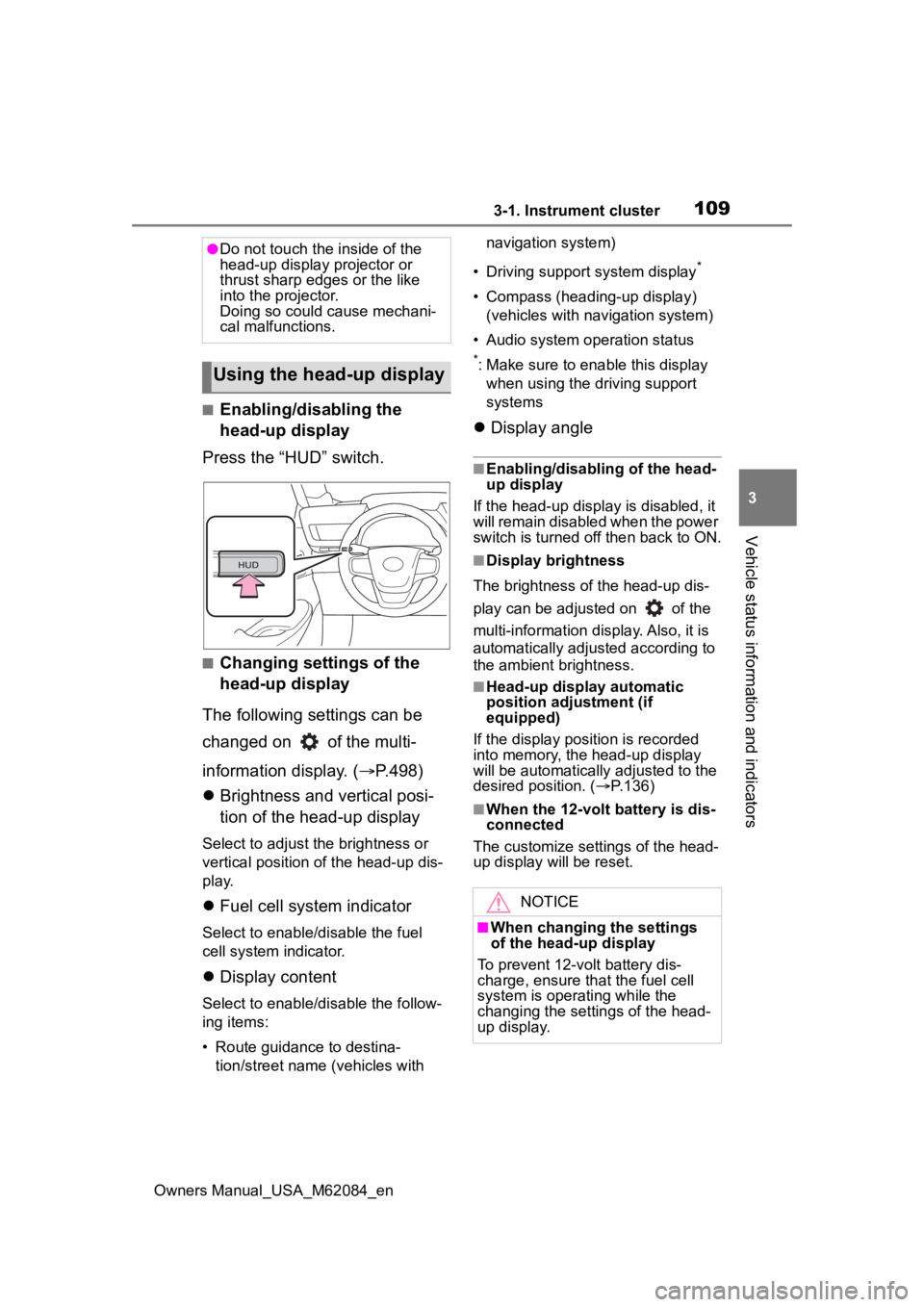
Press the “HUD” switch.
■Changing settings of the
head-up display
The following settings can be
changed on of the multi-
information display. ( P.498)
Brightness and vertical posi-
tion of the head-up display
Select to adjust t he brightness or
vertical position of the head-up dis-
play.
Fuel cell system indicator
Select to enable/d isable the fuel
cell system indicator.
Display content
Select to enable/d isable the follow-
ing items:
• Route guidance to destina- tion/street name (vehicles with navigation system)
• Driving support system display
*
• Compass (heading-up display) (vehicles with navigation system)
• Audio system operation status
*: Make sure to enable this display when using the driving support
systems
Display angle
■Enabling/disabling of the head-
up display
If the head-up display is disabled, it
will remain disabled when the power
switch is turned o ff then back to ON.
■Display brightness
The brightness of the head-up dis-
play can be adjusted on of the
multi-information di splay. Also, it is
automatically adjusted according to
the ambient brightness.
■Head-up display automatic
position adjustment (if
equipped)
If the display position is recorded
into memory, the head-up display
will be automatically adjusted to the
desired position. ( P.136)
■When the 12-volt battery is dis-
connected
The customize settings of the head-
up display will be reset.
●Do not touch the inside of the
head-up display projector or
thrust sharp edges or the like
into the projector.
Doing so could cause mechani-
cal malfunctions.
Using the head-up display
NOTICE
■When changing the settings
of the head-up display
To prevent 12-volt battery dis-
charge, ensure that the fuel cell
system is operating while the
changing the settings of the head-
up display.
Page 114 of 556
1143-1. Instrument cluster
Owners Manual_USA_M62084_en
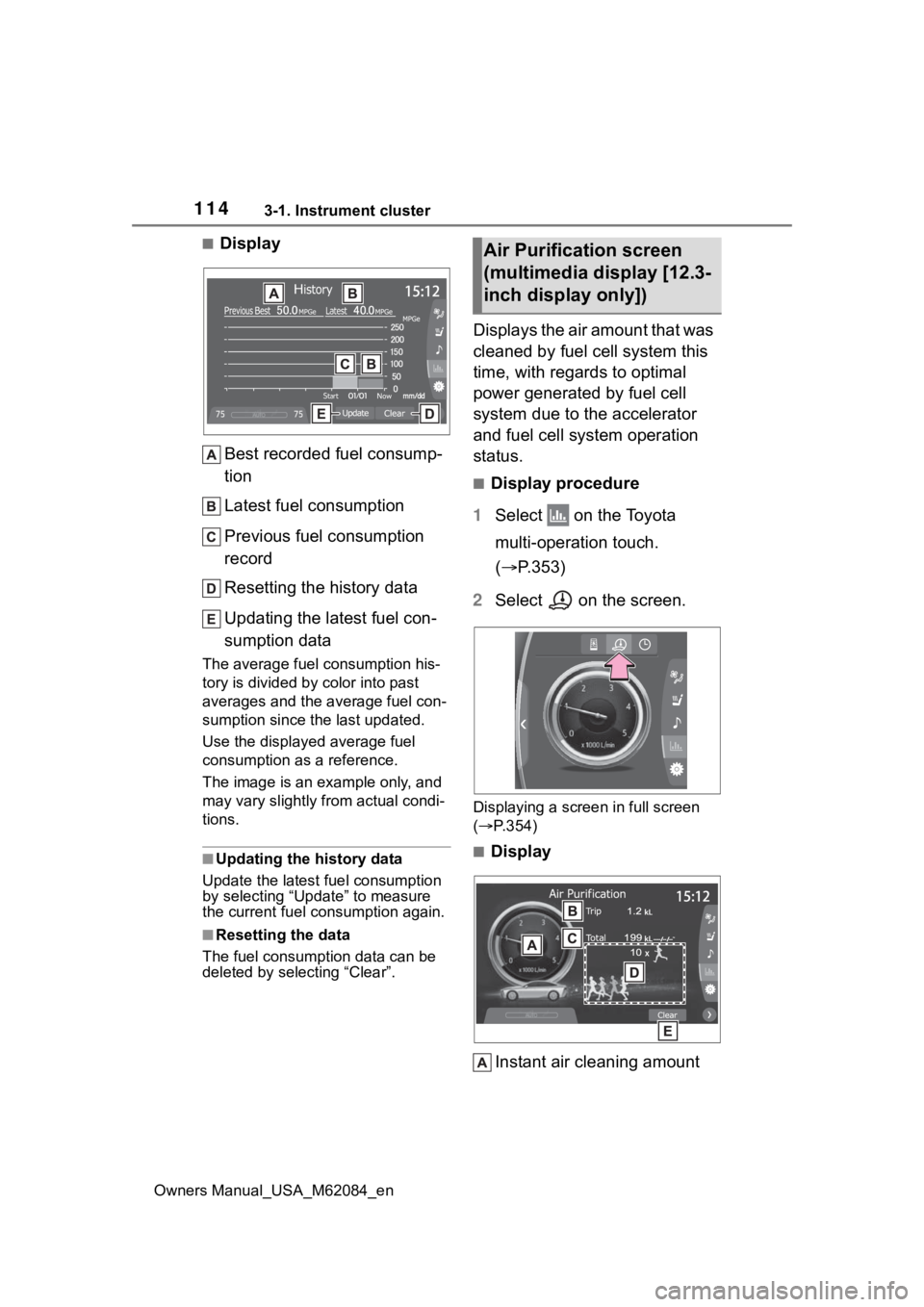
■DisplayBest recorded fuel consump-
tion
Latest fuel consumption
Previous fuel consumption
record
Resetting the history data
Updating the latest fuel con-
sumption data
The average fuel consumption his-
tory is divided by color into past
averages and the average fuel con-
sumption since the last updated.
Use the displayed average fuel
consumption as a reference.
The image is an example only, and
may vary slightly f rom actual condi-
tions.
■Updating the history data
Update the latest fuel consumption
by selecting “Upda te” to measure
the current fuel consumption again.
■Resetting the data
The fuel consumption data can be
deleted by selecting “Clear”.
Displays the air amount that was
cleaned by fuel cell system this
time, with regards to optimal
power generated by fuel cell
system due to the accelerator
and fuel cell system operation
status.
■Display procedure
1 Select on the Toyota
multi-operation touch.
( P.353)
2 Select on the screen.
Displaying a screen in full screen
( P.354)
■Display
Instant air cleaning amount
Air Purification screen
(multimedia display [12.3-
inch display only])
Page 115 of 556

1153-1. Instrument cluster
Owners Manual_USA_M62084_en
3
Vehicle status information and indicators
Displays the instant air cleaning
amount per unit of time.
Air cleaning amount estima-
tion display
Displays the total amount of air
cleaning from starting the fuel cell
system.
Air cleaning amount between
resets
Displays the total air cleaning esti-
mated amount after resets.
Runner display
Runners increase depending on the
estimated amount of air cleaning
between resets.
Resetting the data
Clear all the history up to now.
The image is an example only, and
may vary slightly f rom actual condi-
tions.
■Data in Air purification is
reseted when
“Clear” is selected to reset data in
air cleaning amount between resets
and runner display.
■Display Runner
When ten runners are collected,
they are absorbed into a runner
mark.
■Display
●The actual amount of air may dif-
fer because the amount of air
required for power generation
changes due to usage environ-
ment (climate, altitude, etc.) and
the status of power generation, as
well as driving conditions.
●The instant air cleaning amount
may operate slowly and may be
delayed in operating, but this is
not a malfunction.
Page 137 of 556
1374-3. Adjusting the seats
Owners Manual_USA_M62084_en
4
Before driving
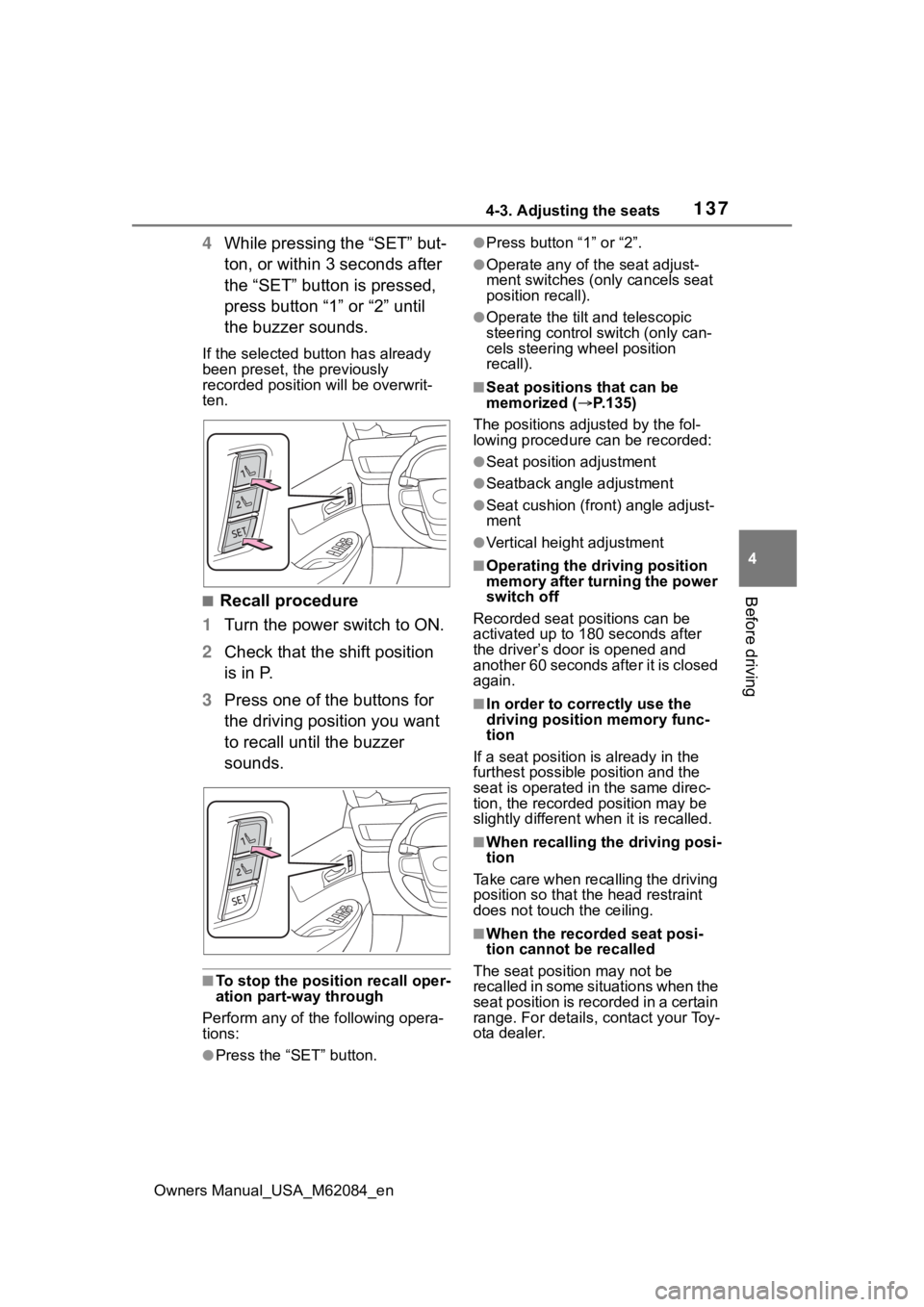
4 While pressing the “SET” but-
ton, or within 3 seconds after
the “SET” button is pressed,
press button “1” or “2” until
the buzzer sounds.
If the selected button has already
been preset, the previously
recorded position will be overwrit-
ten.
■Recall procedure
1 Turn the power switch to ON.
2 Check that the shift position
is in P.
3 Press one of the buttons for
the driving position you want
to recall until the buzzer
sounds.
■To stop the position recall oper-
ation part-way through
Perform any of the following opera-
tions:
●Press the “SET” button.
●Press button “1” or “2”.
●Operate any of t he seat adjust-
ment switches (only cancels seat
position recall).
●Operate the tilt and telescopic
steering control switch (only can-
cels steering wheel position
recall).
■Seat positions that can be
memorized ( P.135)
The positions adjusted by the fol-
lowing procedure can be recorded:
●Seat position adjustment
●Seatback angle adjustment
●Seat cushion (front) angle adjust-
ment
●Vertical height adjustment
■Operating the driving position
memory after turning the power
switch off
Recorded seat positions can be
activated up to 180 seconds after
the driver’s door is opened and
another 60 seconds after it is closed
again.
■In order to corre ctly use the
driving position memory func-
tion
If a seat position is already in the
furthest possible position and the
seat is operated in the same direc-
tion, the recorded position may be
slightly different w hen it is recalled.
■When recalling the driving posi-
tion
Take care when recalling the driving
position so that the head restraint
does not touch the ceiling.
■When the recorded seat posi-
tion cannot be recalled
The seat positi on may not be
recalled in some situations when the
seat position is recorded in a certain
range. For details, contact your Toy-
ota dealer.
Page 175 of 556

1755-2. Driving procedures
Owners Manual_USA_M62084_en
5
Driving
during cold temperatures, the time
for water purge from the tailpipe
may be longer than usual to pre-
vent liquid in the fuel cell stack
from freezing.
●If the “FCV System Purge in Prog-
ress Purge will Stop Automati-
cally” is displayed in the multi-
information displa y, however it is
no problem to exit the vehicle.
●The water purge time may also be
long if the system is stopped
before fuel cell system warm-up is
completed.
●It is normal to hear hissing and
other sounds during purge.
( P. 7 5 )
●It is not a problem to do refueling
operations while the system is
purging.
The purging process is carried out
automatically after several min-
utes and a white mist may be
emitted, however this is not a mal-
function.
■Parking the vehicle during cold
weather
●Water may automa tically purge
from the tailpipe, even when the
fuel cell system is off, in order to
prevent liquid in the fuel cell stack,
hydrogen pipelines, etc., from
freezing. Also, water vapor may
be purged, but this is not malfunc-
tion.
●It is normal to hear hissing and
other sounds during purge.
( P. 7 5 )
■Automatic fuel cell system shut
off feature
●The vehicle is equipped with a
feature that automatically shuts off
the fuel cell system when the shift
position is in P with the fuel cell
system operating for an extended
period.
●The fuel cell syst em will automati-
cally shut off after approximately 1
hour if it has been left running
while the shift position is in P.
●The timer for the automatic fuel
cell system shut off feature will
reset if the brake pedal is
depressed or if the shift position is
in a position other than P.
●After the vehicle is parked, if the
door is locked with the door lock
switch ( P.124) from the inside or
the mechanical k ey from the out-
side, the automatic fuel cell sys-
tem shut off f eature will be
disabled. The timer for the auto-
matic fuel cell system shut off fea-
ture will be re-e nabled if the
driver’s door is opened.
■When the shift control system
malfunctions
When attempting to turn the power
switch off while t here is a malfunc-
tion in the shift control system, the
power switch mo de may change to
ACC. In this case, ACC may be
turned off by applying the parking
brake and pressing the power
switch again.
If there is a malfunction in the sys-
tem, have the vehicle inspected by
your Toyota dealer immediately.
■Automatic P position selection
function
P.180
■Water release (H2O switch)
P.189