TOYOTA PRIUS 2004 2.G Navigation Manual
PRIUS 2004 2.G
TOYOTA
TOYOTA
https://www.carmanualsonline.info/img/14/6567/w960_6567-0.png
TOYOTA PRIUS 2004 2.G Navigation Manual
Page 76 of 138
66
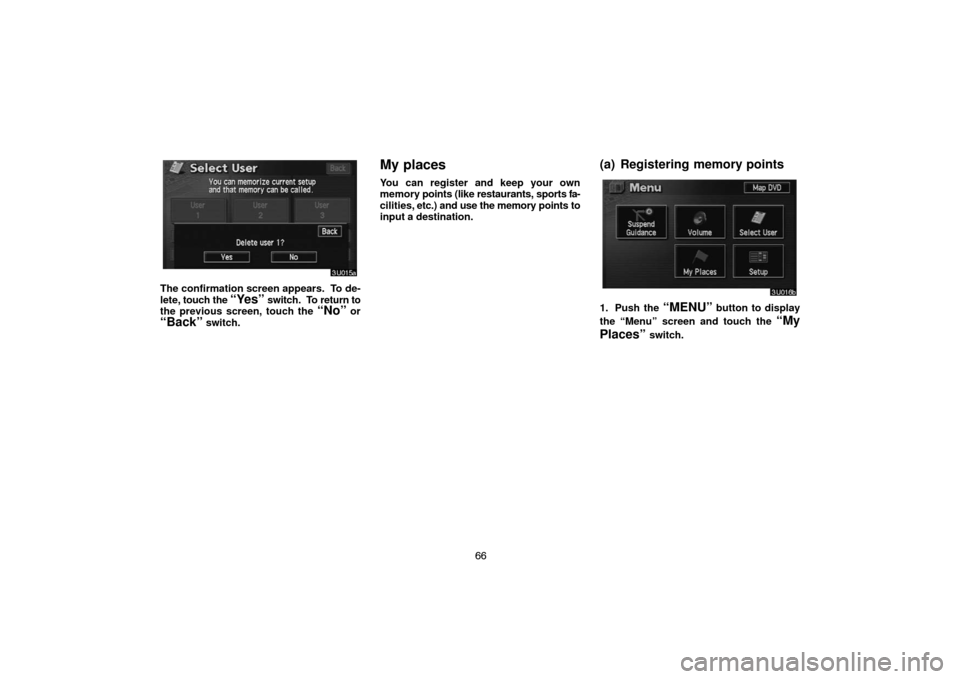
The confirmation screen appears. To de-
lete, touch the
“Yes” switch. To return to
the previous screen, touch the “No” or
“Back” switch.
My places
You can register and keep your own
memory points (like restaurants, sports fa-
cilities, etc.) and use the memory points to
input a destination.
(a) Registering memory points
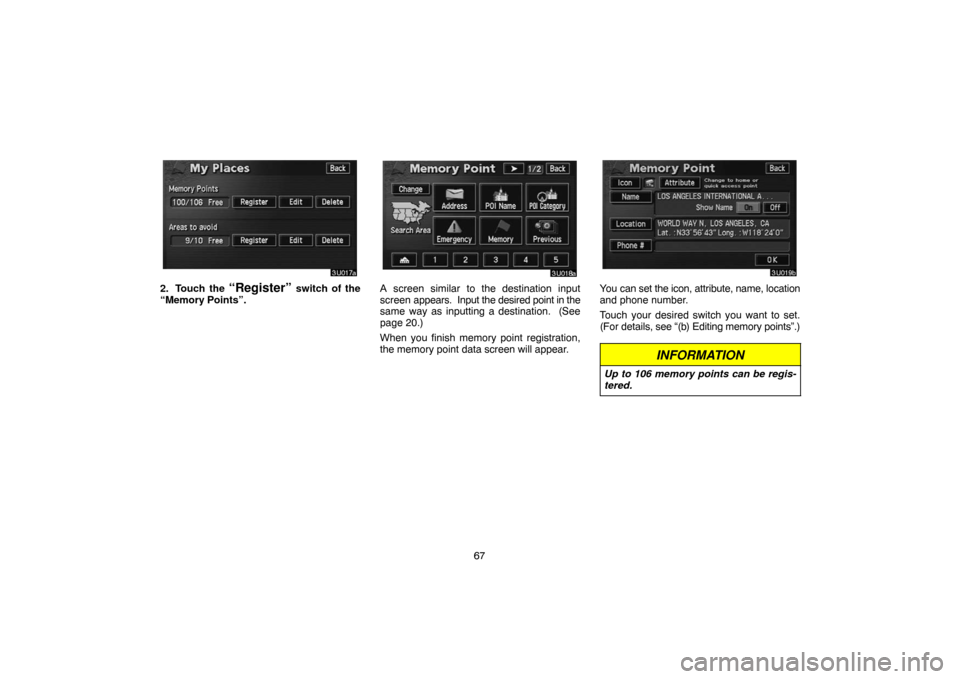
1. Push the “MENU” button to display
the “Menu” screen and touch the
“My
Places”
switch.
Page 77 of 138
67
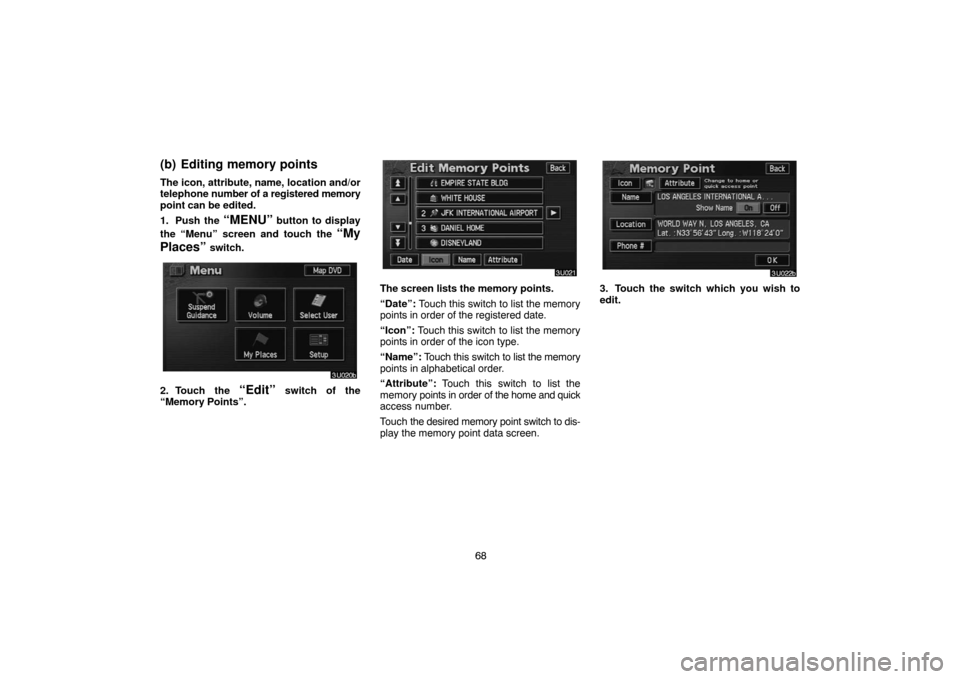
2. Touch the “Register” switch of the
“Memory Points”.A screen similar to the destination input
screen appears. Input the desired point in the
same way as inputting a destination. (See
page 20.)
When you finish memory point registration,
the memory point data screen will appear.You can set the icon, attribute, name, location
and phone number.
Touch your desired switch you want to set.
(For details, see “(b) Editing memory points”.)
INFORMATION
Up to 106 memory points can be regis-
tered.
Page 78 of 138
68
(b) Editing memory points
The icon, attribute, name, location and/or
telephone number of a registered memory
point can be edited.
1. Push the
“MENU” button to display
the “Menu” screen and touch the
“My
Places”
switch.
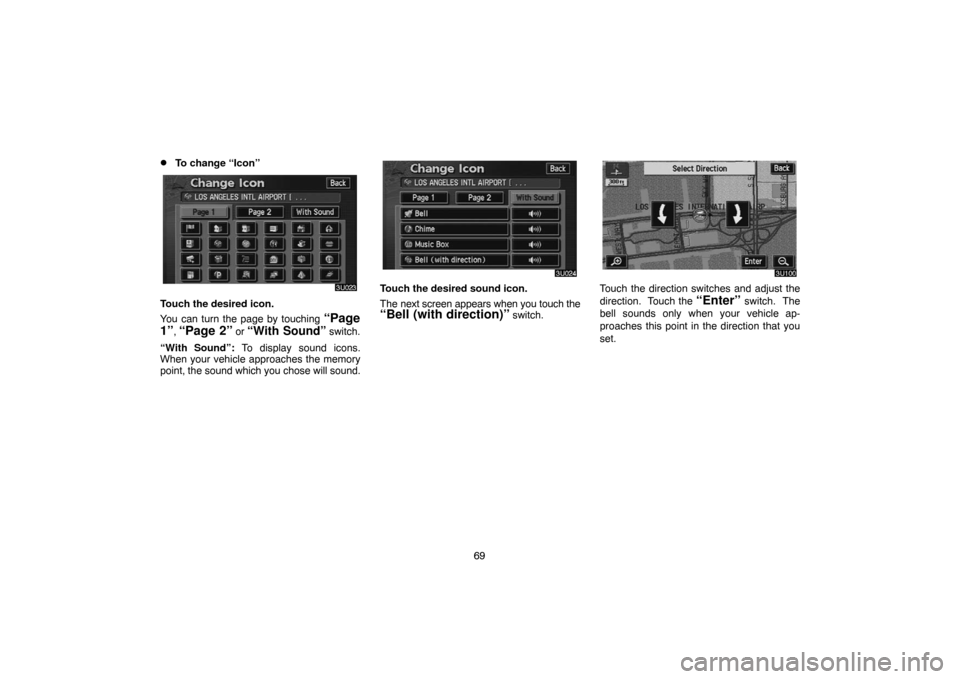
2. Touch the “Edit” switch of the
“Memory Points”.
The screen lists the memory points.
“Date”: Touch this switch to list the memory
points in order of the registered date.
“Icon”: Touch this switch to list the memory
points in order of the icon type.
“Name”: Touch this switch to list the memory
points in alphabetical order.
“Attribute”: Touch this switch to list the
memory points in order of the home and quick
access number.
Touch the desired memory point switch to dis-
play the memory point data screen.3. Touch the switch which you wish to
edit.
Page 79 of 138
69
�To change “Icon”
Touch the desired icon.
You can turn the page by touching
“Page
1”
, “Page 2” or “With Sound” switch.
“With Sound”: To display sound icons.
When your vehicle approaches the memory
point, the sound which you chose will sound.
Touch the desired sound icon.
The next screen appears when you touch the
“Bell (with direction)” switch.
Touch the direction switches and adjust the
direction. Touch the
“Enter” switch. The
bell sounds only when your vehicle ap-
proaches this point in the direction that you
set.
Page 80 of 138
70
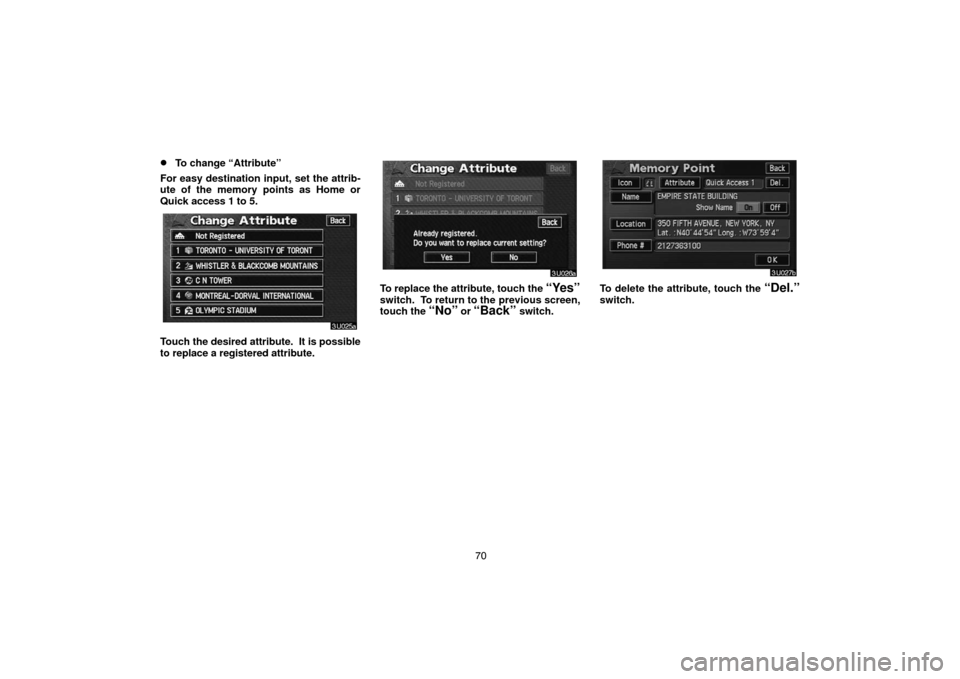
�To change “Attribute”
For easy destination input, set the attrib-
ute of the memory points as Home or
Quick access 1 to 5.
Touch the desired attribute. It is possible
to replace a registered attribute.
To replace the attribute, touch the “Yes”
switch. To return to the previous screen,
touch the “No” or “Back” switch.
To delete the attribute, touch the “Del.”
switch.
Page 81 of 138
71
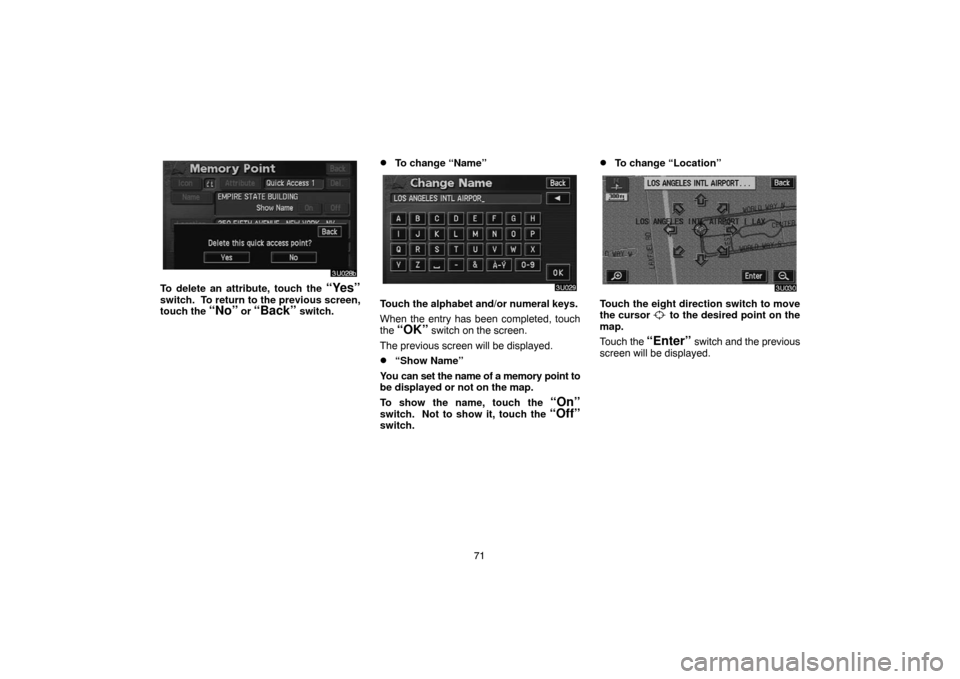
To delete an attribute, touch the “Yes”
switch. To return to the previous screen,
touch the “No” or “Back” switch.
�To change “Name”
Touch the alphabet and/or numeral keys.
When the entry has been completed, touch
the
“OK” switch on the screen.
The previous screen will be displayed.
�“Show Name”
You can set the name of a memory point to
be displayed or not on the map.
To show the name, touch the
“On”
switch. Not to show it, touch the “Off”switch.
�To change “Location”
Touch the eight direction switch to move
the cursor to the desired point on the
map.
Touch the
“Enter” switch and the previous
screen will be displayed.
Page 82 of 138
72
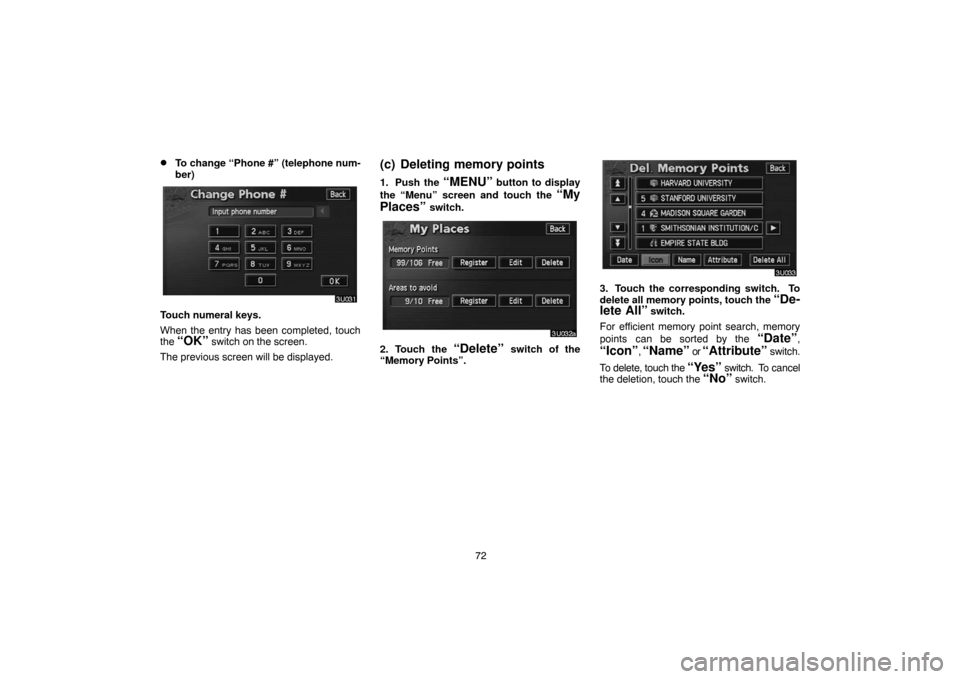
�To change “Phone #” (telephone num-
ber)
Touch numeral keys.
When the entry has been completed, touch
the
“OK” switch on the screen.
The previous screen will be displayed.
(c) Deleting memory points
1. Push the “MENU” button to display
the “Menu” screen and touch the
“My
Places”
switch.
2. Touch the “Delete” switch of the
“Memory Points”.
3. Touch the corresponding switch. To
delete all memory points, touch the
“De-
lete All” switch.
For efficient memory point search, memory
points can be sorted by the
“Date”,
“Icon”, “Name” or “Attribute” switch.
To delete, touch the
“Yes” switch. To cancel
the deletion, touch the “No” switch.