reset TOYOTA PRIUS 2012 3.G Navigation Manual
[x] Cancel search | Manufacturer: TOYOTA, Model Year: 2012, Model line: PRIUS, Model: TOYOTA PRIUS 2012 3.GPages: 357, PDF Size: 5.71 MB
Page 192 of 357
192
PRIUS (US) NAVI 47719U
11.10.26 15:37
1. AUDIO/VIDEO SYSTEM OPERATION
1. QUICK REFERENCE
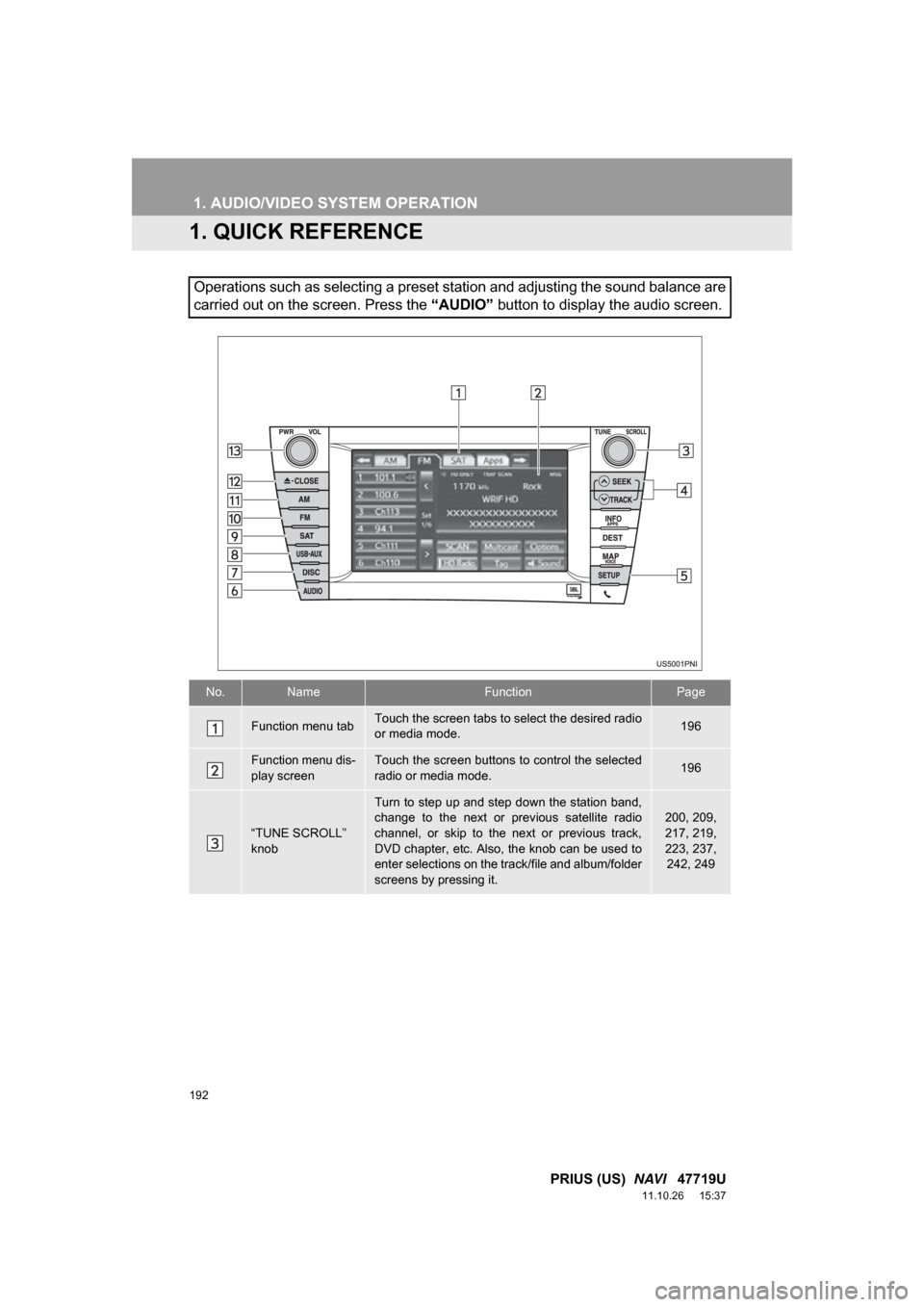
Operations such as selecting a preset station and adjusting the sound balance are
carried out on the screen. Press the “AUDIO” button to display the audio screen.
No.NameFunctionPage
Function menu tabTouch the screen tabs to select the desired radio
or media mode.196
Function menu dis-
play screenTouch the screen buttons to control the selected
radio or media mode.196
“TUNE SCROLL”
knob
Turn to step up and step down the station band,
change to the next or previous satellite radio
channel, or skip to the next or previous track,
DVD chapter, etc. Also, the knob can be used to
enter selections on the track/file and album/folder
screens by pressing it.200, 209,
217, 219,
223, 237,
242, 249
Page 200 of 357
200
1. AUDIO/VIDEO SYSTEM OPERATION
PRIUS (US) NAVI 47719U
11.10.26 15:37
3. RADIO OPERATION
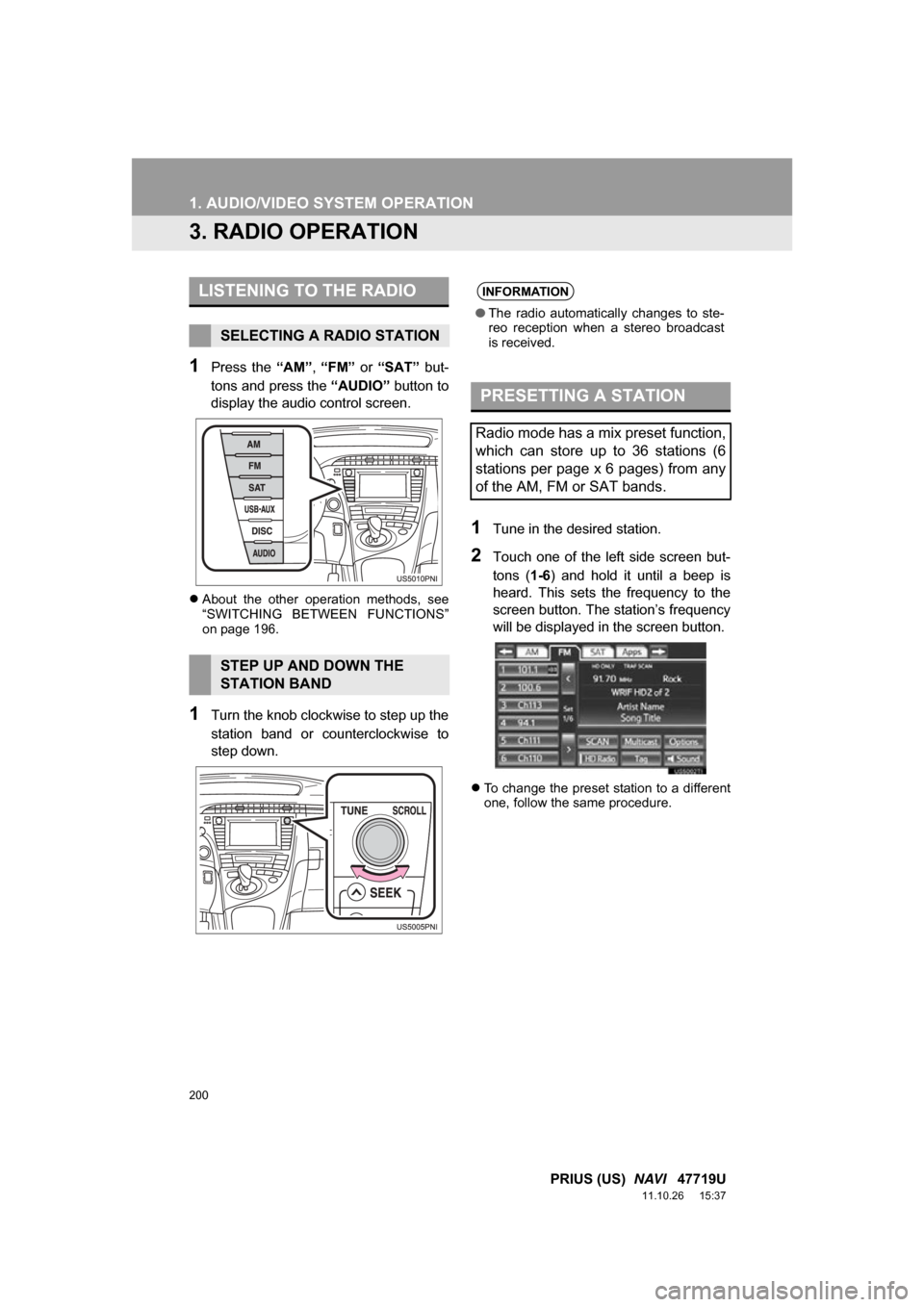
1Press the “AM”, “FM” or “SAT” but-
tons and press the “AUDIO” button to
display the audio control screen.
About the other operation methods, see
“SWITCHING BETWEEN FUNCTIONS”
on page 196.
1Turn the knob clockwise to step up the
station band or counterclockwise to
step down.
1Tune in the desired station.
2Touch one of the left side screen but-
tons ( 1-6) and hold it until a beep is
heard. This sets the frequency to the
screen button. The station’s frequency
will be displayed in the screen button.
To change the preset station to a different
one, follow the same procedure.
LISTENING TO THE RADIO
SELECTING A RADIO STATION
STEP UP AND DOWN THE
STATION BAND
INFORMATION
●The radio automatically changes to ste-
reo reception when a stereo broadcast
is received.
PRESETTING A STATION
Radio mode has a mix preset function,
which can store up to 36 stations (6
stations per page x 6 pages) from any
of the AM, FM or SAT bands.
Page 201 of 357
201
1. AUDIO/VIDEO SYSTEM OPERATION
5
AUDIO/VIDEO SYSTEM
PRIUS (US) NAVI 47719U
11.10.26 15:37
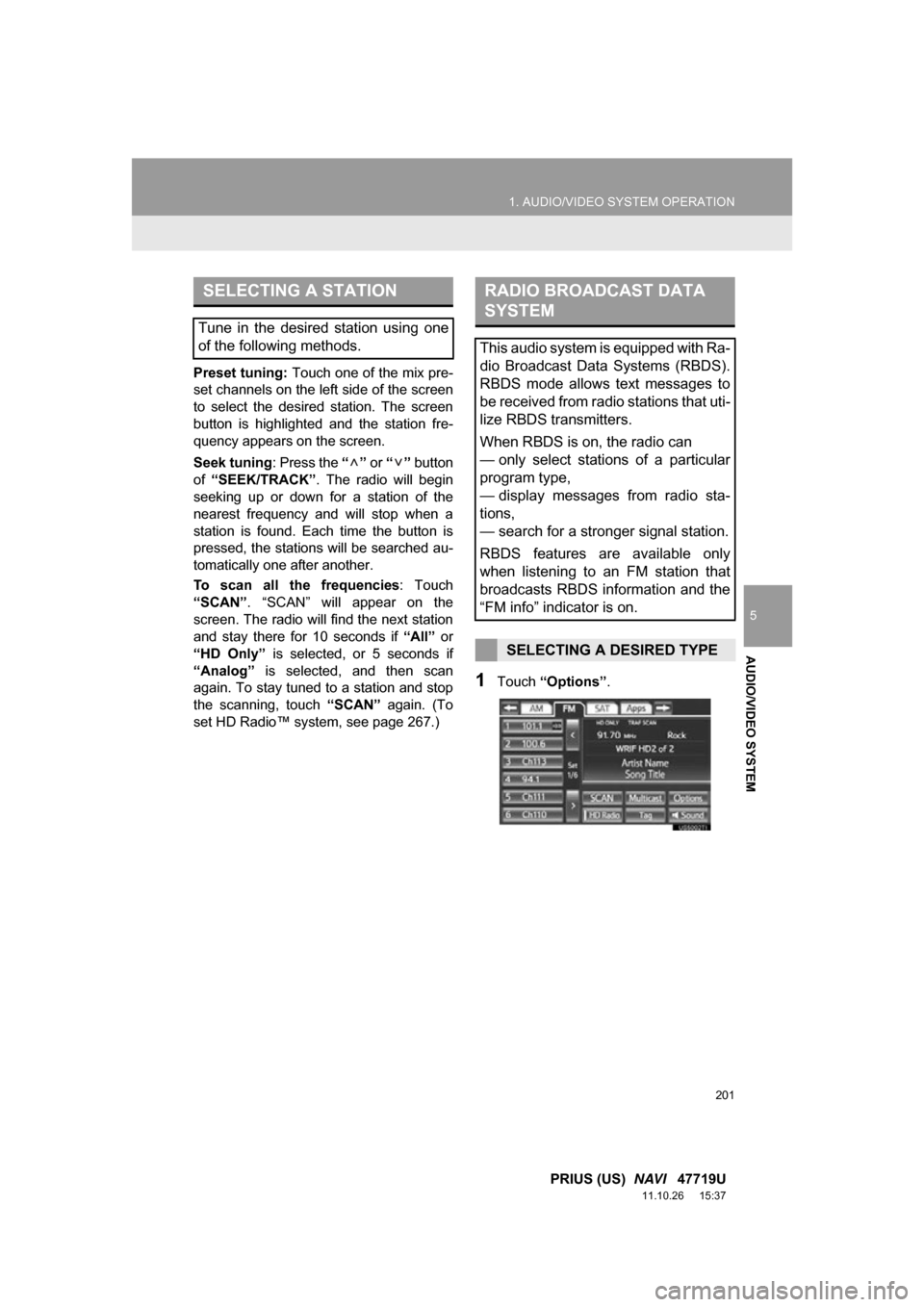
Preset tuning: Touch one of the mix pre-
set channels on the left side of the screen
to select the desired station. The screen
button is highlighted and the station fre-
quency appears on the screen.
Seek tuning: Press the “” or “” button
of “SEEK/TRACK” . The radio will begin
seeking up or down for a station of the
nearest frequency and will stop when a
station is found. Ea ch time the button is
pressed, the stations will be searched au-
tomatically one after another.
To scan all the frequencies : Touch
“SCAN” . “SCAN” will appear on the
screen. The radio will find the next station
and stay there for 10 seconds if “All” or
“HD Only” is selected, or 5 seconds if
“Analog” is selected, and then scan
again. To stay tuned to a station and stop
the scanning, touch “SCAN” again. (To
set HD Radio™ system, see page 267.)
1Touch “Options”.
SELECTING A STATION
Tune in the desired station using one
of the following methods.
RADIO BROADCAST DATA
SYSTEM
This audio system is equipped with Ra-
dio Broadcast Data Systems (RBDS).
RBDS mode allows text messages to
be received from radio stations that uti-
lize RBDS transmitters.
When RBDS is on, the radio can
— only select stations of a particular
program type,
— display messages from radio sta-
tions,
— search for a stronger signal station.
RBDS features are available only
when listening to an FM station that
broadcasts RBDS information and the
“FM info” indicator is on.
SELECTING A DESIRED TYPE
Page 205 of 357

205
1. AUDIO/VIDEO SYSTEM OPERATION
5
AUDIO/VIDEO SYSTEM
PRIUS (US) NAVI 47719U
11.10.26 15:37
Turn on the power of the iPod if it is not
turned on.
Once an iPod is connected, the music tag
moves from the radio into the iPod.
When the iPod is connected to iTunes, the
“tagged” information of the songs which
were tagged while listening to the radio
can be viewed. Then a user may decide to
purchase the song or CD/Album which
had been listened to on their radio.
4Close the console box.
INFORMATION
●If tagging the music information fails,
“Saving the HD Radio tag failed.” will be
displayed on the screen. If this occurs,
tag the information again.
● HD Radio™ stations can be preset.
Page 206 of 357
206
1. AUDIO/VIDEO SYSTEM OPERATION
PRIUS (US) NAVI 47719U
11.10.26 15:37
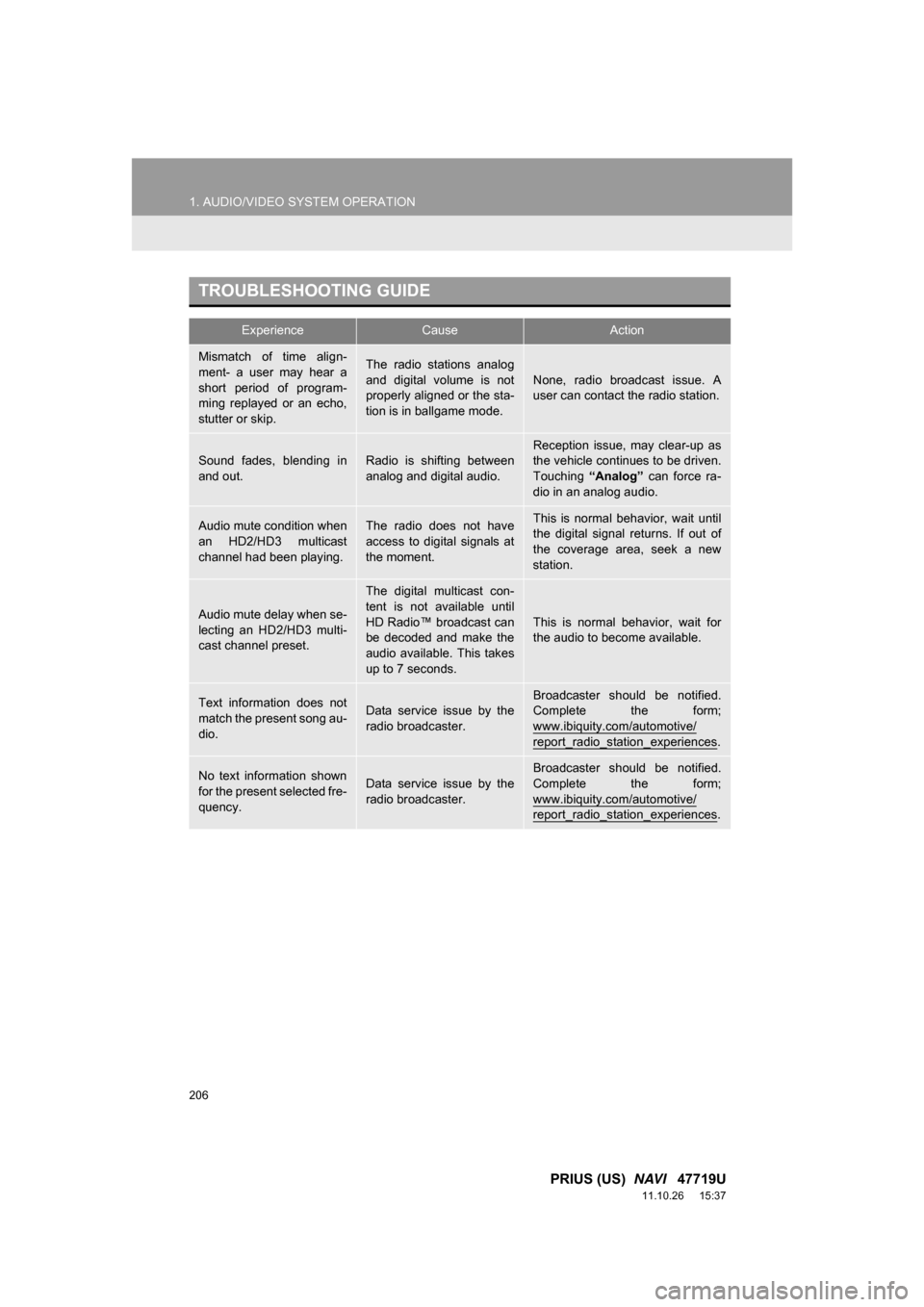
TROUBLESHOOTING GUIDE
ExperienceCauseAction
Mismatch of time align-
ment- a user may hear a
short period of program-
ming replayed or an echo,
stutter or skip.The radio stations analog
and digital volume is not
properly aligned or the sta-
tion is in ballgame mode.None, radio broadcast issue. A
user can contact the radio station.
Sound fades, blending in
and out.Radio is shifting between
analog and digital audio.
Reception issue, may clear-up as
the vehicle continues to be driven.
Touching “Analog” can force ra-
dio in an analog audio.
Audio mute condition when
an HD2/HD3 multicast
channel had been playing.The radio does not have
access to digital signals at
the moment.This is normal behavior, wait until
the digital signal returns. If out of
the coverage area, seek a new
station.
Audio mute delay when se-
lecting an HD2/HD3 multi-
cast channel preset.
The digital multicast con-
tent is not available until
HD Radio™ broadcast can
be decoded and make the
audio available. This takes
up to 7 seconds.
This is normal behavior, wait for
the audio to become available.
Text information does not
match the present song au-
dio.Data service issue by the
radio broadcaster.Broadcaster should be notified.
Complete the form;
www.ibiquity.com/automotive/
report_radio_station_experiences.
No text information shown
for the present selected fre-
quency.Data service issue by the
radio broadcaster.
Broadcaster should be notified.
Complete the form;
www.ibiquity.com/automotive/
report_radio_station_experiences.
Page 210 of 357
210
1. AUDIO/VIDEO SYSTEM OPERATION
PRIUS (US) NAVI 47719U
11.10.26 15:37
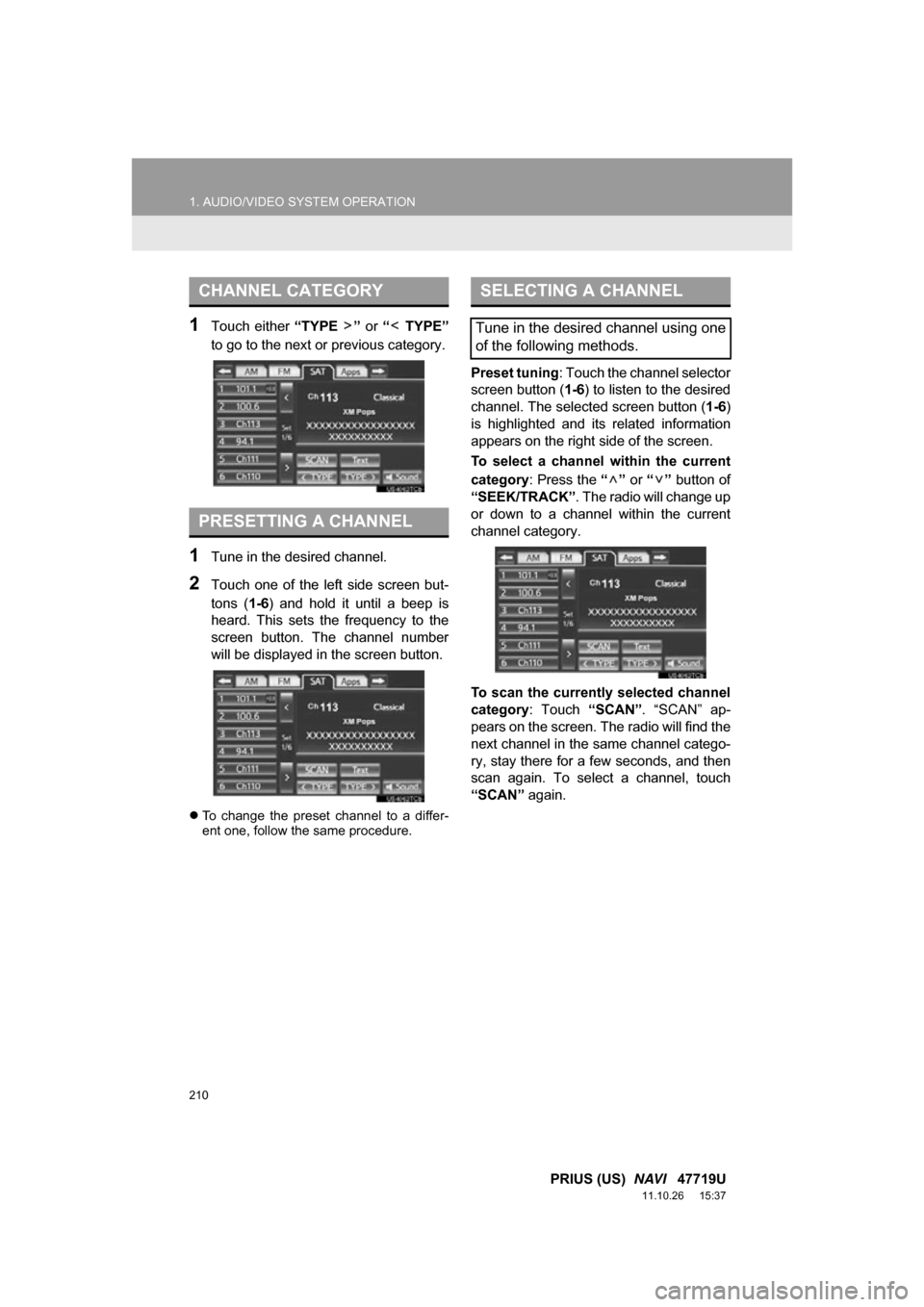
1Touch either “TYPE ” or “ TYPE”
to go to the next or previous category.
1Tune in the desired channel.
2Touch one of the left side screen but-
tons ( 1-6) and hold it until a beep is
heard. This sets the frequency to the
screen button. The channel number
will be displayed in the screen button.
To change the preset channel to a differ-
ent one, follow the same procedure.
Preset tuning : Touch the channel selector
screen button (1-6 ) to listen to the desired
channel. The selected screen button ( 1-6)
is highlighted and its related information
appears on the right side of the screen.
To select a channel within the current
category : Press the “” or “” button of
“SEEK/TRACK” . The radio will change up
or down to a channel within the current
channel category.
To scan the currently selected channel
category : Touch “SCAN”. “SCAN” ap-
pears on the screen. The radio will find the
next channel in the same channel catego-
ry, stay there for a few seconds, and then
scan again. To select a channel, touch
“SCAN” again.
CHANNEL CATEGORY
PRESETTING A CHANNEL
SELECTING A CHANNEL
Tune in the desired channel using one
of the following methods.
Page 222 of 357
222
1. AUDIO/VIDEO SYSTEM OPERATION
PRIUS (US) NAVI 47719U
11.10.26 15:37
Each time “RAND” is touched, the mode
changes as follows:
• Random (1 Folder Random)
Folder Random (1 Disc Random) Off
Once “RAND” appears on the screen, the
system selects a file randomly from the
folder currently being listened to. To can-
cel this function, touch “RAND” repeat-
edly until the random mode turns off.
■PLAYING THE FILES IN ALL THE
FOLDERS ON THE DISC IN RAN-
DOM ORDER
1Touch “RAND” repeatedly until
“FLD.RAND” appears on the screen.
Once “FLD.RAND” appears on the
screen, the system selects a file randomly
from all of the existing folders. To cancel
this function, touch “RAND” again.
INFORMATION
●When a file is skipped or the system is
inoperative, touch “RAND” to reset.
OPERATING A DVD DISC
The playback condition of some DVD
discs may be determined by the DVD
software producer. This DVD player
plays a disc as the software producer
intended. As such some functions may
not work properly. Be sure to read the
instruction manual that comes with the
individual DVD disc. For detailed infor-
mation about DVD video discs, see
“DVD PLAYER AND DVD VIDEO
DISC INFORMATION” on page 233.
PRECAUTIONS ON DVD VIDEO
DISC
When recording with a DVD video, au-
dio tracks may not record in some cas-
es while the menu is displayed. As
audio will not play in this case, verify
that the video tracks are playing and
then activate playback.
When playback of a disc is completed:
If an audio CD or MP3/WMA disc is
playing, the first track or file starts.
If a DVD video is playing, playback will
stop or the menu screen will be dis-
played.
The title/chapter number and playback
time display may not appear while
playing back certain DVD video discs.
CAUTION
● Conversational speech on some DVDs
is recorded at a low volume to empha-
size the impact of sound effects. If you
adjust the volume assuming that the
conversations represent the maximum
volume level that the DVD will play, you
may be startled by louder sound effects
or when you change to a different audio
source. The louder sounds may have a
significant impact on the human body or
pose a driving hazard. Keep this in mind
when you adjust the volume.
Page 255 of 357
255
1. AUDIO/VIDEO SYSTEM OPERATION
5
AUDIO/VIDEO SYSTEM
PRIUS (US) NAVI 47719U
11.10.26 15:37
11. AUDIO/VIDEO REMOTE CONTROLS (STEERING SWITCHES)
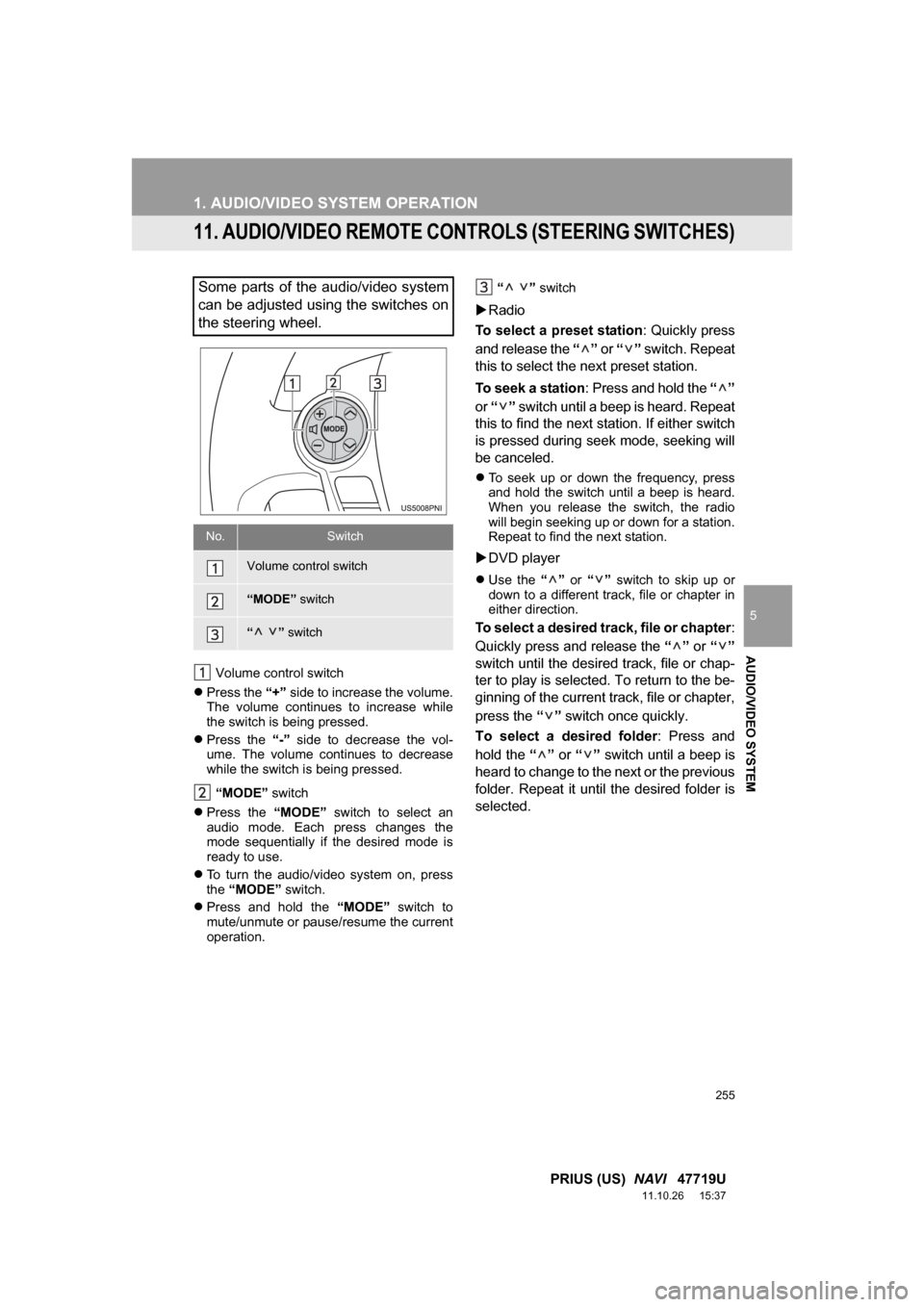
Volume control switch
Press the “+” side to increase the volume.
The volume continues to increase while
the switch is being pressed.
Press the “-” side to decrease the vol-
ume. The volume continues to decrease
while the switch is being pressed.
“MODE” switch
Press the “MODE” switch to select an
audio mode. Each press changes the
mode sequentially if the desired mode is
ready to use.
To turn the audio/video system on, press
the “MODE” switch.
Press and hold the “MODE” switch to
mute/unmute or pause/resume the current
operation. “ ”
switch
Radio
To select a preset station : Quickly press
and release the “” or “” switch. Repeat
this to select the next preset station.
To seek a station : Press and hold the “”
or “” switch until a beep is heard. Repeat
this to find the next station. If either switch
is pressed during seek mode, seeking will
be canceled.
To seek up or down the frequency, press
and hold the switch until a beep is heard.
When you release the switch, the radio
will begin seeking up or down for a station.
Repeat to find the next station.
DVD player
Use the “” or “” switch to skip up or
down to a different track, file or chapter in
either direction.
To select a desired track, file or chapter :
Quickly press and release the “” or “”
switch until the desir ed track, file or chap-
ter to play is selected. To return to the be-
ginning of the current track, file or chapter,
press the “” switch once quickly.
To select a desired folder : Press and
hold the “” or “” switch until a beep is
heard to change to the next or the previous
folder. Repeat it until the desired folder is
selected.
Some parts of the audio/video system
can be adjusted using the switches on
the steering wheel.
No.Switch
Volume control switch
“MODE” switch
“” switch
Page 307 of 357
8
APPS
307
1. ENTUNE-OVERVIEW
PRIUS (US) NAVI 47719U
11.10.26 15:37
Entune will be available on a 3 year trial
period included upon purchase of a new
vehicle. User registration is required to
start using the service. (See page 309.)
When 3 years have elapsed after purchas-
ing a new vehicle, a fee will be charged to
renew the contract.*
Services requiring a separate contract can
also be used.*
*: For details, refer to http://
www.toyota.com/entune/ or call 1-800-
331-4331.
Entune is available in the 48 states, D.C.
and Alaska.
The following personal data can be
deleted and returned to their default set-
tings:
• Downloaded contents
• Radio stations that were listened to
• Input history
SUBSCRIPTION
AVAILABILITY OF SERVICE
INFORMATION
●When using Entune, depending on the
details of your cellular phone contract,
data usage fees may apply. Confirm
data usage fees before using this ser-
vice.
● In this section, the required operations
to activate “Apps”, connect a cellular
phone to the navigation system and reg-
istration steps for Entune are explained.
For details regarding Entune operations
and each of the “Apps”, refer to http://
www.toyota.com/entune/.
INITIALIZING PERSONAL
DATA
The personal data used in “Apps” can
be reset. (See “DELETING PERSON-
AL DATA” on page 52.)
INFORMATION
● Once initialized, data will be erased. Pay
close attention when initializing the data.
Page 325 of 357
325
PRIUS (US) NAVI 47719U
11.10.26 15:37
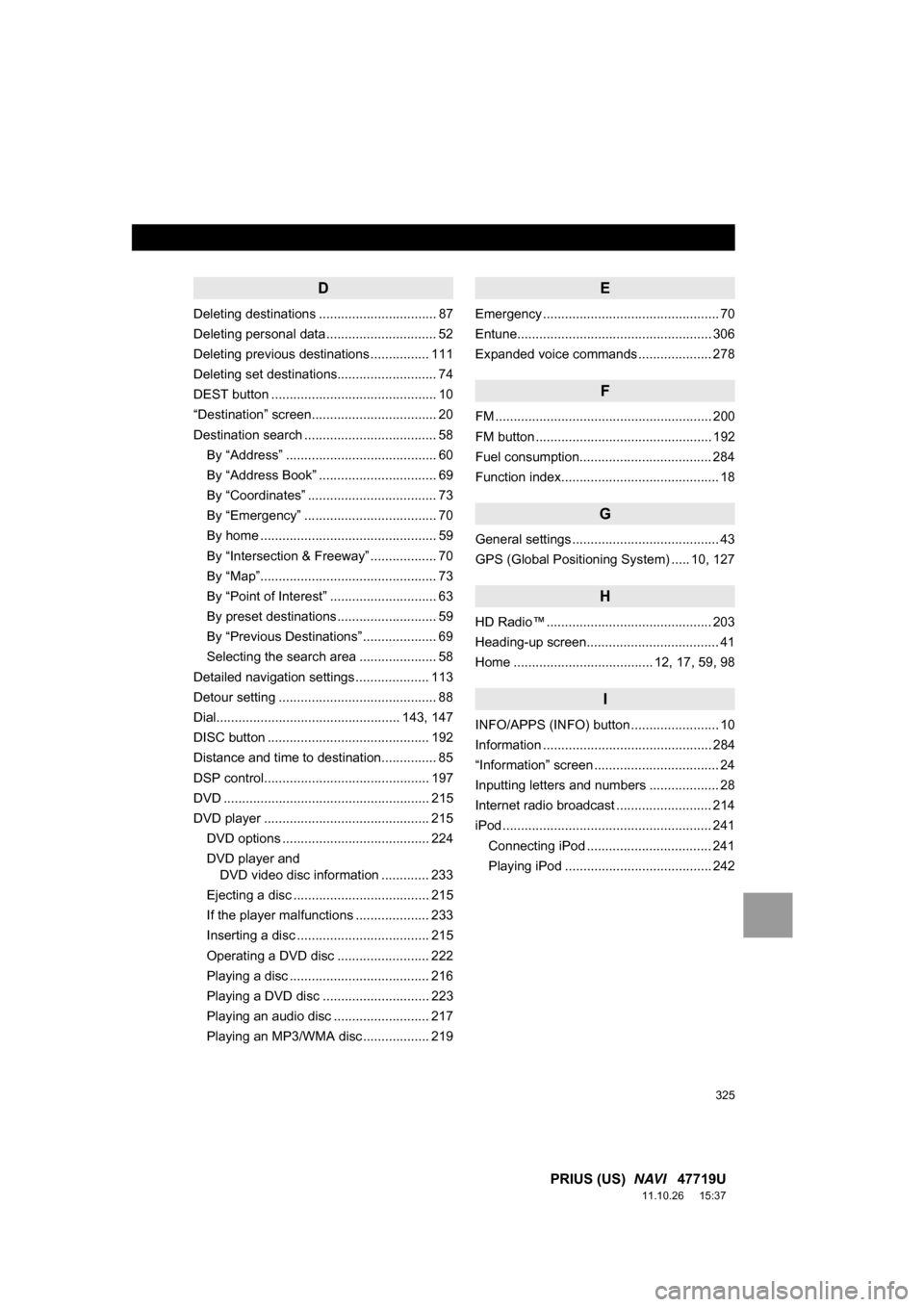
D
Deleting destinations ................................ 87
Deleting personal data .............................. 52
Deleting previous destinations ................ 111
Deleting set destinations........................... 74
DEST button ............................................. 10
“Destination” screen.................................. 20
Destination search .................................... 58
By “Address” ......................................... 60
By “Address Book” ................................ 69
By “Coordinates” ................................... 73
By “Emergency” .................................... 70
By home ................................................ 59
By “Intersection & Freeway” .................. 70
By “Map”................................................ 73
By “Point of Interest” ............................. 63
By preset destinations ........................... 59
By “Previous Destinations” .................... 69
Selecting the search area ..................... 58
Detailed navigation settings .................... 113
Detour setting ........................................... 88
Dial.................................................. 143, 147
DISC button ............................................ 192
Distance and time to destination............... 85
DSP control............................................. 197
DVD ........................................................ 215
DVD player ............................................. 215 DVD options ........................................ 224
DVD player and DVD video disc information ............. 233
Ejecting a disc ..................................... 215
If the player malfunctions .................... 233
Inserting a disc .................................... 215
Operating a DVD disc ......................... 222
Playing a disc ...................................... 216
Playing a DVD disc ............................. 223
Playing an audio disc .......................... 217
Playing an MP3/WMA disc .................. 219
E
Emergency ................................................ 70
Entune..................................................... 306
Expanded voice commands .................... 278
F
FM ........................................................... 200
FM button ................................................ 192
Fuel consumption.................................... 284
Function index........................................... 18
G
General settings ........................................ 43
GPS (Global Positioning System) ..... 10, 127
H
HD Radio™ ............................................. 203
Heading-up screen.................................... 41
Home ...................................... 12, 17, 59, 98
I
INFO/APPS (INFO) button ........................ 10
Information .............................................. 284
“Information” screen .................................. 24
Inputting letters and numbers ................... 28
Internet radio broadcast .......................... 214
iPod ......................................................... 241 Connecting iPod .................................. 241
Playing iPod ........................................ 242