remote control TOYOTA PRIUS 2012 3.G User Guide
[x] Cancel search | Manufacturer: TOYOTA, Model Year: 2012, Model line: PRIUS, Model: TOYOTA PRIUS 2012 3.GPages: 636, PDF Size: 11.02 MB
Page 87 of 636
87
1
1-3. Opening, closing and locking the doors
Before driving
Side doors
The vehicle can be locked and unlocked using the entry function,
wireless remote control or door lock switch.
■Entry function (if equipped)
P. 6 1
■ Wireless remote control
P. 8 5
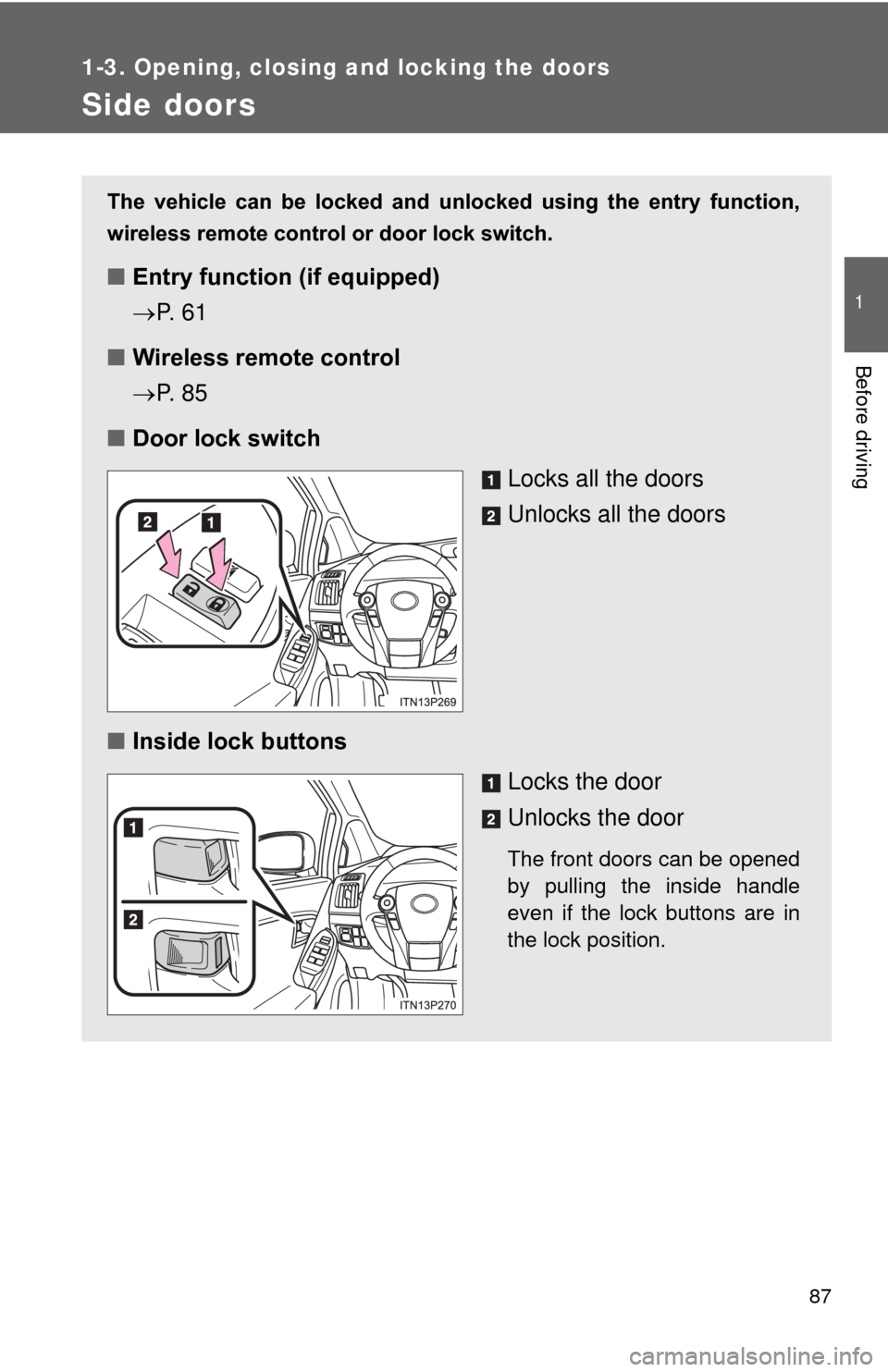
■ Door lock switch
Locks all the doors
Unlocks all the doors
■ Inside lock buttons
Locks the door
Unlocks the door
The front doors can be opened
by pulling the inside handle
even if the lock buttons are in
the lock position.
Page 93 of 636
93
1
1-3. Opening, closing and locking the doors
Before driving
Back door
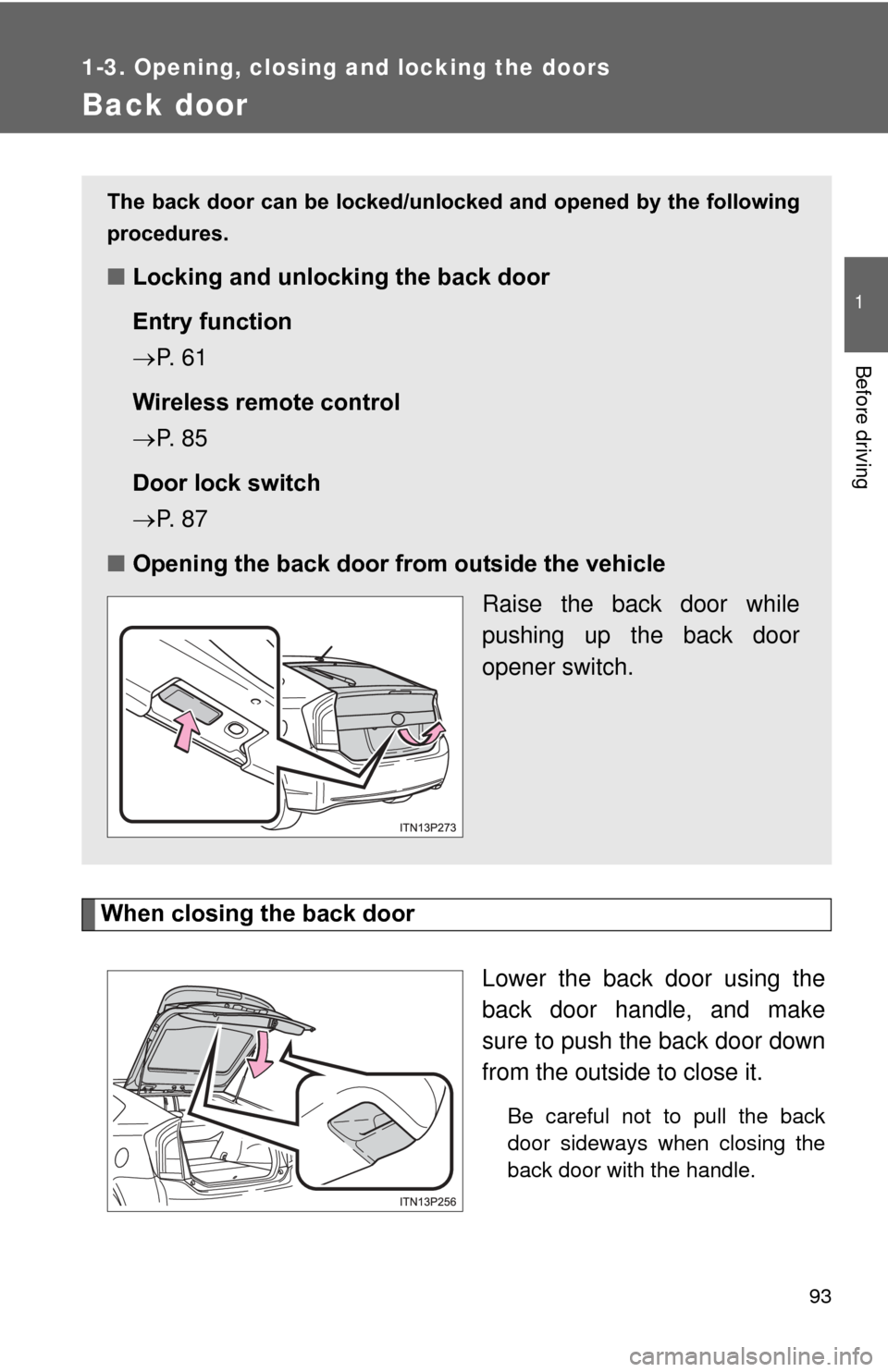
When closing the back doorLower the back door using the
back door handle, and make
sure to push the back door down
from the outside to close it.
Be careful not to pull the back
door sideways when closing the
back door with the handle.
The back door can be locked/unlocked and opened by the following
procedures.
■Locking and unlocking the back door
Entry function
P. 6 1
Wireless remote control
P. 8 5
Door lock switch
P. 8 7
■ Opening the back door from outside the vehicle
Raise the back door while
pushing up the back door
opener switch.
Page 325 of 636
Interior features3
325
3-1. Using the air conditioning system and defogger
Air conditioning system ........................... 326
Using the steering wheel climate remote control
switches ......................... 337
Solar Ventilation System ........................... 339
Remote Air Conditioning System ........................... 342
Rear window and outside rear view mirror defogger
switch ............................. 346
3-2. Using the audio system Audio system types .......... 347
Using the AUX port/USB port................................. 352 3-3. Using the interior lights
Interior lights list ............... 353
• Front interior lights ......... 354
• Personal lights ............... 355
• Rear interior light ........... 355
3-4. Using the storage features List of storage features .... 357
• Glove boxes ................... 358
• Console box ................... 359
• Cup holders ................... 360
• Bottle holders ................. 362
• Auxiliary boxes ............... 363
3-5. Other interior features Sun visors ........................ 364
Vanity mirrors ................... 365
Outside temperature display............................ 366
Power outlets ................... 367
Seat heaters..................... 369
Armrest ............................ 371
Floor mats ........................ 372
Luggage compartment features .......................... 374
Garage door opener......... 380
Safety Connect ................ 388
Page 337 of 636
337
3-1. Using the air conditioning system and defogger
3
Interior features
Using the steering wheel climate remote control switches
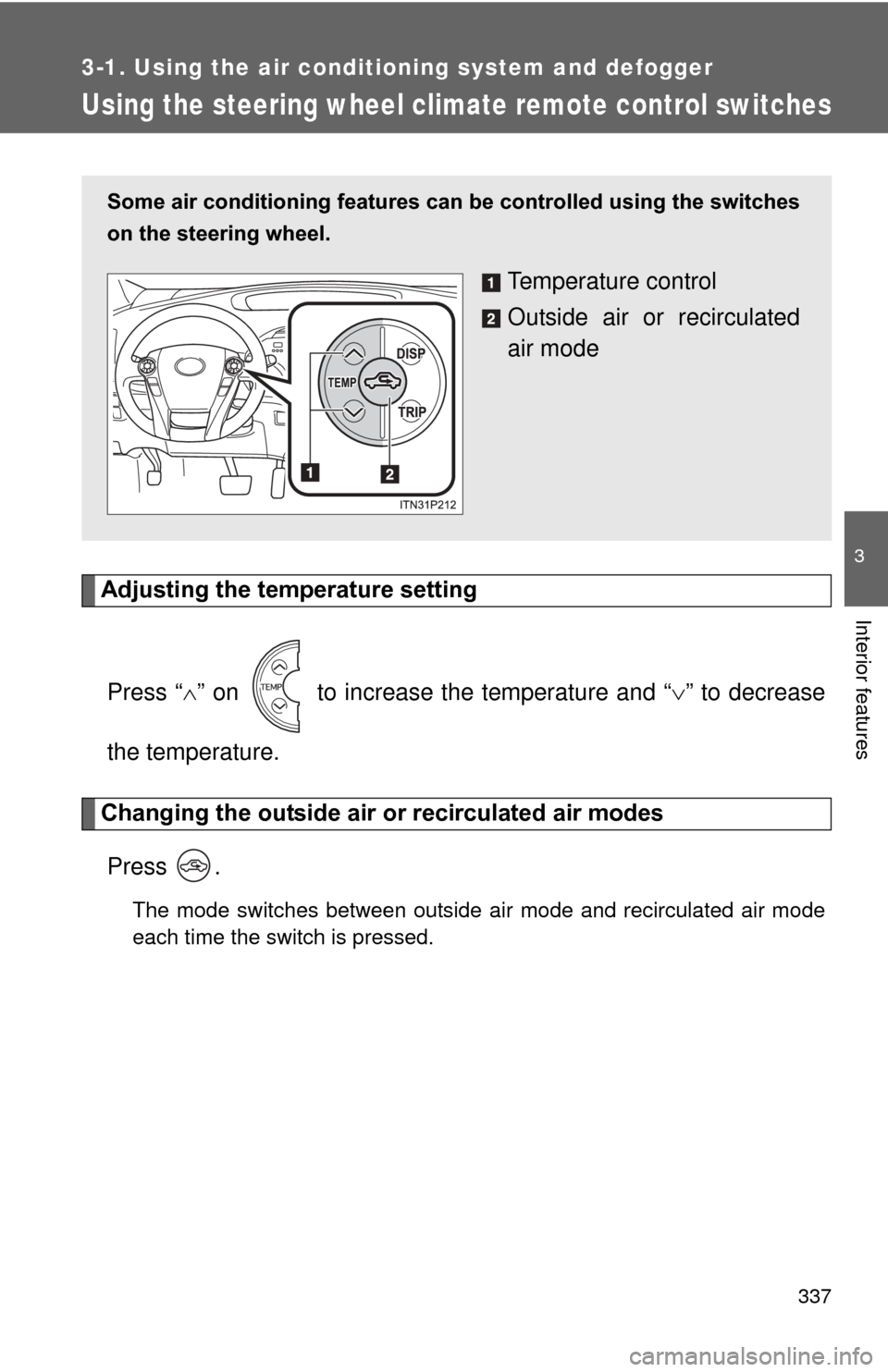
Adjusting the temperature settingPress “ ” on to increase the temperature and “ ” to decrease
the temperature.
Changing the outside air or recirculated air modes
Press .
The mode switches between outside air mode and recirculated air mode
each time the switch is pressed.
Some air conditioning features can be controlled using the switches
on the steering wheel.
Temperature control
Outside air or recirculated
air mode
Page 340 of 636
340 3-1. Using the air conditioning system and defogger
■Operating conditions
The Solar Ventilation System may not operate under the following circum-
stances due to a lack of power from the solar panel:
●Low amount of sunlight
● Ever when a part of the solar panel is cast by a shadow.
● Ever when a part of the solar panel is covered by fallen leaves or dirt.
● The solar panel is not at a high temperature.
■ Before using the Solar Ventilation System
Remove dirt or fallen leaves from the solar panel in order to ensure sufficient
electrical output.
■ Efficient use of the So lar Ventilation System
Efficient control of temperature increase can be achieved by using the sys-
tem in conjunction with the Remote Air Conditioning System. ( P. 342)
■ When using the Sola r Ventilation System
● Make sure that the “POWER” switch is in ON mode when turning the
ventilation switch on. If the ventilation switch is turned on while the
“POWER” switch is OFF, the air mode and the status of the air vents will
remain unchanged.
● If the Solar Ventilation System is not needed, be sure to turn the ventila-
tion switch off.
Dirty air and exhaust fumes from other vehicles may be drawn from out-
side. Also, use in winter may cause heated interior air to leave the vehi-
cle, thus leading to a drop in temperature.
■ Sounds when using the Solar Ventilation System
If the amount of sunlight is insufficient, you may hear a sound coming from
the air conditioning system. This is the sound of a control function to pre-
serve the fan and does not indicate a malfunction.
Page 342 of 636
342
3-1. Using the air conditioning system and defogger
Remote Air Conditioning System
■Operating conditions
The system will only operate if all of the following conditions are met:
●The shift position is in P.
● The “POWER” switch is OFF.
● All doors are closed.
● The hood is closed.
● The brake pedal is not being depressed.
● The air conditioning is not set to “HI”.
: If equipped
The Remote Air Conditioning Syst em uses electrical energy stored
in the hybrid battery (traction batt ery) and allows the air conditioning
to be operated by remote control.
■ Before leaving the vehicle
Check the temperature setting of the air conditioning system.
The Remote Air Conditioning System will operate in accordance with
the temperature settings of the air conditioning system.
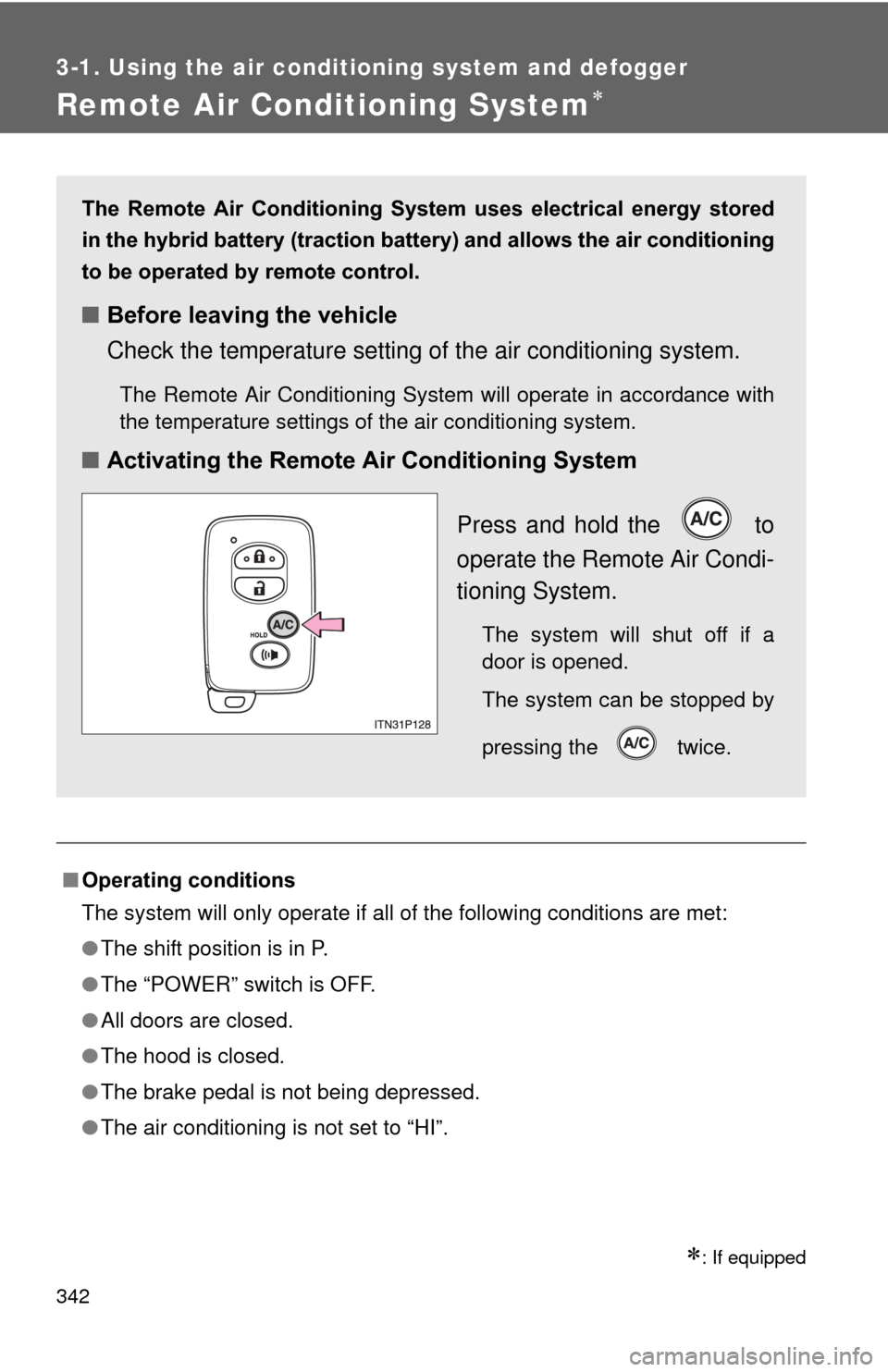
■Activating the Remote Air Conditioning System
Press and hold the to
operate the Remote Air Condi-
tioning System.
The system will shut off if a
door is opened.
The system can be stopped by
pressing the twice.
Page 344 of 636
344 3-1. Using the air conditioning system and defogger
■Security feature
Any unlocked doors will be automatically locked when the system is operat-
ing. The buzzer will beep and the emergency flashers flash when the doors
have been locked or the system has been turned off.
(The doors locked: Once; The system turned off: Twice)
■ Conditions affecting operation
P. 7 2
■ Electronic key battery depletion
P. 7 6
■ When the electronic key battery is fully depleted
P. 7 6
■ Customization
Setting (e.g. Operation using the on the wireless remote control) can
be changed.
(Customizable features P. 596)
Page 381 of 636
381
3-5. Other interior features
3
Interior features
■
Programming HomeLink®
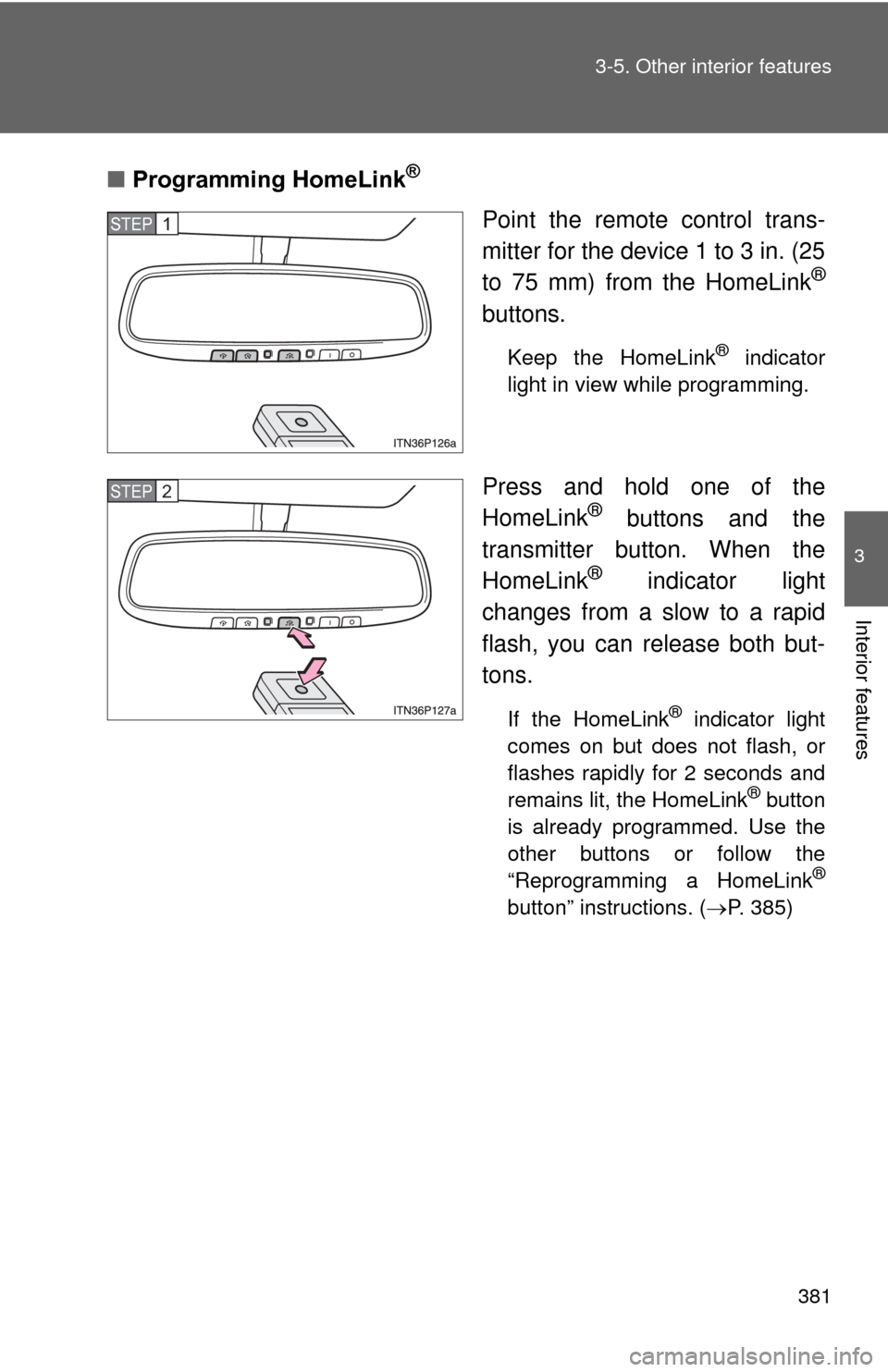
Point the remote control trans-
mitter for the device 1 to 3 in. (25
to 75 mm) from the HomeLink
®
buttons.
Keep the HomeLink® indicator
light in view while programming.
Press and hold one of the
HomeLink® buttons and the
transmitter button. When the
HomeLink
® indicator light
changes from a slow to a rapid
flash, you can release both but-
tons.
If the HomeLink® indicator light
comes on but does not flash, or
flashes rapidly for 2 seconds and
remains lit, the HomeLink
® button
is already programmed. Use the
other buttons or follow the
“Reprogramming a HomeLink
®
button” instructions. ( P. 385)
STEP 1
STEP 2
Page 382 of 636
382 3-5. Other interior features
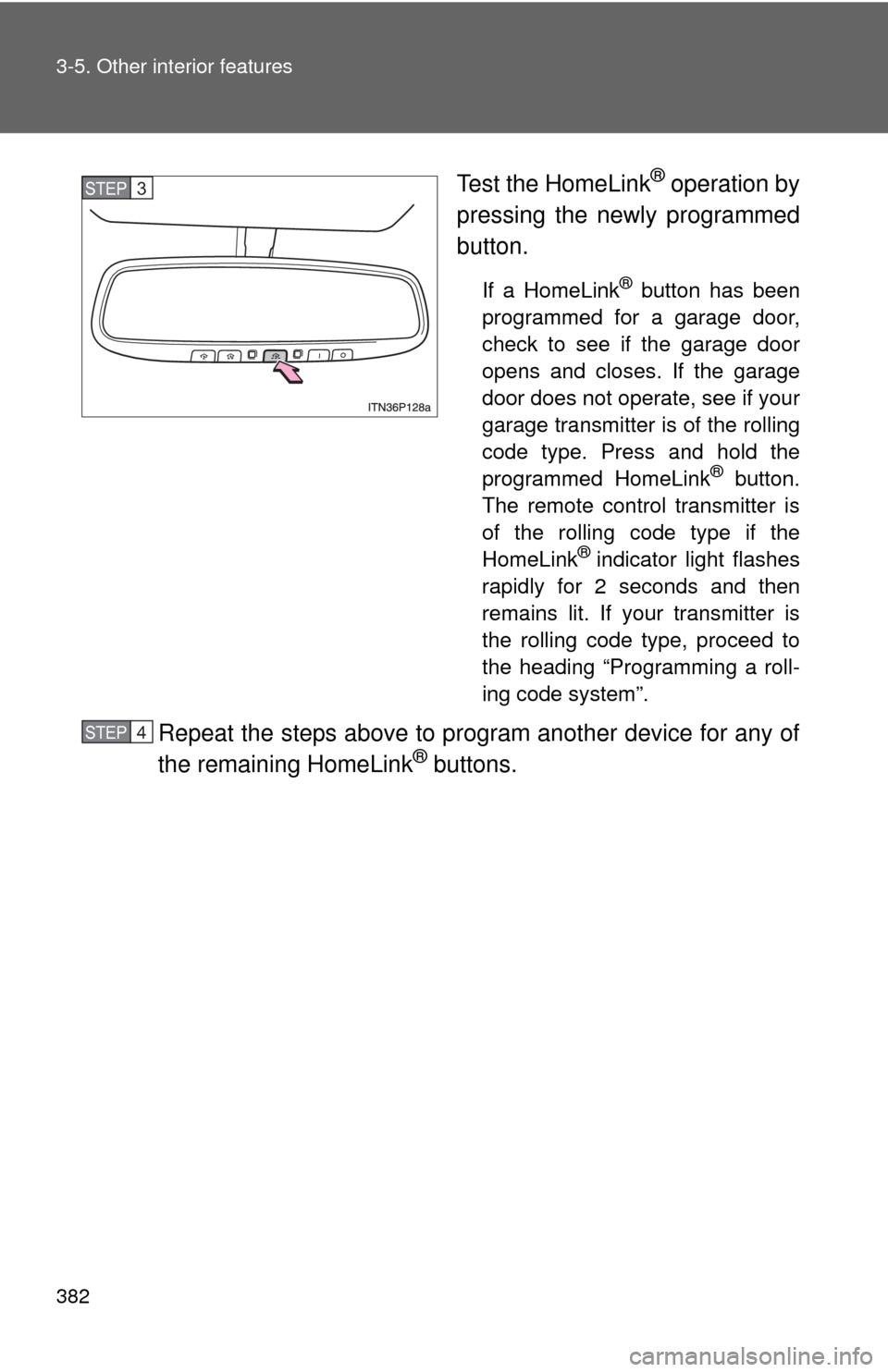
Test the HomeLink® operation by
pressing the newly programmed
button.
If a HomeLink® button has been
programmed for a garage door,
check to see if the garage door
opens and closes. If the garage
door does not operate, see if your
garage transmitter is of the rolling
code type. Press and hold the
programmed HomeLink
® button.
The remote control transmitter is
of the rolling code type if the
HomeLink
® indicator light flashes
rapidly for 2 seconds and then
remains lit. If your transmitter is
the rolling code type, proceed to
the heading “Programming a roll-
ing code system”.
Repeat the steps above to program another device for any of
the remaining HomeLink® buttons.
STEP 3
STEP 4
Page 384 of 636
384 3-5. Other interior features
■Programming an entry gate (f or U.S.A. owners)/Programming
a devices in the Canadian market
Place the remote control transmitter 1 to 3 in. (25 to 75 mm)
away from the HomeLink
® buttons.
Keep the HomeLink® indicator light in view while programming.
Press and hold the selected HomeLink® button.
Repeatedly press and release (cycle) the remote control
transmitter for 2 seconds each until step 4 is completed.
When the HomeLink
® indicator light starts to flash rapidly,
release the buttons.
Test the HomeLink
® operation by pressing the newly pro-
grammed button. Check to see if the gate/device operates
correctly.
Repeat the steps above to program another device for any of
the remaining HomeLink
® buttons.
■ Programming other devices
To program other devices such as home security systems, home
door locks and lighting, contact your Toyota dealer for assistance.
■ Reprogramming a button
The individual HomeLink
® buttons cannot be erased but can be
reprogrammed. To reprogram a button, follow the “Reprogramming
a HomeLink
® button” instructions.
STEP 1
STEP 2
STEP 3
STEP 4
STEP 5
STEP 6