lights TOYOTA PRIUS 2017 4.G Workshop Manual
[x] Cancel search | Manufacturer: TOYOTA, Model Year: 2017, Model line: PRIUS, Model: TOYOTA PRIUS 2017 4.GPages: 796, PDF Size: 20.13 MB
Page 291 of 796
PRIUS_OM_OM47B54U_(U)
2914-5. Using the driving support systems
4
Driving
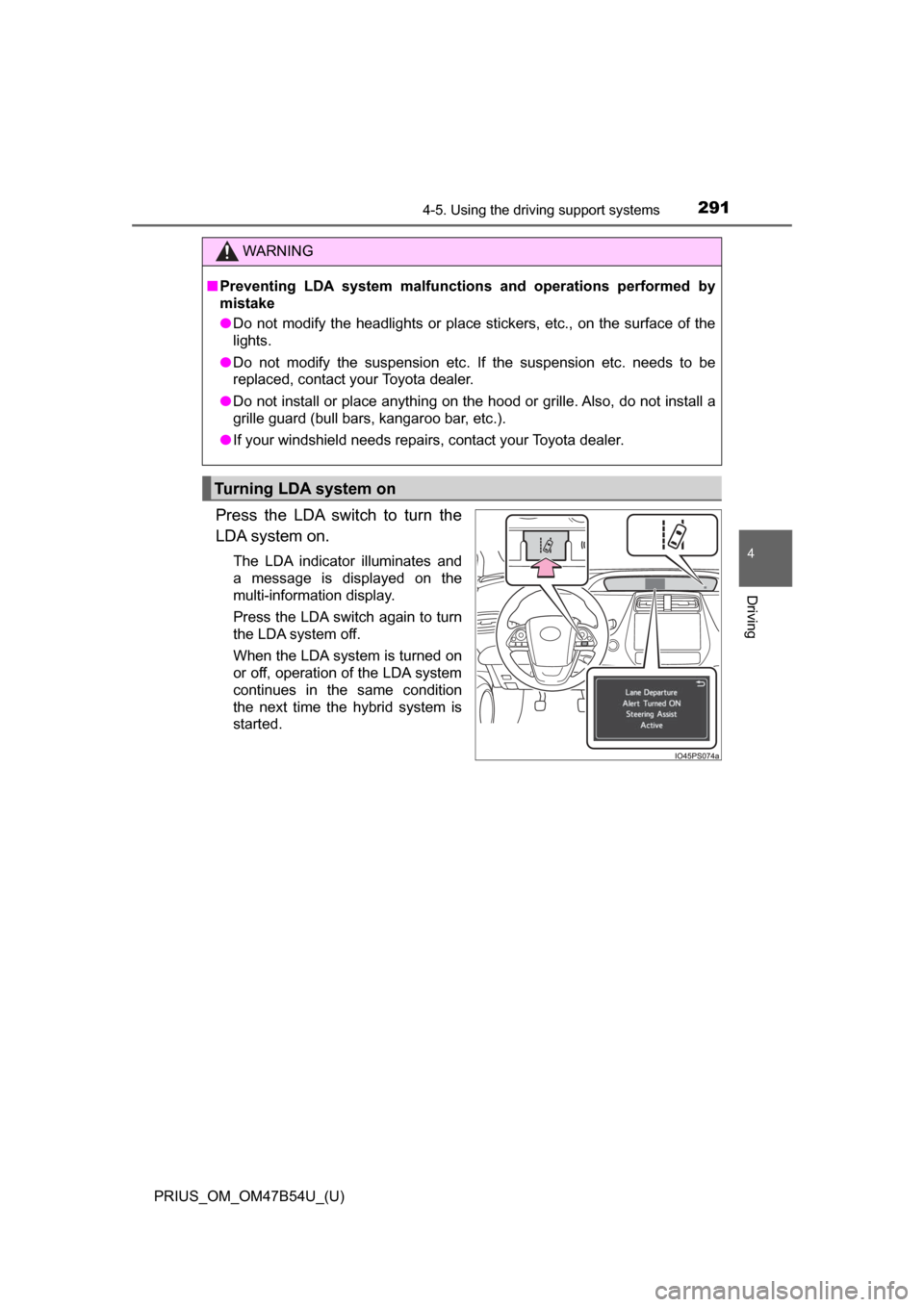
Press the LDA switch to turn the
LDA system on.
The LDA indicator illuminates and
a message is displayed on the
multi-information display.
Press the LDA switch again to turn
the LDA system off.
When the LDA system is turned on
or off, operation of the LDA system
continues in the same condition
the next time the hybrid system is
started.
WARNING
■Preventing LDA system malfunctions and operations performed by
mistake
● Do not modify the headlights or place stickers, etc., on the surface of the
lights.
● Do not modify the suspension etc. If the suspension etc. needs to be
replaced, contact your Toyota dealer.
● Do not install or place anything on the hood or grille. Also, do not install a
grille guard (bull bars, kangaroo bar, etc.).
● If your windshield needs repairs, contact your Toyota dealer.
Turning LDA system on
Page 295 of 796

PRIUS_OM_OM47B54U_(U)
2954-5. Using the driving support systems
4
Driving
■Conditions in which functions may not operate properly
In the following situations, the camera sensor may not detect white (yellow)
lines and various functions may not operate normally.
●There are shadows on the road that run parallel with, or cover, the white
(yellow) lines.
● The vehicle is driven in an area without white (yellow) lines, such as in front
of a tollgate or checkpoint, or at an intersection, etc.
● The white (yellow) lines are cracked, “Botts’ dots”, “Raised pavement
marker” or stones are present.
● The white (yellow) lines cannot be seen or are difficult to see due to sand,
etc.
● The vehicle is driven on a road surface that is wet due to rain, puddles, etc.
● The traffic lines are yellow (which may be more difficult to recognize than
lines that are white).
● The white (yellow) lines cross over a curb, etc.
● The vehicle is driven on a bright surface, such as concrete.
● The vehicle is driven on a surface that is bright due to reflected light, etc.
● The vehicle is driven in an area where the brightness changes suddenly,
such as at the entrances and exits of tunnels, etc.
● Light from the headlights of an oncoming vehicle, the sun, etc., enters the
camera.
● The vehicle is driven where the road diverges, merges, etc.
● The vehicle is driven on a slope.
● The vehicle is driven on a road which tilts left or right, or a winding road.
● The vehicle is driven on an unpaved or rough road.
● The vehicle is driven around a sharp curve.
● The traffic lane is excessively narrow or wide.
● The vehicle is extremely tilted due to carrying heavy luggage or having
improper tire pressure.
● The distance to the preceding vehicle is extremely short.
● The vehicle is moving up and down a large amount due to road conditions
during driving (poor roads or road seams).
● The headlight lenses are dirty and emit a faint amount of light at night, or the
beam axis has deviated.
● The vehicle is struck by a crosswind.
● The vehicle has just changed lanes or crossed an intersection.
● Snow tires, etc., are equipped.
Page 302 of 796

302
PRIUS_OM_OM47B54U_(U)
4-5. Using the driving support systems
Example of constant speed cruising
When there are no vehicles ahead
The vehicle travels at the speed set by the driver. The desired vehicle-to-
vehicle distance can also be set by operating the vehicle-to-vehicle dis-
tance button.
Example of deceleration cruising and follow-up cruising
When a preceding vehicle driving slower than the set speed
appears
When a vehicle is detected running ahead of you, the system automatically
decelerates your vehicle. When a greater reduction in vehicle speed is
necessary, the system applies the brakes (the stop lights will come on at
this time). The system will respond to changes in the speed of the vehicle
ahead in order to maintain the vehicle-to-vehicle distance set by the driver.
Approach warning warns you when the system cannot decelerate suffi-
ciently to prevent your vehicle from closing in on the vehicle ahead.
When the vehicle ahead of you stops, your vehicle will also stop (vehicle is
stopped by system control). After the vehicle ahead starts off, pushing the
cruise control lever up or depressing the accelerator pedal will resume fol-
low-up cruising.
Example of acceleration
When there are no longer any preceding vehicles driving slower
than the set speed
The system accelerates until the set speed is reached. The system then
returns to constant speed cruising.
1
2
3
Page 352 of 796
352
PRIUS_OM_OM47B54U_(U)
4-5. Using the driving support systems
■Situations when the system may opera te even though there is no possi-
bility of a collision
In the following situations, the system may operate even though there is no
possibility of a collision.
● Environmental influence
• The vehicle is driven toward a banner or flag, a low-hanging branch or a
boom barrier (such as those used at railroad crossings, toll gates and
parking lots).
• There is an obstacle on the shoulder of the road (when the vehicle is driven in a narrow tunnel, on a narrow bridge or on a narrow road)
• The vehicle is being parallel parked
• There is a rut or hole in the surface of the road
• When the vehicle is driven on a metal cover (grating), such as those used for drainage ditches
• The vehicle is driven on a steep slope
• The sensor is covered by water on a flooded road
● Influence from the weather
• Ice, snow, dirt, etc., has adhered to the sensor (if removed, the system
returns to normal)
• Heavy rain or water strikes the vehicle
• In severe weather such as fog, snow or a sand storm
● Influence from other sonic waves
• An ultrasonic wave source is nearby, such as the horn or clearance sonar
of another vehicle, a vehicle detector, a motorcycle engine or the air
brake of a large vehicle
• Electronic components (such as a backlit license plate (especially fluo-
rescent types), fog lights, a fender pole or a wireless antenna) are
installed near the sensors
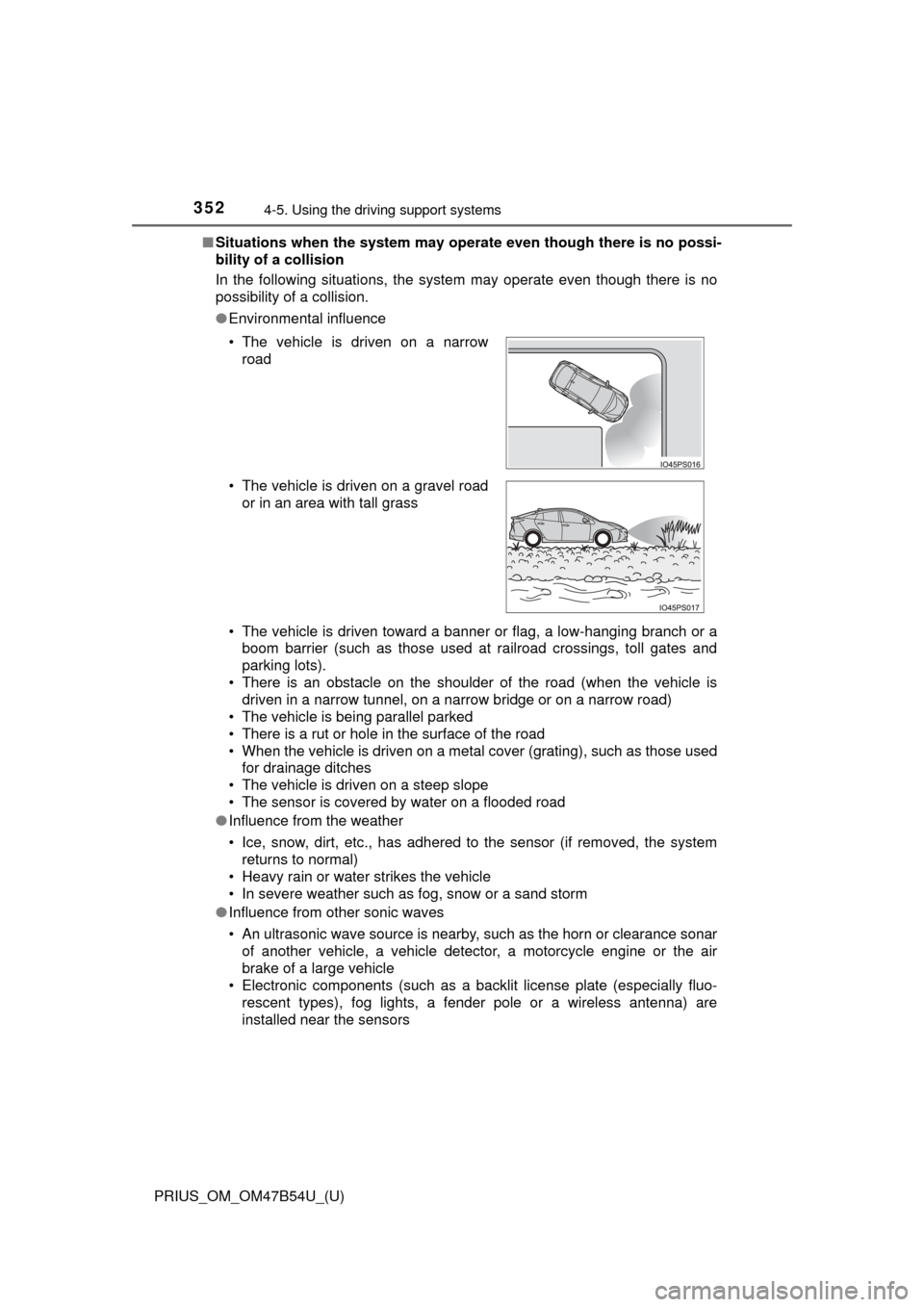
• The vehicle is driven on a narrow
road
• The vehicle is driven on a gravel road or in an area with tall grass
Page 354 of 796

354
PRIUS_OM_OM47B54U_(U)
4-5. Using the driving support systems
●Influence from other sonic waves
• An ultrasonic wave source is nearby, such as the horn or clearance sonar
of another vehicle, a vehicle detector, a motorcycle engine or the air
brake of a large vehicle
• Electronic components (such as a backlit license plate (especially fluo- rescent types), fog lights, a fender pole or a wireless antenna) are
installed near the sensors
● Changes in the vehicle
• The vehicle is tilted a large amount
• The height of the vehicle has drastically changed due to the carried load
(the nose tilts up or down)
• The direction of the sensor has deviated due to a collision or other impact
■ Intelligent Clearance Sonar function while the Simple Advanced Parking
Guidance System is operating
→P. 359
■ When removing and installi ng the 12-volt battery
The system needs to be initialized.
The system can be initialized by driving the vehicle straight ahead for 5 sec-
onds or more at a speed of approximately 22 mph (35 km/h) or higher.
■ When “ICS Unavailable” is displayed on the multi-information display
and the ICS OFF indicator flashes
● Ice, snow, dirt, etc., may have adhered to the sensor. If this occurs, remove
the ice, snow, dirt, etc., from the sensor to return the system to normal.
Also, a warning message may be displayed at low temperatures due to ice
forming on the sensor, and the sensor may not detect obstacles. Once the
ice melts, the system will return to normal.
● If this message is shown even after removing dirt from the sensor, or shown
when the sensor was not dirty to begin with, have the vehicle inspected at
your Toyota dealer.
● System initialization may not have been performed after removal and instal-
lation of the 12-volt battery. Perform system initialization.
■ When “ICS Malfunction Visit Your Deal er” is displayed on the multi-infor-
mation display, the ICS OFF indi cator flashes and the buzzer sounds
The system may not be operating properly. Have the vehicle inspected at
your Toyota dealer.
Page 399 of 796
PRIUS_OM_OM47B54U_(U)
3994-5. Using the driving support systems
4
Driving
■If you notice any symptoms
If you notice any of the following symptoms, refer to the likely cause
and the solution, and re-check.
If the symptom is not resolved by the solution, have the vehicle
inspected by your Toyota dealer.
Things you should know
Likely causeSolution
The image is difficult to see
• The vehicle is in a dark area
• The temperature around the lens
is either high or low
• The outside temperature is low
• There are water droplets on the camera
• It is raining or humid
• Foreign matter (mud, etc.) is adhering to the camera
• Sunlight or headlights are shining directly into the camera
• The vehicle is under fluorescent
lights, sodium lights, mercury
lights etc.
If this happens due to these causes,
it does not indicate a malfunction.
Back up while visually checking the
vehicle’s surroundings. (Use the
monitor again once conditions have
been improved.)
The procedure for adjusting the pic-
ture quality of the rear view monitor
system is the same as the proce-
dure for adjusting the screen.
The image is blurry
Dirt or foreign matter (such as water
droplets, snow, mud, etc.) is adher-
ing to the camera.Flush the camera with a large quan-
tity of water and wipe the camera
lens clean with a soft and wet cloth.
The image is out of alignment
The camera or surrounding area has
received a strong impact.Have the vehicle inspected by your
Toyota dealer.
The fixed guide lines are very far out of alignment
The camera position is out of align-
ment.Have the vehicle inspected by your
Toyota dealer.
• The vehicle is tilted (there is a
heavy load on the vehicle, tire
pressure is low due to a tire punc-
ture, etc.)
• The vehicle is used on an incline.If this happens due to these causes,
it does not indicate a malfunction.
Back up while visually checking the
vehicle’s surroundings.
Page 410 of 796

410
PRIUS_OM_OM47B54U_(U)
4-6. Driving tips
◆When braking
Make sure to operate the brakes gently and in a timely manner. A
greater amount of electrical energy can be regenerated when slow-
ing down.
◆Delays
Repeated acceleration and deceleration, as well as long waits at
traffic lights, will lead to bad fuel economy. Check traffic reports
before leaving and avoid delays as much as possible. When driving
in a traffic jam, gently release the brake pedal to allow the vehicle to
move forward slightly while avoi ding overuse of the accelerator
pedal. Doing so can help control excessive gasoline consumption.
◆Highway driving
Control and maintain the vehicle at a constant speed. Before stop-
ping at a toll booth or similar, allow plenty of time to release the
accelerator and gently apply the br akes. A greater amount of elec-
trical energy can be regenerated when slowing down.
◆Air conditioning
Use the air conditioning only when necessary. Doing so can help
reduce excessive gasoline consumption.
In summer: When the ambient temperature is high, use the recircu-
lated air mode. Doing so will help to reduce the burden on the air
conditioning system and reduce fuel consumption as well.
In winter: Because the gasoline eng ine will not automatically cut out
until it and the interior of the vehi cle are warm, it will consume fuel.
Fuel consumption can be improved by avoiding overuse of the
heater.
Page 412 of 796
412
PRIUS_OM_OM47B54U_(U)
4-6. Driving tips
Winter driving tips
●Use fluids that are appropriate to the prevailing outside tempera-
tures. • Engine oil
• Engine/power control unit coolant
• Washer fluid
● Have a service technician inspec t the condition of the 12-volt bat-
tery.
● Have the vehicle fitted with four snow tires or purchase a set of tire
chains for the front tires.
Ensure that all tires are the same size and brand, and that chains match
the size of the tires.
Perform the following accordin g to the driving conditions:
● Do not try to forcibly open a window or move a wiper that is frozen.
Pour warm water over the frozen area to melt the ice. Wipe away
the water immediately to prevent it from freezing.
● To ensure proper operation of the climate control system fan,
remove any snow that has accumulated on the air inlet vents in
front of the windshield.
● Check for and remove any excess ice or snow that may have accu-
mulated on the exterior lights, vehicle’s roof, chassis, around the
tires or on the brakes.
● Remove any snow or mud from the bottom of your shoes before
getting in the vehicle.
Carry out the necessary preparations and inspections before
driving the vehicle in winter. Al ways drive the vehicle in a man-
ner appropriate to the prevailing weather conditions.
Preparation for winter
Before driving the vehicle
Page 430 of 796
430
PRIUS_OM_OM47B54U_(U)
5-2. Setup
Display settings
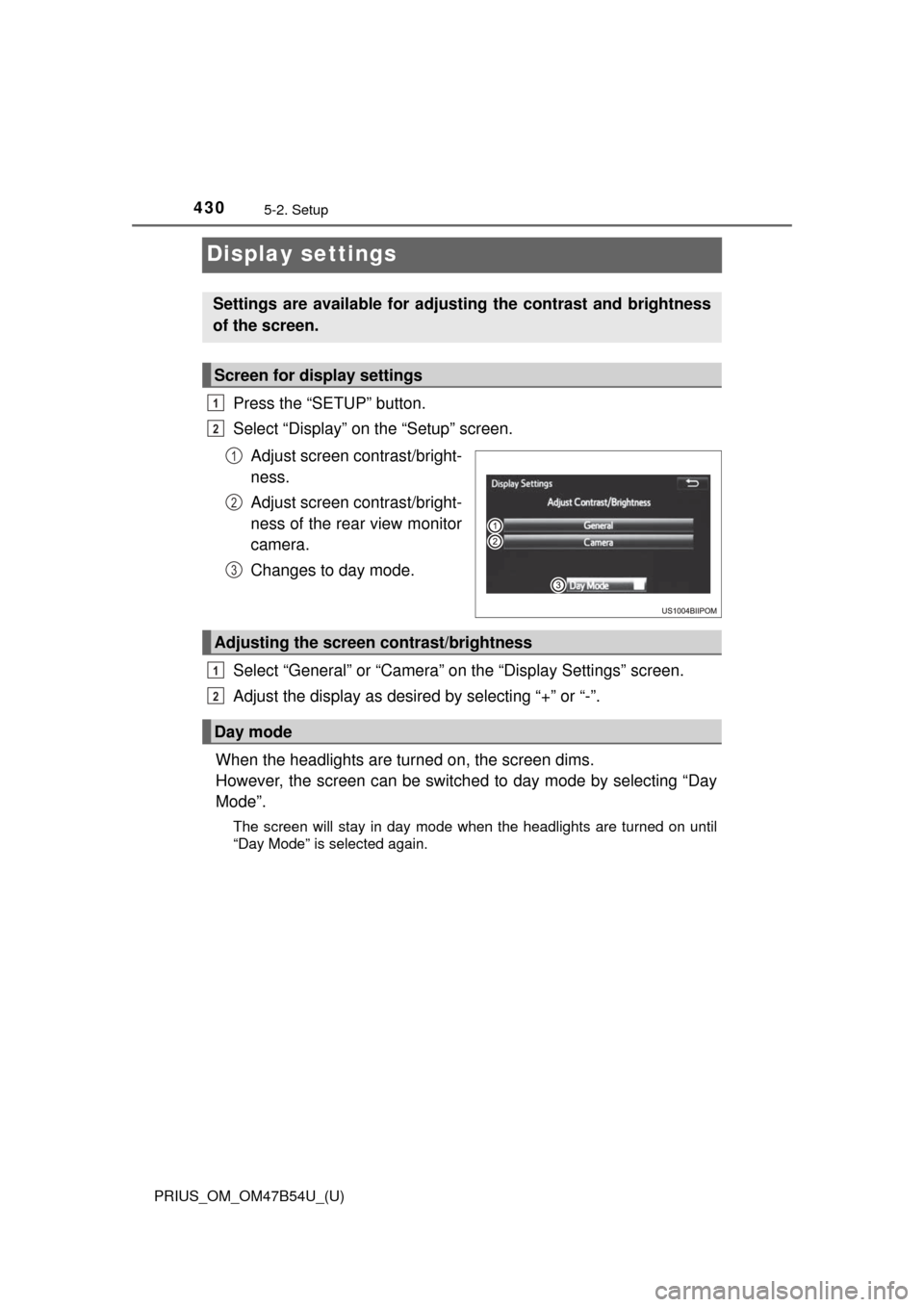
Press the “SETUP” button.
Select “Display” on the “Setup” screen.Adjust screen contrast/bright-
ness.
Adjust screen contrast/bright-
ness of the rear view monitor
camera.
Changes to day mode.
Select “General” or “Camera” on the “Display Settings” screen.
Adjust the display as desired by selecting “+” or “-”.
When the headlights are tur ned on, the screen dims.
However, the screen can be switch ed to day mode by selecting “Day
Mode”.
The screen will stay in day mode when the headlights are turned on until
“Day Mode” is selected again.
Settings are available for adjusting the contrast and brightness
of the screen.
Screen for display settings
1
2
1
2
3
Adjusting the screen contrast/brightness
Day mode
1
2
Page 509 of 796
509
PRIUS_OM_OM47B54U_(U)
6Interior features
6-1. Using the air conditioning system and defogger
Automatic air conditioning system ............................ 510
Seat heaters...................... 521
6-2. Using the interior lights Interior lights list ................ 523• Front interior light .......... 524
• Front personal lights ..... 524
• Rear interior light .......... 525
6-3. Using the storage features List of storage features ..... 526• Glove box...................... 527
• Console box .................. 527
• Cup holders/bottle holders/
door pockets ................. 528
• Auxiliary boxes.............. 530
Luggage compartment features ........................... 531
6-4. Using the other interior features
Other interior features ....... 540 • Sun visors ..................... 540
• Vanity mirrors................ 540
• Power outlets ................ 541
• Wireless charger ........... 542
• Armrest ......................... 550
• Coat hooks.................... 550
• Assist grips ................... 551
Garage door opener.......... 552
Safety Connect ................. 559