wheel TOYOTA PRIUS 2017 4.G Manual PDF
[x] Cancel search | Manufacturer: TOYOTA, Model Year: 2017, Model line: PRIUS, Model: TOYOTA PRIUS 2017 4.GPages: 796, PDF Size: 20.13 MB
Page 408 of 796

408
PRIUS_OM_OM47B54U_(U)
4-5. Using the driving support systems
WARNING
■When the TRAC/VSC systems are turned off
Be especially careful and drive at a speed appropriate to the road condi-
tions. As these are systems to help ensure vehicle stability and driving
force, do not turn the TRAC/VSC systems off unless necessary.
■ Replacing tires
Make sure that all tires are of the specified size and of the same brand,
tread pattern and total load capacity. In addition, make sure that the tires are
inflated to the recommended tire inflation pressure level.
The ABS, VSC and TRAC and other driving assist systems will not function
correctly if different tires are installed on the vehicle.
Contact your Toyota dealer for further information when replacing tires or
wheels.
■ Handling of tires and the suspension
Using tires with any kind of problem or modifying the suspension will affect
the driving assist systems, and may cause a system to malfunction.
Page 413 of 796
PRIUS_OM_OM47B54U_(U)
4134-6. Driving tips
4
Driving
Accelerate the vehicle slowly, keep a safe distance between you and
the vehicle ahead, and drive at a reduced speed suitable to road con-
ditions.
Park the vehicle and shift the shift position to P and block the wheel
under the vehicle without setting t he parking brake. The parking brake
may freeze up, preventing it from being released. If the vehicle is
parked without setting the parking brake, make sure to block the
wheels.
Failure to do so may be dangerous because it may cause the vehicle
to move unexpectedly, possibly leading to an accident.
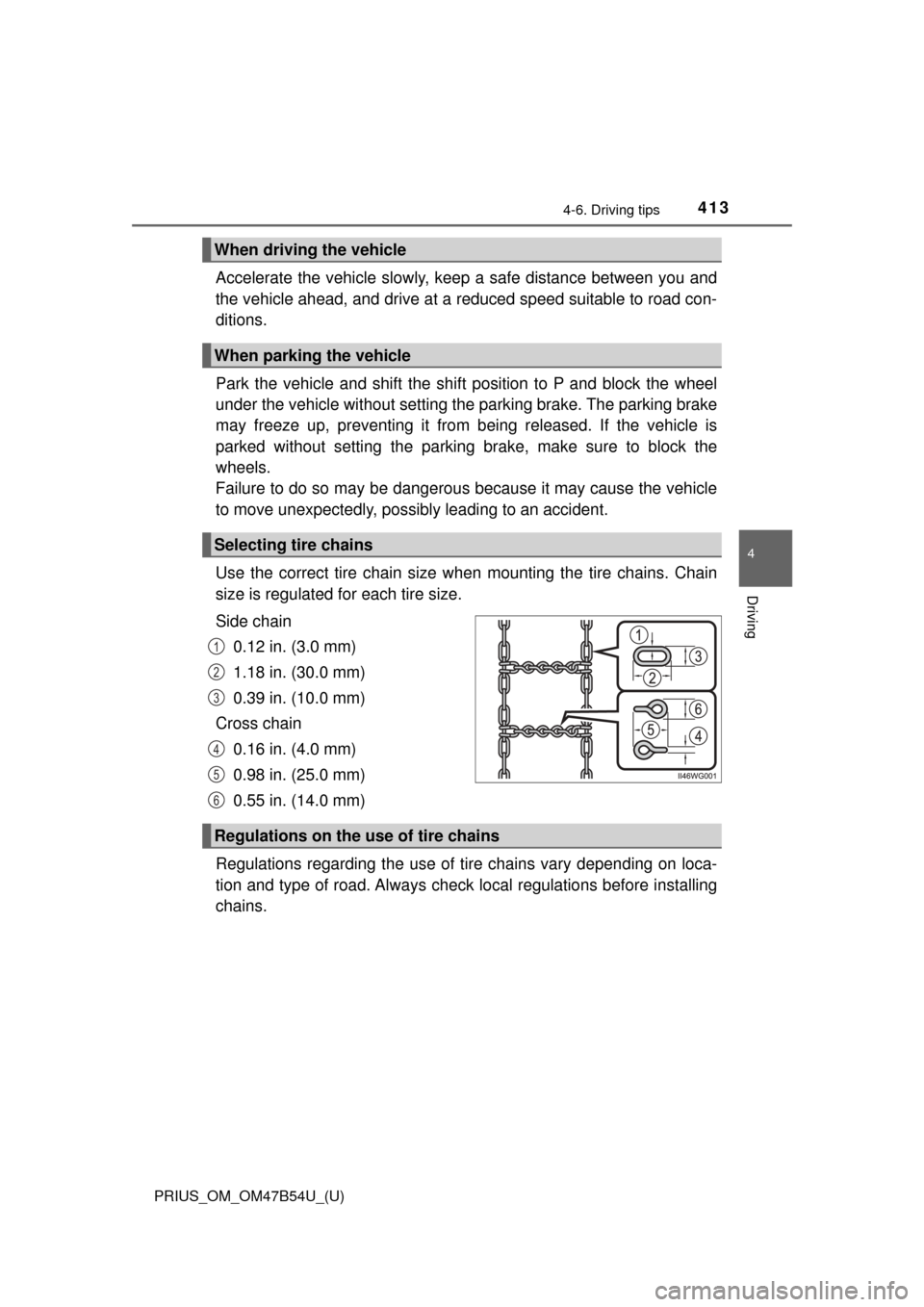
Use the correct tire chain size when mounting the tire chains. Chain
size is regulated for each tire size.
Side chain
0.12 in. (3.0 mm)
1.18 in. (30.0 mm)
0.39 in. (10.0 mm)
Cross chain 0.16 in. (4.0 mm)
0.98 in. (25.0 mm)
0.55 in. (14.0 mm)
Regulations regarding the use of tire chains vary depending on loca-
tion and type of road. Al ways check local regulations before installing
chains.
When driving the vehicle
When parking the vehicle
Selecting tire chains
1
2
3
4
5
6
Regulations on the use of tire chains
Page 414 of 796
414
PRIUS_OM_OM47B54U_(U)
4-6. Driving tips
■Tire chain installation
Observe the following precautions when installing and removing chains:
●Install and remove tire chains in a safe location.
● Install tire chains on the front tires only. Do not install tire chains on the rear
tires.
● Install tire chains on front tires as tightly as possible. Retighten chains after
driving 1/4 - 1/2 mile (0.5 - 1.0 km).
● Install tire chains following the instructions provided with the tire chains.
WARNING
■Driving with snow tires
Observe the following precautions to reduce the risk of accidents.
Failure to do so may result in a loss of vehicle control and cause death or
serious injury.
● Use tires of the specified size.
● Maintain the recommended level of air pressure.
● Do not drive in excess of 75 mph (120 km/h), regardless of the type of
snow tires being used.
● Use snow tires on all, not just some wheels.
■ Driving with tire chains
Observe the following precautions to reduce the risk of accidents.
Failure to do so may result in the vehicle being unable to be driven safely,
and may cause death or serious injury.
● Do not drive in excess of the speed limit specified for the tire chains being
used, or 30 mph (50 km/h), whichever is lower.
● Avoid driving on bumpy road surfaces or over potholes.
● Avoid sudden acceleration, abrupt steering, sudden braking and shifting
operations that cause sudden engine braking.
● Slow down sufficiently before entering a curve to ensure that vehicle con-
trol is maintained.
■ When parking the vehicle
When parking the vehicle without applying the parking brake, make sure to
chock the wheels. If you do not chock the wheels, the vehicle may move
unexpectedly, possibly resulting in an accident.
Page 416 of 796

416
PRIUS_OM_OM47B54U_(U)
5-1. Basic OperationsAudio system types .......... 418
Audio system .................... 419
Using the steering wheel audio switches ................ 422
AUX Port/USB Port .......... 423
Basic audio operations ..... 424
5-2. Setup Setup menu ...................... 426
General settings ............... 427
Audio settings ................... 429
Display settings ................ 430
Voice settings ................... 431
5-3. Using the Multimedia system
Selecting the audio source............................. 432
List screen operation ........ 433
Optimal use of the audio system ............................ 435
5-4. Using the radio Radio operation ................ 436
5Audio system
Page 417 of 796

417
PRIUS_OM_OM47B54U_(U)
5Audio system
5-5. Playing an audio CD and MP3/WMA/AAC discs
CD player operation.......... 438
5-6. Using an external device iPod player operation........ 444
USB memory device player operation.............. 449
Using the AUX .................. 454
5-7. Connecting Bluetooth
®
Preparations to use wireless
communication ............... 455
Registering a Bluetooth
®
audio player for the
first time .......................... 458
Registering a Bluetooth
®
phone for the first time.... 459
Registering a Bluetooth
® device ........... 460
Connecting a Bluetooth
® device ........... 462
Displaying a Bluetooth®
device details.................. 464
Detailed Bluetooth
®
settings ........................... 465 5-8. Bluetooth
® Audio
Listening to Bluetooth®
Audio .............................. 466
5-9. Bluetooth
® phone
Using a Bluetooth®
Phone ............................. 468
Making a call .................... 471
Receiving a call ................ 474
Speaking on the phone .... 475
Bluetooth
® phone
message function ........... 478
Using the steering wheel switches.......................... 482
Bluetooth
® phone
settings ........................... 483
Contact/Call History Settings .......................... 484
What to do if... (Troubleshooting) ........... 493
5-10. Bluetooth
®
Bluetooth®........................ 497
5-11. Using the voice command system
Voice command system ............................ 503
Page 422 of 796
422
PRIUS_OM_OM47B54U_(U)
5-1. Basic Operations
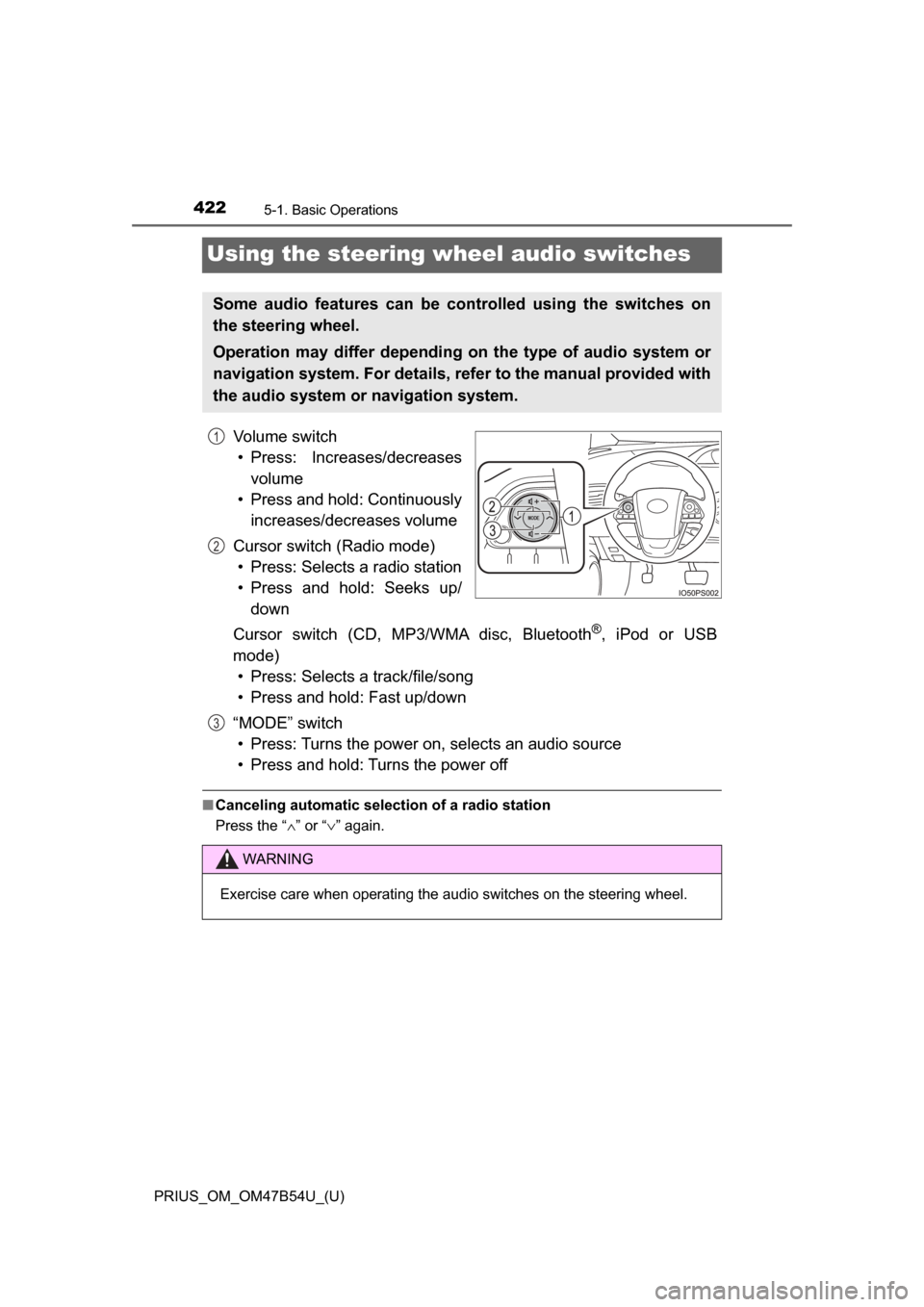
Using the steering wheel audio switches
Volume switch• Press: Increases/decreases volume
• Press and hold: Continuously increases/decreases volume
Cursor switch (Radio mode) • Press: Selects a radio station
• Press and hold: Seeks up/ down
Cursor switch (CD, MP3/WMA disc, Bluetooth
®, iPod or USB
mode) • Press: Selects a track/file/song
• Press and hold: Fast up/down
“MODE” switch • Press: Turns the power on, selects an audio source
• Press and hold: Turns the power off
■ Canceling automatic selection of a radio station
Press the “ ∧” or “ ∨” again.
Some audio features can be controlled using the switches on
the steering wheel.
Operation may differ depending on the type of audio system or
navigation system. For details, refer to the manual provided with
the audio system or navigation system.
1
2
WARNING
Exercise care when operating the audio switches on the steering wheel.
3
Page 432 of 796
432
PRIUS_OM_OM47B54U_(U)
5-3. Using the Multimedia system
Selecting the audio source
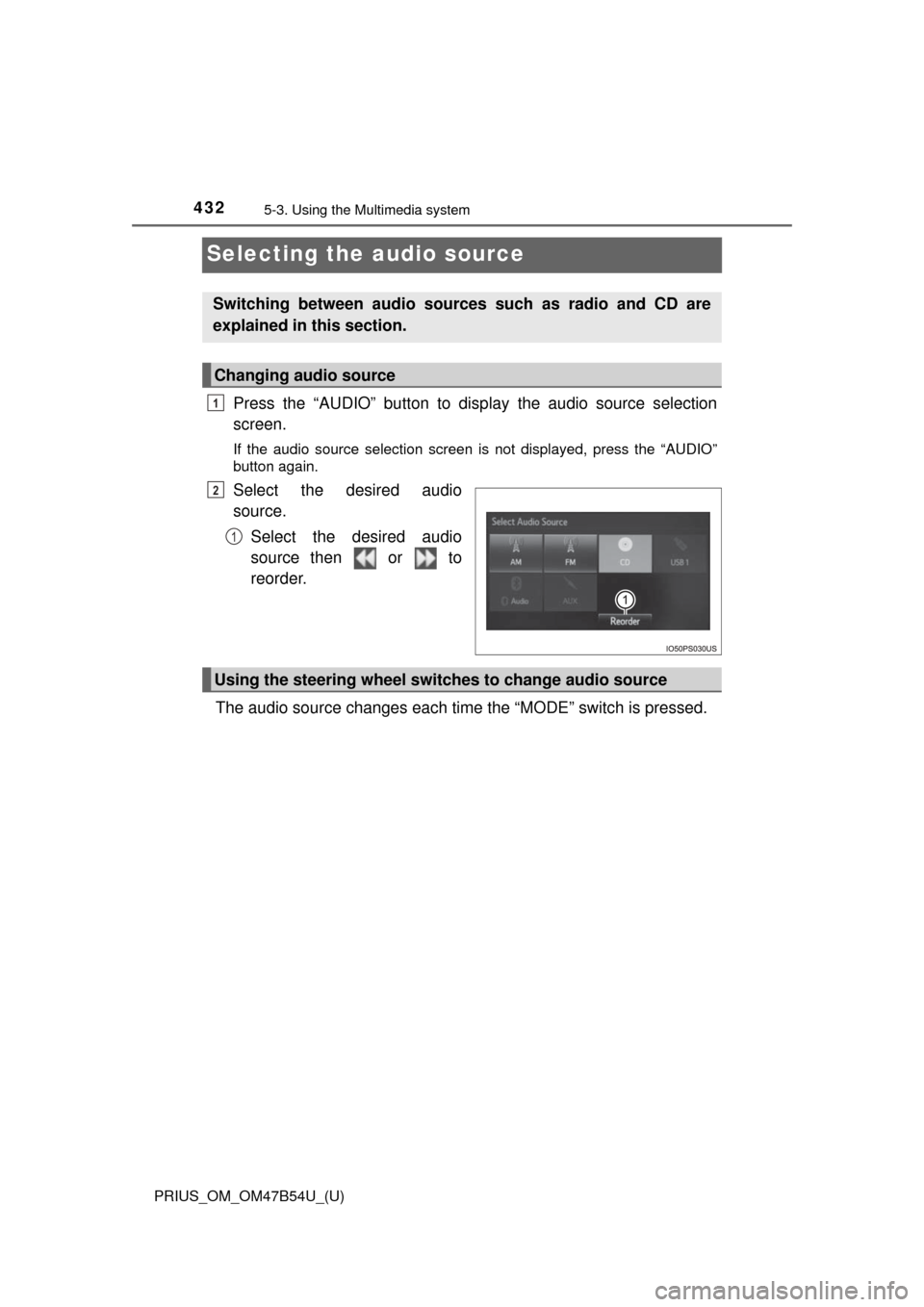
Press the “AUDIO” button to display the audio source selection
screen.
If the audio source selection screen is not displayed, press the “AUDIO”
button again.
Select the desired audio
source.
Select the desired audio
source then or to
reorder.
The audio source changes each time the “MODE” switch is pressed.
Switching between audio sources such as radio and CD are
explained in this section.
Changing audio source
1
2
1
Using the steering wheel switches to change audio source
Page 468 of 796
468
PRIUS_OM_OM47B54U_(U)
5-9. Bluetooth® phone
Using a Bluetooth® Phone
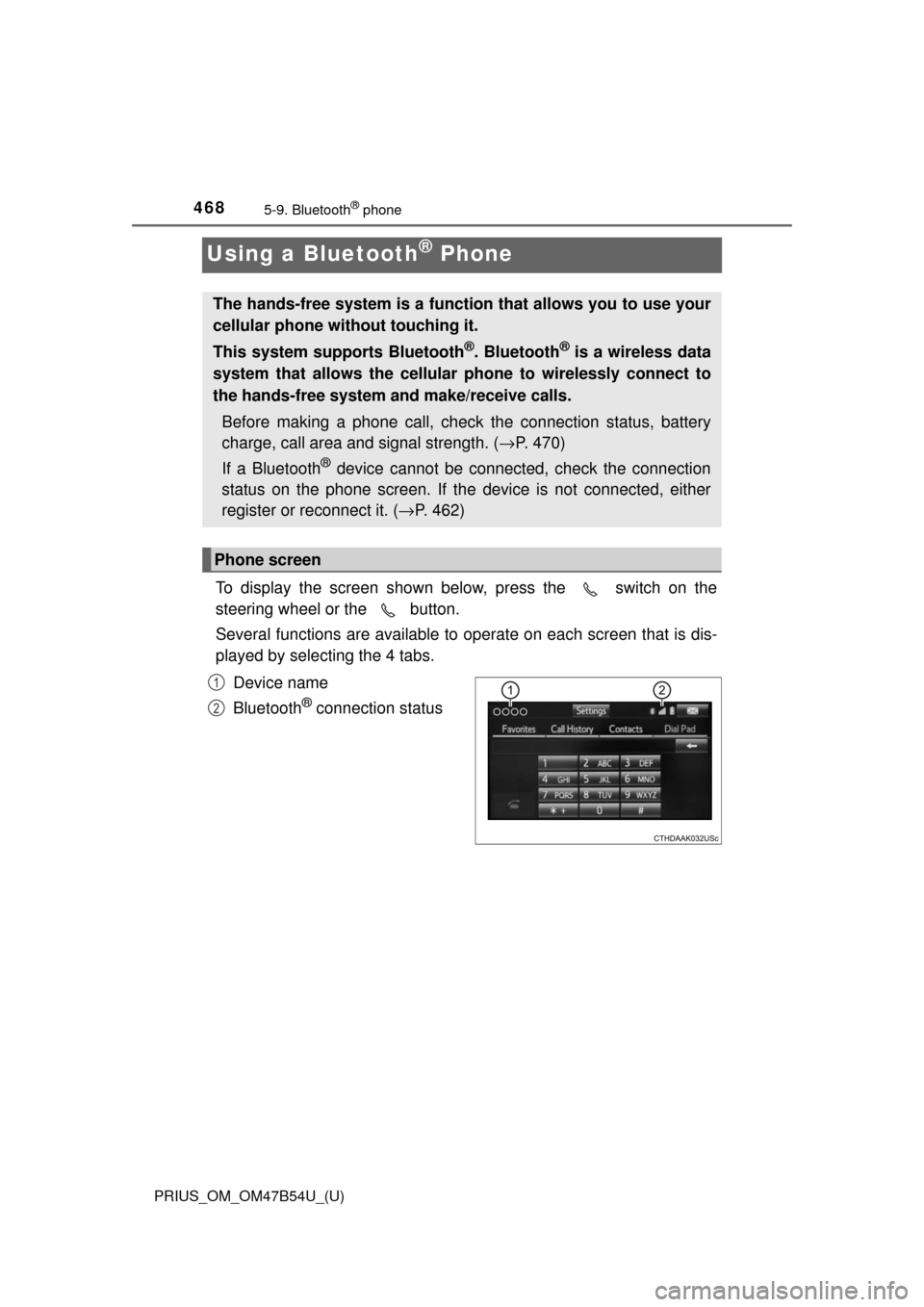
To display the screen shown below, press the switch on the
steering wheel or the button.
Several functions are available to operate on each screen that is dis-
played by selecting the 4 tabs.
Device name
Bluetooth
® connection status
The hands-free system is a function that allows you to use your
cellular phone without touching it.
This system supports Bluetooth
®. Bluetooth® is a wireless data
system that allows the cellular phone to wirelessly connect to
the hands-free system and make/receive calls.
Before making a phone call, check the connection status, battery
charge, call area and signal strength. ( →P. 470)
If a Bluetooth
® device cannot be connected, check the connection
status on the phone screen. If th e device is not connected, either
register or reconnect it. ( →P. 462)
Phone screen
1
2
Page 471 of 796
471
PRIUS_OM_OM47B54U_(U)
5-9. Bluetooth® phone
5
Audio system
Making a call
Display the phone screen. (→P. 468)
Select the “Dial Pad” tab and enter a phone number.
To delete the input phone number, select .
For the first digit, you can enter “+” by selecting “ ∗” for a while.
Press the switch on the steering wheel or select .
You can dial a number from the contact data imported from your cellu-
lar phone. The system has one contac t list for each registered phone.
Up to 2500 contacts may be stored for each contact list. ( →P. 471)
Display the phone screen. ( →P. 468)
Select “Contacts” tab.
Choose the desired contact to call from the list.
Choose the number and then press the switch on the steering
wheel or select .
You can transfer the phone numbers in a Bluetooth
® phone to the sys-
tem.
Operation methods differ between P BAP (Phone Book Access Profile)
compatible and PBAP incompatible Bluetooth
® phones. If the cellular
phone does not support either PB AP or OPP (Object Push Profile)
service, you cannot transfer contacts.
Once a Bluetooth® phone is registered, you can make a call
using the following procedure:
Dialing
Dialing from the contacts list
When the contact is empty
1
2
3
1
2
3
4
Page 474 of 796
474
PRIUS_OM_OM47B54U_(U)
5-9. Bluetooth® phone
Receiving a call
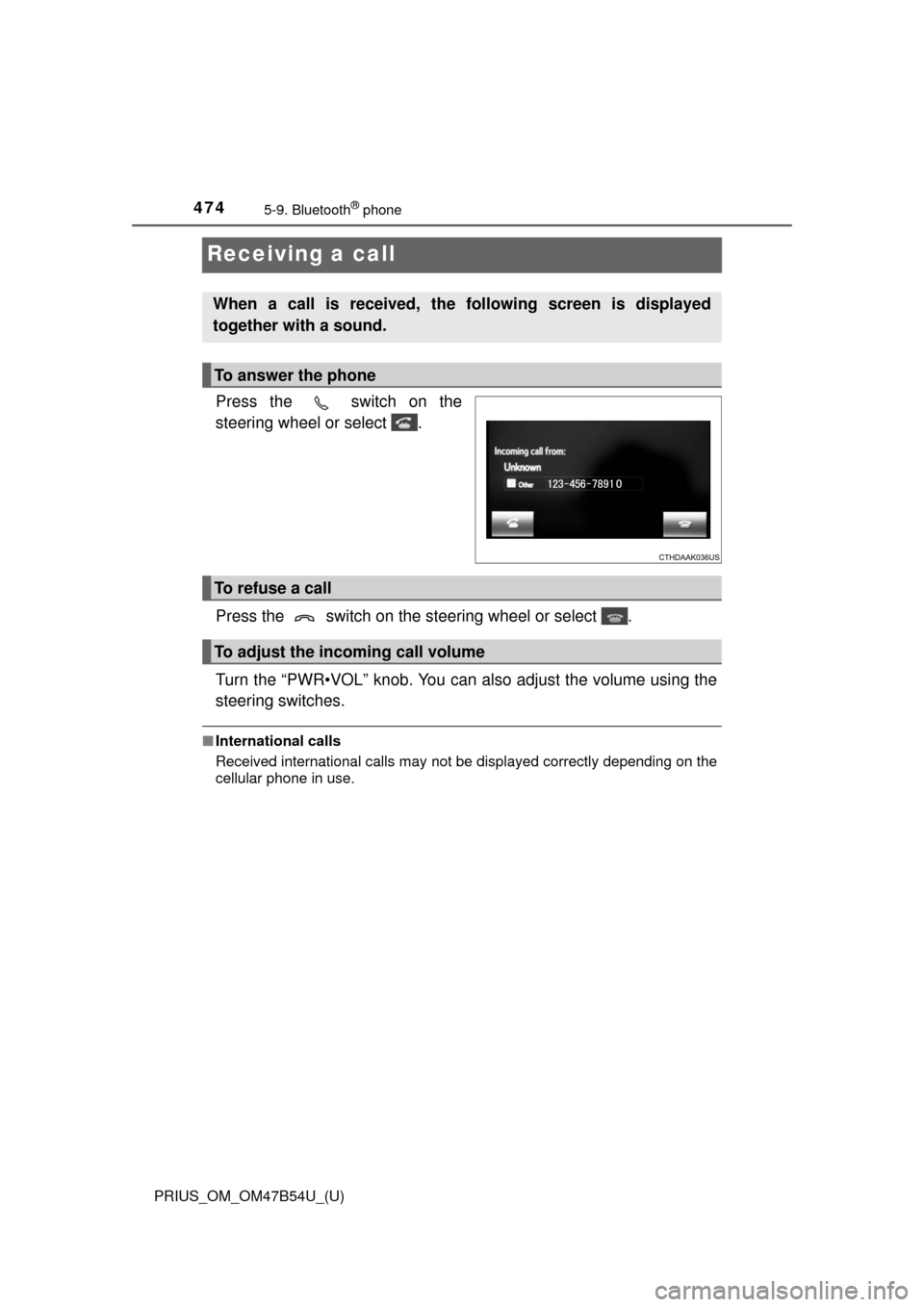
Press the switch on the
steering wheel or select .
Press the switch on the steering wheel or select .
Turn the “PWR•VOL” knob. You can also adjust the volume using the
steering switches.
■International calls
Received international calls may not be displayed correctly depending on the
cellular phone in use.
When a call is received, the following screen is displayed
together with a sound.
To answer the phone
To refuse a call
To adjust the incoming call volume