ad blue TOYOTA PRIUS 2018 Accessories, Audio & Navigation (in English)
[x] Cancel search | Manufacturer: TOYOTA, Model Year: 2018, Model line: PRIUS, Model: TOYOTA PRIUS 2018Pages: 294, PDF Size: 4.43 MB
Page 269 of 294
269
1. Entune App Suite OVERVIEW
PRIUS_Navi_OM47C01U_(U)
17.08.28 17:21
Entune App Suite
8
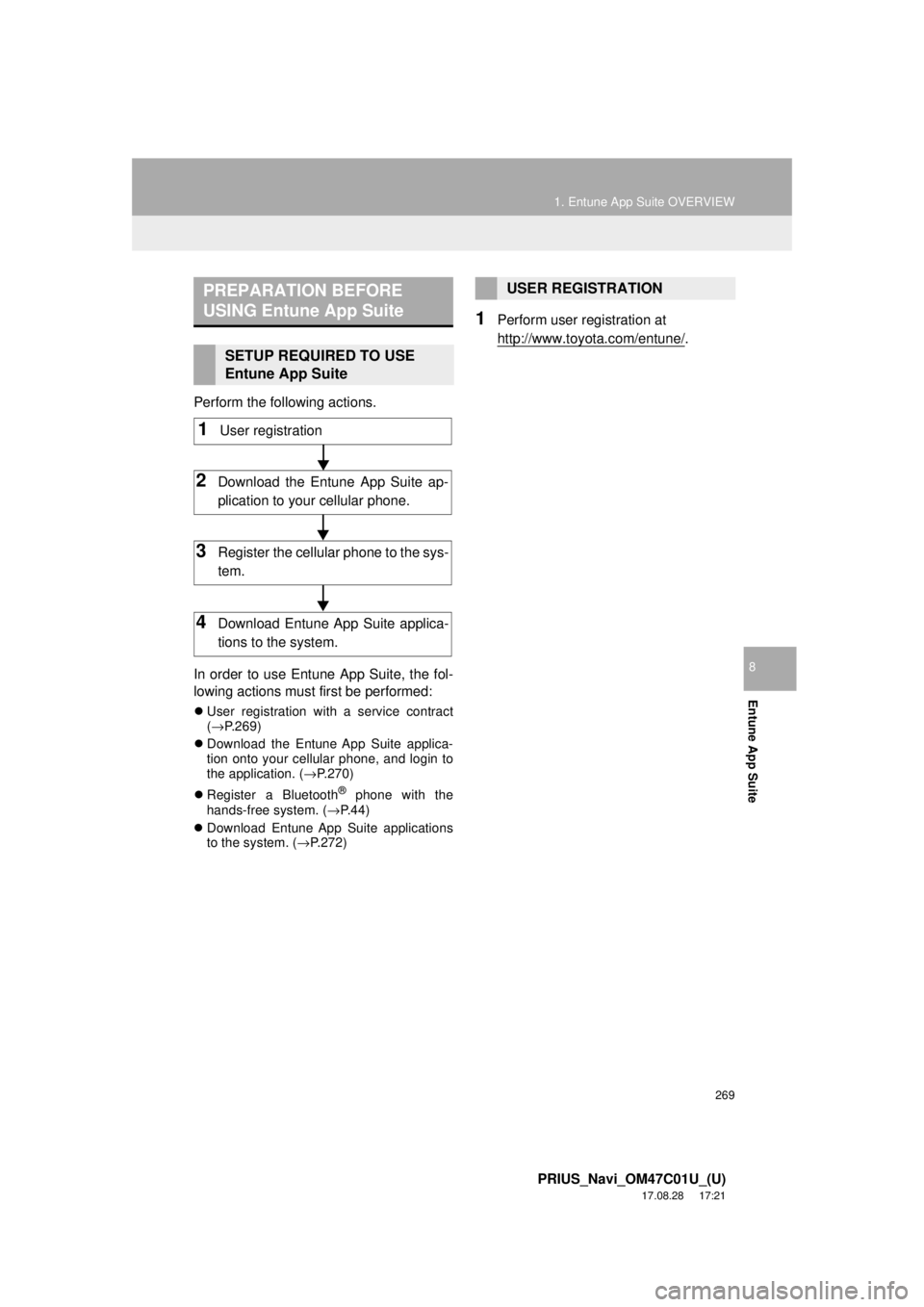
Perform the following actions.
In order to use Entune App Suite, the fol-
lowing actions must first be performed:
User registration with a service contract
(→ P.269)
Download the Entune App Suite applica-
tion onto your cellular phone, and login to
the application. ( →P.270)
Register a Bluetooth
® phone with the
hands-free system. (→ P.44)
Download Entune App Suite applications
to the system. ( →P.272)
1Perform user registration at
http://www.toyota.com/entune/
.
PREPARATION BEFORE
USING Entune App Suite
SETUP REQUIRED TO USE
Entune App Suite
1User registration
2Download the Entune App Suite ap-
plication to your cellular phone.
3Register the cellul ar phone to the sys-
tem.
4Download Entune App Suite applica-
tions to the system.
USER REGISTRATION
Page 270 of 294
270
1. Entune App Suite OVERVIEW
PRIUS_Navi_OM47C01U_(U)
17.08.28 17:21
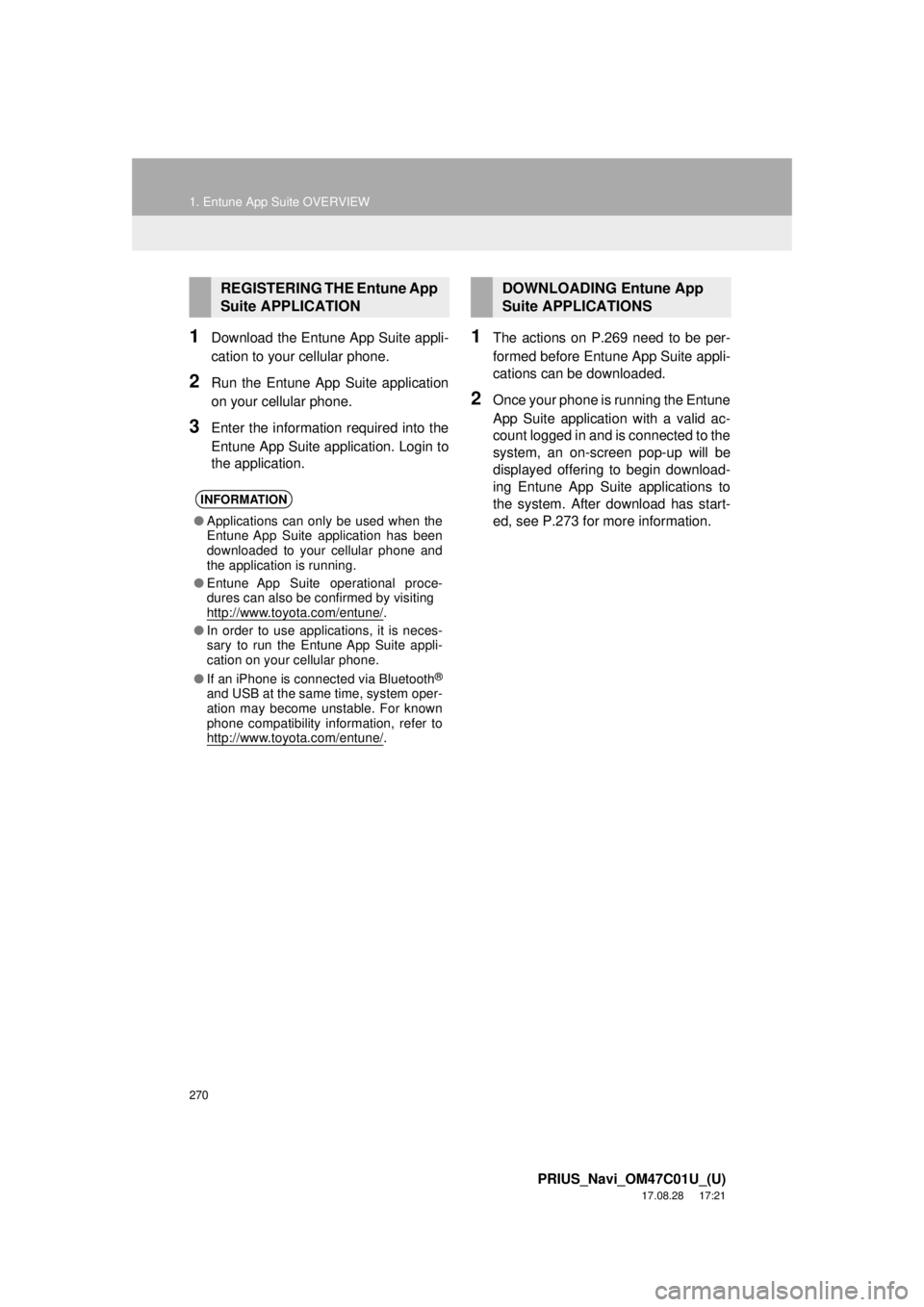
1Download the Entune App Suite appli-
cation to your cellular phone.
2Run the Entune App Suite application
on your cellular phone.
3Enter the information required into the
Entune App Suite application. Login to
the application.
1The actions on P.269 need to be per-
formed before Entune App Suite appli-
cations can be downloaded.
2Once your phone is running the Entune
App Suite application with a valid ac-
count logged in and is connected to the
system, an on-screen pop-up will be
displayed offering to begin download-
ing Entune App Suite applications to
the system. After download has start-
ed, see P.273 for more information.
REGISTERING THE Entune App
Suite APPLICATION
INFORMATION
●Applications can only be used when the
Entune App Suite application has been
downloaded to your cellular phone and
the application is running.
● Entune App Suite operational proce-
dures can also be confirmed by visiting
http://www.toyota.com/entune/
.
● In order to use applications, it is neces-
sary to run the Entune App Suite appli-
cation on your cellular phone.
● If an iPhone is connected via Bluetooth
®
and USB at the same time, system oper-
ation may become unstable. For known
phone compatibility information, refer to
http://www.toyota.com/entune/
.
DOWNLOADING Entune App
Suite APPLICATIONS
Page 274 of 294
274
2. Entune App Suite OPERATION
PRIUS_Navi_OM47C01U_(U)
17.08.28 17:21
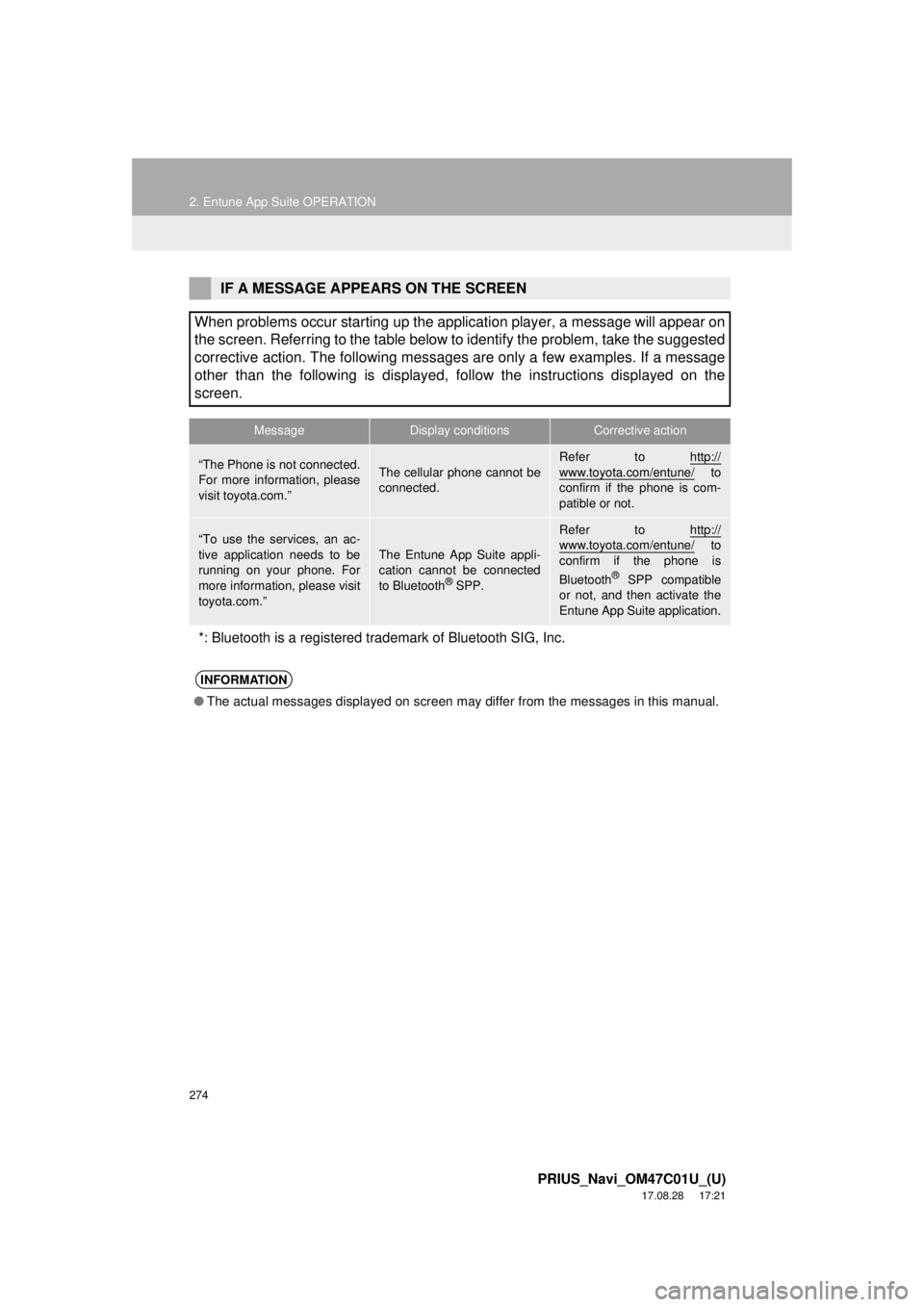
IF A MESSAGE APPEARS ON THE SCREEN
When problems occur starting up the application player, a message will appear on
the screen. Referring to the table below to identify the problem, take the suggested
corrective action. The following messages are only a few examples. If a message
other than the following is displayed, follow the instructions displayed on \
the
screen.
MessageDisplay conditionsCorrective action
“The Phone is not connected.
For more information, please
visit toyota.com.”The cellular phone cannot be
connected.
Refer to http://
www.toyota.com/entune/ to
confirm if the phone is com-
patible or not.
“To use the services, an ac-
tive application needs to be
running on your phone. For
more information, please visit
toyota.com.”The Entune App Suite appli-
cation cannot be connected
to Bluetooth
® SPP.
Refer to http://www.toyota.com/entune/ to
confirm if the phone is
Bluetooth
® SPP compatible
or not, and then activate the
Entune App Suite application.
*: Bluetooth is a registered trade mark of Bluetooth SIG, Inc.
INFORMATION
●The actual messages displayed on screen may differ from the messages in this manual.
Page 280 of 294

280
ALPHABETICAL INDEX
PRIUS_Navi_OM47C01U_(U)
17.08.28 18:01
A
AM/FM radio ............................................. 79Available HD radio™ technology........... 87
Caching a radio program ....................... 84
Overview ............................................... 79
Presetting a station................................ 83
Radio broadcast data system ................ 85
Selecting a station from the list ............. 83
Traffic announcement (FM radio) .......... 86
Troubleshooting guide ........................... 89
Using HD radio™ technology ................ 87
“Apps” screen............................................ 14
Audio remote controls ............................. 121
Audio settings ......................................... 123 Audio settings screen .......................... 123
Audio system ....... ..................................... 71
AUX......................................................... 118 Overview ............................................. 118
B
Basic function...................................... 12, 31
Basic information before operation ........... 32
Basic operation ................................. 72, 196
Bluetooth
® audio ..................................... 113
Connecting a Bluetooth® device ......... 117
Listening to Bluetooth® audio .............. 117
Overview ............................................. 113
Bluetooth
® phone message function ...... 169
Calling the message sender ................ 173
Checking messages ............................ 171
Message inbox screen ........................ 169
Receiving a message .......................... 170
Replying to a message (Quick reply) .................................... 172
Bluetooth
® settings ................................... 44
C
Calling on the Bluetooth® phone .............159
By call history ......................................160
By contacts list.....................................161
By dial pad ...........................................163
By favorites list ....................................160
By “Home” screen................................164
By off hook switch................................163
Capacitive touch switches .........................34
Casual speech recognization ..................143
CD .............................................................99 Overview................................................99
Playing an audio CD ............................102
Playing an MP3/WMA/AAC disc ..........102
Command list ..........................................144
Controls overview......................................12
D
Data services settings .............................152 Setting download methods ..................152
Destination search ..................................212
Destination search screen.......................212
Detailed navigation settings ....................248 Screens for navigation settings ...........248
Driver settings ...........................................65 Manually select linked settings ..............65
ALPHABETICAL INDEX
Page 283 of 294

283
PRIUS_Navi_OM47C01U_(U)
17.08.28 18:01
R
Radio operation ........................................ 79
Receiving on the Bluetooth® phone........ 165
Incoming calls ..................................... 165
Receiving weather information ............... 150 Displaying weather information ........... 150
Registering home...................................... 22
Registering preset destinations ................ 24
Registering/connecting Bluetooth
®
device .................................................... 44
Certification ........................................... 48
Profiles .................................................. 46
Registering a Bluetooth
® audio
player for the first time ....................... 45
Registering a Bluetooth
® phone for
the first time ....................................... 44
Route guidance....................................... 228
Route guidance screen ........................... 228 During freeway driving ........................ 230
Route overview ................................... 229
Screen for route guidance ................... 228
Turn list screen.................................... 232
Turn-by-turn arrow screen................... 232
When approaching intersection........... 231
S
Screen adjustment .................................... 41
Search operation..................................... 214Searching by address.......................... 216
Searching by address book ................. 220
Searching by coordinates .................... 223
Searching by emergency..................... 221
Searching by intersection and freeway ............................................ 221
Searching by map ............................... 223
Searching by point of interest .............. 217
Searching from previous destinations...................................... 220
Selecting search area.......................... 215
Setting home as destination ................ 215
Setting preset destinations as destination ....................................... 215
Setting Bluetooth
® details ......................... 50
“Bluetooth* Setup” screen ..................... 50
Connecting a Bluetooth
® device ........... 53
Deleting a Bluetooth® device ................ 52
Editing the Bluetooth® device
information ......................................... 55
Registering a Bluetooth
® device ........... 51
“System Settings” screen ...................... 56
Setting home as the destination................ 27
Setup............................... 123, 174, 248, 278
“Setup” screen .......................................... 20
*: Bluetooth is a registered trademark of Bluetooth SIG, Inc.
Page 284 of 294

284
ALPHABETICAL INDEX
PRIUS_Navi_OM47C01U_(U)
17.08.28 18:01
Some basics ..................................... 73, 155About the contacts in the contact list ........................................ 158
Disc slot ................................................. 75
Registering/connecting a Bluetooth
®
phone ............................................... 155
Selecting an audio source ..................... 74
Sound settings....................................... 76
Turning the system on and off ............... 73
USB/AUX port ....................................... 76
Using the phone switch/ microphone ...................................... 156
Voice command system ................ 78, 157
When selling or disposing of the vehicle.............................................. 158
Starting route guidance ........................... 224 Pausing guidance ................................ 227
Starting route guidance ....................... 224
Steering switches .................................... 121
T
Talking on the Bluetooth® phone ............ 166
Incoming call waiting ........................... 168
Tips for operating the audio system ........ 125
Tips for the navigation system ................ 259
Touch screen gestures ............................. 35
Touch screen operation ............................ 36
Traffic information ................................... 209 Displaying traffic information on the map .................................................. 211
Traffic settings......................................... 252 Auto avoid traffic.................................. 253
My traffic routes ................................... 254
Screen for traffic settings..................... 252
Troubleshooting ...................................... 187
Typical voice guidance prompts.............. 233
U
USB memory ...........................................103 Overview..............................................103
Playing a USB audio............................107
Useful information ...................................150
V
Voice command system ... ...............135, 136
Using the voice command system .......136
Voice command system operation ......137
Voice command system operation ..........136
Voice settings ............................................64 Voice settings screen ............................64
W
What to do if... ........................................187
X
XM Satellite Radio.....................................90Displaying the radio ID ..........................95
How to subscribe to an XM Satellite Radio..................................................93
If the satellite radio tuner malfunctions .......................................97
Overview................................................90
Presetting a channel ..............................95
Selecting a channel from the list............96